

In this video Michael Reimer tours the new GoHighLevel navigation and its five parts: the grouped sidebar, pins and recents, search, edit nav and saved layouts. Then he builds a front desk layout for a dental office. It is for agencies that want clients to log in and know where to go.
Start with the one thing that did not change. Inside every page, nothing is different. Your contacts and your workflows work exactly the way they did before. What changed is how you get to them. Michael compares it to walking into your kitchen after somebody reorganized it. Every plate is still there. It is just sitting in a smarter cabinet.
Where did everything go in the new HighLevel sidebar?
Everything that used to sit in one long list is now grouped into categories down the left side. Settings is the one that throws people the most, because it now opens right inside the sidebar and no longer takes you to a whole different screen.
Michael calls out the moves people ask about. The phone system is under Settings, then Communications. Websites moved under Content, then Sites. AI Studio has its own AI category, with Voice AI sitting right next to it. Integrations now has its own spot in the main sidebar. Nothing got deleted.
How do pins, recents and search work?
At the very top of the sidebar you can pin up to five pages that you live in every day. Out of the box, HighLevel pins four pages for you, and you can swap them for whatever you use the most. To pin something new, click View all, then All products, and pin it right from there. Recents sit right underneath the pins, so the page you were just working on is one click away.
Search is the one Michael says he uses the most. From anywhere in GoHighLevel, press Control K on a Windows machine or Command K on a Mac, type what you are looking for and hit enter. It finds settings pages that used to be buried three clicks deep. It finds contacts by name. It even finds pages you have hidden from the sidebar. His advice is plain: if you cannot find something, do not go hunting through the menus. Search for it.
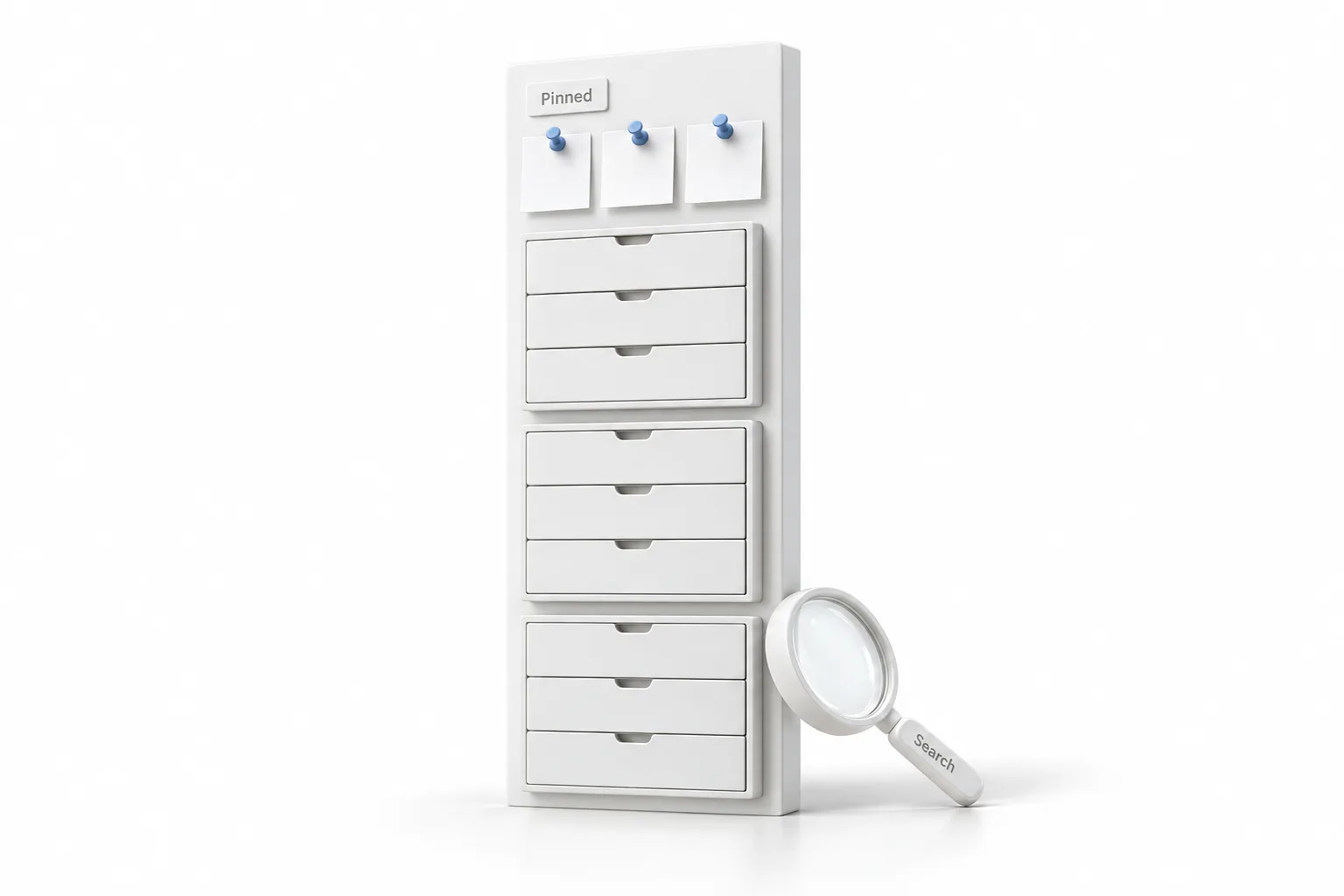
What can you change with edit nav and saved layouts?
At the bottom of the sidebar there is a button called Edit nav. Click it and the whole sidebar switches into edit mode. You can drag any category up or down. The three dots let you rename an item or give it a new icon. The little eye hides anything your team never uses. You can also add your own category and use Move to, so the exact tools you want sit inside it.
Once the sidebar is set up the way you like it, you save it as a layout. Saved layouts show up in every subaccount in your agency, so you can use the same setup again without building it from scratch. Of the five, this is the one Michael says he is most excited about.
Why do clients need fewer items in the sidebar?
Michael sees the same thing with agencies all the time. You build a client a great system, and then they barely log in. The software is not the problem. They log in, see 40 different things and have no idea where to start. So they go right back to their spreadsheet.
He compares it to a restaurant with a 200 item menu. You spend ten minutes reading and still do not order anything good. The best restaurants have maybe eight things on the menu, and they nail every single one. A layout lets you do the same thing for a client.
How do you build a sidebar layout for a dental front desk?
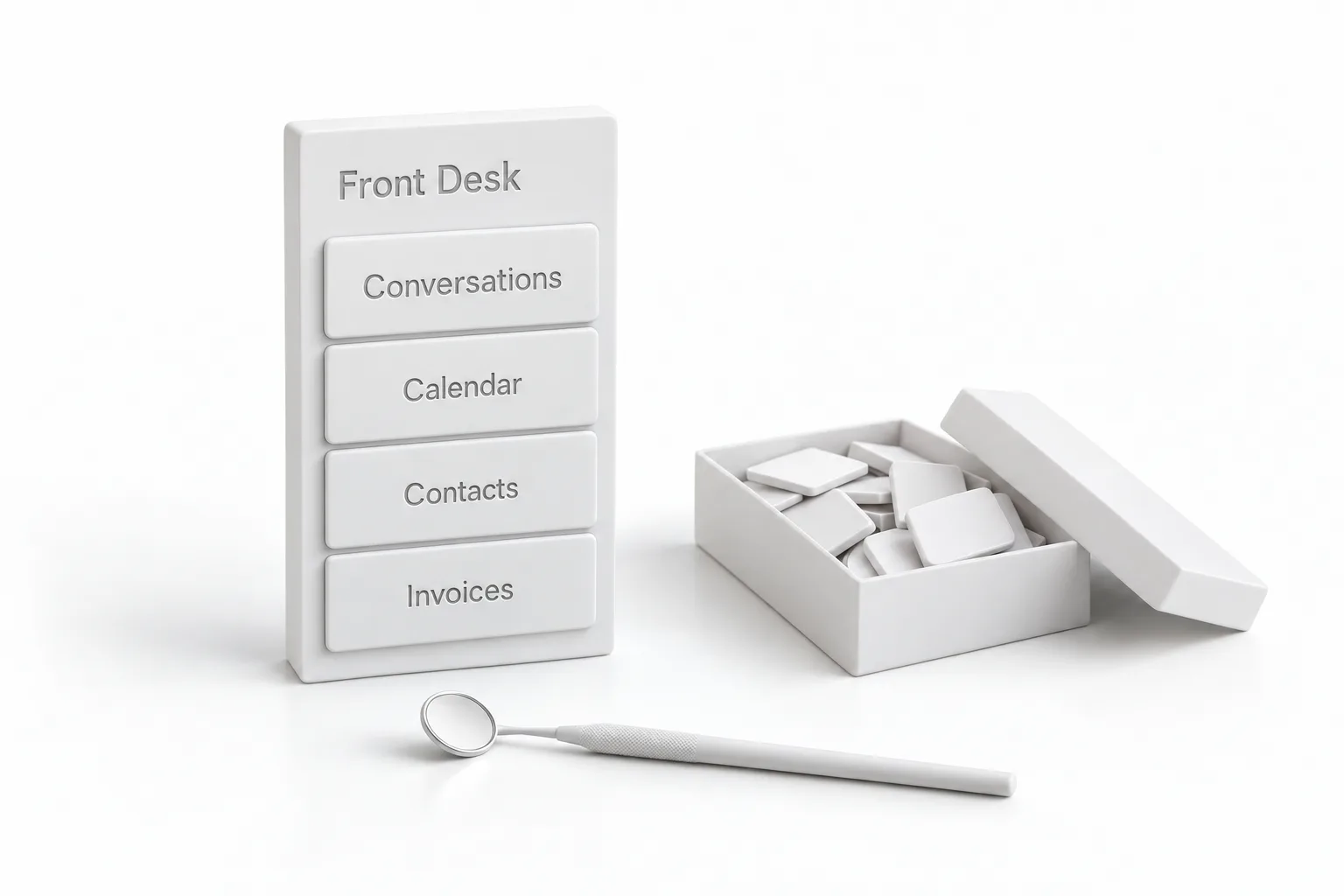
The front desk at a dental office lives in the calendar and in conversations all day long, so that is what they should see first. Michael clicks Edit nav and adds a new category called Front Desk. He uses Move to and drops in Conversations and the calendar. He adds Contacts too, along with Invoices for when patients pay at the desk.
Then he hides everything the front desk never touches. One click on the eye and an item disappears from the sidebar. What is left is the whole sidebar for that office. He clicks save and names the layout Dental Front Desk.
The second half is where it pays off for an agency. Michael opens his next dental client and clicks Edit nav. The saved layout is sitting right there in the list. He picks it, and that account now looks exactly the same. You build it once for a niche, and every client in that niche gets the same clean setup from day one. The HighLevel for dentists guide covers the systems that sit behind those four pages.
How do you set up the new navigation for your own clients?
The order Michael works in is a usable checklist.
- Learn the new homes. Find moved pages in their new categories, such as the phone system under Settings and then Communications, and websites under Content and then Sites.
- Pin your daily pages. Pin up to five pages at the top of the sidebar from View all and then All products.
- Use search first. Press Control K on Windows or Command K on a Mac to find settings pages, contacts and hidden pages.
- Open edit mode. Click Edit nav to drag categories, rename items, change icons, hide items with the eye and add your own category with Move to.
- Build one layout per niche. Create a category such as Front Desk with Conversations, the calendar, Contacts and Invoices, hide the rest and save it as a layout.
- Reuse it. Open the next client in that niche, click Edit nav and pick the saved layout.
- Lock down what should be off. Turn features off in Features and Limits in the agency view when a client should not have access, and check any custom sidebar code.
What changes once every client has a layout?
A client opens the account and sees the few pages they work in, with the right ones first. Michael's takeaway is that clients do not need more features. They need fewer things on the screen. Build a layout for every type of client you serve, and you will watch them actually use the system.
Two cautions come with it. Hiding a page cleans up the sidebar, but it does not take away access. Your client can still search for the page with Control K. If you want a feature turned off for a client, you do that in Features and Limits in your agency view. What each person on a team is allowed to do is a separate setting, covered in the guide to setting up user permissions.
The second caution is for agencies that styled the old sidebar with their own custom code. Check it, because that code will not carry over to the new design. If you are opening a new client account anyway, the guide to setting up your first subaccount is the place to start before you shape its sidebar.
HighLevel changes like this one are covered in the HighLevel news posts. Another walkthrough covers copying a funnel layout with Super Cloner. To build a layout in your own account, start a GoHighLevel 30 day trial through Michael's link. Saved layouts matter most to agencies, so read who should get the Founder Plan.