

In this video Michael Reimer walks through GoHighLevel workflow maps, a view that draws every workflow in a subaccount as one map. He shows how to read it, check what uses a form or tag before deleting it, trace one contact, clean up dead workflows and save a view. It is for agencies managing client accounts.
The situation is one every agency knows. You open a client's account and there are 40 workflows staring back at you. Nobody remembers what half of them do. Workflow maps takes every workflow in the subaccount and draws it as a living map. You do not build the map yourself. HighLevel draws it from the workflows you already have.
Where do you find workflow maps in HighLevel?
Go to Automation and open your workflows list. Right next to the title there is a button called Workflow Maps. Click it and give it a second to load the whole account. The first time, Michael says, it looks like a city from an airplane window. Once you know what each shape means, it reads like a subway map.
How do you read the workflow map?
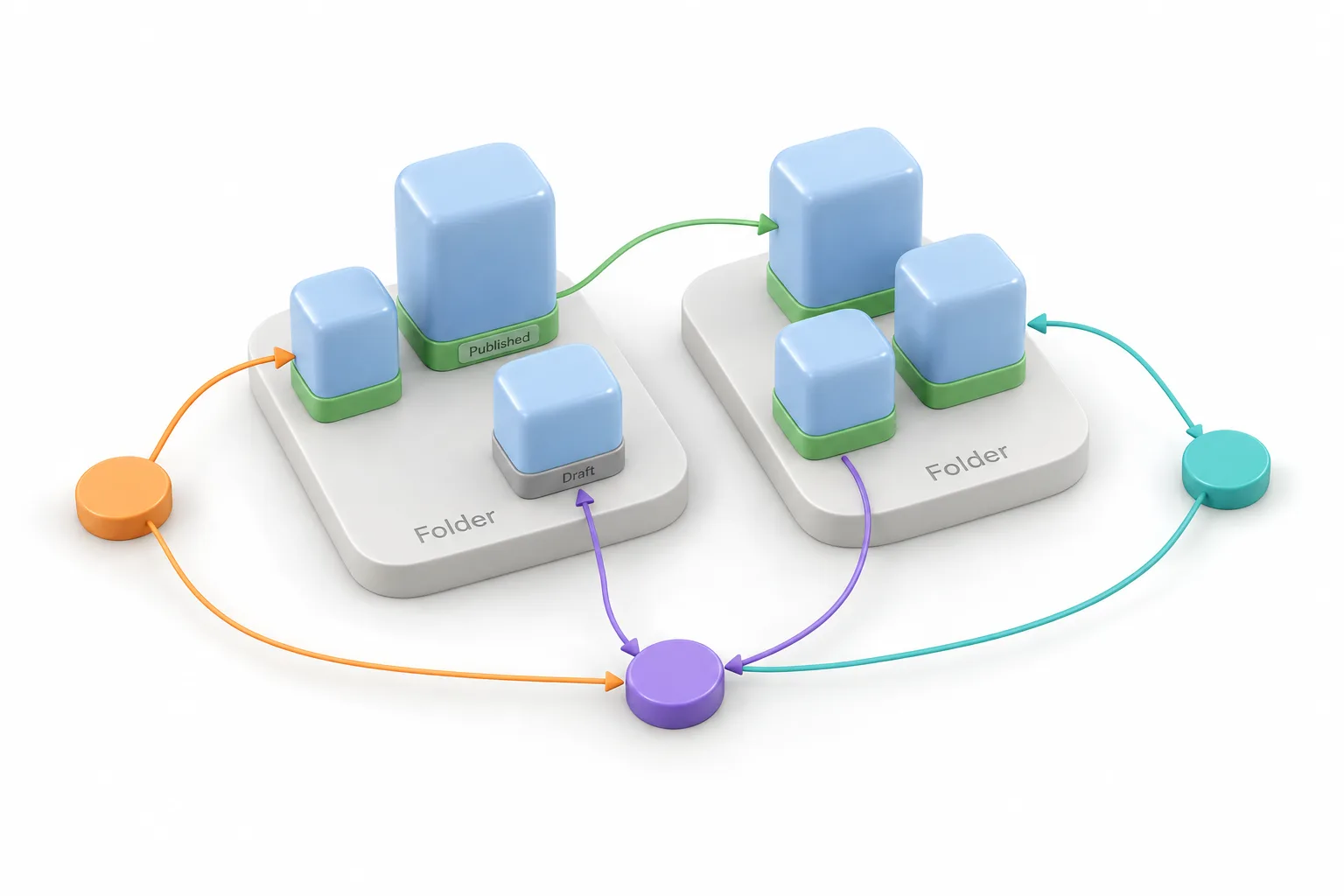
The blue shapes are workflows. A green border means the workflow is published and live. A gray border means it is still a draft. The big flat areas underneath are folders, and every workflow sits on top of the folder it lives in. The smaller colored icons are assets, things like tags, forms and pipelines that your workflows use.
The lines show how everything connects. An arrow pointing from a form into a workflow means that form starts the workflow. An arrow pointing out of a workflow means the workflow changes something, such as adding a tag. You can zoom in to read names and drag the map around. There is a 2D button for a flat view, which Michael uses for screenshots, while he keeps 3D for explaining things to a client. Fit to screen brings the whole city back.
How do you check what uses a form or tag before deleting it?
Open search on the left and type the name of a workflow. The map flies to it and a panel opens on the side. Michael calls the panel the workflow's report card. It shows whether the workflow is published, when it was last updated, how many contacts have gone through it and every asset it touches.
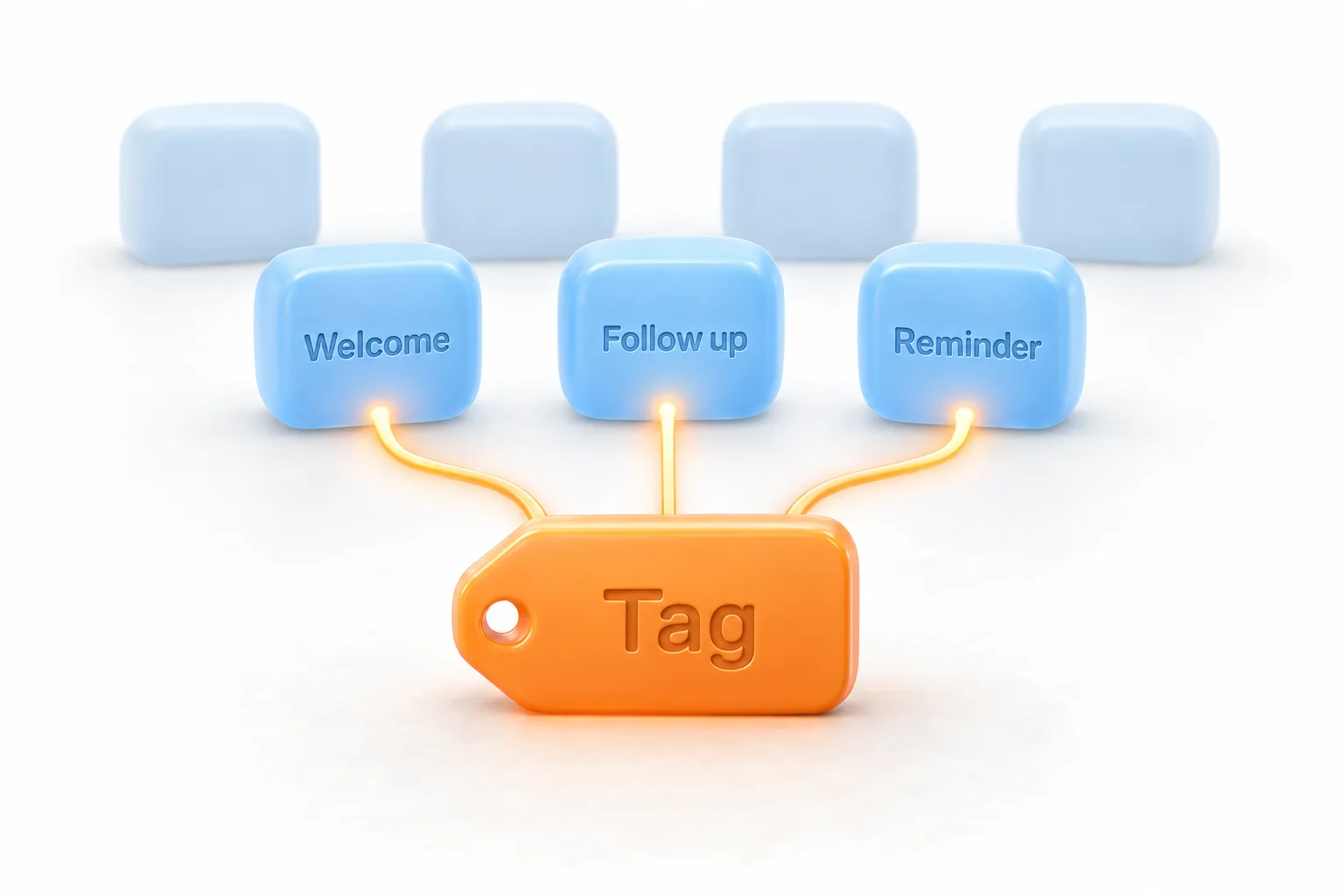
Then comes the part that saves you from a bad day. Before you delete a form or a tag, click it on the map. HighLevel shows every workflow that uses it and the exact step. He compares it to checking the fuse box before you flip a breaker. You see what goes dark before you touch anything.
How do you find out why a lead got a message?
Filters run along the top. To see which workflows touch your sales pipeline, open Pipelines and pick it. The map hides everything else. A banner reminds you that a filtered view is read only, so you can look around without breaking anything.
Michael's favorite part answers the question every agency owner hears from a client: why did my lead get that message? Before this, you dug through workflow history one workflow at a time. Now you open Contacts on the left and search for the lead. The map shrinks to only the workflows that contact went through, each with its status. Expand one to open the exact run, and the timeline tab lays everything out in the order it happened. He compares it to a package tracker for one contact. You can go back about 60 days.
What do the cleanup tool and the assistant do?
Click the eraser icon on the left and HighLevel finds workflows nobody has entered in the last 60 days. In Michael's account that was 36. It also finds workflows that still have the default name, and he had three of those.
The assistant is on the left too, and you talk to it like a person. He asks for an overview of what is live and what needs attention. It comes back with his busiest workflows, his most used triggers and the same cleanup list, a full account audit in about 20 seconds. It can also make changes. He asks it to put four home service workflows into a new folder. Before it touches anything it shows a review card: create the folder, then move four workflows into it. Nothing happens until he clicks Apply. Then he presses Save so the layout sticks for everyone on the account.
What is a saved workflow view?
Michael says most people will miss this one. Open Saved workflow views and create a new view. You get a clean canvas where you place only the workflows you care about. His holds the router, the loop and two AI follow ups from the new workflow features video, each shown with its real steps.
Pick a contact at the top and you get every run they had across those workflows. Tick a run and the exact path lights up on the canvas. On the loop you can see item one, then item two, then item three. He calls that the kind of proof a client understands.
How do you use workflow maps in a GoHighLevel account?
Seven moves from the video.
- Open the map. Go to Automation, open the workflows list and click the Workflow Maps button next to the title.
- Learn the shapes. Blue shapes are workflows, a green border means published, a gray border means draft, flat areas are folders and smaller icons are assets.
- Check before you delete. Click a form or tag on the map to see every workflow and step that uses it.
- Filter and trace. Show only the workflows wired to one pipeline, or search a contact to see only the workflows that contact went through.
- Clean up. Click the eraser icon to find workflows with no recent enrollments or default names.
- Ask the assistant. Get an overview, check the review card before you click Apply, then save the layout.
- Save a view. Create a saved workflow view for a client system so you can show each run step by step.
What changes for an agency with workflow maps?
Michael describes three habits. When he onboards a new client, he opens the map and the assistant overview first and cleans up the dead workflows before building anything new. When a client asks why something happened, he pulls up the contact and shows them the path. When he hands an account over, he saves a view of the main flow, so nobody has to guess how the system works.
He is straight about the limits. The map shows how things are wired. It does not draw wait steps or if else steps, and you cannot edit steps on it. The map is for seeing and understanding. The builder is still where you build. If a contact never shows up in a workflow at all, start with contacts not entering a workflow.
For short answers to common workflow questions, see the workflow answers. To open the map on your own workflows, start a GoHighLevel 30 day trial through Michael's link, and see HighLevel plans compared for what each plan includes.