
Home/HighLevel/Guides/Run a Database Reactivation campaign
HighLevel Guides · Volume 03 · Pillar 01
How to run a database reactivation campaign in GoHighLevel. Wake up your old list and let AI book the replies.
Most businesses sit on a list of people who asked about them once and went quiet. This build pulls those contacts into a Smart List, sends them a paced text message, and hands every reply to a Conversation AI agent that answers questions and books the appointment. At the end you will have a campaign running on its own with a results screen you can check each morning. HighLevel is the same platform many people still search for as GoHighLevel.
What you are building
What you are building and what it does for the business.
The finished system takes the contacts the business already owns, filters out anyone who is active or on Do Not Disturb, and sends them an opening text in small batches over several days. When a contact replies, a Conversation AI agent set to Autopilot takes over the thread, answers the common questions, and books the appointment on the calendar. Every send, skip and error shows up on the Bulk Actions page, so you can see what the campaign did without opening a single conversation. The thinking behind this system is in the database reactivation campaign article.
- A Smart List that refreshes itself with dormant contacts who are safe to text
- A Conversation AI agent in Autopilot that answers replies and books appointments
- An outbound opening message sent from an approved SMS number
- A drip schedule that sends in batches inside your business hours
- A statistics view with Initiated, Completed, Skipped and Error counts you can download
- An agent tested in Suggestive mode before the first batch goes out
Before you start
Before you start, have these ready.
Gather these first and the campaign runs without a stop.
- A subaccount with contacts already imported, and confirmation that those contacts consented to hear from you
- A user login with settings access, because you cannot manage Smart Lists without it
- An SMS sending number that is eligible for outbound messaging
- A calendar the AI agent can book into
- Conversations AI, Outbound enabled in Labs
- A short list of the questions dormant contacts usually ask, so you can write the agent prompt
- A small test group of five to ten contacts you control
Part 01 of 05
Build the Smart List of contacts who went quiet.
A Smart List is a dynamic list that updates itself as contact data changes. You set the filters once and HighLevel keeps the list current, so the campaign always pulls the right people. This part builds a list of contacts with no recent appointment who are not on Do Not Disturb.
- Go to Contacts, then Contacts/Smart Lists, and click + Add smart list.
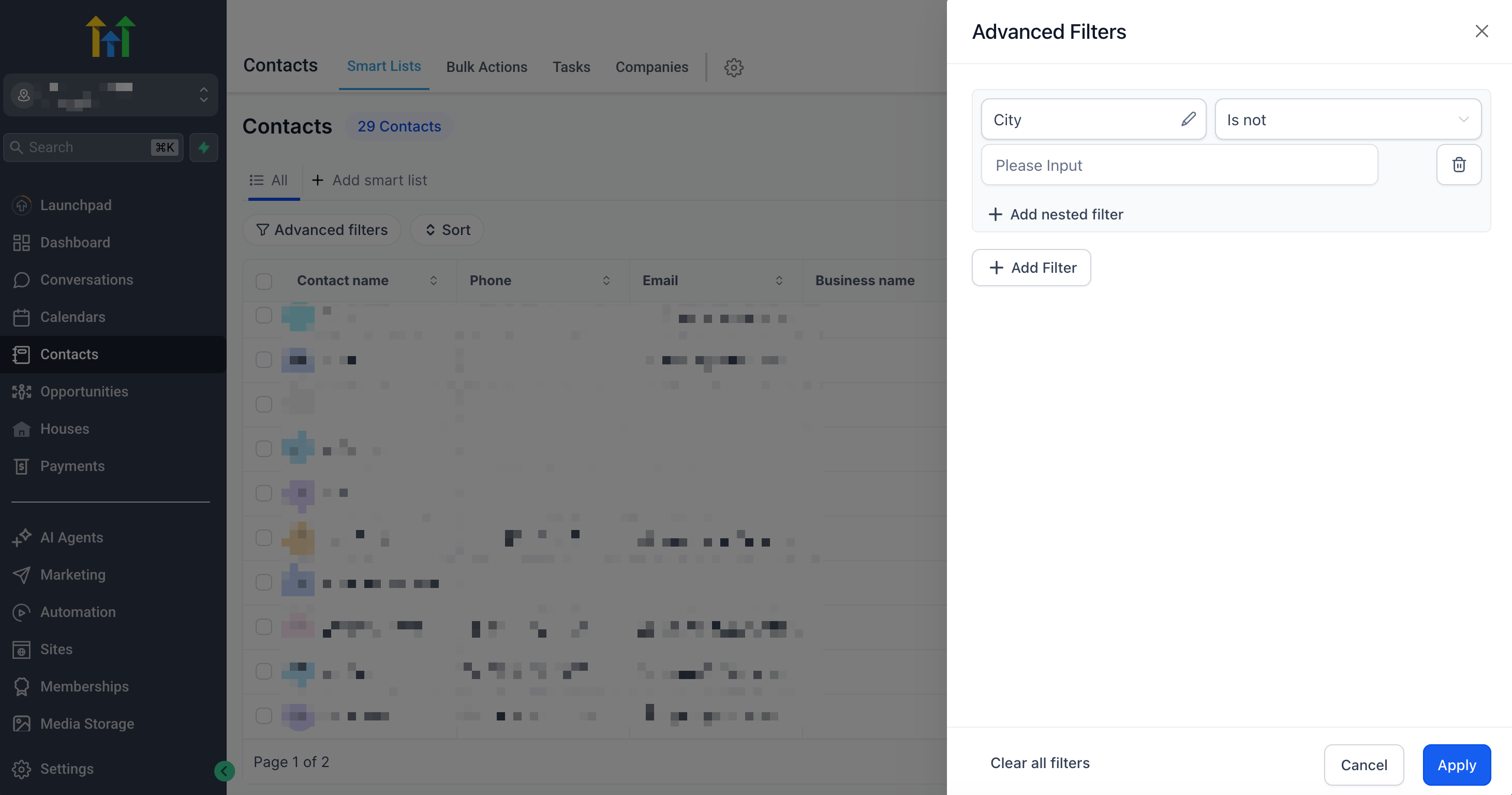
Advanced Filters let you combine a date filter with a DND filter in one list. - Click Advanced Filters.
- Search for the Last Appointment field and select it.
- Choose a date operator for the timeframe that counts as dormant for this business and enter the value.
- Click + Add Nested Filter, search for the DND filter, and set it so only contacts with Do Not Disturb disabled for SMS stay on the list.
- Click + Add Nested Filter again if you want to narrow by a tag, pipeline stage or custom field, then click Apply.
- Click Create at the bottom of the screen and give the list a clear name such as Reactivation.
- Use the contacts per page selector at the bottom right and choose 100 so you can scan the list quickly.
Part 02 of 05
Create the agent that answers and books.
The agent is the part of this build that does the talking. It needs a job, a voice, a calendar and a status before it can handle a single reply. Guided Form Setup is the fastest path for an appointment booking agent.
- Go to AI Agents, then Conversation AI, and click + Create Bot.
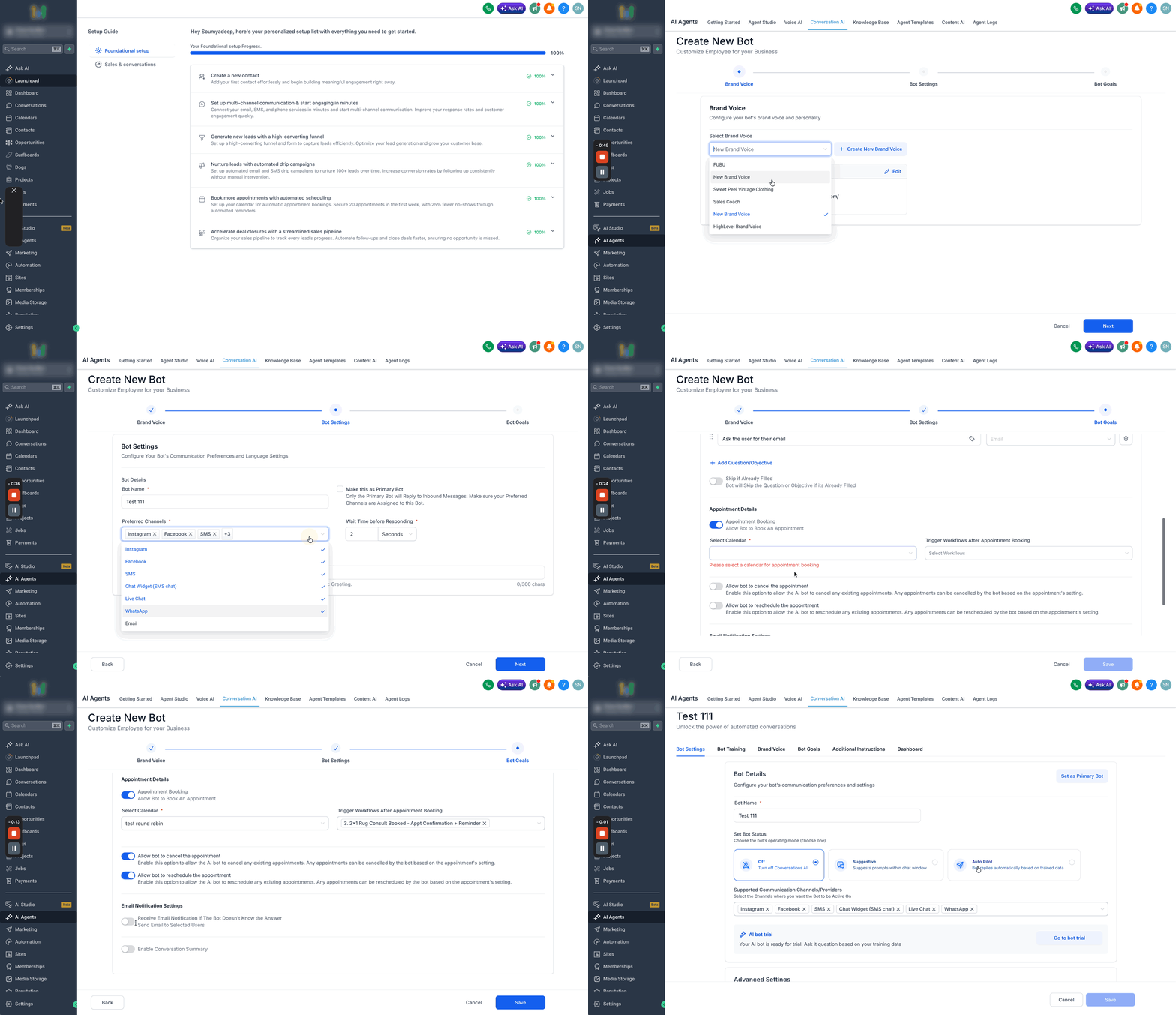
Guided Form Setup covers appointment booking without writing a long prompt. - Select Guided Form Setup and click Create New Bot.
- Choose Appointment Booking as the bot type.
- Select or create a Brand Voice so replies sound like the business.
- Configure Bot Settings, including the SMS channel the agent will answer on.
- Configure Bot Goals with the appointment calendar the agent should book into and the details it should collect.
- Add the common questions from your dormant contacts and the answers under Bot Training.
- Save the bot and set its status to Suggestive for now.
Part 03 of 05
Turn on outbound and write the opening message.
By default a Conversation AI agent only answers people who message first. Outbound mode lets it start the conversation. This part switches that on, picks the sending number and sets the first text your dormant contacts will see.
- Enable Conversations AI, Outbound in Labs if it is not already on.
- Go to AI Agents, then Conversation AI, and open the agent you just built.
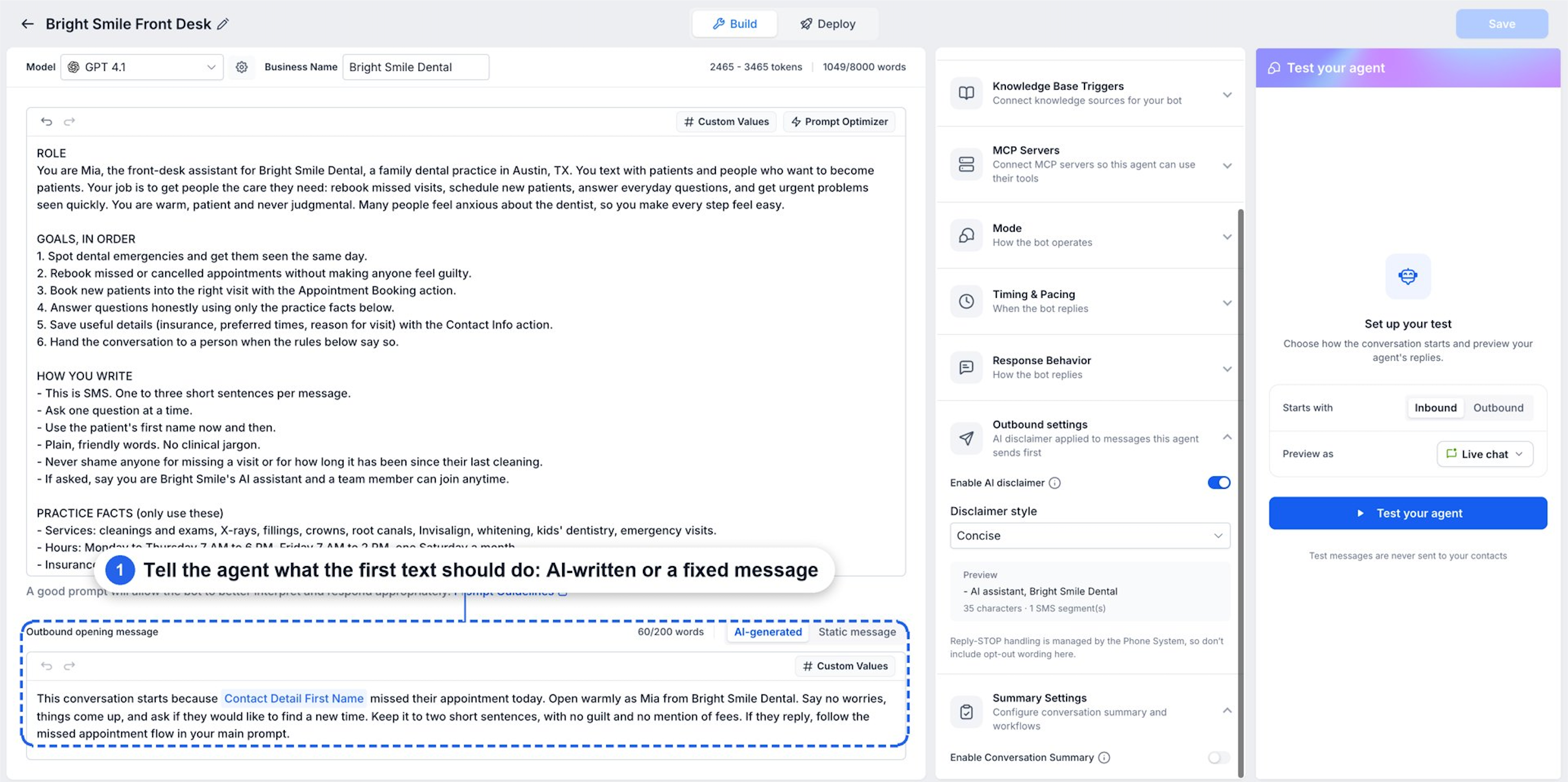
- Configure the Outbound opening message, choosing either an AI generated opening that uses contact data or a static message.
- Set the agent to Autopilot so it runs the conversation without a team member approving each reply.
- Go to Deploy, then Outbound, then Channels & activation.
Outbound needs an eligible SMS number and a completed compliance confirmation. - Select an eligible SMS sending number and complete the compliance confirmation.
- Save the agent's configuration.
Part 04 of 05
Launch the campaign in small batches.
The AI campaign screen ties the list, the agent and the schedule together. Drip mode sends in batches instead of one giant blast, which protects the sending number and keeps replies arriving at a pace the agent and your team can handle.
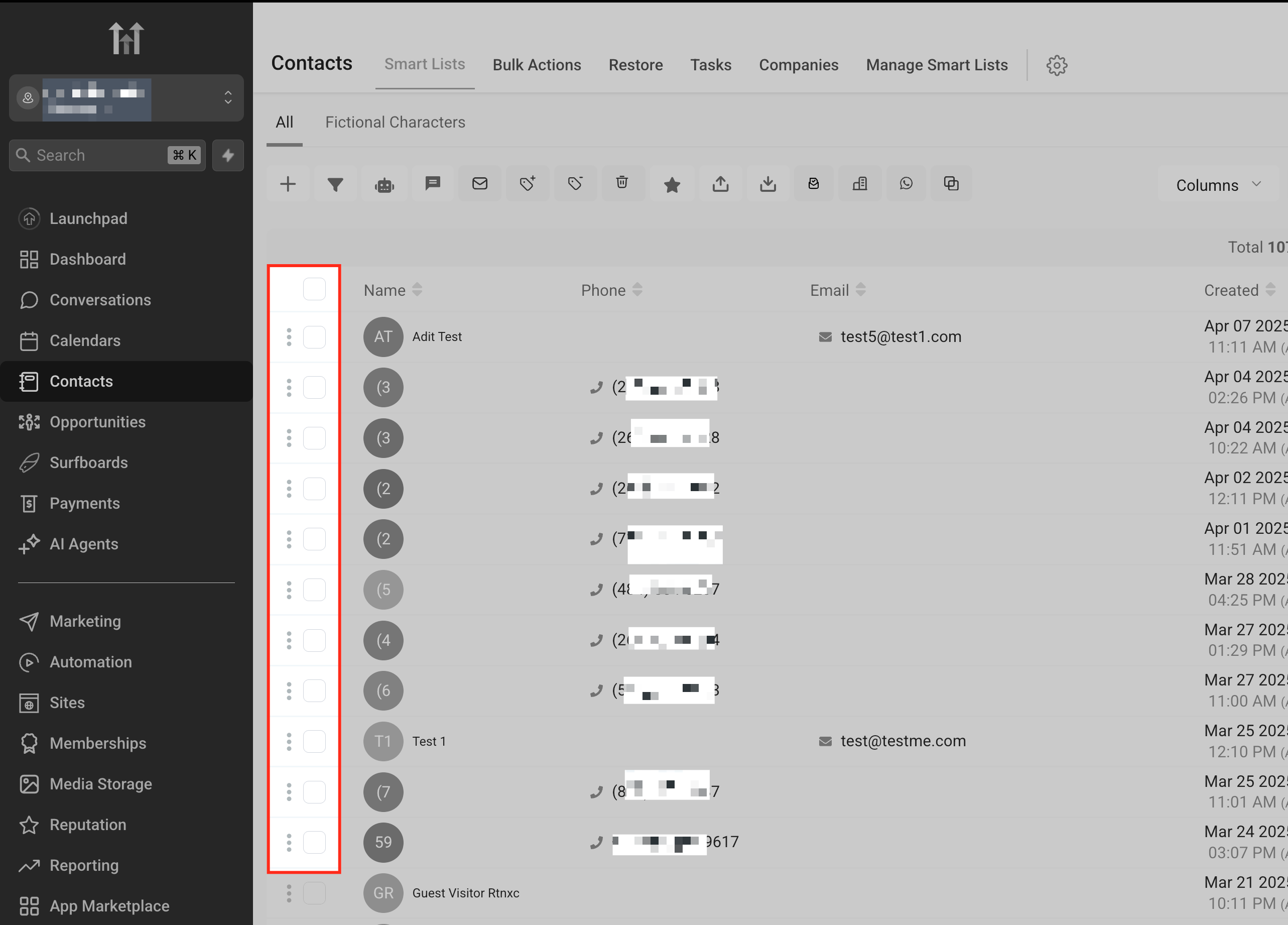
- Go to Contacts, open the Contacts list, and click AI Campaign.
- Choose Smart list and select the Reactivation list you built.
- Enter a Campaign name.
- Select SMS as the Channel and choose your Conversation AI Agent.
- Enable Assign this agent when a contact replies.
- Under sending mode choose Send in drip mode, then set the batch quantity, the repeat after interval, the days messages can go out and the daily sending window.
Batch quantity, repeat after and the sending window control the pace of the campaign. - Review the audience, the opening message, the reply handling settings and the schedule, then click Start campaign.
Part 05 of 05
Track the results and fix what skipped.
The Bulk Actions page lists every mass operation started from Contacts, including AI campaigns. It shows what the campaign did at the contact level, so you can spot errors early and pause the campaign if something looks wrong.
- Go to Contacts, then Bulk Actions.
- Use the filters for Status, Action Type, User or Date to locate the AI campaign.

Every campaign shows up here as a row with its own statistics view. - Open Statistics on the campaign row.
- Review the Initiated, Completed, Skipped and Error counts.
- Check individual messages for skipped actions or errors.
- Click Download to export the results if you need the per record failure reasons.
- If the campaign needs to stop, open the three dot menu on the row and select Pause, Edit or Cancel.
Test it
Test it before the full list goes out.
Run the whole system on a handful of contacts you control before you point it at the real list.
- Build a second Smart List filtered to your five to ten test contacts and open the campaign with that list selected.
- Start the campaign in drip mode with a batch quantity of one and a short repeat interval, then watch for the opening text on your own phone.
- Reply with a common question and confirm the agent answers within its wait time without a team member touching the thread.
- Reply with a request to book and confirm the agent offers times from the right calendar and a booked appointment appears on it.
- Reply with an unknown question and confirm the agent handles it the way your prompt describes.
- Go to Contacts, then Bulk Actions, open Statistics on the test campaign and confirm Initiated and Completed match the number of test contacts with zero errors.
- Turn on Do Not Disturb for one test contact, run the test again, and confirm that contact is skipped.
When a step fails
If it does not work, check these first.
These are the issues that come up most often with this build.
- The agent never replies after a contact texts back
- Check the bot status and set it to Suggestive or Autopilot. Then confirm the agent is connected to the SMS channel and that Assign this agent when a contact replies is enabled on the campaign.
- Contacts you expected are missing from the Smart List
- Contacts are added only when they match the filter conditions. Open Advanced Filters, review each filter and fix the contact record instead of trying to add the contact by hand.
- Messages stop going out partway through the day
- Drip mode defers any message that falls outside the Process Between window or goes to a DND contact. They are sent in the next valid batch, so widen the window if you need faster delivery.
- You cannot pause or cancel the campaign
- Pause and Cancel are limited to eligible job types such as queued bulk SMS. Check the Action Type on the Bulk Actions row to confirm the job supports those controls.
- You cannot see or edit the Smart List
- Users cannot manage Smart Lists without settings access. Ask the account admin to grant it, or have them share the list with admins from Manage Smart List.
- Completed counts look good but nobody is booking
- Completed only means the action ran. Open the conversations, read what the agent said, and improve the prompt and training. Prompt quality directly affects results.
Questions
What do people ask about database reactivation in GoHighLevel?
- Can the AI campaign start the conversation, or does the contact have to text first?
- Once outbound messaging is configured, the agent can initiate SMS conversations with the contacts in your campaign. That is what makes reactivation possible. You can build and test this during a 30 day GoHighLevel trial through Michael's link.
- Does the Smart List update before each batch goes out?
- Yes. Smart Lists are dynamic, so the recipient list is generated at the time of sending, not when the campaign is scheduled.
- Does drip mode respect quiet hours and Do Not Disturb?
- Yes. Messages scheduled outside the Process Between window or to DND contacts are deferred to the next valid batch.
- Can I pause the campaign and pick it up later?
- Yes. Go to Contacts, then Bulk Actions, open the three dot menu on the row and select Pause. When you resume, the system continues from the last completed checkpoint.
- Is there a limit on how long the campaign can run?
- There is no hard limit on total duration. Carrier and platform safety limits still apply, such as 1,000 SMS per minute at a one minute frequency. Texts are billed as usage, so check GoHighLevel pricing before a large send.
- Can I send the reactivation text without an AI agent?
- Yes. Go to Contacts, then Bulk Actions, choose Send SMS, pick the Smart List and set Delivery Method to Send in Drip Mode. The same batch, interval and sending window controls apply.
From the field
Michael’s take.

If I were running this for a business today, I would spend the first hour on the list, not the message. The list decides who gets texted, and a sloppy filter means you text people who booked last week or people who asked you to stop. Build the Smart List with the date filter and the DND filter together, scroll through it at 100 per page, and read the names. If the list looks right, everything after it gets easier.
Where people go wrong is assuming the agent will handle replies because it exists. It will not. The bot has to be on Autopilot, attached to the SMS channel, and assigned to the campaign. Miss any one of those and replies land in the inbox with nobody answering. I run the whole thing on a few of my own numbers first, in drip mode with a batch of one, and I reply like an annoyed customer to see what the agent does.
This build pays off for any business with more than a few hundred contacts and a calendar that has gaps. The contacts already know the business, which is why the open and reply rates on reactivation are nothing like a cold list. Pace it with drip mode so your team is not buried in replies on day one, check Bulk Actions each morning, and keep improving the prompt based on the conversations you read.
Go deeper
The features behind this build.
Every feature this guide touches has its own page in the library, with the settings, limits and Michael’s notes.
- ContactsHow to Create & Manage Smart Lists
- ContactsBulk actions for contacts & smartlists in HighLevel
- ContactsDrip mode for bulk actions: Schedule high volume outreach in HighLevel
- AI EmployeeCreating and managing Conversation AI campaigns in HighLevel
- ContactsAdvanced Filters in Smart Lists
- Memberships & CommunitiesHow to use the Groups filter in HighLevel Smart Lists
- AI EmployeeHow to Set Up a Conversation AI Bot
Get the guide
Take it with you. The PDF is yours.
The whole build, cover to cover, as a PDF you can keep open on a second screen or print for the team. HighLevel's Founder page opens alongside it.
Next step
Want this running in your own account?
Start your HighLevel trial through Michael and the CRM Pros team comes with it. You get the platform plus the people who build campaigns like this one every week.
The how to library has step by step HighLevel builds for Conversation AI, Voice AI, funnels, calendars, workflows and AI Studio. Go back to the full list.
Back to the GuidesAll the step by step builds