
01Who this is for
- Founders of home services firms can reconnect with leads that have been inactive for weeks, keeping the pipeline warm.
- Marketing managers at SaaS companies can re engage trial users through personalized AI driven SMS outreach.
- Customer support teams can automate initial appointment booking via SMS, reducing manual follow up effort.
02Conversation AI campaigns, explained
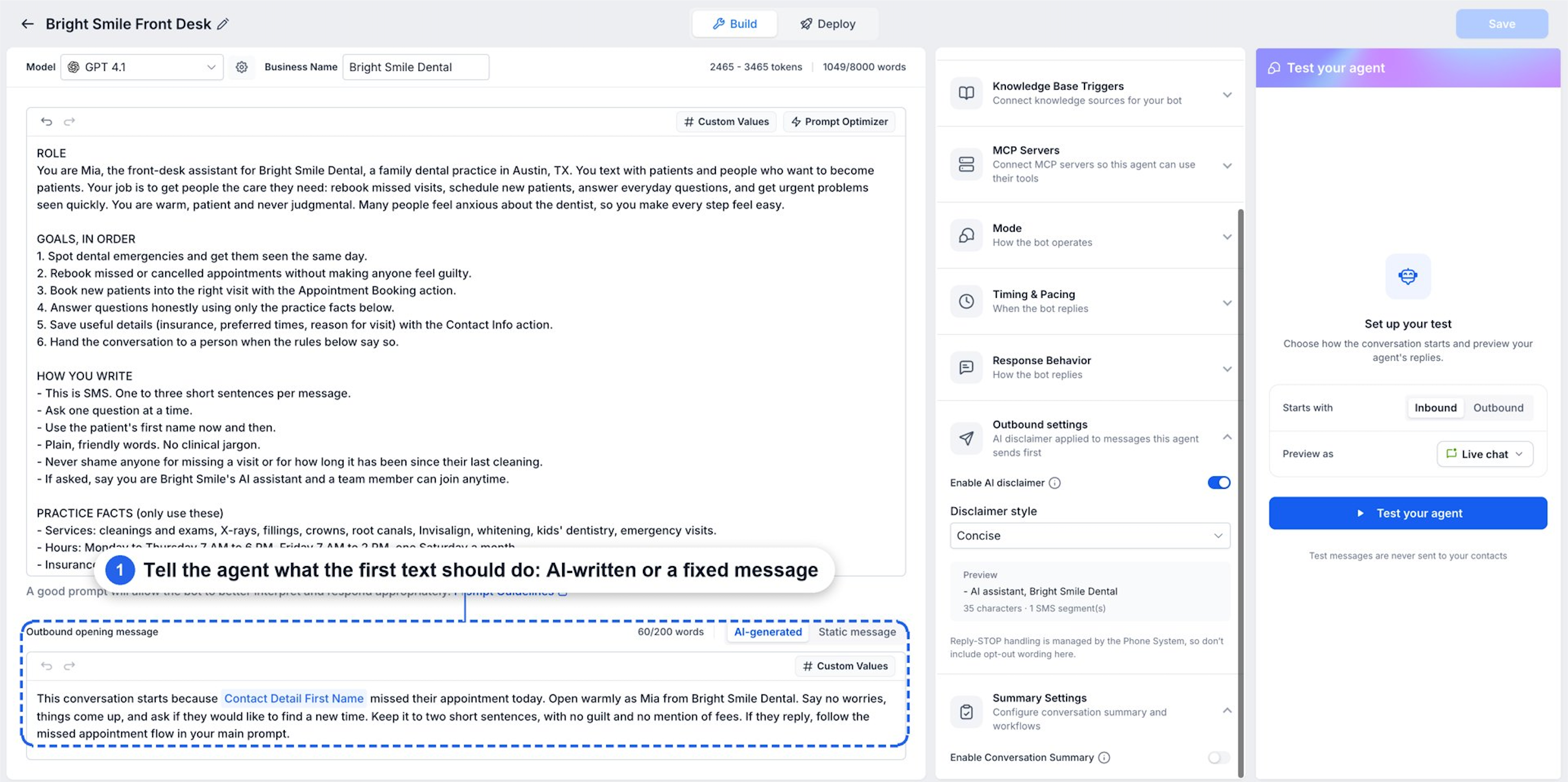
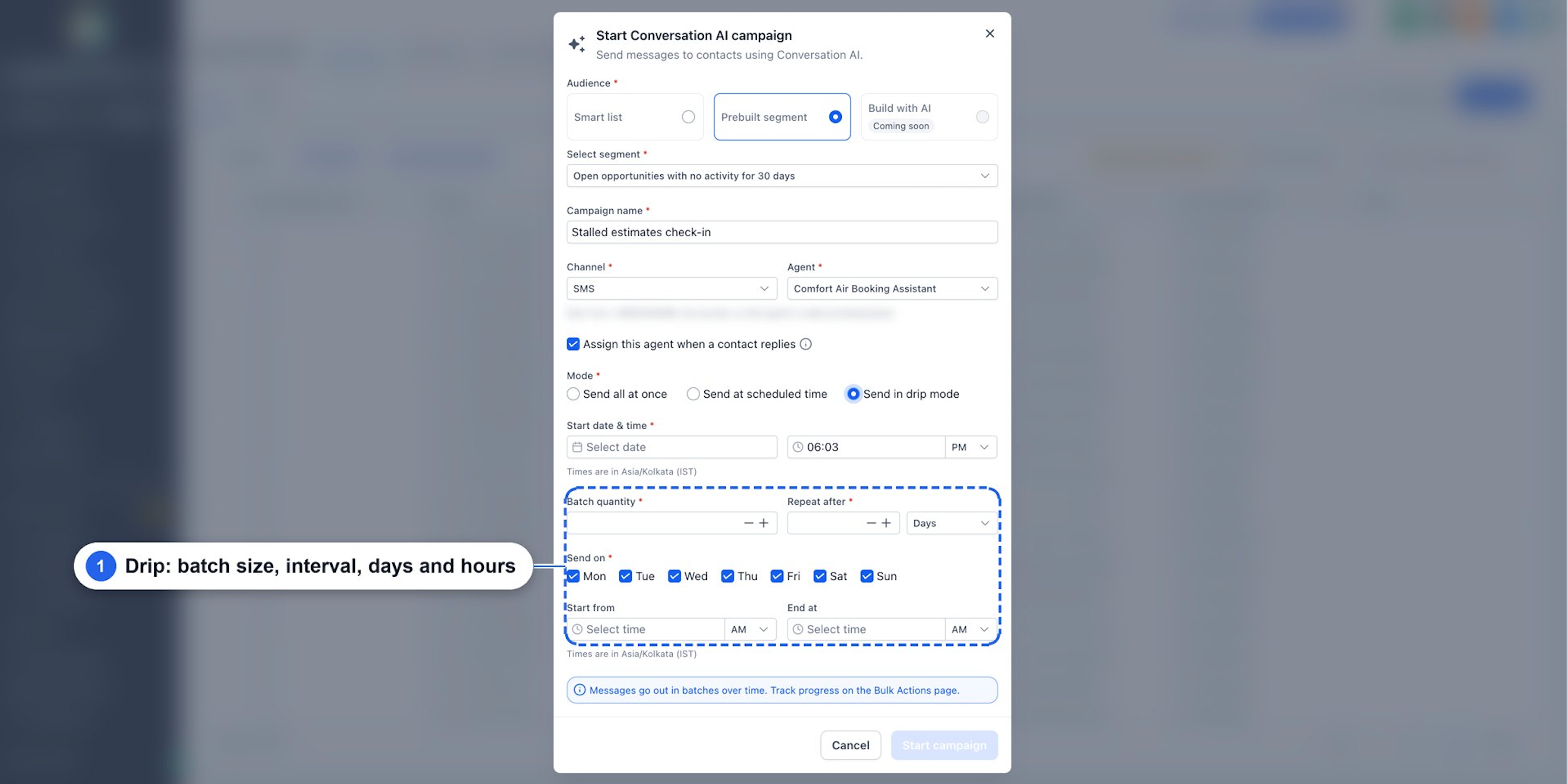
Conversation AI campaigns enable an AI agent to initiate outbound SMS dialogs with a defined audience. The agent uses a prompt and an opening message, either AI generated or static, to start the conversation. When a contact replies, the same agent continues the dialog, answering questions and performing actions such as appointment booking.
The feature lives under the AI Agents section for agent setup, then under Contacts where campaigns are launched. After configuration, the campaign runs according to a chosen sending mode: immediate, scheduled, or drip. Results are tracked in Contacts > Bulk Actions > Statistics, showing initiated, completed, skipped, and error counts.
03How businesses use Conversation AI campaigns
- Home services business. Create an AI agent that mentions the homeowner's recent service request. Select the Smart List of leads with no activity for 30 days, configure the campaign to send immediately, and let the agent handle replies and appointment bookings.
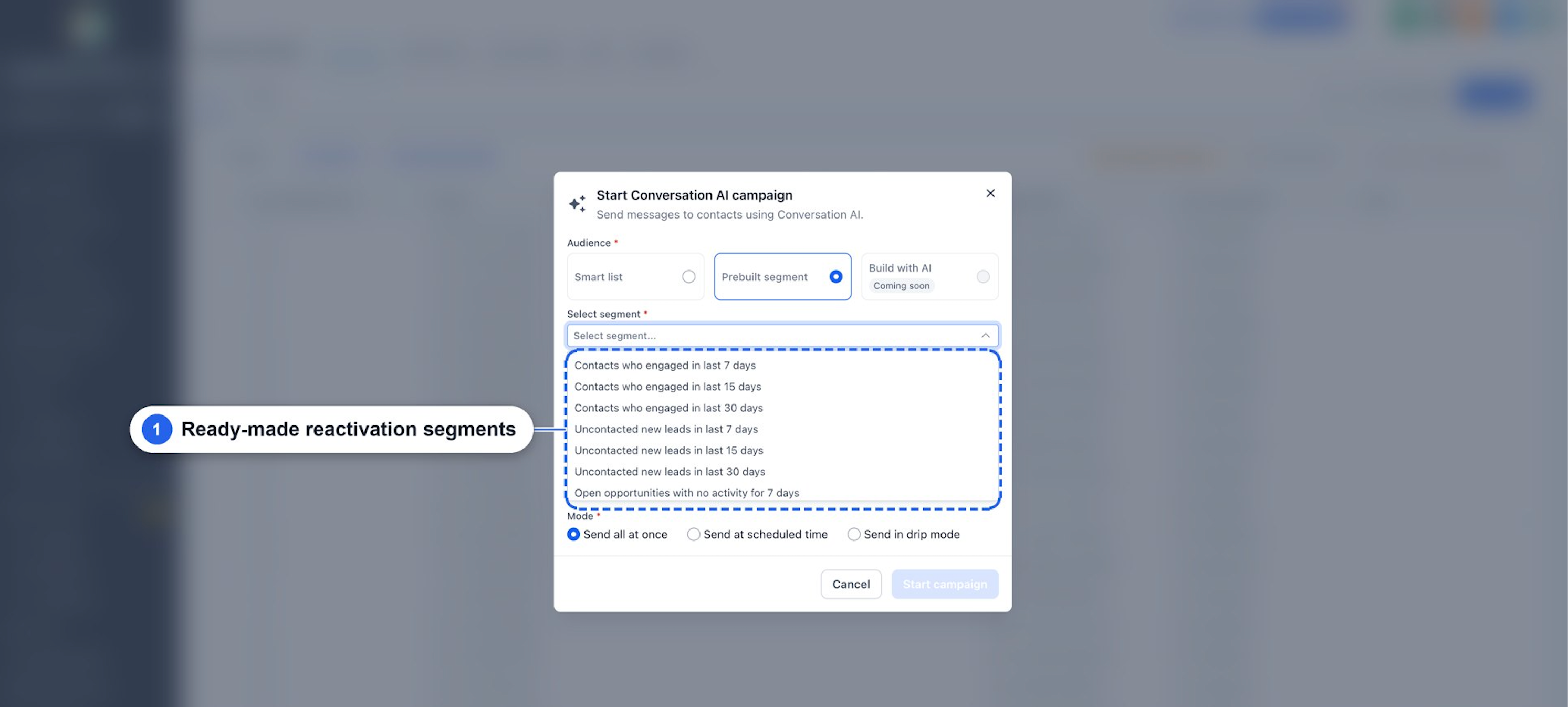
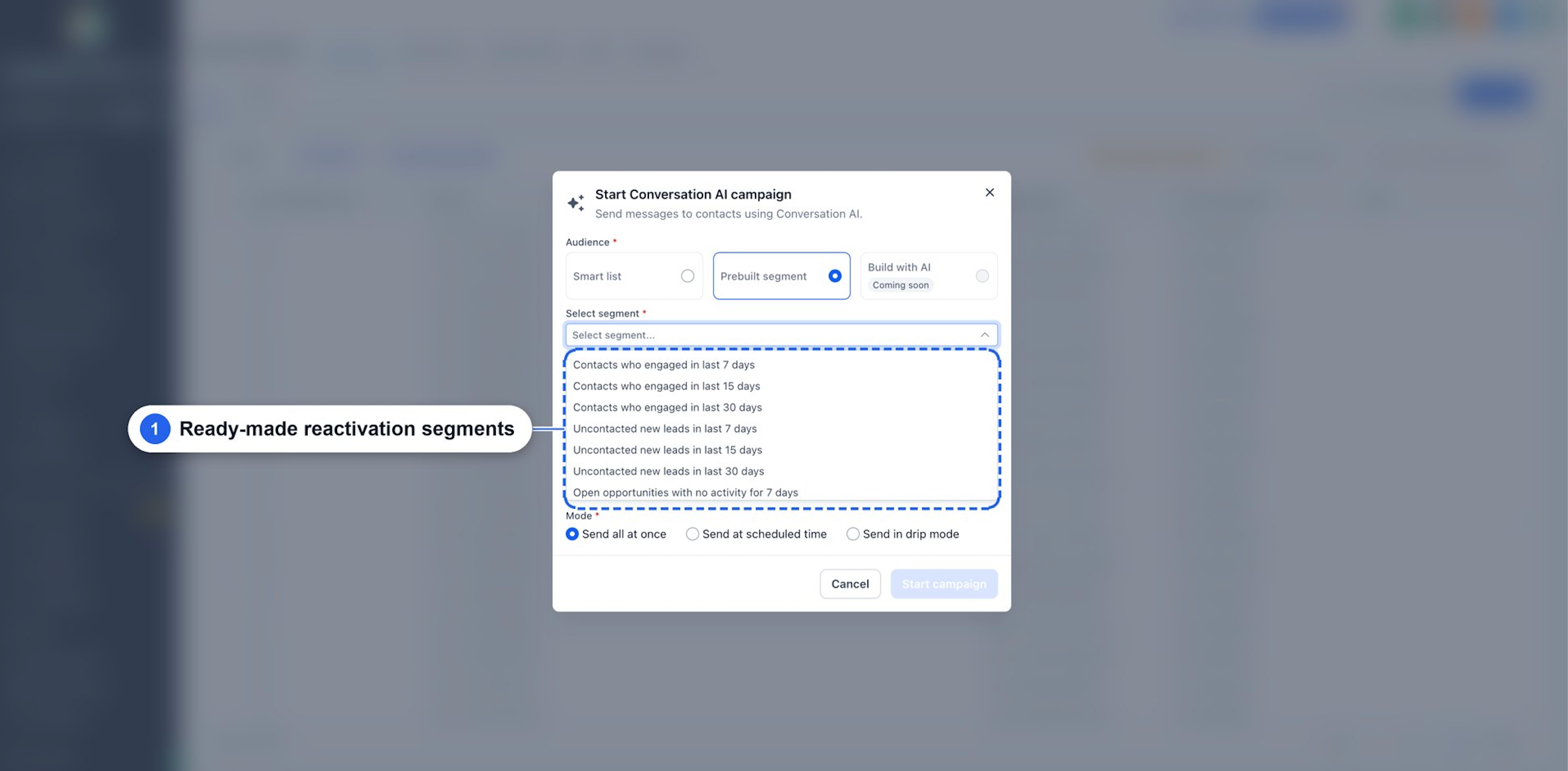
- SaaS company. Set up an AI agent with a static opening message inviting trial users to a demo. Choose a prebuilt segment for uncontacted new leads, schedule the messages for a specific future date, and let the agent respond to questions about pricing.
- Dental practice. Configure an AI agent to send a reminder about missed appointments. Select contacts with no appointment in the last 60 days, enable drip mode to stagger messages over several days, and allow the agent to reschedule appointments directly through SMS.
04The numbers and rules that matter
- Auto Follow Up can send up to five follow up steps per scenario.
05Before you start
- Enable Conversations AI, Outbound in Labs where required.
- Configure a Conversation AI agent and set it to Auto Pilot.
- Activate outbound messaging under Deploy > Outbound > Channels & activation, selecting an eligible SMS sending number and completing compliance confirmation.
06How to set up and use Conversation AI campaigns in HighLevel
Configure outbound Conversation AI
- Enable Conversations AI, Outbound in Labs if needed.
- Navigate to AI Agents > Conversation AI.
- Create a new agent or select an existing one.
- Set the agent’s prompt and define the outbound opening message.
- Switch the agent to Auto Pilot for automated replies.
- Go to Deploy > Outbound > Channels & activation.
- Choose an eligible SMS sending number and confirm compliance.
- Save the agent’s configuration.
Open AI campaign
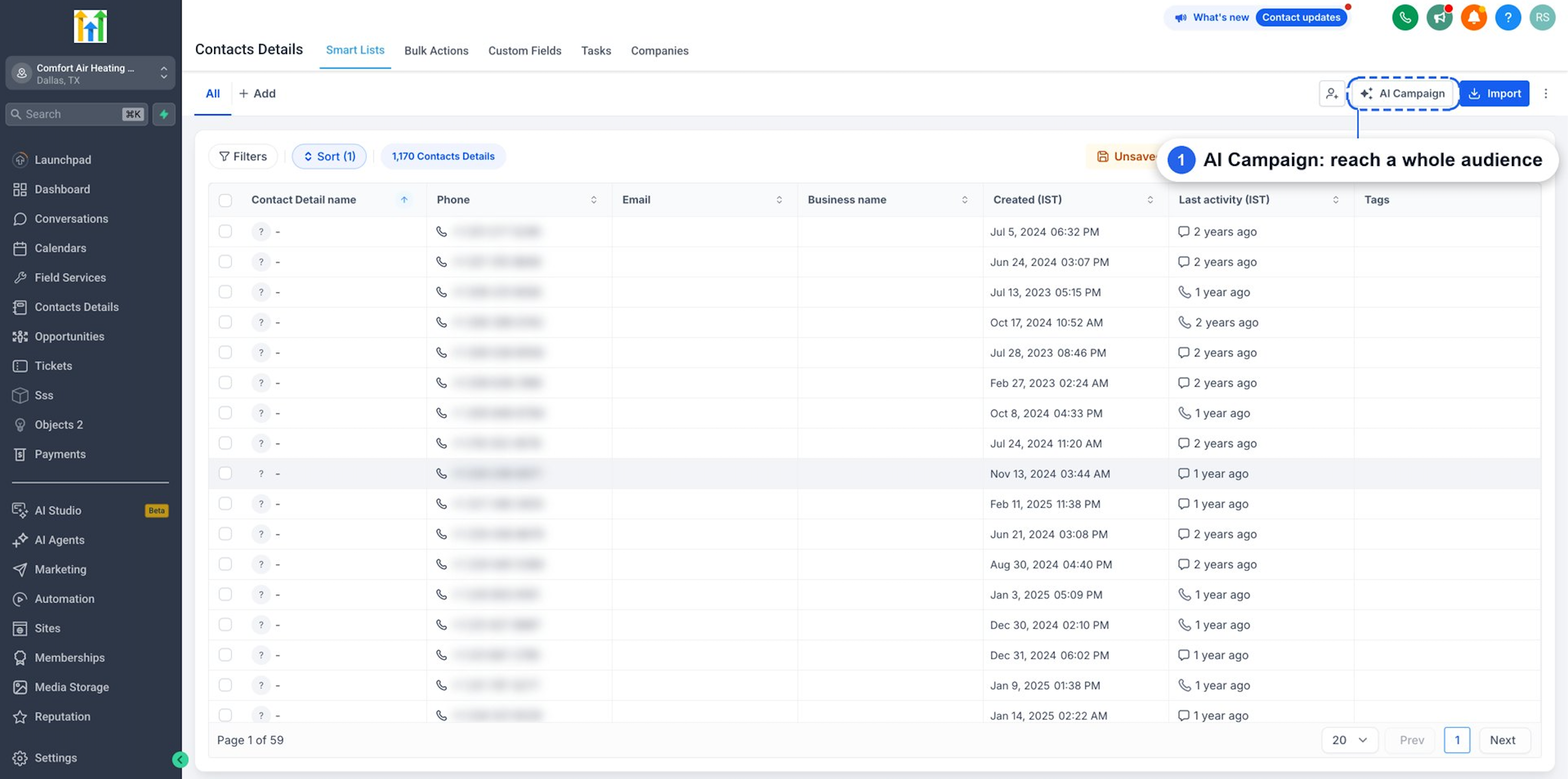
- Open the Contacts section.
- Access the Contacts list.
- Click the AI Campaign button.
Select your audience
- Pick either a Smart list or a Prebuilt segment.
- Select the specific list or segment to contact.
- If using selected contacts, the campaign will target that selection.
Enter campaign details
- Enter a descriptive campaign name.
- Choose SMS as the channel.
- Select the Conversation AI agent to use.
- Enable Assign this agent when a contact replies if the agent should handle responses.
Choose a sending mode
- Select Send all at once for immediate outreach.
- Select Send at scheduled time to set a future date and time.
- Select Send in drip mode to define batch size, intervals, weekdays, and sending hours.
Review and start the campaign
- Confirm the chosen audience.
- Verify the campaign name, channel, and selected agent.
- Check the opening message and reply handling settings.
- Confirm the sending schedule.
- Click Start campaign.
Monitor campaign results
- Go to Contacts > Bulk Actions.
- Find the AI Campaign entry.
- Open Statistics.
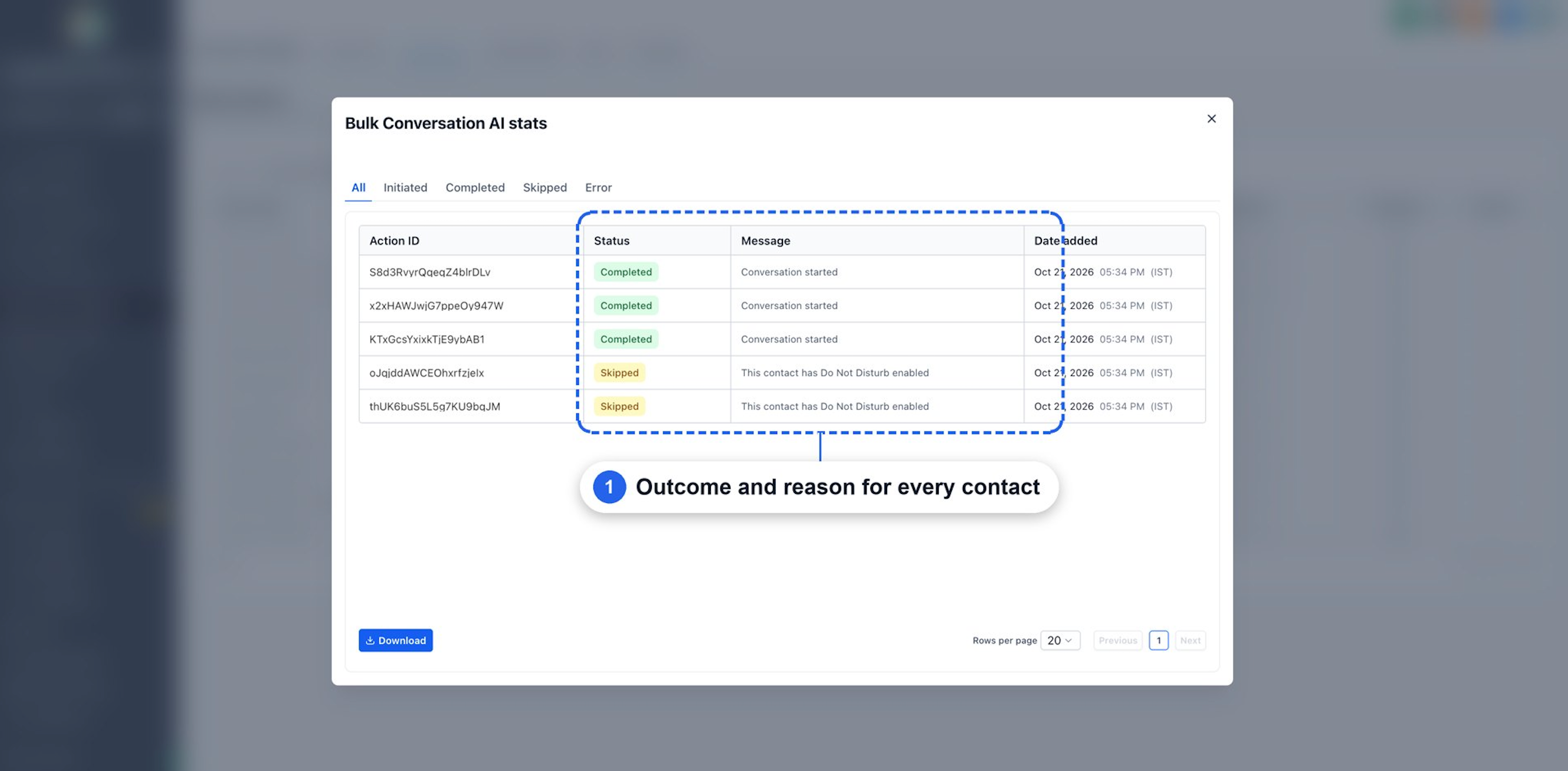
- Review Initiated, Completed, Skipped, and Error counts.
- Inspect individual messages to understand any skips or errors.
- Click Download if you need to export the results.
07What it looks like in HighLevel
08Settings that matter
- Conversations AI, Outbound. Activates the ability for AI agents to send outbound SMS messages.
- Outbound opening message. Defines whether the first SMS is AI generated using instructions or a static predefined text.
- Auto Pilot. Enables the selected AI agent to respond automatically to incoming replies.
- Assign this agent when a contact replies. Assigns the chosen AI agent to continue the conversation after a contact responds.
09Things to know before you rely on it
- The Build with AI audience option is marked Coming soon and is not available in this workflow.
- Enhanced CRM aware personalization for opening messages is a preview capability and not part of the current release.
- Only SMS is documented as the initial outreach channel for this release; other channels may be added later.
- Contacts with applicable Do Not Disturb restrictions are automatically skipped and shown as Skipped in the statistics.
10How it connects to the rest of HighLevel
- Set up a chat widget to capture contacts for AI campaigns. Chat widget guide
- Add appointment booking actions that the AI agent can trigger during a conversation. Appointment booking
- Review pricing and plan eligibility for accessing Conversation AI features. HighLevel pricing
Michael's take

I’ve found that the AI’s output depends heavily on the opening prompt and any Custom Values you add, so I make sure the agent’s prompt includes the fields I need before I launch.
If I were setting one up, I’d start with a small Smart List of recent stalled opportunities, watch the first batch, and adjust the prompt or follow up steps based on what the replies look like. That way I know the AI is speaking my brand’s voice and staying compliant before I scale.