
01Who this is for
- Founders gain quick familiarity with map navigation and asset connections, reducing time spent on learning the interface.
- Agency owners can train team members using the built in tour and reference guides, keeping everyone aligned on workflow structures.
- Marketing managers benefit from on demand walkthroughs to troubleshoot errors and trace contacts without leaving the platform.
02Guided onboarding and resources, explained
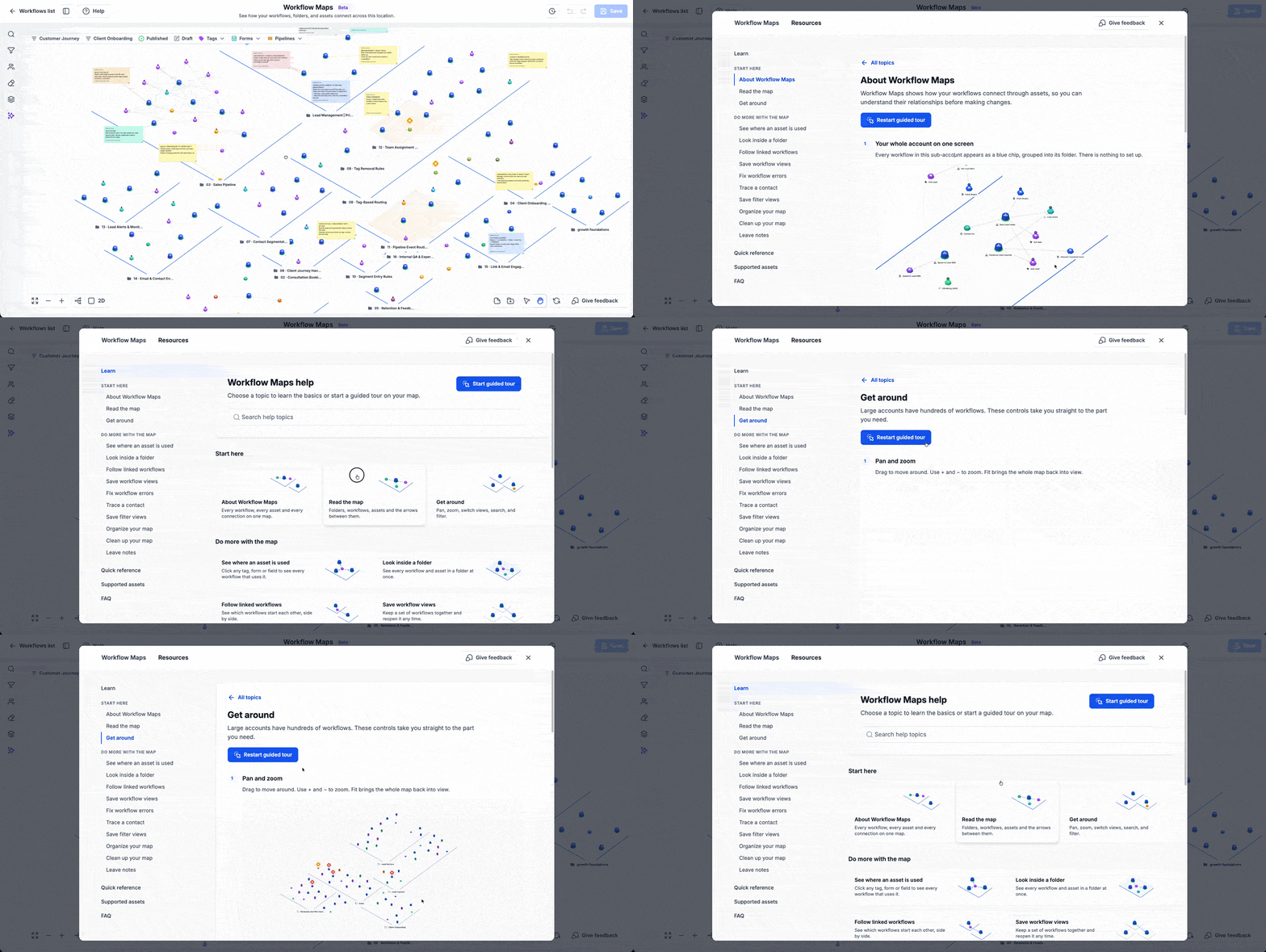
Guided onboarding is an introductory experience that shows the visual layout of Workflow Maps, explains the 2D and 3D view options, and presents contextual tips as you move through folders, workflows and assets. The tour can be started at any time through the Start guided tour control.
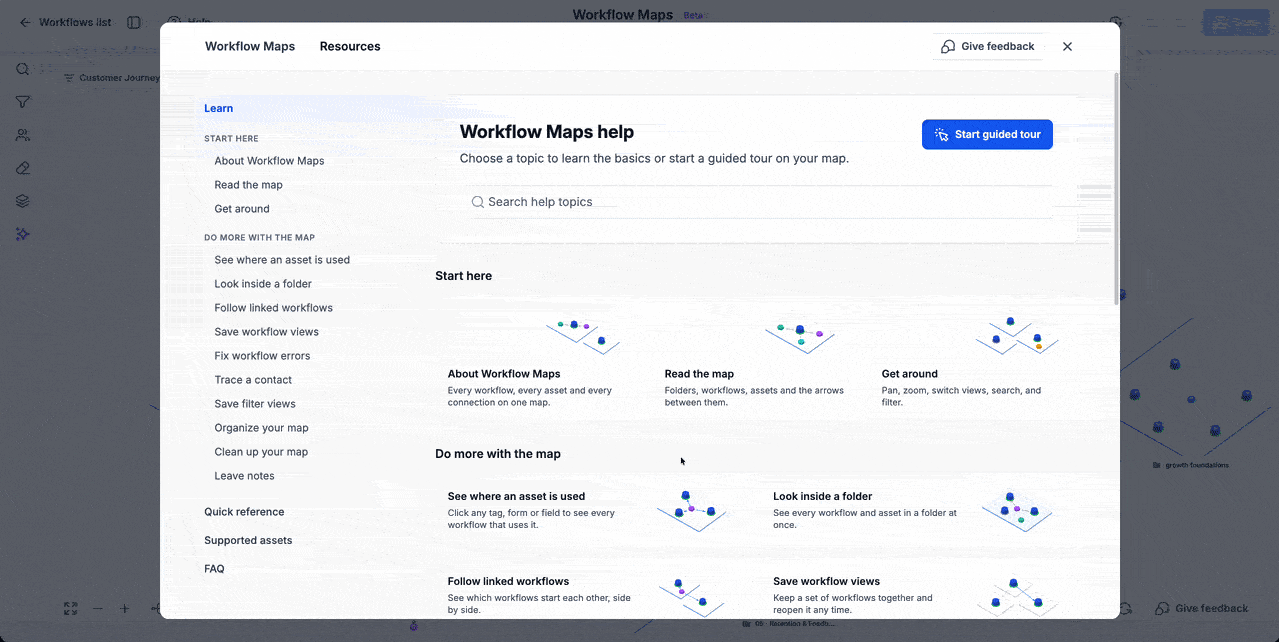
The Resources hub lives inside Workflow Maps and holds searchable topics, quick references, and FAQs. You can open it via the Help button, browse categories such as reading the map, tracing contacts, reviewing errors, inspecting folders, checking asset usage, and organizing the map, or type keywords to locate specific walkthroughs.
03How businesses use guided onboarding and resources
- Real estate agency. Agents open the Resources hub to read the walkthrough for tracing a contact through workflows. They follow the step by step guide to see how a lead moves from capture to follow up within the map.
- Fitness studio. The manager launches the guided onboarding tour to learn how to switch between 2D and 3D views, then uses the Resources search to find the guide for reviewing workflow errors that affect class bookings.
- SaaS startup. Product leads access the Resources hub to locate the walkthrough on checking asset usage, ensuring that email templates and automation triggers are correctly linked in the workflow map.
04How to set up and use guided onboarding and resources in HighLevel
Search resources
- Click the Help button while in Workflow Maps.
- Select the Resources hub from the Help menu.
- Enter a keyword in the search field and press Enter to locate relevant guides.
05What it looks like in HighLevel
06Things to know before you rely on it
- Editing related guidance appears only for users who have the required permissions.
- Some actions may not be available to every user depending on their permission level.
07How it connects to the rest of HighLevel
- Learn how to read a workflow map and understand connections Map symbols guide
- Navigate, search, and filter workflow maps in HighLevel Map navigation tips
- Find where an asset is used in HighLevel Asset usage walkthrough
Michael's take

Many users think the guided tour is a one time thing, but you can pull it up again at any time by opening Help and selecting Start guided tour.
When starting a new account, I recommend launching the guided tour right away so you become familiar with the map controls and can then refer back to Resources whenever needed.