
01Voicemail, explained
The Voicemail action is a workflow step that delivers a recorded voice message to a contact. You upload an audio file, then the system sends it as a voicemail whenever the workflow runs. This works without a human picking up the phone.
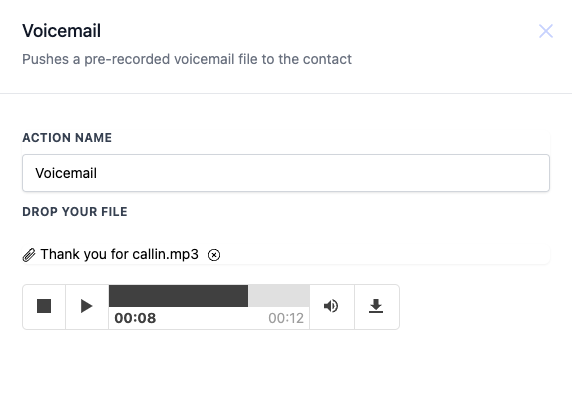
The action requires you to set the Action Name to "Voicemail" and to provide a file that can play back as a voicemail. Once saved, the workflow will use that file each time the trigger fires.
02How businesses use voicemail
- Appointment no show. When a contact misses a scheduled appointment, the workflow can automatically send them a voicemail to reschedule.
- Follow up reminder. If a contact hasn’t responded to previous communications within a set time frame, the workflow can send a voicemail.
03How to set up and use voicemail in HighLevel
Configure voicemail action
- Name the Action: Under "Action Name," ensure it reads "Voicemail".
- Upload the File: Click on the "Upload file" button to choose a prerecorded voicemail message from your local system. Once uploaded, you can play the message to ensure it's the correct one.
- Save: After configuring, ensure to save the workflow to apply these changes.
04What it looks like in HighLevel
05Settings that matter
- Action name. Identifies the step as a Voicemail action; must be set to "Voicemail".
- Drop your file. The audio file that will be sent as a voicemail; must be compatible with voicemail playback.
Michael's take

Michael ReimerFounder of CRM Pros, HighLevel Commander and Certified Admin
Be careful about relying on a prerecorded voice message for every scenario; a generic tone can feel impersonal if the contact expects a live conversation. Make sure the recording matches the purpose and sounds clear.
Get More InformationOpens on HighLevelPublished November 2, 2026 · Updated November 3, 2026