
01Who this is for
- Agency owners who need to bill retainers on a set schedule and want to avoid manual invoice work.
- SaaS Founders who run subscription plans and require automatic renewal invoices.
- Membership businesses that must charge members monthly or yearly without extra tools.
02Send recurring invoices, explained
The Send Recurring Invoice action lives in the Workflow Builder under the Payments category. It adds a billing step to any automation. You choose an invoice template, a sender, and whether the action runs in test or live mode.
When the workflow reaches this step, the platform creates an invoice according to the selected template. The invoice can be sent by email, text, or both. If Auto Pay is enabled, the system stores the card after the first successful payment and charges future invoices automatically.
All invoice activity appears in the contact’s record, so you can view a full history of generated invoices. The action works with Stripe connected subaccounts and respects the start date, frequency, and stop rules you define.
03How businesses use send recurring invoice action
- Digital marketing agency. The agency adds the action to a workflow that triggers when a new client is added. It sets a monthly frequency, selects the agency’s retainer invoice template, and enables Auto Pay. Each month the client receives the invoice automatically.
- Fitness studio offering membership plans. The studio creates a workflow that starts on the member’s signup date. It configures a yearly frequency, chooses the membership invoice template, and sends the invoice by email and text. The studio can stop the schedule after 12 occurrences for a one year contract.
- Software as a Service startup. The startup builds a workflow that fires when a trial conversion event occurs. It sets a daily frequency for a short term subscription, picks the SaaS invoice template, and activates Auto Pay. Stripe stores the payment method after the first invoice and charges subsequent invoices automatically.
04Before you start
- Create at least one invoice template in Payments > Invoices.
- Connect a Stripe (or another supported) payment gateway in Payments > Integrations.
05How to set up and use send recurring invoice action in HighLevel
Set up the Send Recurring Invoice action in a workflow
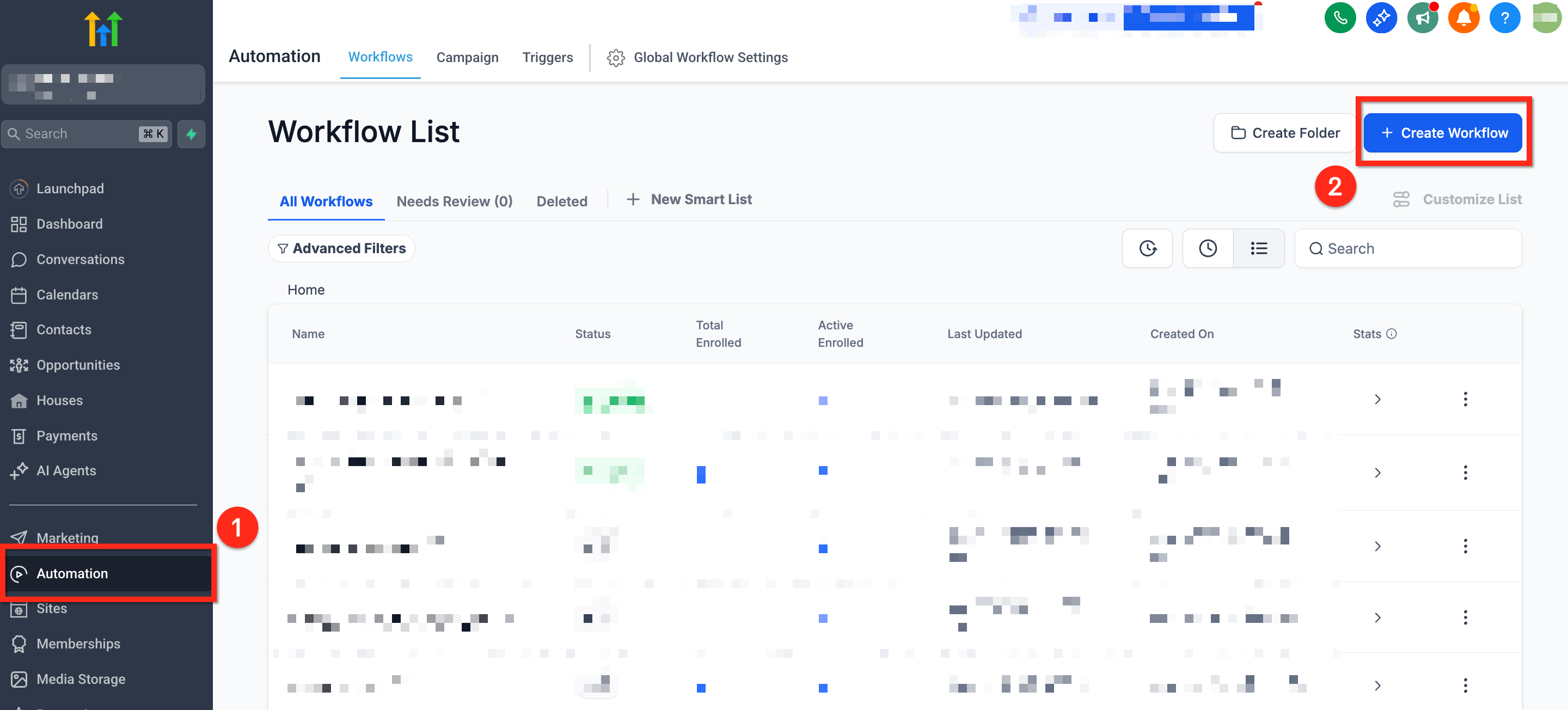
- Open Automation > Workflows and click the blue + Create Workflow button.
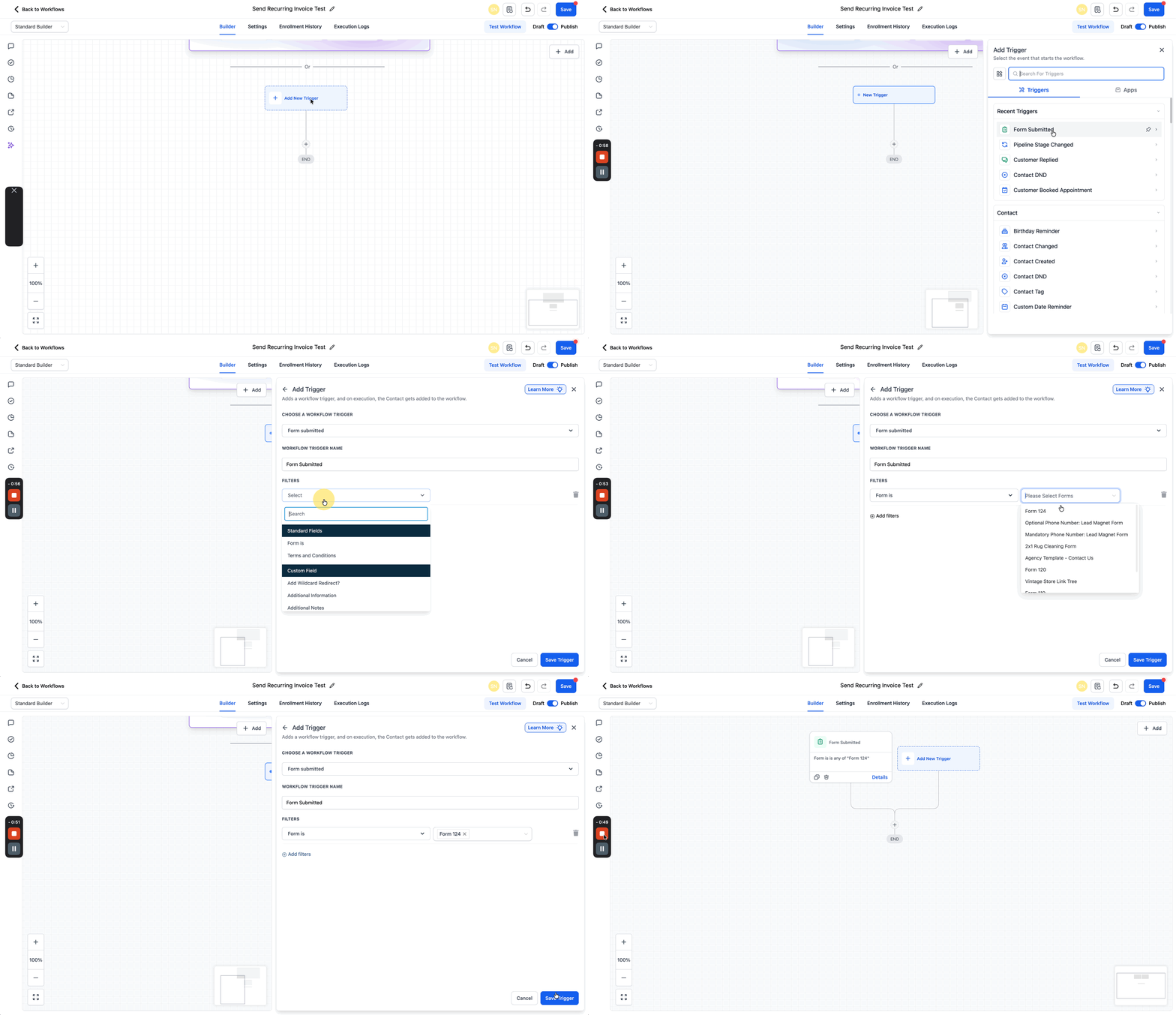
- Click + Add Trigger.
- Choose a trigger type for the workflow.
- Click Save Trigger.
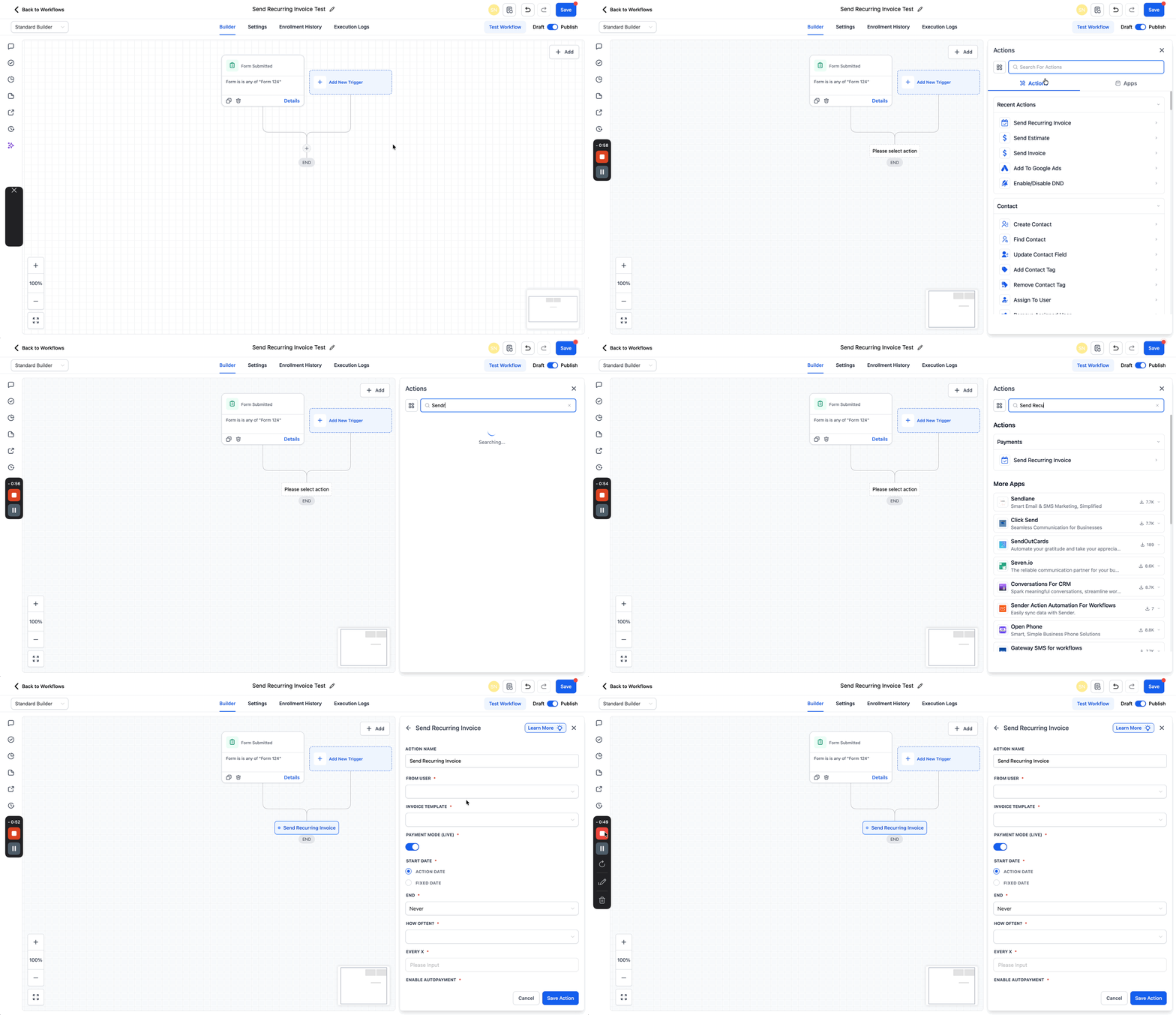
- Click the + directly beneath the trigger to add an action.
- Type “Invoice” in the action search bar.
- Select Send Recurring Invoice from the Payments list.
- Enter a name for the action.
- Choose the From User for the invoice.
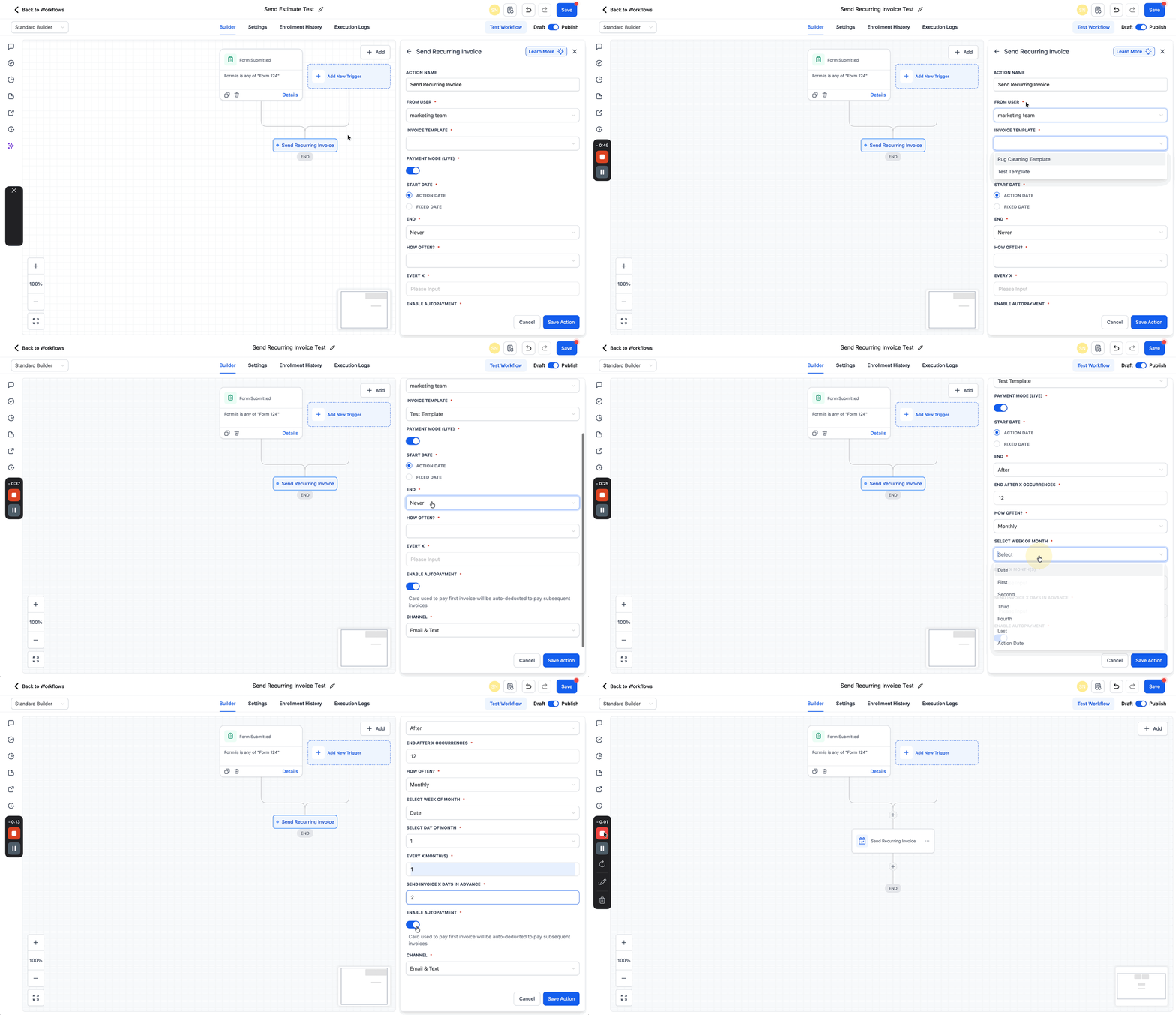
- Pick an invoice template.
- Set the mode to Test or Live.
- Choose a start date option (Action Date or Fixed Date).
- Select a stop rule (Never or After X Occurrences).
- Open the Frequency dropdown and configure the interval.
- Enter Days in Advance, enable Auto Payment, select the delivery channel, and click Save Action.
- Click the blue Save button, then test the workflow and publish it to activate.
06What it looks like in HighLevel
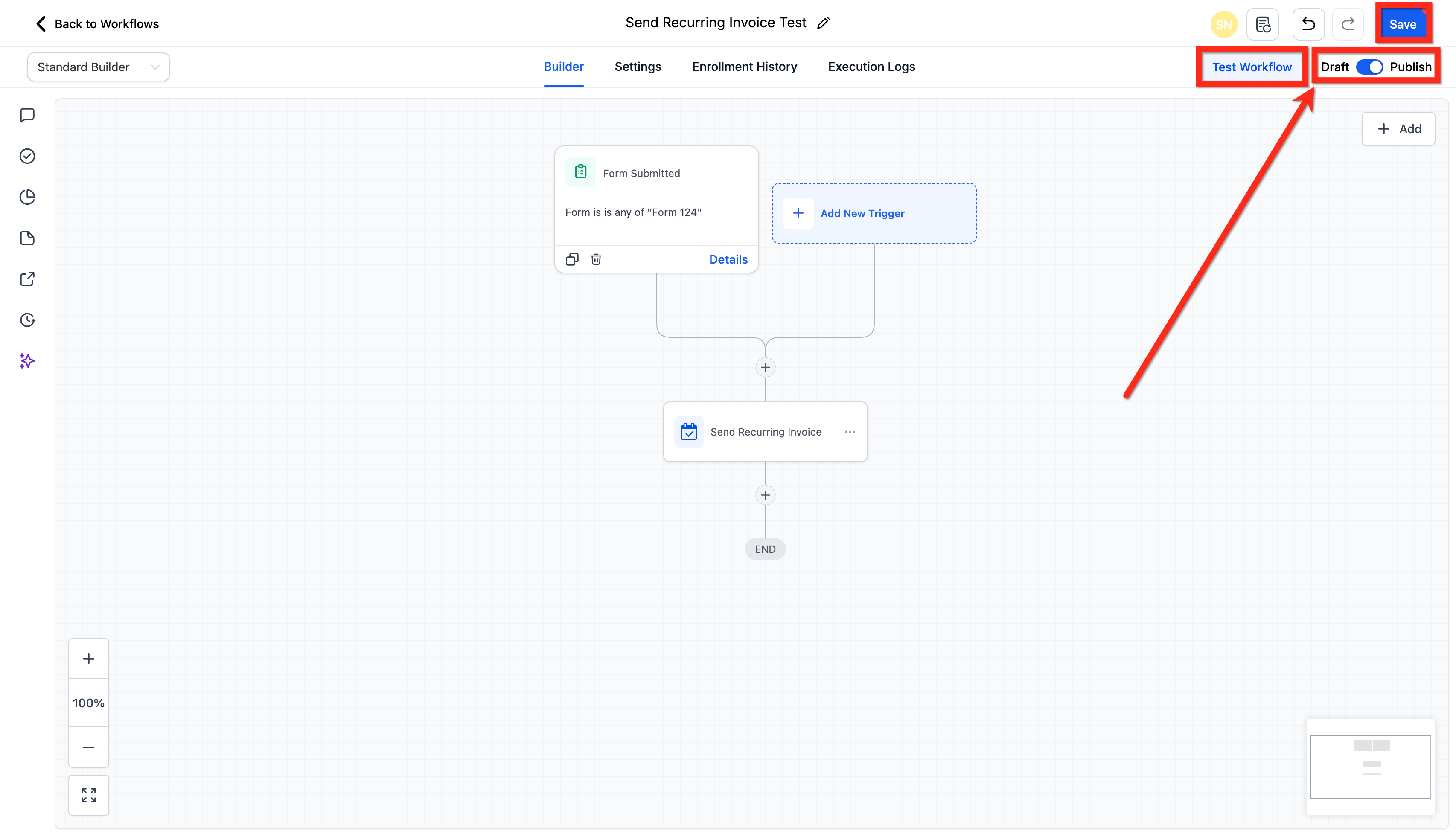
07Settings that matter
- Start Date. Determines whether the billing schedule starts when the contact hits the trigger or on a specific calendar date.
- Stop. Controls when the recurring schedule ends, either never or after a defined number of occurrences.
- Frequency. Sets how often invoices repeat, daily, weekly, monthly, or yearly, and shows additional options based on the choice.
- Days in Advance. Specifies how many days before the due date the invoice is sent.
- Enable Auto, Payment. When on, the platform stores the card after the first successful payment and charges future invoices automatically.
- Channel. Chooses how the invoice is delivered: Email, Text, or both. The default is Email & Text.
- Mode. Test mode creates invoices for trial runs only; Live mode generates real billing invoices.
08Things to know before you rely on it
- Auto Pay works only with Stripe connected subaccounts.
- The customer’s card is stored only after the first invoice is paid successfully.
- If a card fails during Auto Pay, the invoice stays unpaid and you can use a Payment Failed trigger to handle retries.
09How it connects to the rest of HighLevel
- See how to send a one time invoice in a workflow. Send Invoice action
- Learn to set up Stripe one time charges in workflows. Stripe one time charge
- Read the basics of HighLevel workflow automation. Workflow basics
Michael's take

Skipping a check on your payment gateway can leave you with invoices that never get sent.
When the setup is solid, the recurring invoice action eliminates manual invoicing and keeps billing on schedule. I’d start by mapping the exact cadence you need, then let the workflow handle the rest.