
01Who this is for
- Sales teams can trigger invoices when a deal reaches a closing stage, removing manual billing steps.
- Service providers can send invoices after a client completes a form or onboarding milestone, keeping billing consistent.
- Support staff can confirm that invoices are sent and track payment status without leaving the platform.
02Send invoice actions, explained
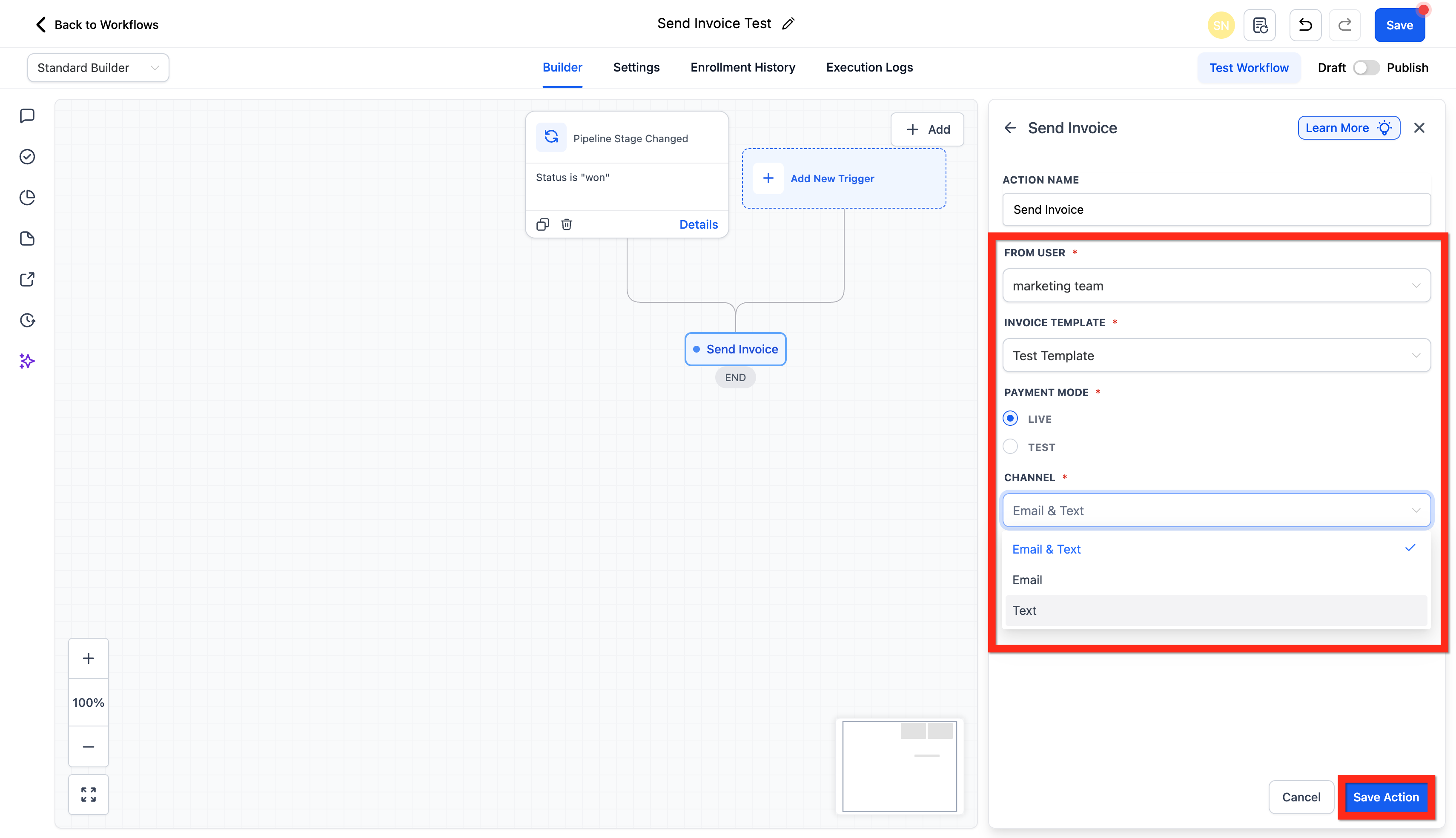
The Send Invoice action builds an invoice from a chosen template and sends it to the contact. You decide which user the invoice appears to come from, which template to use, whether the payment is live or a test, and whether the message goes by email, text, or both. The action runs when the workflow reaches its step and records the send event in execution logs.
You find the action inside the workflow builder. After adding a trigger, you add a new action, search for Send Invoice, and fill in the required fields. The platform then creates the invoice and delivers it via the selected channels. Payment status and view activity appear in the Payments > Invoices area.
Live mode creates a chargeable invoice through the connected gateway. Test mode generates a non chargeable invoice for validation purposes. If a contact lacks a phone number, only the email portion of an Email & Text selection is sent.
03How businesses use the Send Invoice action
- Real estate agency. When a buyer moves to the contract stage, the agent adds a Send Invoice action that pulls a commission invoice template, selects Live mode and Email & Text. The workflow sends the invoice automatically to the client.
- Online course provider. After a student enrolls via a form, the workflow includes a Send Invoice action set to Test mode and Email only. The team validates the invoice format without charging the student.
- Home repair service. Upon completing a service ticket, the service manager adds a Send Invoice action that uses the standard service invoice template, chooses Live mode and Text channel. The client receives a payment link via SMS.
04Before you start
- User must have permission to edit workflows and access Payments/Invoices.
- At least one invoice template must exist in the account.
- A payment gateway must be connected and ready for transactions.
- Contact records need a valid email address and/or phone number for the chosen delivery channel.
05How to set up and use the Send Invoice action in HighLevel
Set up Send Invoice action
- Sign in to the subaccount.
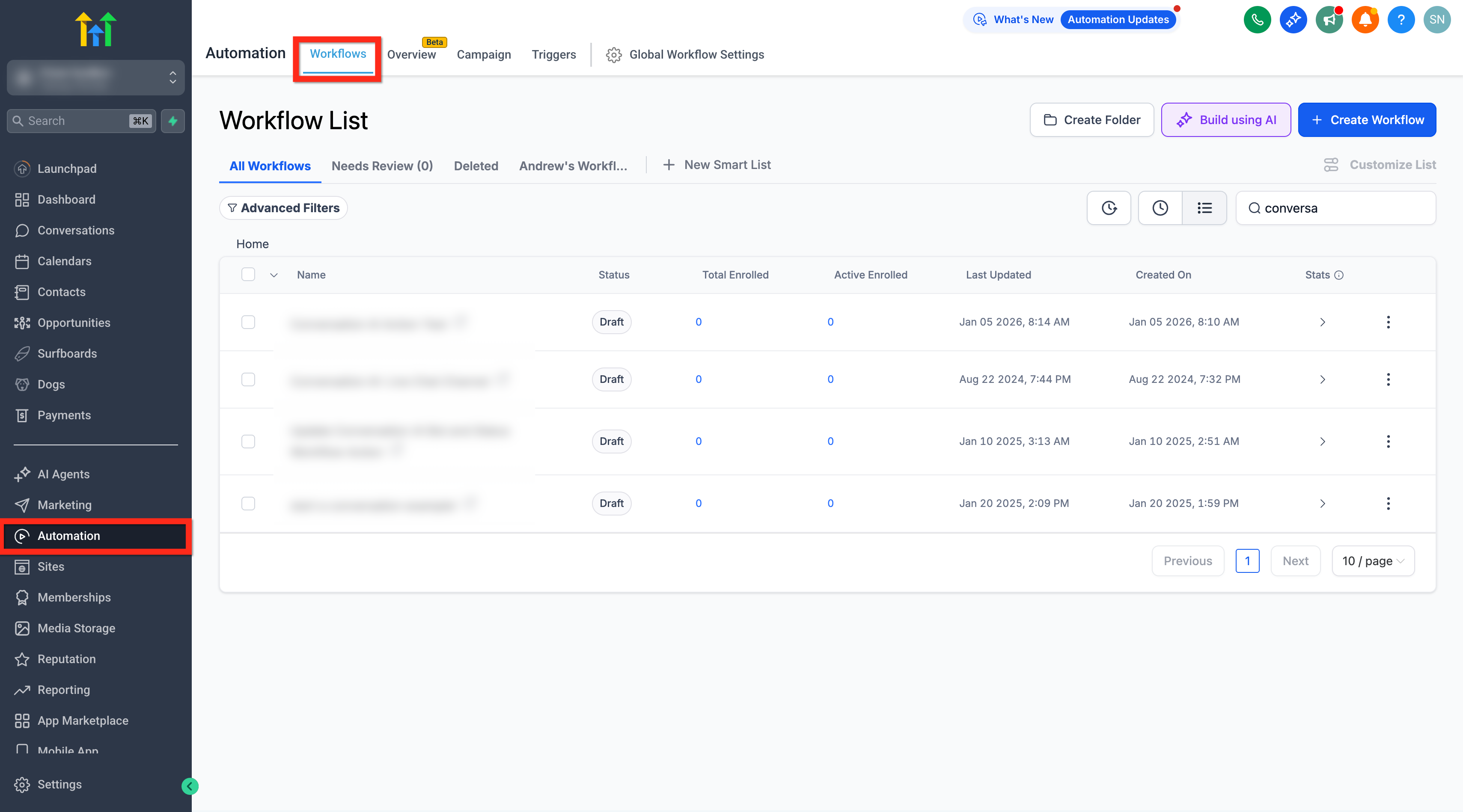
- Open Automations > Workflows.
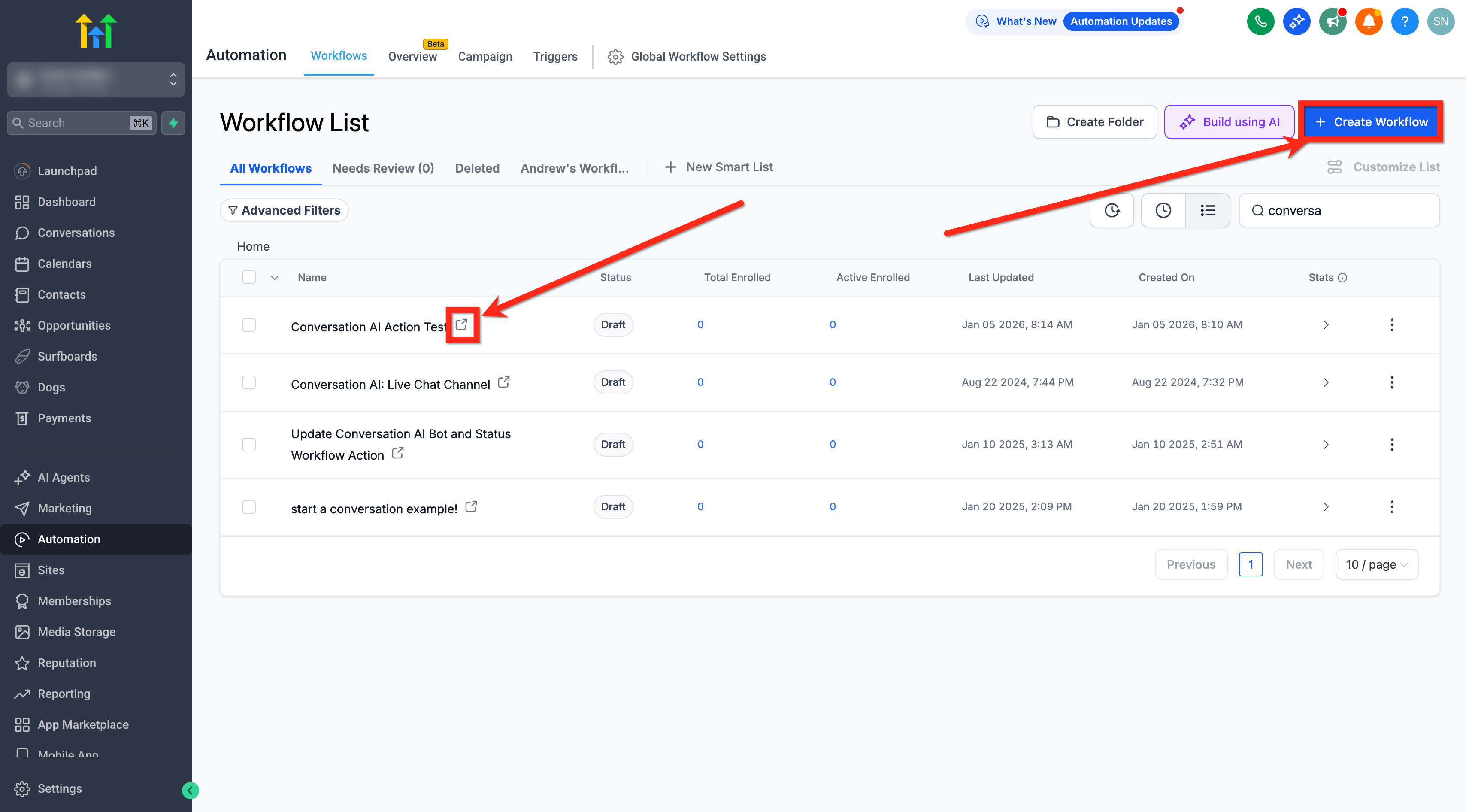
- Start a new workflow or edit an existing one.
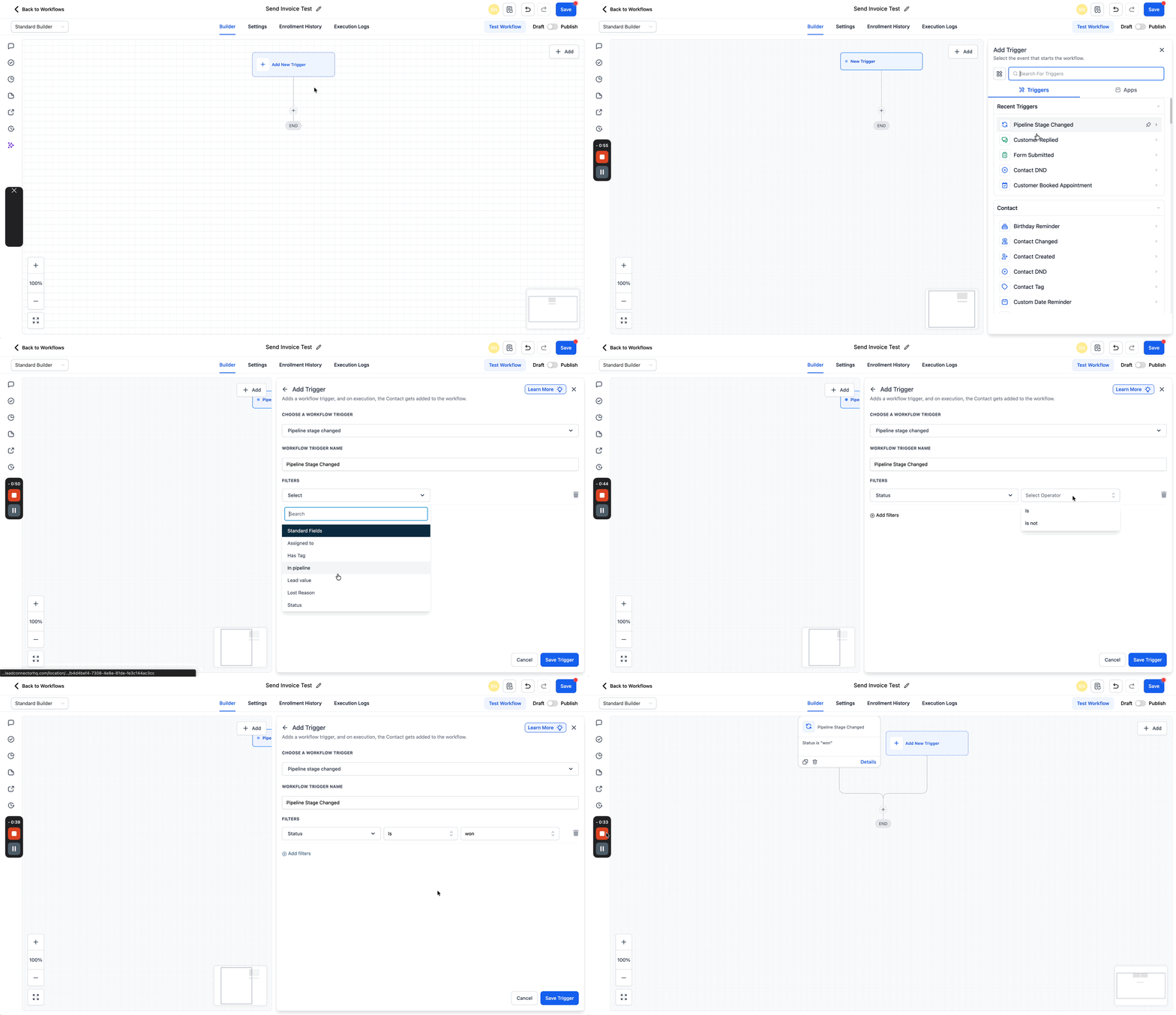
- Press the + Add New Trigger button and pick a trigger that fits the billing point.
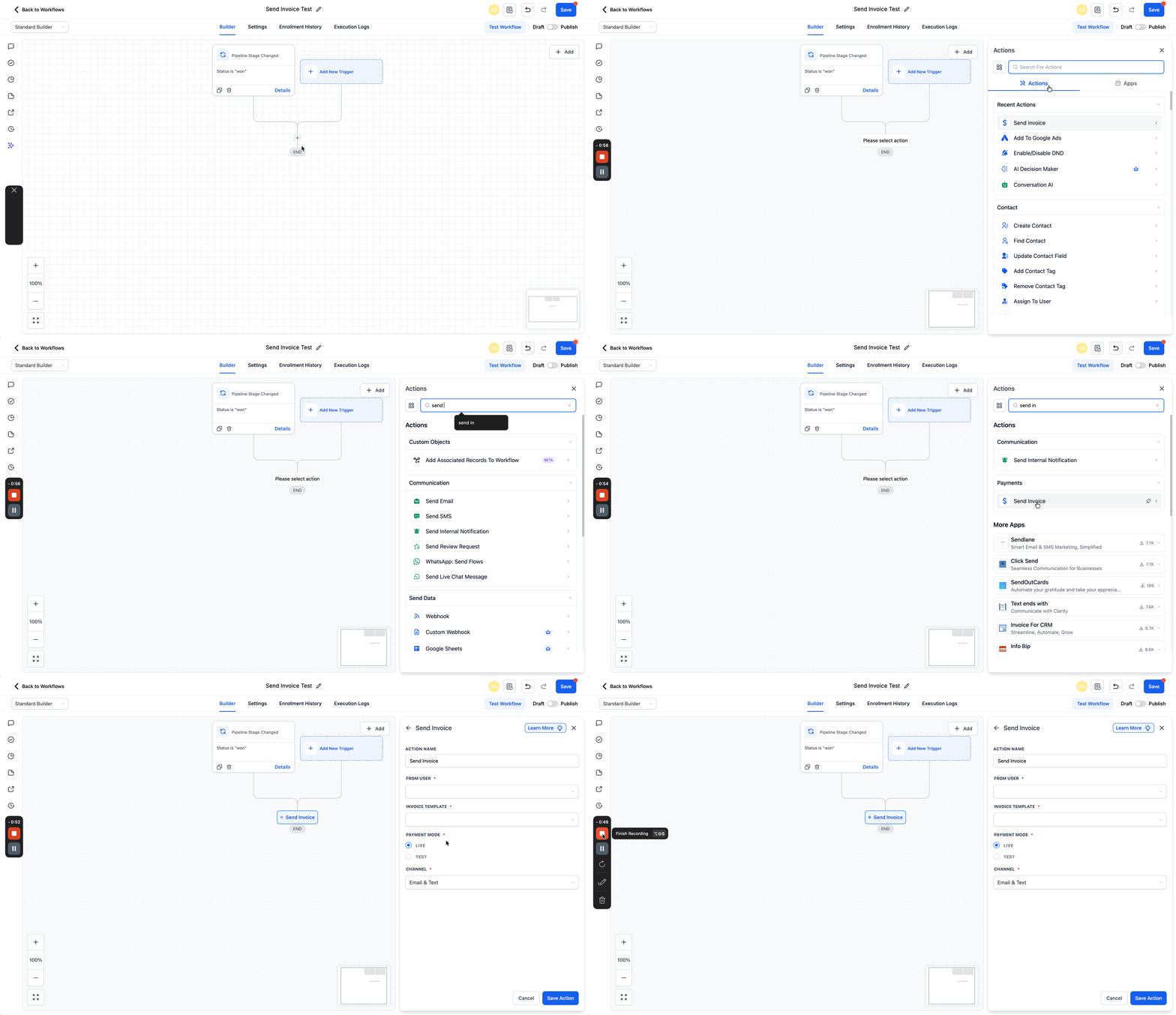
- Press the + button to add an action and type Send Invoice in the search box.
- Choose the user the invoice appears from and pick the invoice template.
- Select the payment mode, opting for Live for real charges or Test for sandbox validation.
- Pick the delivery channel: Email, Text, or Email & Text. The default is Email & Text.
- Press Save Action to store the configuration.
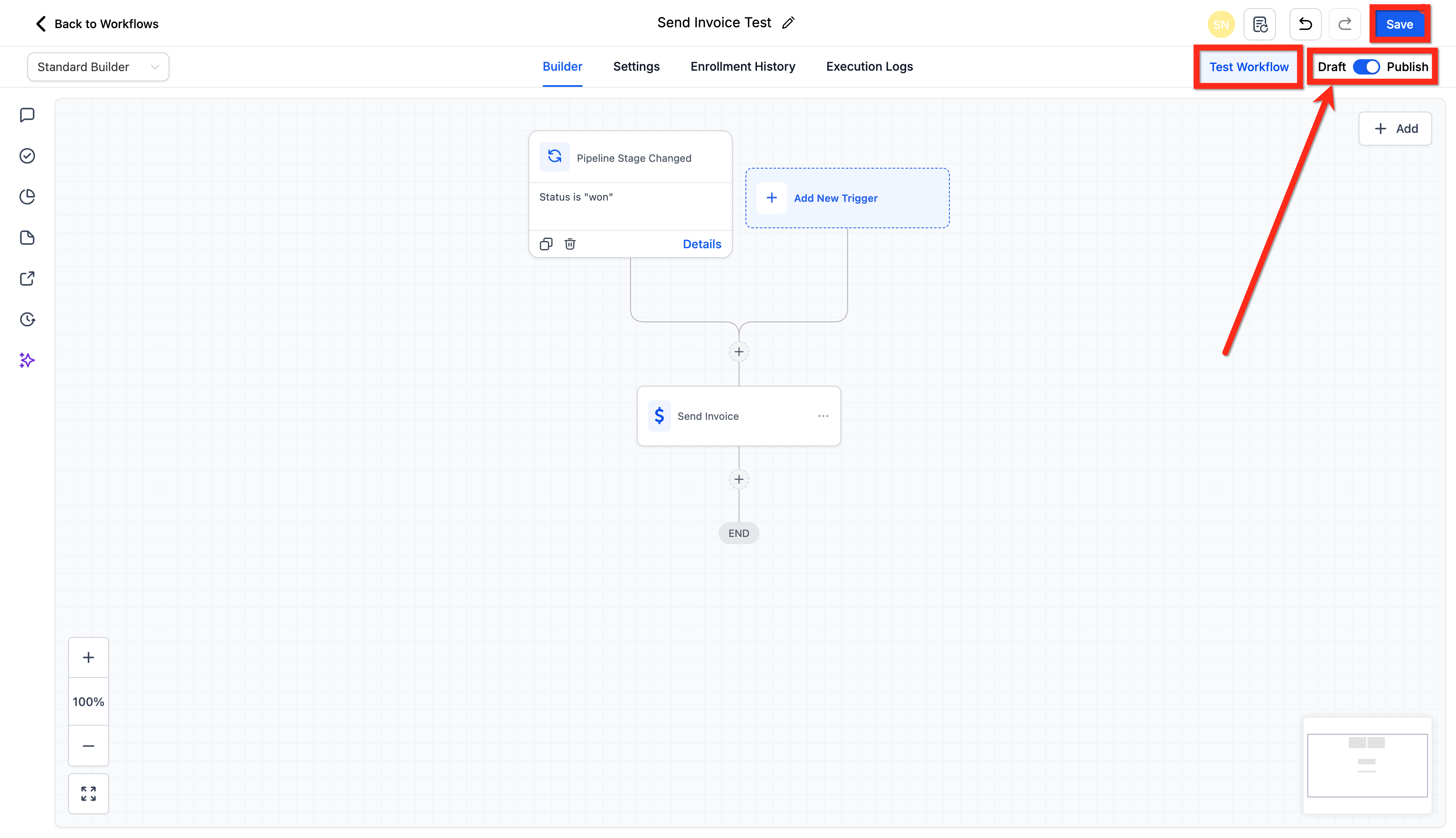
- Run a test of the workflow to verify all settings work as expected.
- Publish the workflow and save the changes.
06What it looks like in HighLevel
07Settings that matter
- From User. Defines which user the invoice shows as the sender.
- Invoice Template. Specifies the layout and details that appear on the generated invoice.
- Payment Mode. Determines whether the invoice creates a real charge (Live) or a non chargeable test (Test).
- Channel. Controls whether the invoice is delivered by Email, Text, or both.
08Things to know before you rely on it
- Live mode creates a payable invoice; Test mode does not charge the contact.
- If Email & Text is selected but the contact lacks a phone number, only the email part is sent.
- The default delivery channel is Email & Text.
09If something goes wrong
- Invoice not sent via SMS. Add a valid phone number to the contact record before enabling the Text channel.
- Test mode still creates a charge. Confirm the connected gateway supports sandbox testing and verify its test behavior before relying on results.
10How it connects to the rest of HighLevel
- Learn how to set up Stripe one time charges in a workflow Stripe one time charge guide
- Configure recurring invoices using workflow actions Recurring invoice setup
- View HighLevel pricing and plan options Pricing page
Michael's take

Send Invoice is a small convenience that removes the manual step of pulling up an invoice and hitting send.