
01Who this is for
- Businesses that want to collect post interaction feedback automatically.
- Teams that need a consistent way to ask for reviews after appointments or project completion.
02Review requests, explained
The Review Request action is a workflow step that sends a review request to a contact. You select the delivery channel, such as email, and link the message to the Reputation Settings where the template is edited. It runs when the workflow’s trigger fires.
03How businesses use review request
- Health clinic. The clinic creates a workflow that runs after an appointment is marked complete, adds a Review Request action, selects "Email" as the Review Type, and edits the template to thank patients and include a review link.
- Digital marketing agency. The agency builds a workflow for each client project that ends with a Review Request, sets the action name, chooses the appropriate channel, and customizes the message with the client’s branding via Reputation Settings.
- Freelance consultant. The consultant adds a Review Request step after a contract is fulfilled, names the action, picks "Email" as the Review Type, and modifies the template to ask for feedback and provide a review link.
04How to set up and use review request in HighLevel
Configure a Review Request action in a workflow
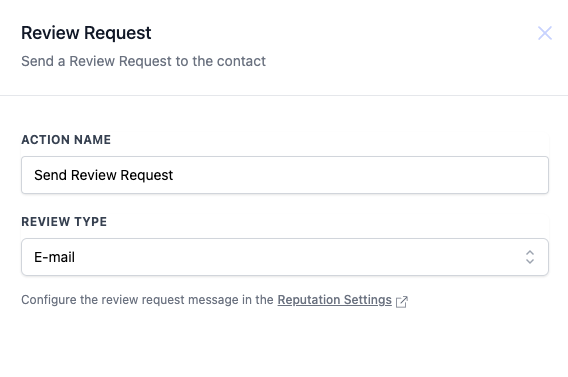
- Enter a name for the action; the default text is "Send Review Request".
- Select the desired Review Type from the dropdown, for example "Email".
- Click the Reputation Settings link to open the message editor and customize the review request content.
05What it looks like in HighLevel
06Settings that matter
- Action Name. Defines the label shown for this workflow step; it defaults to "Send Review Request".
- Review Type. Specifies which communication channel will be used to deliver the review request, such as email.
07How it connects to the rest of HighLevel
- Use the Send Email action if you need a separate email step outside the review request. Send Email action
- Add a Send SMS action to request reviews via text messages when you enable that channel. Send SMS action
- Combine a Review Request with an internal notification to alert staff when a review is sent. Internal notification
Michael's take

Michael ReimerFounder of CRM Pros, HighLevel Commander and Certified Admin
Be careful not to overpromise a review response rate. Sending too many requests or using a tone that feels pushy can turn contacts off and hurt the very reputation you’re trying to build.
When used right after a completed appointment, the Review Request can be sent at a moment when contacts are likely to have fresh impressions.
Get More InformationOpens on HighLevelPublished November 2, 2026 · Updated November 16, 2026