
01Who this is for
- Social media managers benefit because they can automate responses to post comments without manual effort.
- Customer support teams gain consistency by using prewritten replies for common inquiries on social platforms.
02Reply in comments, explained
The Reply In Comments action replies to a comment on a Facebook or Instagram post. It can also like the comment being answered. The action picks one of up to ten supplied replies at random each time it runs.
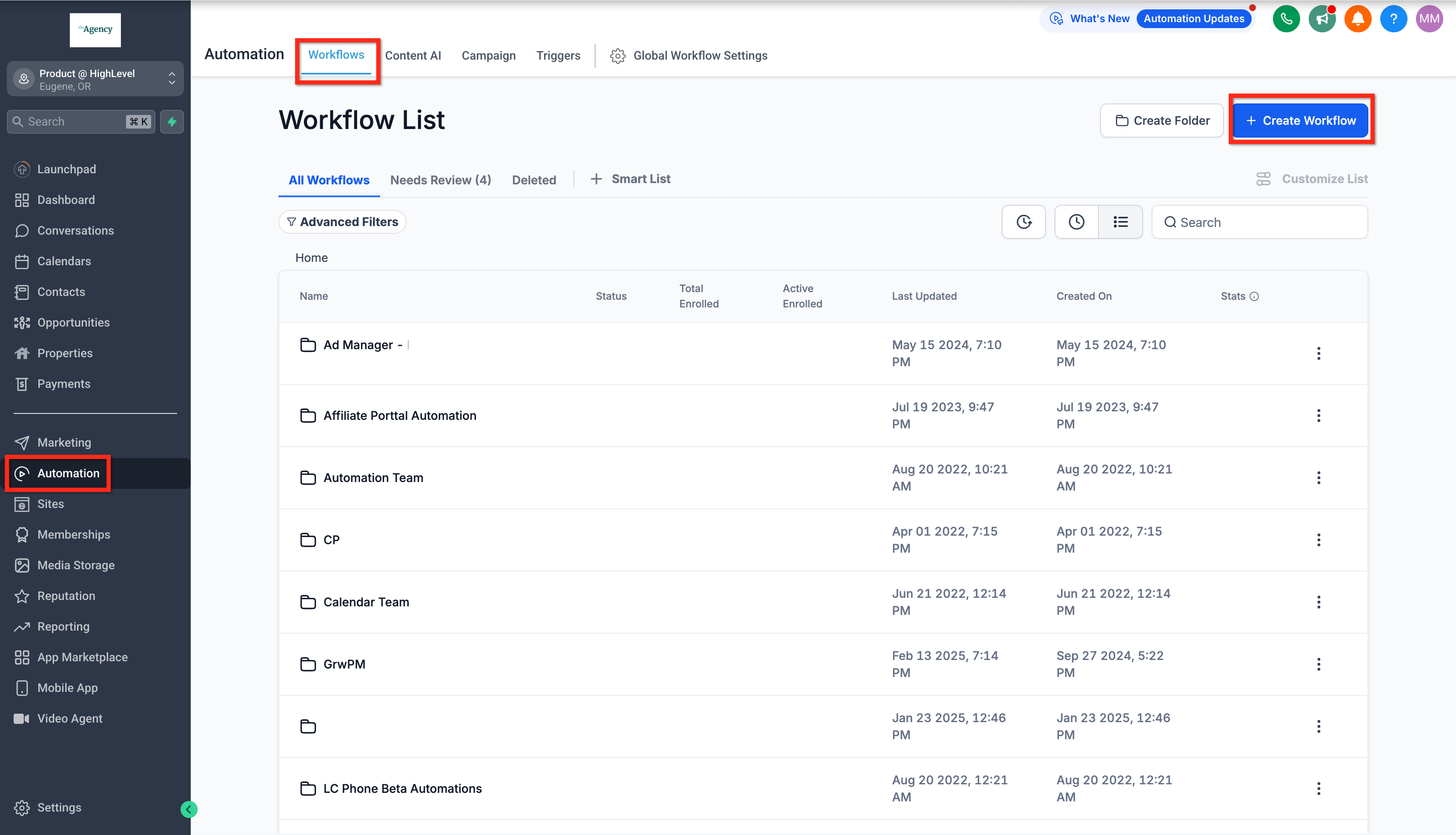
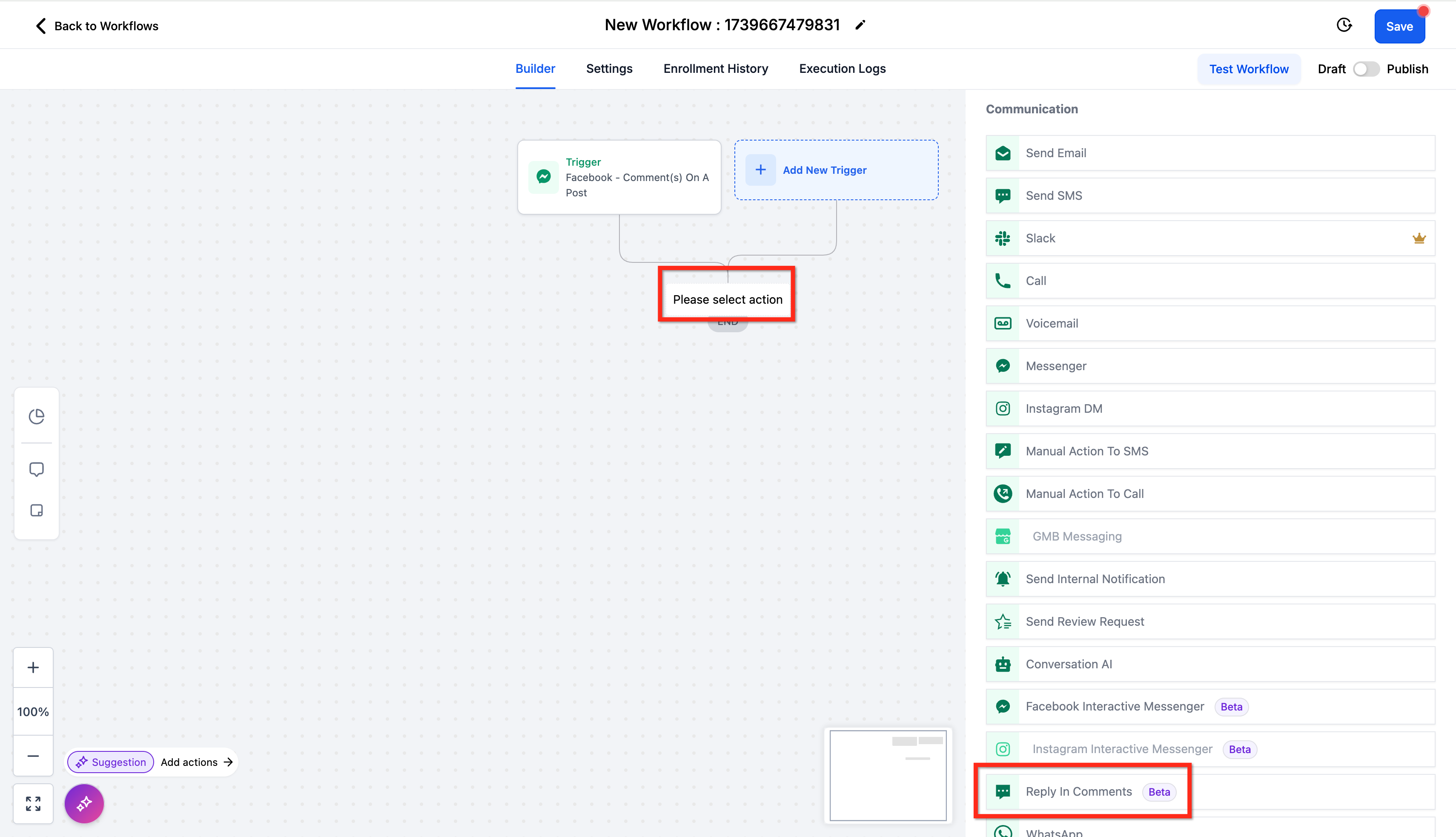
You find this action inside Automation > Workflow > Workflow Builder > Actions > Communication > Reply In Comments. It works only when the workflow starts with the Facebook Comment(s) On A Post or Instagram Comment(s) On A Post trigger. Replies can be static text or pulled from a previous AI action using tags.
03How businesses use reply in comments
- Real estate agency. The agency creates a workflow that replies to inquiries on property photos. It stores up to ten typical responses about pricing or viewings, and the system randomly selects one when a comment appears.
- Fitness studio. The studio sets up a workflow that automatically thanks members for commenting on class updates, optionally liking the original comment to increase engagement.
- Restaurant. The restaurant adds an AI action that drafts a personalized menu suggestion, then uses Reply In Comments to post that suggestion as a comment reply and like the customer’s original comment.
04The numbers and rules that matter
- Create up to ten (10) comments to be used randomly.
05Before you start
- Include a Facebook Comment(s) On A Post or Instagram Comment(s) On A Post trigger in the workflow.
06How to set up and use reply in comments in HighLevel
Set up reply in comments action
- Open Automation, go to Workflow Builder, and create or edit a workflow.
- Add a new action and choose Communication > Reply In Comments.
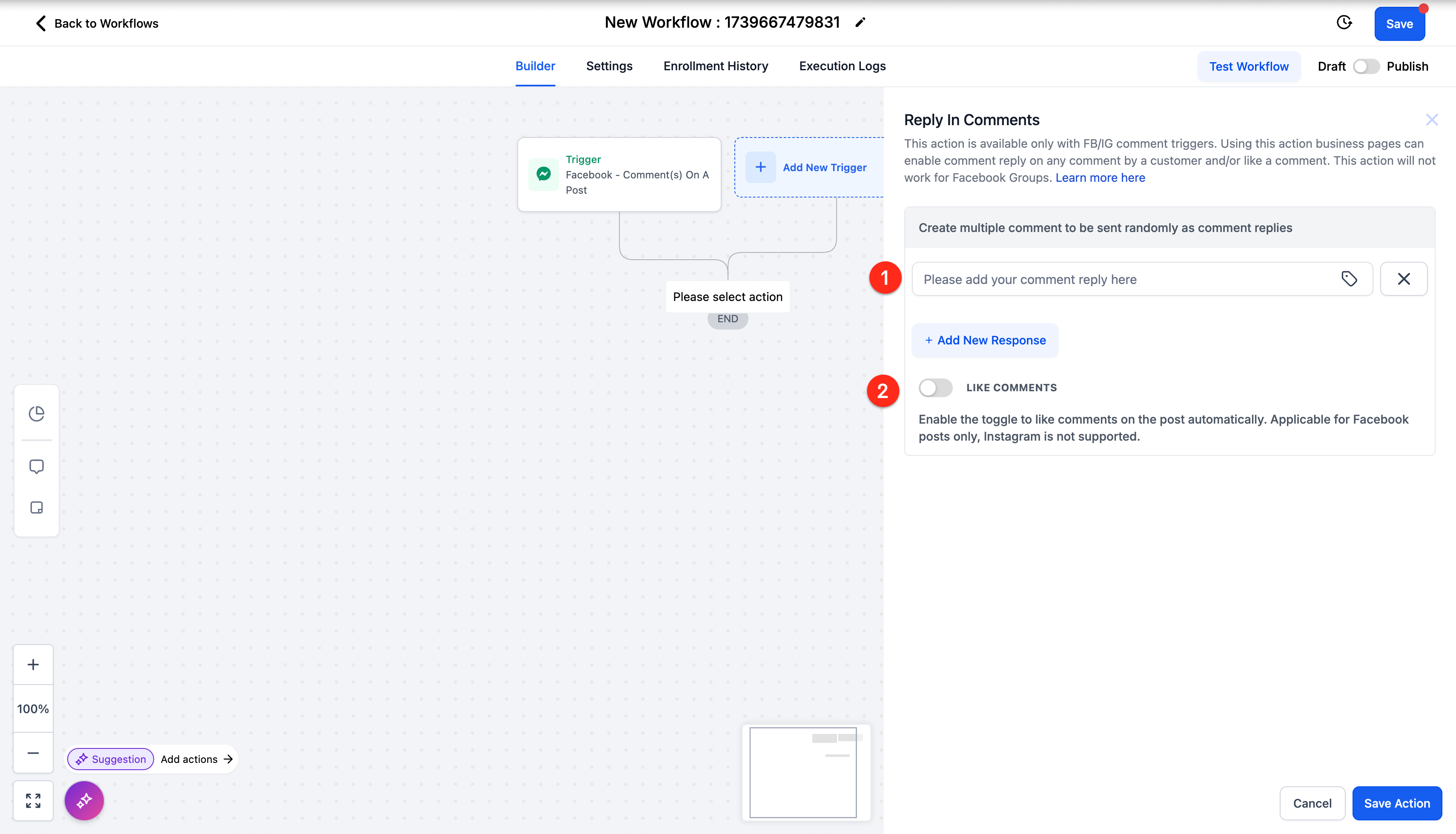
- Enter up to ten reply texts, typing them directly or inserting tags for dynamic content.
- Toggle the Like Comments option on if you want the reply to also like the original comment.
07What it looks like in HighLevel
08Settings that matter
- Comments. Provides the pool of up to ten prewritten replies that the action can select from randomly.
- Like Comments. Controls whether the workflow also likes the comment it is replying to.
09Things to know before you rely on it
- You can supply a maximum of ten different comments for random selection.
- Replies are chosen randomly; you cannot assign a specific reply to a specific comment.
- The action works only with the Facebook Comment(s) On A Post or Instagram Comment(s) On A Post triggers.
10How it connects to the rest of HighLevel
- Add an internal notification after replying to a comment Internal notification action
- Send a follow up SMS after a comment reply Send SMS action
- Combine with a send email action for broader outreach Send Email action
Get More InformationOpens on HighLevelPublished November 2, 2026 · Updated November 16, 2026