
01Who this is for
- Businesses using HighLevel can send messages to contacts through Google My Business, keeping communication within a channel customers already use.
- Agencies can automate GMB messaging for their client accounts, delivering reminders or promotions without leaving the HighLevel platform.
02GMB actions, explained
The GMB action is a workflow step that transmits a text message through Google My Business messaging. It requires an action name and a message body. The message can contain plain text, dynamic placeholders, and clickable links.
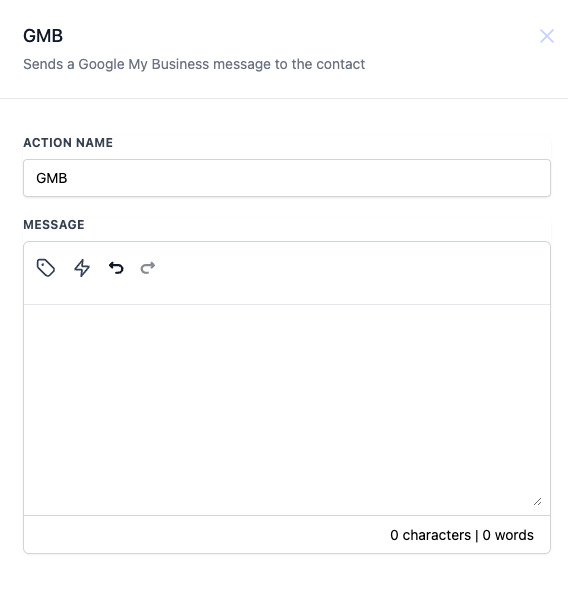
Within the workflow editor, you select the GMB action, set a custom name if desired, type the message, insert custom values using the {} icon, and add predefined trigger links with the link icon. When the workflow runs, HighLevel delivers the composed message to the contact’s GMB chat.
This action appears in the workflow actions list under the name "GMB (Google My Business)" and can be combined with any trigger supported by the platform.
03How businesses use the GMB action
- Dental practice. Create a workflow that triggers on an upcoming appointment. Use the GMB action to send a reminder that includes the patient’s name and appointment date via custom values. Add a link that lets the patient confirm or reschedule directly from the message.
- Fitness studio. Set up a workflow that fires when a class is canceled. The GMB action sends a notice with the class name and date, then includes a predefined link that lets members book an alternative session.
- Restaurant. Configure a promotion workflow that activates on a special event trigger. The GMB action delivers a promotional text with a clickable reservation link, allowing recipients to book a table straight from the GMB chat.
04How to set up and use the GMB action in HighLevel
Set up GMB action
- In the workflow editor, add the GMB action and enter a name for the action; the default name is "GMB".
- Type the message you want to send in the provided text box.
- Click the {} icon to insert custom values such as contact name or appointment details into the message.
- Click the link icon to choose a predefined trigger link; the link will appear clickable in the GMB message.
05What it looks like in HighLevel
06Settings that matter
- Action Name. Defines the label for this workflow step; it defaults to "GMB" but can be changed to any identifier you prefer.
- Message. Contains the text that will be sent through Google My Business, allowing plain text, custom values, and clickable trigger links.
07How it connects to the rest of HighLevel
- Set up a Send SMS action for alternative messaging channels Send SMS action
- Configure the Send Email action to complement GMB messages Send Email action
- Add internal notifications to alert your team when a GMB message is sent Internal notification action
Michael's take

The first setting I would focus on is the Message field. Use the {} icon to pull in the contact’s name and appointment date, and add a trigger link so they can reply or book a call with a single tap.