
01Who this is for
- Social media managers can automate responses to comments and direct messages, reducing manual effort.
- Customer support teams can deliver quick answers and offer call or website links straight from Messenger.
- Marketers can send promotional snippets with buttons that direct users to landing pages or phone numbers.
02Facebook Interactive Messenger, explained
The action creates a Messenger reply that can be a simple text message or a richer interaction. You choose whether the reply originates from a new comment (Reply to Comment via DM) or an existing DM (Reply to DM). The message body can include custom values, trigger links, or snippets saved elsewhere in the platform.
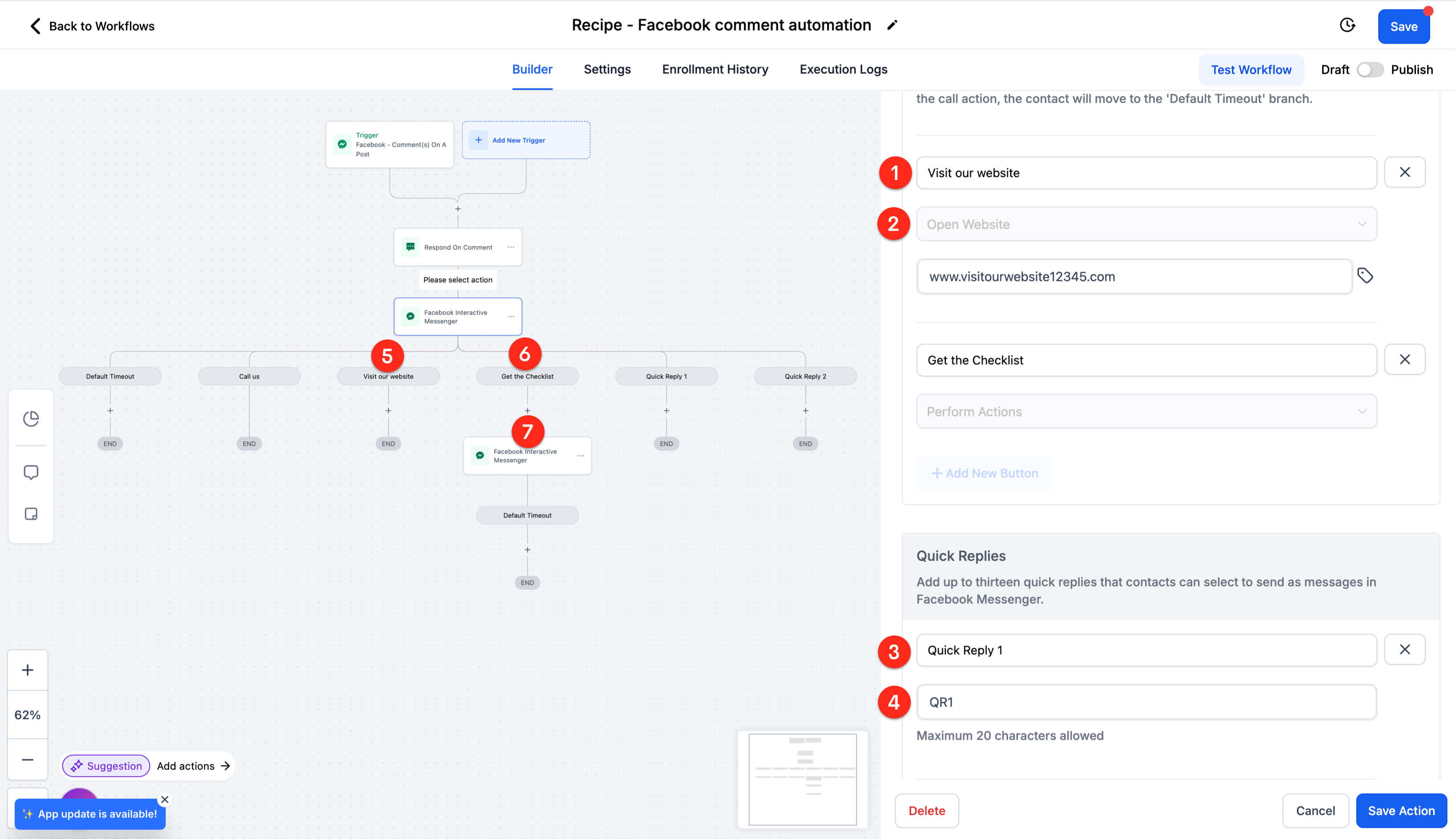
Within the same action you may attach a file from your computer or reference one by URL. You can also add up to three persistent buttons or up to thirteen quick replies. Buttons stay visible after a tap, while quick replies disappear once selected. A wait step can pause the workflow before moving to the next branch.
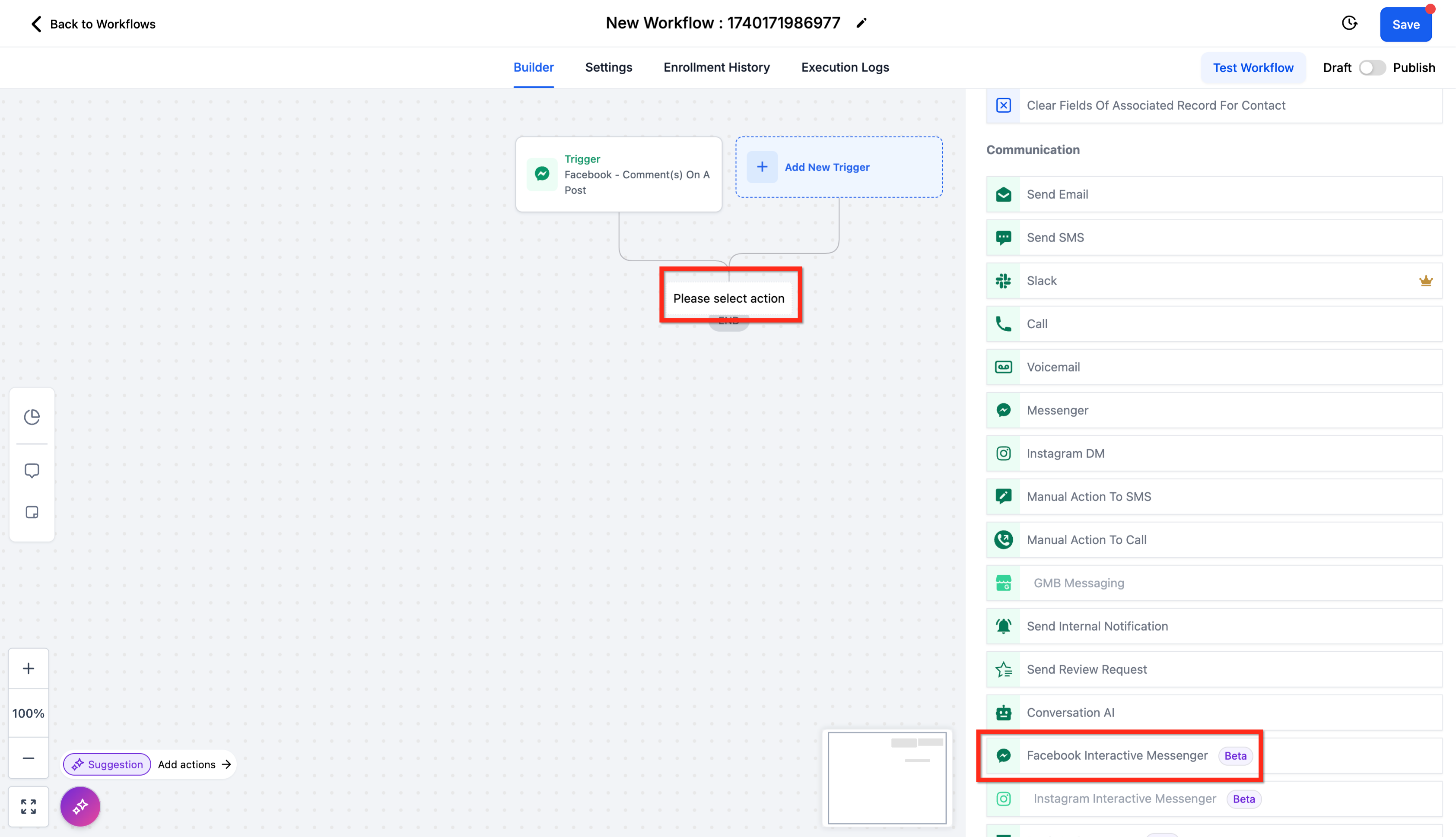
You find this action under Automation > Workflows > Workflow Builder > Actions > Communication > Facebook Interactive Messenger.
03How businesses use Facebook Interactive Messenger
- Ecommerce store. When a customer comments on a product post, the workflow sends a DM with a personalized discount code, includes a button to view the collection, and adds a wait step before following up.
- Real estate agency. After a prospect sends a direct message, the workflow replies with property listings, adds quick replies for price range choices, and attaches a PDF brochure through a file URL.
- Healthcare clinic. When a patient messages the page, the workflow sends a reminder, includes a button that opens the clinic’s booking page, and provides a quick reply to confirm the appointment.
04The numbers and rules that matter
- Outbound messages can only be delivered within 24 hours of a contact’s last interaction with your Facebook Page.
- You can add 3 buttons.
- You can add up to 13 quick replies.
05Before you start
- A workflow must already have a Facebook comment or message trigger.
- Any Snippets, Custom Values, or Trigger Links that will be used should be created in Marketing first.
06How to set up and use Facebook Interactive Messenger in HighLevel
Add Facebook Interactive Messenger action
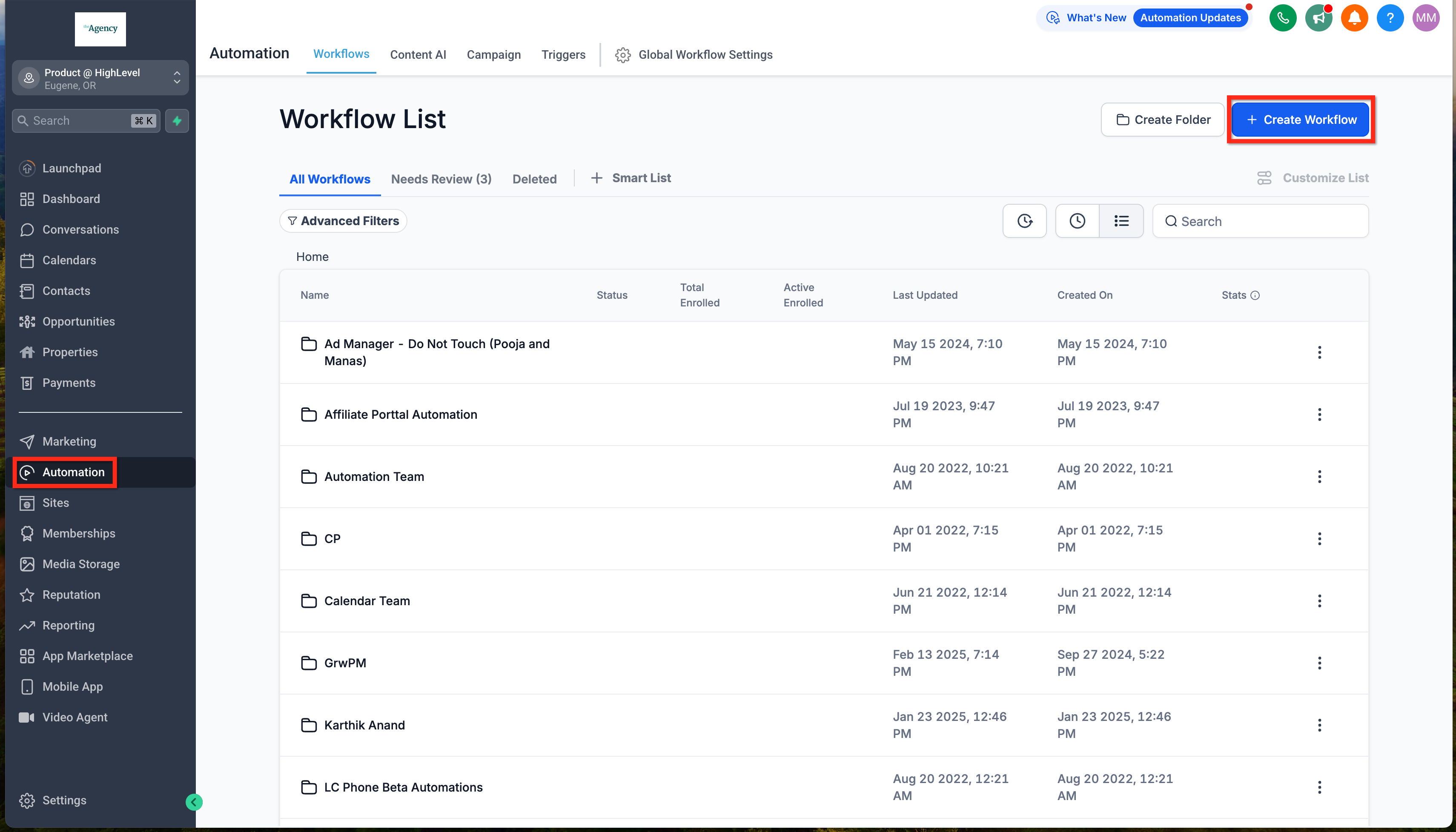
- Open Automation > Workflows and launch the Workflow Builder.
- Create a new workflow or edit an existing one.
- Click the plus icon to add an action and select Communication > Facebook Interactive Messenger.
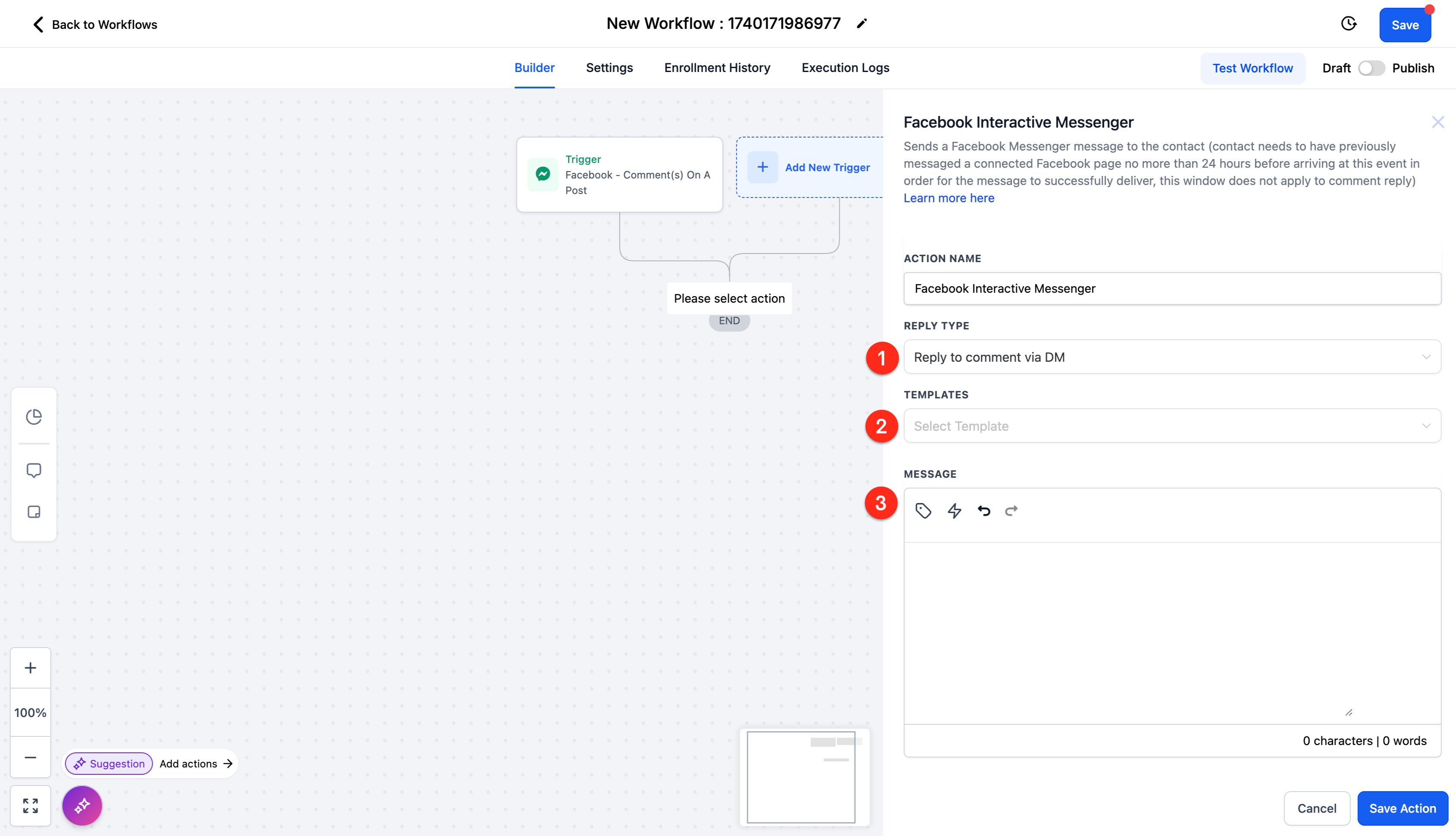
- Choose the appropriate Reply Type: Reply to Comment via DM or Reply to DM.
- Select a Template snippet or type the message body in the builder.
- Insert Custom Values or Trigger Links as needed within the message.
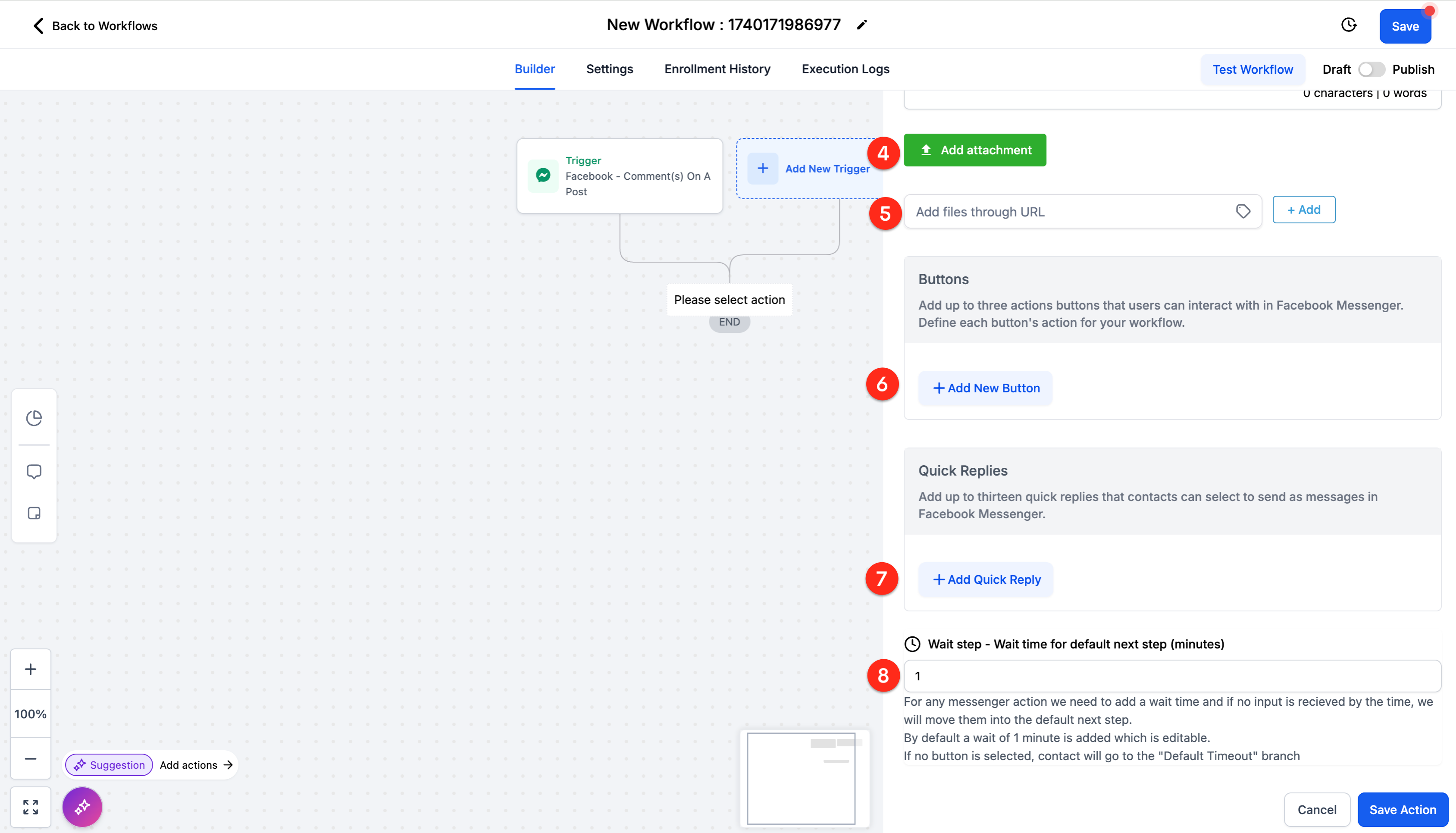
- Add an attachment by uploading a file or entering a file URL.
- Add up to three buttons or up to thirteen quick replies, defining their label and action.
- Set a Wait Step duration before the workflow proceeds to the next branch.
07What it looks like in HighLevel
08Settings that matter
- Reply Type. Determines whether the action replies to a new comment via DM or to an existing direct message.
- Message. The main text that will be sent in the Messenger reply.
- Body. The content builder where you compose the message text.
- Custom Values. Allows insertion of user defined placeholders created in Settings > Custom Values.
- Trigger Links. Enables adding URLs that were set up in Marketing > Trigger Links.
- Add Attachment. Uploads a file from your computer to include in the Messenger message.
- Add file through URL. Links to an external file that will be attached to the message.
- Add New Button. Adds an interactive button with a label and an action such as opening a website, calling a number, or triggering a workflow branch.
- Add Quick Reply. Adds a one tap response option that disappears after the user selects it.
- Wait Step. Specifies a pause time before the workflow continues after sending the message and its interactive elements.
09Things to know before you rely on it
- Messages can only be sent within 24 hours of the contact’s last interaction with the Facebook Page, per Meta’s policy.
- A maximum of three buttons can be added to a single message.
- Up to thirteen quick replies can be added, but quick replies cannot be used when an attachment is included in the same message.
10How it connects to the rest of HighLevel
- Learn how to set up a Send Email action in workflows. Send Email action
- Configure a Send SMS action for additional channel coverage. Send SMS action
- Explore internal notification actions to alert team members. Internal notification
Michael's take

Wondering if the Facebook Interactive Messenger action is worth the effort for a small agency? It lets you automate replies and steer prospects with buttons or quick replies, all inside a workflow that already knows when someone comments or messages your page.
If I were setting it up, I’d start with a simple comment to DM flow, add a button that opens a booking link, and test the 24 hour delivery window. That way you see the conversation path work before you layer on more branches.