
01Who this is for
- Founders who own WordPress sites can capture leads without Zapier, keeping their funnel simple.
- Marketing managers at agencies can track form activity across client domains from a single dashboard.
- Ecommerce operators using Shopify or Wix gain immediate visibility into external checkout forms.
02External tracking, explained
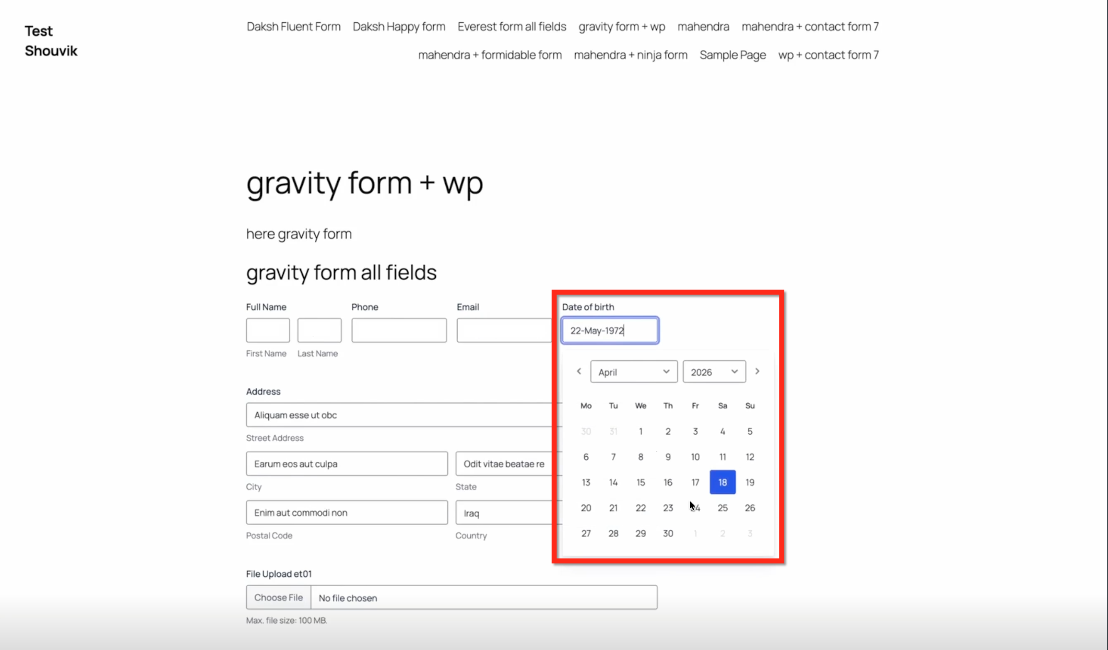
External Tracking is a script that links an outside website to HighLevel. When the script runs, it scans the page’s DOM for forms that meet basic HTML requirements. Supported forms such as Gravity Forms, WPForms, Contact Form 7, and custom HTML are recognized automatically.
When a visitor submits a detected form, the script forwards the data to HighLevel. The platform creates or updates a contact, maps each field to existing properties, and stores any unmapped values for later use. Submissions appear in the Forms > Submissions view and are attached to the contact’s activity log.
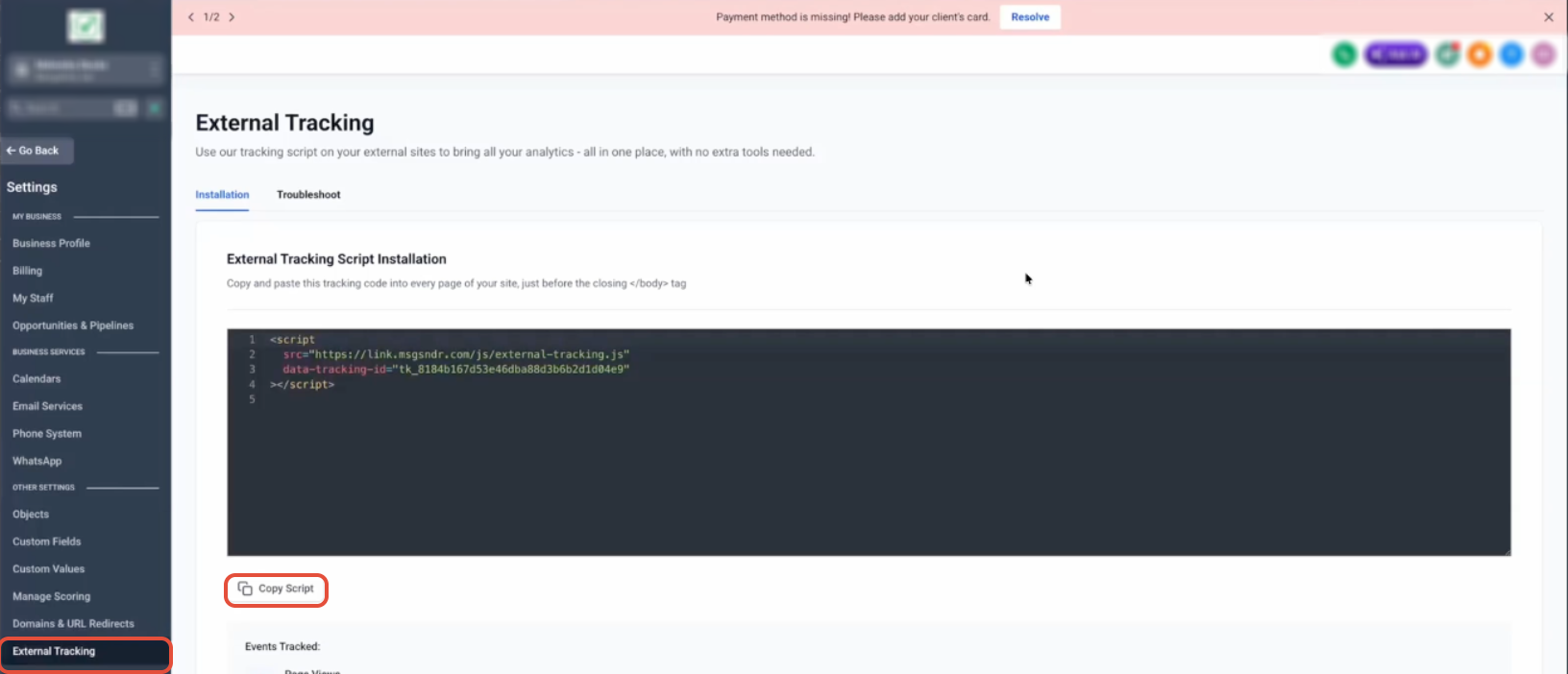
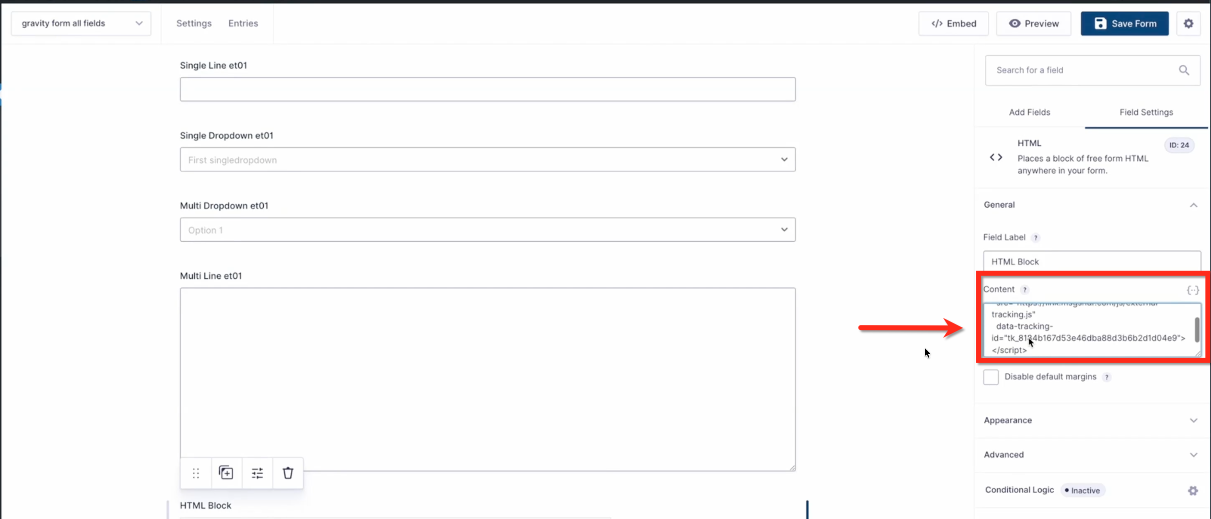
The feature lives under Settings > External Tracking, where a unique script snippet is generated. Adding the snippet before the closing </body> tag of any page enables detection for all forms on that site.
03How businesses use external tracking
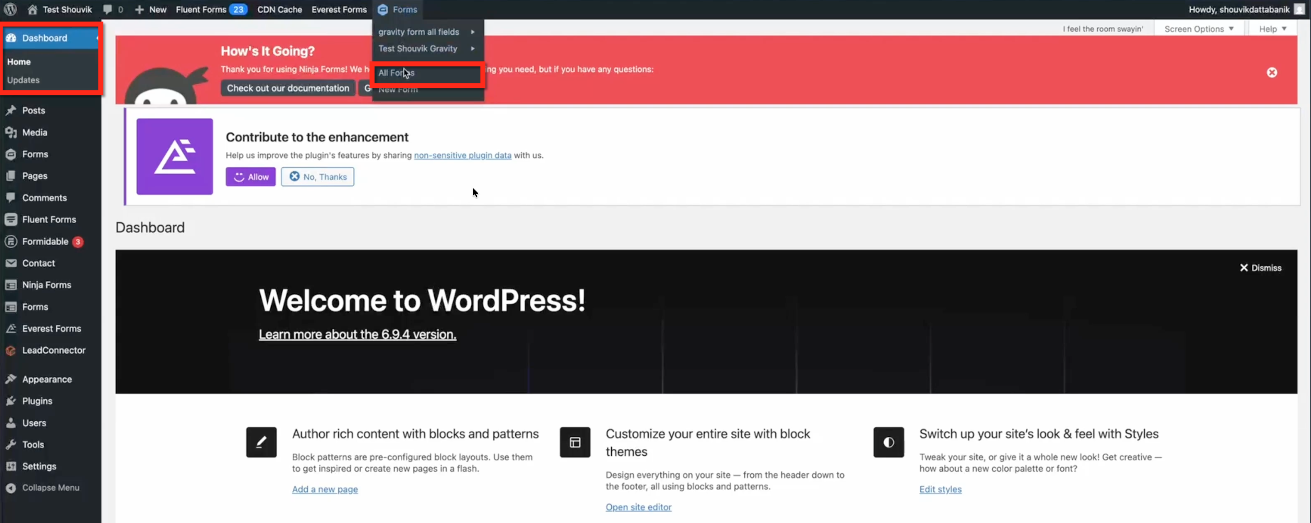
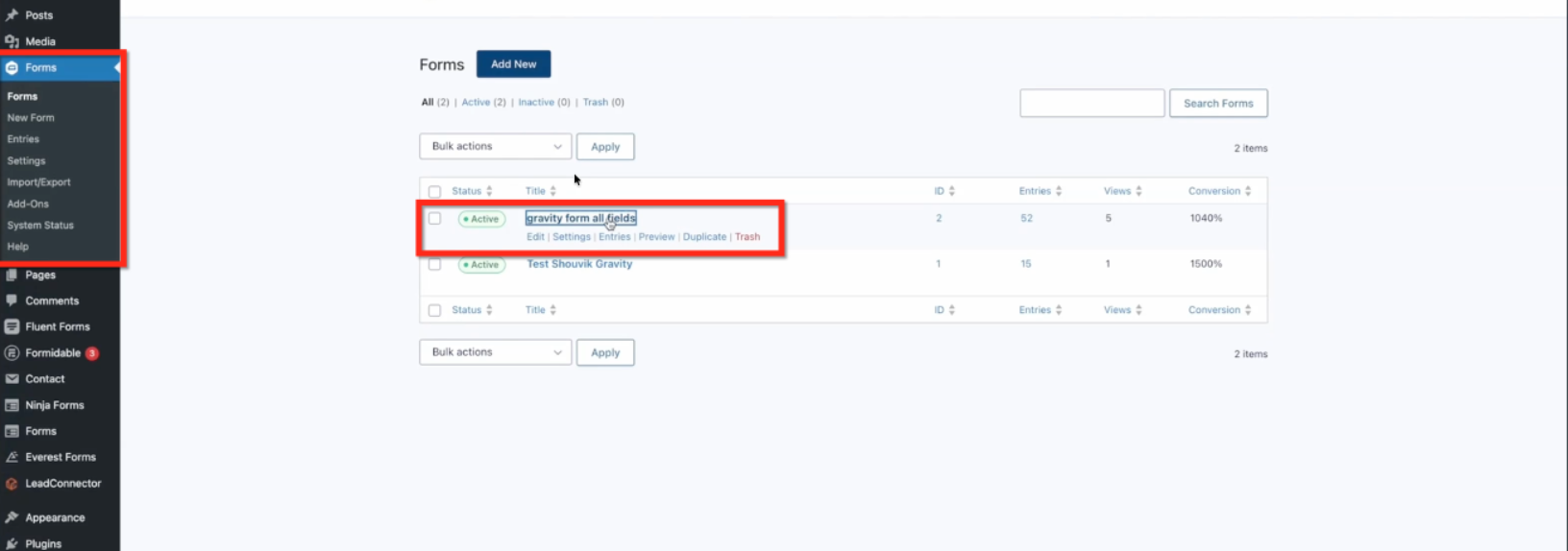
- Digital marketing agency. The agency installs the script on each client’s WordPress site. Once live, any lead captured by the client’s Gravity Form appears right away in the agency’s HighLevel account, allowing centralized follow up.
- Online retailer. The retailer adds the script to a Shopify theme. When a shopper completes a custom checkout form, the submission creates a contact and logs the purchase path for later segmentation.
- Service based consultant. The consultant places the script inside a landing page form built with a no code site builder. Submissions from that page generate new contacts that trigger onboarding workflows.
04The numbers and rules that matter
- Supported forms: Gravity Forms, WPForms, Contact Form 7, custom HTML forms, no code website builders.
05How to set up and use external tracking in HighLevel
Set up external tracking
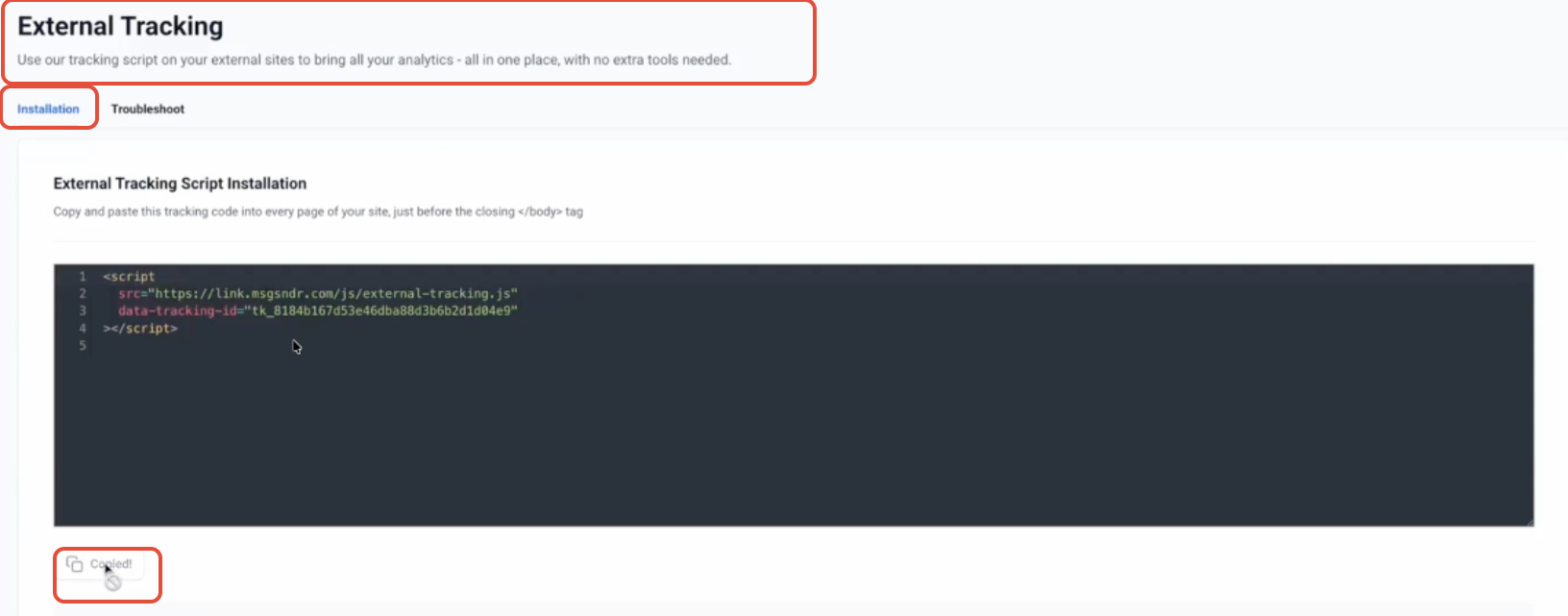
- Open Settings > External Tracking and click the Copy Script button to copy the unique snippet.
- Paste the script just before the closing </body> tag on every page of the external website.
- If preferred, insert the same script into an HTML block inside a specific form.
- Submit the form as a regular visitor to allow the script to detect it.
- Go to Sites > Forms > Submissions and filter for External Forms to see the captured entry.
- Open the related contact record to view activity details and mapped fields.
06What it looks like in HighLevel
07Settings that matter
- External Tracking. Controls the generation of the script that connects external website activity to HighLevel.
08Things to know before you rely on it
- Only forms that render a standard <form> element with visible input fields are detected.
- Forms must include name attributes on inputs and an email field for contact matching.
- Iframe based forms, pop up widgets, or third party scripts that hide inputs are not supported.
09How it connects to the rest of HighLevel
- Learn how to embed HighLevel forms on non HighLevel websites. Embedding HighLevel forms
- Set up email notifications for form submissions. Email notifications
- Review pricing plans and trial options for HighLevel. HighLevel pricing
Michael's take

External tracking is a big help for a small business that runs a WordPress blog or a simple landing page. One script pulls every lead straight into HighLevel, giving you instant visibility without the headache of Zapier or custom integrations.
The biggest mistake is dropping the script into an iframe instead of the page body.