
01Who this is for
- Marketing teams can speed up lead capture by pre filling returning visitor information.
- Coaching practices can reduce friction for repeat appointment bookings using auto filled client details.
02Sticky contact, explained
Sticky Contact uses data saved in a visitor’s browser to remember information entered on a previous interaction. When the visitor returns using the same browser and device, the platform inserts the stored values into any supported fields on the form, survey, calendar or order form. The feature works only within the same domain; data does not travel across subdomains. The setting is available for each asset type individually. You turn it on in the Form Settings, Survey Settings, Calendar Settings, or Order Form settings, depending on where the asset lives. Once enabled, HighLevel reads the cookie data and prepopulates matching fields without affecting browser autofill.
03How businesses use Sticky Contact
- Ecommerce store. Activate Sticky Contact on the checkout order form so returning shoppers see their name, email and phone already filled in. The store manager only needs to enable the toggle inside the order form settings.
- Health coaching practice. Turn on Sticky Contact for the appointment calendar. Clients who book a second session on the same device will have their contact details automatically inserted, making the booking process faster.
- Online survey provider. Enable Sticky Contact on follow up surveys. When a respondent who previously completed a lead capture form returns, the survey fields for name and email are prefilled, reducing survey abandonment.
04The numbers and rules that matter
- Works across supported forms, surveys, calendars, and order forms.
05How to set up and use Sticky Contact in HighLevel
Enable Sticky Contact in a form
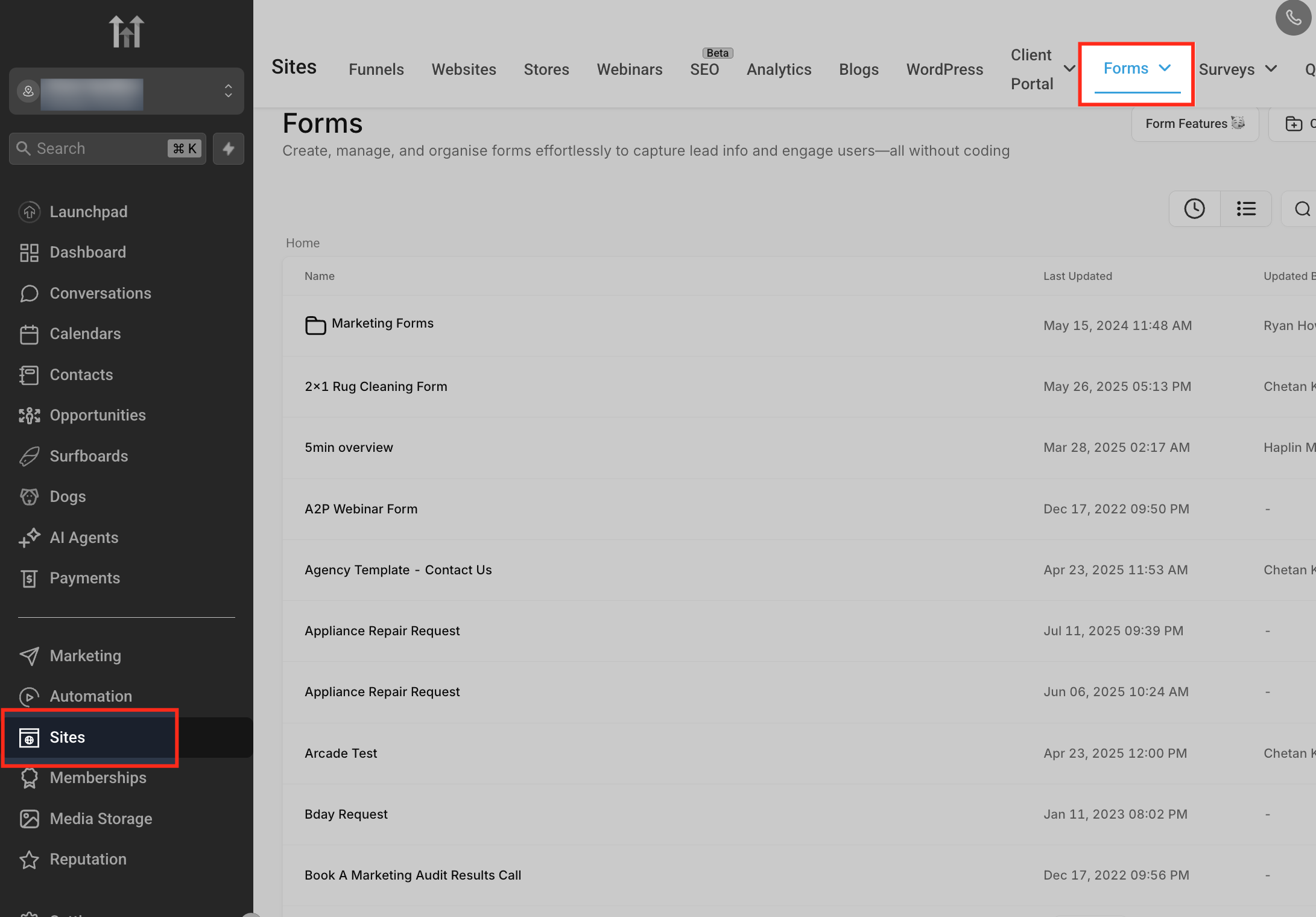
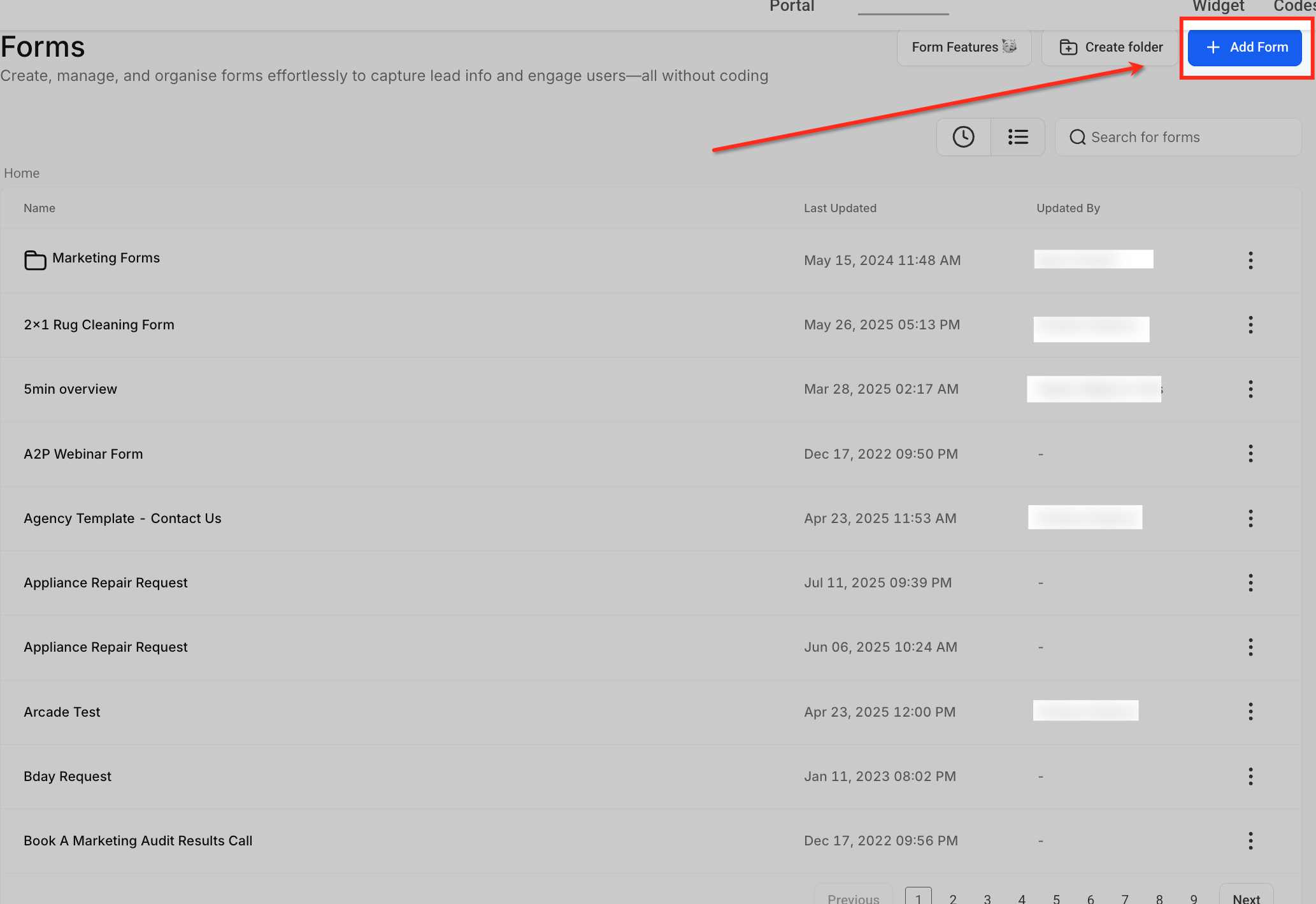
- Navigate to Sites > Forms and launch the Form Builder.
- Select an existing form or create a new one.
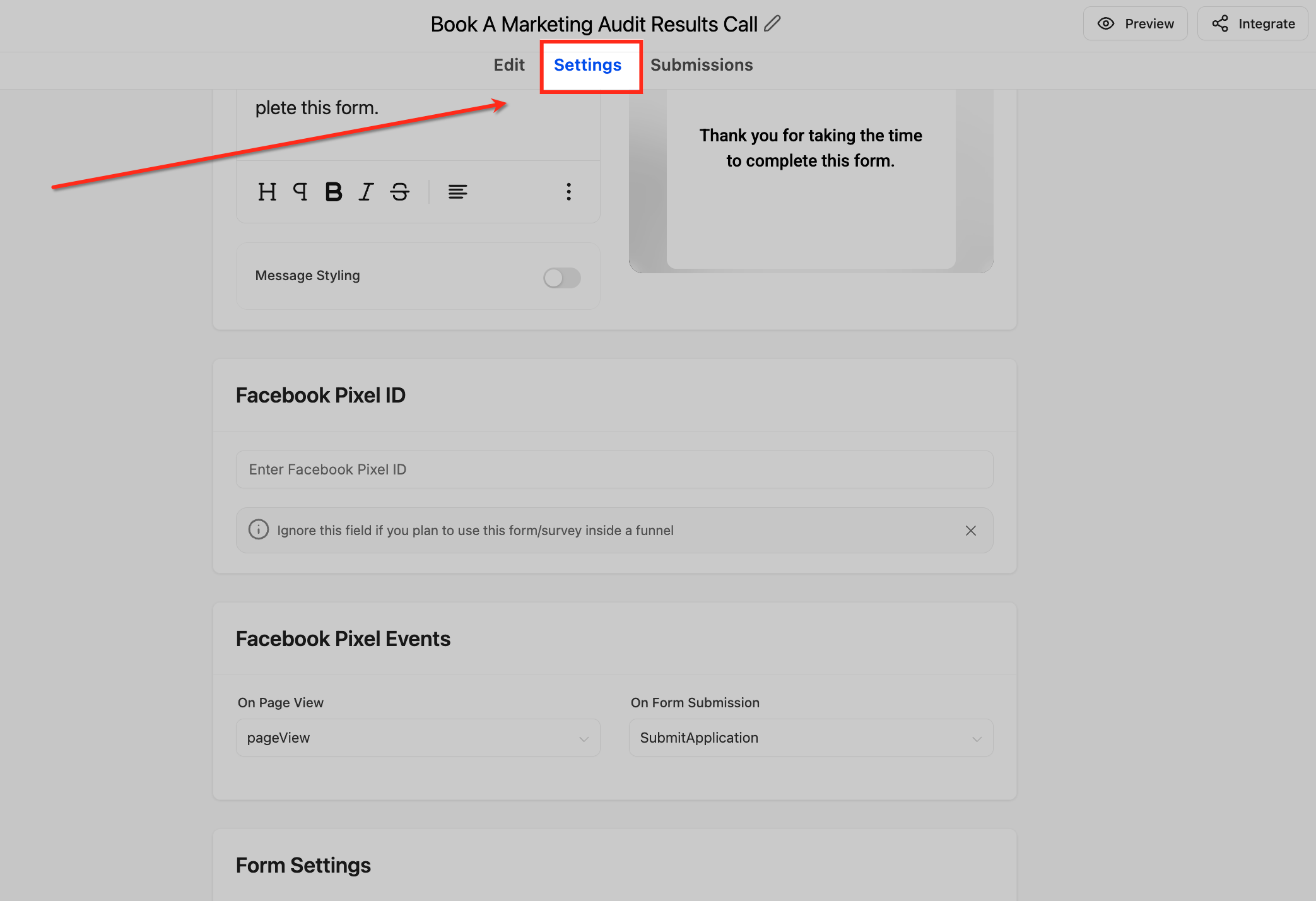
- Open the Form Settings tab.
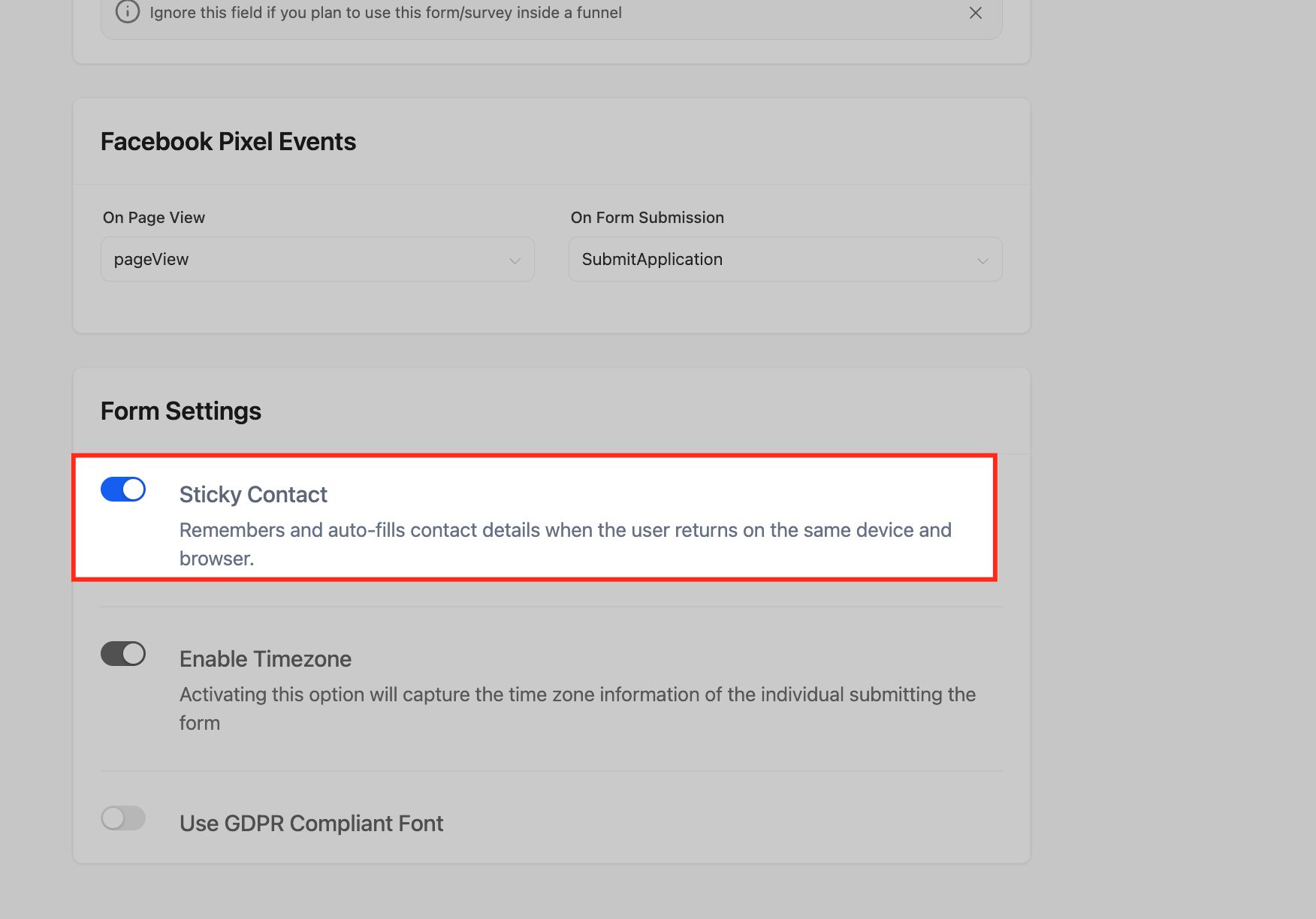
- Toggle the Sticky Contact switch to On.
- Click Save to apply the change.
Enable Sticky Contact in a survey
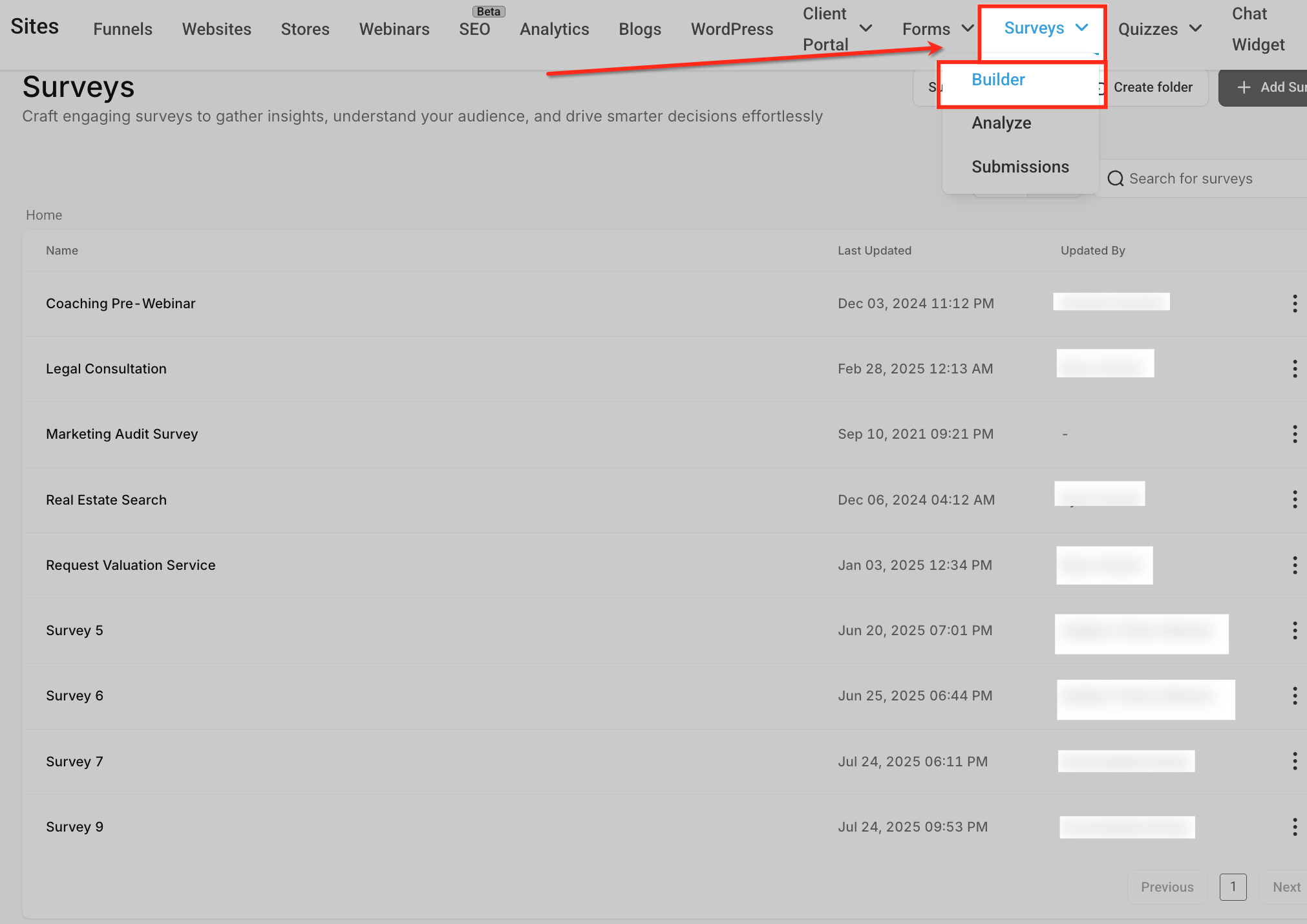
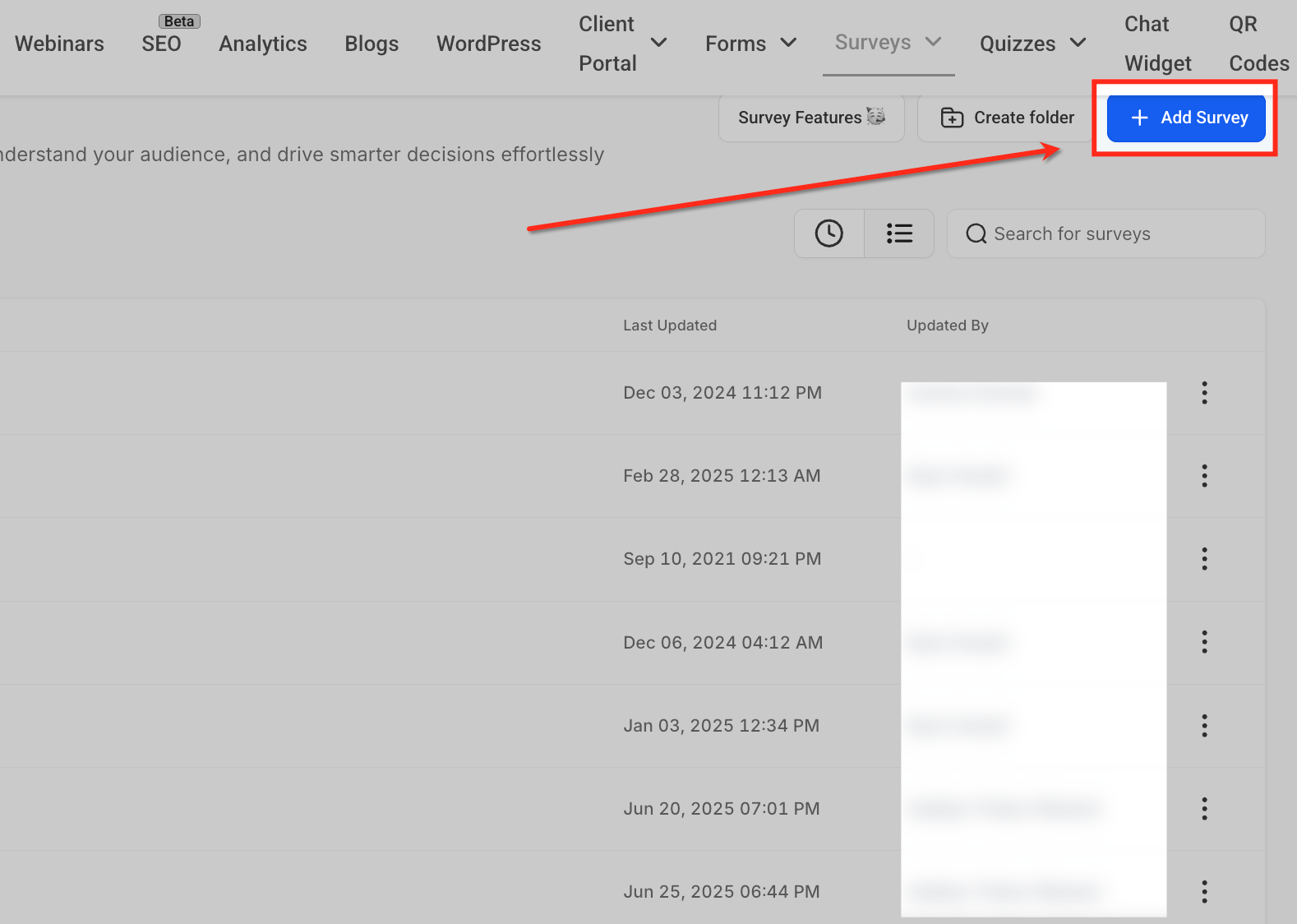
- Go to Sites > Surveys and open the Survey Builder.
- Open an existing survey or start a new one.
- Find the Survey Settings section.
- Turn the Sticky Contact toggle On.
- Save the settings.
Enable Sticky Contact in a calendar
- Open Calendars > Calendar Settings.
- Select the calendar you wish to edit.
- Scroll down to the Forms & Payments area.
- Activate Sticky Contact using the toggle.
- Save the changes.
Enable Sticky Contact in an order form
- Go to Sites > Funnels, open the funnel and the step containing the order form.
- Choose the single step order form or two step order form element.
- Open the order form settings and enable Sticky Contact.
- Save and publish the funnel.
06What it looks like in HighLevel
07Settings that matter
- Sticky Contact. Controls whether previously entered visitor data is stored in the browser and used to prefill matching fields on future visits.
08Things to know before you rely on it
- Sticky Contact stores data only on the visitor’s device; shared devices can cause data to appear on the wrong contact record.
- The feature works only within the same domain; it cannot prefill across different subdomains.
- If a user clears their cookies, the stored information is lost and fields will not be prefilled.
- When a custom form is attached to a calendar, the Sticky Contact toggle does not appear in calendar settings; it must be enabled on the custom form itself.
09If something goes wrong
- Sticky Contact does not appear in calendar settings. If the calendar uses a custom form, enable Sticky Contact directly in that form instead of the calendar settings.
10How it connects to the rest of HighLevel
- Learn to create and manage contact forms in HighLevel Create contact forms
- Add address autocomplete to HighLevel forms and surveys Address autocomplete
- Set up source tracking fields in HighLevel forms and surveys Source field
Michael's take

Be aware that Sticky Contact writes visitor data onto the device’s browser. If multiple people share a device, you can end up with the wrong contact details filling in a form, which can cause messy records.