
01Custom Fields, explained
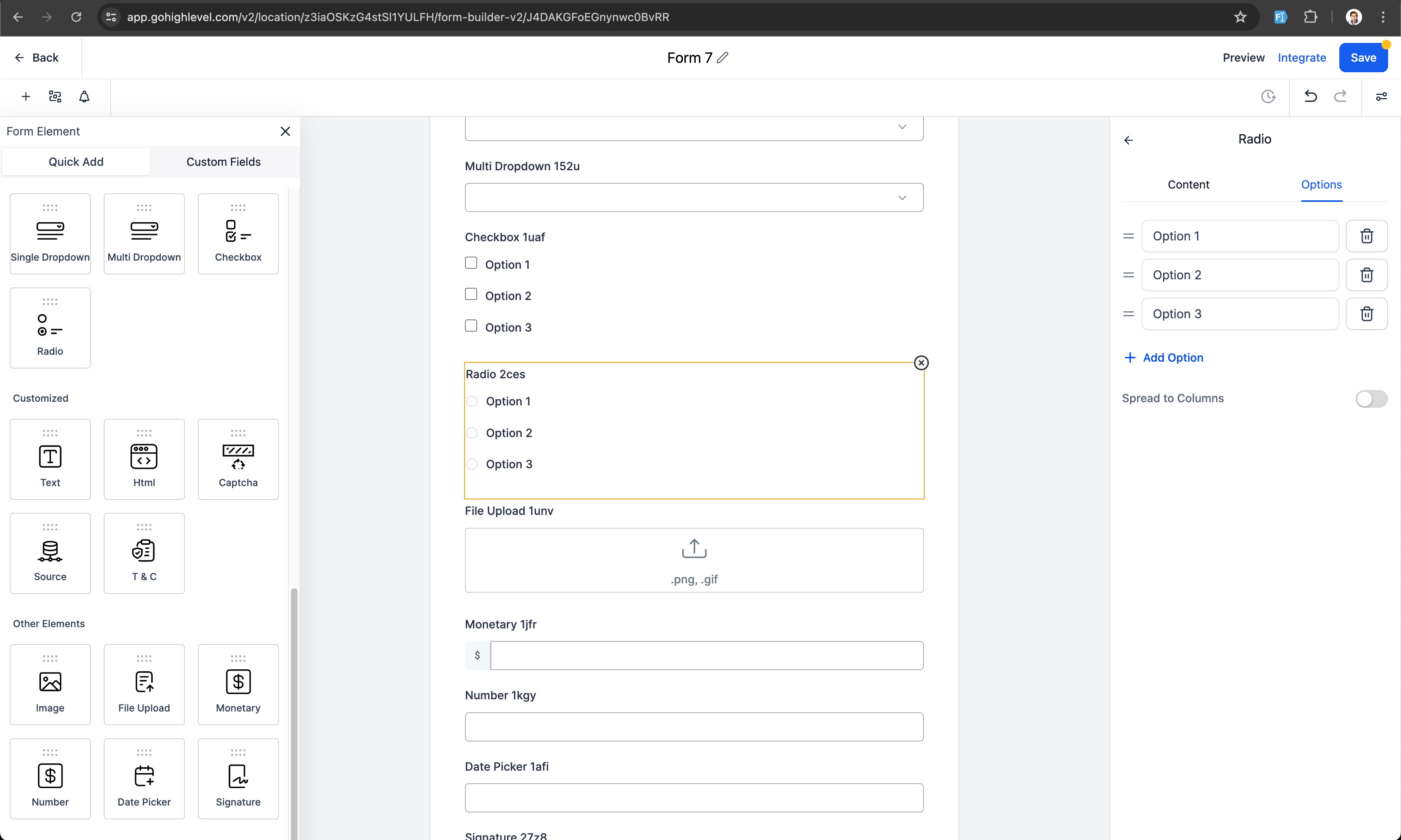
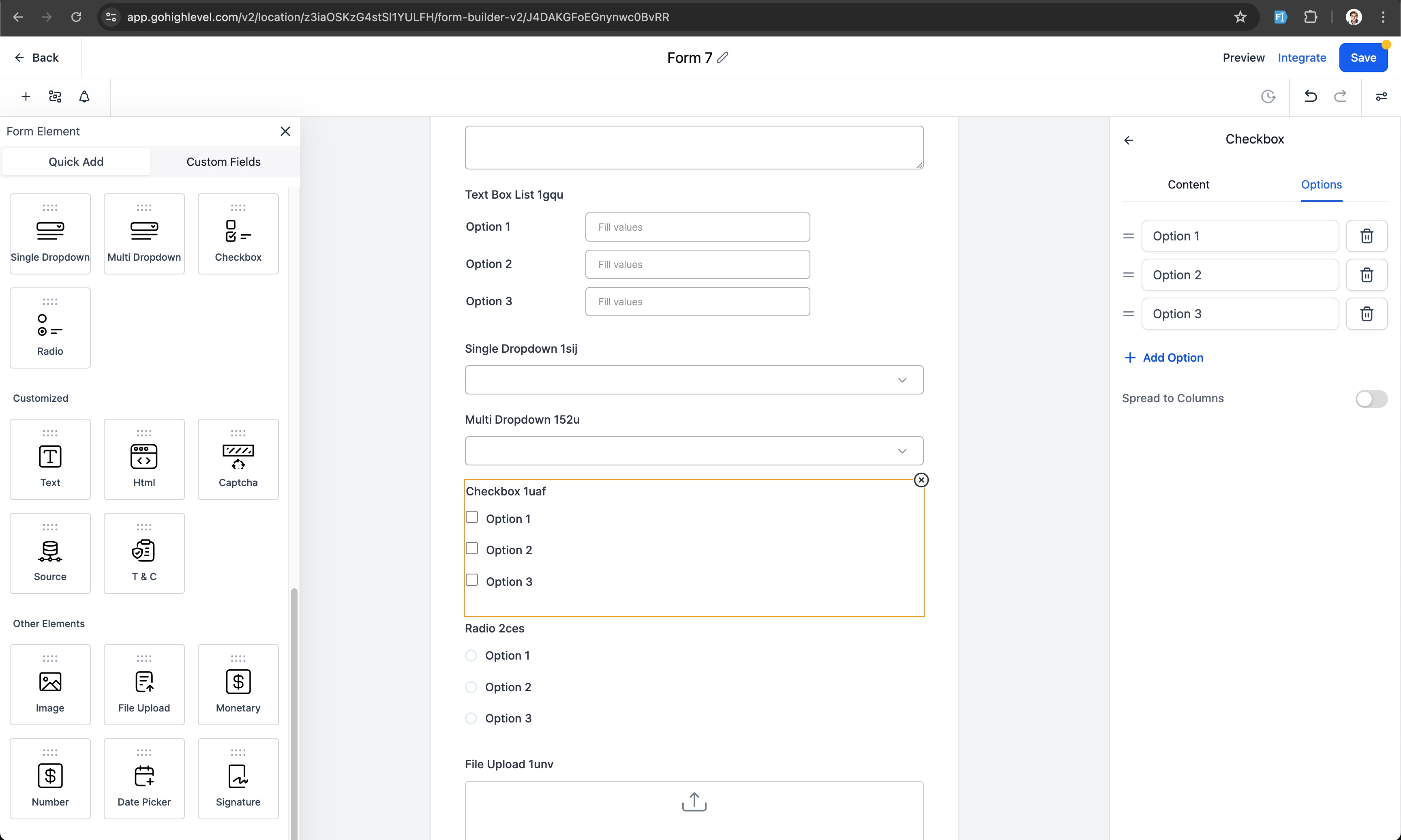
The Quick Add Fields & Edit Custom Fields feature streamlines adding new form elements. Instead of opening a modal for each field, users can drag a field type onto the canvas or select multiple fields and add them at once. The field types that support dragging include radio select, dropdowns, checkboxes, file upload, text lines, date picker, number and monetary fields.
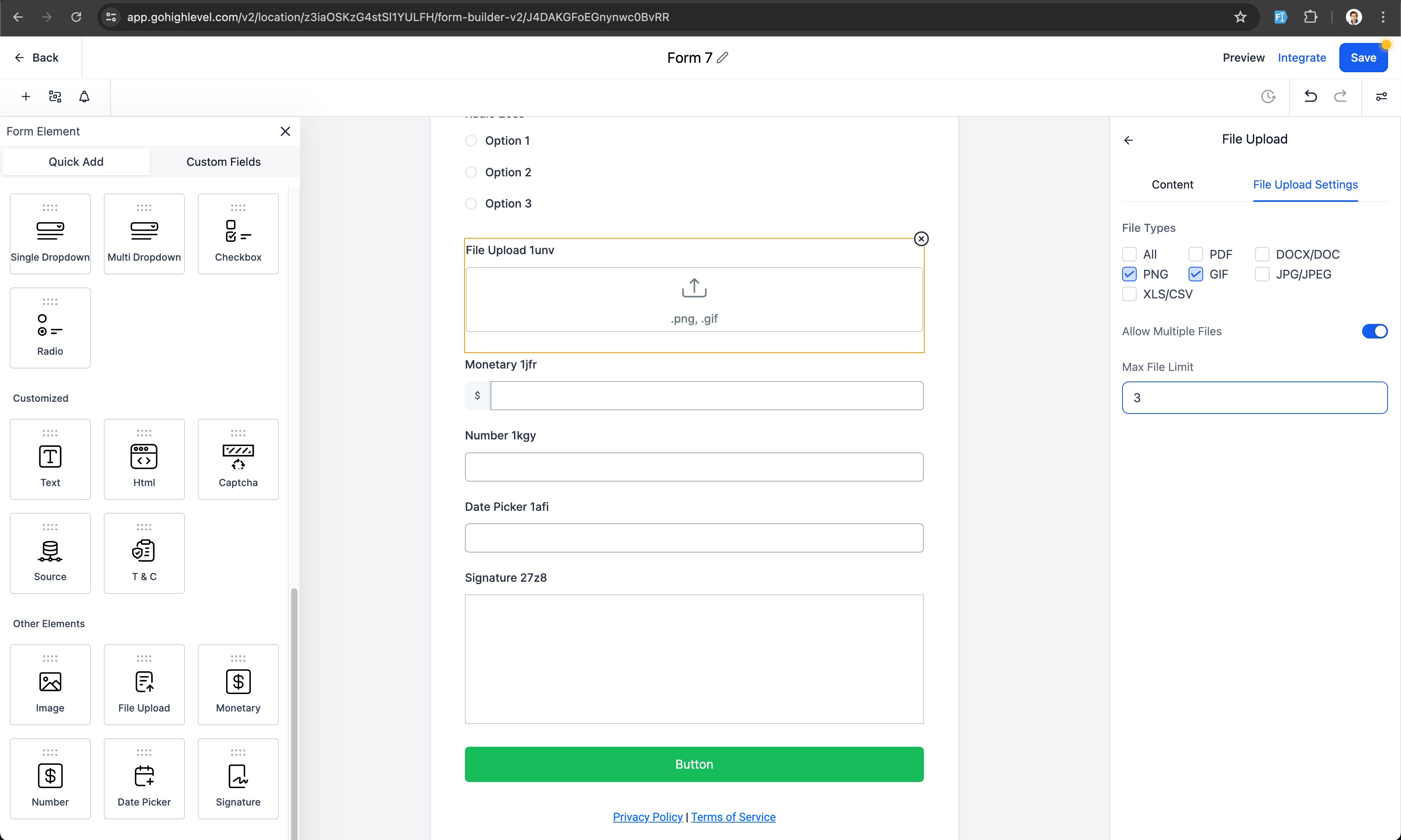
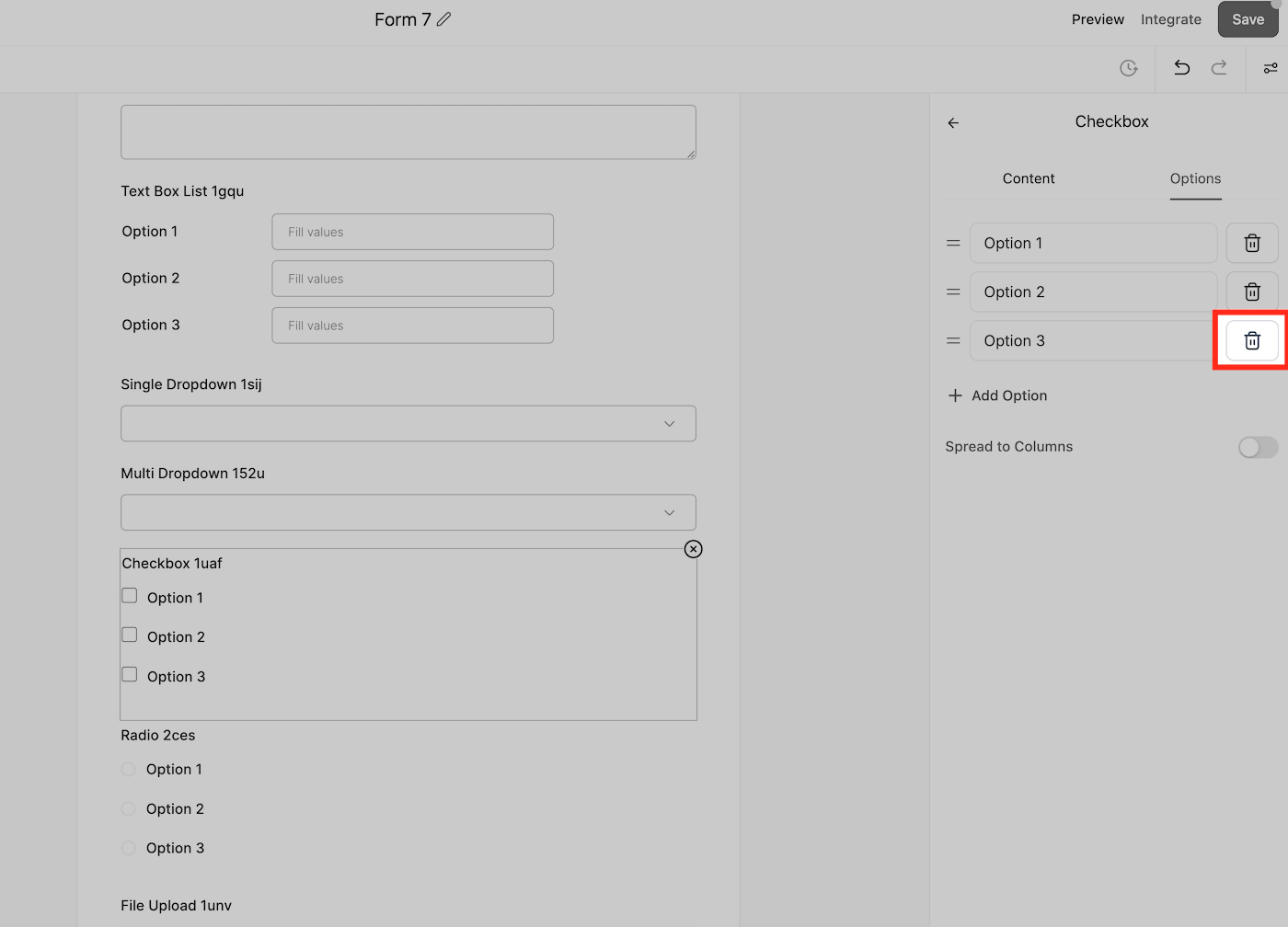
After a field is saved, its name and unique key become locked on the canvas but can still be edited from the Custom Fields section. Users can modify options for dropdowns, radio buttons, checkboxes and file uploads, and they can rearrange, edit or delete options directly in the builder.
02The numbers and rules that matter
- Supported draggable field types: Radio Select, Single and Multi Dropdown, Checkbox, File upload, Single Line, Multi line, Textbox List, Date picker, Number, Monetary.
03How to set up and use Custom Fields in HighLevel
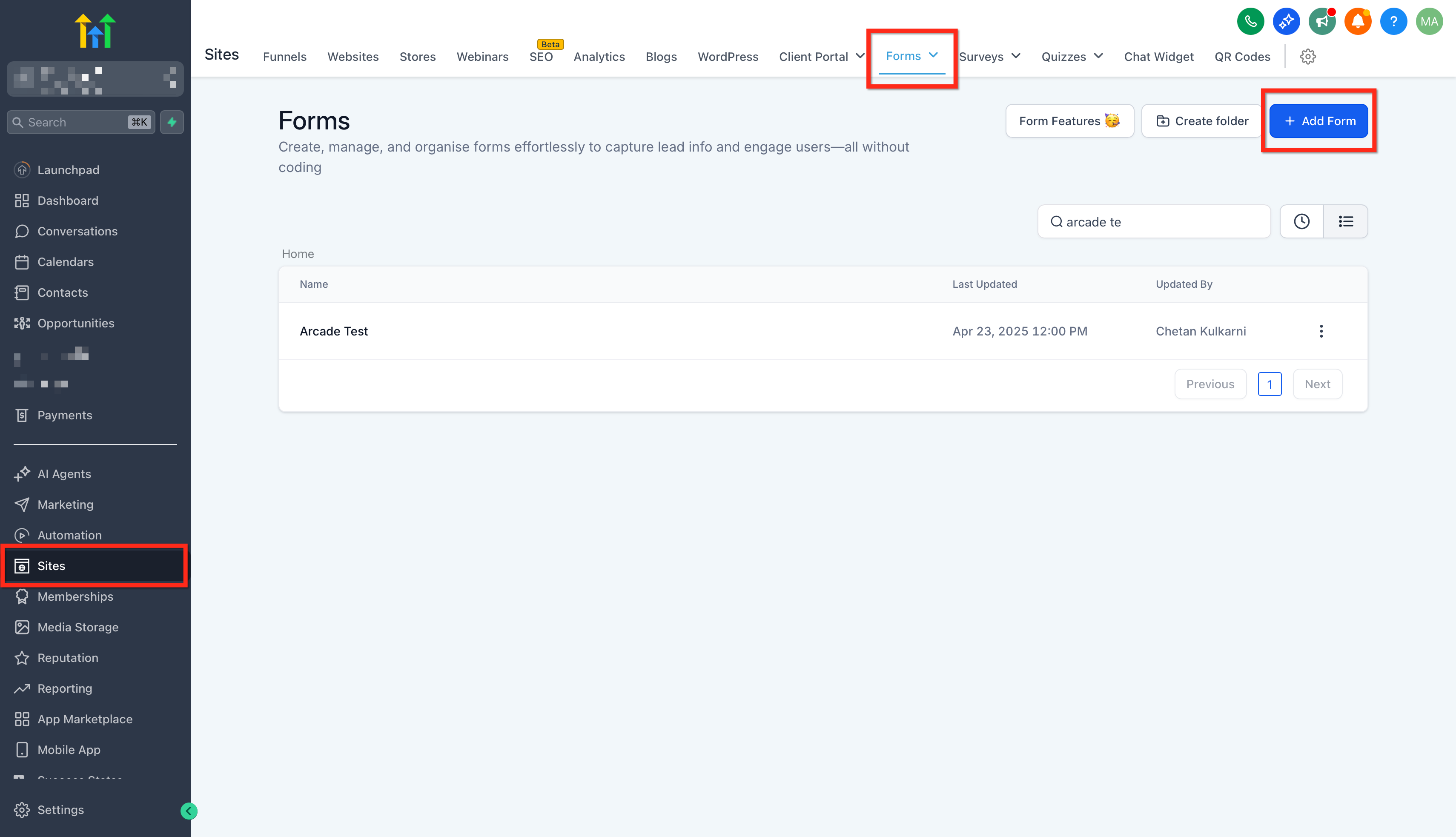
Add Custom Fields
- Go to Sites > Forms > Builder.
- Open Add Object Fields.
- Select fields using the checkboxes.
- Click Add N fields or drag the selection onto the canvas.
Edit a custom field
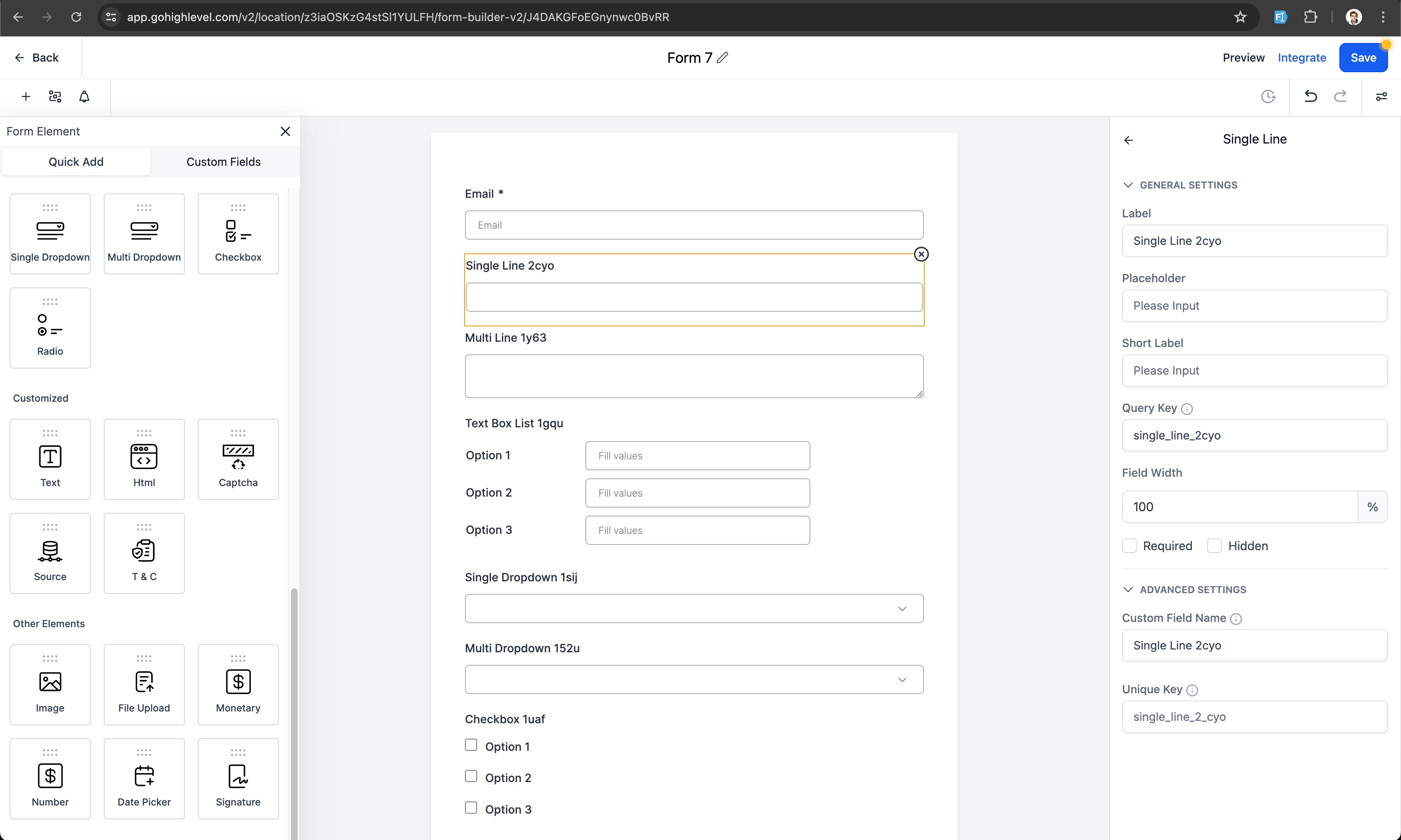
- Click the custom field in the builder.
- Use the navigation bar on the right.
- Adjust settings in General Settings and Advanced Settings.
- Save the form or survey.
Remove an outdated field
- Navigate to Settings > Custom Fields.
- Locate the outdated field.
- Click the Trash icon to permanently delete it.
04What it looks like in HighLevel
05Settings that matter
- Custom field name. The label shown to users; it is locked after the form or survey is saved.
- Unique key. The internal identifier for the field; it is locked after saving but can be edited from the Custom Fields list.
- Options for dropdowns, radio buttons, and checkboxes. Define the selectable choices; users can add, order, edit or delete these options.
- File input options for file upload fields. Configure allowed file types and other upload settings.
06Things to know before you rely on it
- Field name and unique key are locked after saving.
- Deleting a custom field removes it from all forms, surveys, and contacts where it was used.
07If something goes wrong
- Custom field still appears after deletion from the form. Delete the field from Settings > Custom Fields to remove it from all locations.
Michael's take

I appreciate being able to drag multiple fields at once, especially when building long surveys.
If I only need a single simple form, I might not notice a big difference.