
01Who this is for
- Marketing teams receive instant alerts when leads submit a contact form, keeping the sales pipeline current.
- Customer support staff get automatic confirmation emails for survey responses, confirming receipt to the respondents.
- Event organizers see immediate notifications for registration forms, allowing rapid follow up with attendees.
02Email notifications, explained
Email notifications are internal alerts that fire each time a form or survey is submitted. You choose one or more recipient email addresses, set the email subject, sender name, and reply to address. The platform sends the message using your account’s email credits.
Auto responders are outbound messages sent automatically to the person who filled out the form or survey. They can have a custom subject, sender name, and reply to address that are independent of the internal notification settings. Both notification types can include a PDF attachment of the submission when the option is enabled.
03How businesses use email notifications
- Real estate agency. The agency enables Email Notification for its property inquiry form, adds the agents' email addresses, and customizes the subject to include the property name. When a prospective buyer submits the form, agents receive an immediate alert with a PDF of the entered details.
- Dental practice. The practice turns on Auto Responder for its new patient intake survey, sets a friendly subject line, and defines the clinic name as the sender. Patients who complete the survey automatically receive a confirmation email that includes a copy of their responses.
- Online course platform. The platform configures Email Notification for its course enrollment form, adds the support team's email address, and enables the PDF attachment option. Each time a learner registers, the support team gets an email with a PDF of the enrollment information.
04Before you start
- A form or survey must already exist in the Sites > Forms or Sites > Surveys builder.
- The account needs enough email credits to send notifications and auto responder messages.
05How to set up and use email notifications in HighLevel
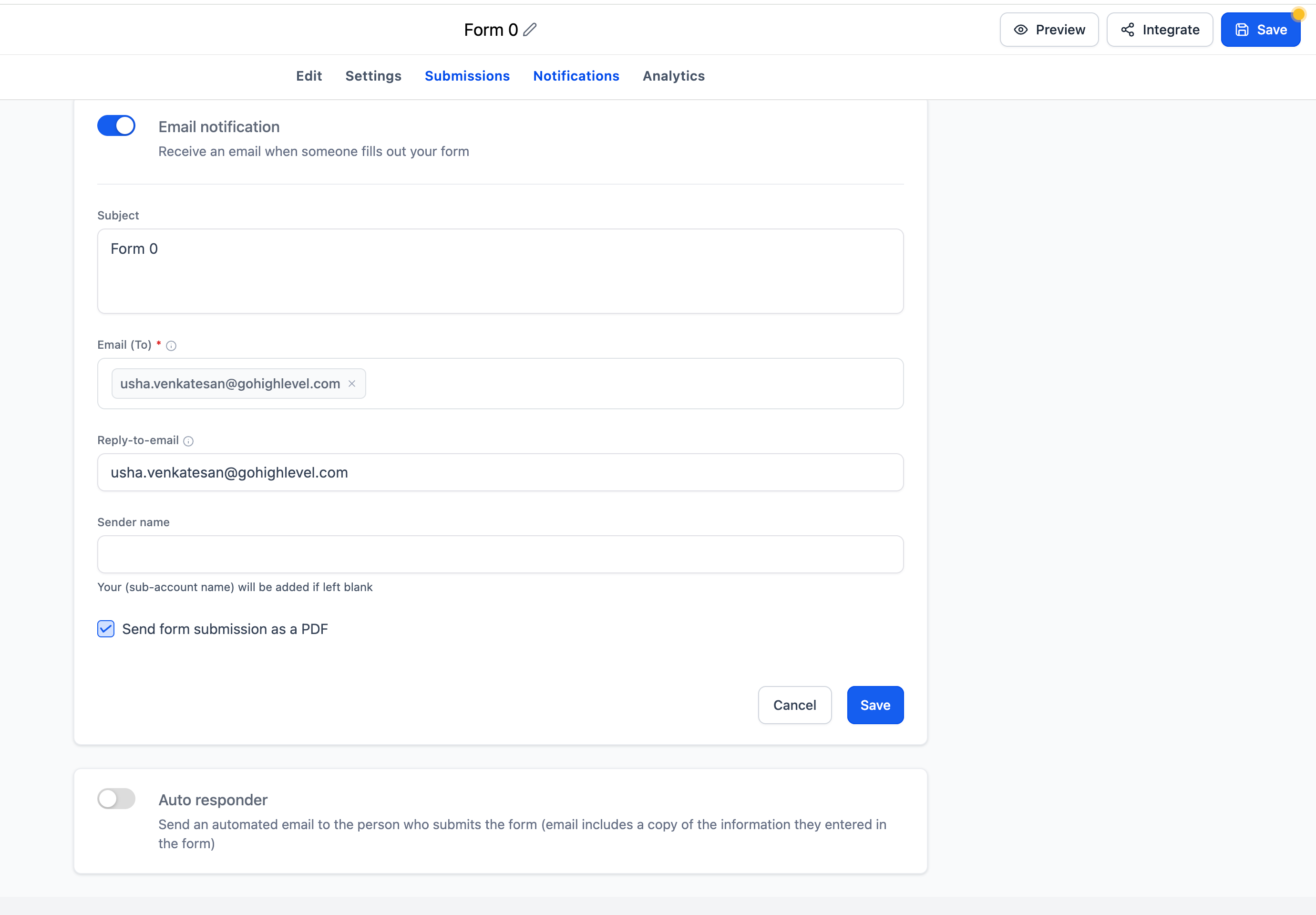
Configure email notifications
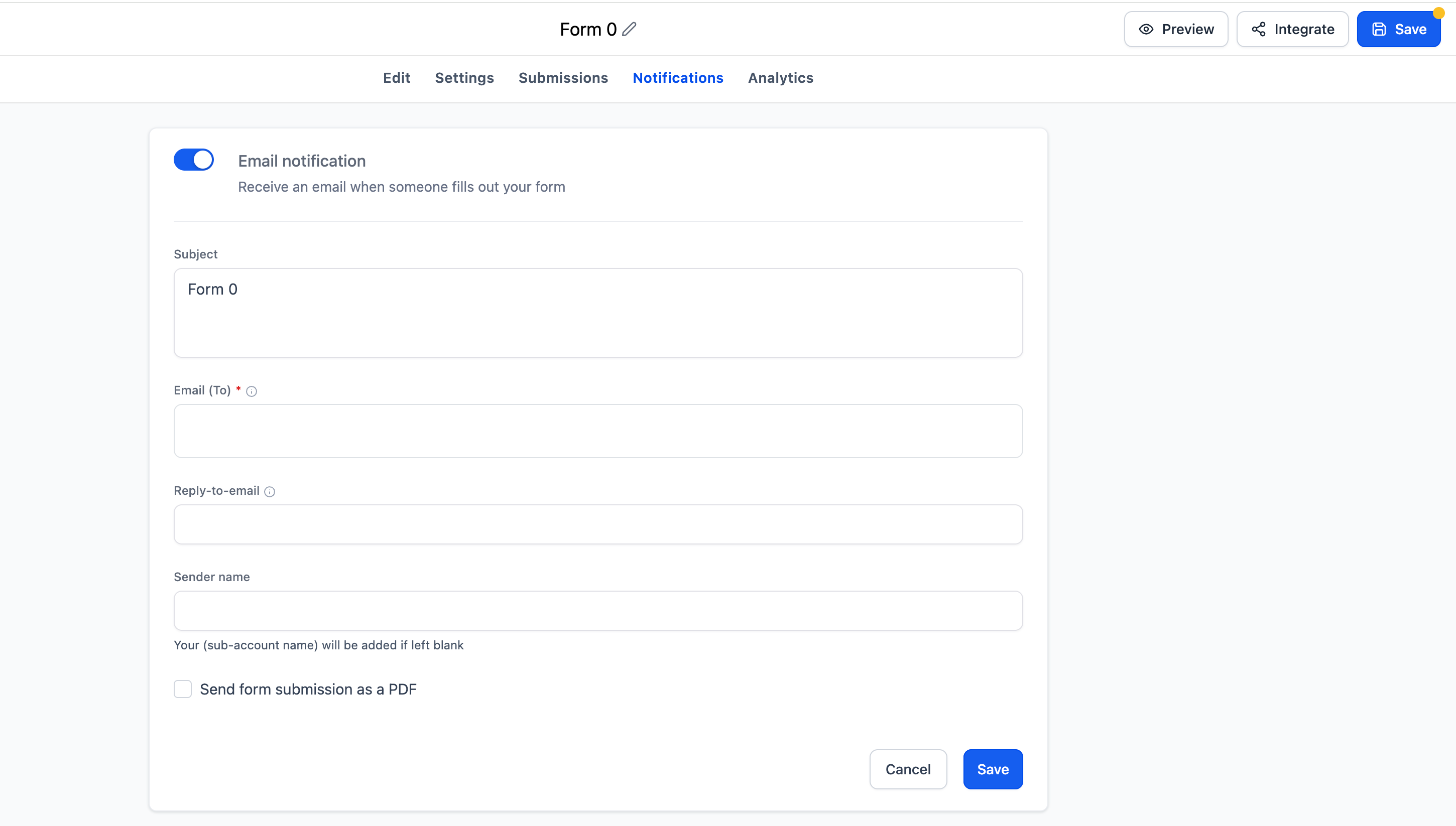
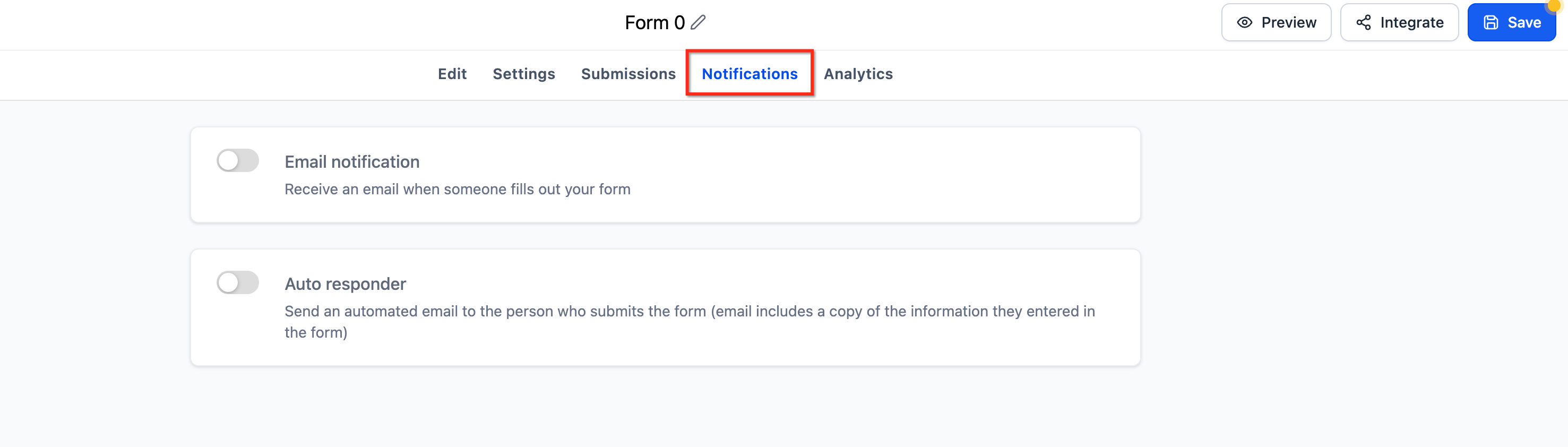
- Open the Notifications tab in the form or survey builder.
- Enable the Email Notification toggle.
- Enter a subject line or leave it blank to use the form name.
- Add one or more email addresses in the Email (To) field.
- Provide a reply to email address.
- Enter a sender name or leave it blank to use the subaccount name, then click Save.
Attach submission details as PDF
- Open the form or survey editor and select the Notifications tab.
- Enable Email Notification or Auto Responder depending on where the PDF should be attached.
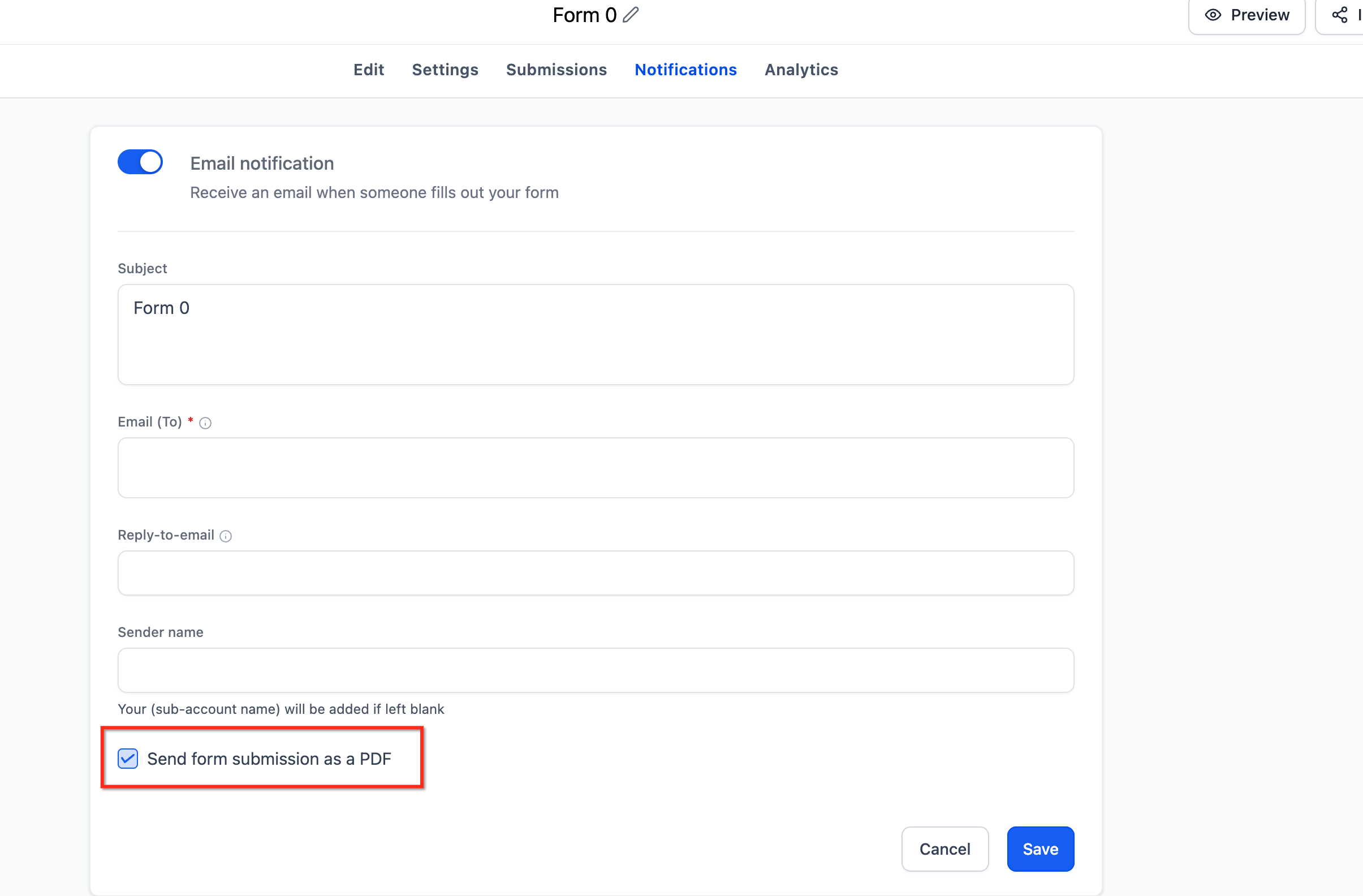
- Activate the option to attach the submission as a PDF.
- Save the changes.
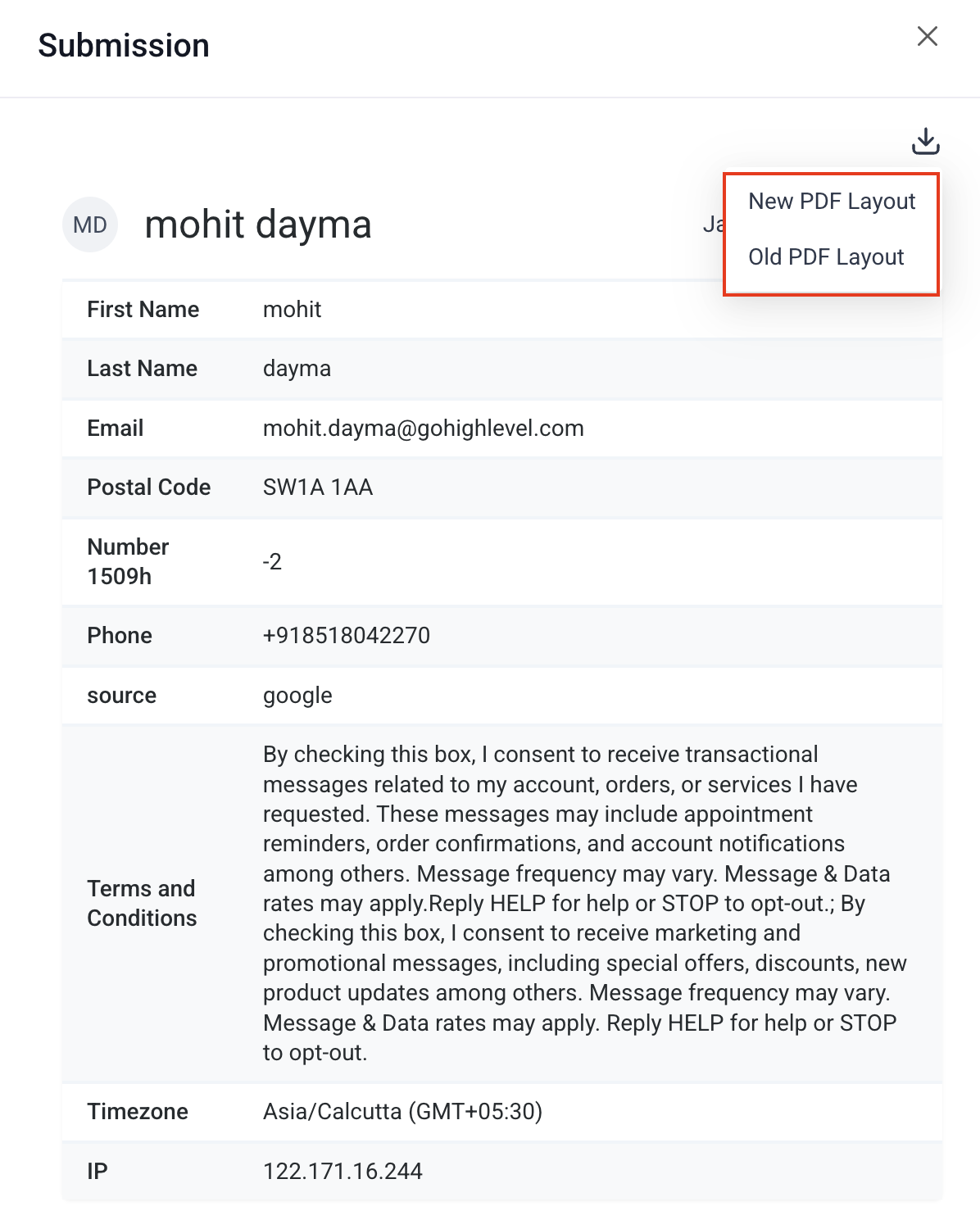
- When the email is sent, HighLevel generates the PDF from the submission record.
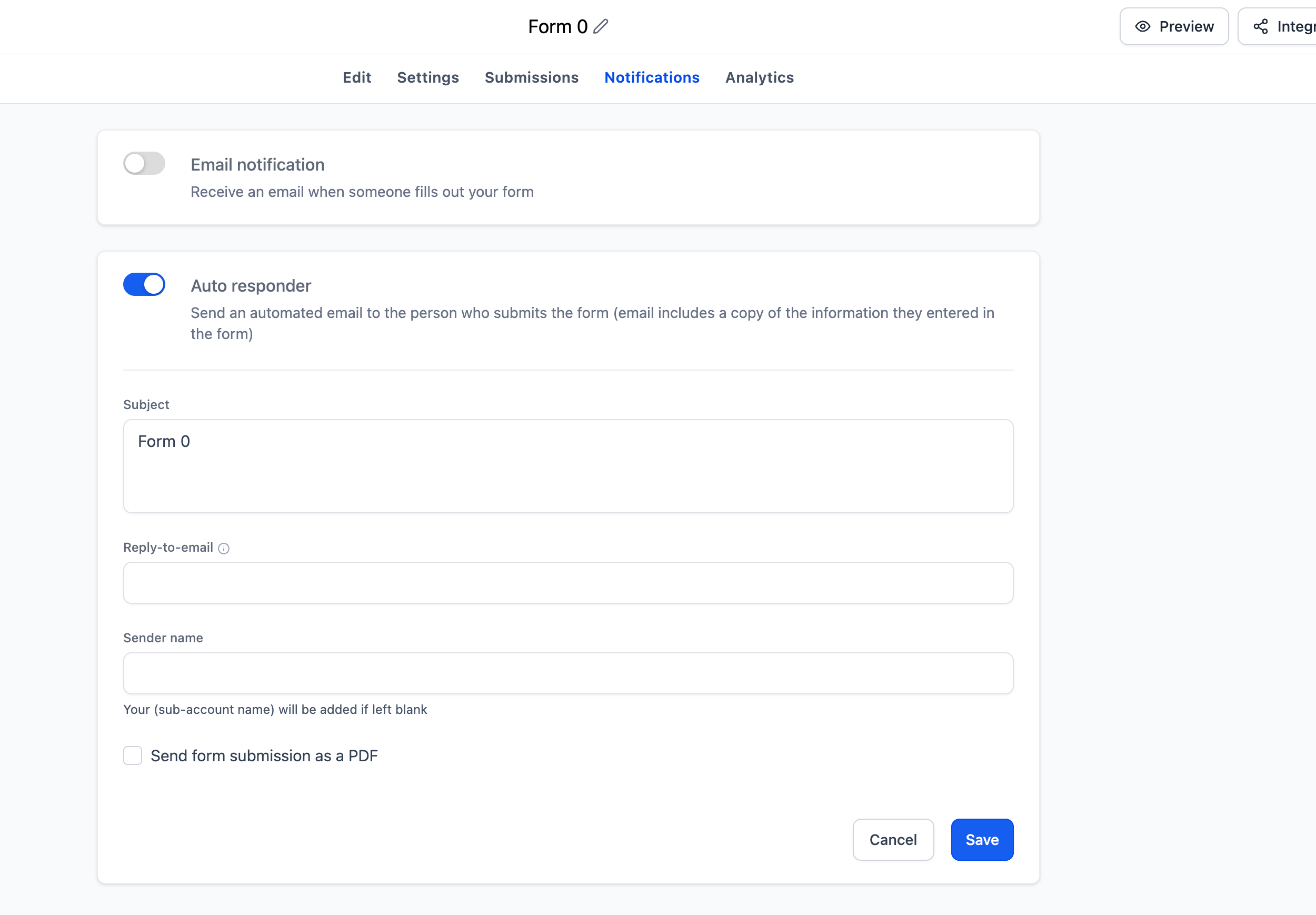
Configure auto responder
- Open the Notifications tab.
- Enable the Auto Responder toggle.
- Enter a subject line or leave it blank to use the form name.
- Provide a reply to email address and a sender name (or leave blank), then click Save.
Test your notification settings
- Save the form or survey.
- Open its preview mode and submit a test entry.
- Confirm that both the internal notification and the auto responder email reach the intended recipients.
View survey responses after email notification
- From the left hand menu, go to Sites.
- Select the Surveys tab and click Submissions.
- Review the list of submissions with timestamps and answer snippets.
- Click an individual entry to see all responses.
06What it looks like in HighLevel
07Settings that matter
- Email Notification. Turns on internal alerts that are sent to designated email addresses when a form or survey is submitted.
- Subject. Defines the email subject line for the notification; if left blank, the form or survey name is used.
- Email (To). Lists one or more static email addresses that will receive the notification.
- Reply, to Email. Sets the address where replies to the notification will be directed.
- Sender Name. Specifies the name displayed as the sender; defaults to the subaccount or agency name if blank.
- Auto Responder. Enables an automatic email sent to the person who submitted the form or survey.
- PDF attachment option. When enabled, adds a PDF version of the submission to the notification or auto responder email.
08Things to know before you rely on it
- Email notifications consume email credits; the account must have enough credits for each message.
- The PDF attachment feature may not be available for every builder or submission type.
- Reply to Email for Auto Responder does not affect the Reply to Email used for internal notifications.
- Multiple email addresses in the Email (To) field are allowed; invalid addresses fail silently but do not prevent delivery to valid ones.
- Merge fields cannot be used in the Email (To) field; only static addresses are accepted.
09If something goes wrong
- Insufficient email credits. Add more email credits to the account before sending notifications or auto responder messages.
- Invalid email address in the Email (To) field. Remove or correct the invalid address; valid addresses will still receive the notification.
10How it connects to the rest of HighLevel
- Enable Sticky Contact to keep contact information on form submissions Sticky Contact
- Quickly add and edit Custom Fields for forms and surveys Custom Fields
- Review email credit usage and plan options Pricing
Michael's take

Email notifications are useful, but if you never need to alert a team member when a form is submitted, you can skip them. They add a step and consume credits, so keep that in mind.
If you do need them, start by turning on the notification, putting in the right addresses, and checking your credit balance. A quick test of the form confirms everything works before you go live.