
01Who this is for
- Founders who need a single place to gather lead details and trigger follow up actions.
- Marketing teams that want to customize the data they collect and control the form’s appearance.
- Support staff who rely on instant email notifications when a prospect reaches out.
02Contact forms, explained
HighLevel contact forms are customizable pages that collect information such as name, email, phone, message, and any custom fields you define. When a visitor submits the form, HighLevel creates a contact record automatically, making the data immediately available for workflows and reporting.
The form lives inside the Sites > Forms section and can be edited with the Form Builder. Within the builder you can adjust visual style, choose a theme, set up email notifications, configure an auto responder, and define what happens after the form is submitted, such as showing a thank you message or redirecting the visitor.
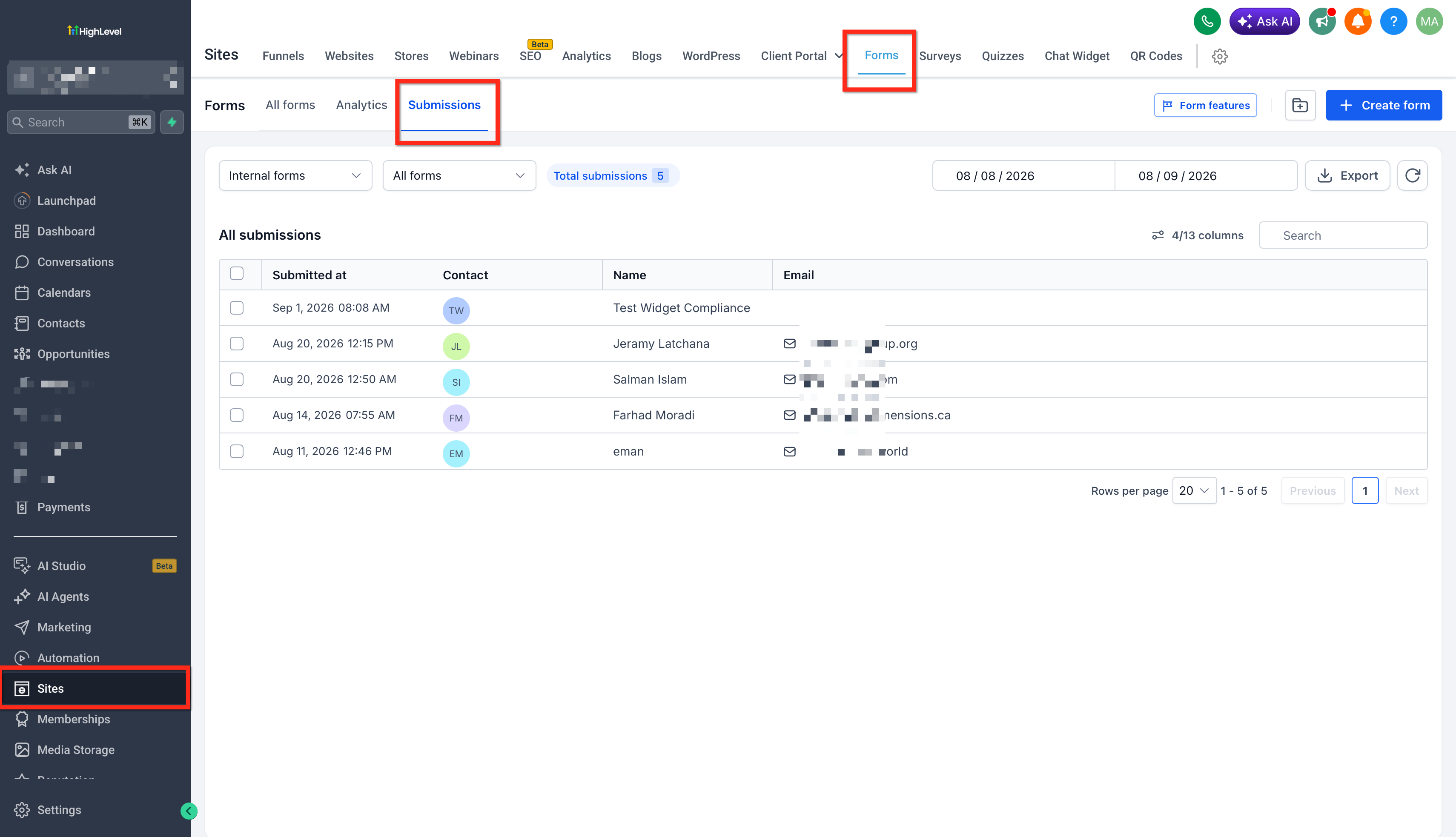
Once the form is ready, you can publish it by copying an embed code for external sites or by sharing a direct link. All submissions appear in the Submissions tab of the Form Builder or in the centralized Forms list.
03How businesses use contact forms
- Real estate agency. The agency adds fields for property interest, budget, and preferred contact method, then configures an email notification to the sales manager. After submission, the form redirects visitors to a property listing page.
- Dental practice. The practice creates a form with name, phone, and a dropdown for treatment type, sets an auto responder confirming the appointment request, and embeds the form on its external website.
- Online coaching business. The coach builds a form that captures email, phone, and a custom field for coaching goals, enables a thank you message, and shares the direct link on social media to collect leads.
04The numbers and rules that matter
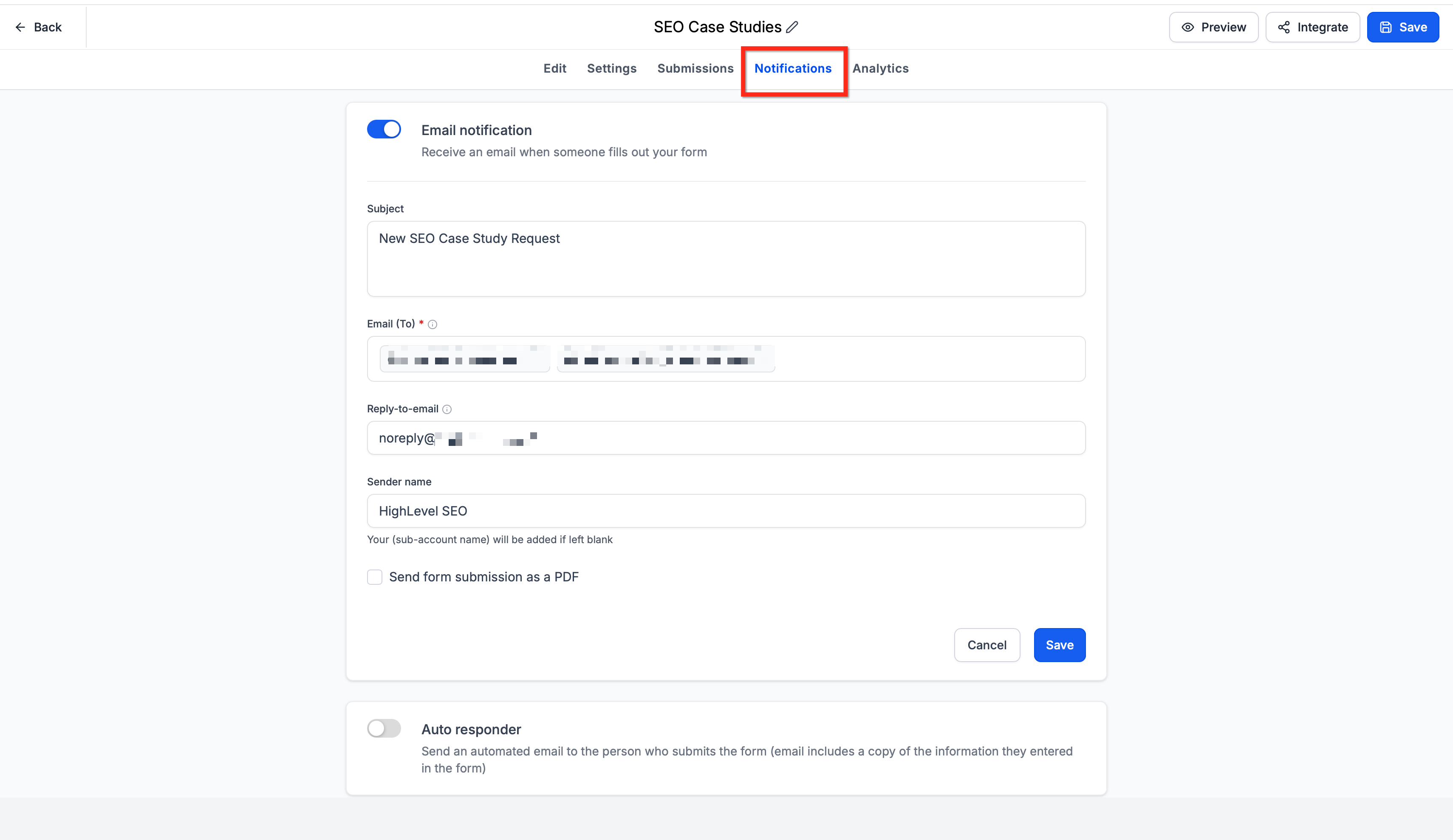
- Email Notification can include subject, recipient email, reply to, and sender name.
05How to set up and use contact forms in HighLevel
Create a new contact form
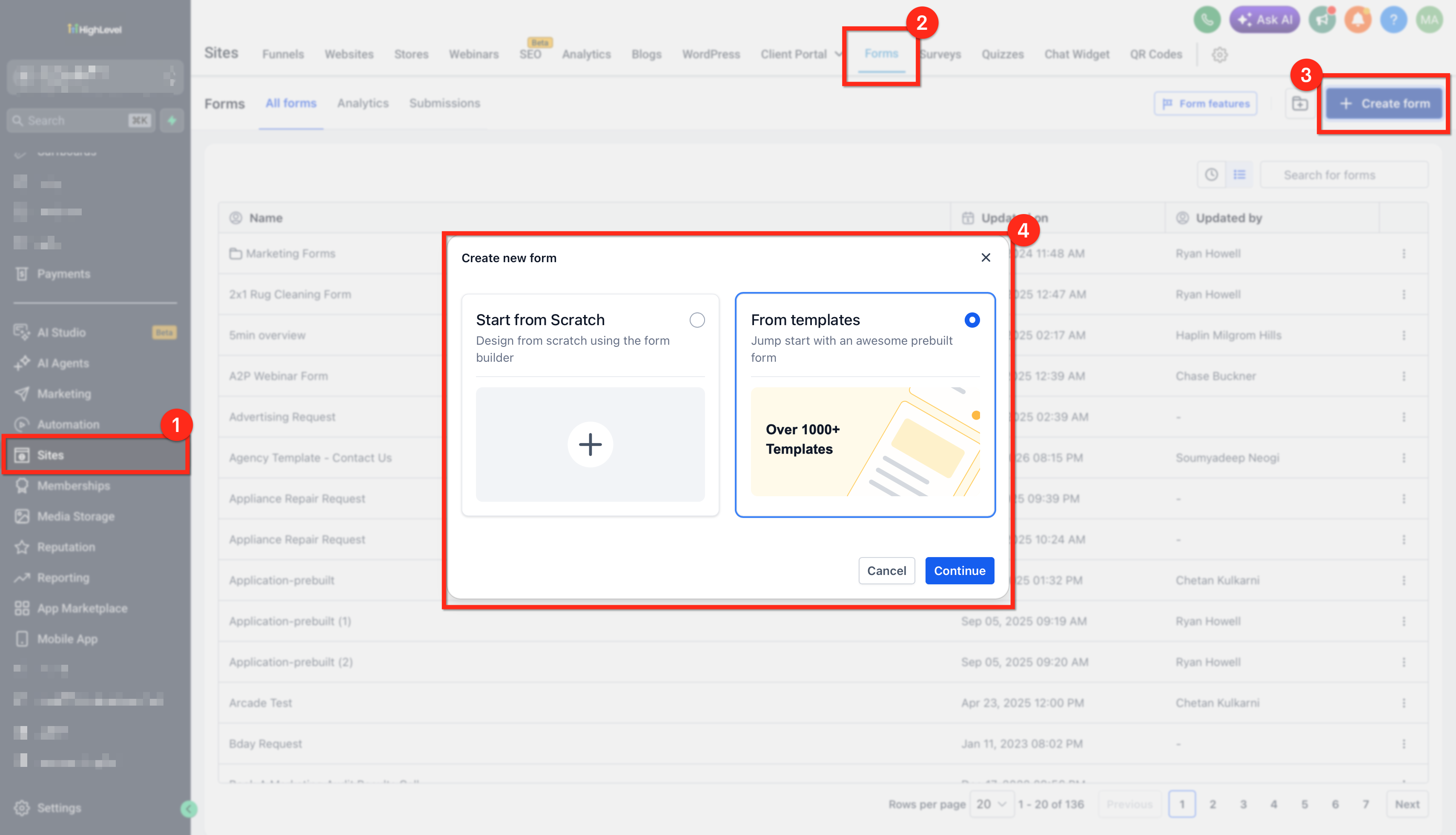
- Open Sites > Forms.
- Select + Create New Form.
- Choose a blank canvas or pick a template from the Template Library.
Add and arrange form fields
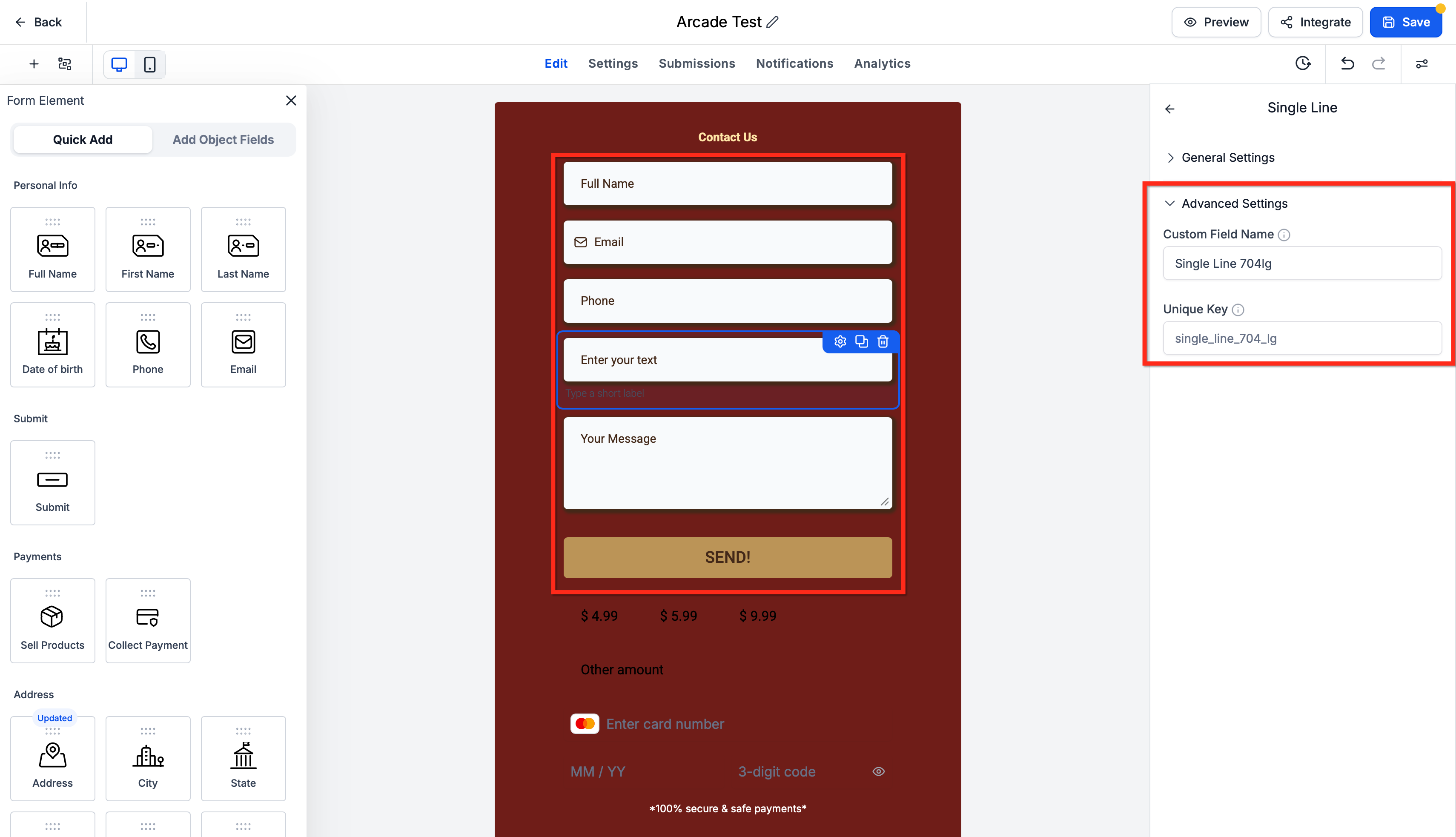
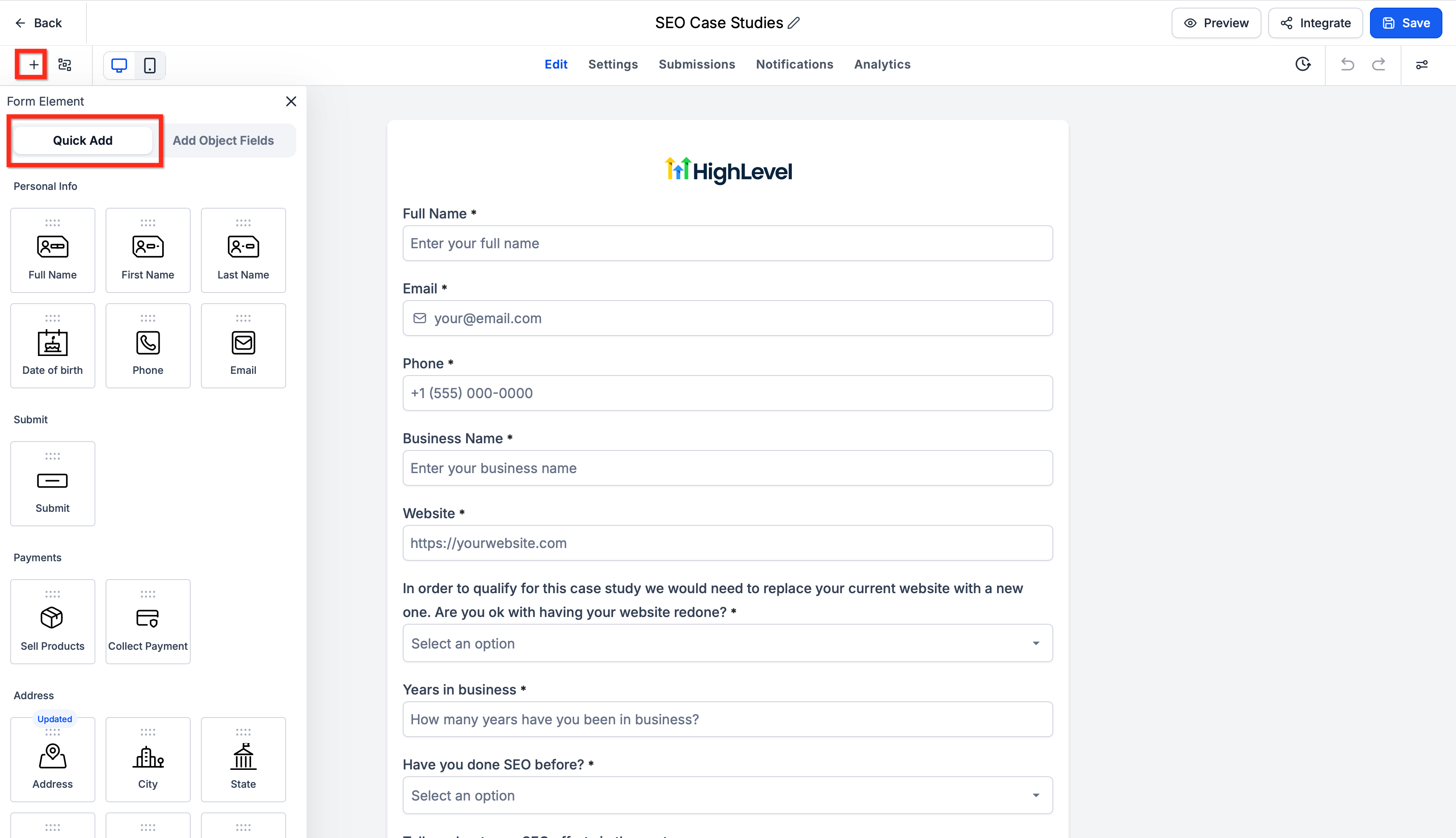
- Insert the desired fields such as Name, Email, Phone, Message, and any custom fields.
- Drag each field to reorder them into the preferred sequence.
- Mark fields that must be completed as required.
Customize the form appearance and behavior
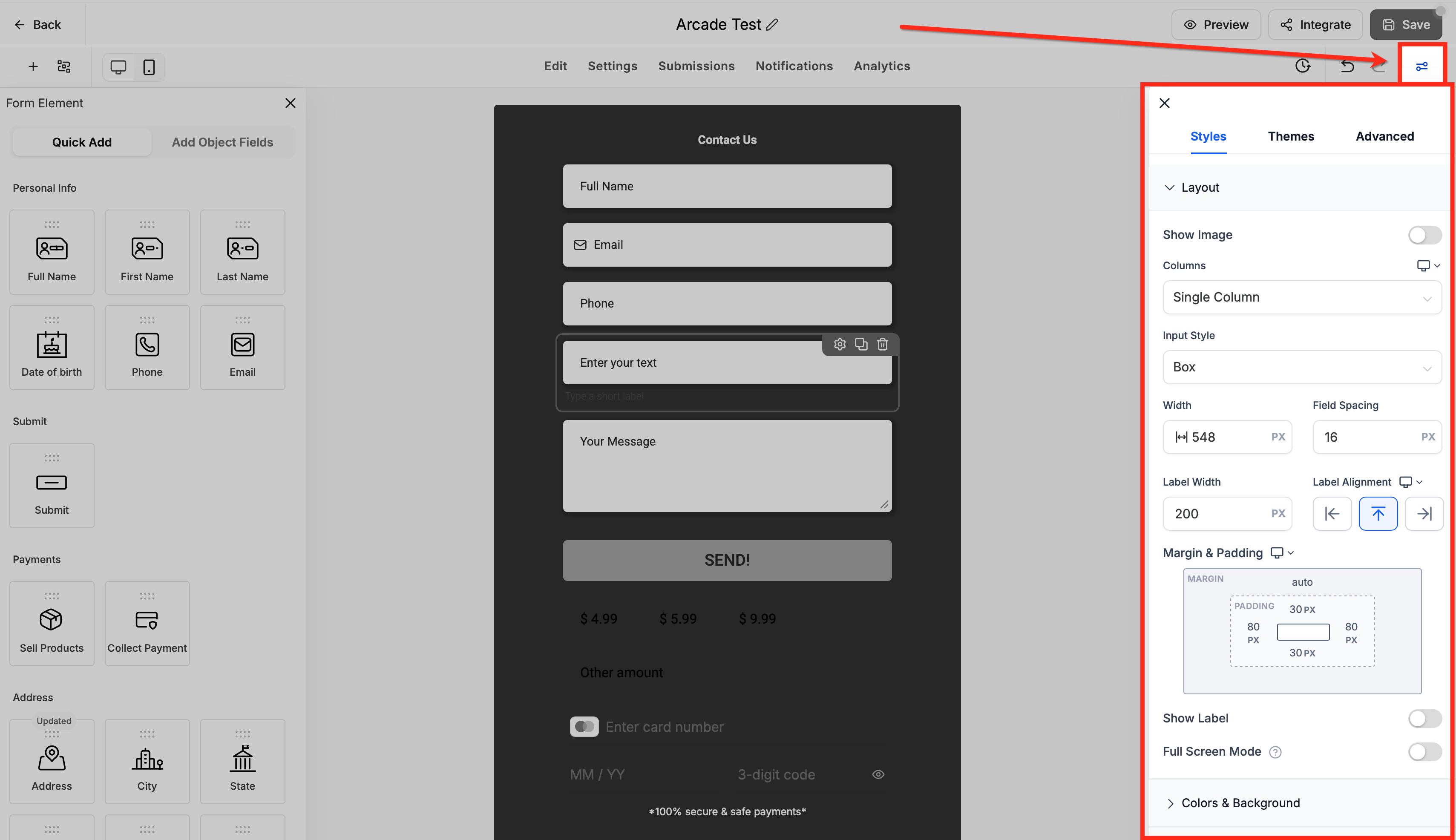
- Open Styles & Options to modify layout, colors, spacing, buttons, and apply a Theme.
- Set up Email Notifications and an Auto Responder in the Notifications area.
- Define post submission actions like displaying a confirmation message or redirecting the visitor.
Save, test, and monitor the form
- Save the form and open the preview mode.
- Submit the form with test information.
- Verify that the thank you message or redirect appears as expected.
- Open the Submissions tab to view the test entry.
- After publishing, go to the Analytics tab to watch views, responses, average completion time, and completion rate.
Integrate or share the form
- Click Integrate in the Form Builder.
- Select the publishing option you prefer.
- Copy the embed code for an external website or copy the direct link to distribute it.
06What it looks like in HighLevel
07Settings that matter
- Styles & Options. Controls the visual layout, colors, spacing, button styles, and lets you apply a Theme to the form.
- Notifications. Lets you configure internal email alerts and an Auto Responder that sends a message to the submitter.
- Advanced. Provides additional configuration options for specialized form needs.
08Things to know before you rely on it
- The article does not specify a maximum number of forms, fields, or submissions.
- Conditional Logic and CAPTCHA are optional features; the article notes they can reduce spam but does not set a usage limit.
09How it connects to the rest of HighLevel
- Set up email alerts for form submissions Email notifications
- Embed a HighLevel form on an external website Embedding forms
- Track external form performance inside HighLevel External form tracking
Michael's take

People often think a contact form is just a static page, then they forget to test the whole flow. I would build the form, run a quick test submission, and verify the contact appears in HighLevel before publishing.
Once the form works, I’d add the auto responder so the lead gets an automatically generated acknowledgment. That tiny step makes the process feel professional and gives you a clean hand off to your follow up workflow.