
01Who this is for
- Marketing managers use it to tag leads automatically without extra fields, keeping source data tidy.
- Sales teams rely on consistent Contact Source values to segment contacts after form submissions.
- Campaign planners can share one form across channels and differentiate sources via URL parameters.
02Source field, explained
The Source field stores a predefined source value behind the scenes. It is hidden from respondents, so submissions include the value automatically.
When a form or survey is submitted, the value is attached to the submission record and also updates the contact’s Contact Source field. This helps keep lead source information consistent.
The field is added within the form or survey builder under Sites > Forms (or Surveys). After adding, you type the desired source text. The value can be overridden by appending "?source=your_value" to the form URL, allowing a single asset to capture different sources.
03How businesses use the Source field
- Real estate agency. The agency adds a Source field set to "WebsiteListing" on its contact request form. When agents share the same form on property pages, they append "?source=OpenHouse" for open house leads, letting the system record the correct source without visible fields.
- Online course provider. The provider builds a registration survey with the Source element preset to "EmailCampaign". Links in different email blasts include "?source=SocialAds" or "?source=PartnerReferral" to differentiate traffic sources while using one survey.
- Non profit organization. The nonprofit places a donation form on its website, adds a hidden Source field defaulting to "LandingPage". When promoting the form via newsletters, they add "?source=Newsletter" so each donation is tagged with its origin automatically.
04How to set up and use the Source field in HighLevel
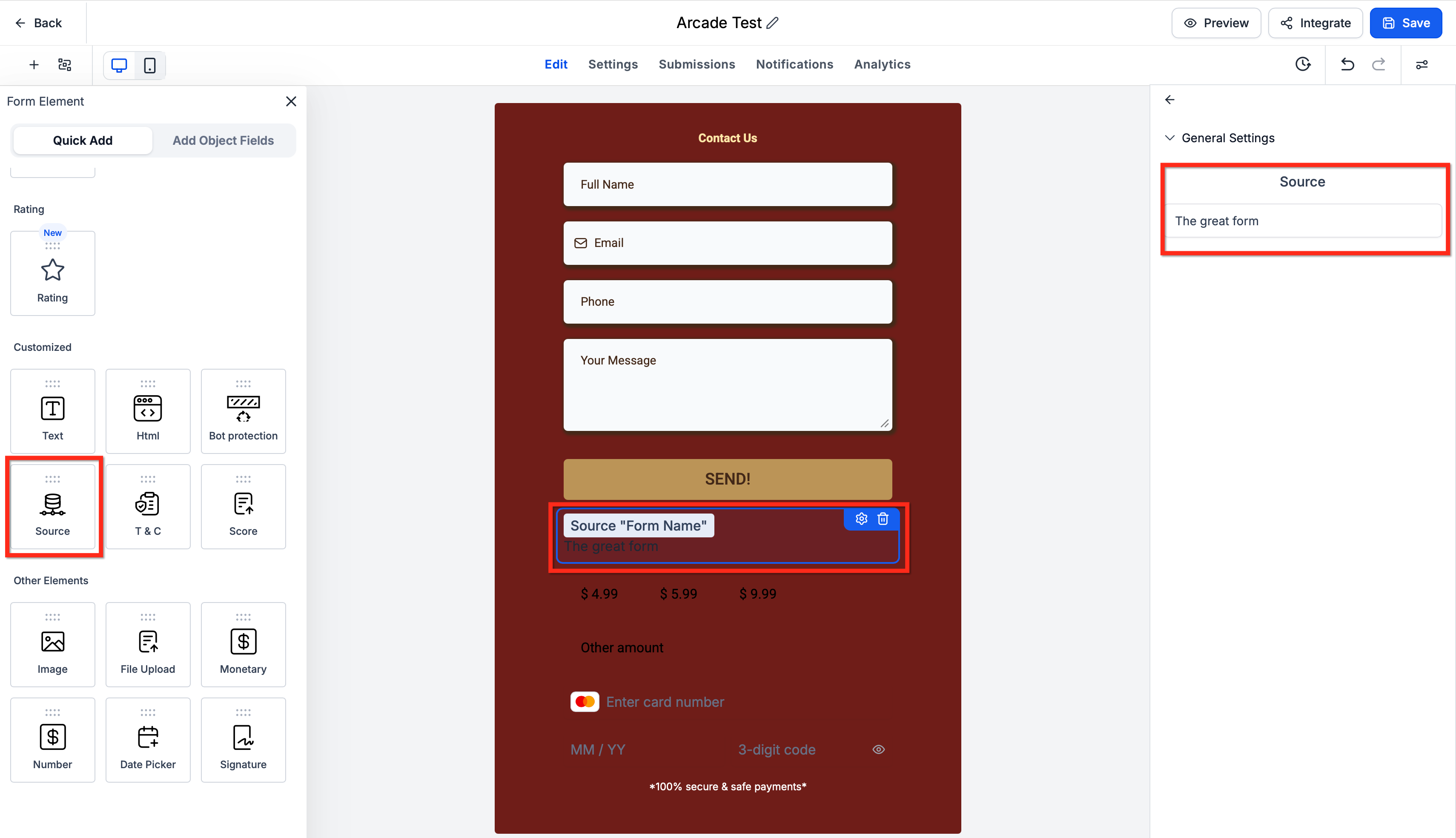
Set up the Source field on a form or survey
- Go to Sites > Forms or Sites > Surveys and open the asset you want to edit.
- Insert the Source element into the form or survey canvas.
- Enter the source text you want HighLevel to capture in the element’s input field.
- Save the form or survey to store the changes.
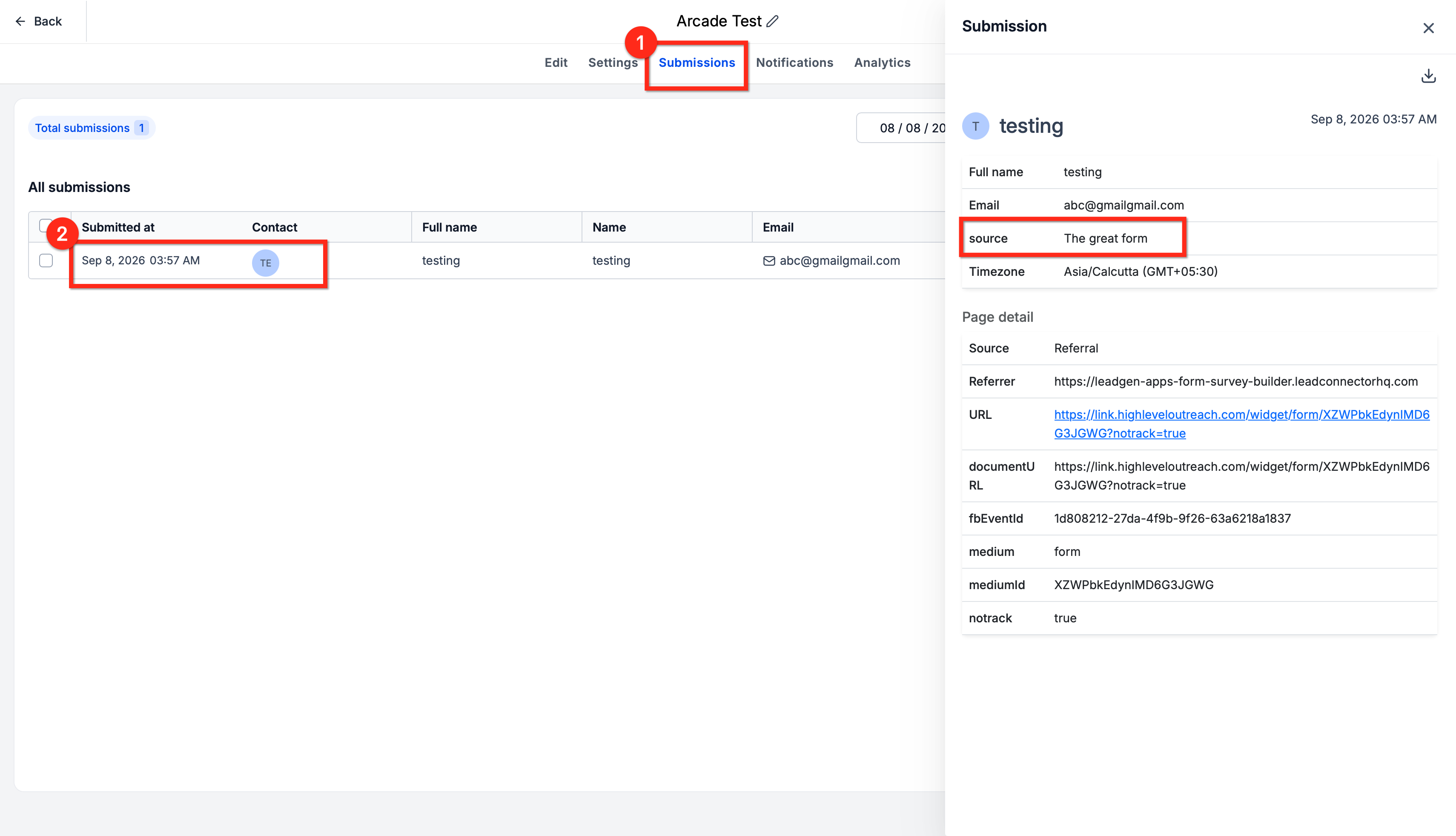
- Submit a test response using the form.
- Open the test submission and verify that the source value appears.
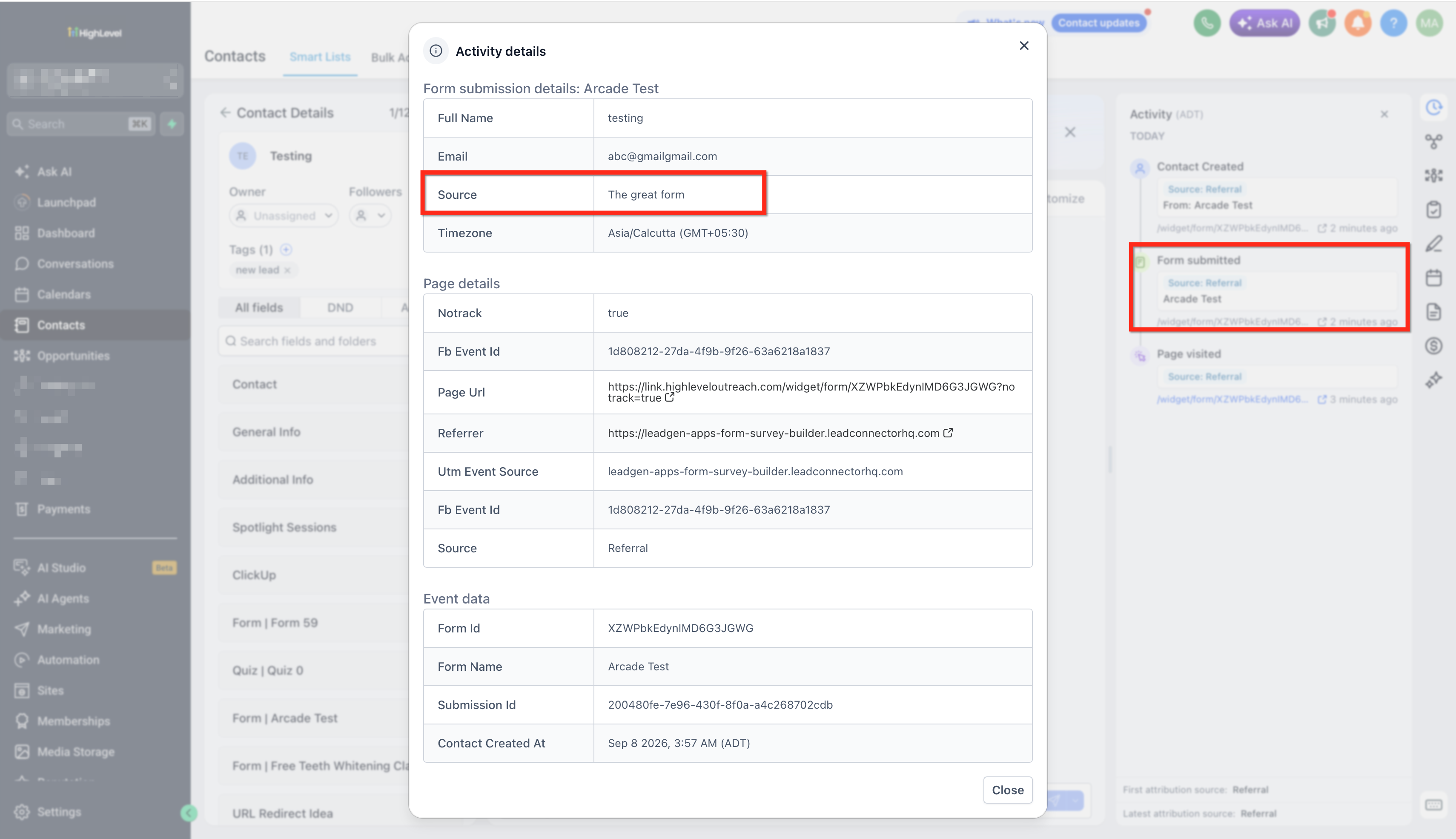
- Open the associated contact record and confirm that the Contact Source matches the entered value.
- Important: The Source field is separate from attribution data such as First Attribution, Latest Attribution, Session Source, and utm_source.
05What it looks like in HighLevel
06Settings that matter
- Source value. Specifies the text that HighLevel saves as the source for each submission of the form or survey.
07Things to know before you rely on it
- Only a single Source value can be defined directly in the form or survey builder; additional values must be supplied via the URL query parameter.
- A source supplied in the URL overrides the builder defined value for that specific submission.
- The Source field does not affect HighLevel attribution fields such as First Attribution, Latest Attribution, Session Source, or utm_source.
08How it connects to the rest of HighLevel
- Enable sticky contact to retain source information across pages Sticky contact
- Set up email notifications to receive source data with each submission Email notifications
- Embed forms on external sites while preserving source tracking Embedding forms
Michael's take

The Source field feels like a small convenience that can become a real shift for anyone juggling multiple ad channels. It quietly tags each lead with the campaign you want without adding extra fields for your prospects to fill out.
A local gym that runs Facebook ads, email blasts, and community flyers can point each ad to the same sign up form but add a different ?source parameter.