
01Who this is for
- Marketing teams that send time sensitive emails benefit from knowing each lead’s local time.
- Customer support groups that schedule follow ups can align calls with a contact’s timezone.
- Sales representatives using forms to capture leads gain insight into geographic distribution.
02Timezone in forms and surveys, explained
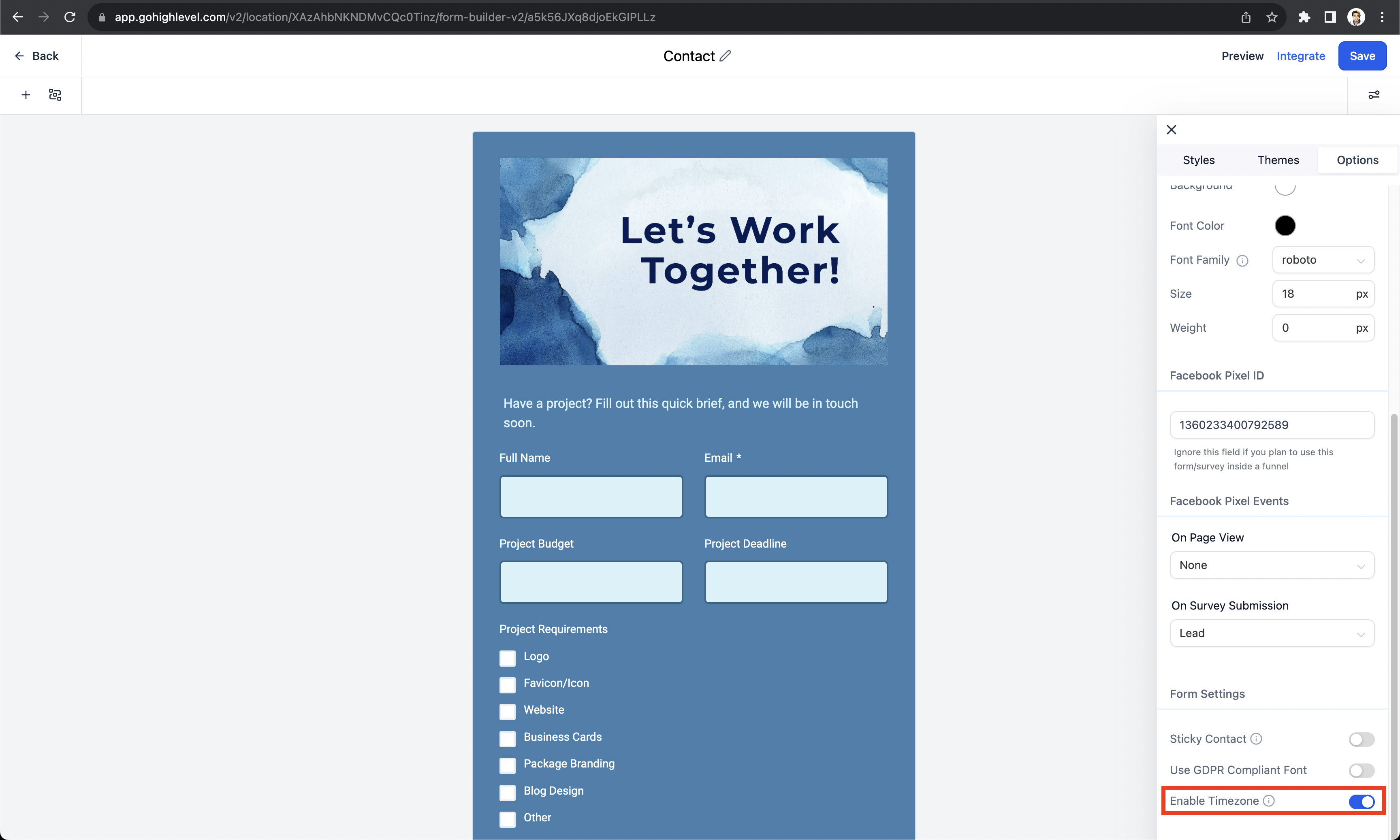
The Timezone feature adds a field to every HighLevel form and survey that automatically records the respondent’s time zone when they submit. It is located under the Options section of the form editor. By default the toggle is turned on, but you can switch it off if you do not need the data.
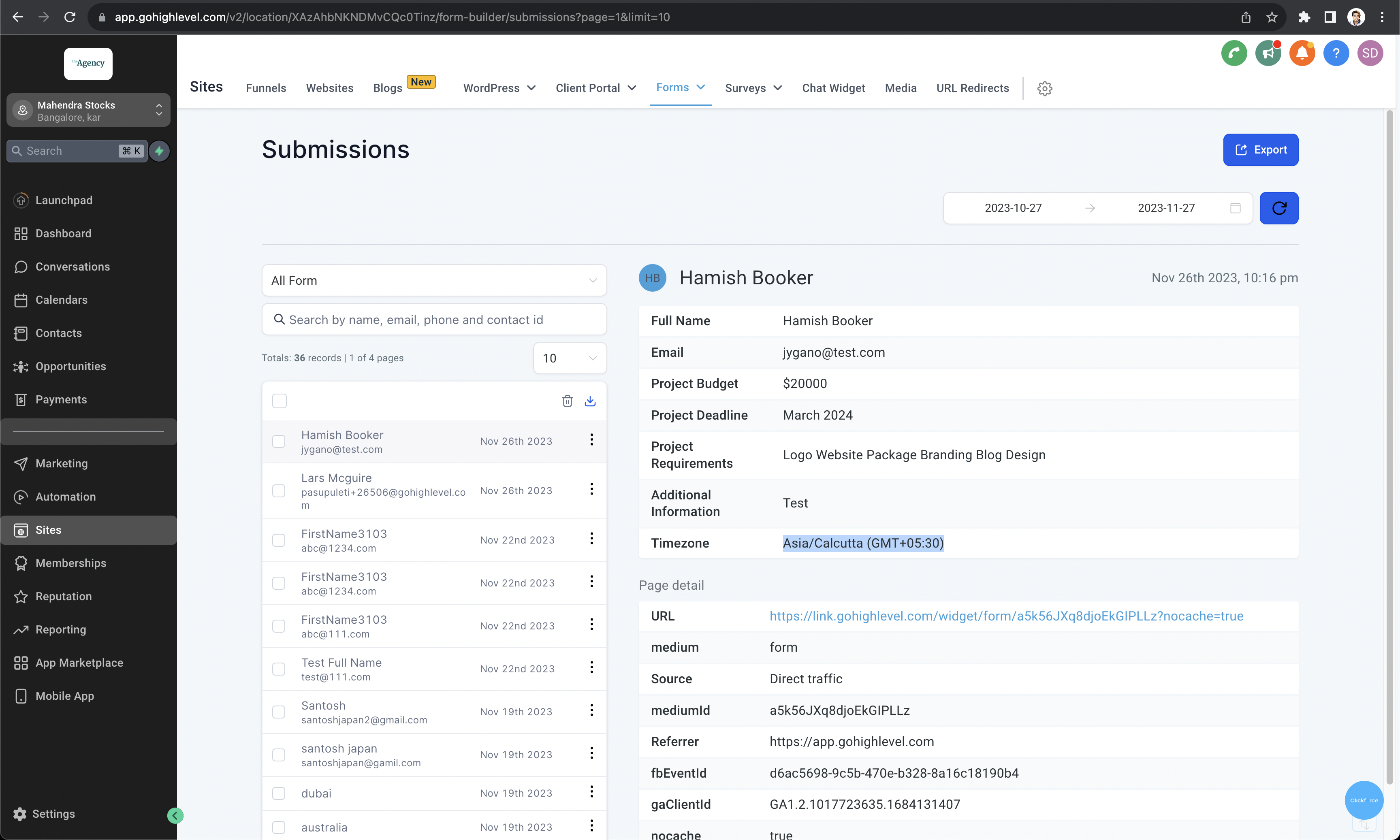
When a submission is opened, the captured timezone appears with the region name followed by its GMT offset. This information is stored with the rest of the submission data and can be referenced for follow up actions such as sending messages or emails at appropriate local times.
03How businesses use timezone in forms and surveys
- Message timing. Enable the timezone option so that follow up messages can be scheduled to match each contact’s local time.
- Email reminders. Use the captured timezone from submissions to send reminder emails at optimal hours for each recipient.
- Geographic insight. Review the timezone field in submissions to understand the regional distribution of respondents.
04How to set up and use timezone in forms and surveys in HighLevel
Enable or disable timezone
- Open the form or survey editor in HighLevel.
- Select the Options tab.
- Find the Timezone toggle under the options list.
- Switch the toggle to ON to enable or OFF to disable the feature.
View captured timezone in submissions
- Navigate to the submissions list for the specific form or survey.
- Open an individual submission record.
- Locate the displayed timezone field, showing the region and GMT offset.
05What it looks like in HighLevel
06Settings that matter
- Timezone. Controls whether the form or survey records the respondent’s local time zone at submission time.
07Things to know before you rely on it
- The timezone option is enabled by default for all new forms and surveys.
- You can turn the option off at any time using the toggle in the Options section.
- Captured timezone appears in a standard format that lists the region followed by the GMT offset.
08How it connects to the rest of HighLevel
- Keep contact details, including timezone, across pages with Sticky Contact. Sticky Contact
- Set up email notifications that can use the captured timezone for timing. Email alerts
- Explore additional form and survey features in the Sites overview. All Sites features
Michael's take

When you’re running campaigns that rely on timing. Like appointment reminders or event invites. The timezone field can help ensure contacts receive communication at a sensible hour.
If your business doesn’t depend on time sensitive outreach, the added field may be unnecessary overhead. In those cases you can simply leave the default setting and not worry about pulling the data into your automations.