
01Who this is for
- Marketers who need reliable phone numbers for outreach, because verification confirms the contact can receive messages.
- Service providers collecting leads through online forms, because verified numbers reduce bounce rates.
- Businesses that rely on phone callbacks, because they can filter out unverified entries.
02SMS verification in forms and surveys, explained
The feature places an extra validation layer on any Phone field inside a HighLevel form or survey. When enabled, the respondent must click a Verify Phone button, receive a one time password via SMS, and type the code back into the form. The platform records whether the number was verified in a Phone Verified field that appears in the submission data.
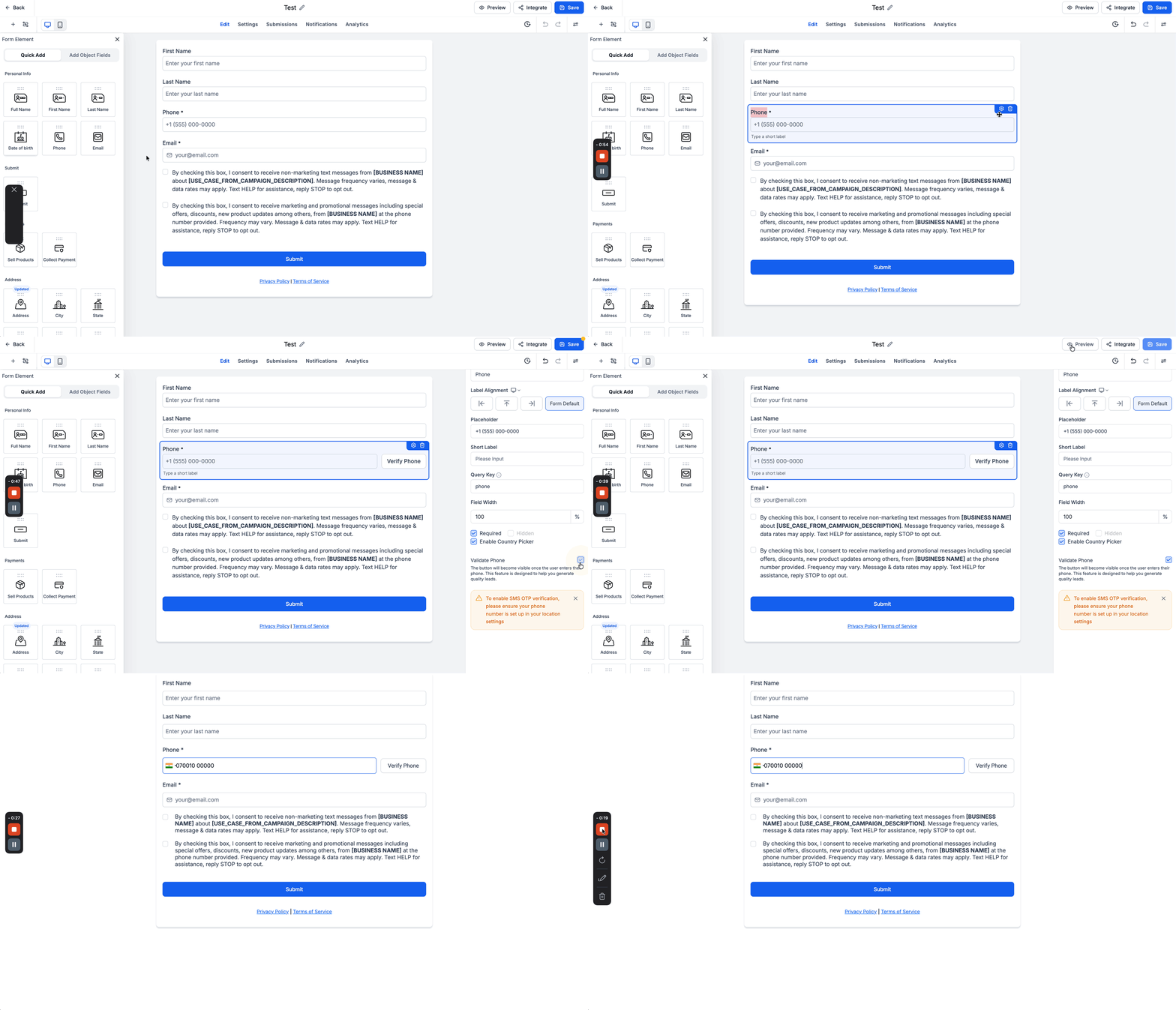
SMS verification is configured in the form builder. After adding a Phone field, you open its field settings and turn on the Validate Phone option. Once saved, the form will prompt respondents for verification before allowing the final submit. This setting lives inside the Phone field options, reachable from Sites > Forms or Surveys.
03How businesses use SMS verification in forms and surveys
- Real estate agency. The agency adds a Phone field to its property inquiry form, enables Validate Phone, and saves the form. Prospects must verify their number before the inquiry is recorded, ensuring the agency can reach them by call or text.
- Fitness studio. The studio creates a class sign up survey, includes a Phone field and turns on SMS verification. Clients receive an OTP, enter it, and only then is their class reservation accepted, providing a confirmed contact for reminders.
- Online course provider. The provider builds a registration form for a new course, adds a Phone field, enables Validate Phone, and publishes the form. Students confirm their phone via OTP, giving the provider a verified number for course updates.
04Before you start
- A phone number must be configured in the account's location settings before enabling SMS verification.
05How to set up and use SMS verification in forms and surveys in HighLevel
Enable SMS verification on a Phone field
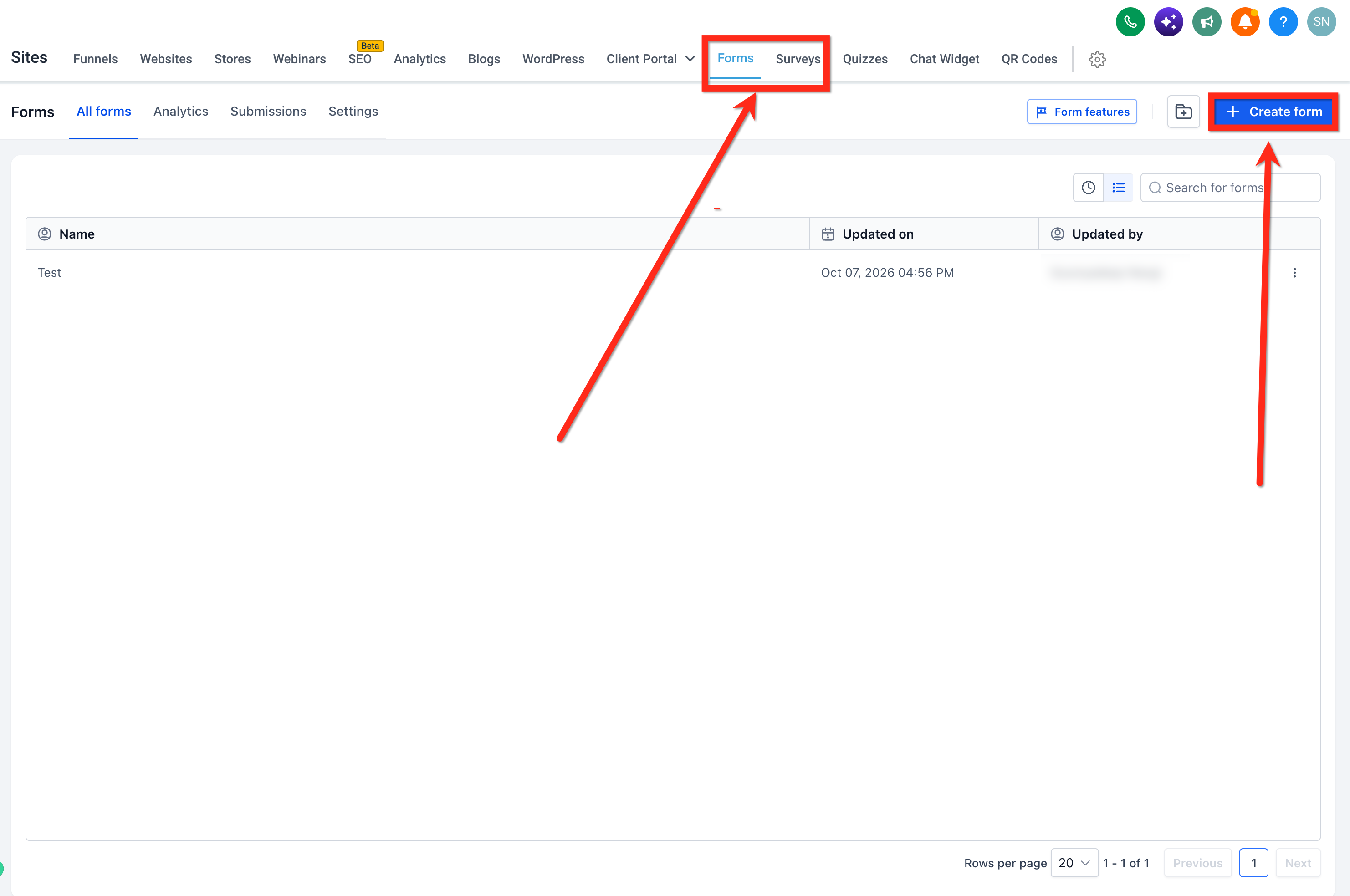
- Open the Sites section using the left navigation menu.
- Choose either Forms or Surveys.
- Start a new form or survey, or edit an existing one in the builder.
- Insert a Phone field if the form does not already contain one.
- Click the Phone field to open its field settings panel.
- Scroll within the settings and toggle the Validate Phone option on.
- Preview the form, then save and embed it as needed.
06What it looks like in HighLevel
07Settings that matter
- Validate Phone. Activates SMS OTP verification for the Phone field, requiring respondents to confirm their number before submitting the form or survey.
08Things to know before you rely on it
- SMS OTP messages may incur applicable messaging charges.
- The verification result is stored in the Phone Verified field of the submission data.
09How it connects to the rest of HighLevel
- Learn how to design and test contact forms in HighLevel Contact form builder
- Enable sticky contact to retain verified phone numbers across forms Sticky contact
- Track external form submissions alongside HighLevel forms External form tracking
Michael's take

In my experience, the extra verification step helps ensure the phone numbers you collect are reachable before you follow up.