
01Who this is for
- Agency owners who build many client forms benefit from seeing all fields at once to verify data collection.
- Coaches who request contact information can copy phone numbers or emails directly from the table for quick outreach.
- Ecommerce operators can export submissions to CSV for offline analysis or import into other tools.
02Forms and surveys submissions page, explained
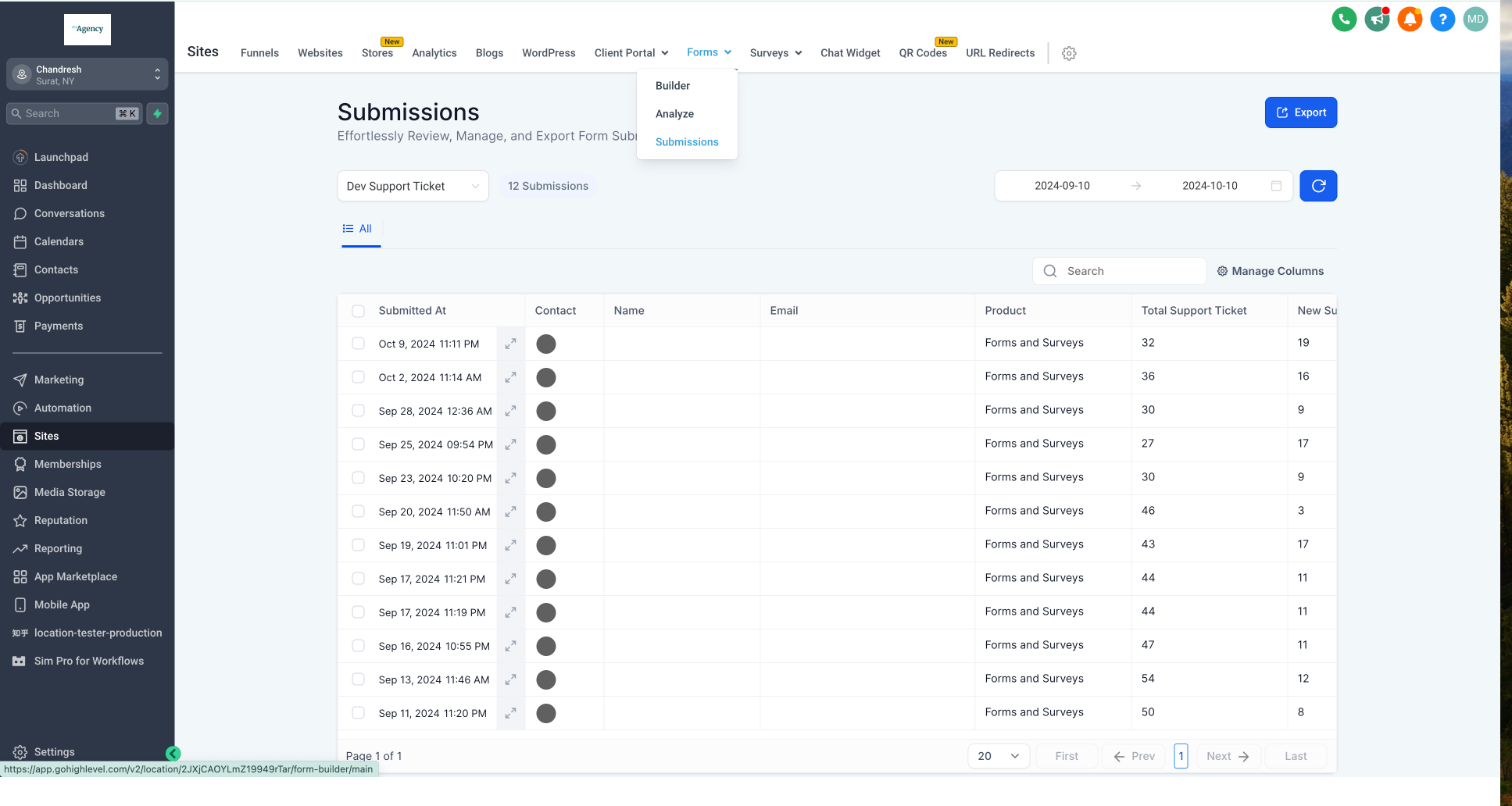
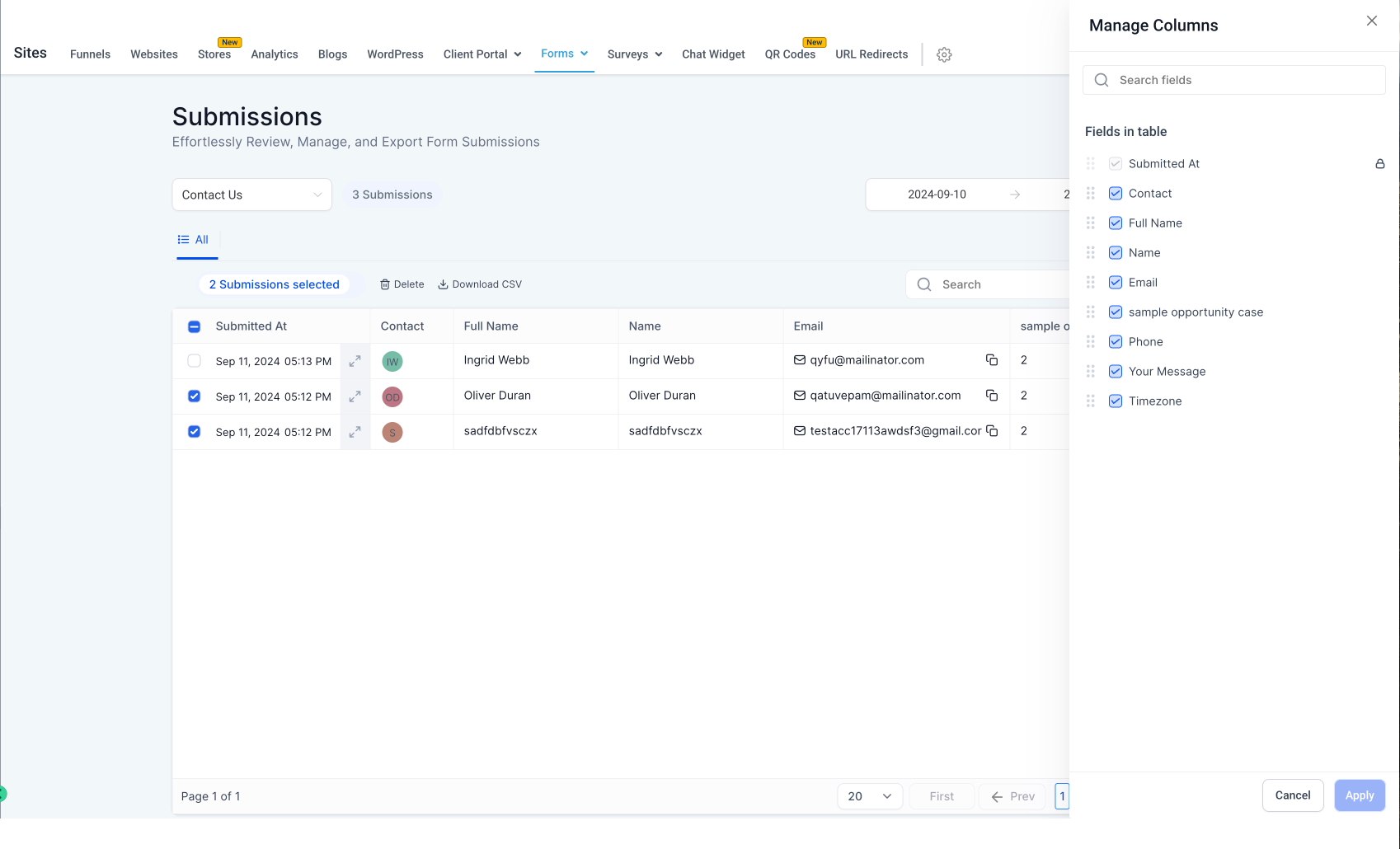
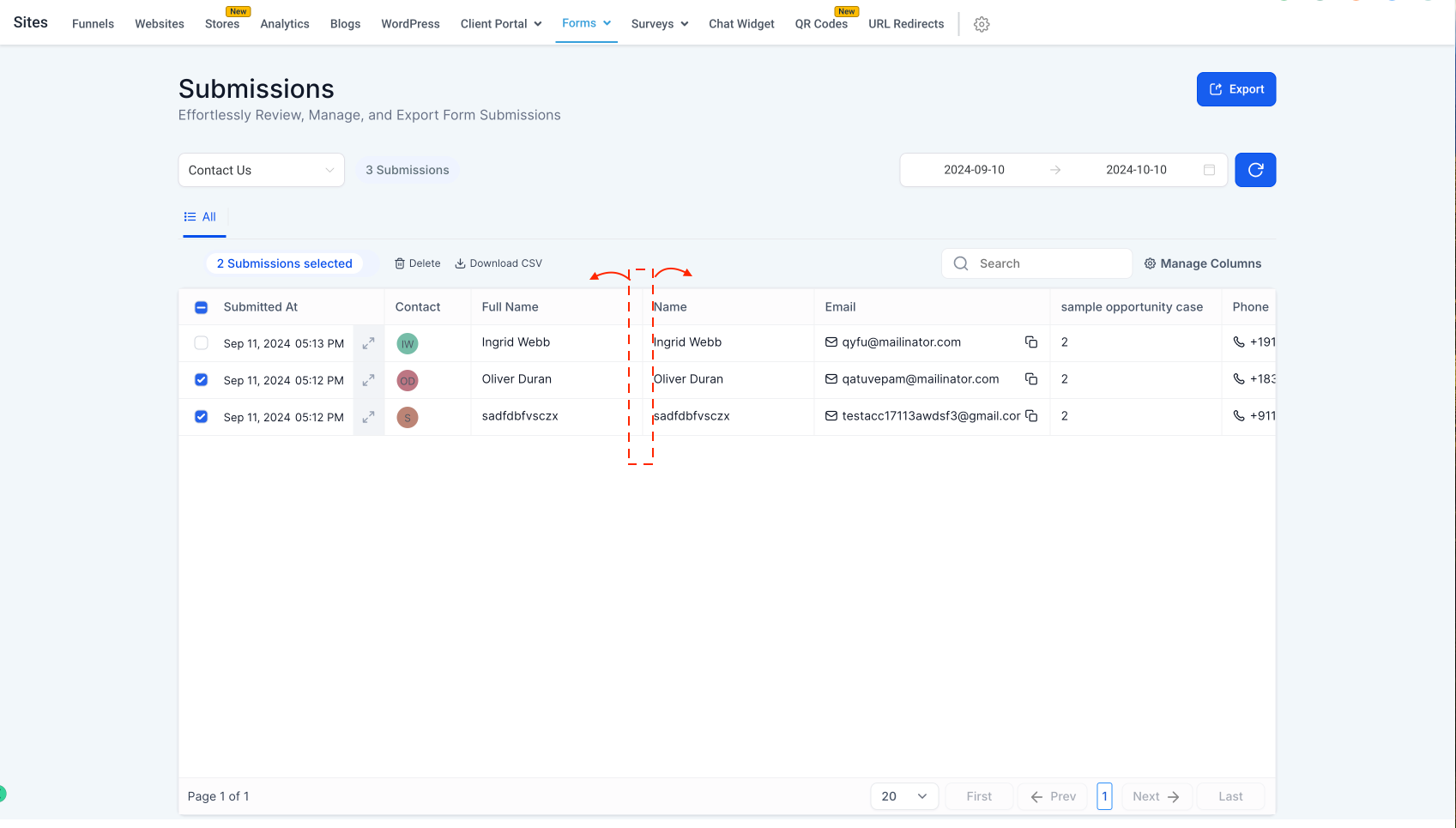
The feature lives under Sites > Forms > Submissions. It replaces the previous three column view with a dynamic table that displays every custom field collected by a form. Users can toggle individual columns on or off, drag headers to change order, and adjust column width by dragging edges.
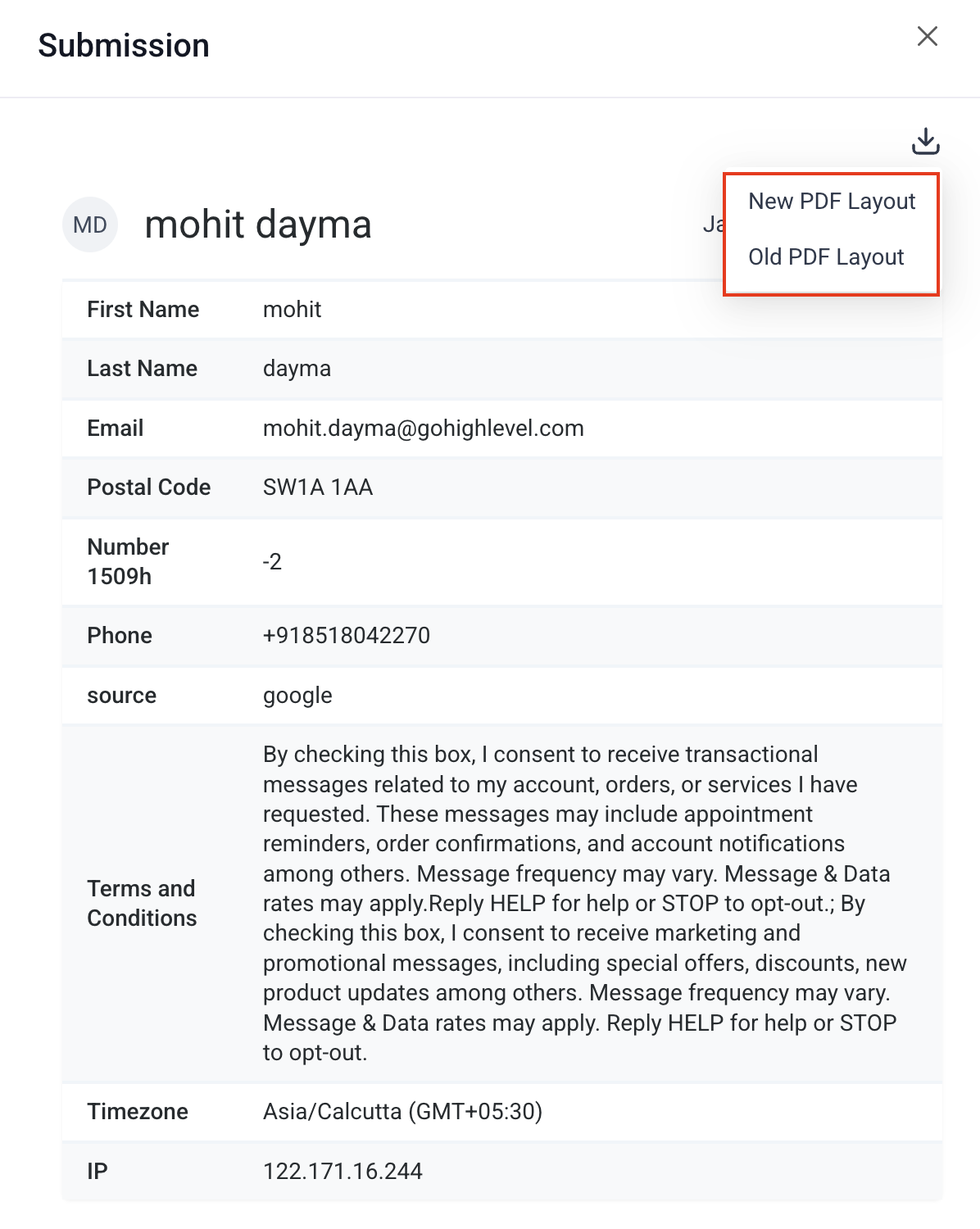
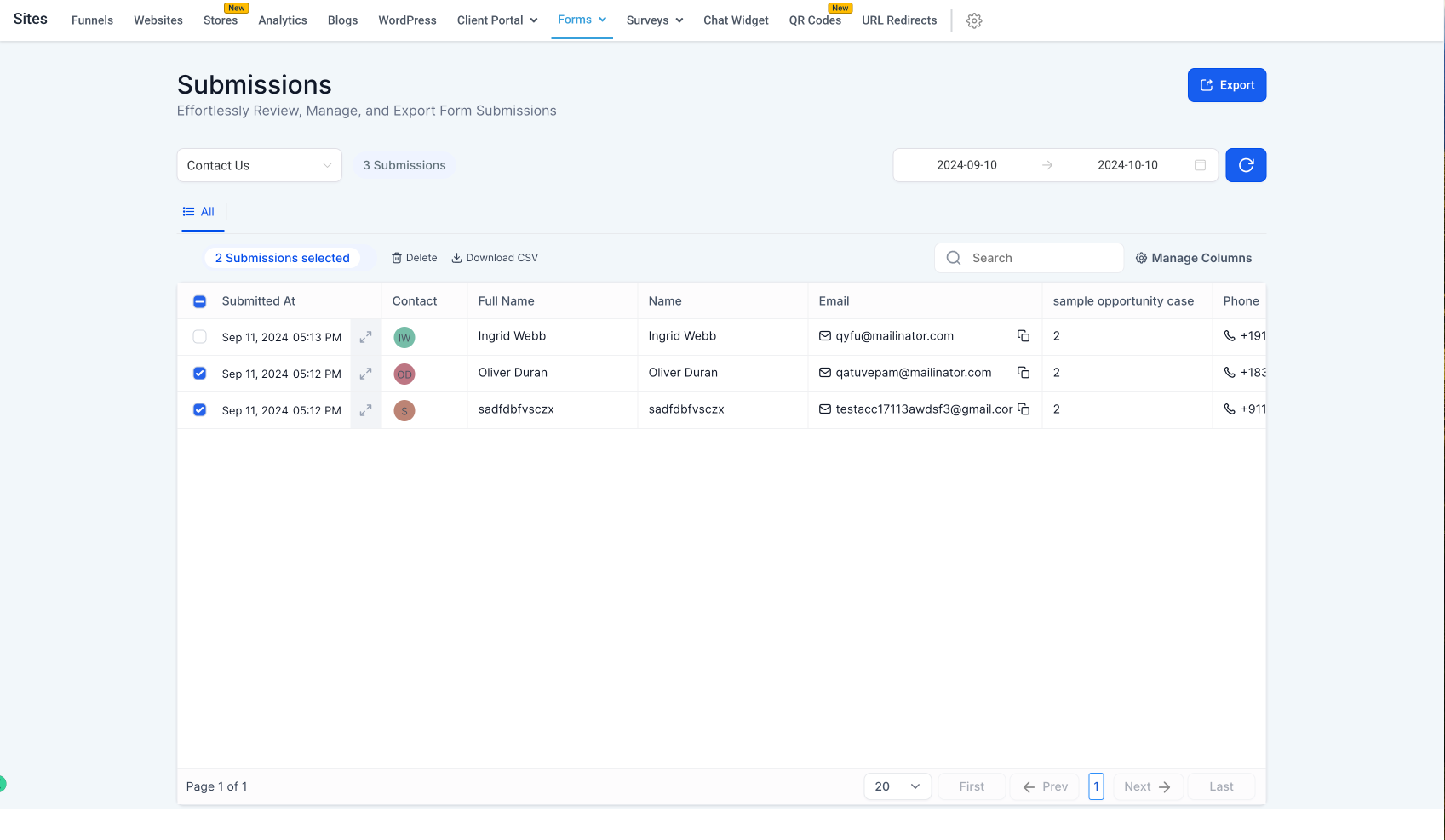
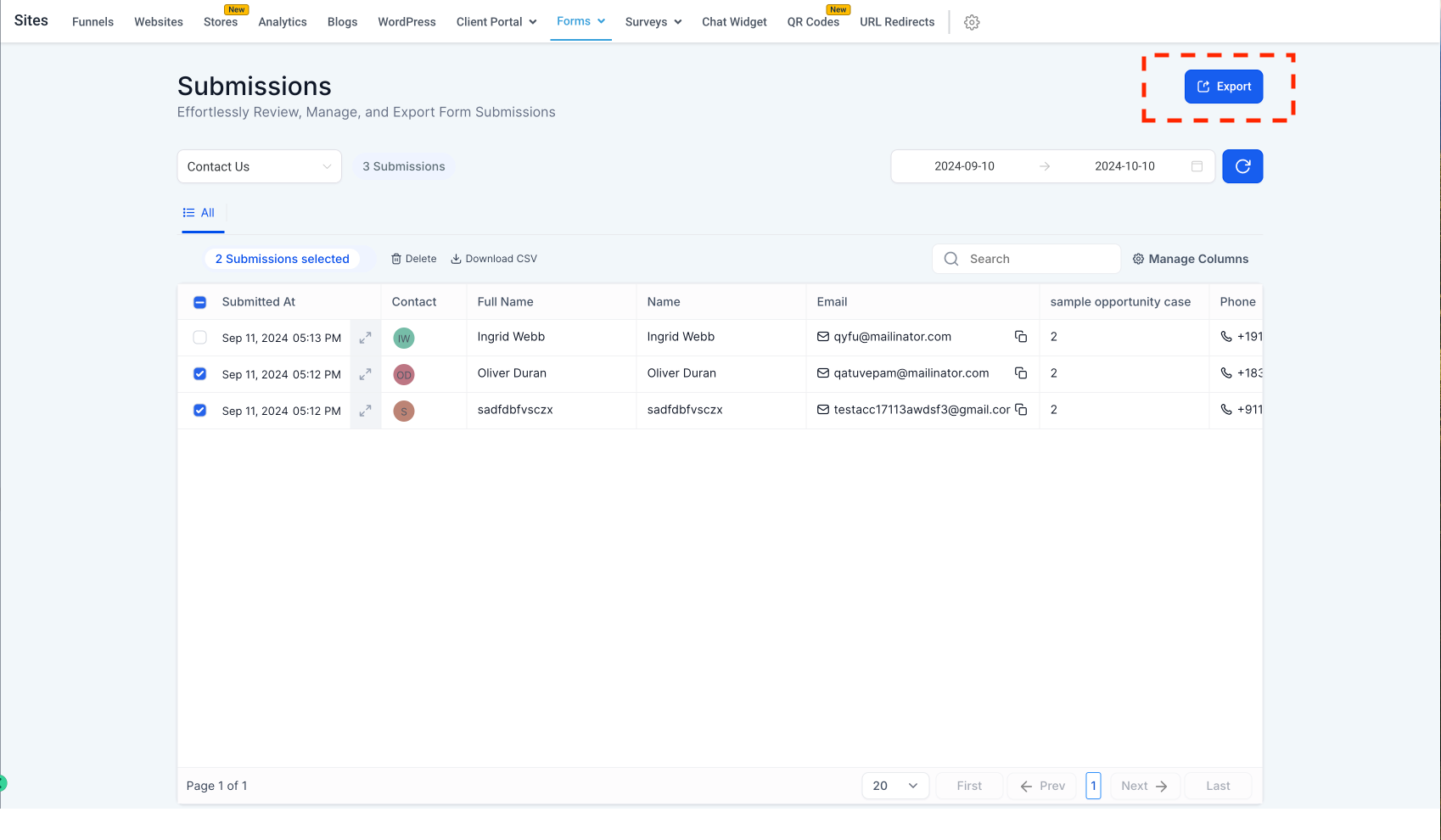
Each row represents a form entry. A small expand icon reveals the full submission, and a PDF download dropdown offers a new, screen optimized layout or the older format. Multiple rows can be selected for bulk CSV export or deletion. Phone numbers and email addresses in the table can be copied with a single click, and URLs become clickable links.
03How businesses use forms and surveys submissions page
- Marketing agency. The agency opens the Submissions page, selects the columns that contain client lead details, copies email addresses directly from the table, and exports all leads as a CSV to feed into their email platform.
- Real estate office. Agents view each property inquiry by expanding the row, choose the new PDF layout for a clean on screen view, and download the PDF to attach to a client follow up email.
- Online course provider. The provider reorders the columns so the course name appears first, resizes the columns for readability, and exports the entire submission list as CSV to import into their student management system.
04The numbers and rules that matter
- Previously, only 3 columns (such as name, email) were displayed.
05Before you start
- Previously only three columns such as name and email were displayed in the Submissions table.
06How to set up and use forms and surveys submissions page in HighLevel
View and download a submission
- Open Sites > Forms > Submissions.
- Click the expand icon on a row.
- Use the PDF download dropdown to choose the new PDF layout or the old layout.
- Select one or more rows and choose to download them as CSV or delete the entries.
Manage columns and export data
- Press the Manage Columns button above the table.
- Check or uncheck the boxes for the fields you want to appear as columns.
- Drag column headers to reorder the column sequence.
- Hover over a column edge and drag to change its width.
- Click the Export button to download all submissions in CSV format.
- If needed, select specific rows, then use the download option to get a CSV of just those entries.
07What it looks like in HighLevel
08Things to know before you rely on it
- All form fields become visible as columns; previously only three columns were shown.
- Column selection, deselection, and reordering are optional and can be changed at any time.
- Copying phone numbers, emails, or clicking URLs works only from the table view.
09How it connects to the rest of HighLevel
- Enable sticky contact for forms and surveys Sticky contact
- Add address auto complete to forms Address auto complete
- Configure email alerts for form submissions Email alerts
Michael's take

When you need a clean, searchable export of every form field, the revamp offers more flexibility.
If you only collect a few fields and never need to export or share the data, the new features add extra clicks without real benefit.