
01Who this is for
- Founders who need quick visual feedback on product concepts to inform development decisions.
- Marketers who want a consistent rating system across landing pages, surveys and quizzes for audience insights.
- Customer success teams that capture service satisfaction scores and trigger follow up automations.
02Rating Element for Forms, Surveys & Quizzes, explained
The Rating Element is a configurable form field that appears alongside standard text inputs, dropdowns and checkboxes in the Forms, Surveys or Quizzes builder. After you drag it onto the canvas, you choose an icon set, define the number of steps in the rating scale, add low and high labels, and decide how the rating is stored, either as a raw number, a percentage or a fraction.
All rating data is written directly to the contact record as a custom field. This makes it available to any automation, segmentation rule or report that reads custom fields. The element adjusts its layout automatically, so it works on desktop browsers and mobile devices without extra effort.
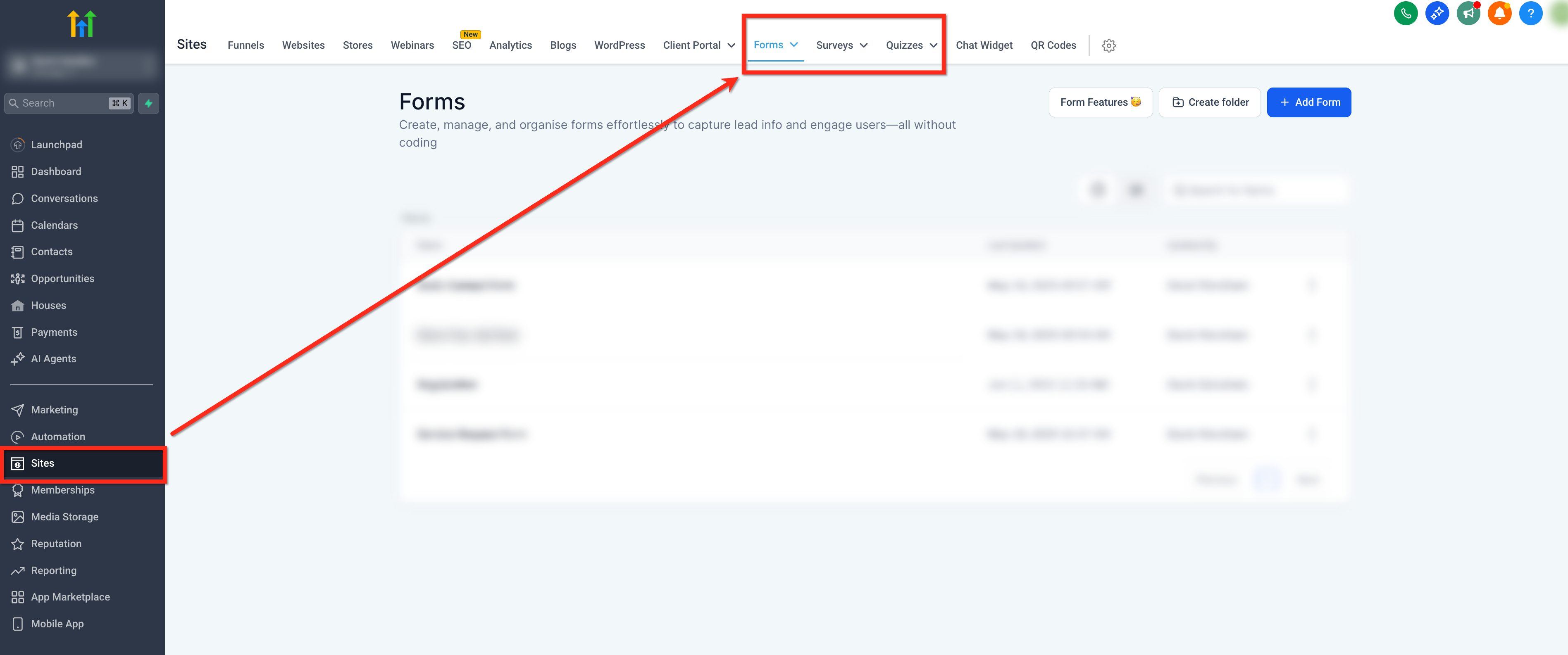
You find the Rating Element in the form builder panel accessed through Subaccount Dashboard > Sites > Forms, Surveys or Quizzes. It behaves like any other form component: you can set it as required, change its width, and preview it before publishing.
03How businesses use rating element for forms, surveys & quizzes
- Ecommerce store. Add a Rating Element to the product review survey, select star icons, set a five step scale, and map the rating to a custom field. Use that field in an automation that tags high rating customers for a thank you email.
- Coaching business. Insert a heart icon Rating Element into the post session feedback form, define a ten step scale, and store the result as a percentage. Create an automation that schedules a follow up call when the rating falls below a chosen threshold.
- Event organizer. Place a thumbs up Rating Element in the post webinar quiz, set labels from "Poor" to "Excellent", and map the rating to a custom field. Segment contacts based on the stored rating to target future event invitations.
04The numbers and rules that matter
- Scale count can be set from 1 to 10.
05How to set up and use rating element for forms, surveys & quizzes in HighLevel
Set up rating element
- Open the Forms, Surveys or Quizzes builder from Subaccount Dashboard > Sites.
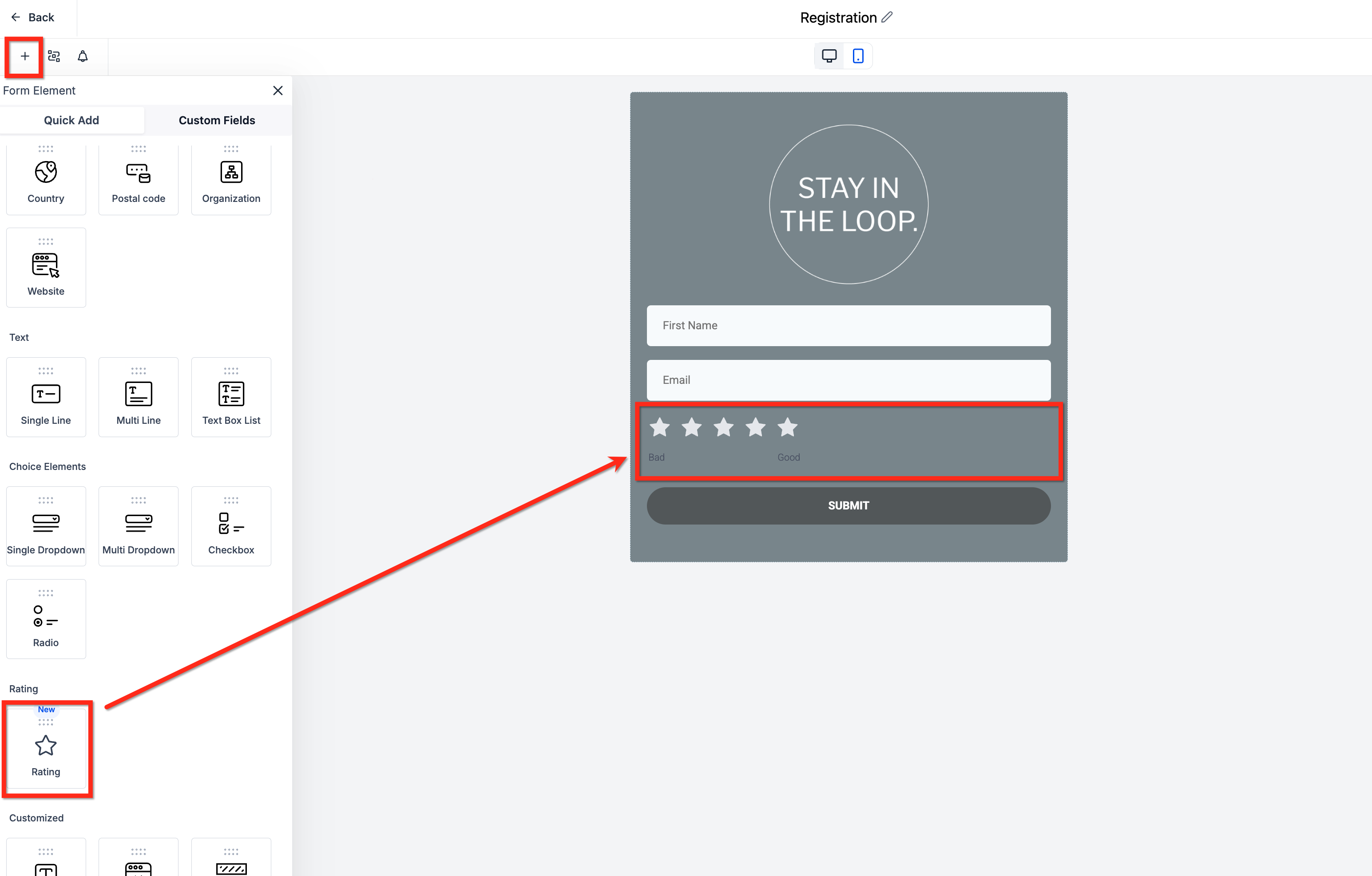
- Click the Add Form Element (+) button, locate the Rating Element, and drag it onto the canvas.
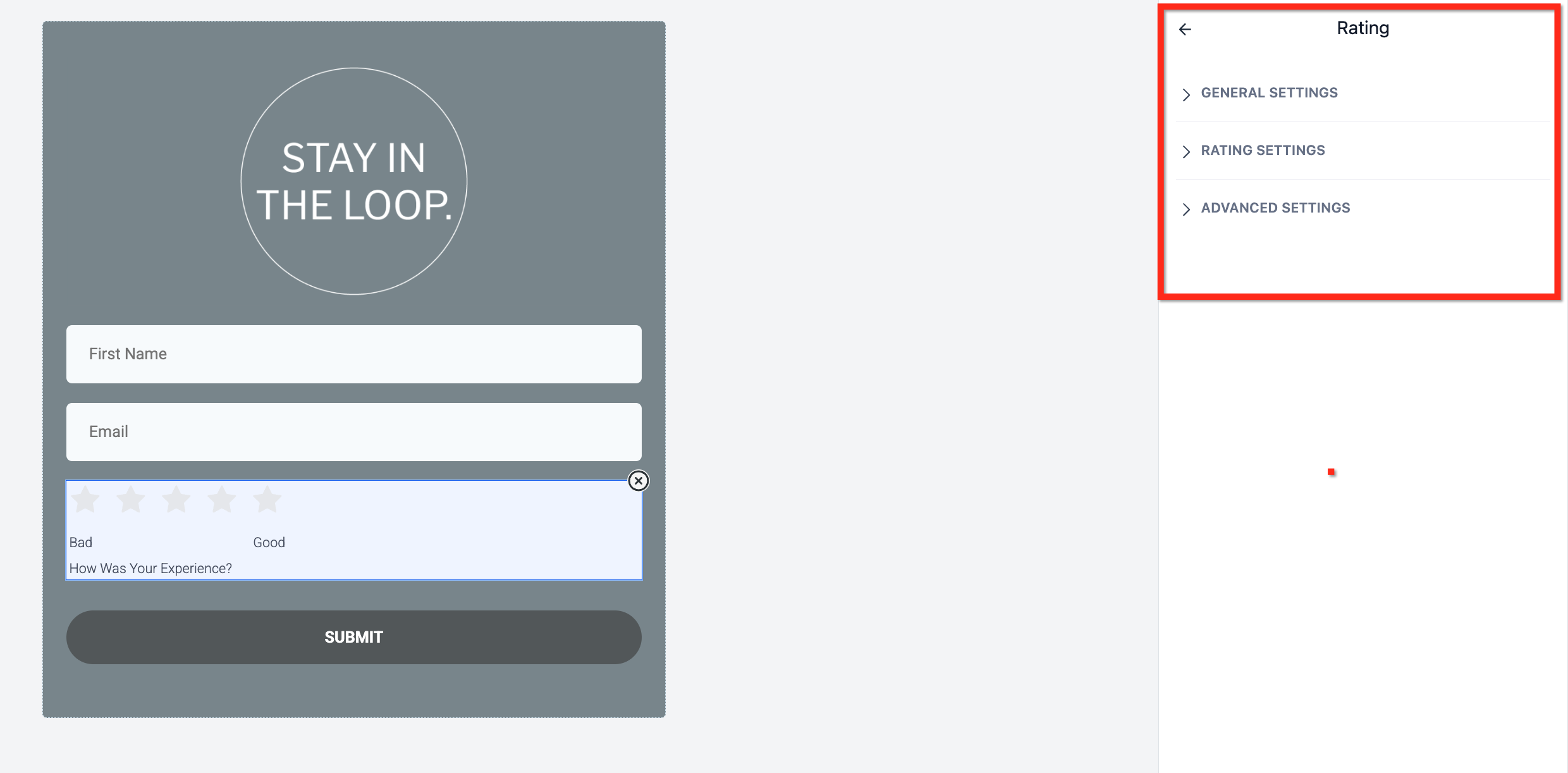
- Select the placed element to open its configuration panel on the right side.
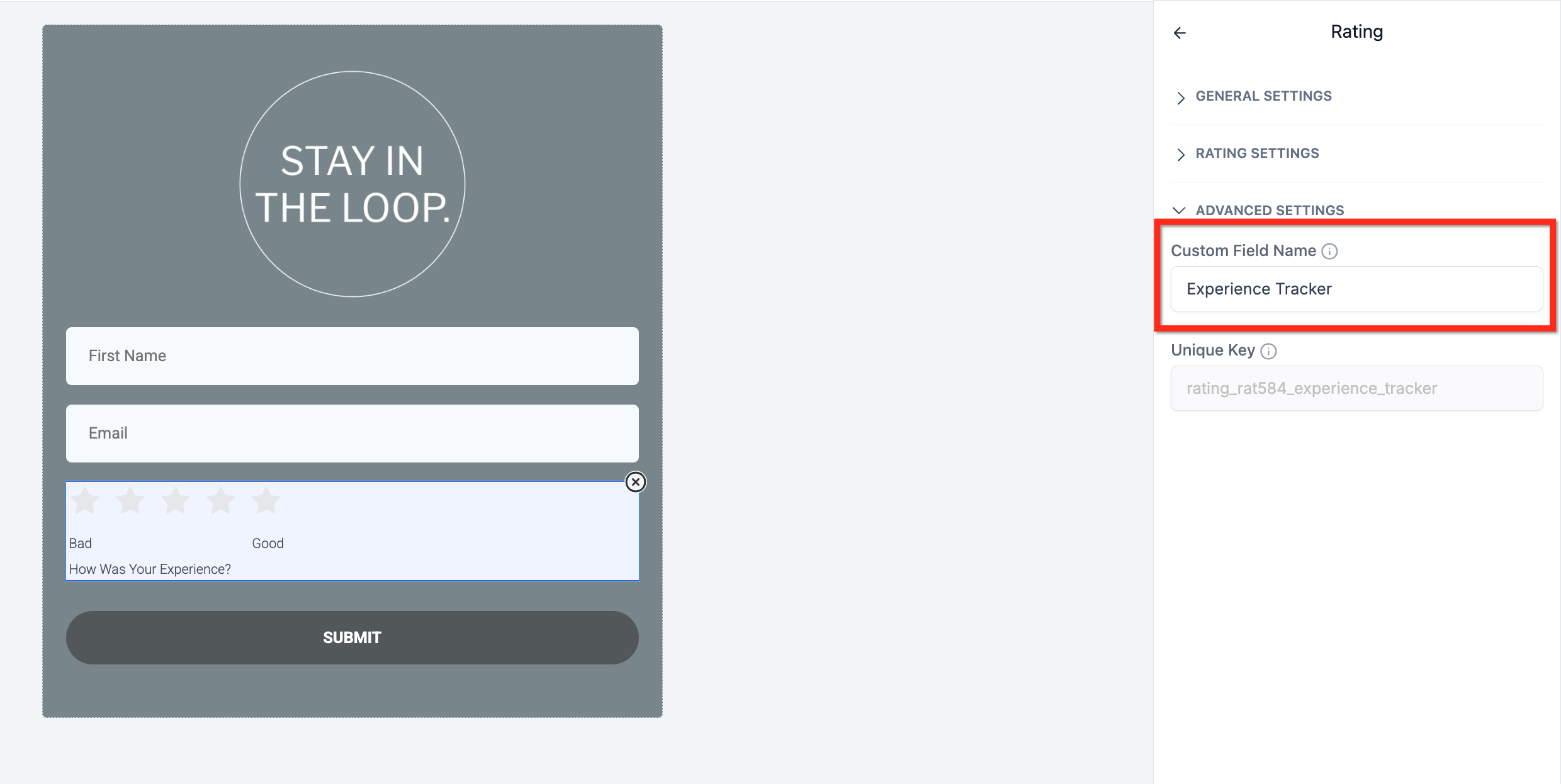
- Adjust General Settings, Rating Settings and Advanced Settings as needed.
- Click Preview to test the rating interaction and visual behavior.
- Save the form or quiz once the rating element is configured.
06What it looks like in HighLevel
07Settings that matter
- Label. The text displayed to respondents prompting them to rate.
- Short Label. Internal name used for the field in the system.
- Field Width. Controls how wide the element appears, such as 100 % or 50 %.
- Required. When turned on, forces respondents to provide a rating before submitting.
- Icon Type. Choose the visual icon set: stars, hearts, thumbs up, flags or lightbulbs.
- Icon Alignment. Sets the placement of the icons to the left, center or right within the field.
- Count. Defines the number of rating steps, from 1 up to 10.
- Lowest & Highest Labels. Custom text for the minimum and maximum points on the scale.
- Data Storage Options. Selects how the rating is saved: as an absolute value, a percentage or a fraction.
- Absolute Value. Stores the plain numeric rating, such as 4.
- Percentage. Converts the rating to a percentage, for example 80 % for a 4 out 5 scale.
- Fraction. Saves the rating in fraction format, like 4/5.
08Things to know before you rely on it
- The rating scale can contain a minimum of 1 and a maximum of 10 steps.
- Only the icon types listed (stars, hearts, thumbs up, flags, lightbulbs) are available.
- Data can be saved only as an absolute number, a percentage or a fraction; other formats are not supported.
- Changing the rating scale after responses have been collected may alter how earlier answers are interpreted.
09How it connects to the rest of HighLevel
- Add sticky contact to capture leads alongside ratings Sticky Contact
- Enable address auto complete in forms for richer respondent data Address Auto Complete
- Configure email alerts to be sent when a rating is submitted Email Alerts
Michael's take

People often think a simple star rating is enough, then they forget to map the value to a custom field.
If I were setting this up, I’d first decide how I need the rating stored. Absolute, percentage or fraction. And then map it to a custom field right away.