
01Who this is for
- Founders who need to qualify leads quickly, because quiz answers can segment contacts for targeted outreach.
- Marketing agencies that want to offer clients a lead generation tool that feeds directly into the platform's automation.
- Online course providers seeking an assessment that records scores and assigns students to appropriate modules.
02Quiz Builder, explained
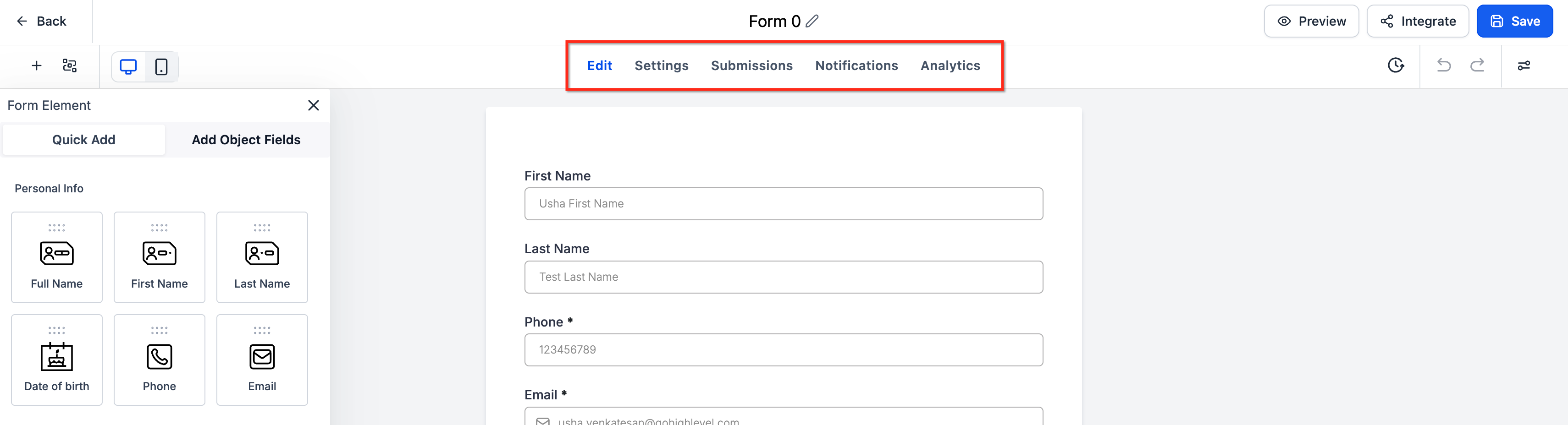
The Quiz Builder lives under the Sites section of HighLevel. It provides a drag and drop canvas where you add pages, questions, and custom fields. A Settings tab lets you define scoring rules, outcome categories, and scheduling options. Notifications let you email results, and a Results page displays the final outcome.
When a visitor submits the quiz, HighLevel records each answer, calculates any configured scores, and stores the outcome in custom CRM fields. Those fields can trigger workflows or be used for segmenting contacts. The quiz can be published by copying an embed iframe or a direct link.
All quiz elements, from multiple choice questions to file uploads, are available in the Quick Add palette. Custom fields containing the word “score” automatically act as numeric scoring elements, simplifying point based quizzes.
03How businesses use quiz builder
- Dental practice. A dental office adds a short questionnaire to its website, assigns points to each answer, and uses the score to recommend a specific treatment plan on the results page. The quiz embed code is placed on the practice’s landing page.
- Online course provider. The provider creates a personality style quiz that assigns a category such as Beginner, Intermediate, or Advanced. Categories are set in the Settings tab, and the results page includes a CTA to enroll in the matching course tier.
- Marketing agency. The agency builds a lead qualification quiz for a client, maps the overall score and selected category to contact custom fields, and activates a Quiz Submitted trigger in the workflow builder to start a nurture sequence.
04The numbers and rules that matter
- Quick Add > Questions | Number | A field that allows only numbers (positive or negative) with up/down arrows to add or subtract 1.
05How to set up and use quiz builder in HighLevel
Create a quiz
- Open the Quiz Editor by going to Sites > Quizzes > + Add Quiz or by selecting an existing quiz to edit.
- Pick a starting point, either Start From Scratch or browse the Template Library, preview a template, and activate it.
- Add or remove pages as needed; pages appear in the order listed from top to bottom.
- Add elements to a page by dragging them from the Quick Add palette; you can also delete elements or move them between pages.
- Edit an element by clicking it; adjust the question text, query key, required or hidden status, and any unique options such as answer choices or jump to logic.
- Open the Notifications tab and enable internal email alerts or an auto responder, then set the subject, recipient, reply to address, and sender name.
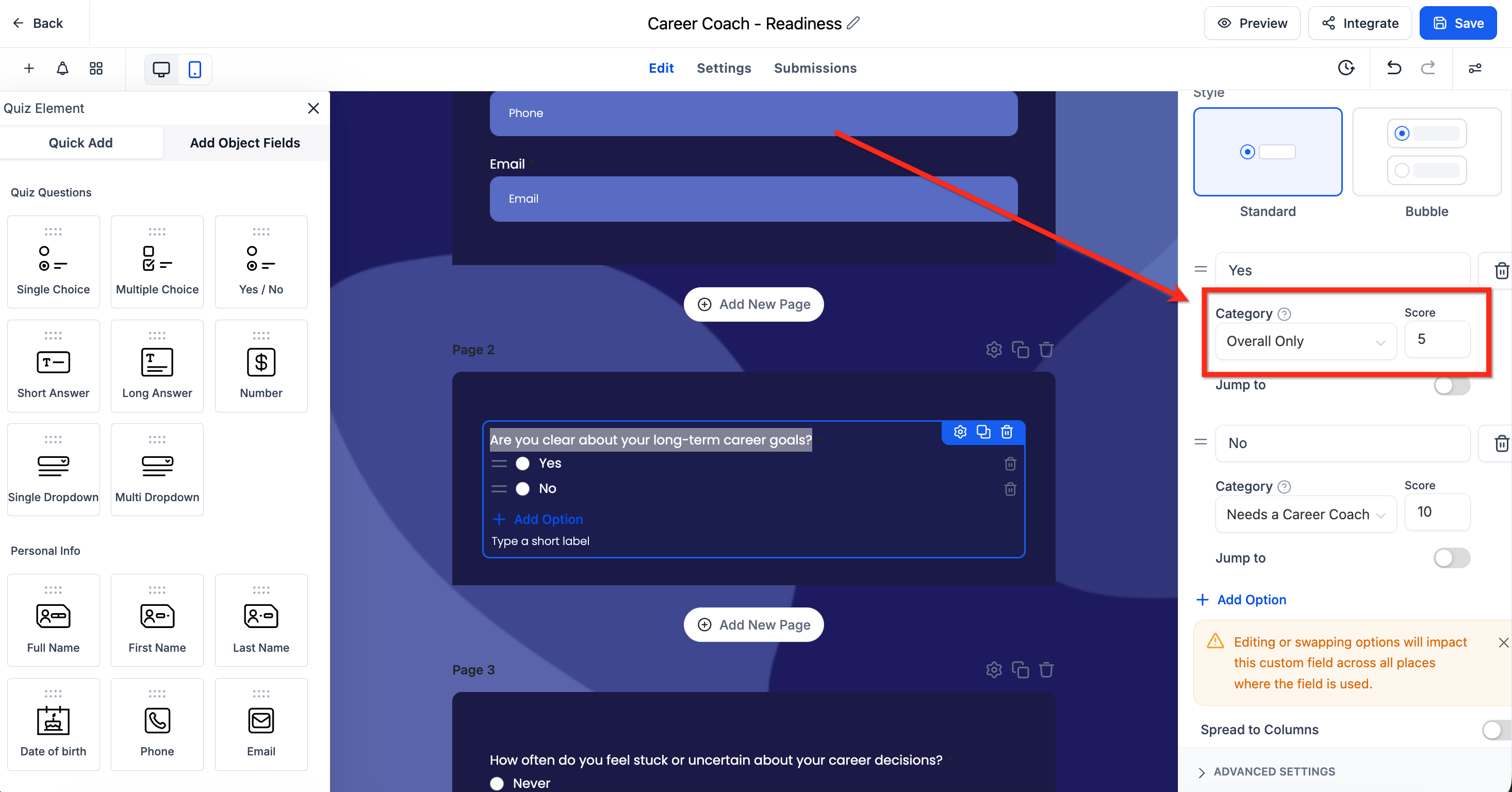
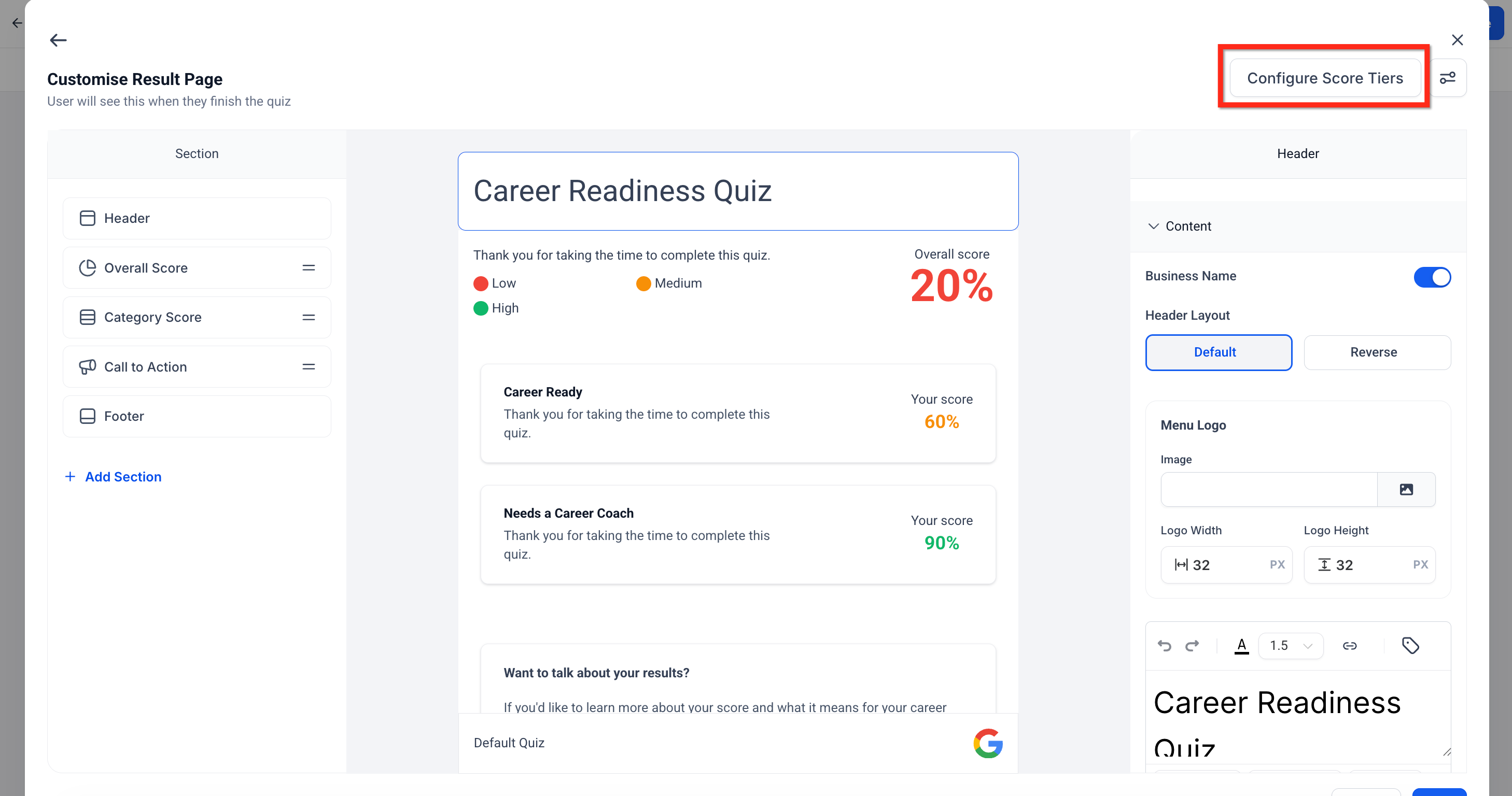
- Define outcome categories by clicking the Grid icon, then add, rename, or delete categories and assign scores to answer options.
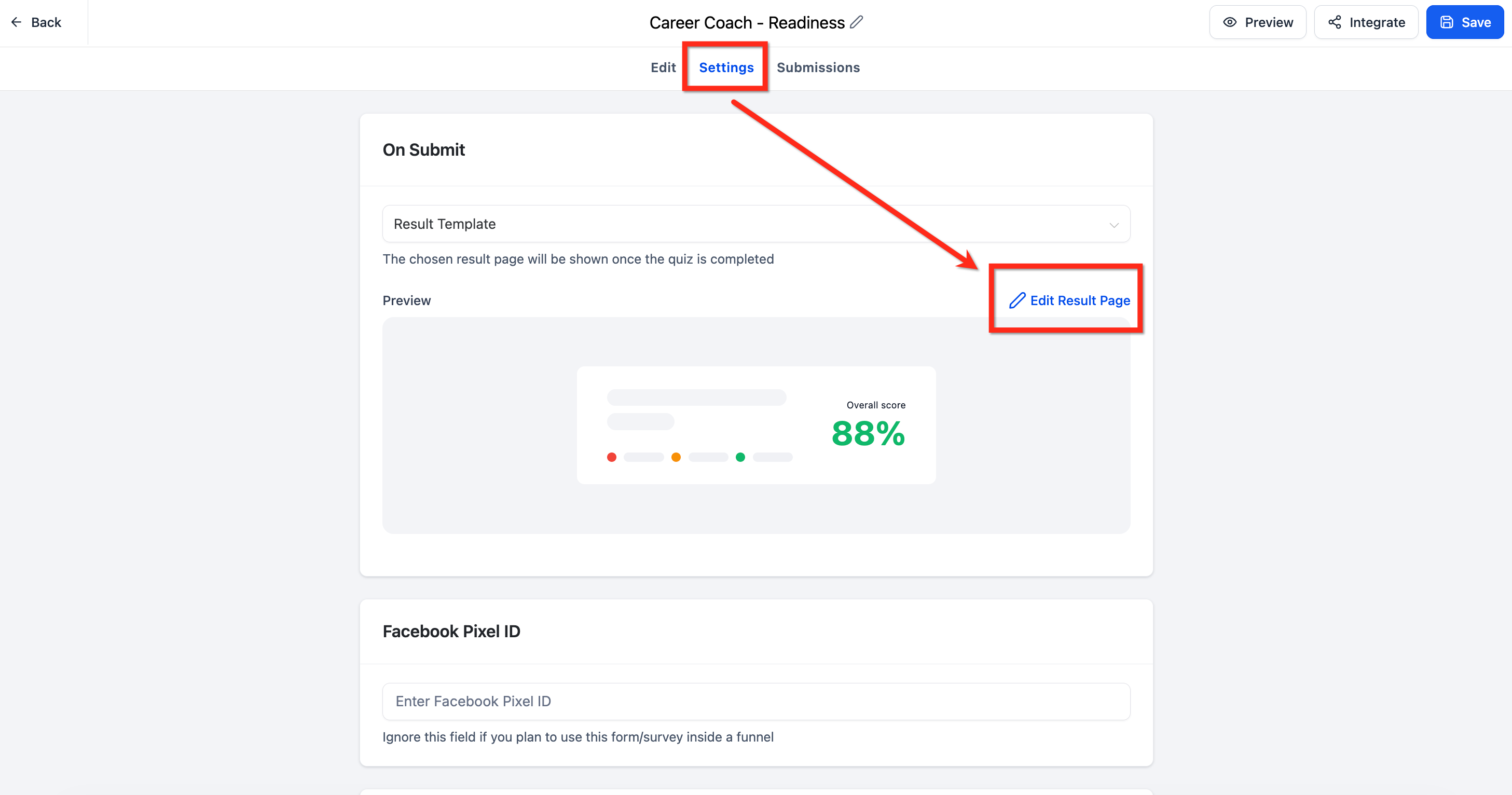
- Adjust visual styles and options by selecting the lines & dots icon; configure layout, colors, background, on submit actions, and pixel IDs.
- Publish the quiz by clicking the Integrate button, copying the embed iframe code for a website or the direct link for email or social sharing.
06What it looks like in HighLevel
07Settings that matter
- Categories. Controls the label groups that a quiz can return, allowing answers to be tied to a specific outcome.
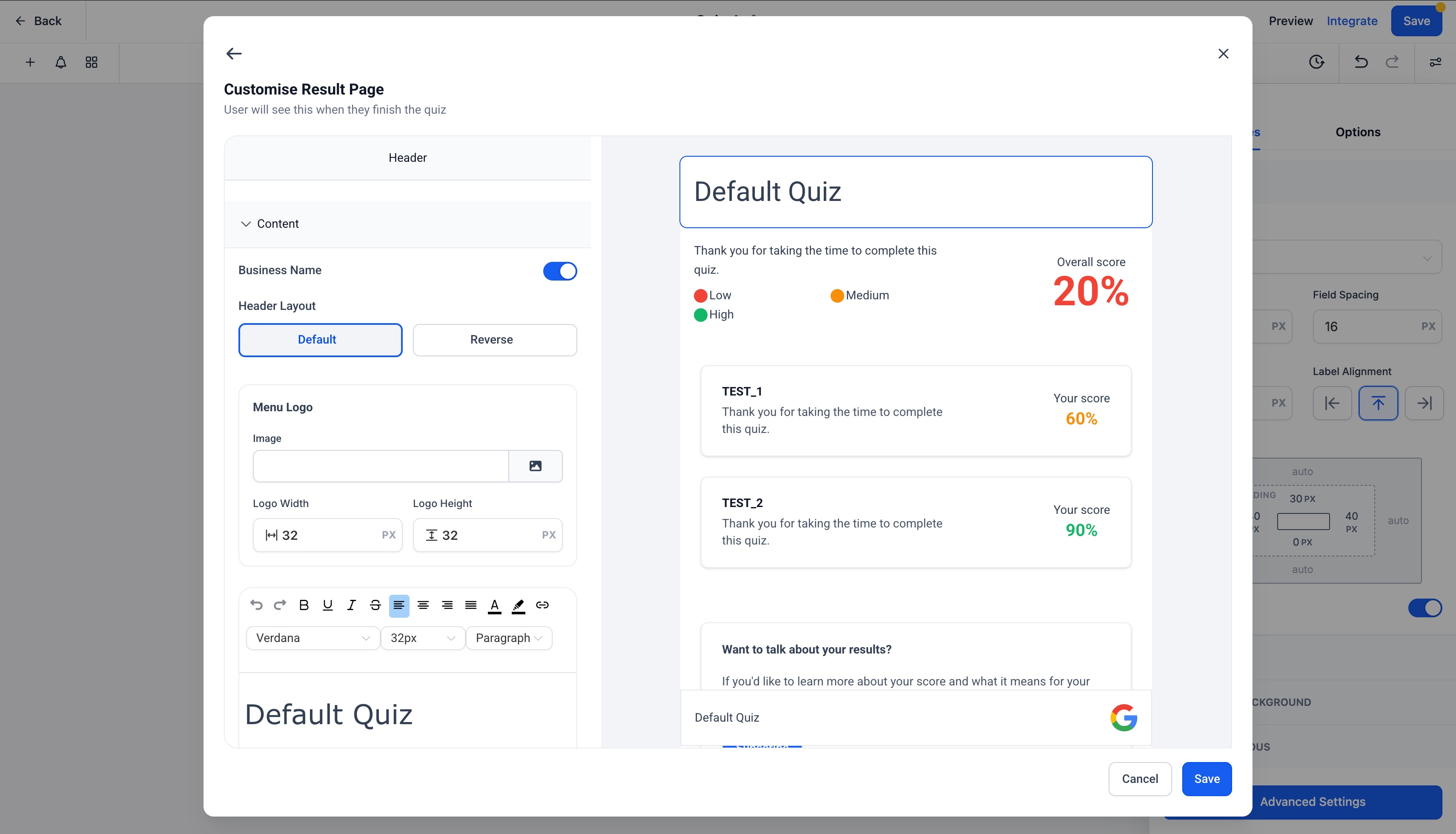
- Score Tiers. Defines numeric ranges that map a total score to named tiers and associated colors on the results page.
- Scheduling. Sets optional opening and closing dates, times, and time zones for when the quiz accepts submissions.
- Notifications. Sets up internal email alerts and auto responder messages that can include PDFs of submissions or results.
- Styles & Options. Controls layout, footer, colors, background, on submit behavior, and integration IDs such as Facebook Pixel.
- Element, Level Label Alignment. Allows each field’s label position to be set individually, overriding the global alignment setting.
08Things to know before you rely on it
- Custom fields whose names contain the word “score” are automatically treated as numeric scoring elements.
- Scheduling is optional; if not enabled, the quiz remains open for responses at all times.
09How it connects to the rest of HighLevel
- Learn how to assign scores, categories, and result pages for quizzes. Quiz scoring and categories
- Set up an automated workflow that runs when a quiz is submitted. Quiz submitted trigger
- Browse pre built quiz templates to speed up creation. Quiz template library
- Map quiz outcomes directly to contact custom fields for segmentation. CRM field mapping
- Review pricing options for HighLevel plans. HighLevel pricing
Michael's take

The first setting I would get right is the score tier configuration on the results page. Getting the ranges and messaging aligned with your offers ensures every respondent sees a clear next step that matches their score.