
01Who this is for
- Marketers can segment audiences by category scores to deliver targeted follow up content.
- Coaches can provide participants with personalized feedback based on overall percentage scores.
02Quiz scoring and categories, explained
The quiz builder lets you give each answer a numeric weight and attach that weight to one or more categories. When a visitor completes the quiz, HighLevel tallies the points, calculates percentages for the overall score and each category, and makes the results available on a Result Page.
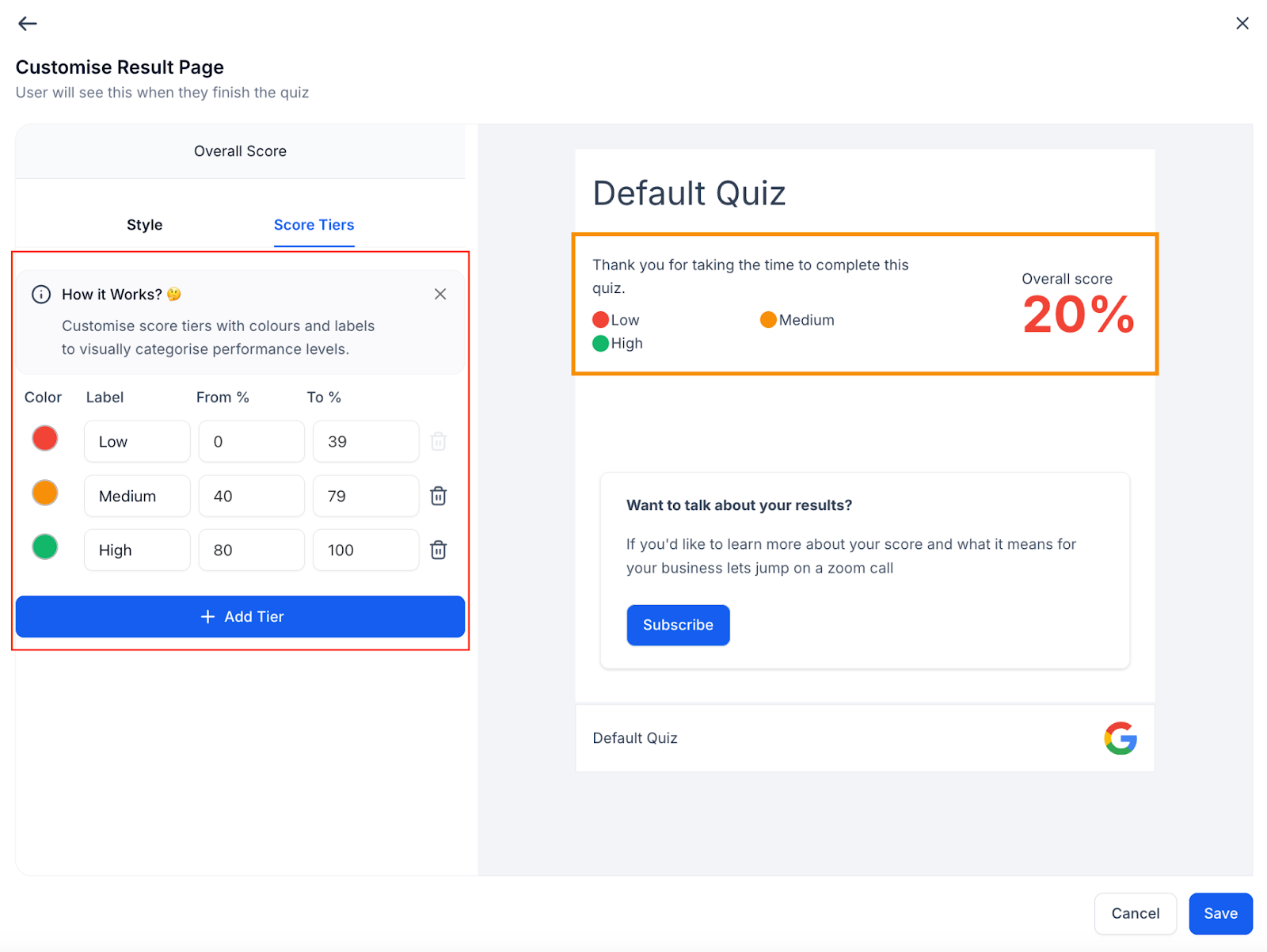
Result Pages can contain sections that react to the calculated scores. You can define ranges such as low, medium and high, and write a specific message for each band. An Individual Category section can be set to display either the highest scoring or lowest scoring category, pulling the name and score with built in tags.
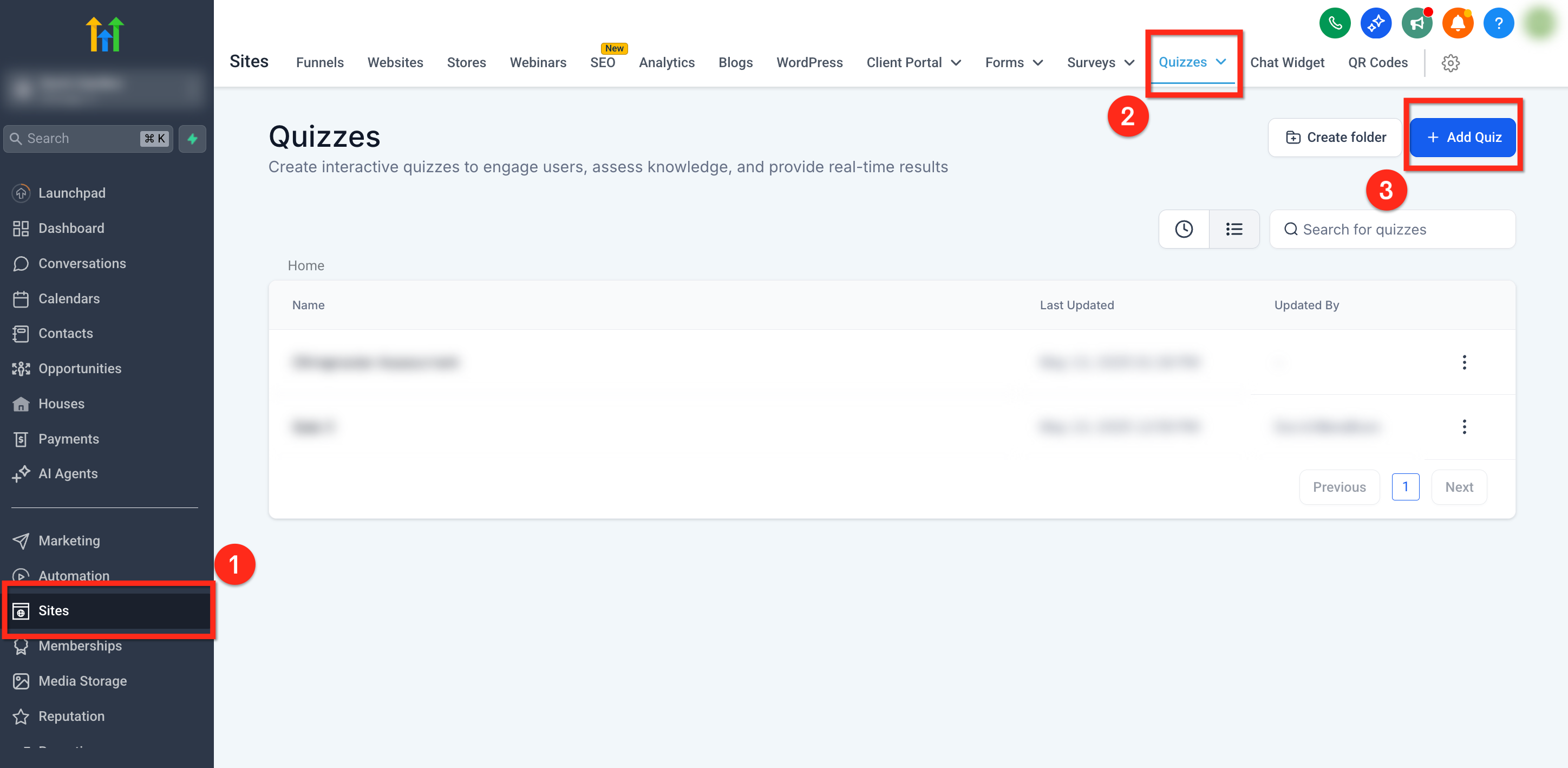
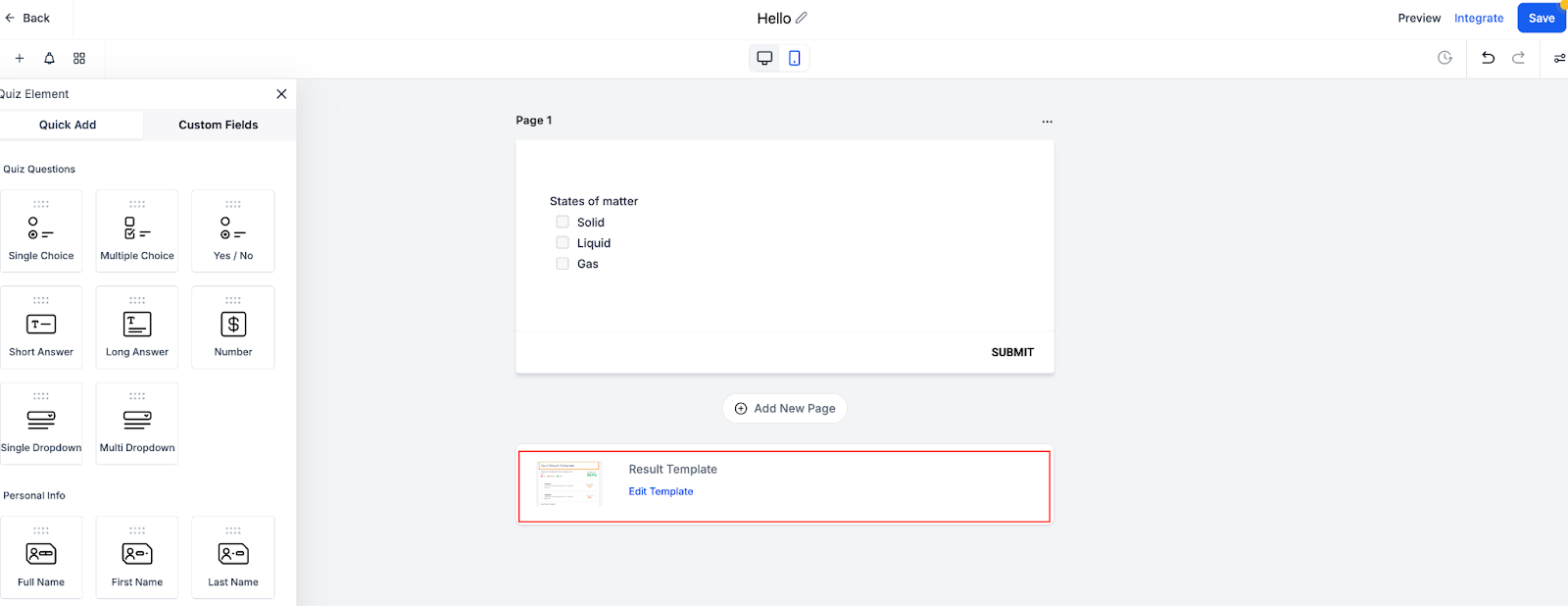
All of these options live inside the quiz editor under Sites > Quizzes. The builder provides a preview function so you can verify scoring logic before publishing.
03How businesses use quiz scoring and categories
- Fitness studio. The studio creates a readiness quiz, assigns points to answer options, and maps the final percentage to three feedback messages. The highest scoring fitness goal category is shown on the result page, prompting the member to book a specific class.
- Financial advisory firm. Advisors design a risk tolerance assessment, give each response a score, and set dynamic messages for low, medium, and high risk bands. The result page highlights the lowest scoring investment knowledge area, directing the prospect to a targeted e book.
- Online education platform. The platform builds a skill gap quiz, assigns points to each topic, and configures dynamic content that changes based on the overall percentage. The Individual Category section displays the strongest subject, linking to an advanced course offering.
04The numbers and rules that matter
- Overall Score can be shown as a percentage, actual score, or out of 10.
- Percentage Score = (Selected Score ÷ Maximum Possible Score) × 100.
- Single Choice/Dropdown max score is fixed per question.
- Result Page sections include Header, Overall Score, Category Score, Individual Category, Call to Action, Footer.
05Before you start
- A HighLevel account with access to Sites > Quizzes must be available.
06How to set up and use quiz scoring and categories in HighLevel
Add scores to a quiz
- Log into HighLevel and open Sites > Quizzes.
- Choose an existing quiz or click + New Quiz to start a fresh one.
- Press Add Question to insert a new question block.
- Select the desired question type such as Single Choice or Multiple Choice.
- Enter the question text and list each answer choice.
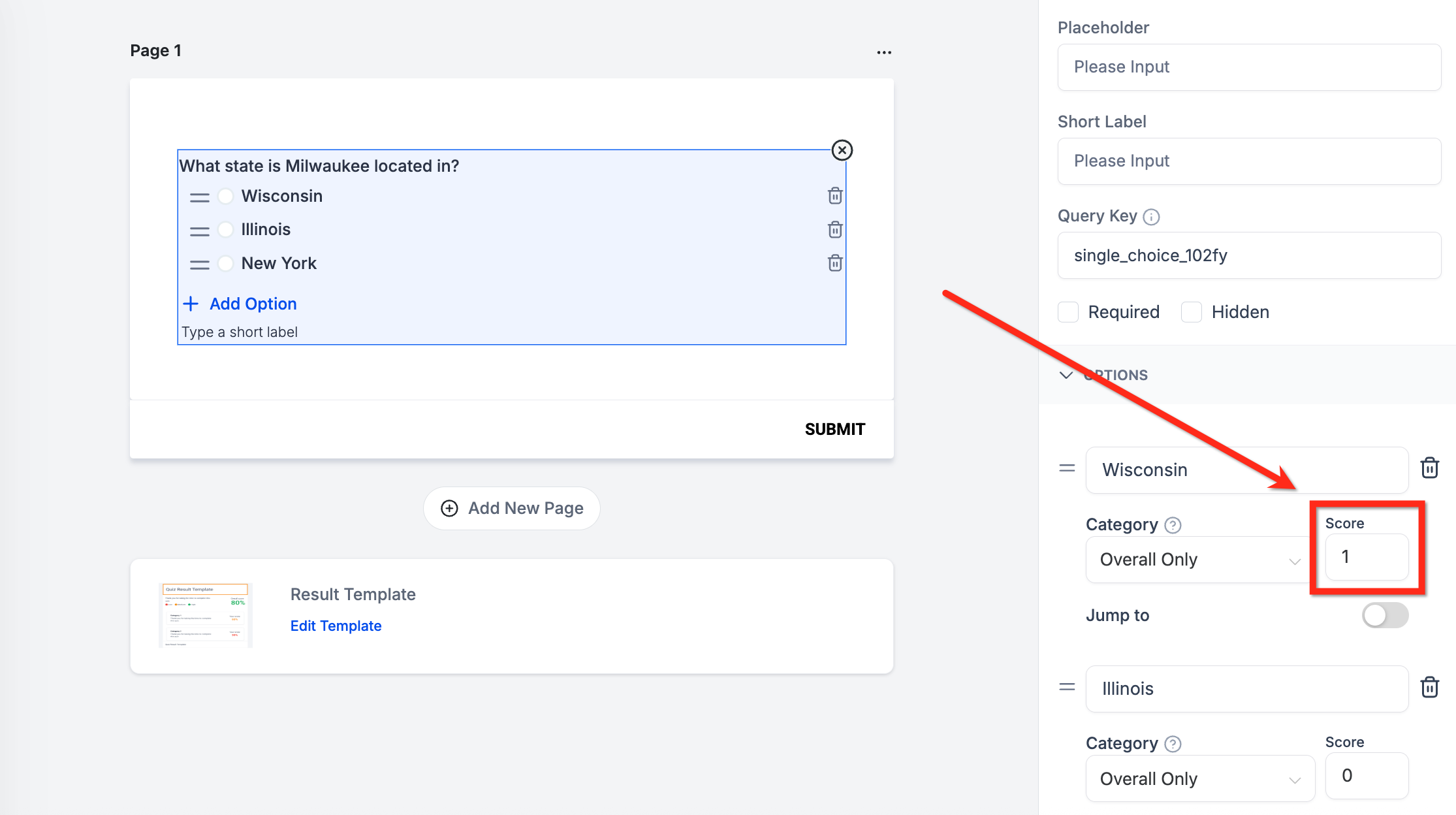
- For each answer, type a numeric score value.
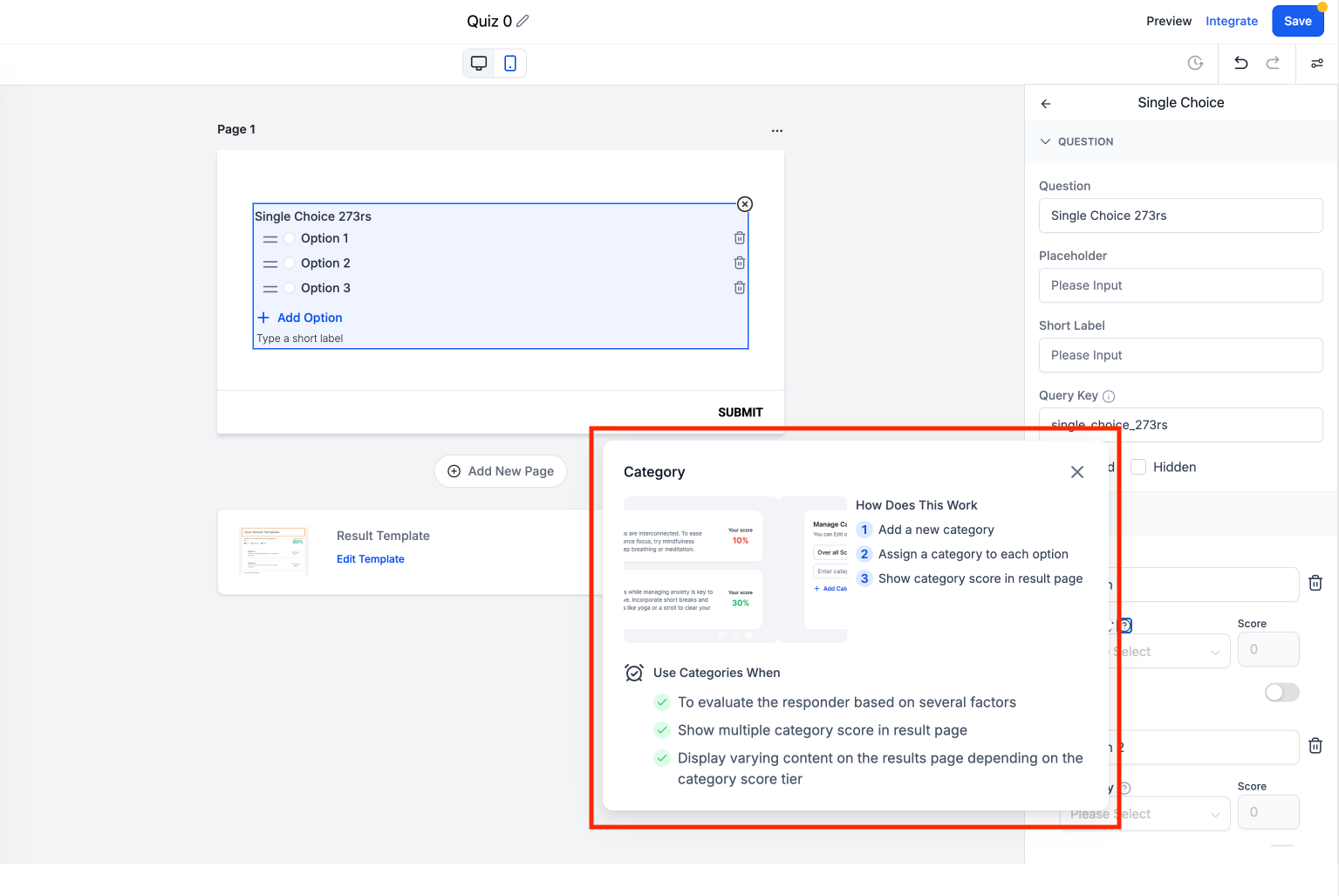
- Create the necessary score categories for your quiz.
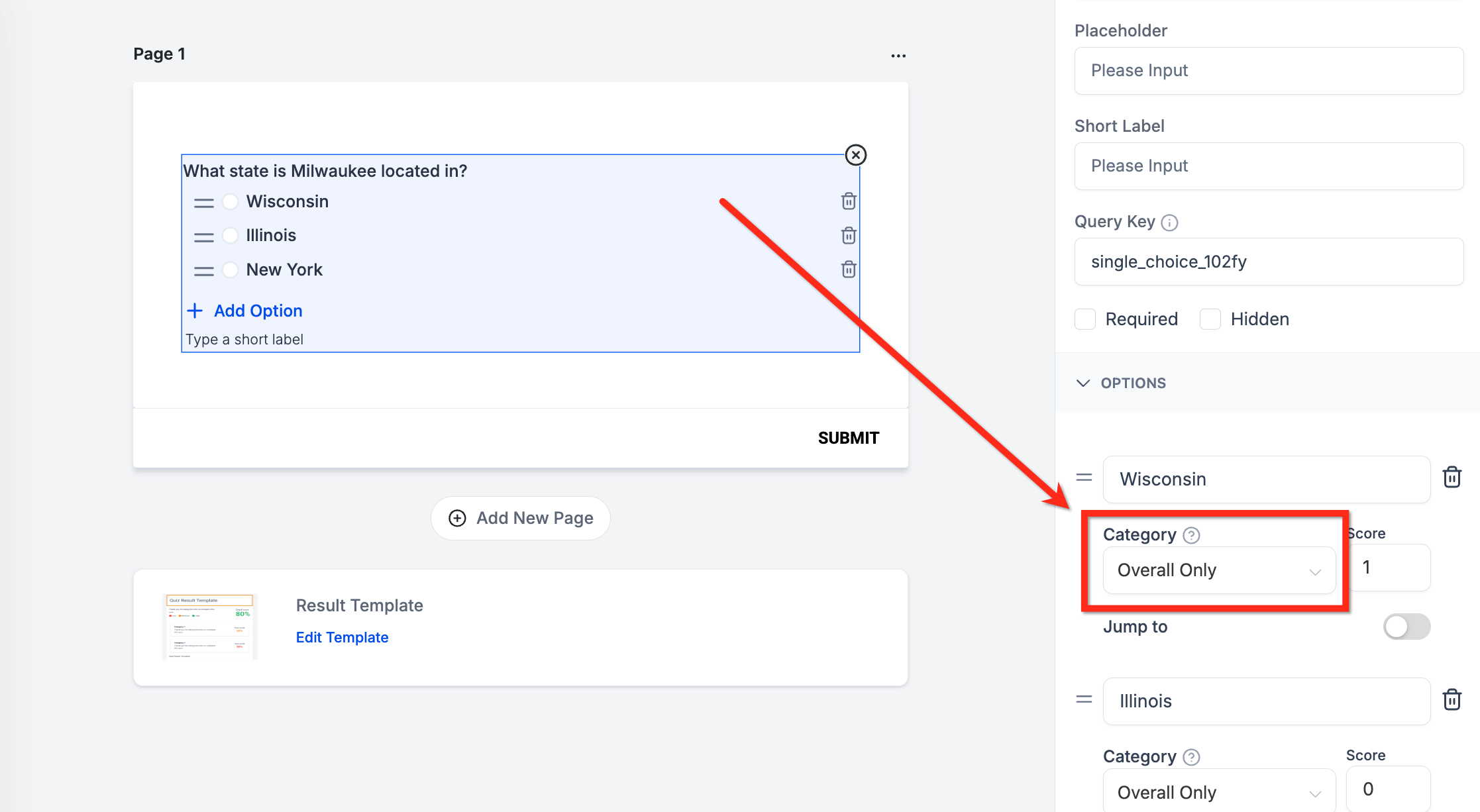
- Link each answer's score to the appropriate category.
- Click Save Quiz and then use Preview to confirm the scoring works as expected.
Set dynamic result messages by score ranges
- Open the Result Page editor for the quiz.
- Create score range intervals, for example 0 to 40%, 41 to 70%, 71 to 100%.
- Write a custom message for each interval.
- Optionally add a call to action button or link beneath the message.
- Save the page and preview to ensure the correct message appears for each score.
Show the highest or lowest scoring category
- In the Result Page, click + Add Section.
- Select the Individual Category section type.
- Pick either Highest Category or Lowest Category as the display mode.
- Edit the headline, body text, media, and CTA to suit the chosen category.
- Save and preview to verify that the correct category is shown.
07What it looks like in HighLevel
08Settings that matter
- Display Category. Determines whether the Individual Category section shows the highest scoring or lowest scoring category.
- Dynamic Tags. Allows insertion of variables such as {{quiz_tags.highest_category_name}} to personalize text with the category name and score.
- Dynamic Content. Enables different messages or CTAs to appear based on the visitor’s overall score tier.
09Things to know before you rely on it
- Images and videos in predefined templates can only be toggled on or off; they cannot be replaced.
- Score ranges must be set within a 0% to 100% scale.
- Category scores are calculated independently but still contribute to the overall total.
10If something goes wrong
- Total scores do not match expected values. Check the category assignments for each answer to ensure they are correct.
- Dynamic messages show the wrong tier. Preview the quiz and verify that the defined score ranges align with the intended percentages.
11How it connects to the rest of HighLevel
- Learn how the Quiz Builder captures leads and personalizes results. Quiz Builder guide
- Set up a Quiz Submitted trigger to automate follow up actions. Quiz submitted trigger
- Customize the layout and content of quiz result pages. Result page customization
Michael's take

Businesses that need to turn quiz answers into clear, actionable insights benefit from scoring and categories. It lets you move beyond a simple list of questions to personalized recommendations, segmenting, or assessments.
The first setting I’d get right is the assignment of each answer to the proper category. Getting that foundation correct ensures the overall and category scores reflect what you intend, and the Result Page can then deliver the right message to each participant.