
01Who this is for
- Marketing managers can create branded QR codes quickly for campaigns and track them in one place.
- Small business owners can link QR codes to payment pages or review forms, making it easy for customers to act.
- Event organizers can generate QR codes that open registration forms or surveys, streamlining attendee data collection.
02QR codes, explained
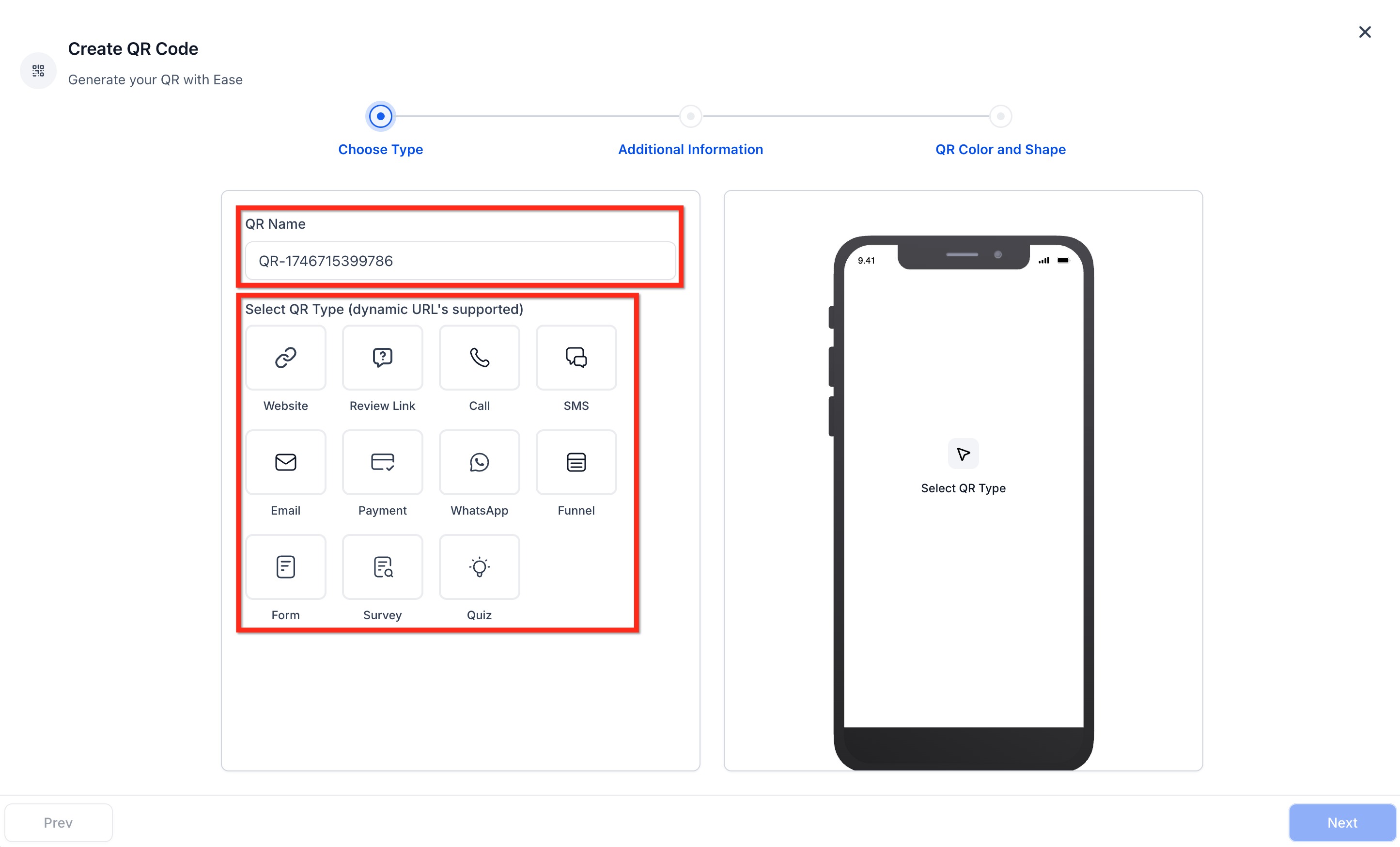
The QR Code Generator lives inside the Sites section of each subaccount. It produces dynamic QR codes that point to a chosen destination such as a website, funnel, review link, payment page, SMS, call, email, WhatsApp, form, survey or quiz. Because the URL is dynamic, you can change the destination later without creating a new image.
When you open the QR Code Builder you first name the code and select the destination type. After entering the URL or other required input, you can test the code in real time. The builder then offers numerous design options, shape, background and dot colors, dot style, corner markers, borders, rim text, and the ability to place a logo or background image. You can also set the background color alpha slider to achieve a fully transparent PNG.
Once the design is finished you may export the QR code as a PNG for digital use, an SVG for responsive layouts, or a PDF for print. A shareable link is also available, and the code is saved in the QR Codes list where it can be edited, moved, or deleted at any time.
03How businesses use QR code generation
- Retail store. A retail store creates a QR code that links directly to its online payment page. The code is placed on in store flyers, and the store customizes the colors and adds its logo so the QR matches the brand.
- Dental practice. A dental practice builds a QR code that points to a patient satisfaction survey. It adds a short CTA text at the top of the code, uploads the practice logo, and shares the generated link in follow up emails.
- Event planner. An event planner generates a QR code for the event registration form, chooses a circular shape, sets a transparent background, and downloads an SVG to embed in the event website and printed tickets.
04The numbers and rules that matter
- Transparent PNGs can be created by setting background color opacity to 0%.
05Before you start
- You must be logged into a HighLevel subaccount that has access to the Sites menu.
06How to set up and use QR code generation in HighLevel
Generate a QR code
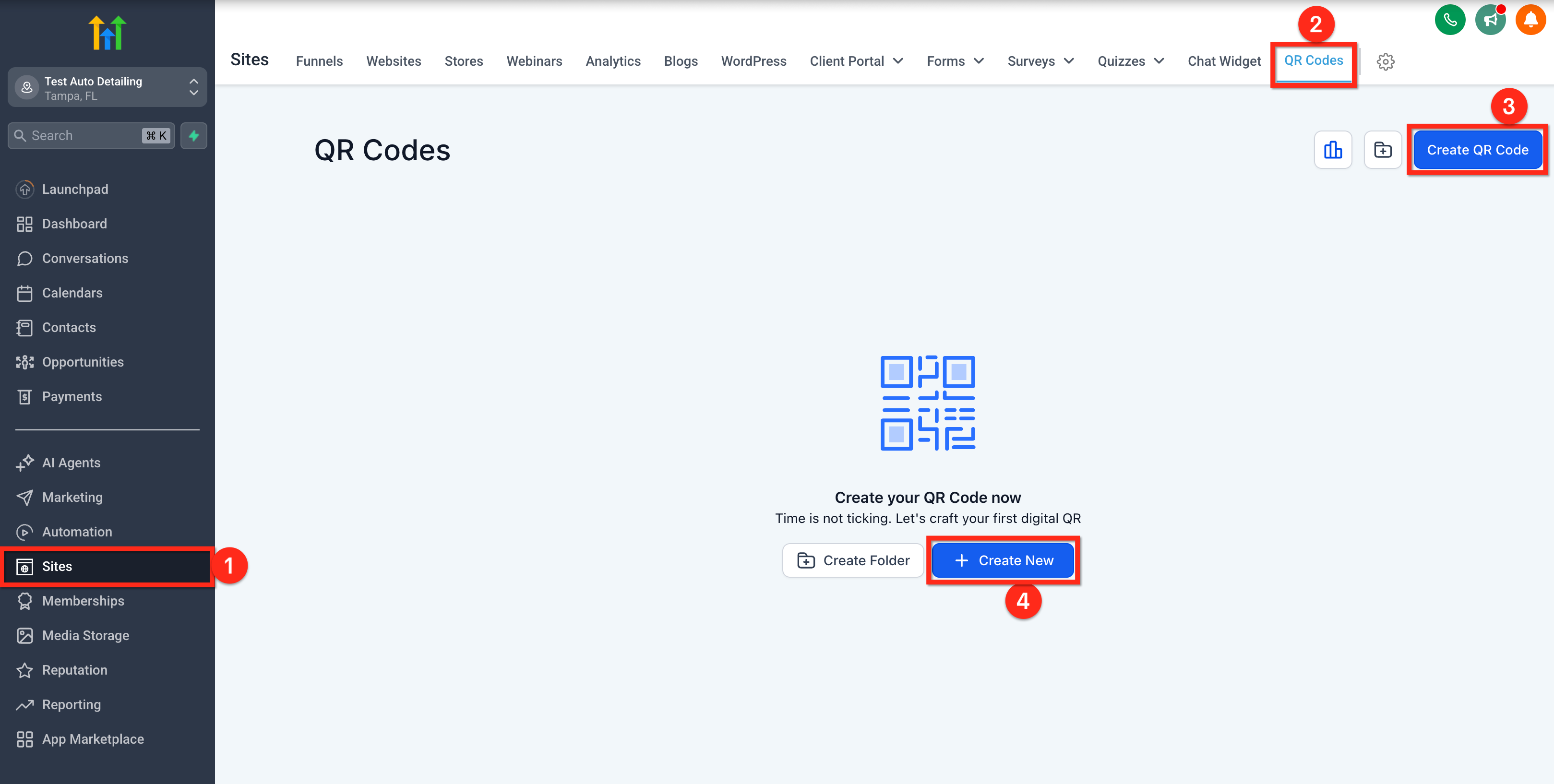
- Open the subaccount dashboard and select Sites in the left hand menu.
- Click QR Codes in the top navigation ribbon.
- Press Create QR Code (or the + Create New button) to launch the builder.
- Enter a name for the QR code and pick its type.
- Paste the destination URL or required input and click Next.
- Scan the preview displayed in the builder to confirm the QR works before saving.
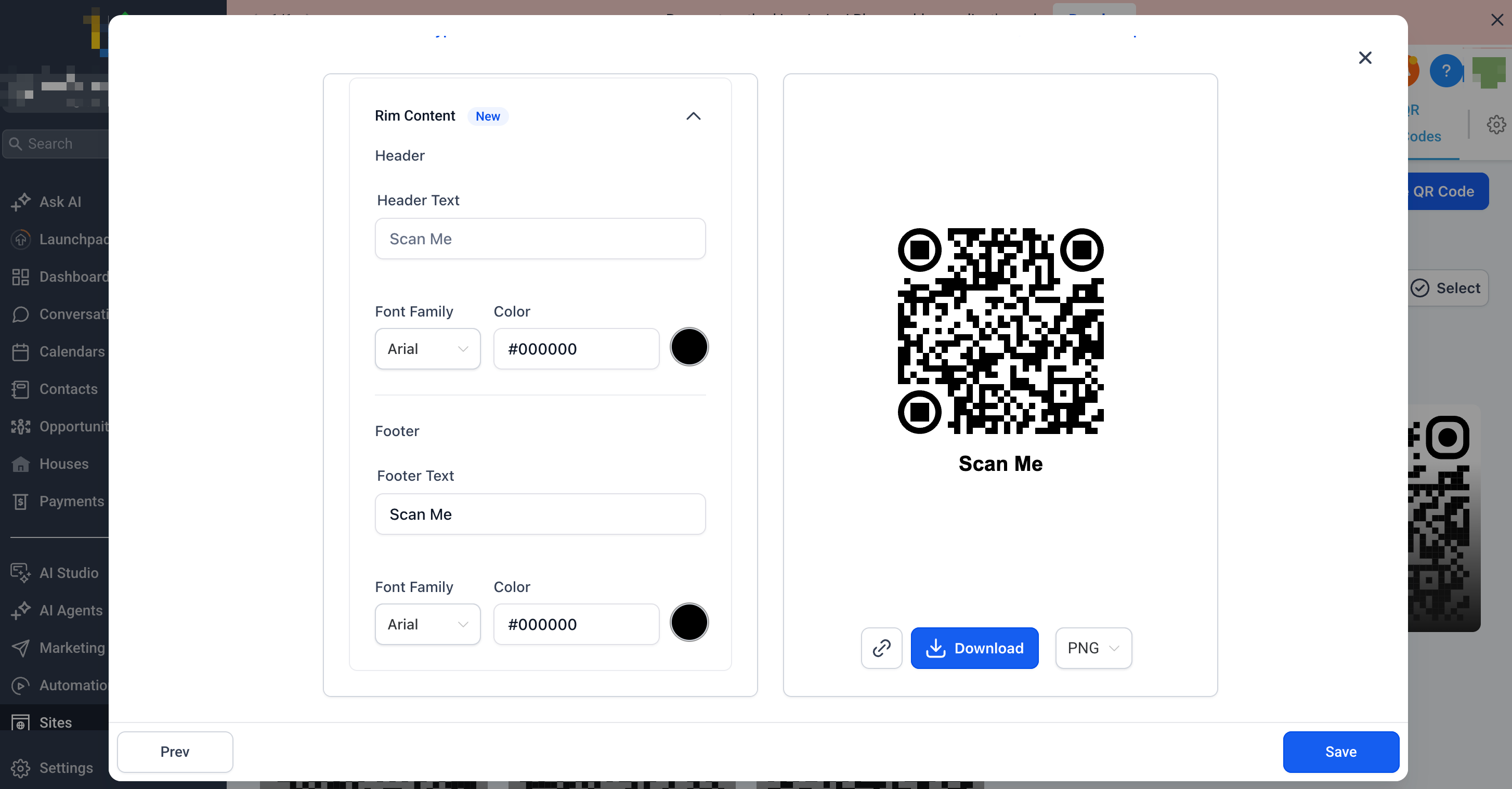
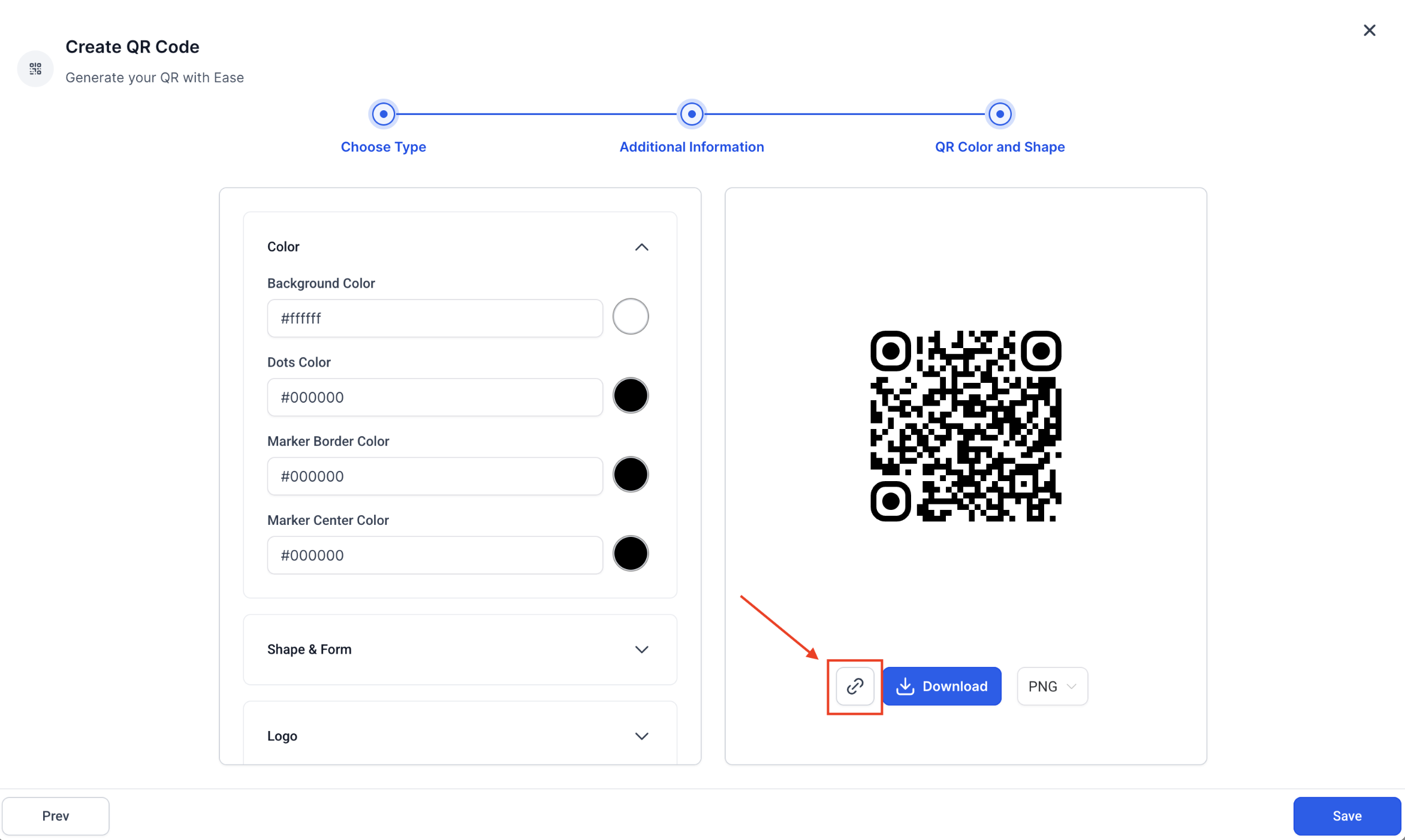
- Adjust design options such as shape, background color, dot color, dot style, markers, border, rim text and logo.
- Move the background color alpha slider to the far left for a fully transparent PNG if needed.
- Choose PNG, SVG or PDF for download, or copy the shareable link.
- Click Save so the QR code appears in the QR Codes list.
Manage existing QR codes
- Go to Sites > QR Codes from the subaccount.
- Use the search field or Type filter to locate the desired QR code.
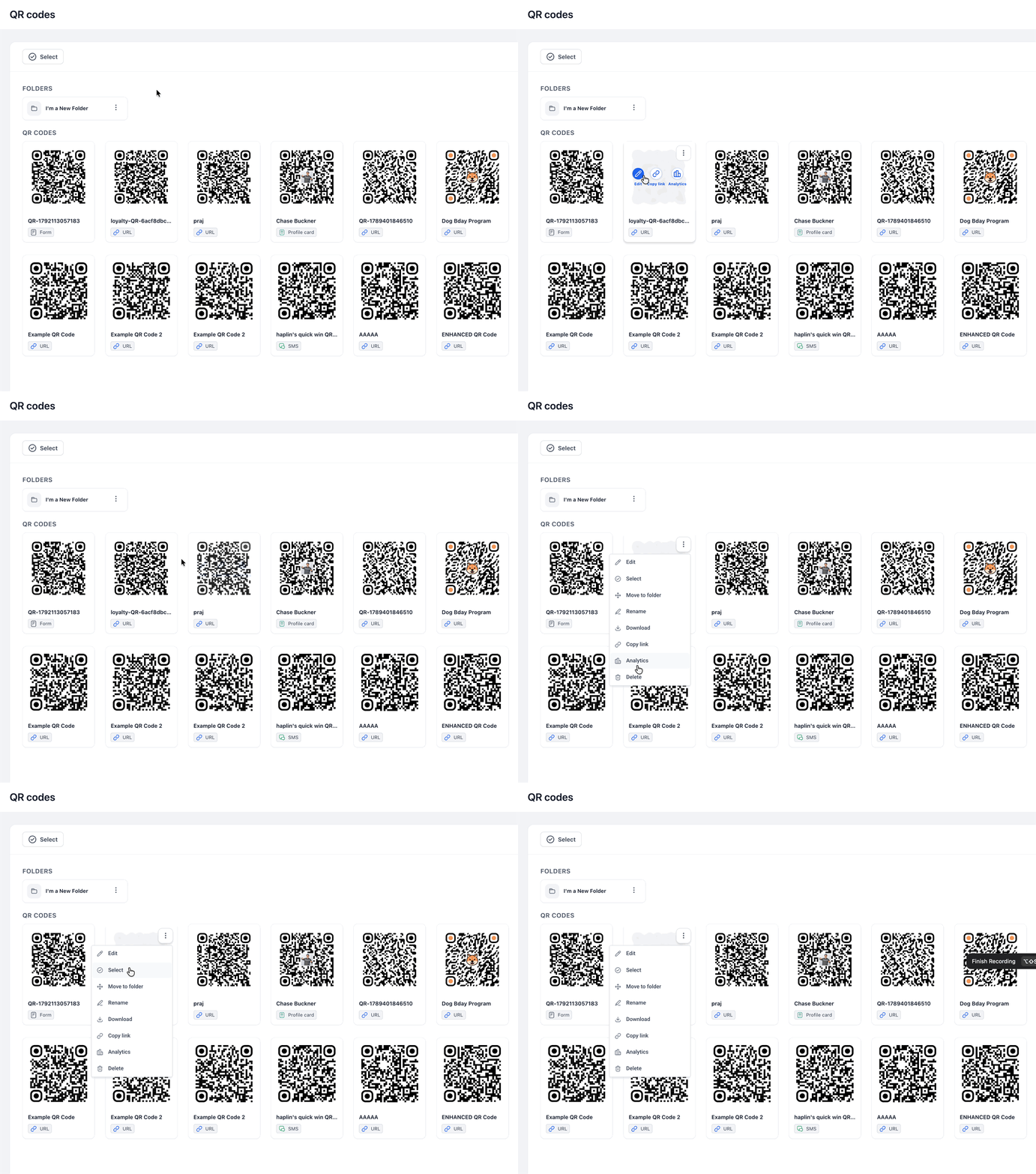
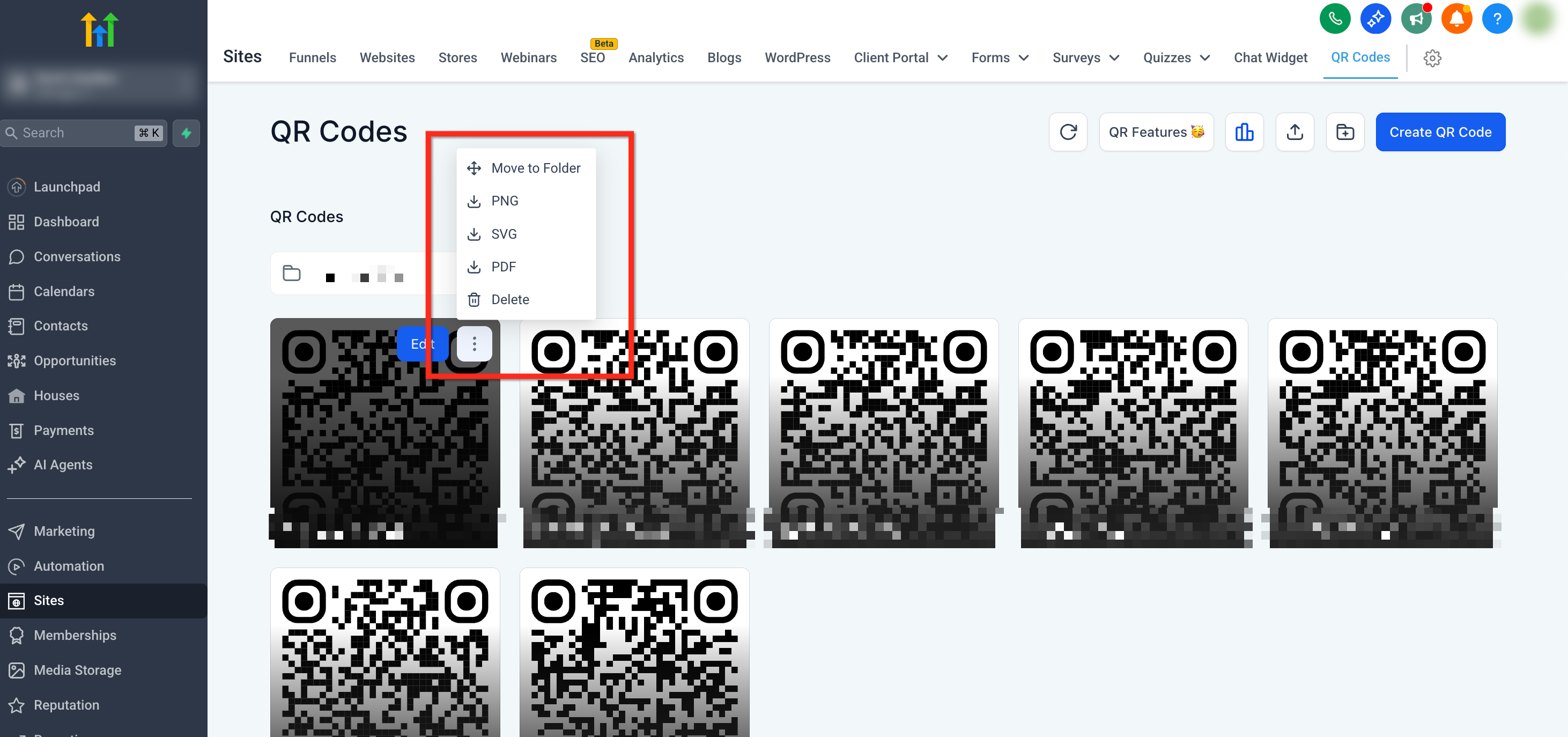
- Hover over the QR code card to reveal action icons.
- Click the blue Edit button to modify destination or styling.
- Click the 3 dot menu to delete, move, or download the code.
- Select Move to Folder, pick the target folder and confirm.
07What it looks like in HighLevel
08Settings that matter
- QR Shape. Chooses the overall outline of the QR pattern, square, rounded square or circle.
- Background Color. Sets the color behind the QR elements; can be fully transparent using the alpha slider.
- Dot Color. Defines the color of the data dots that make up the QR code.
- Dot Style. Selects the visual style of each dot, classic, square or rounded.
- Marker Border & Center. Customizes the shape and color of the corner markers that frame the QR code.
- Border and Frame. Adds an outer border or frame around the QR code and lets you set its color.
- Rim content. Allows you to place CTA text at the top or bottom of the QR code for extra guidance.
- Logo or Background Image. Lets you insert a centered logo or an overlay image; you can remove the logo background if desired.
- Background Color Alpha Slider. Controls the opacity of the background; sliding to 0 % creates a fully transparent PNG.
09Things to know before you rely on it
- QR codes use dynamic URLs, so the destination can be changed later without generating a new image.
- If no background, header or footer is added, the QR code image is automatically trimmed to remove extra space.
- Transparent PNGs require setting the background color alpha slider to 0 % opacity.
10How it connects to the rest of HighLevel
- Create website QR codes that follow page changes Website QR codes
- Manage QR codes with search, filters, views and bulk actions QR code management
- Bulk QR Code Creation in HighLevel Bulk creation
Michael's take

QR codes can feel like a shortcut that bypasses a lot of manual link building, but remember the QR image itself must stay consistent with your brand and compliance guidelines. A mismatched color or an unreadable logo can turn a scan into a dead end, so give the design a quick test before you print anything large.
When the code works, the upside is clear: You get a single, scan ready asset that can drive traffic to any destination you choose, from a payment page to a survey. The ability to swap the target URL later without reissuing a new image makes updates simple, and the export options let you fit the code into any medium you need.