
01Who this is for
- Event coordinators can generate badge QR codes quickly for attendees.
- Retail owners can produce coupon QR codes for product packaging.
- Marketing agencies can create large batches of campaign QR codes without manual effort.
02Bulk QR Code Creation, explained
Bulk QR Code Creation is a feature inside the QR Code Generator that converts a list of names and URLs into ready to download static QR codes. It removes the need to build each code one by one.
When you upload a properly formatted CSV, the system validates each row, displays a live progress counter, and flags any errors for correction. The generated codes are saved automatically to a folder you select, or to the root folder if none is chosen.
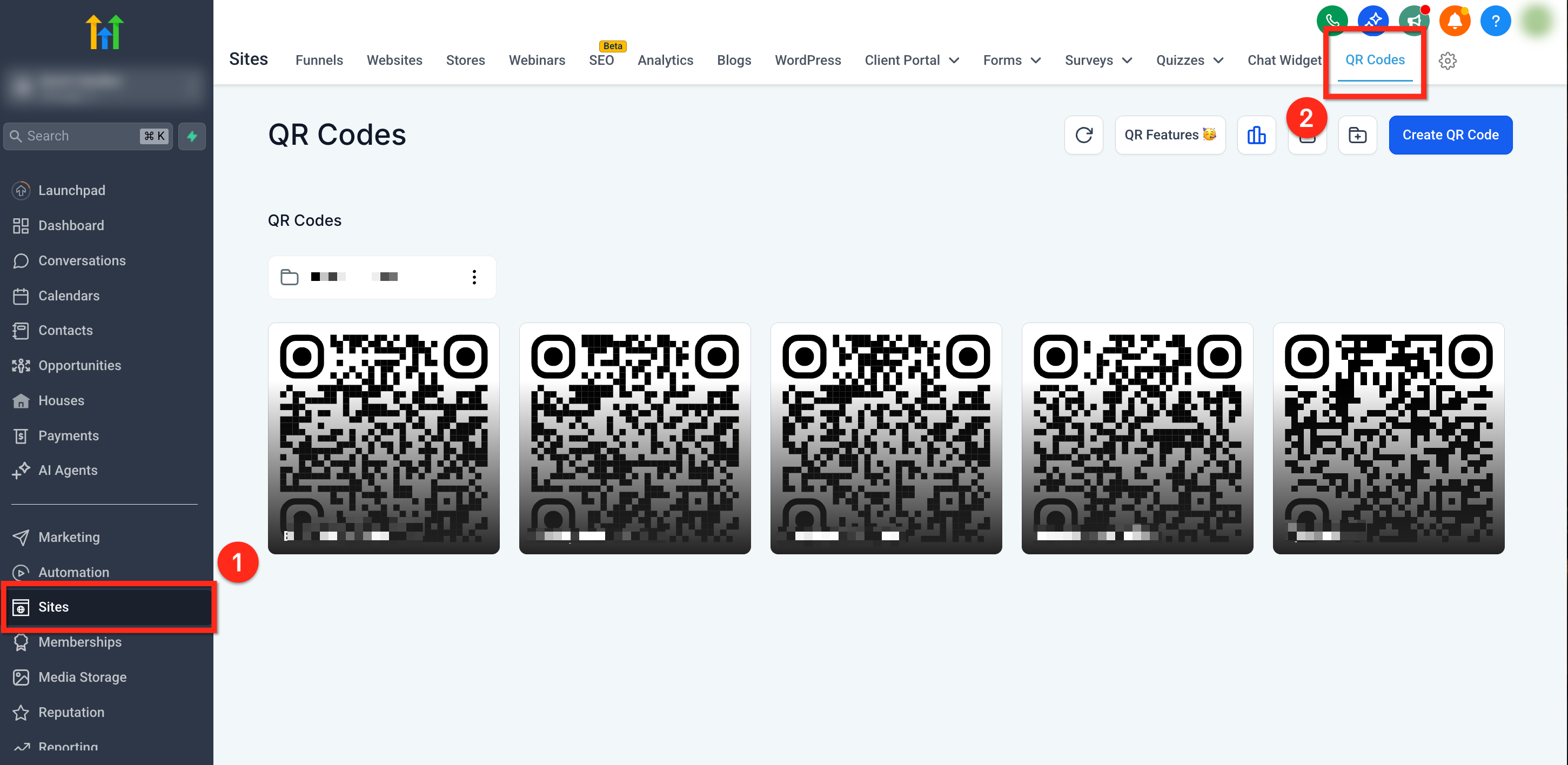
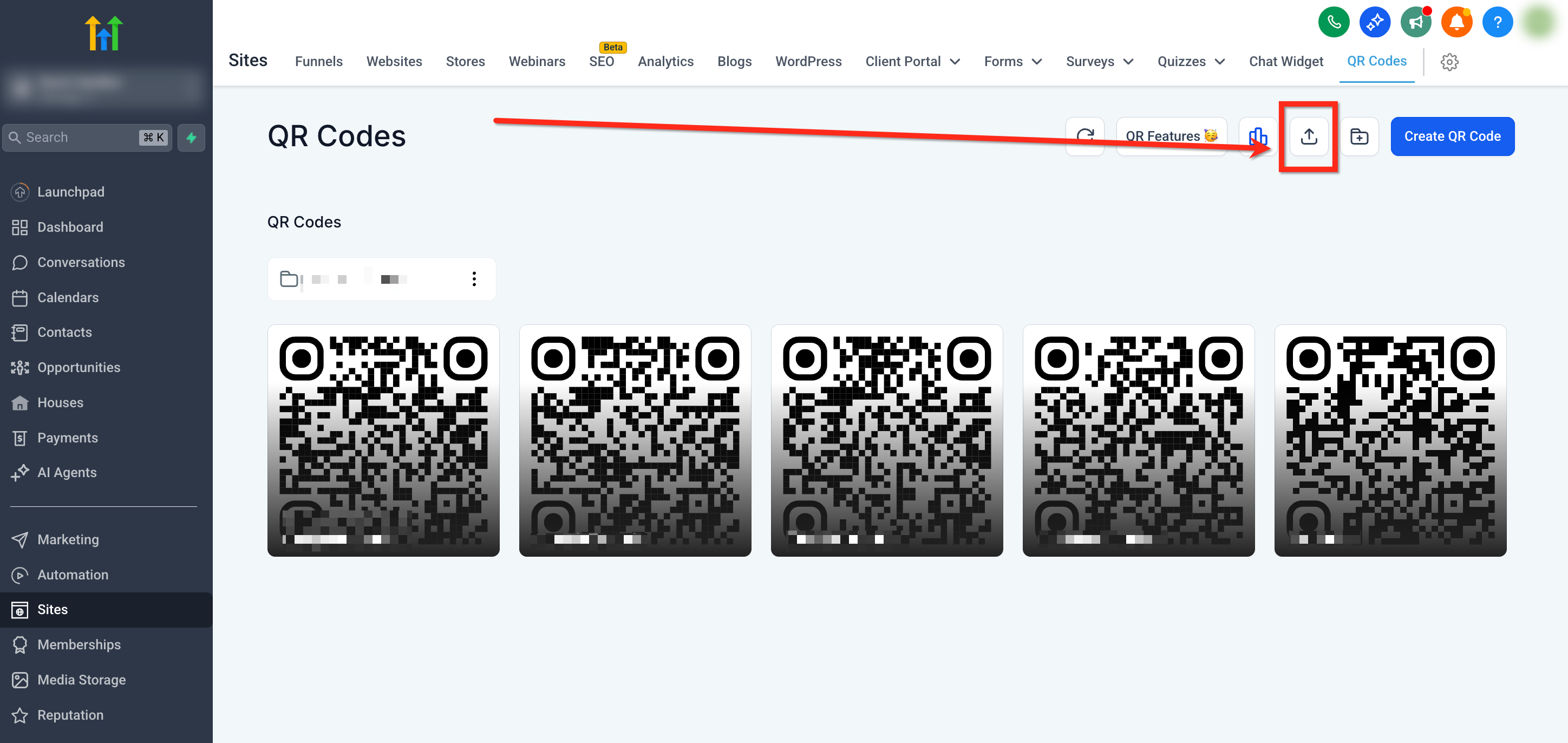
You can find the feature under Sites in the left hand navigation, then select QR Codes from the top ribbon. The bulk creation modal is accessed via the Create Bulk QR Codes button.
03How businesses use bulk QR Code Creation
- Event organizer. Upload a CSV containing attendee names and ticket URLs, generate QR badges in bulk, assign them to an "Events" folder, and download PNG files for printing on name tags.
- Retail store. Create a CSV with product SKUs and promotional page links, bulk generate QR codes, place them in a "Coupons" folder, and export SVG files for inclusion on packaging.
- Marketing agency. Prepare a CSV of client campaign landing pages, generate all QR codes at once, organize them by client folder, and download PDF sheets to share with designers.
04The numbers and rules that matter
- Generate 10 or 10,000 QR codes in seconds using a CSV file.
05Before you start
- A CSV file that contains exactly two columns, Name and URL, with correct headers.
- If you want the codes saved to a folder, create the folder in the QR Codes area before starting the bulk upload.
06How to set up and use bulk QR Code Creation in HighLevel
Create QR codes in bulk
- Open Sites in the left sidebar, then click QR Codes on the top ribbon.
- Select the Create Bulk QR Codes icon in the upper right corner.
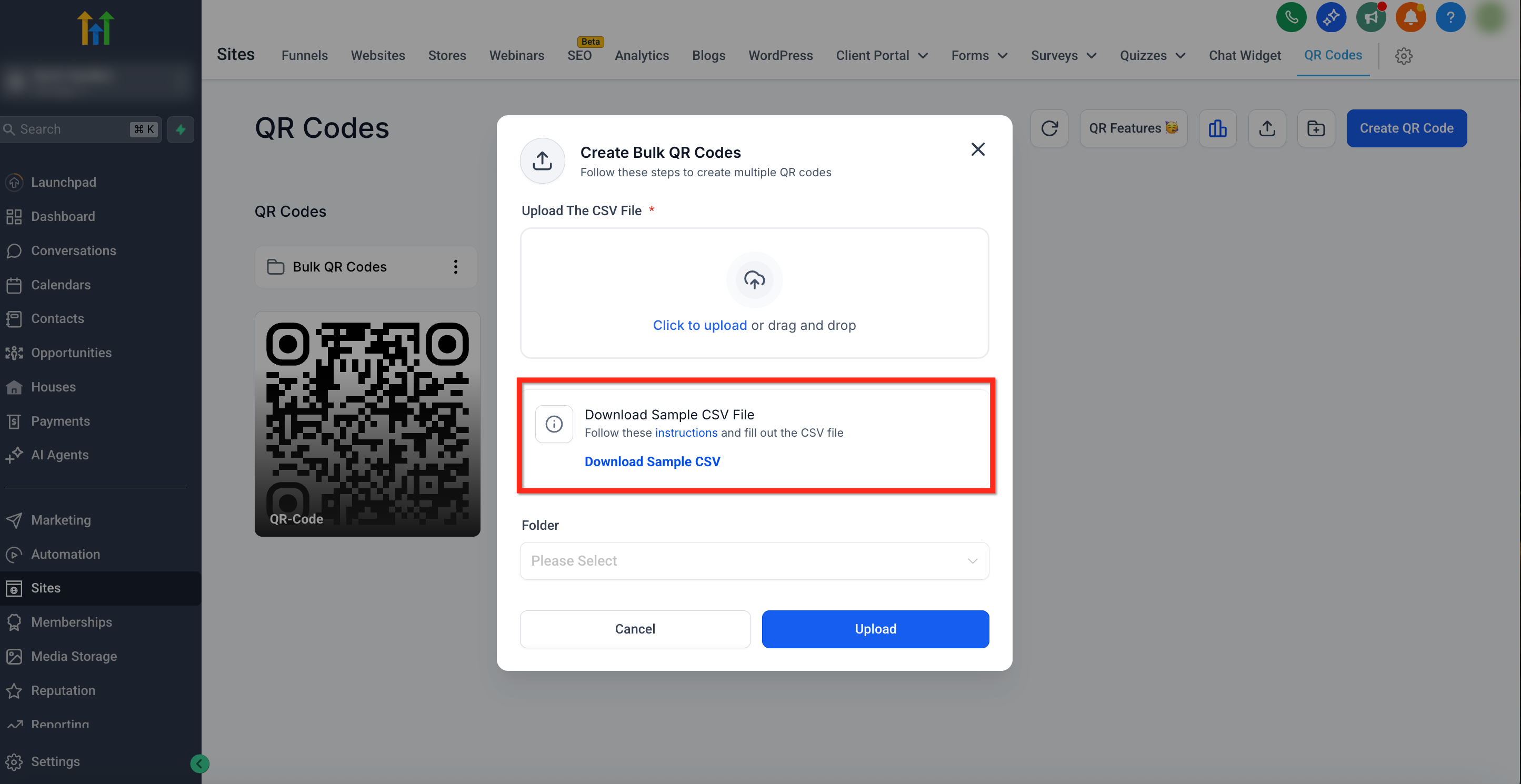
- Download the sample CSV template and fill in your names and URLs.
- Drag the completed CSV onto the modal or click to browse and select it.
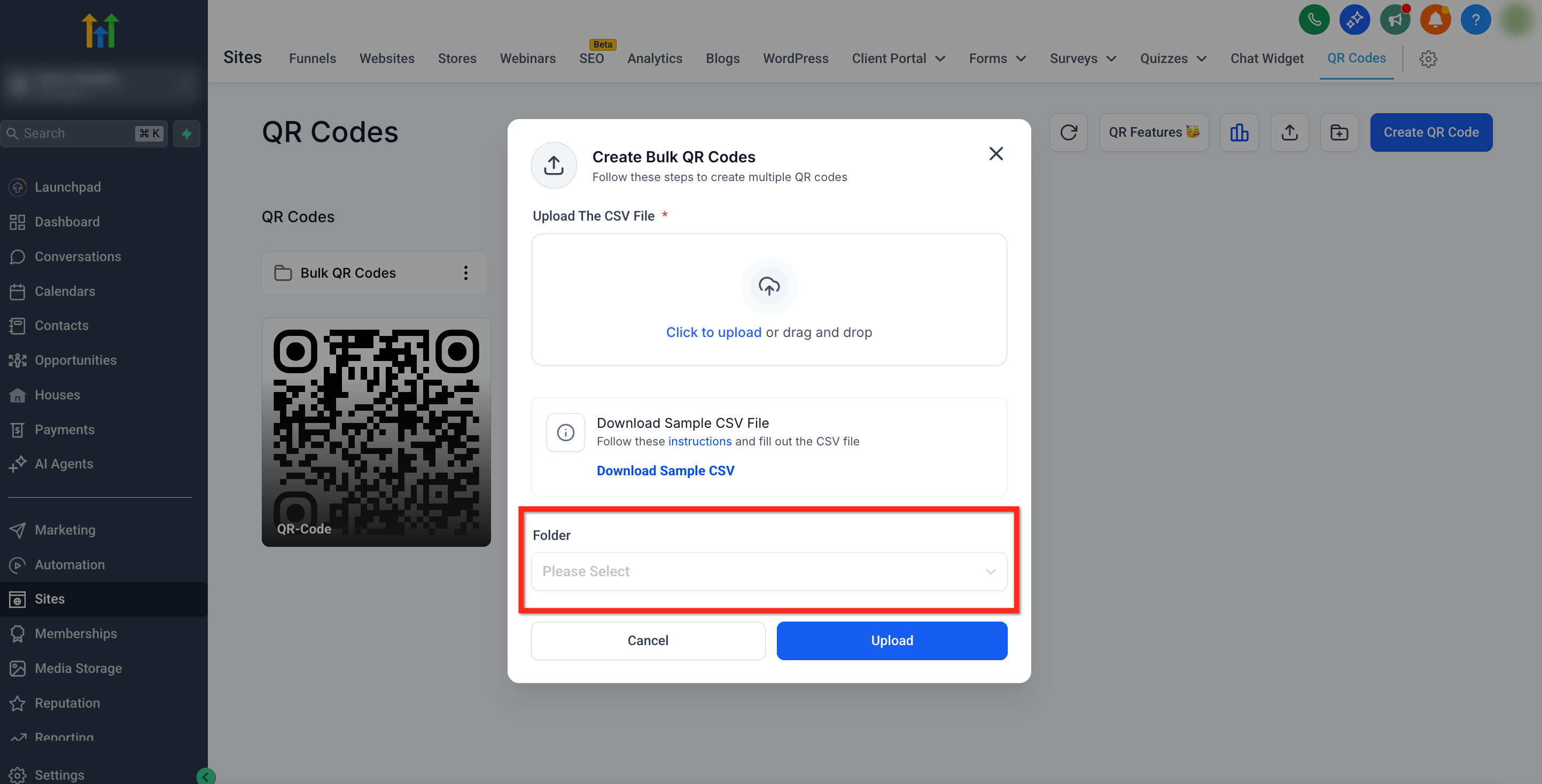
- Pick an existing folder from the dropdown, or leave it blank to store codes in the root folder.
- Click the blue Upload button to start generation and watch the real time progress tracker.
- When the process ends, close the modal and open the chosen folder to view and download PNG, SVG, or PDF versions.
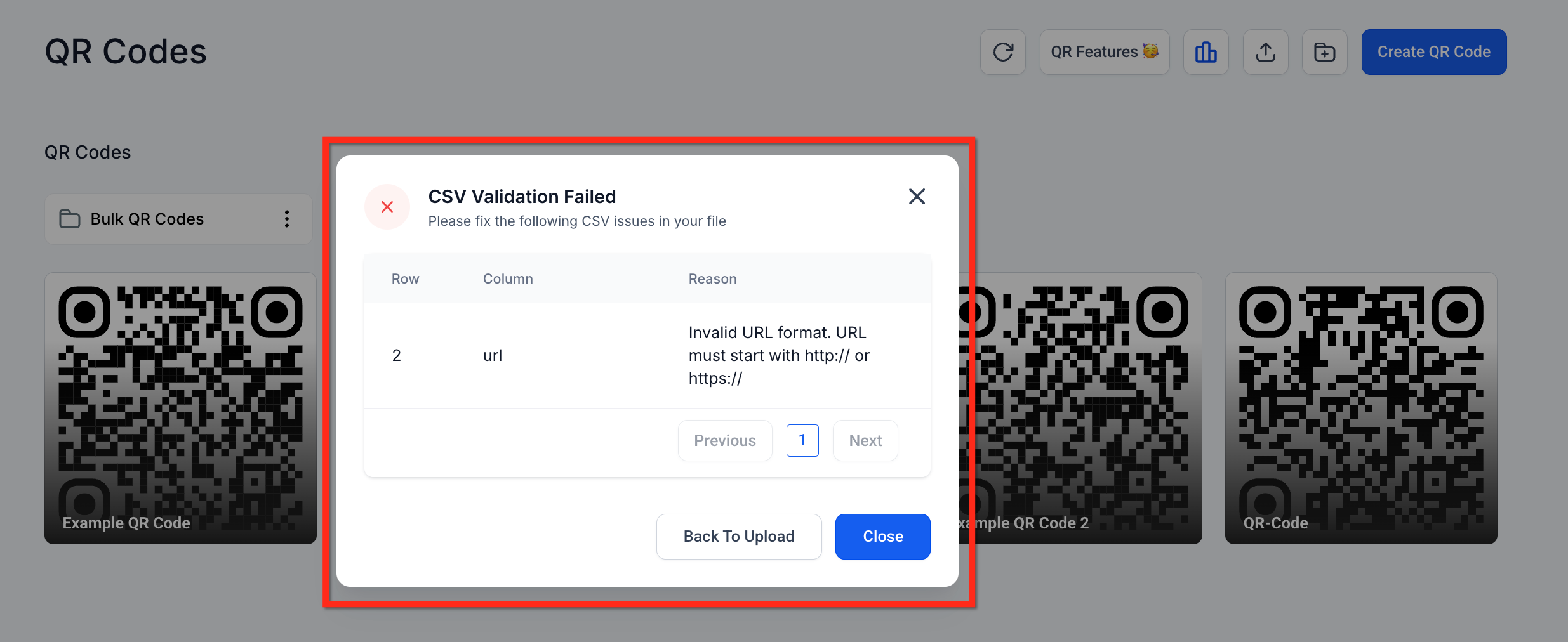
- If any rows are flagged, edit the CSV to fix the errors and re upload the file.
07What it looks like in HighLevel
08Settings that matter
- Folder selection. Determines the folder where the newly generated QR codes are stored after the bulk upload.
09Things to know before you rely on it
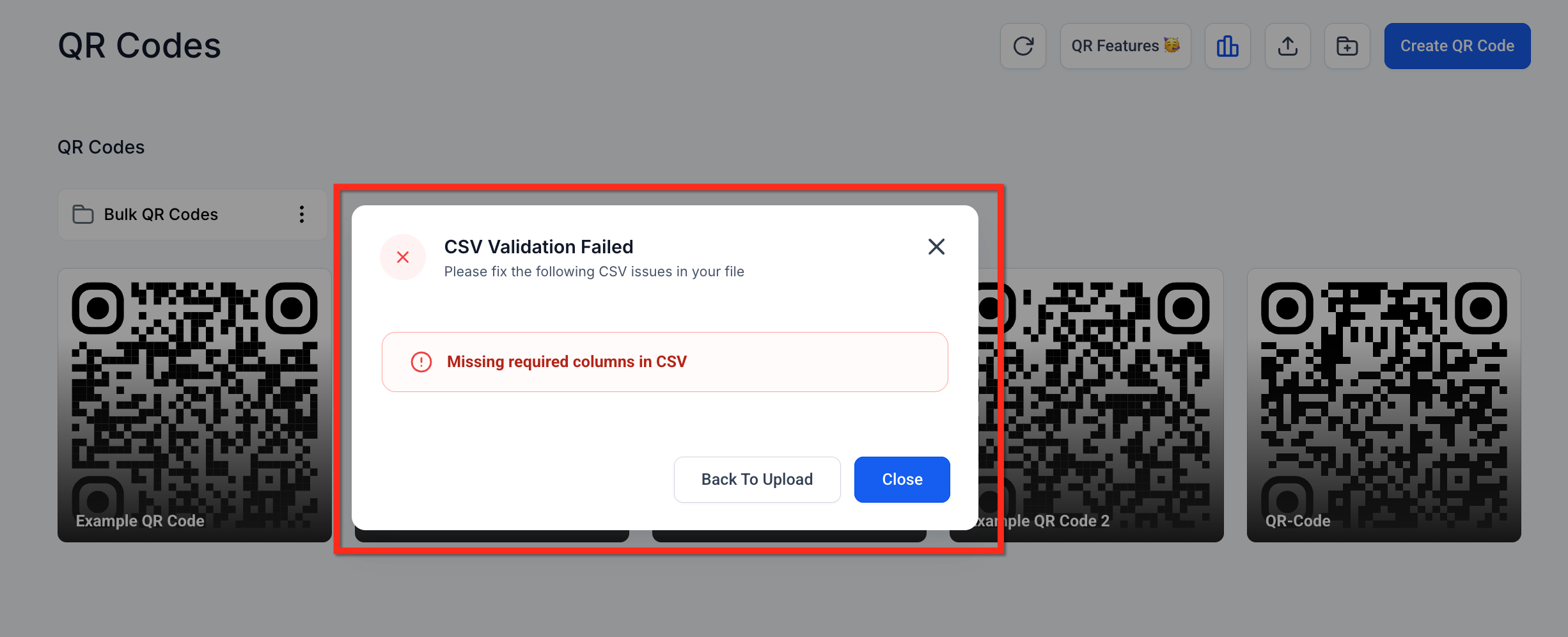
- The CSV must contain only the Name and URL columns; extra columns, blank rows, or empty header cells cause validation errors.
- Each QR code generated is static; dynamic redirection or tracking options are not applied during bulk creation.
- Error rows are highlighted in the progress tracker, requiring correction before those codes can be created.
10If something goes wrong
- Incorrect or missing headers in the CSV. Ensure the first row reads exactly "url" and "name" with no extra spaces or characters.
- Invalid URL format. Make sure every URL begins with http:// or https:// and contains no spaces.
11How it connects to the rest of HighLevel
- QR code generation and download guide QR code guide
- Manage QR codes with search, views, and bulk actions Manage QR codes
- Create website QR codes that stay linked Website QR codes
Michael's take

People often think the CSV has to be perfect before they even open the bulk modal, and they get stuck on tiny header typos. I’d start by downloading the sample file, filling in just a couple of rows, and confirming the upload works. A quick test upload can reveal header mismatches before uploading a large file.
After confirming the format, you can upload the full list, watch the live progress bar, and address any flagged rows.