
01Who this is for
- Marketing managers who oversee many promotional QR codes and need fast lookup and batch updates.
- Agency owners that handle client QR code libraries and require bulk organization across folders.
- Event coordinators who generate codes for tickets or signage and must download or move them in groups.
02QR codes, explained
The QR Codes listing combines search, type filters, view toggles, quick action icons, and bulk action controls in one screen. From the Sites > QR Codes page you can type a name, select one or more code types, and see the active filter count. The view toggle lets you choose a card based grid or a row based list, each offering its own row level shortcuts.
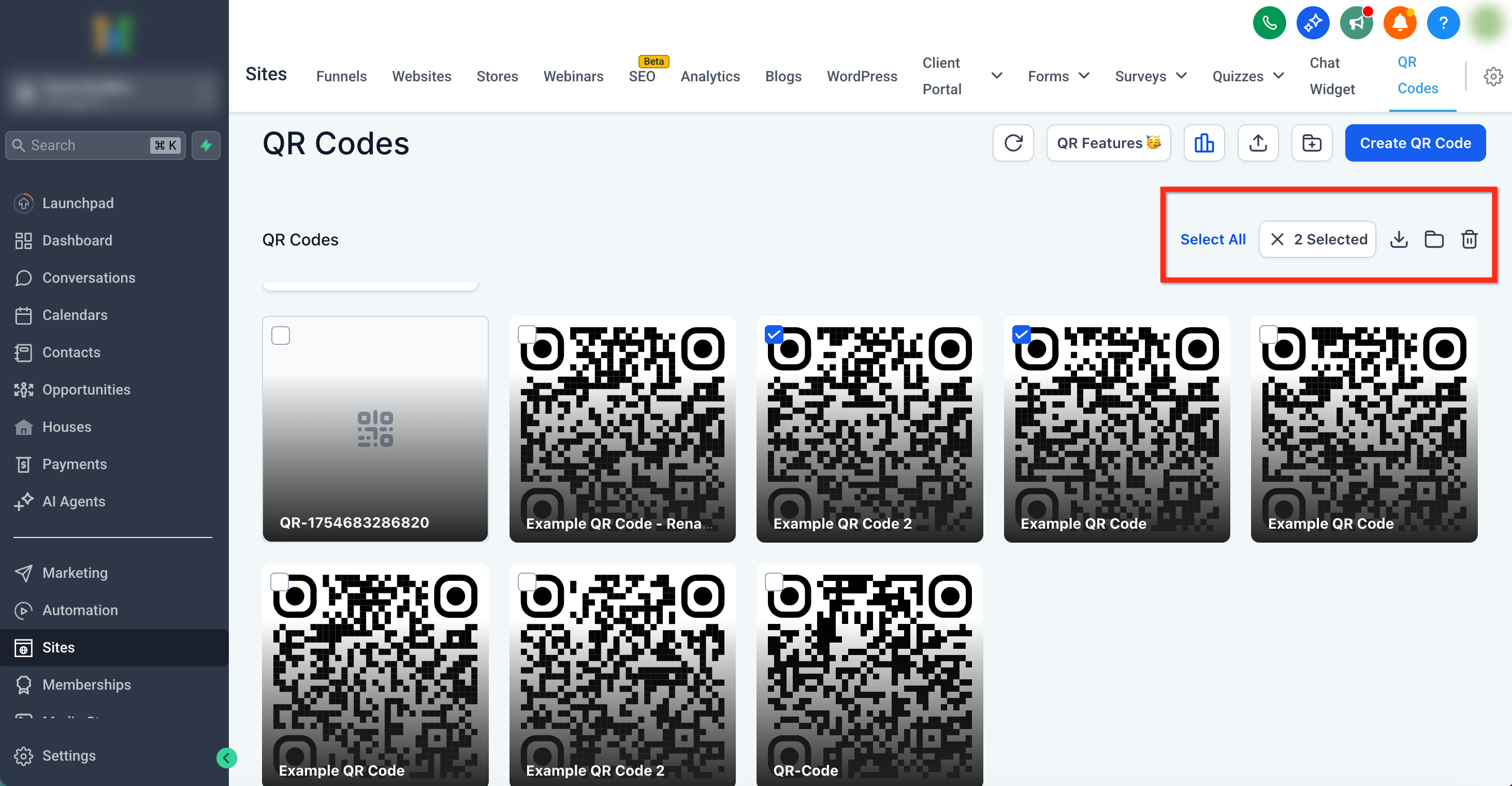
When you enable Select, checkboxes appear on each card and a bulk toolbar emerges. The toolbar provides Download, Move to Folder, and Delete icons. Quick actions such as Edit, Copy link, and Analytics are accessible by hovering over a card or using the three dot menu. Renaming, analytics access, and folder level downloads are also available without navigating away.
03How businesses use QR codes
- Retail stores. They bulk download QR codes for signage, selecting all location codes and choosing PNG format to receive a ZIP file.
- Digital marketing agencies. They group client QR codes into folders and use the bulk move tool to reassign codes after a redesign, keeping assets organized.
- Conference organizers. They rename event specific QR codes directly from the listing to match session titles and click the analytics icon to view scan counts for each session.
04Before you start
- You must be in a subaccount that has access to the Sites > QR Codes section.
- QR codes should already exist in the library to be searchable or selectable.
05How to set up and use QR codes in HighLevel
Search and filter QR codes
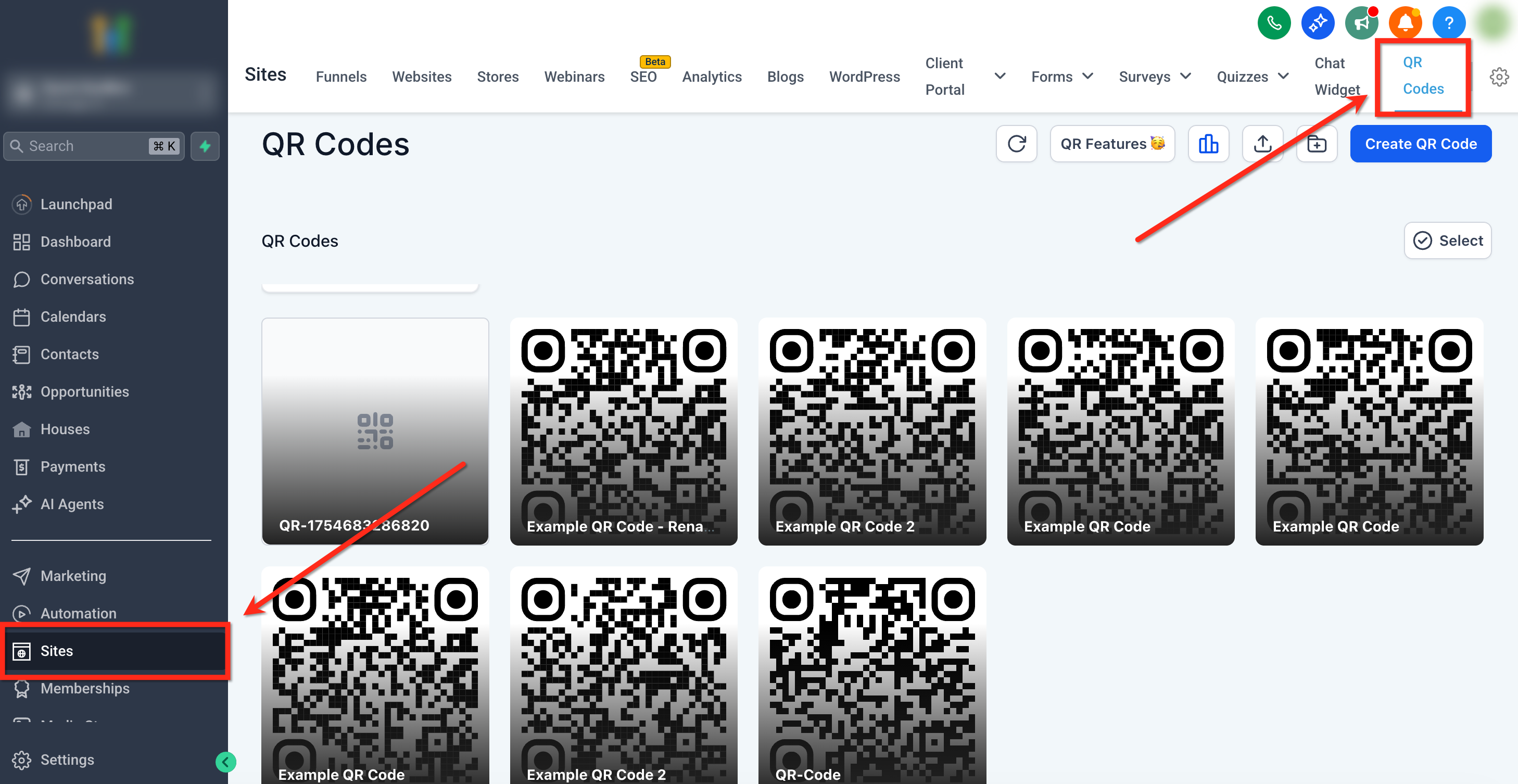
- Open the subaccount and go to Sites > QR Codes.
- Enter the QR code name in the search box.
- Open the Type filter dropdown.
- Select the desired QR code categories.
- Check the filter count to verify which types are active.
Switch between Grid and List views
- Navigate to Sites > QR Codes.
- Click the view toggle above the code list.
- Choose Grid for cards or List for rows.
Select QR codes in bulk
- From the subaccount dashboard go to Sites > QR Codes.
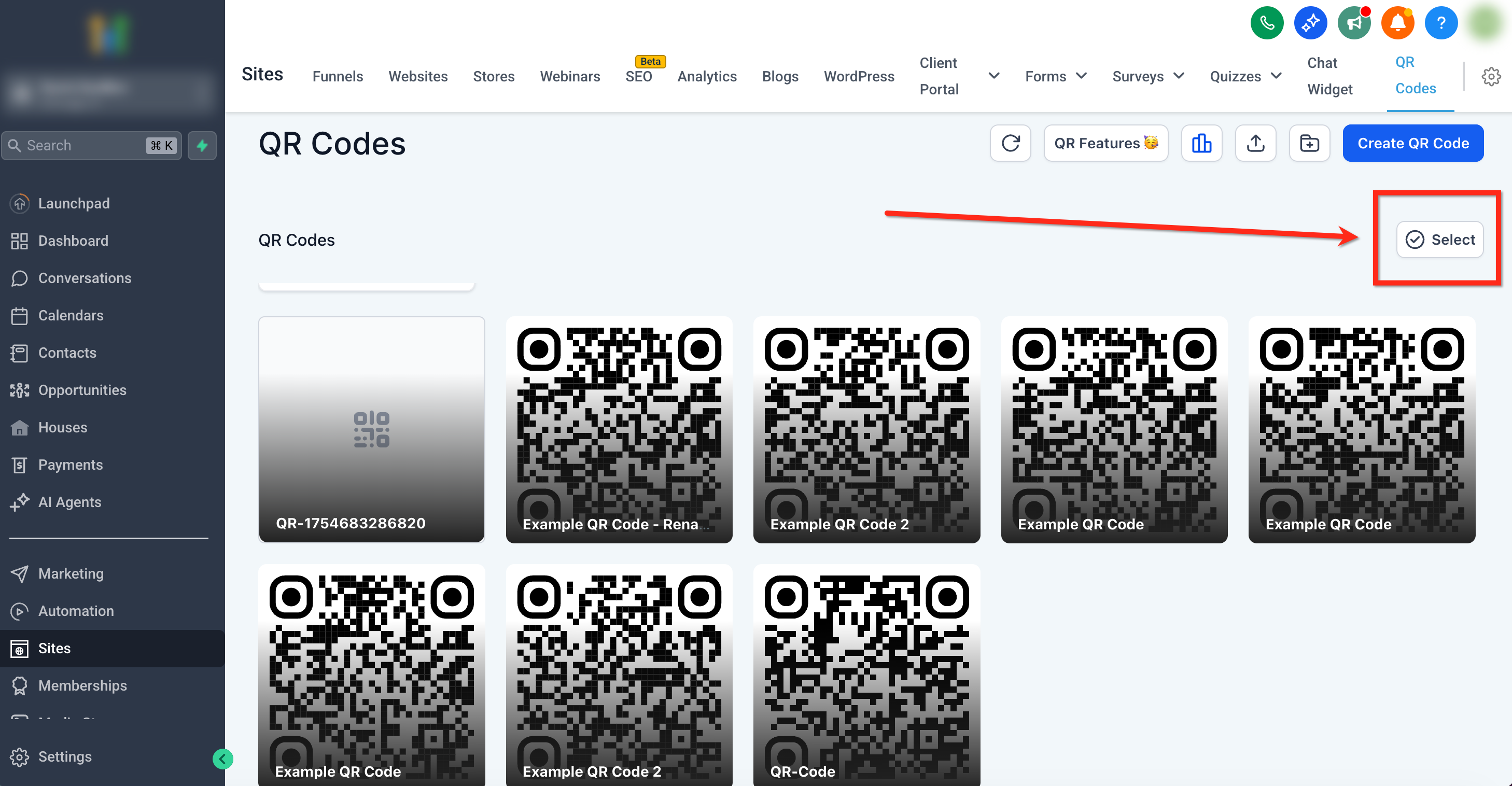
- Press Select at the top right to enable checkboxes.
- Check the boxes of the QR codes you want to manage.
Bulk download QR codes
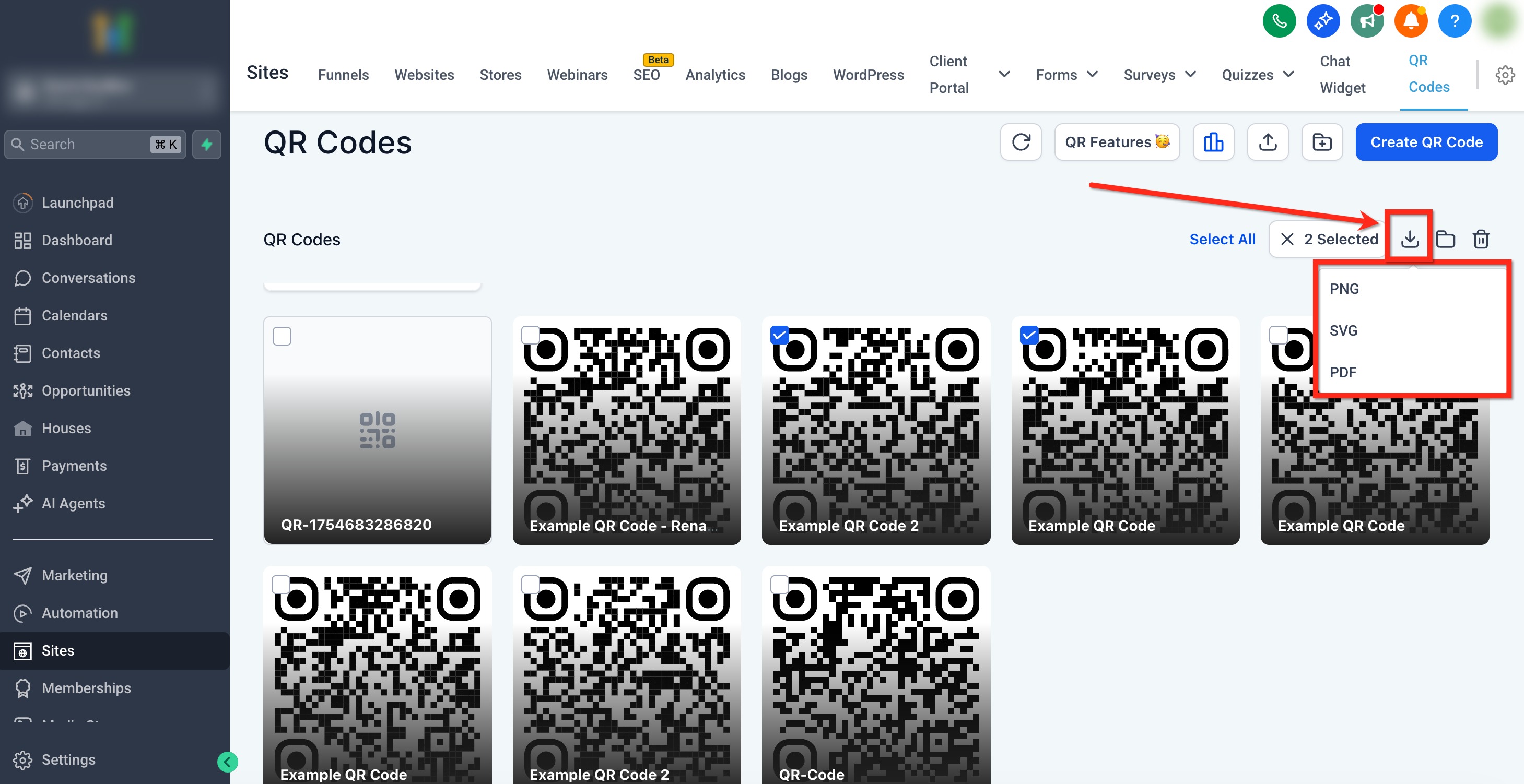
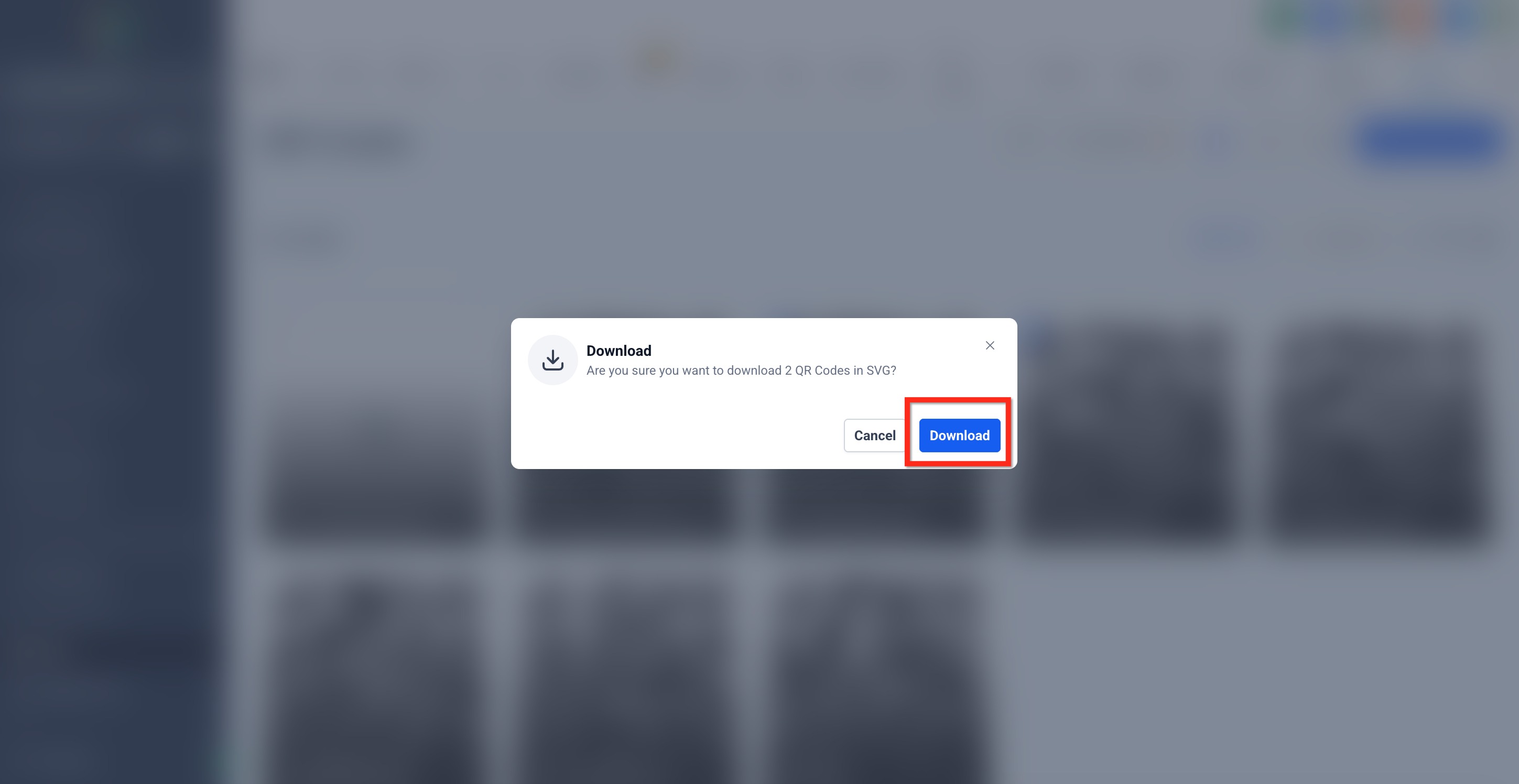
- With items selected, click the Download icon in the bulk toolbar.
- Choose PNG, SVG, or PDF as the file type.
- Confirm the download in the pop up window.
Bulk move QR codes to a folder
- With items selected, click the Move to Folder icon on the bulk toolbar.
- Pick a destination folder from the dropdown.
- Press Move to complete the relocation.
Bulk delete QR codes
- With items selected, click the Delete icon in the bulk toolbar.
- Read the confirmation message that appears.
- Confirm by clicking Delete.
Rename a QR code
- Hover over a QR code card, open the three dot menu, and select Rename.
- Enter the new name in the field.
- Click Save to apply the change.
View analytics for a QR code
- Navigate to Sites > QR Codes.
- Locate the QR code you wish to examine.
- Hover over its card and click the Analytics icon.
Folder level actions
- Open the three dot menu on the folder.
- Click the Download icon to export all contained QR codes.
- Select the Rename option to change the folder’s name.
- Click the Delete icon to remove the folder and its codes.
06What it looks like in HighLevel
07Settings that matter
- Type filter. Filters the QR code list to show only selected code categories.
- View toggle. Switches the presentation between card style grid and row style list.
- Select. Enables checkboxes on each QR code and reveals the bulk action toolbar.
08Things to know before you rely on it
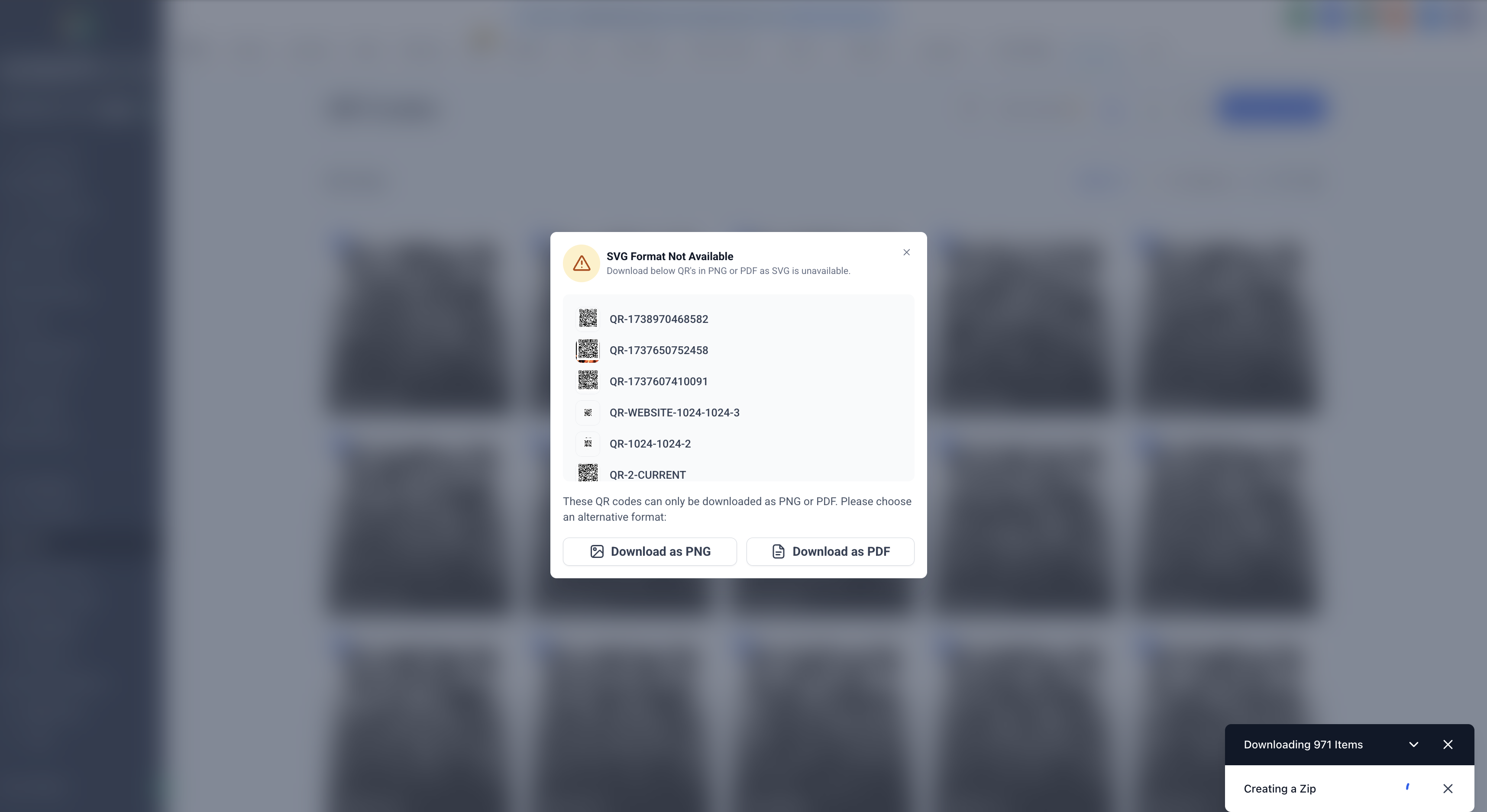
- SVG format may not be available for older QR codes; the system will suggest PNG or PDF instead.
- Bulk delete removes codes permanently; there is no undo option.
- Very large batch downloads may be split into multiple ZIP files.
09If something goes wrong
- SVG format not available for a selected QR code. Choose PNG or PDF in the download dialog as an alternative.
10How it connects to the rest of HighLevel
- Generate and download QR codes in HighLevel QR code generation guide
- Create multiple QR codes quickly with bulk creation Bulk QR code creation
- Review HighLevel pricing and plan options Pricing page
Michael's take

A solid addition for anyone with a sizable QR code library.
Teams that barely use QR codes can skip it.