
01Who this is for
- Agency owners who sell SaaS plans can decide which tools to include in each pricing tier.
- Product managers can restrict access for specific clients without altering the overall plan.
- Support staff can quickly enable a tool for a client who needs a one off upgrade.
02Quizzes and QR codes, explained
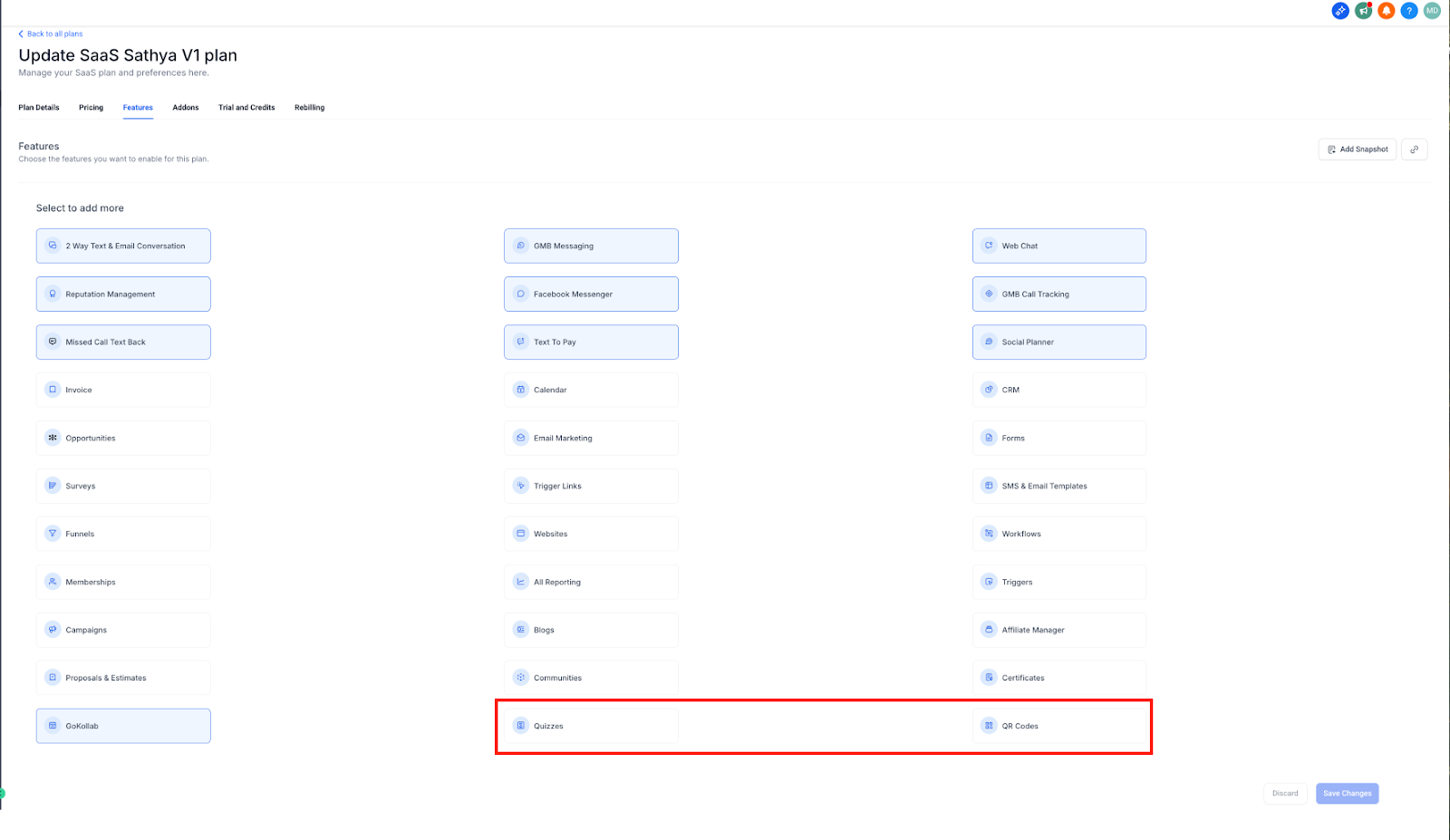
Quizzes and QR codes are now separate switches inside HighLevel’s SaaS mode. The platform lets you turn each tool on or off when you create or edit a SaaS plan. The controls live in the Feature Toggles section of the SaaS configurator.
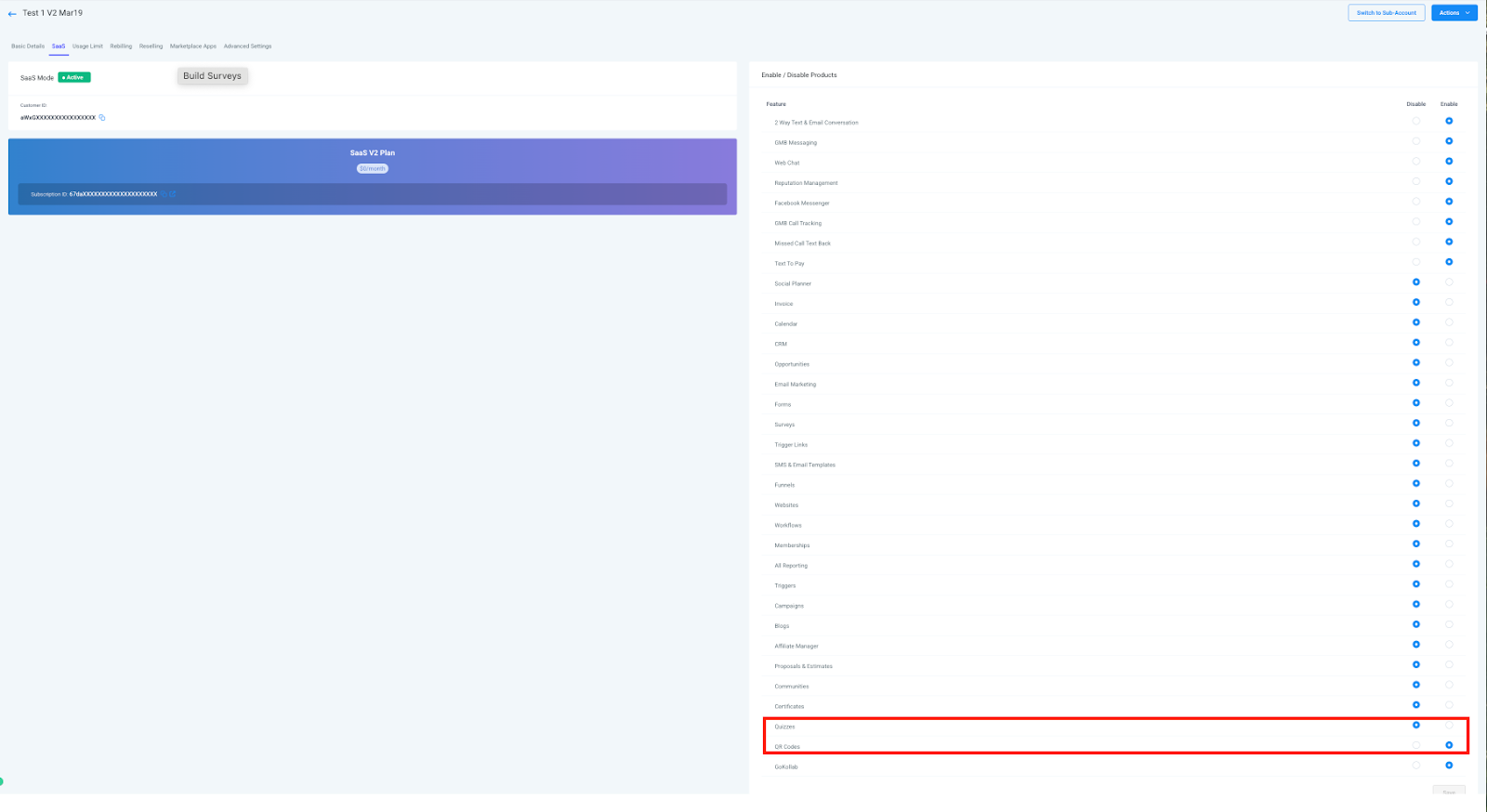
At the client level you can also adjust access. From a client’s Subaccount Settings you go to Company > Settings > Features and use the same toggles. Changes apply right away and they take precedence over the plan setting. When a feature is disabled, the user interface no longer shows the tab, but any quizzes or QR codes already created remain in the system.
03How businesses use quizzes and QR codes
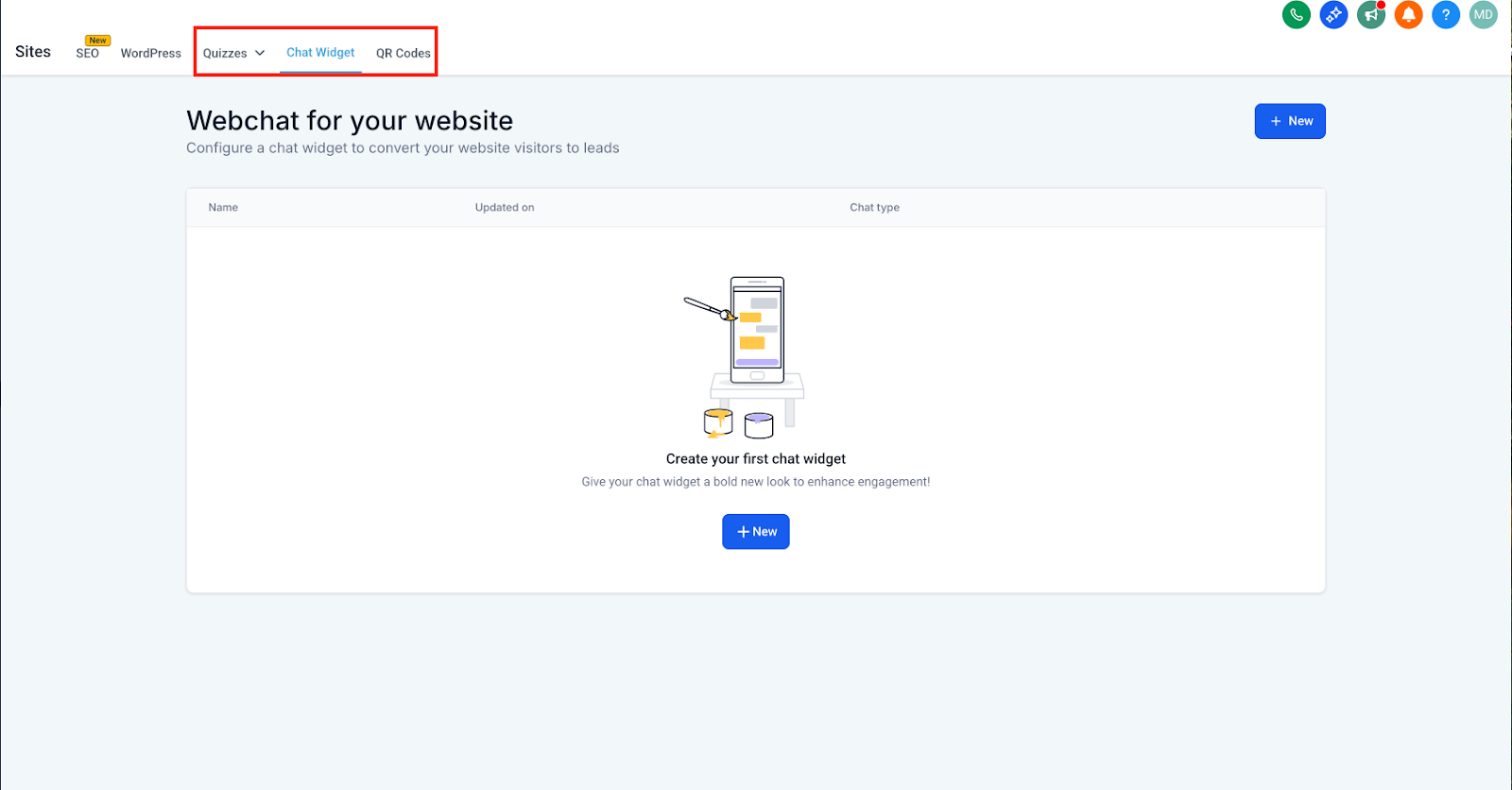
- Digital marketing agency. The agency creates a premium SaaS tier that includes QR codes for client campaigns. It enables the QR Code toggle in the plan and leaves the Quizzes toggle off. Clients on that tier can generate QR codes from the Sites tab.
- Fitness studio chain. A studio wants only a few locations to run member quizzes. The admin opens each location’s Subaccount Settings, goes to Company > Settings > Features, and flips the Quizzes switch on for the chosen sites while keeping it off elsewhere.
- Conference organizer. The organizer offers a basic plan without QR codes but upsells a deluxe option that adds them. By disabling the QR Code toggle on the basic plan and enabling it on the deluxe plan, the feature appears only for the upgraded accounts.
04How to set up and use quizzes and QR codes in HighLevel
Enable or disable quizzes & QR codes in SaaS plans
- Open the SaaS Configurator from the Agency dashboard.
- Select an existing SaaS plan to edit or start a new plan.
- Scroll to the Feature Toggles section.
- Flip the switches for Quizzes and QR Codes to the desired state.
- Save the configuration.
Manage quizzes & QR codes at the Subaccount level
- Open the client’s Subaccount Settings from the Agency view.
- Navigate to Company Tab > Settings > Features.
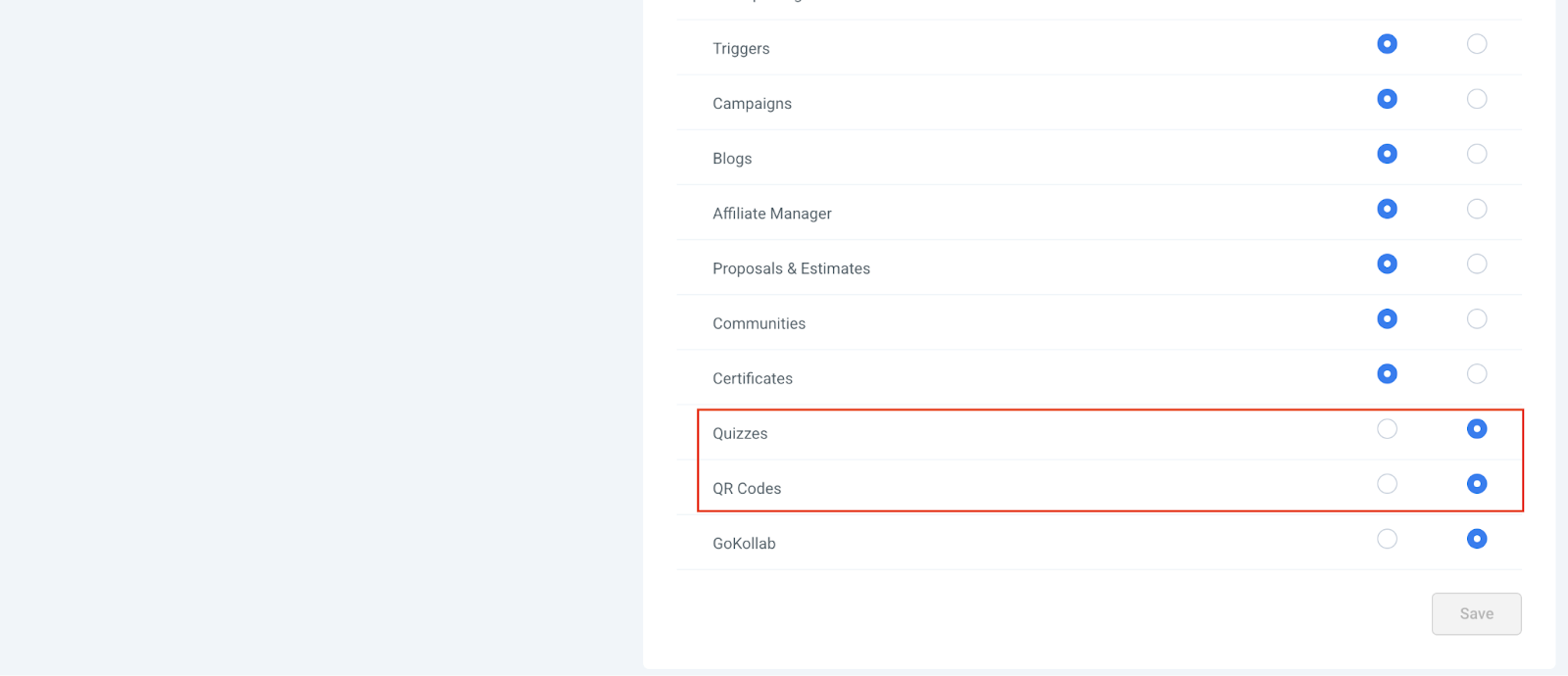
- Use the toggles to allow or restrict access to Quizzes and QR Codes.
- Changes take effect immediately and override the plan level setting if needed.
05What it looks like in HighLevel
06Settings that matter
- Quizzes toggle. Controls whether the Quizzes tool appears for the selected plan or subaccount.
- QR Codes toggle. Controls whether the QR Codes tool appears for the selected plan or subaccount.
07Things to know before you rely on it
- Disabling a feature hides its UI but does not delete any quizzes or QR codes already created.
- Subaccount toggles override the corresponding plan level setting.
08How it connects to the rest of HighLevel
- Generate, customize and download QR codes QR code generation guide
- Create a custom business card QR code Business card QR code
- All Sites features overview Sites features
Michael's take

Be careful about flipping these switches without checking client contracts. Giving or taking away access can affect how clients use their marketing assets, so review any agreements before you change a toggle.
When the toggles are set correctly, they give you a clean way to package quizzes or QR codes as premium options. It keeps the UI tidy for end users and opens clear upsell paths for your agency.