
01Who this is for
- Marketers who need printable QR codes that continue to work after a site redesign because the QR destination updates automatically.
- Business owners who use printed flyers or business cards and want to avoid manually recreating QR images after a domain change.
02Website QR codes, explained
The feature creates QR codes that point to a HighLevel website page. The QR code stores a reference to the page instead of a static URL, so any change to the page slug or the domain does not break the link.
The QR codes can be generated either while editing a page in the Website Builder or from the separate QR Code Builder. After creation, the code can be downloaded as PNG, SVG, or PDF, or saved to a digital wallet.
All QR codes are managed in the Sites > QR Codes library, where they can be edited, filtered, or shared via a copy link option.
03How businesses use website QR codes
- Restaurant. A restaurant creates a QR code for its menu page directly from the Website Builder. It customizes colors to match its branding, downloads the PNG, and prints it on table tents. The QR will always open the current menu even after the menu page URL changes.
- Real estate agency. The agency uses the QR Code Builder to select a property listing page, customizes the QR shape, and saves the code as a PDF to embed in printed flyers. When a listing moves to a new sub domain, the QR still leads to the correct page.
- Fitness studio. A fitness studio generates a QR code that links to its class schedule page, adds its logo through the QR editor, and adds the code to a social media post. The QR updates automatically if the schedule page slug is altered.
04Before you start
- The website must have a connected domain before a QR code can be generated from the Website Builder.
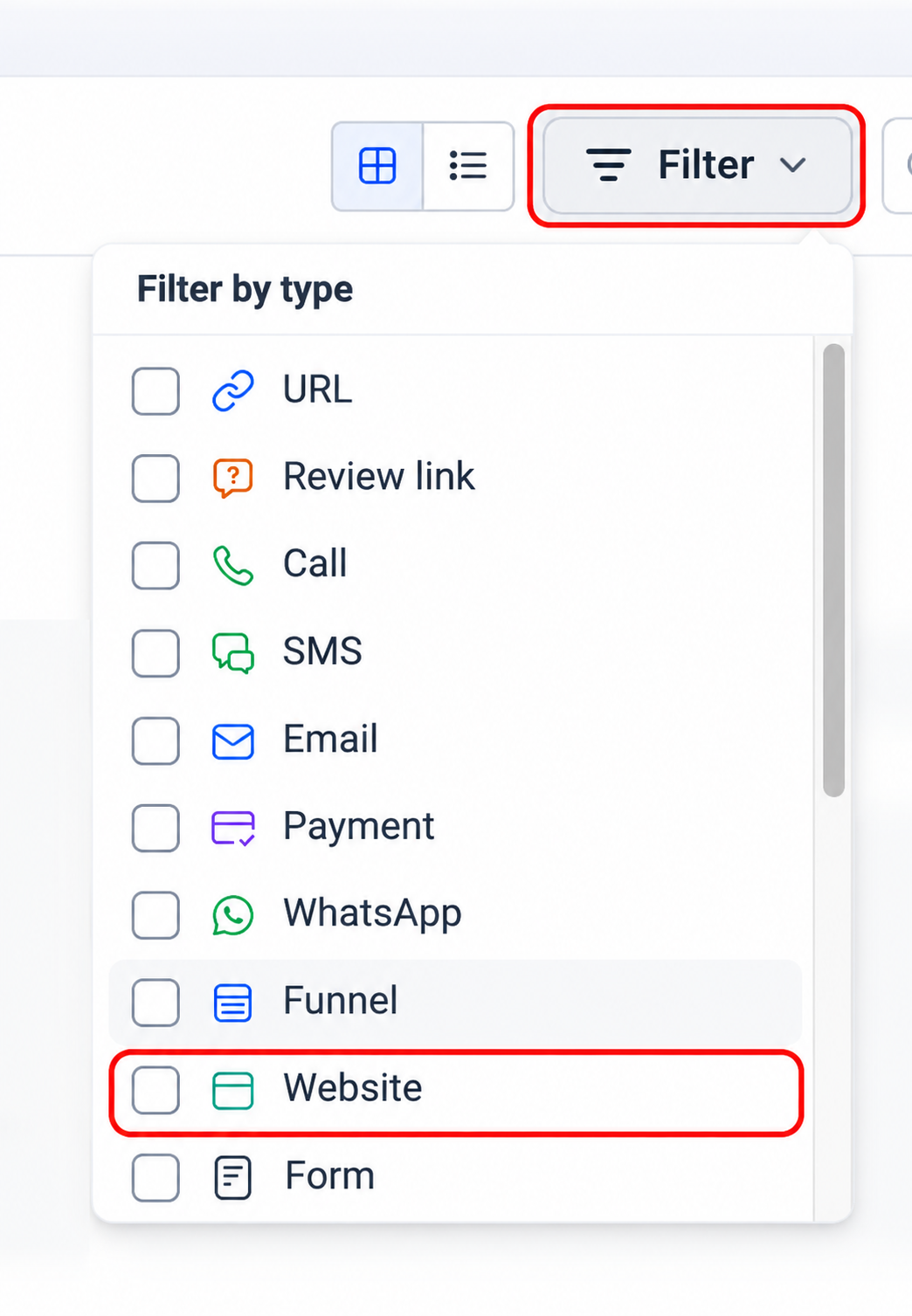
- The original QR type called Website has been renamed URL; the new Website type links directly to selected HighLevel website pages.
05How to set up and use website QR codes in HighLevel
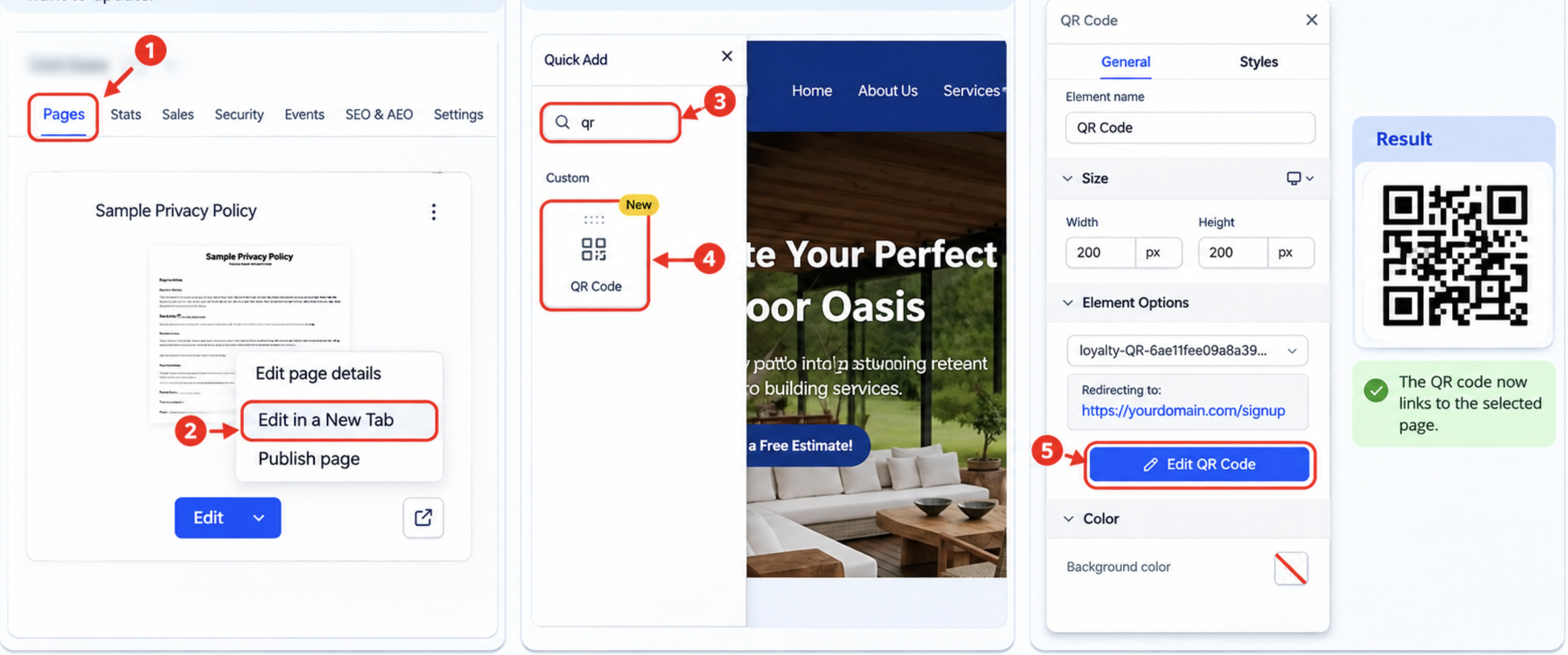
Create QR code from the Website Builder
- From the Subaccount view, open Sites > Websites.
- Select a website that already has a connected domain.
- Choose Pages, pick the desired page, and click Edit Page.
- Click the QR code icon next to the page URL.
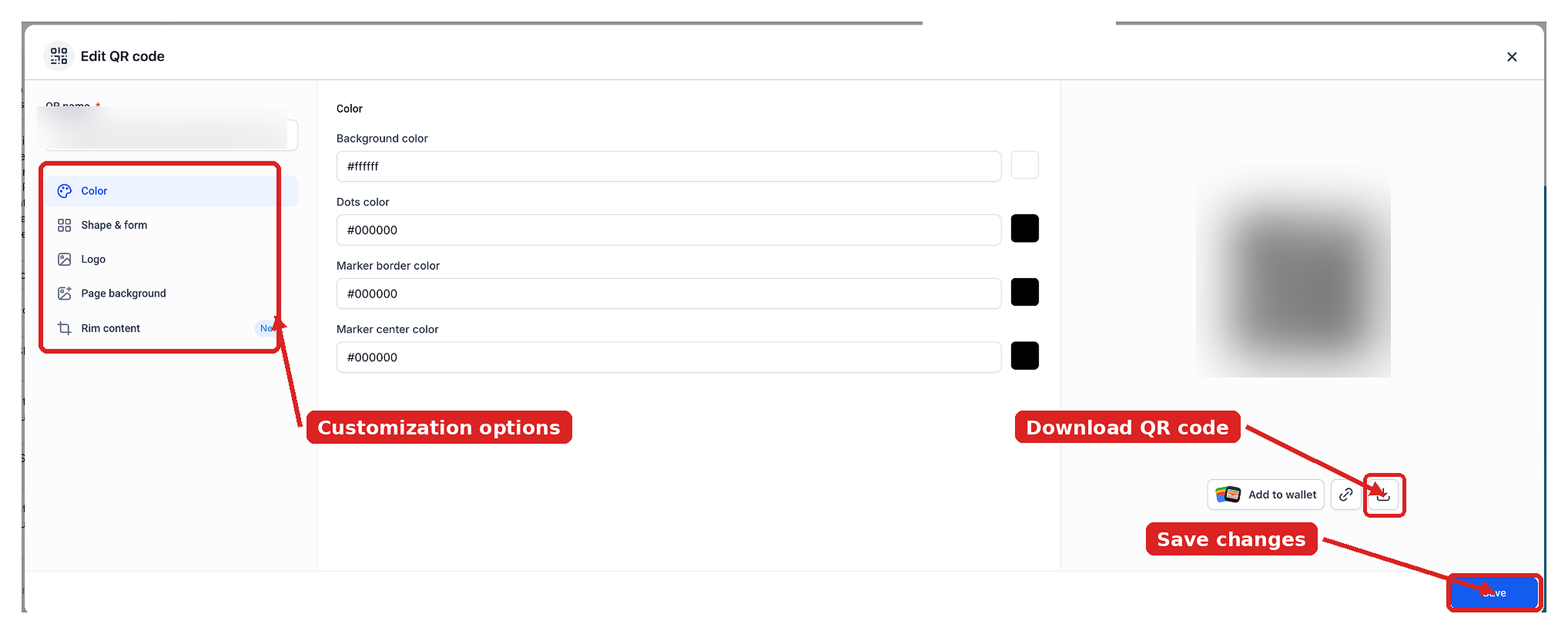
- In the QR window, choose Download to save the code as PNG, SVG, or PDF, or click Edit QR to customize it further.
- Scan the generated QR code to confirm it opens the intended page.
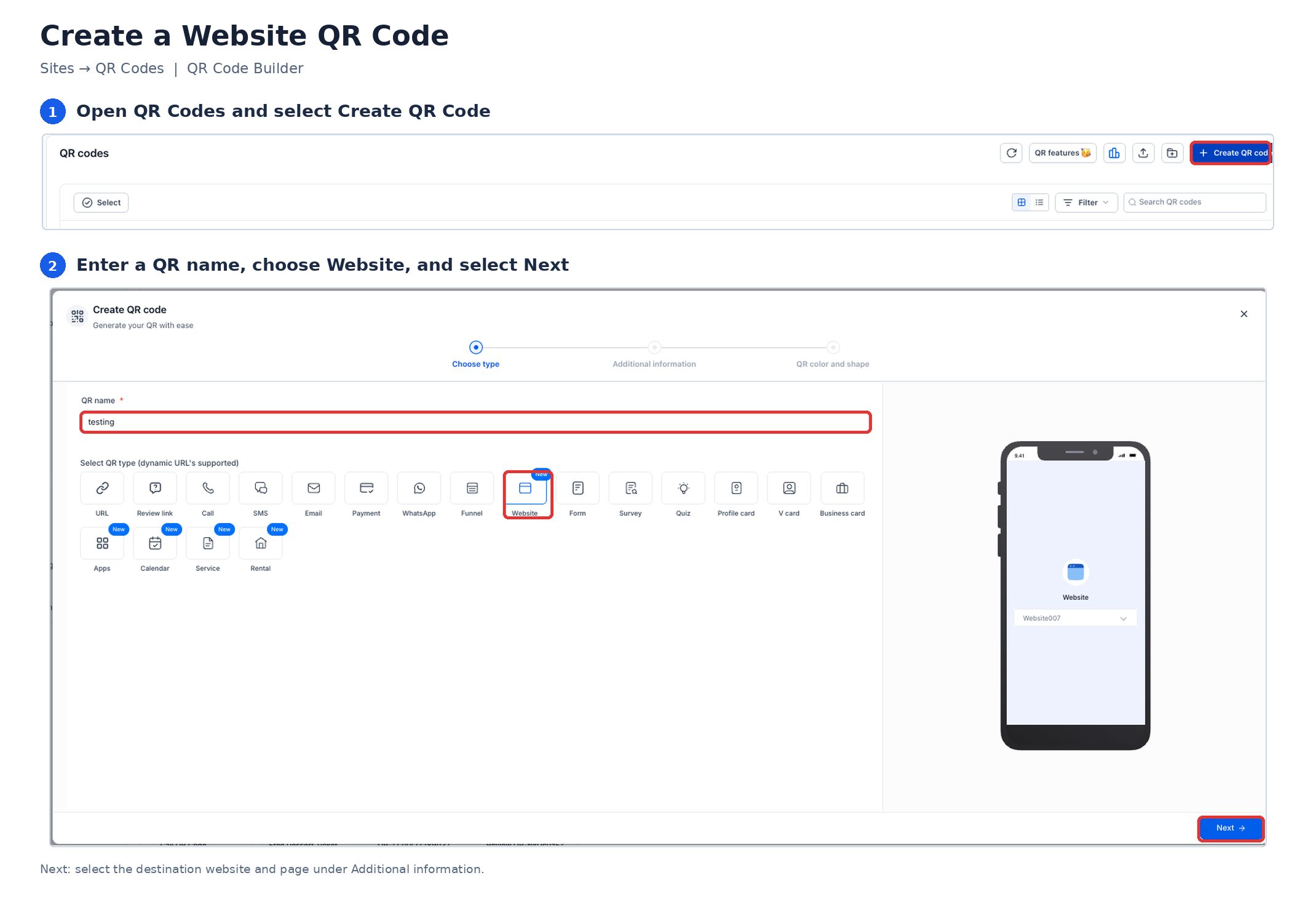
Create QR code from the QR Code Builder
- From the Subaccount view, go to Sites > QR Codes.
- Press Create QR Code.
- Enter a name for the QR, select the new Website type, and click Next.
- Under Additional information > Content, pick the Website and then the Page from the drop down menus.
- Click Next.
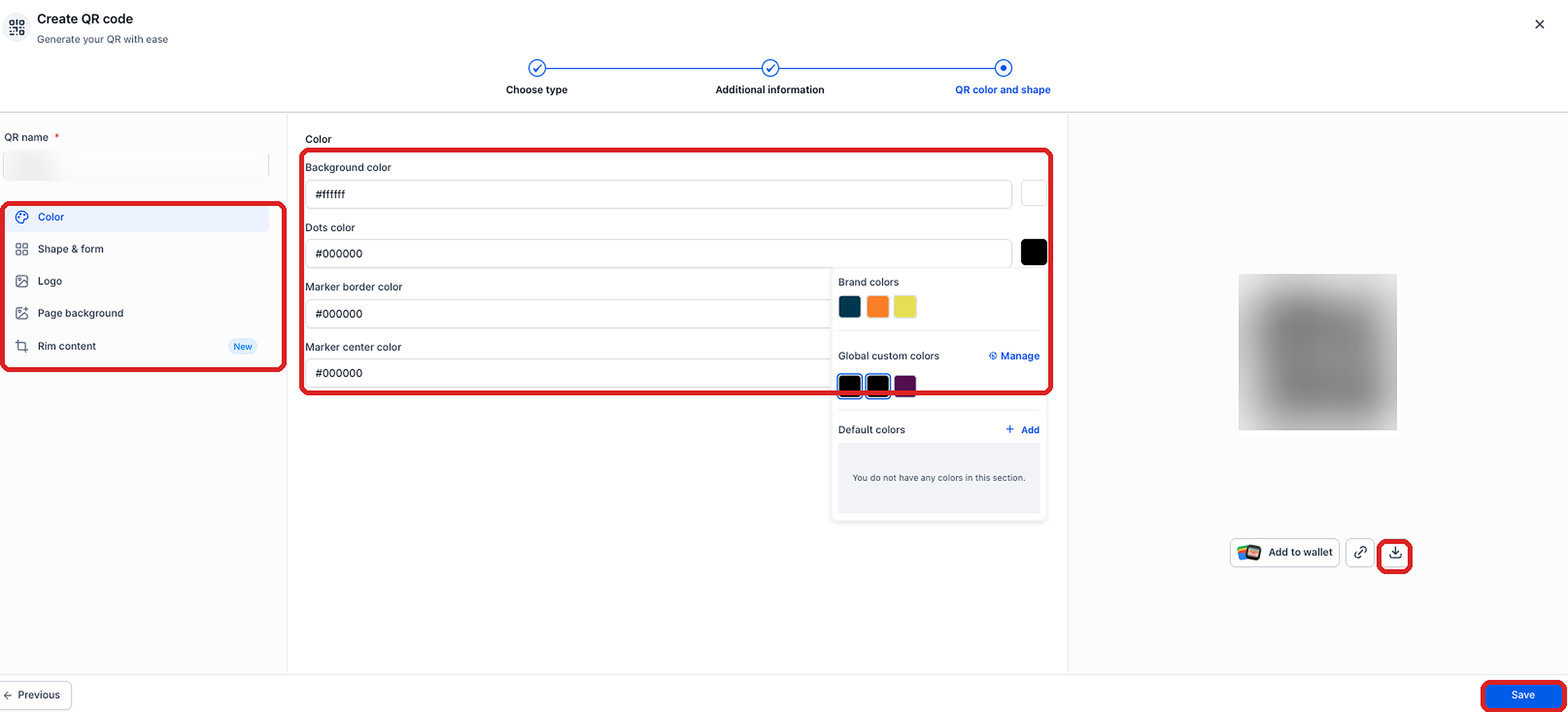
- Customize the QR color and shape as desired.
- Click Save and download the QR code in the chosen format.
06What it looks like in HighLevel
07Settings that matter
- Color. Controls the main hue of the QR code.
- Shape & form. Defines the visual pattern of the QR squares.
- Logo. Allows a brand logo to be placed in the center of the QR code.
- Page background. Sets the background color or image behind the QR pattern.
- Rim content. Adds optional text or graphics around the edge of the QR code.
08Things to know before you rely on it
- A connected domain is required to generate a QR code from the Website Builder.
- The previous QR type named Website has been renamed URL; existing QR codes still function.
- The new Website QR type links only to HighLevel website pages, not external URLs.
09How it connects to the rest of HighLevel
- Guide to generating, customizing, and downloading QR codes in HighLevel. QR code generation guide
- How to manage QR codes with search, filters, views, and bulk actions. Manage QR codes
- HighLevel pricing and plans for access to QR code features. Pricing
Michael's take

Michael ReimerFounder of CRM Pros, HighLevel Commander and Certified Admin
Website QR codes are handy when you need a QR that never breaks after you rename a page. Skip it if you never print QR codes or if all your links are static URLs.
Get More InformationOpens on HighLevelPublished November 2, 2026 · Updated November 16, 2026