
01Who this is for
- Marketing managers can produce branded QR codes that route customers to review pages and track scan activity.
- Small business owners can quickly generate and customize QR codes without external tools and monitor engagement.
02QR codes, explained
The QR code builder adds a new way to connect offline assets with online review pages. When you select the Review Link type, the code becomes dynamic and redirects scanners to the review collection page you choose. All customisation, colour, shape, logo and background, is applied in real time, and a test function lets you verify the destination before publishing.
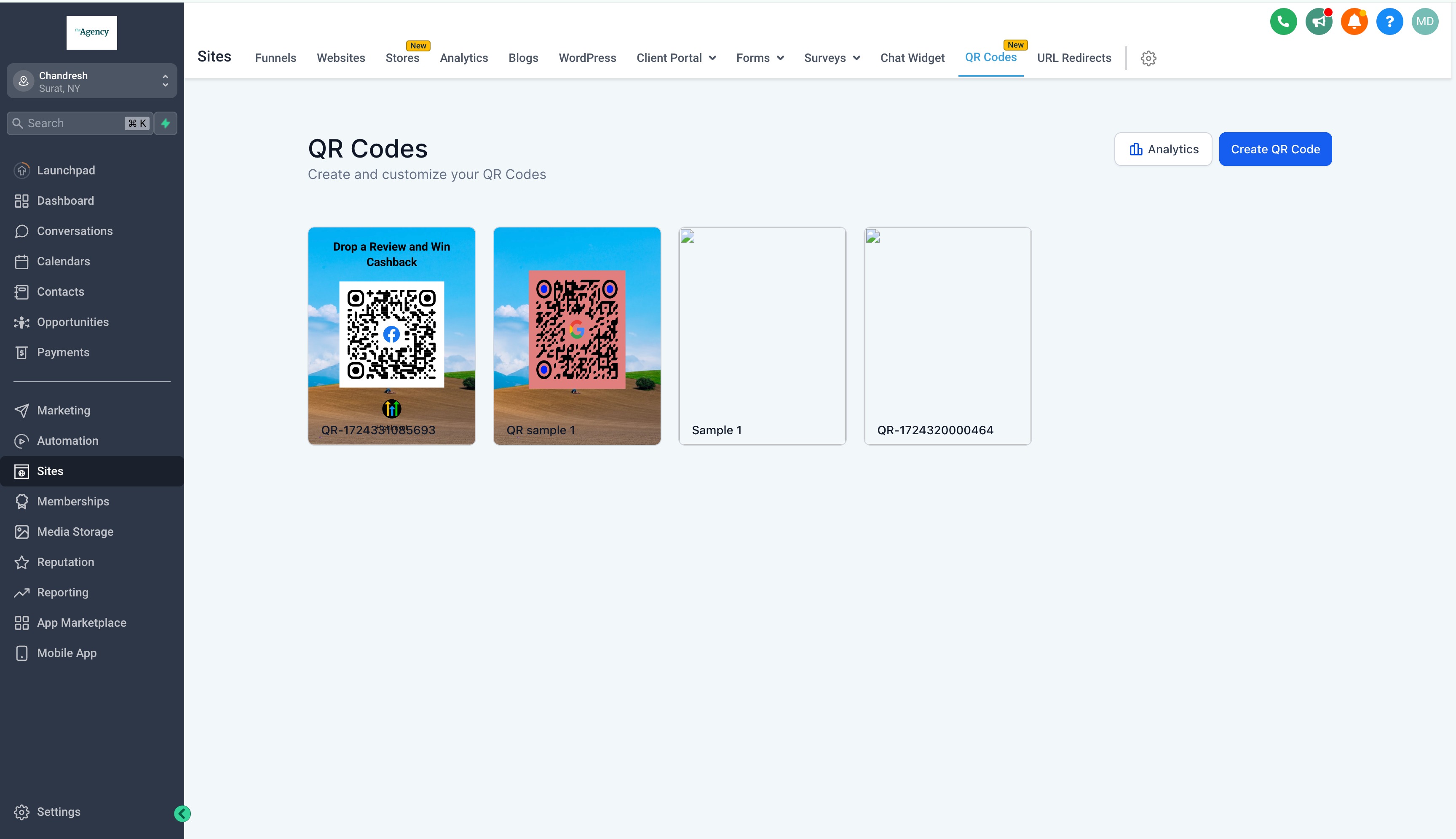
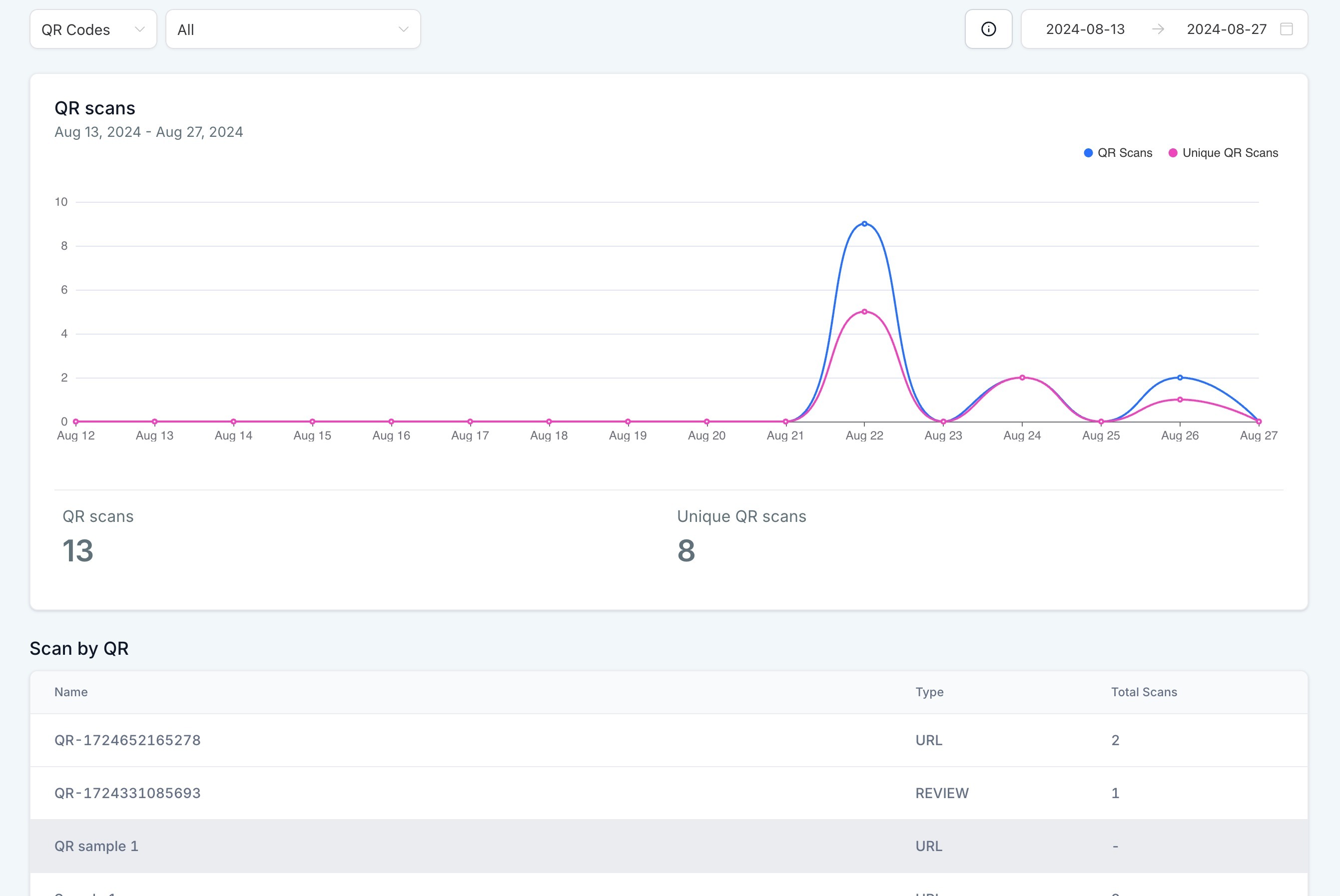
The QR code lives under the Sites section. From Sites > QR Codes you can create a new code, edit its appearance, save it as a PNG image and later view performance metrics. The analytics screen, accessed via QR Codes > Analytics, summarizes total and unique scans for each code.
03How businesses use QR codes
- Dental practice. The clinic creates a QR code that opens its Google review page. It customises the colour to match its branding, adds the practice logo in the centre and prints the PNG on appointment cards. Staff can later check the analytics view for total and unique scans.
- Restaurant. The eatery builds a QR code linked to its review platform, changes the shape to a round style and uploads a background image of its logo. The PNG is placed on table tents, and the owner monitors scan counts in the analytics tab to gauge guest interaction.
- Real estate agency. Agents generate a QR code that directs prospects to a review page, adjust the header text, swap the footer image, and embed the PNG on printed flyers. They later review total and unique scans in the analytics section to assess campaign reach.
04The numbers and rules that matter
- Customisation options include colour, shape & form, centre logo, background image, header content, footer image.
05How to set up and use QR codes in HighLevel
Create a QR code that links to a review page
- Navigate to Sites > QR Codes > Create QR Code.
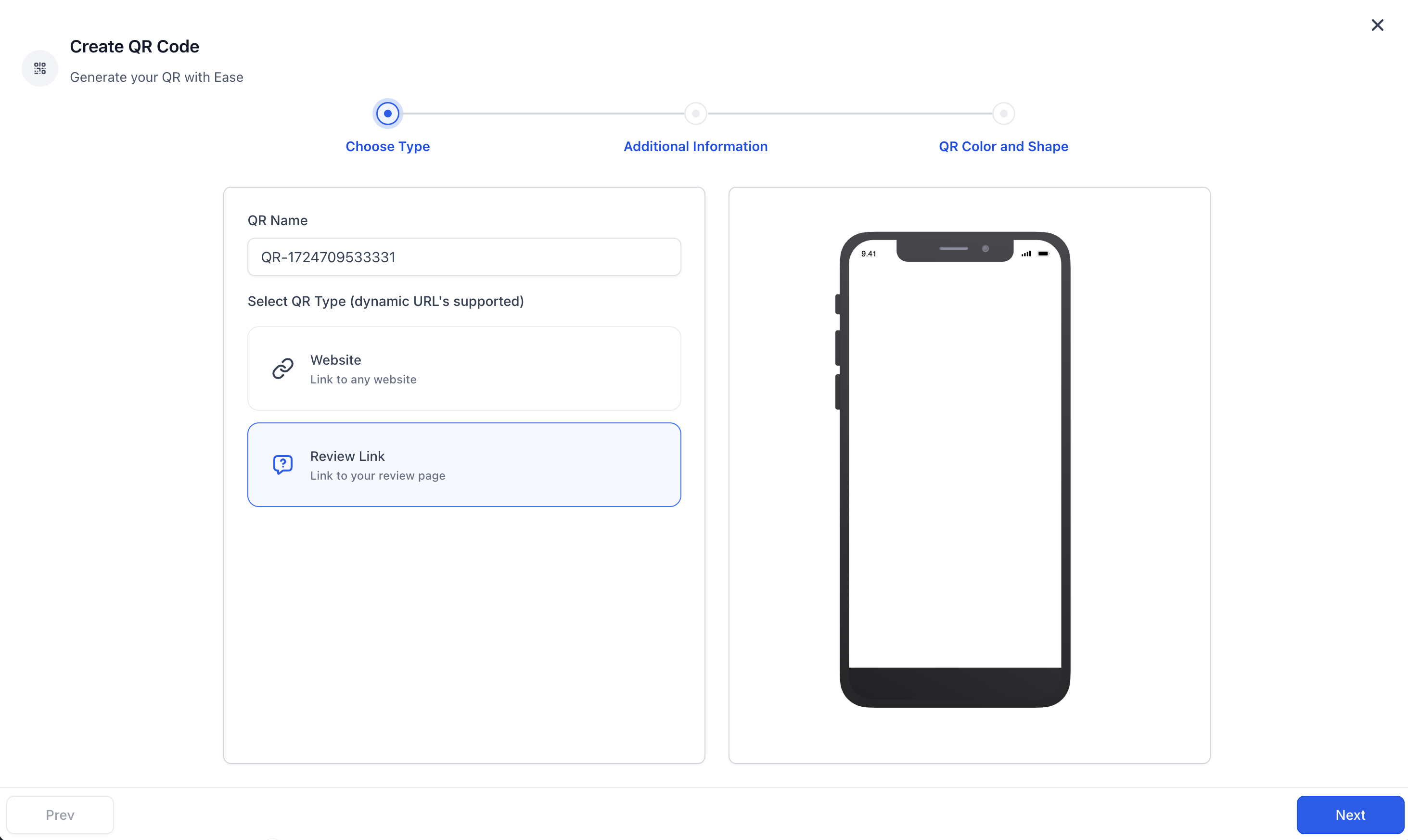
- Enter a name for the code, choose QR Type set to Review Link, then click Next.
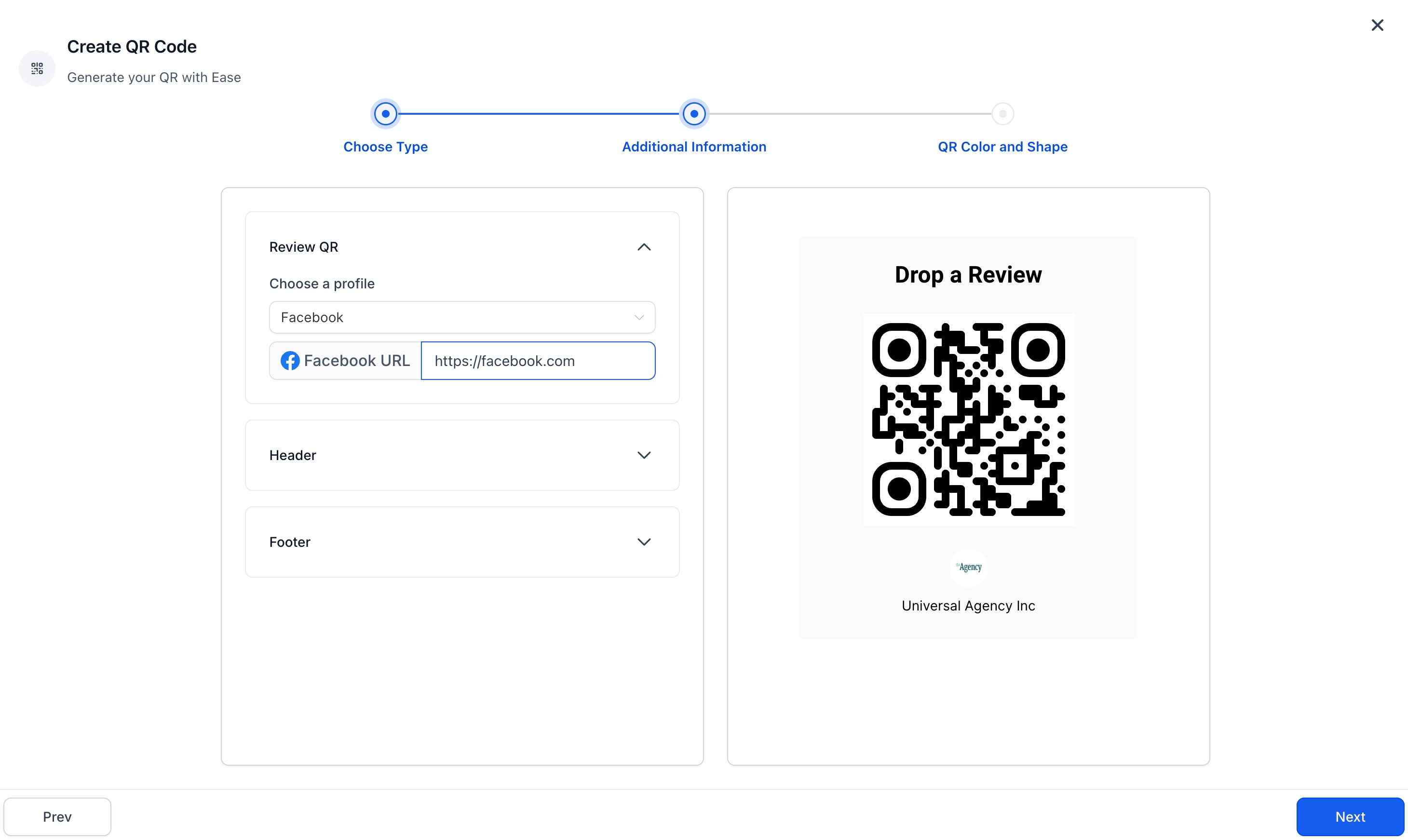
- Pick the Review QR template, edit the header content and change the footer image as needed.
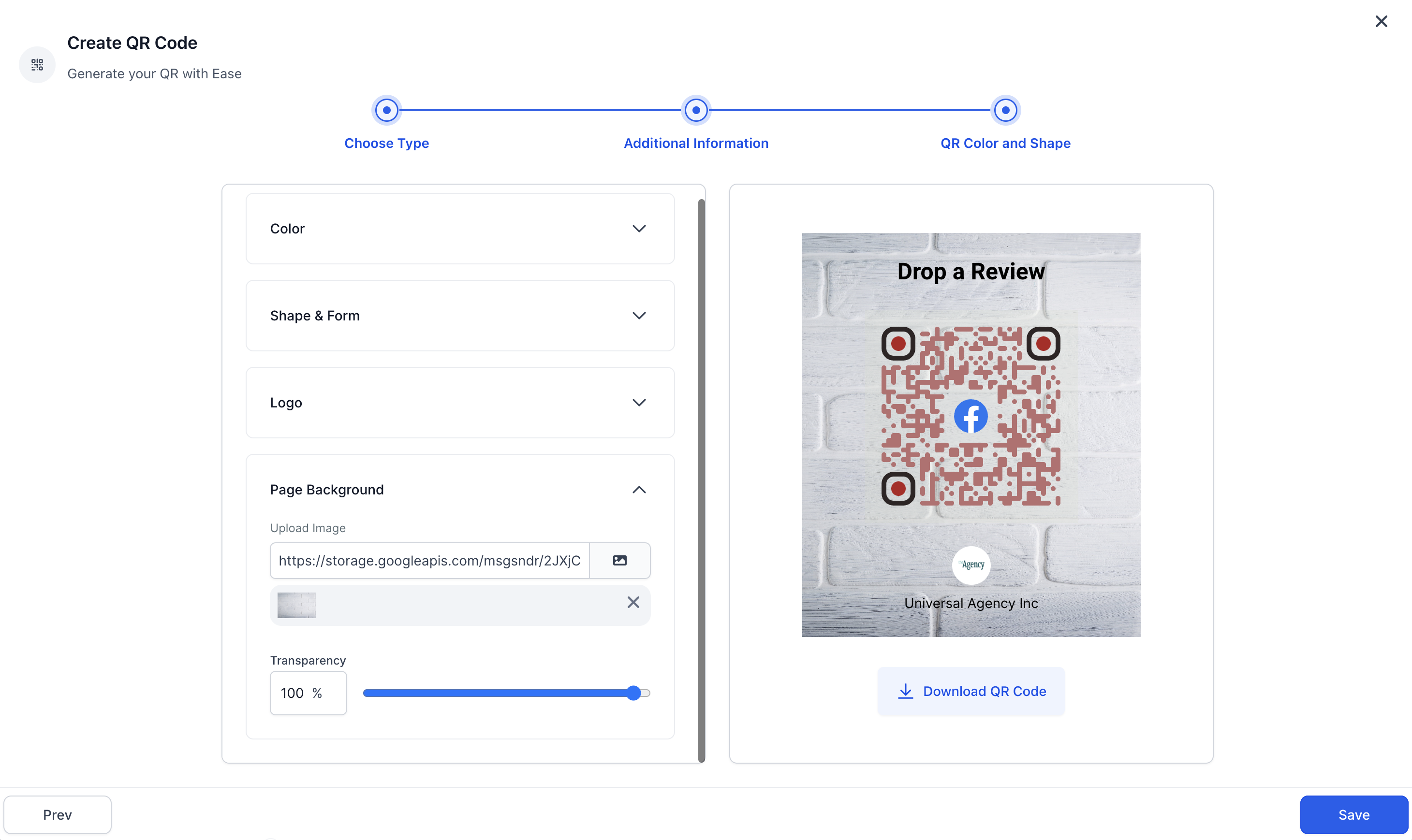
- Adjust colour, shape & form, centre logo and background image; test the QR and download the PNG, then click Save to publish.
- Open QR Codes > Analytics to see total and unique scans for the newly created QR.
06What it looks like in HighLevel
07Settings that matter
- QR Type. Determines the destination of the QR code; selecting Review Link points scans to a review page.
- Colour. Sets the primary colour of the QR code pattern.
- Shape & Form. Defines the visual shape of the QR modules and overall form.
- Center Logo. Allows insertion of a logo image at the centre of the QR code.
- Background Image. Adds an image behind the QR pattern for branding.
- Header content. Custom text displayed above the QR code when generated.
- Footer image. Image placed below the QR code in the generated output.
08How it connects to the rest of HighLevel
- Learn how to generate, customize and download QR codes in HighLevel. QR code generation guide
- Manage QR codes with search, filters, views, and bulk actions. Manage QR codes
- Create website QR codes that stay linked in HighLevel. Dynamic website QR codes
Michael's take

People often think a QR code is just a black square and forget it can carry your branding. I’d start by choosing the Review Link type, then spend a few minutes tweaking colours, shape and adding a logo so the code feels like part of your brand.
Once the QR looks right, I’d test it on a phone, download the PNG, and drop it on a flyer or receipt. Watching the analytics for total and unique scans tells you if the placement is working.