
01Who this is for
- Marketing managers benefit because they can hand out a single QR code that captures leads and showcases brand assets.
- Small retail owners gain a fast method to share store hours, address and social profiles without printing new cards.
- Event coordinators can provide attendees with a scannable card that includes contact info and event social feeds.
02Business card QR codes, explained
The Business Card QR Code builder lives under Sites > QR Codes. It lets you pick the Business Card type, upload a logo, fill in standard contact fields, set weekly hours and add social media links. A live preview shows changes in real time.
All customizations stay inside the QR code builder. You can adjust colors, image opacity, icon labels and QR code design elements such as dot style and background. When finished, the code can be downloaded in PNG, SVG or PDF formats and saved to your HighLevel library for later use.
03How businesses use business card QR code
- Consulting firm. The firm creates a Business Card QR Code, uploads its logo, enters office address, phone and consulting services, and adds LinkedIn and Twitter links. The QR code is printed on client proposals so prospects can scan and store the contact right away.
- Restaurant. The restaurant adds its logo, sets daily opening and closing times, enters its address and phone number, and includes Instagram and Facebook links. The QR code is placed on tables, allowing diners to quickly follow the restaurant online.
- Fitness trainer. The trainer uploads a personal photo, inputs email, mobile number, website and studio address, and adds YouTube and TikTok profiles. The QR code is shared on social posts so potential clients can add the trainer’s details with one scan.
04Before you start
- You must be logged into a HighLevel subaccount.
- A logo image file should be ready for upload.
- If you plan to use Exchange Contact, have a HighLevel form available.
05How to set up and use business card QR code in HighLevel
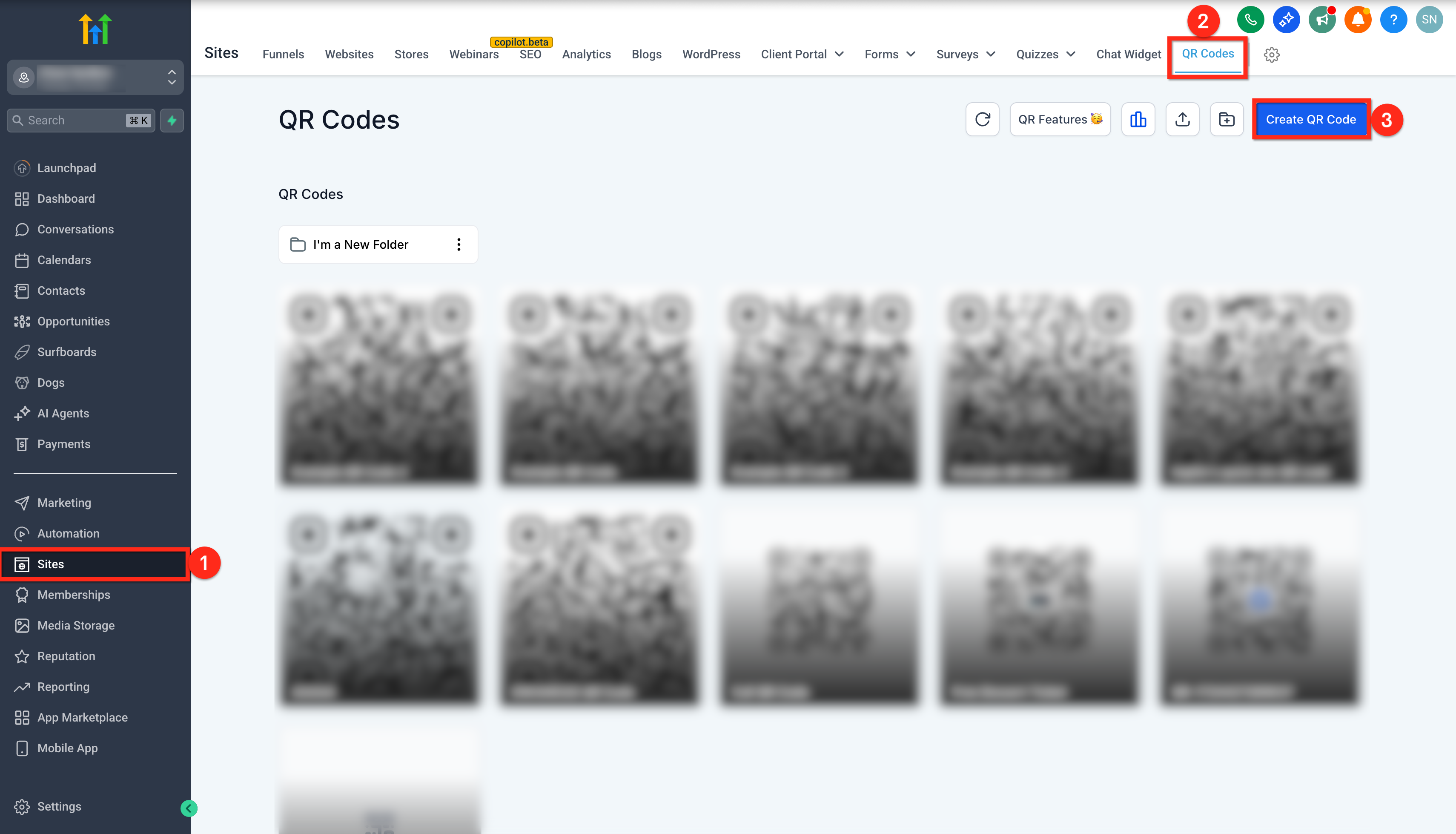
Access the QR code builder
- Sign in to a HighLevel subaccount.
- Click the Sites option in the left sidebar.
- Select QR Codes from the Sites submenu.
- Press the Create QR Code button.
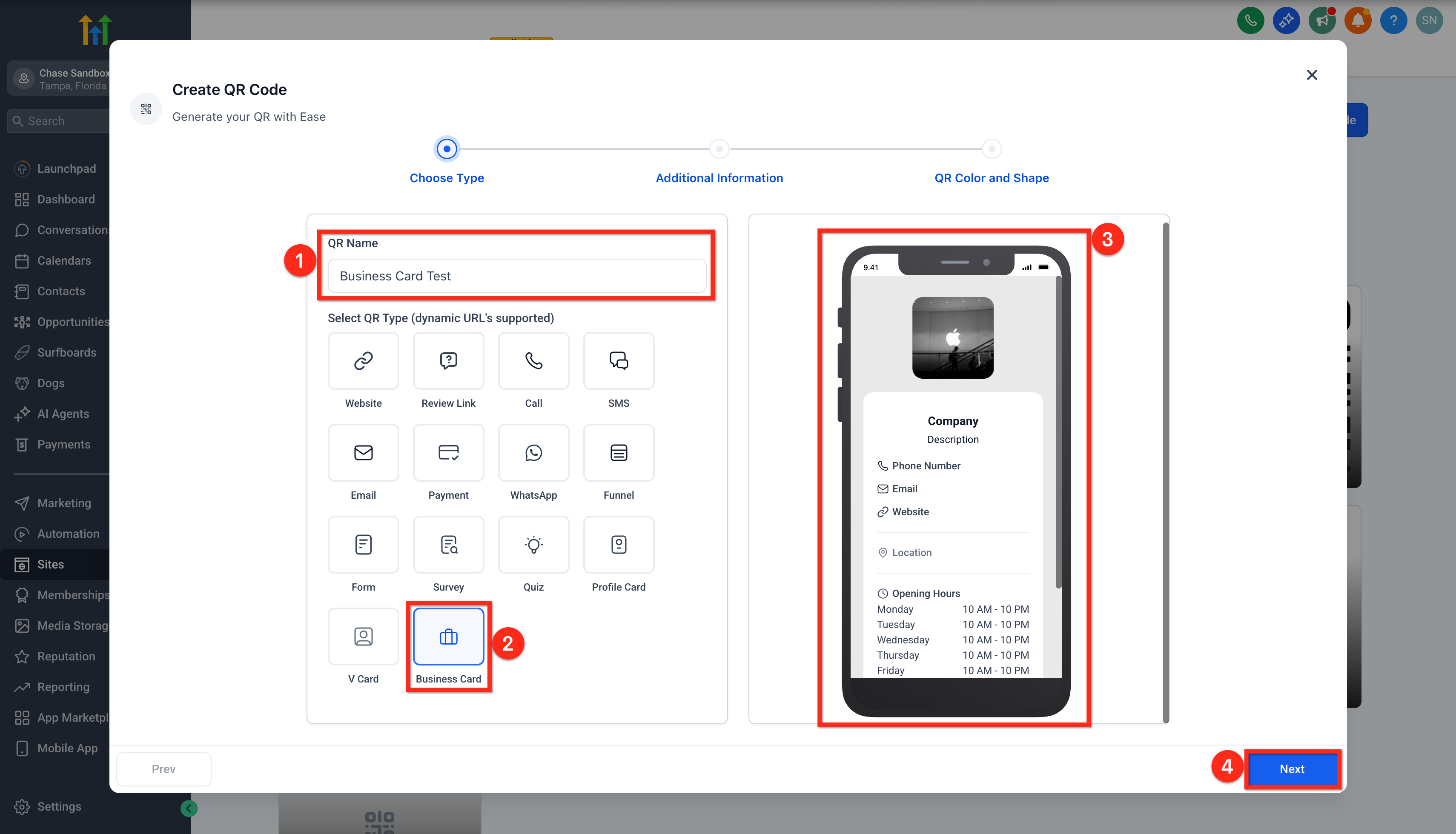
Configure QR code details
- Enter a name for the QR code.
- Choose Business Card as the QR type.
- Review the live preview on the right side.
- Click the Next button.
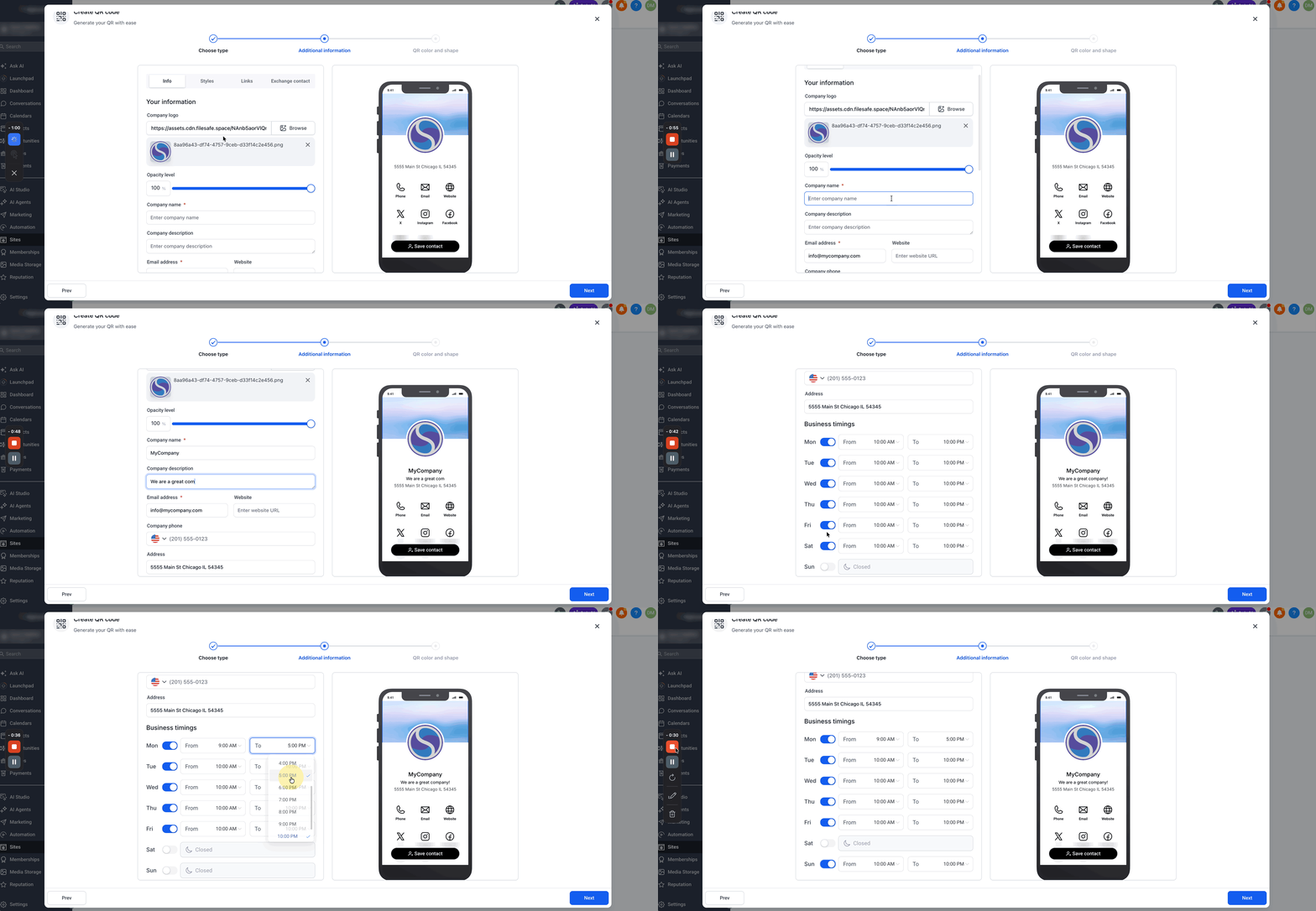
Enter business information
- Click Browse, upload your company logo, then set its opacity percentage.
- Fill in the company name field.
- Enter the company description, email, website, phone and address fields.
- Use the day toggle switches to set open or closed status and define opening and closing times for each operational day.
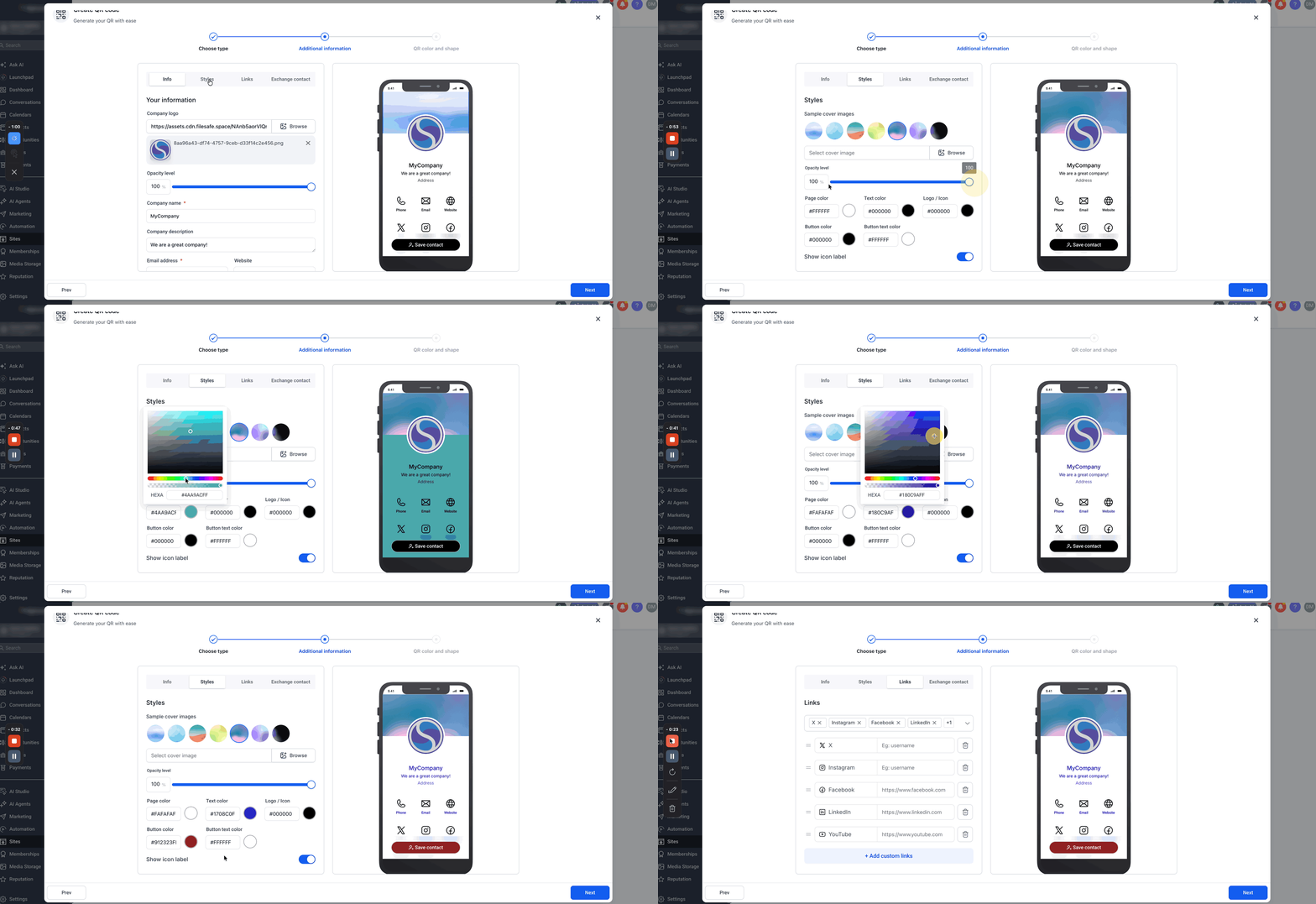
- Click the Styles tab at the top of the builder.
Customize the style
- Pick a cover image template or click Browse to upload a custom image, then set its opacity percentage.
- Open the color picker and choose colors for the page, text, logo/icon, button and button background.
- Turn the Show icon label option on or off according to your design preference.
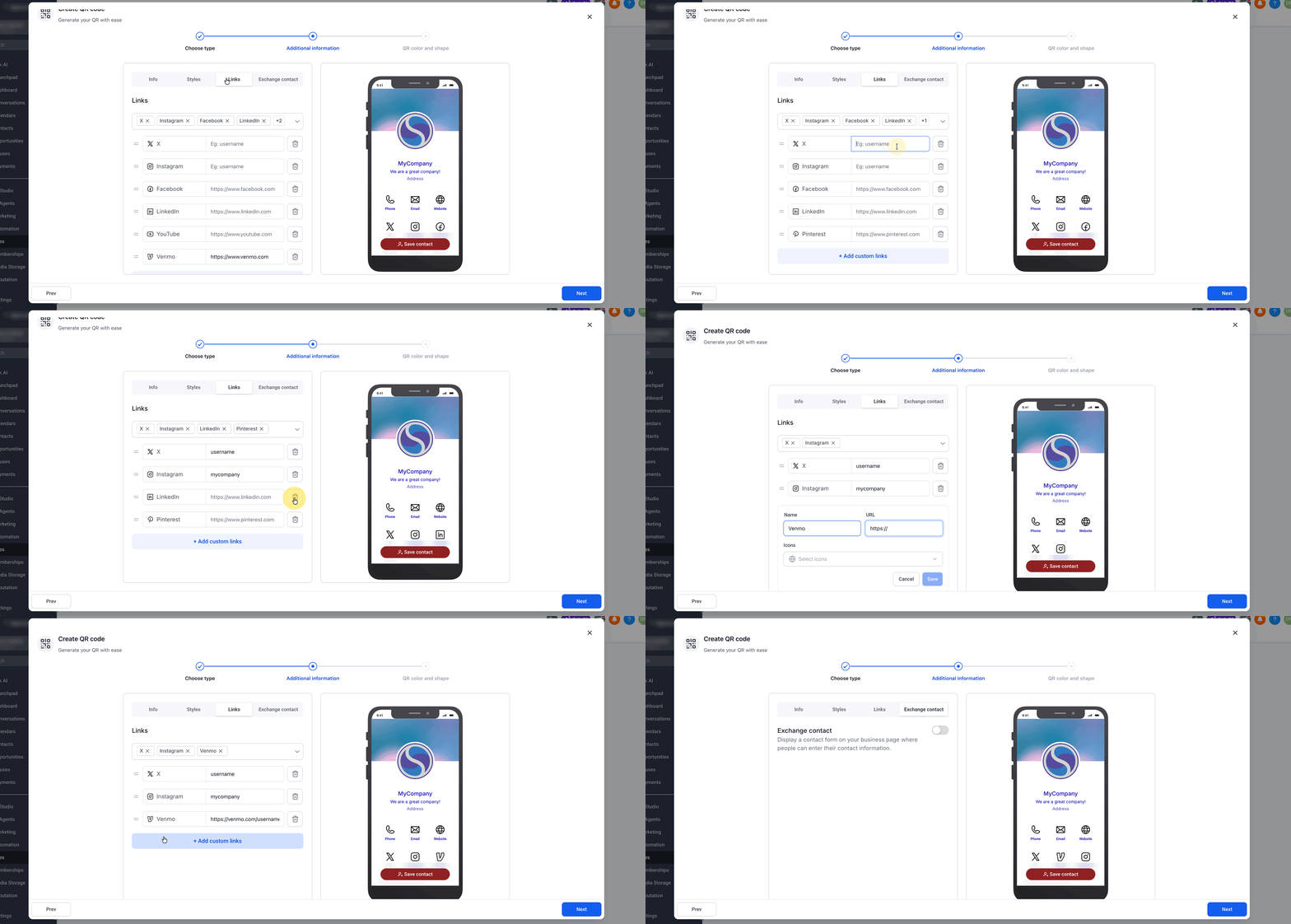
- Click the Links tab at the top.
Add social media links
- Select a built in social platform such as X, Instagram, Facebook, LinkedIn, YouTube, TikTok or Pinterest and enter its URL or username.
- Click Add custom links, type a link name and URL, and select an icon.
- Drag a link’s handle to reorder its position.
- Click the trash icon on a link to remove it.
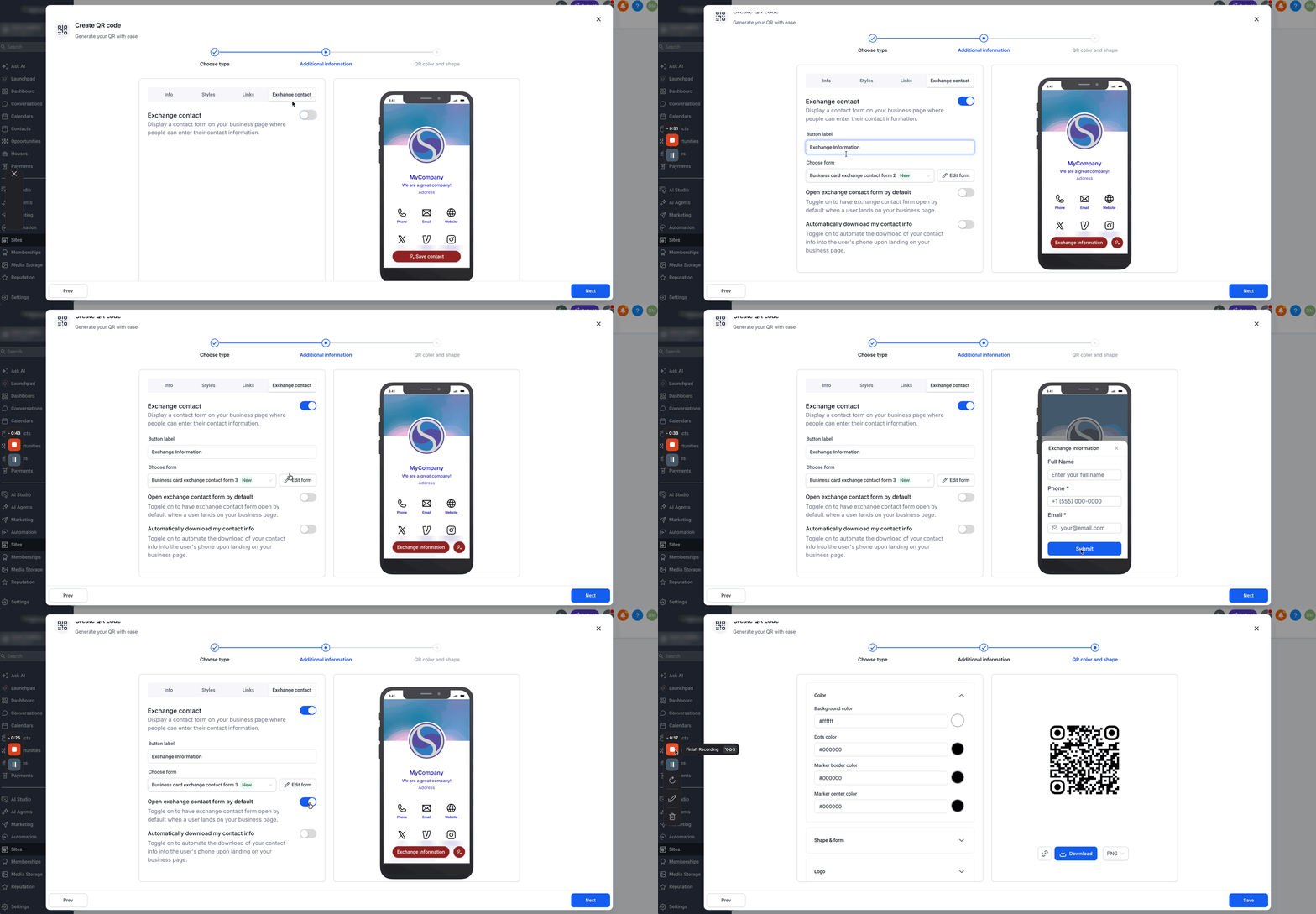
- Click the Exchange Contact tab at the top.
Set up exchange contact
- Open the Exchange Contact tab and toggle on Exchange contact.
- Choose New form to create a fresh form or Use an existing form to pick a saved HighLevel form.
- Click Edit form to modify fields, styling or settings without leaving the builder.
- Change the text of the Exchange Contact button as needed.
- Enable Open Exchange Contact Form by Default to show the form automatically.
- Turn on Automatically Download My Contact Info to start the contact saving process when the page loads.
- Click the Next button.
Customize QR code design
- Adjust Background Color, Dots Color, Marker Border and Center Color to match branding.
- Select a Dot Style for the QR pattern and fine tune marker borders and centers.
- Upload your own logo or pick a preloaded icon such as Google or YouTube.
- Switch the Remove Background Behind Logo option on or off.
- Upload a background image for the page and set its transparency using the slider.
Download and save
- Choose the download format (PNG, SVG or PDF).
- Press the Download button to store the file.
- Click Save to add the QR code to your HighLevel library.
06What it looks like in HighLevel
07Settings that matter
- QR code type. Determines the template used; selecting Business Card creates a digital contact card.
- Opacity level. Controls the transparency of uploaded images such as logos or background pictures.
- Show icon label. Turns field labels like Phone and Email on or off in the card preview.
- Open Exchange Contact Form by Default. Specifies whether the contact capture form appears immediately when the card loads.
- Automatically Download My Contact Info. Enables the automatic saving of a visitor’s contact details when the page opens.
- Background Color. Sets the overall background shade of the digital card page.
- Dots Color. Defines the color of the QR code’s data dots.
- Marker Border & Center Color. Controls the colors of the QR code’s central marker and its surrounding border.
- Dot Styles. Selects the visual pattern used for the QR code’s data dots.
- Remove Background Behind Logo. Chooses whether the logo sits on a transparent background or a solid fill.
08Things to know before you rely on it
- The article does not mention any specific limits, exclusions or beta notes for this feature.
09How it connects to the rest of HighLevel
- Guide to generating, customizing, and downloading QR codes in HighLevel QR code generation guide
- How to build a vCard QR code in HighLevel vCard QR code guide
- Bulk QR code creation for large campaigns Bulk QR code creation
Michael's take

Michael ReimerFounder of CRM Pros, HighLevel Commander and Certified Admin
Business Card QR Codes are a neat way to turn your contact details into a scannable digital card.
If you rely on paper cards or have no need for QR based contact sharing, you can skip this feature.
Get More InformationOpens on HighLevelPublished November 2, 2026 · Updated November 16, 2026