
01Who this is for
- Professionals who need quick, paper less contact sharing, such as sales reps and event organizers.
- Businesses that want a reusable QR code that can be updated centrally without re creating it.
02VCard QR codes, explained
The vCard feature lets you create QR codes that contain a full digital business card. Scanning the code opens the contact card on any smartphone, displaying names, phone numbers, email, address, website and a logo.
You access this through the Sites > QR Codes section of HighLevel. After selecting the vCard type, you enter contact fields, customise colors, shapes and logos, then download the QR code in PNG, SVG or PDF. The generated code uses a dynamic URL, so you can edit the stored contact data later without making a new code.
03How businesses use VCard QR codes
- Conference speaker. The speaker creates a vCard QR code with their name, email, phone and website. They upload a headshot as the profile image, choose brand colors, download the code, and place it on presentation slides so attendees can scan and save contact details directly.
- Hair salon. The salon fills in its business name, address, phone number and booking website in the vCard builder, adds the salon logo, selects a stylish QR shape, and downloads the code to print on appointment cards for clients.
- Consulting firm. A consultant enters personal and firm details, uploads a profile picture, customises the QR colors to match branding, then saves the code in HighLevel and shares the PNG on LinkedIn to let prospects capture contact info with one scan.
04The numbers and rules that matter
- File types available for download: PNG, SVG, PDF.
05Before you start
- Log in to your HighLevel subaccount.
06How to set up and use VCard QR codes in HighLevel
Create a vCard QR code
- Log in to your HighLevel subaccount.
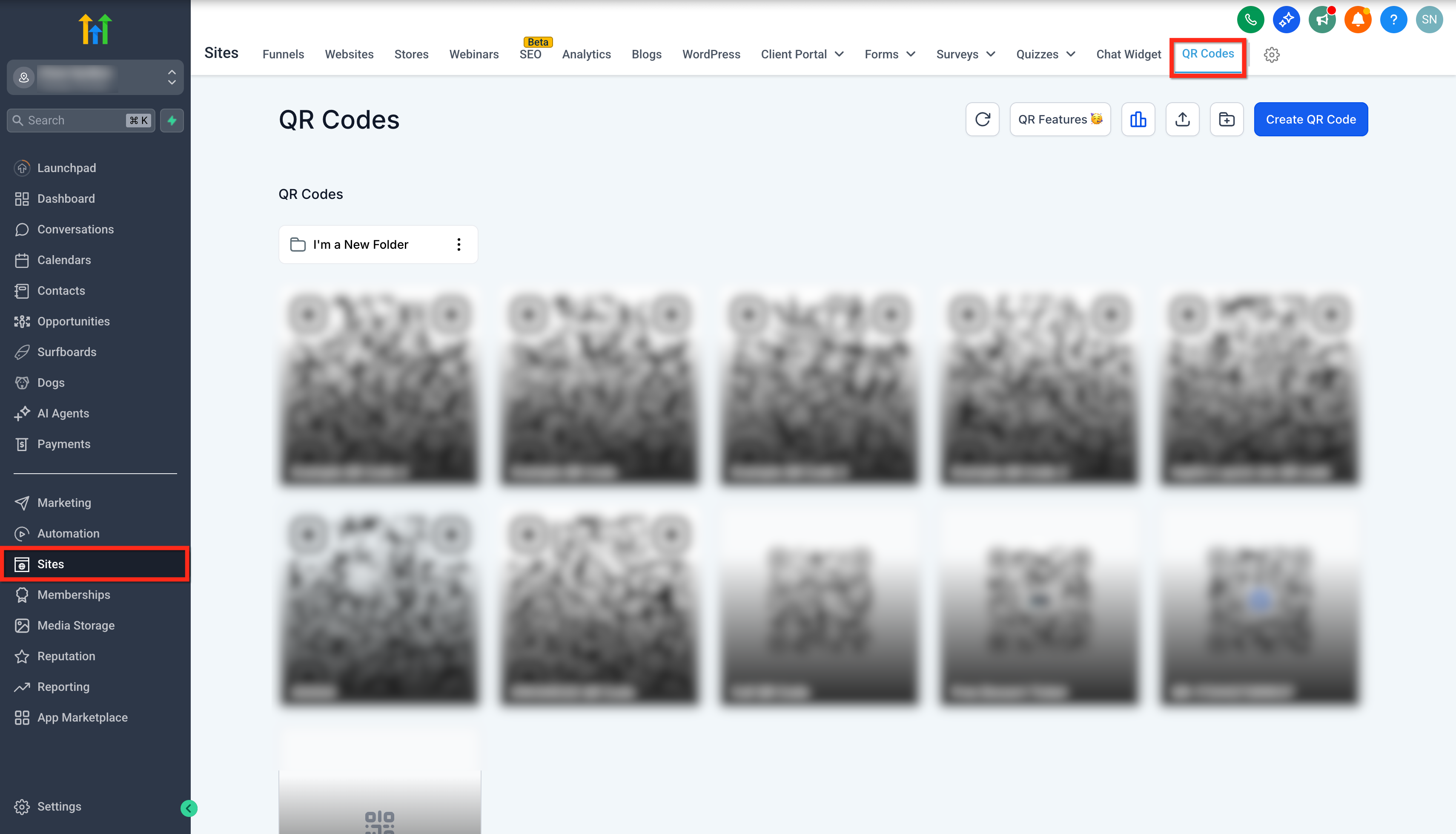
- Click the Sites tab in the left hand menu.
- Click the QR Codes tab.
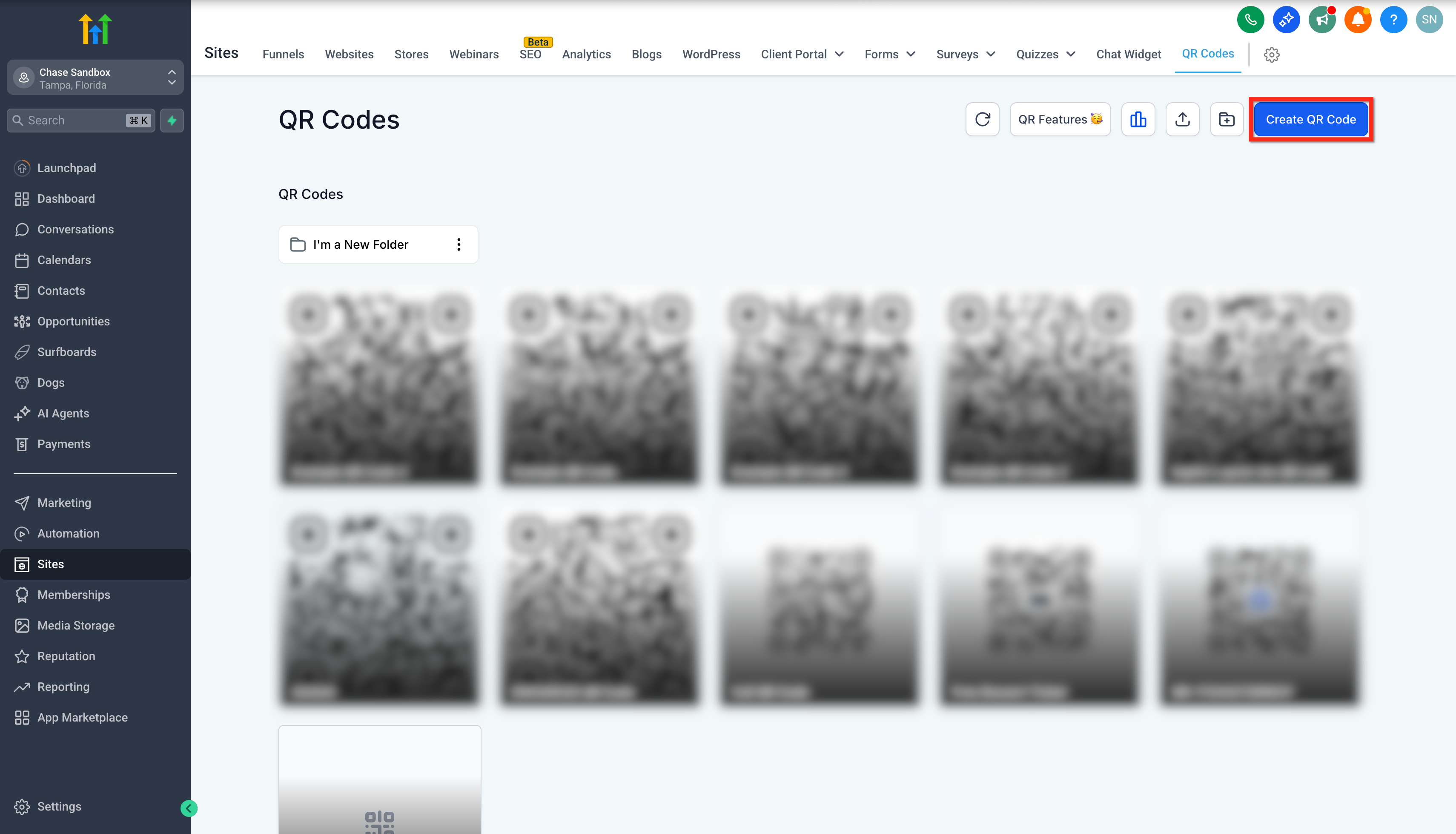
- Click the Create QR Code button.
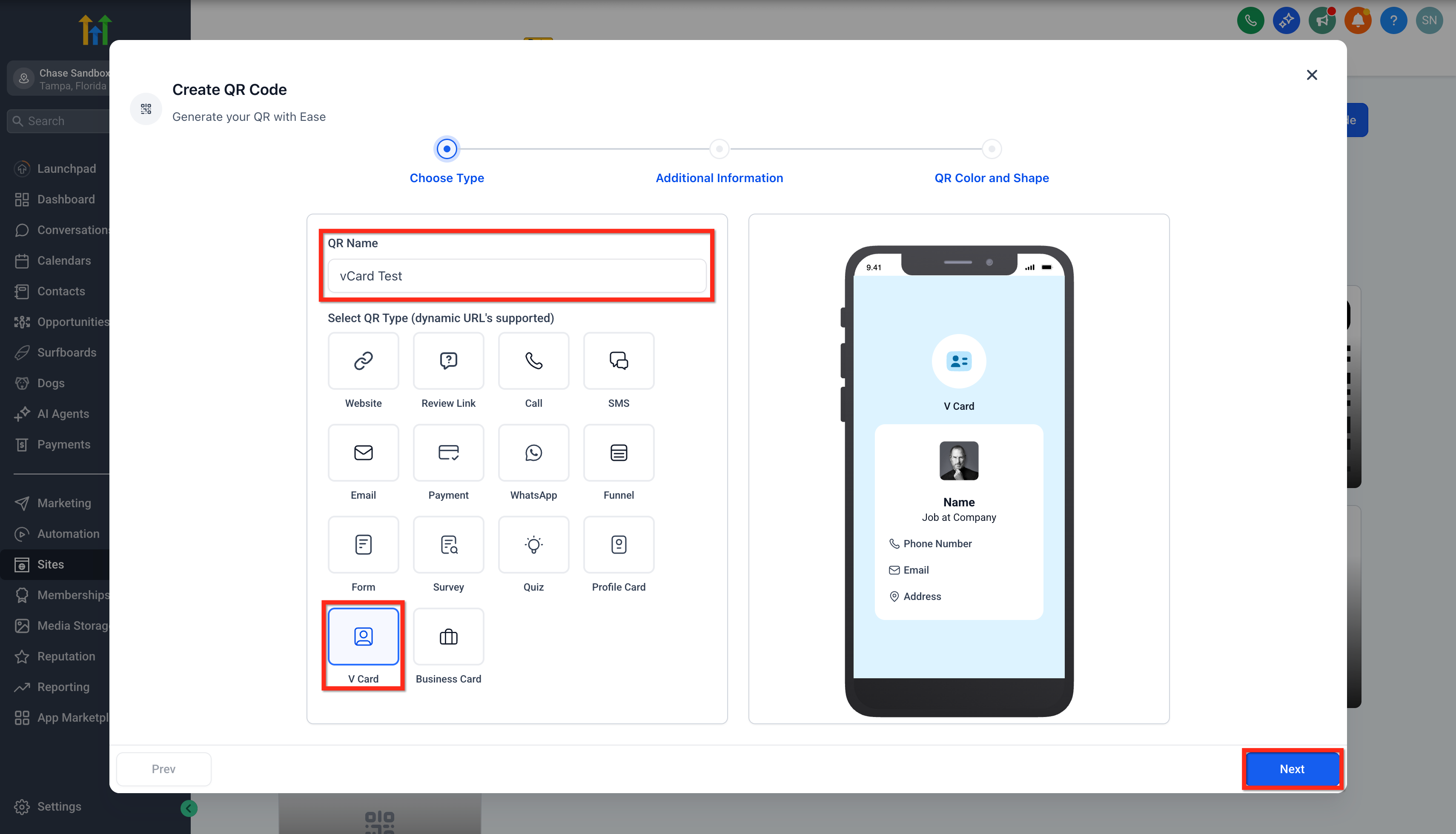
- Enter a name for the QR code in the QR Code Name field.
- Choose vCard as the QR Code Type.
- Click Next to continue.
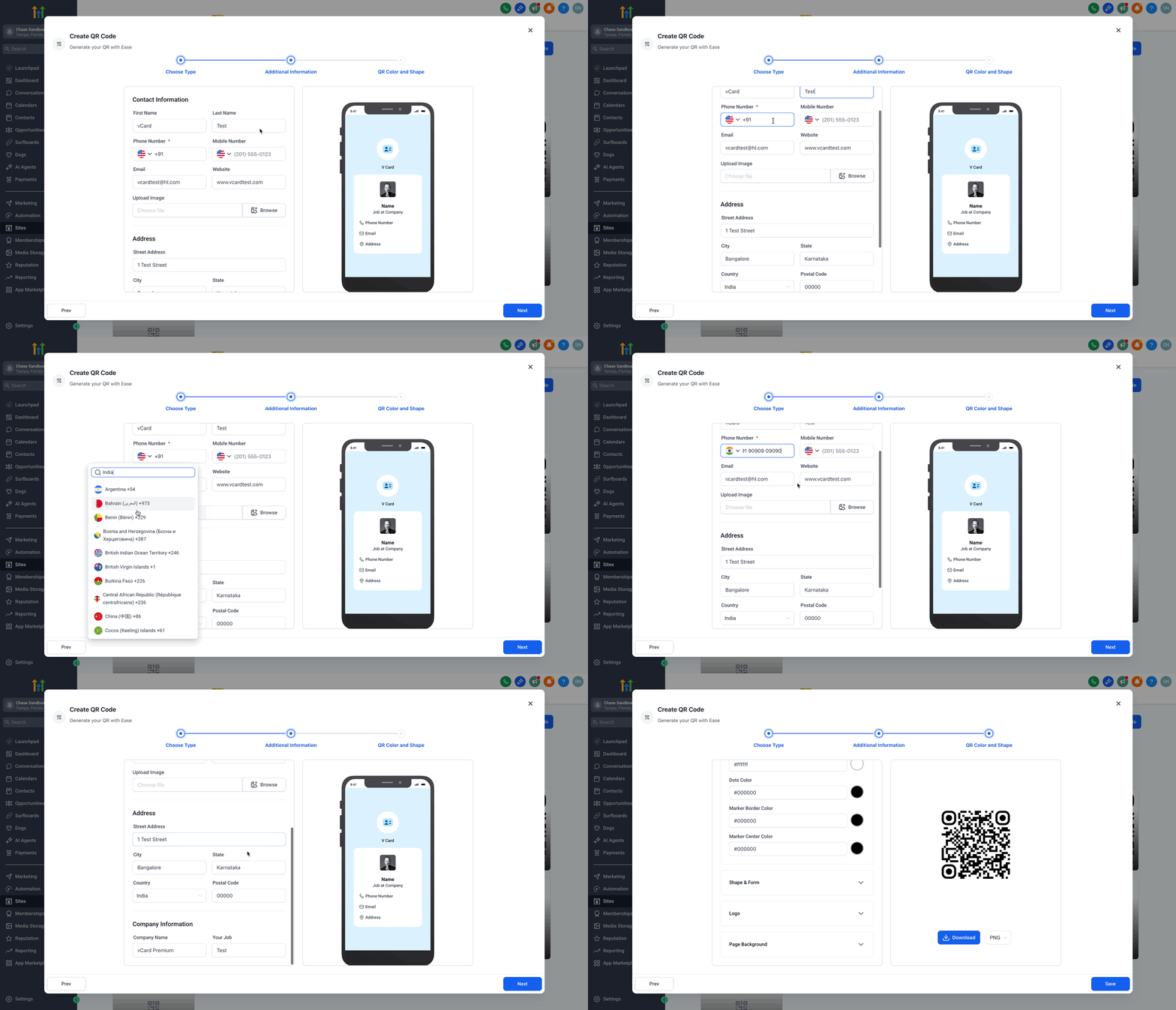
- Fill in the required contact fields such as first name, last name, phone number and address.
- Upload a profile image or company logo.
- Click Next to continue.
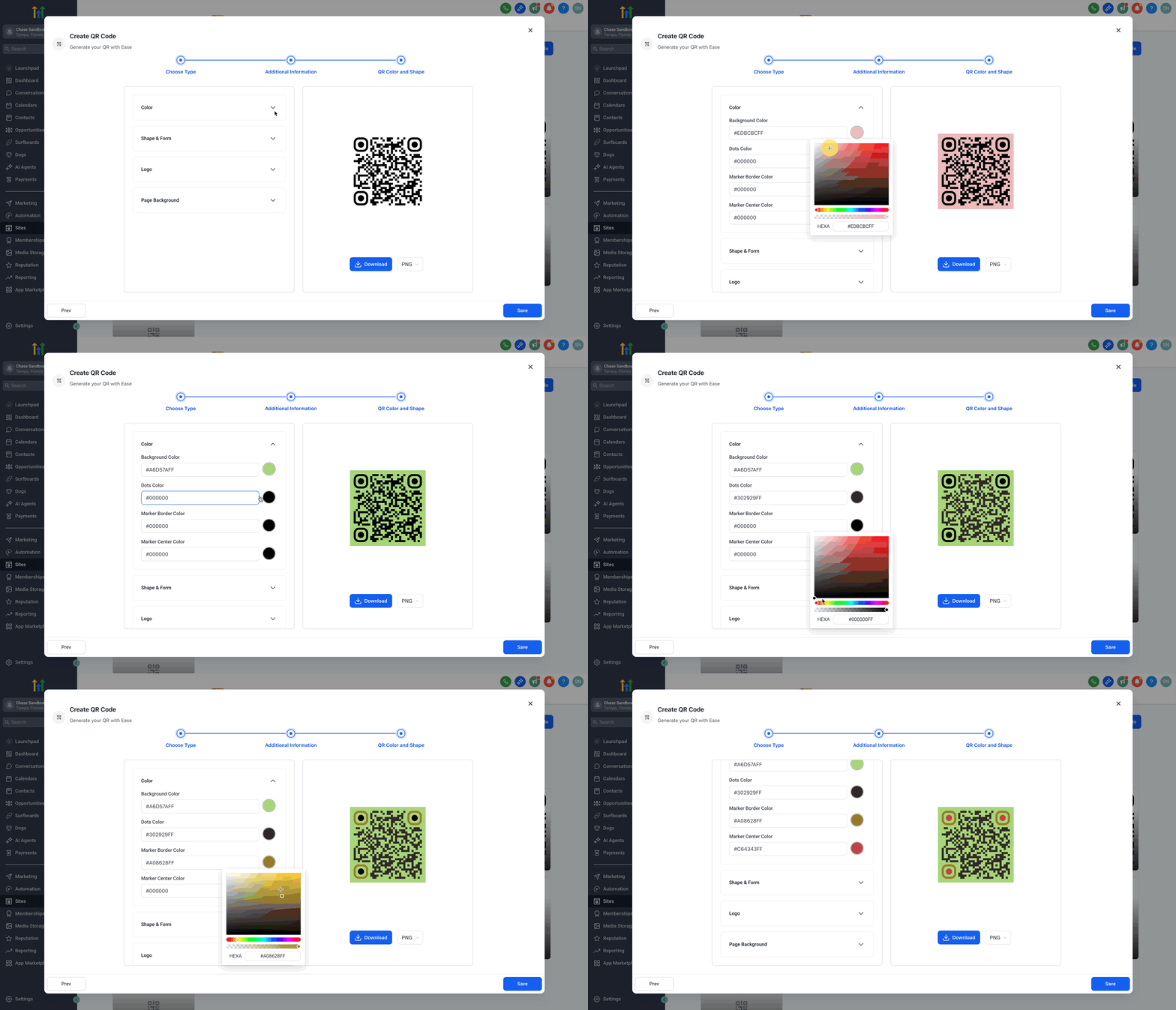
- Select the background color for the QR code.
- Choose the dots color.
- Pick the marker border color.
- Select the marker center color.
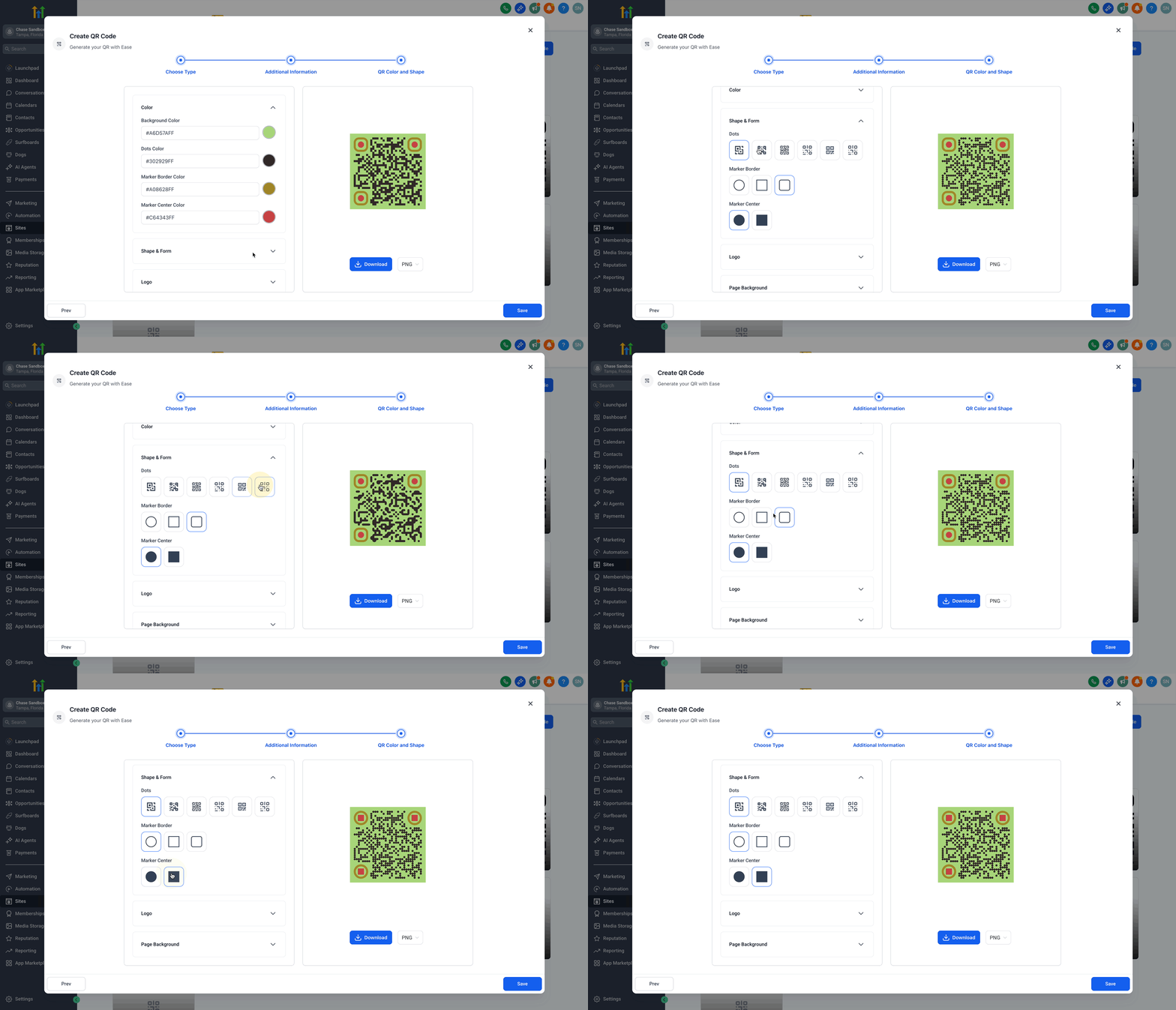
- Choose the QR shape style (dots, marker borders, marker centers).
- Upload a logo and set the Remove background behind logo option on or off.
- Upload a page background image and adjust its transparency.
- Select the file format (PNG, SVG or PDF) from the dropdown, then click Download to store the file on your device.
- Click Save to store the QR code in HighLevel.
07What it looks like in HighLevel
08Settings that matter
- Background Color. Sets the overall background hue of the QR code.
- Dots Color. Defines the color of the QR code's data dots.
- Marker Border Color. Controls the color of the outer border around the QR marker.
- Marker Center Color. Determines the color inside the central part of the QR marker.
- Remove background behind logo. When ON, clears the area behind the uploaded logo; when OFF, leaves the logo as is on the QR code.
09Things to know before you rely on it
- Only basic contact information is supported; social media links are not included.
- The QR code works offline after scanning, saving the contact details directly to the device.
- The dynamic URL feature lets you update contact data without generating a new QR code.
10How it connects to the rest of HighLevel
- Learn how to generate, customize and download QR codes in HighLevel. QR code generation guide
- Explore bulk QR code creation for generating many codes quickly. Bulk QR code creation
- Read about creating website QR codes that stay linked as pages change. Website QR codes
Michael's take

VCard QR codes are useful but not essential for every business. Those who rely on paper cards or simple email signatures can skip it.
If you already use HighLevel’s QR Code Builder for other purposes, adding a vCard is a quick way to make your contact info fast shareable.