
01Who this is for
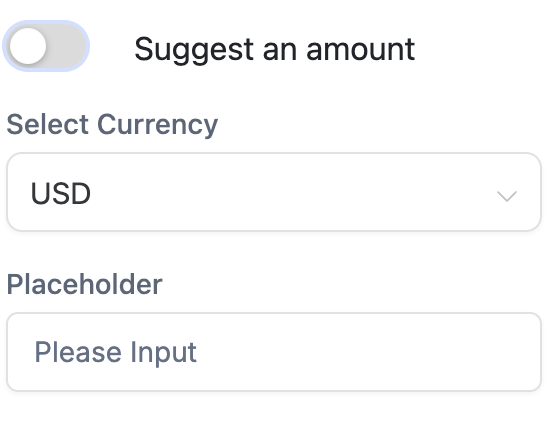
- Founders of nonprofits can collect suggested or custom donation amounts without needing an online gateway.
- Owners of cash based retail stores can offer cash on delivery or check payments directly from their website forms.
- Managers of membership clubs can set up recurring contributions that are tracked alongside other form submissions.
02Payment in forms, explained
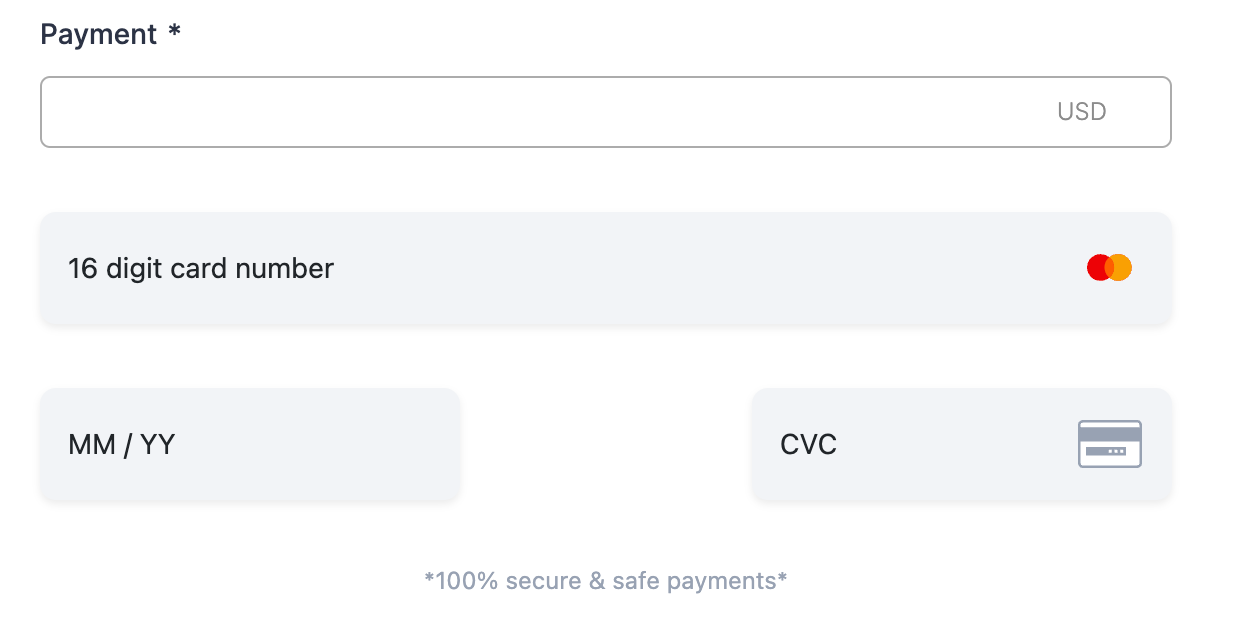
The manual payment feature adds offline payment choices to the Collect Payment element inside a form or survey. When a product includes a manual method, the option appears automatically for the submitter. Orders created with a manual choice land in the Payments > Orders list with a Pending status, ready for you to mark as Paid.
You find the controls under Payments > Integrations > Manual Payment Methods. From there you can turn on Cash on Delivery or define custom methods such as bank transfer or checks, write descriptions and post purchase messages, and specify that these methods apply to forms and surveys.
03How businesses use payment in forms
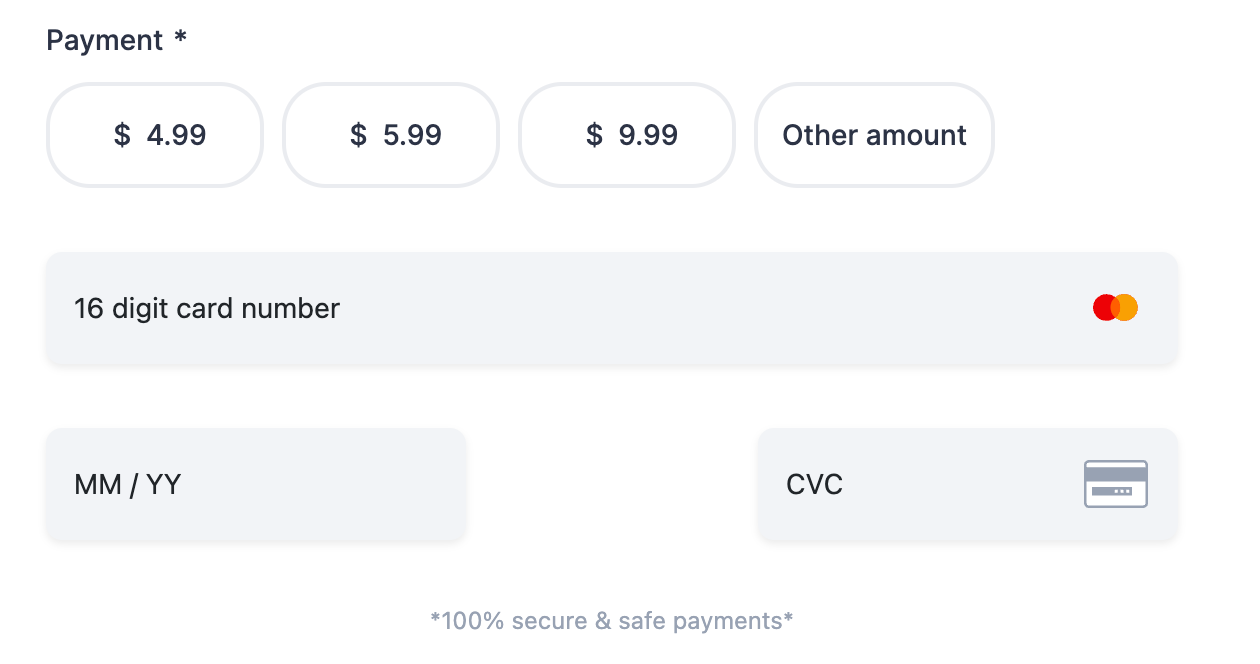
- Nonprofit organization. Add the payment element to a donation form, enable manual payments, and turn on the Other Amount option so donors can type any contribution. The form records each submission and the order appears in the Payments dashboard for later reconciliation.
- Local bakery. Create a product in a checkout form, enable Cash on Delivery in Manual Payment Methods, and let customers choose that option at checkout. When an order is submitted, it shows as Pending; you later mark it as Paid after receiving cash.
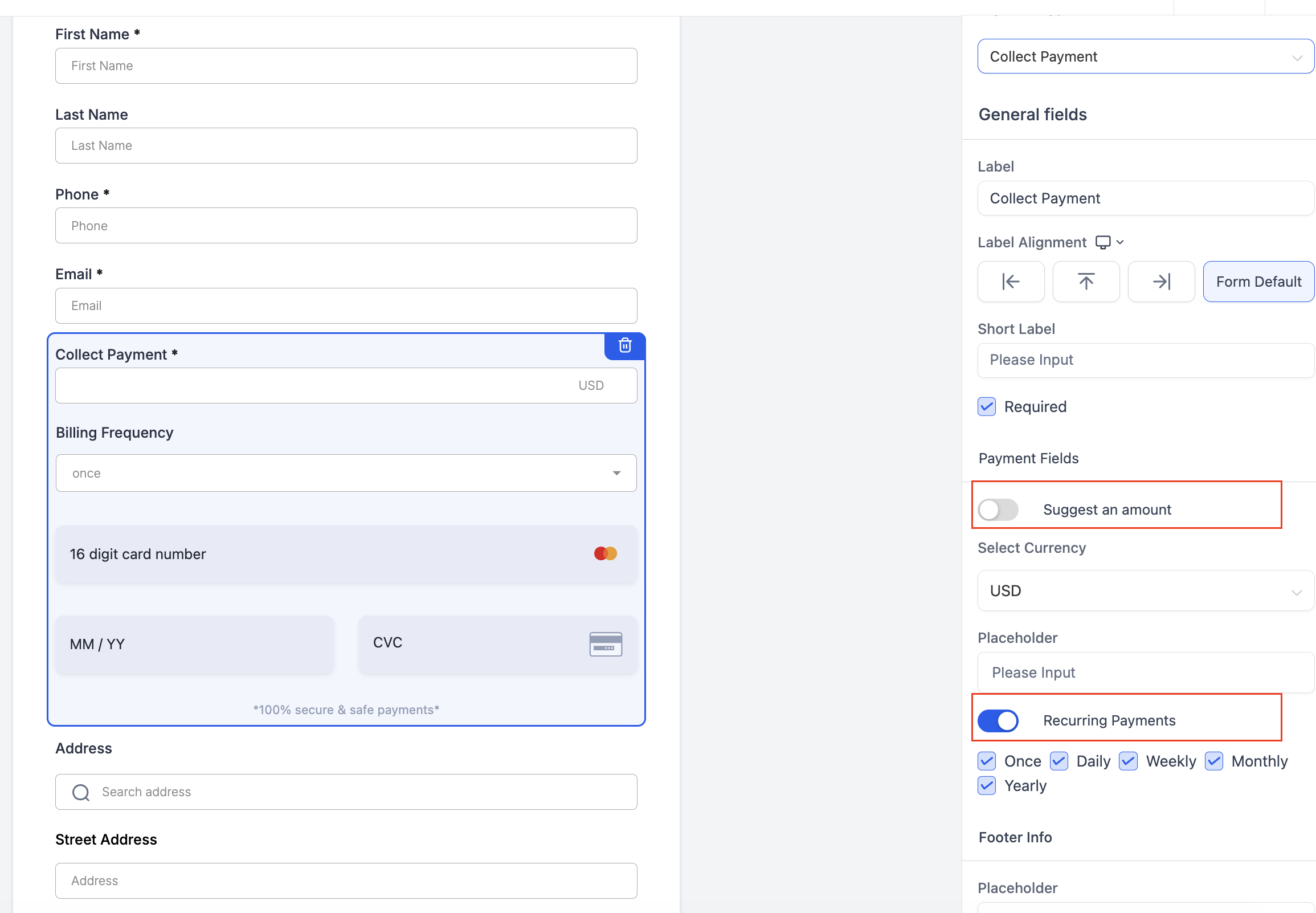
- Fitness studio. Set up a membership form with the Custom Amount element, enable the Recurring Payment toggle, and choose monthly billing. Members select a payment amount and frequency; the platform handles the recurring schedule while you can still offer offline payment alternatives.
04The numbers and rules that matter
- Add up to 15 suggested amounts.
05How to set up and use payment in forms in HighLevel
Enable manual payments for forms and surveys
- Open the Payments section, then go to Integrations and select Manual Payment Methods.
- Activate Cash on Delivery or any Custom Payment Methods you need.
- Enter the description and the post purchase message for each method.
- Confirm that the manual payment options are turned on for forms and surveys.
Automatic display in forms and surveys
- When a product is added to a form or survey, the manual payment option appears automatically in the payment selection.
Order processing and payment collection
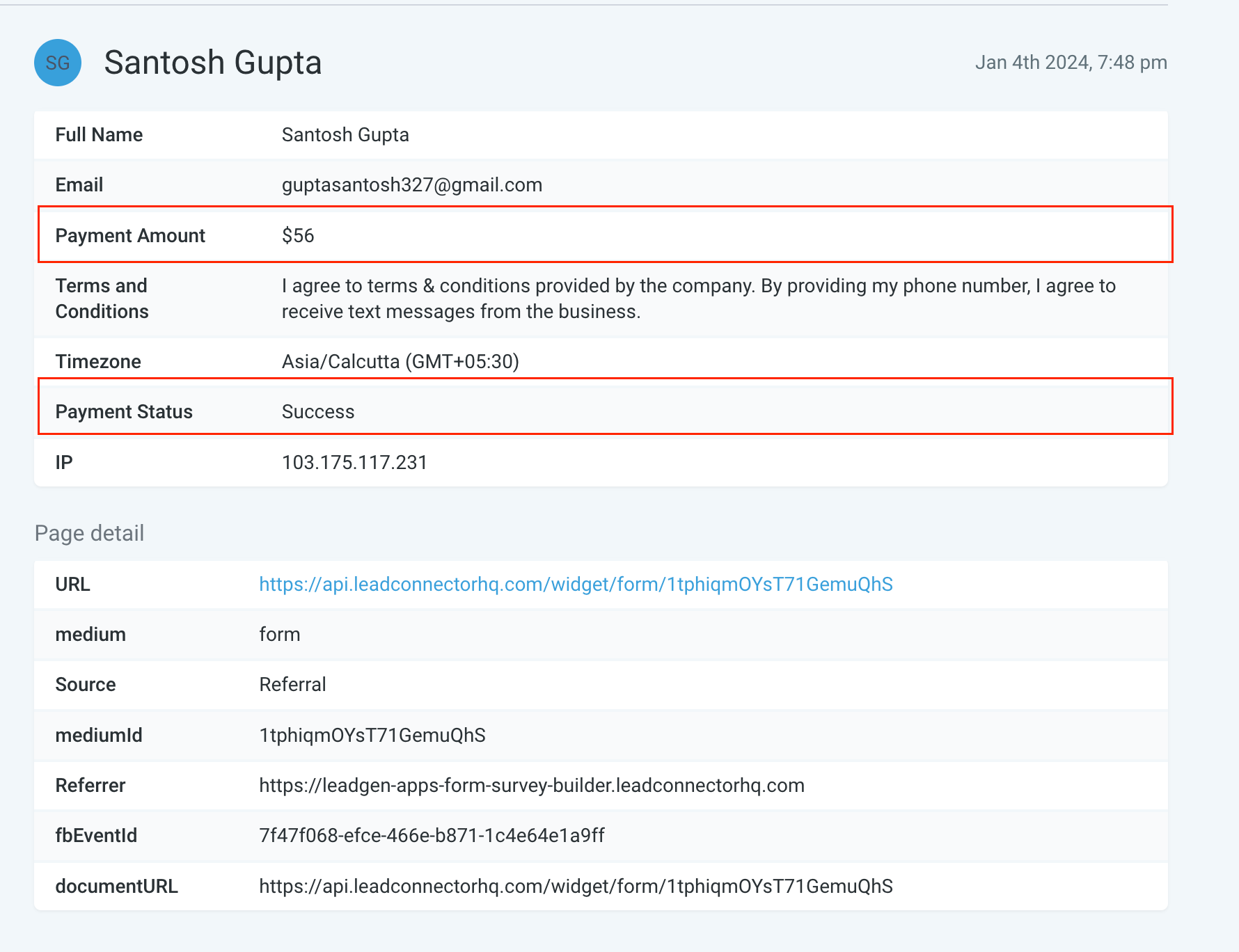
- When a form is submitted with manual payment selected, the order appears in Payments > Orders with a Pending status.
- Mark the order as Paid and select the payment mode such as cash, check, or bank transfer.
- The updated payment status syncs automatically with the Form Submissions section.
06What it looks like in HighLevel
07Settings that matter
- Cash on Delivery. Turns on the option for customers to pay with cash when the product is delivered.
- Custom Payment Methods. Allows you to define offline methods such as bank transfer or checks and set their labels.
- Recurring Payment toggle. Enables a subscription style where the donor selects a billing frequency for repeated contributions.
- Other Amount option. Lets donors enter a value that is not part of the suggested amount list.
08Things to know before you rely on it
- NMI and Authorize.net integrations require the First Name field to be filled.
- Refunds cannot be processed for manual payments at this time.
- The older API based Stripe Connect method is no longer supported.
- When a form is used inside a calendar with custom payments, the payment element will not appear.
- Using multiple forms in a funnel for a single payment is not yet supported.
- Undo and Redo actions are unavailable with the Payment element.
09How it connects to the rest of HighLevel
- Build and edit the form that will hold the payment element Form builder guide
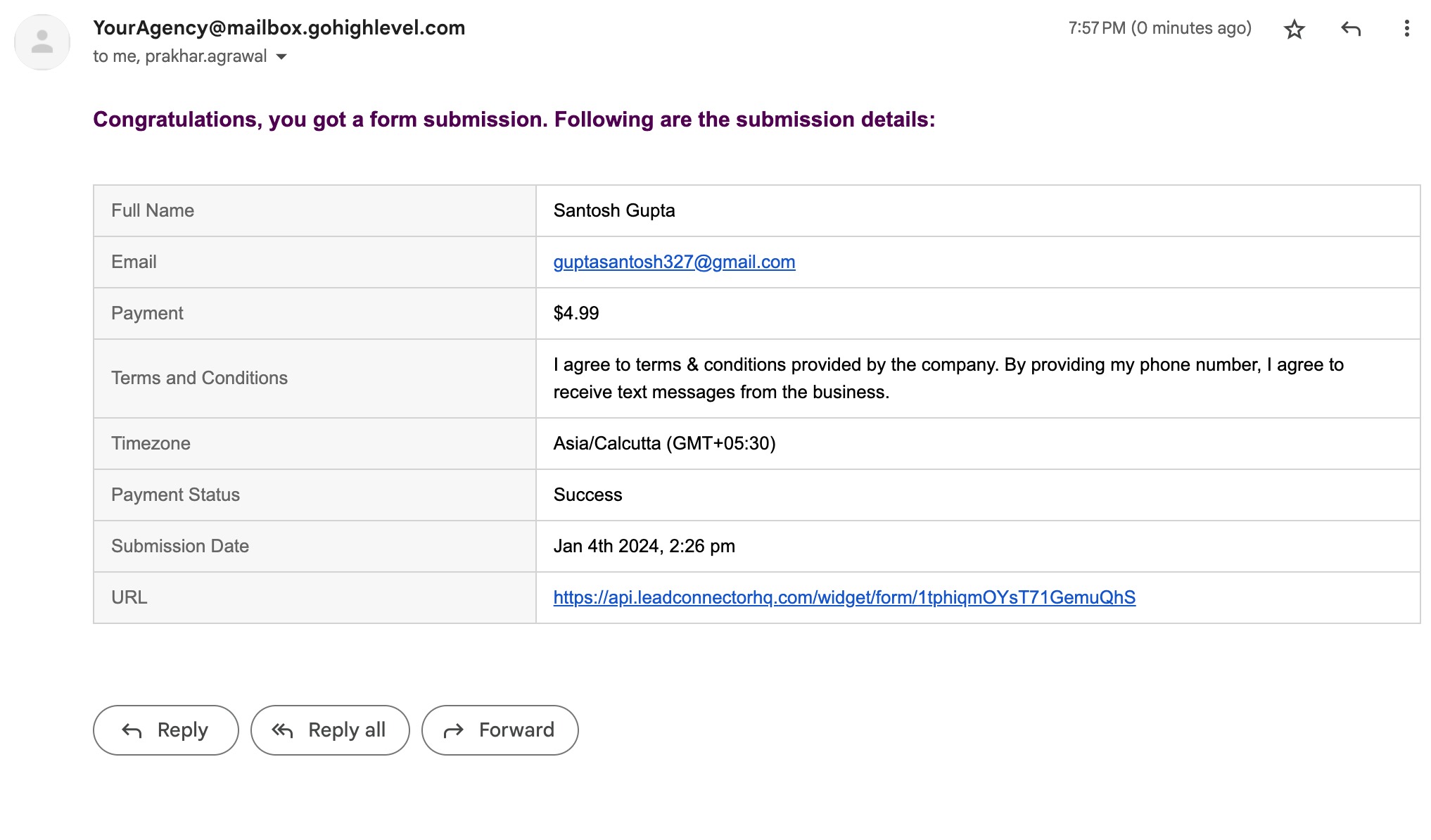
- Set up email alerts to notify you and the customer of payment status Email notifications
Michael's take

Adding payment to a form lets a small nonprofit or a cash heavy retailer collect money without building a separate checkout page. It centralizes tracking and lets you offer both online and offline options, simplifying order management.
Don’t forget to enable the manual payment options before publishing the form.