
01Who this is for
- Marketing managers benefit by building quiz style forms that evaluate respondents right away for lead qualification.
- Sales teams can embed budgeting calculators in surveys to capture purchase intent and trigger follow up sequences.
- Service providers use score fields to assess client needs in real time and route them to appropriate service pages.
02Math calculations, explained
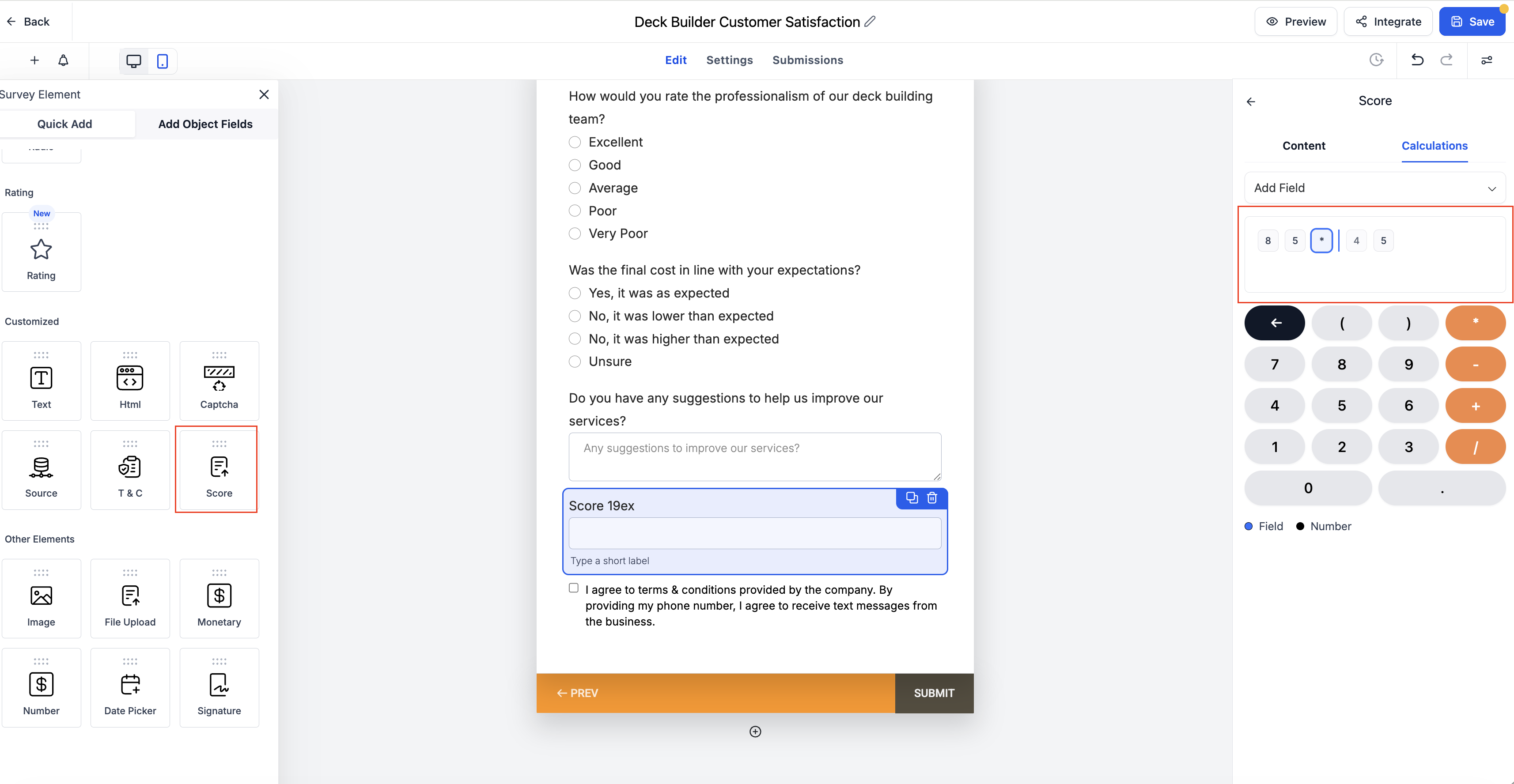
The feature introduces a new custom field type called Score. When added to a form or survey, the field runs a calculation based on other numeric or monetary inputs. The calculation is defined with a formula editor that supports inline cursor editing and navigation keys.
Scores are computed as the respondent enters data in preview mode, so the displayed value changes in real time during preview. The resulting score can be referenced in conditional logic, allowing redirects, disqualification, or field visibility decisions.
You access the score field from the form or survey builder’s Quick Add panel. After placing it, you open the calculator editor, select the fields to include, write the expression, and test it in preview mode.
03How businesses use math calculations
- Real estate agency. Agents add a Score field that calculates a buyer's affordability based on income and down payment inputs. The formula uses the monetary fields from the form, and the resulting score determines whether the lead is routed to a financing specialist.
- Fitness studio. The studio creates a health assessment survey with numeric fields for age, weight, and activity level. A Score field tallies a wellness score, which is then used in conditional logic to show personalized class recommendations.
- Financial advisory firm. Advisors embed a budgeting calculator in a client intake survey. Monetary fields for income and expenses feed into a Score field that computes net savings, triggering a follow up workflow when the score falls below a threshold.
04How to set up and use math calculations in HighLevel
Add a score field and configure calculations
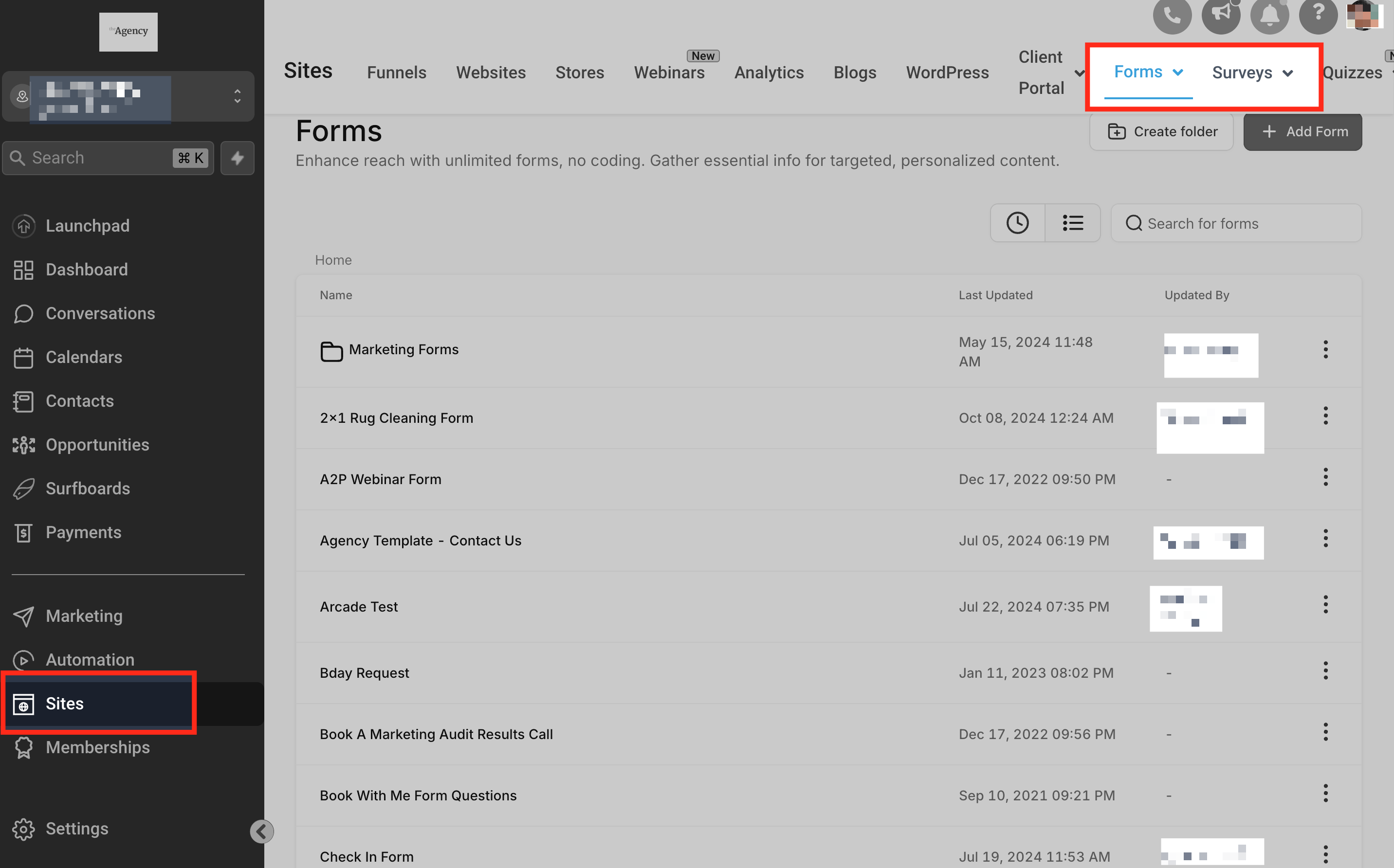
- Open the form or survey builder in HighLevel.
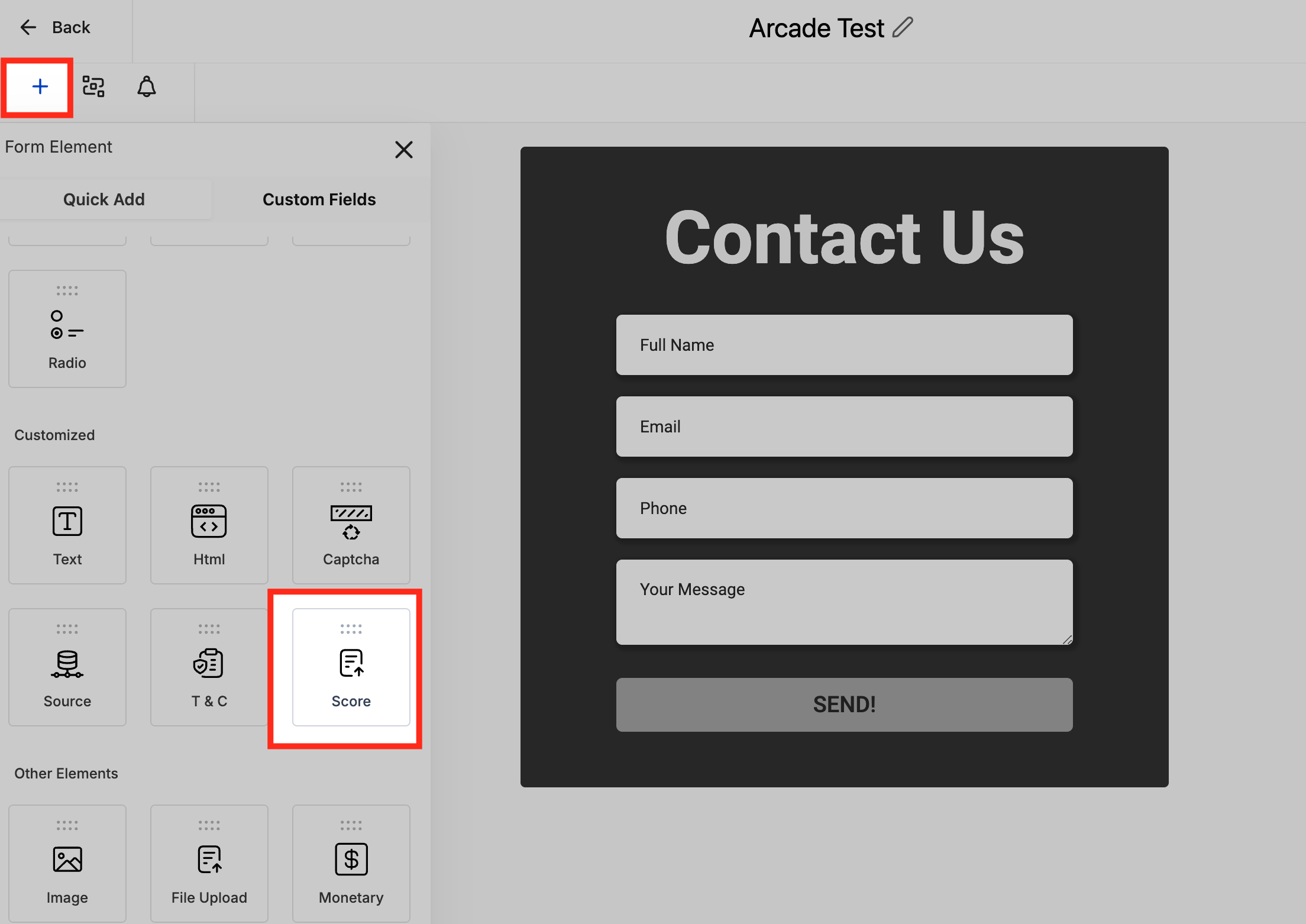
- Select the Quick Add panel.
- Drag the "Score" field onto the form canvas.
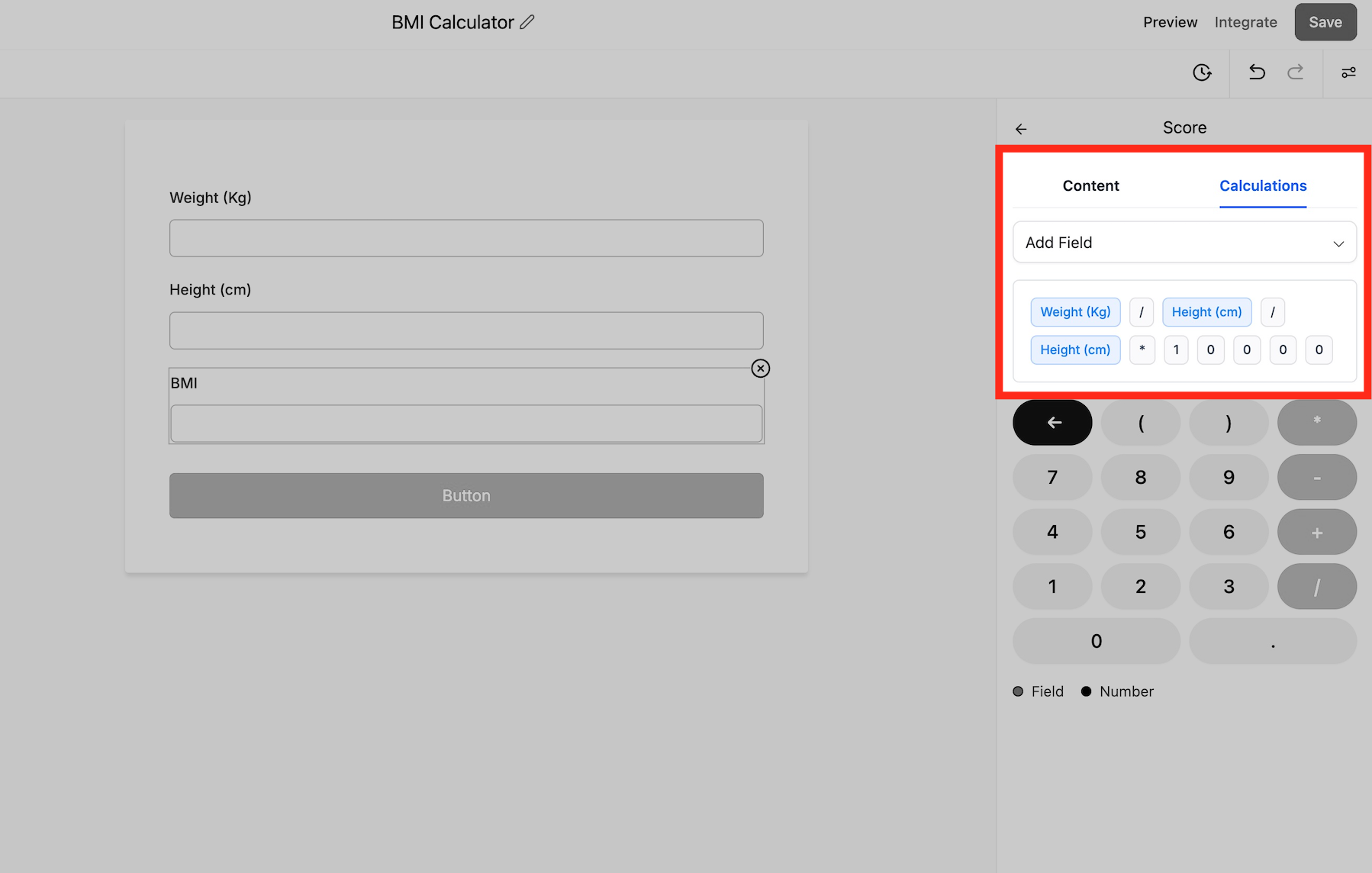
- Click the Score field to open its calculation editor.
- Choose the numerical or monetary fields to include in the formula.
- Enter the calculation expression using the inline cursor editor.
- Switch to preview mode to verify that scores update in real time.
05What it looks like in HighLevel
06Settings that matter
- Score. Defines a custom field that calculates a value from other numeric or monetary inputs.
- Calculator. Provides the logic editor where you build the arithmetic expression for the Score field.
07Things to know before you rely on it
- Only numerical type fields and monetary type fields are accepted in calculations.
- Score values can be used in conditional logic such as redirects, disqualification, or field visibility.
08How it connects to the rest of HighLevel
- Learn how to design and share a contact form in HighLevel. Contact form builder
- Set up email alerts and auto responders for forms and surveys. Email notifications
- Embed HighLevel forms on external website builders. Embedding forms
Michael's take

The Math calculations feature lets you add a Score field and set up a calculator, with calculations performed in real time during preview.
The first thing to get right is the Score field’s formula. Place the cursor where you need to change a number or operator, use the arrow keys to fine tune the expression, and keep the rest of the formula intact.