
01Who this is for
- Founders can drive targeted offers by showing category specific calls to action.
- Marketing agencies can create reusable templates for multiple client quizzes, saving setup time.
- Online course creators can tailor resource recommendations to each learner's quiz outcome.
02Individual category result personalization, explained
The feature lives inside the Quiz Builder. When a quiz is submitted, HighLevel evaluates the scores and picks the category that matches the chosen display option. It then renders the content you defined for that category on the result page.
You can decide whether the content applies to the highest scoring category, the lowest scoring category, or both. The first category you configure can act as a template, letting you copy its layout before customizing other categories.
03How businesses use individual category result personalization
- Fitness studio. The studio creates a readiness quiz and uses Individual Category sections to show a specific workout video, a class schedule image and a sign up CTA for the category that matches the member’s fitness level.
- SaaS onboarding team. The team builds a product fit quiz and assigns unique onboarding guide PDFs, tutorial videos and a trial start button to each result category, ensuring new users see the most relevant resources.
- Real estate lead generator. A realtor designs a buyer type quiz and configures separate property listings, neighborhood images and a contact form CTA for each buyer persona category, so leads view listings that suit their preferences.
04The numbers and rules that matter
- Supported content types: Text, Images, Videos, CTA text, CTA links.
05How to set up and use individual category result personalization in HighLevel
Set up Individual Category Result Personalization
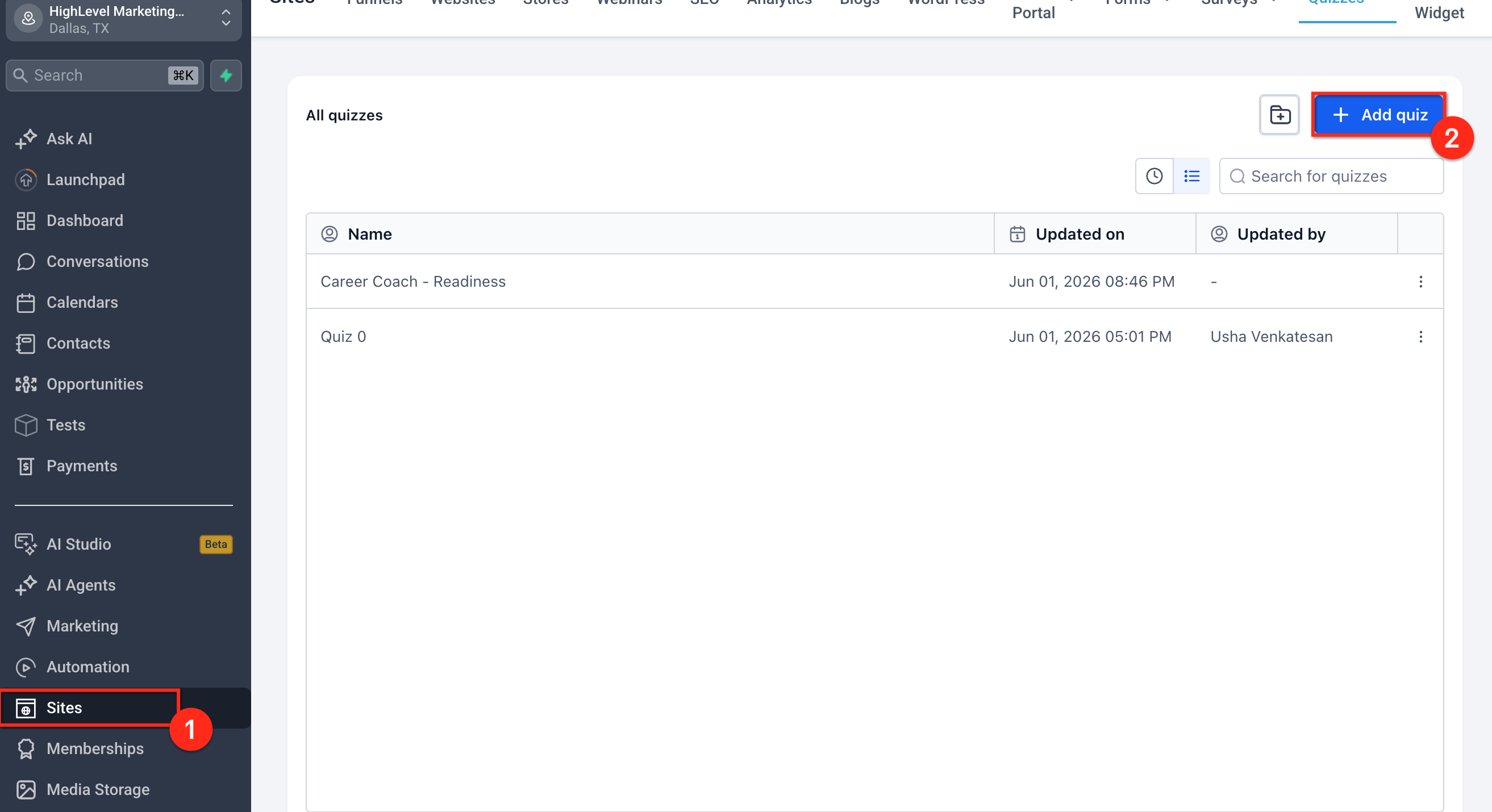
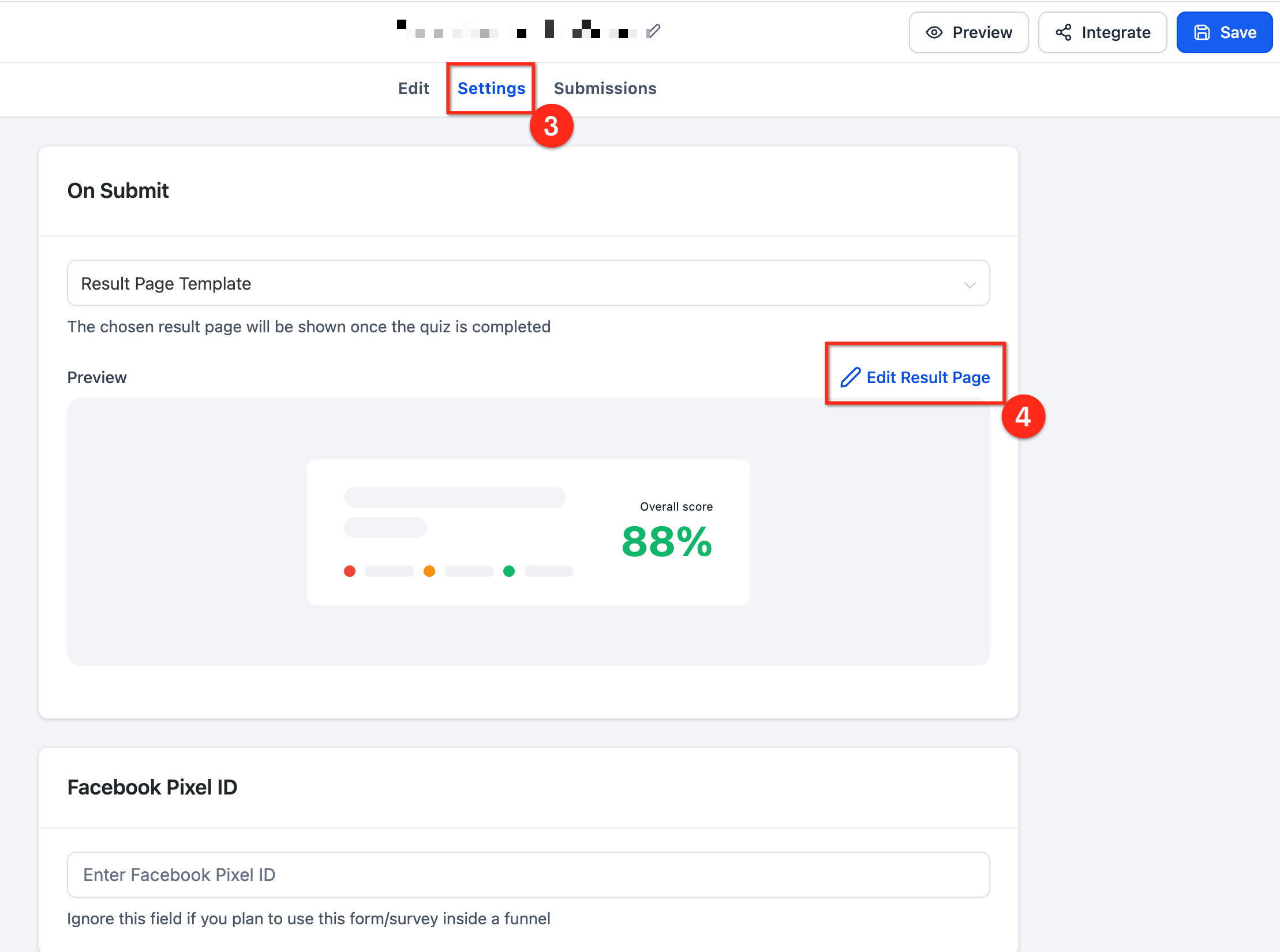
- Open the Quiz Builder.
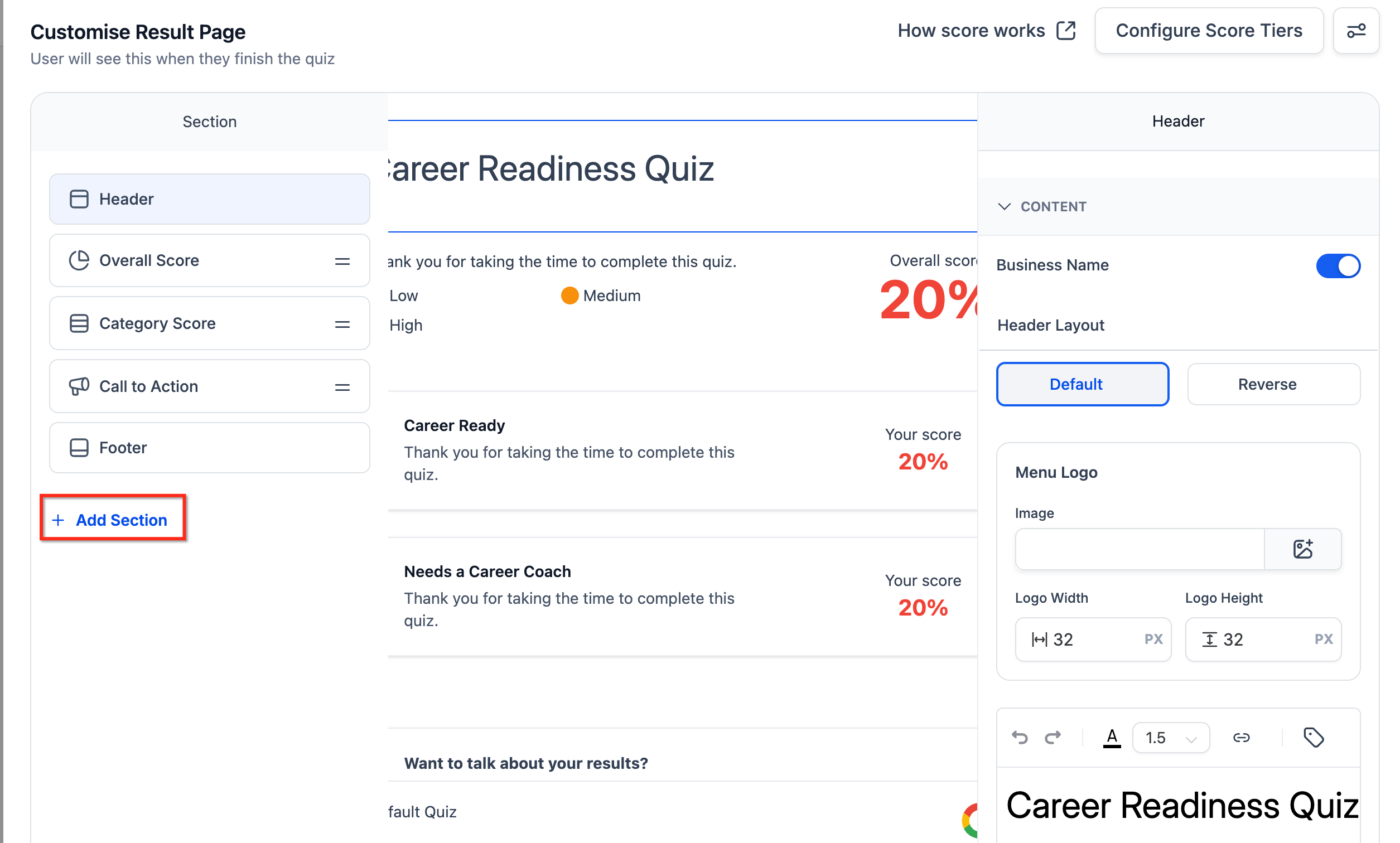
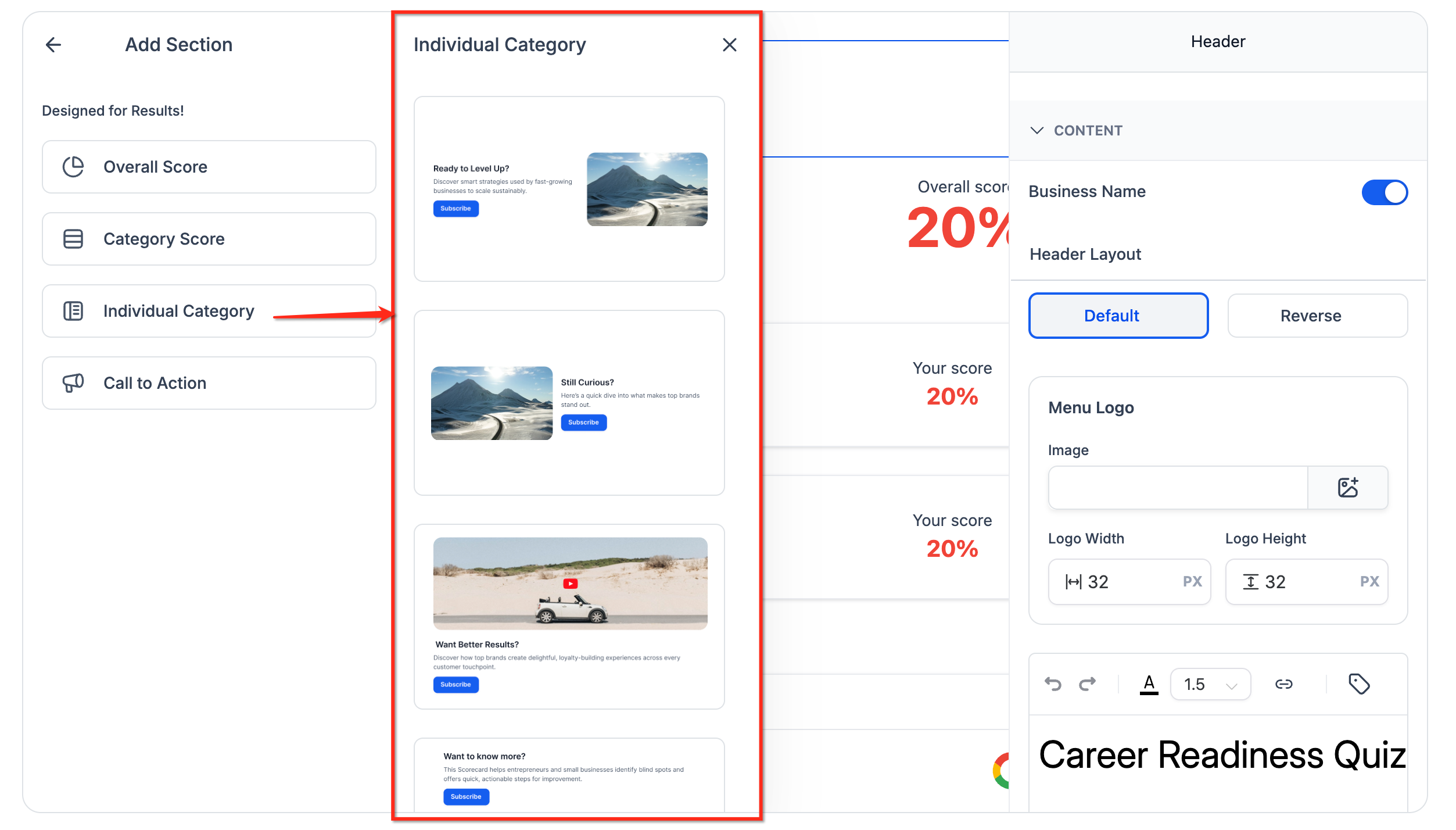
- Click the “+ Add Section” button in the left panel.
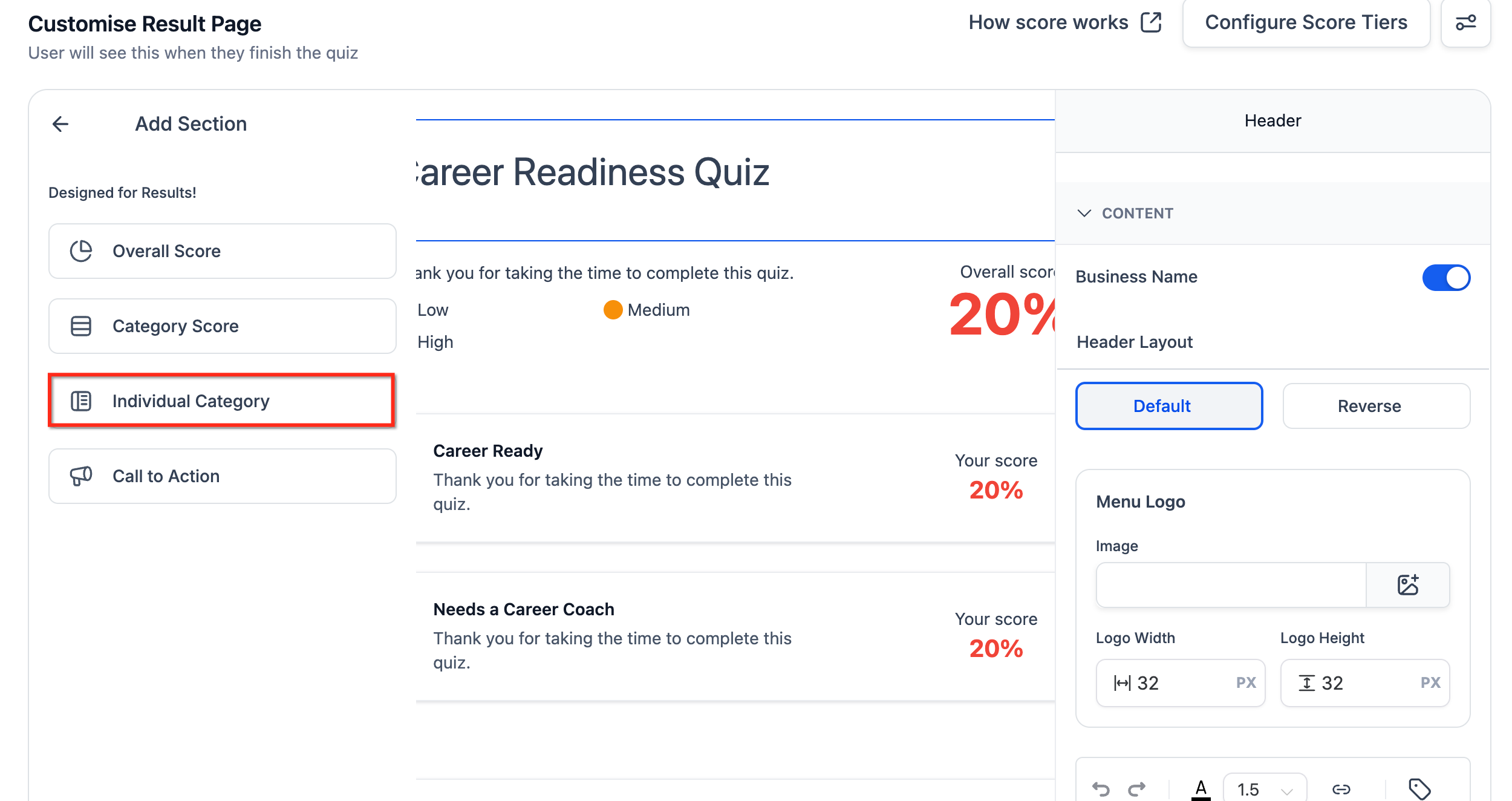
- Select “Individual Category” from the section picker.
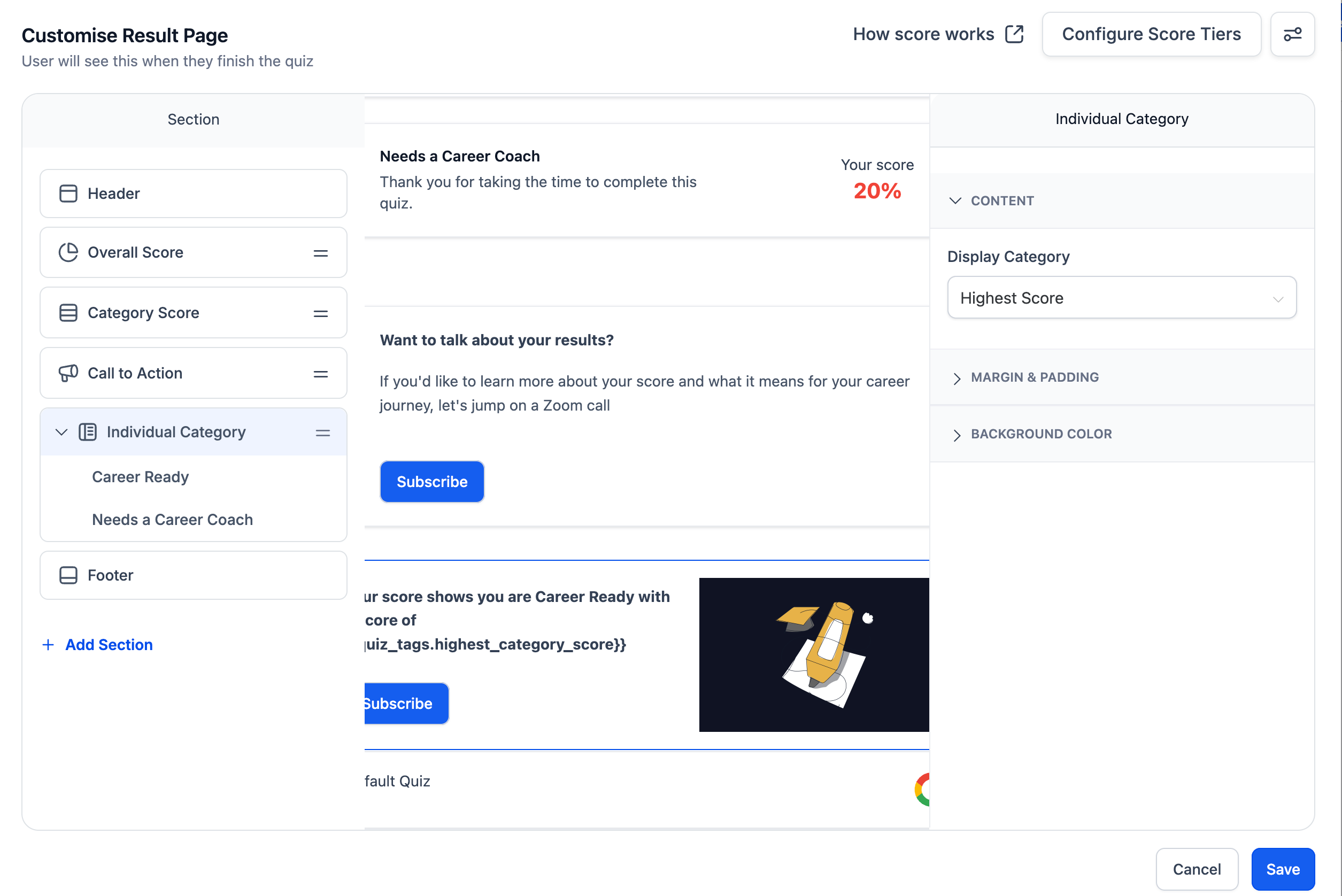
- Click the newly added Individual Category section to expand its options.
- Choose the category you want to customize.
- In the right panel, locate the Display Category setting and set it to Highest Score or Lowest Score.
- Add the desired text, images, videos, CTA text and CTA links for that category.
- Repeat the process for each additional category you wish to personalize.
- Preview the result page to verify the experience.
- Save the quiz and publish it.
06What it looks like in HighLevel
07Settings that matter
- Display Category. Determines whether the content you set appears for the quiz taker's highest scoring category or lowest scoring category.
08Things to know before you rely on it
- The first category can be used as a starting template for other categories.
- The feature works only with category based quizzes where scoring determines result categories.
09How it connects to the rest of HighLevel
- Learn how to add sections and personalize quiz results with the Quiz Builder. Quiz Builder guide
- See how to configure result pages to show the highest or lowest scoring category. Highest/lowest category settings
- Customize the layout and design of quiz result pages. Result page customization
Michael's take

Beware that the power to tailor each category can quickly become overwhelming if you try to overengineer every outcome. Stick to the core messages you need for each segment and let the default template do the heavy lifting.
When you get it right, the quiz feels like a conversation that knows the user’s preferences, and the right CTA appears at the right moment.