
01Who this is for
- Content marketers who need to ensure the blog layout looks correct on all devices before publishing.
- Small business owners who want to verify that SEO metadata and author information display properly on desktop and mobile.
- Agencies that manage multiple client blogs and require a quick visual check of each post’s appearance.
02Blog post previews, explained
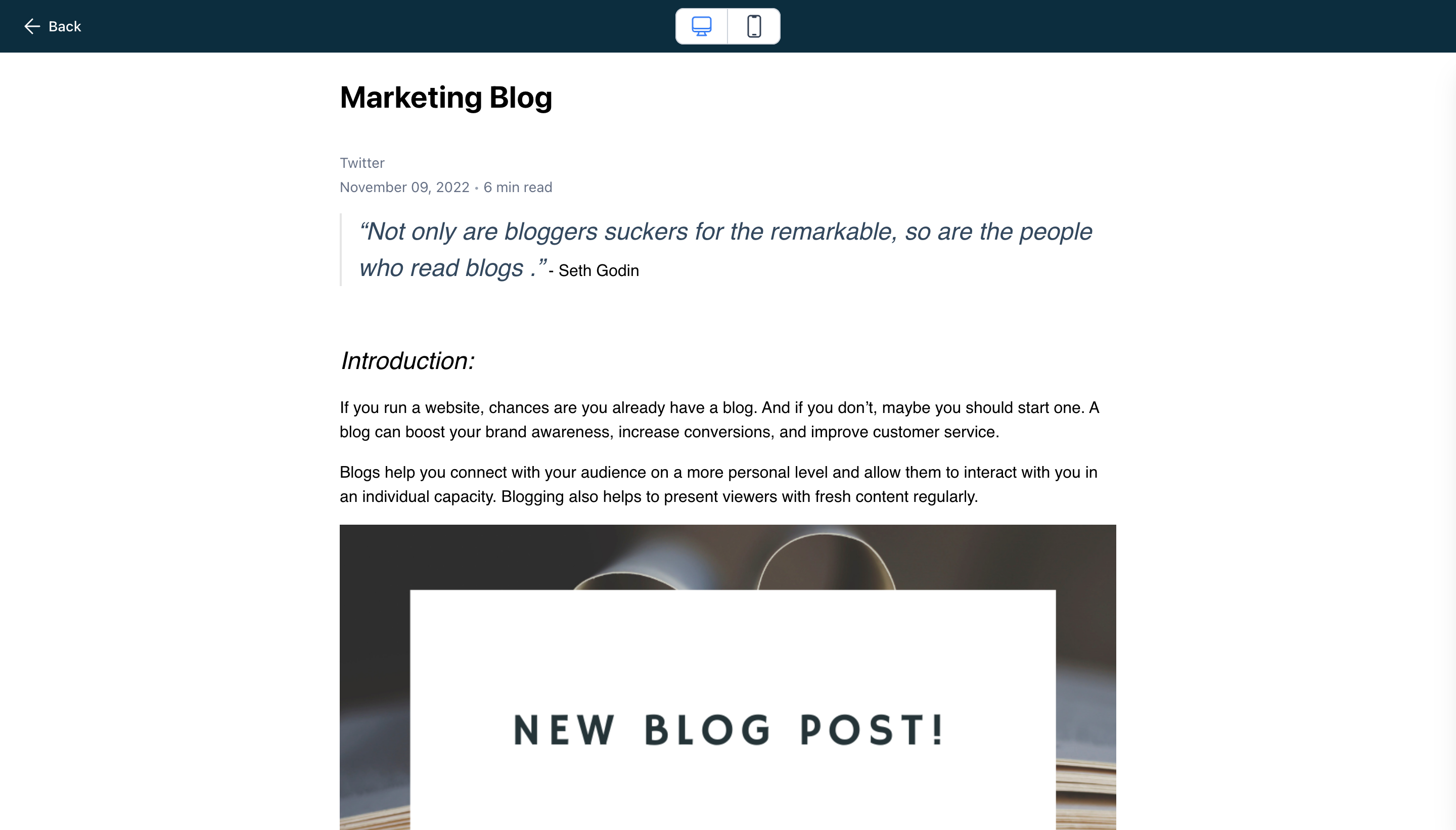
The preview mode displays the blog post as it will appear after publishing. In this view all hyperlinks, videos and author details are clickable. The preview shows the featured image, title, category, publish date, read time, content, tags, author and a back to blog button that is not functional in preview.
03How businesses use preview blog post
- Real estate agency. The agency opens the preview to check that property listings and images display correctly on mobile devices before sharing the blog post with potential buyers.
- Health clinic. The clinic uses preview to confirm that an article with an embedded video and author bio works on desktop screens before sending it to patients.
- SaaS startup. The startup checks the preview to ensure tags, read time and the back to blog button appear as expected on both desktop and mobile before publishing product updates.
04How to set up and use preview blog post in HighLevel
Open preview mode for a blog post
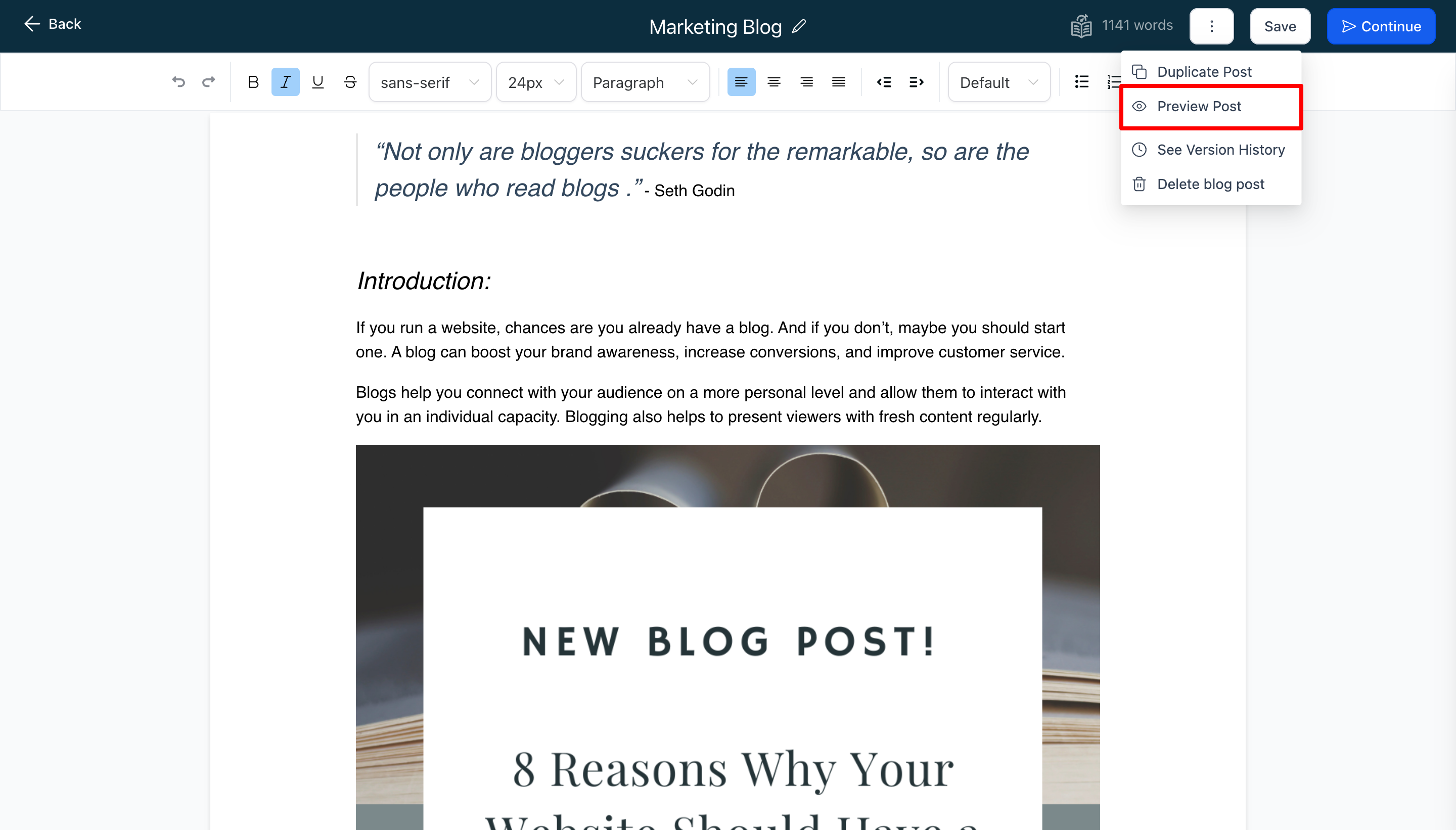
- Click the three dots in the top right menu of the builder.
- Select "Preview Post" from the menu that appears.
Switch between desktop and mobile preview
- In the preview mode, click the button at the top to toggle between mobile and desktop screens.
05What it looks like in HighLevel
06Things to know before you rely on it
- Category, Keywords, Author and Slug cannot be changed after the blog post is published.
- A fix for editing these fields after publishing is being developed and will be released in the future.
07How it connects to the rest of HighLevel
- Set up and manage blogs in HighLevel Blog setup guide
- Create an RSS feed for your HighLevel blog RSS feed guide
- Add search and category navigation to your HighLevel blog Blog navigation guide
Michael's take

Previewing a blog post can give you a false sense of confidence if you forget that some fields lock down after publishing. Those fields. Category, keywords, author and slug. Cannot be edited later, so a missed typo or mis tag can become a permanent issue.
When you get the preview right, you can walk away knowing the post will look polished on any device. It’s a quick way to catch layout quirks and verify that every link and video works before the world sees it.