
01Who this is for
- Content marketers, they can organize posts into clear sections and let readers locate topics fast.
- Small business owners with a blog, the tools give a simple way to boost site navigation without coding.
- SEO consultants, the hierarchy created by categories and search aids site indexing.
02Blog search and category navigation, explained
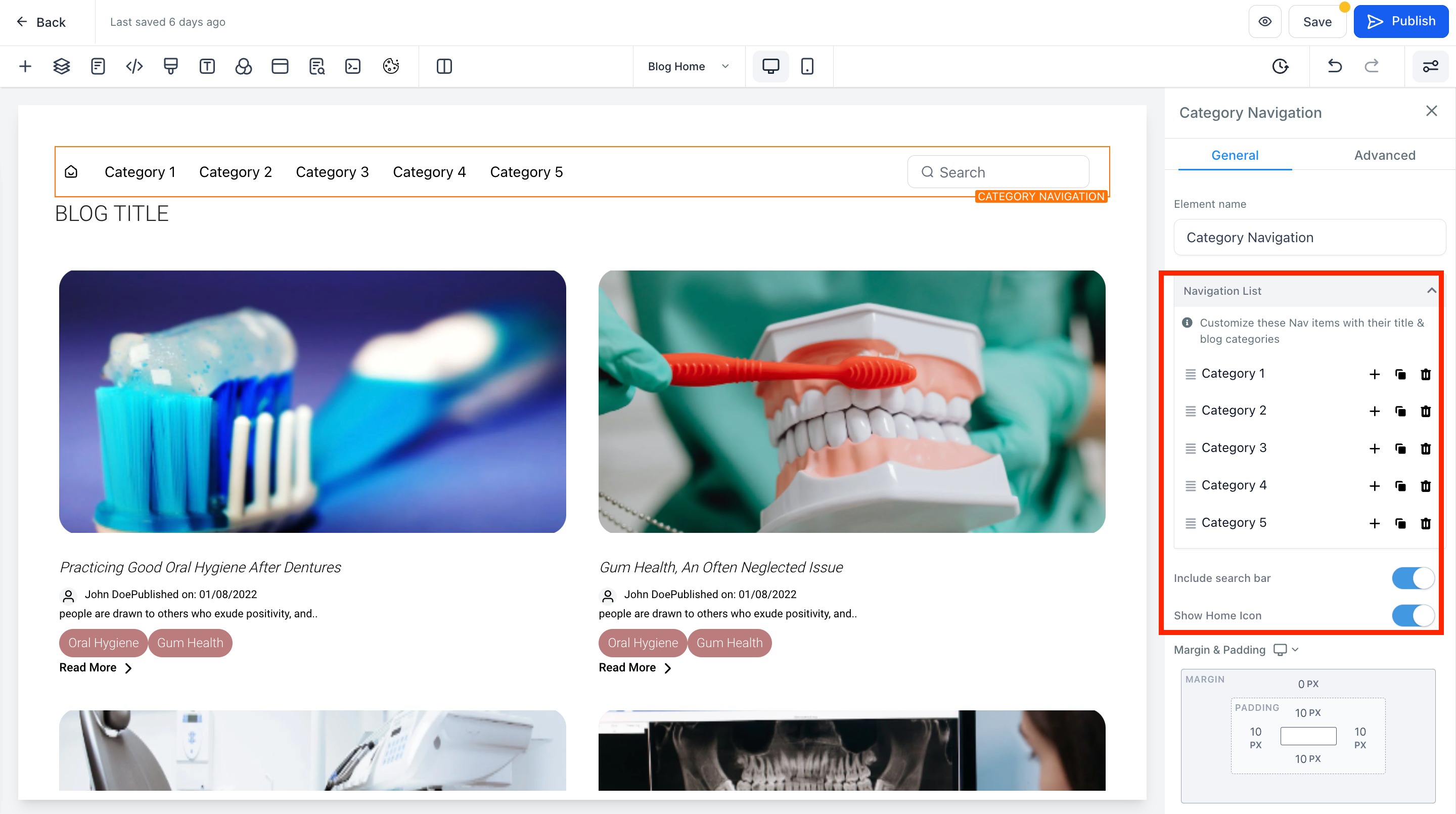
The search toggle adds a box that visitors can use to query blog posts. When enabled, the widget looks through all published posts and returns matching results. The category navigation element displays a list of categories; each entry links to the collection of posts assigned to that group.
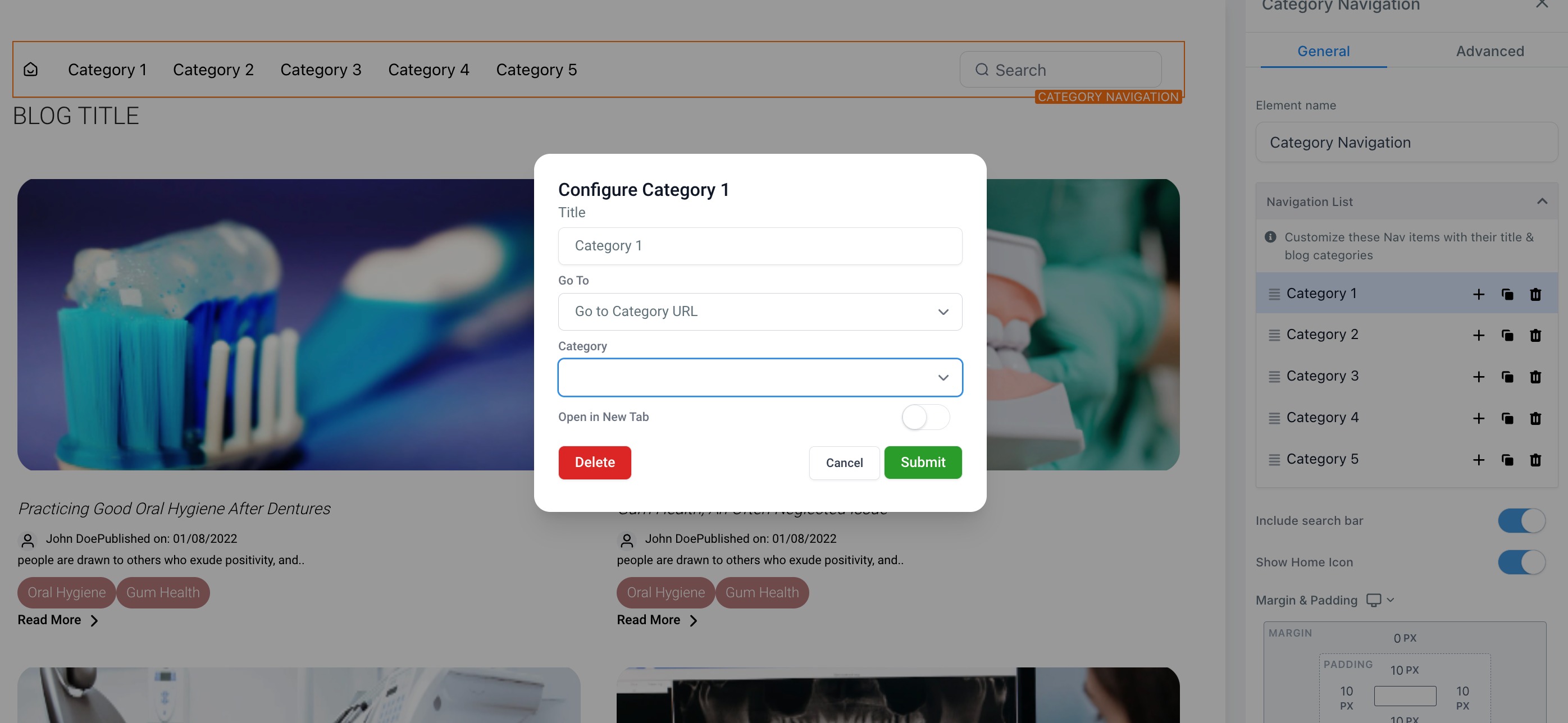
Both elements are placed inside the blog’s site editor. Once dropped onto the page, you can rename each category and set its target URL. The search option can be turned on or off with a single switch. The features are part of the Sites module under the specific blog you are editing.
03How businesses use blog search and category navigation
- Digital marketing agency. The agency adds category navigation to client blogs, grouping services, case studies, and tips. The search box lets prospects locate relevant content, increasing time on site.
- SaaS company with a product blog. The company creates categories for releases, tutorials, and best practices. Enabling search helps developers quickly find the documentation they need.
- Local service provider. A plumber uses categories such as "DIY tips" and "Service areas" on their blog and activates the search field so homeowners can discover solutions right away.
04Before you start
- A blog must already exist in HighLevel and be accessible via Sites > Blogs.
05How to set up and use blog search and category navigation in HighLevel
Add search and category navigation to a blog
- Navigate to Sites > Blogs.
- Select the desired blog from the list and click the Edit the Site button.
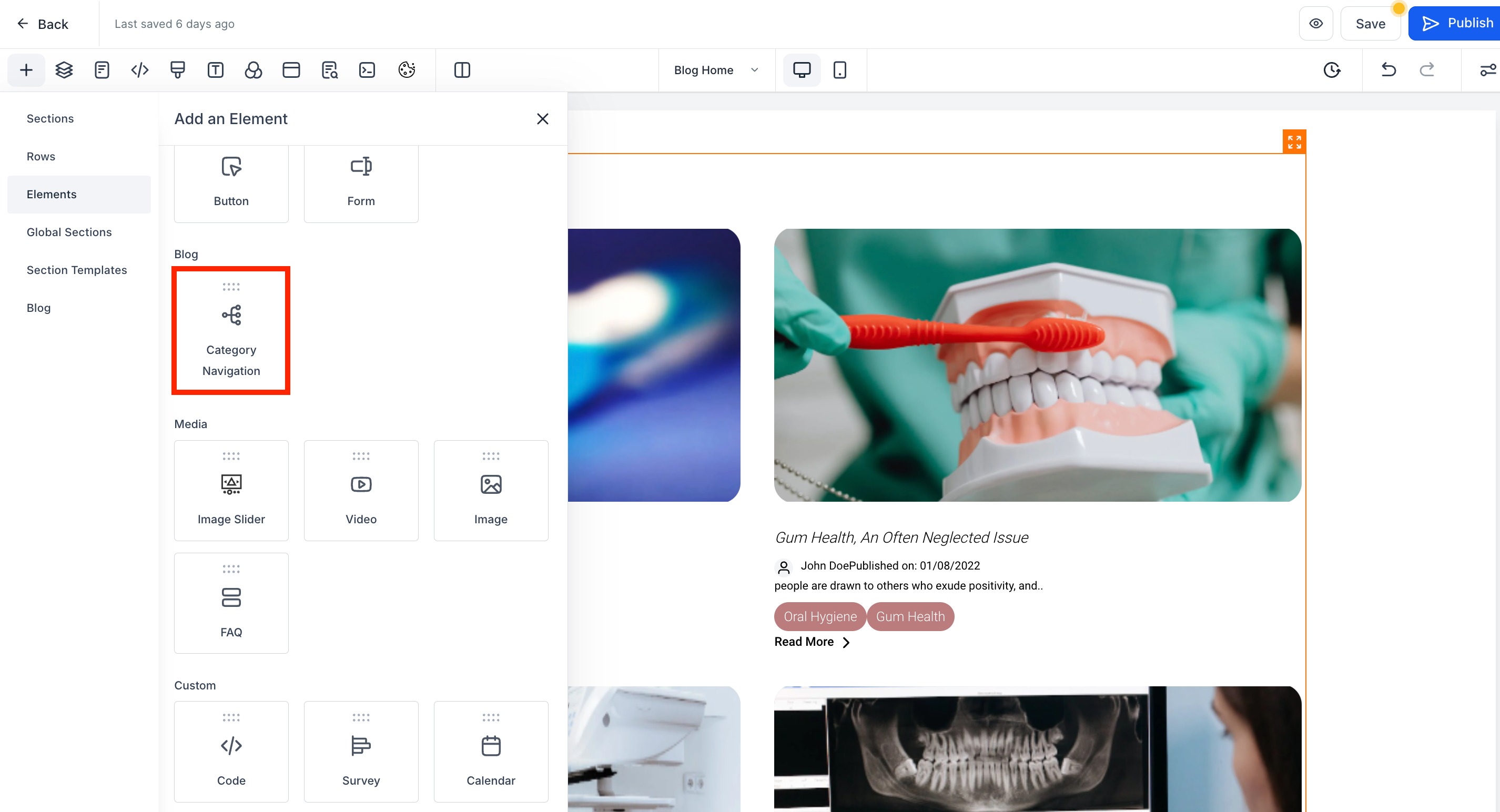
- In the blog editor, open the Elements panel and locate the Category Navigation option.
- Drag the Category Navigation element onto the page where you want it displayed.
- Edit each category label and link by clicking a category slot, then assign the appropriate blog post collection.
- Find the Blog Search setting and switch it on or off according to your preference.
06What it looks like in HighLevel
07Settings that matter
- Category Navigation element. Controls the list of categories shown on the blog and the links each category points to.
- Blog Search. Enables or disables the search box that queries blog content.
08How it connects to the rest of HighLevel
- Start building blogs and posts before adding navigation. Getting started with blogs
- Create individual blog posts that will populate the categories you define. Create blog posts
- Add SEO details to each post to improve visibility once categories are in place. Edit blog post SEO
Michael's take

Adding search and category navigation to a blog is a quick win for a small business. It gives visitors a clear path to find what they need and helps search engines understand the site’s structure, which can lift organic traffic without any extra cost.
Don’t forget to actually link each category to the right posts, or the navigation will just lead to dead ends.