
01Who this is for
- Content marketers who need a single place to draft, schedule, and publish articles for SEO purposes.
- Small business owners who want to share news, tips, and product updates without using external blogging tools.
02Blogs in HighLevel, explained
The Blogs feature lives under Sites. It provides a blog container where you define site details, add posts, and manage categories and authors. Inside each post you can set the URL slug, canonical link, keywords, and SEO metadata.
Design options let you pick a Standard or Compact layout for the list and individual post pages. You can edit the appearance of cards, images, tags, headings, and dates to match your brand. All settings are saved within the HighLevel platform.
03How businesses use blogs in HighLevel
- Dental practice. Create a blog to publish oral health articles, assign each post to the dentist author, and set category tags for preventive care. Use the blog list element on the practice website to showcase recent posts.
- Real estate agency. Write market updates and property guides, add the agent as author, and categorize posts by region. Customize the layout to highlight featured listings within the blog cards.
- SaaS startup. Publish product tutorials and industry insights, set SEO titles and descriptions for each post, and schedule releases to align with feature launches. Place the blog post list on a funnel step to capture leads.
04The numbers and rules that matter
- Page width inside the blog post editor is 736 px.
05How to set up and use blogs in HighLevel in HighLevel
Create a blog
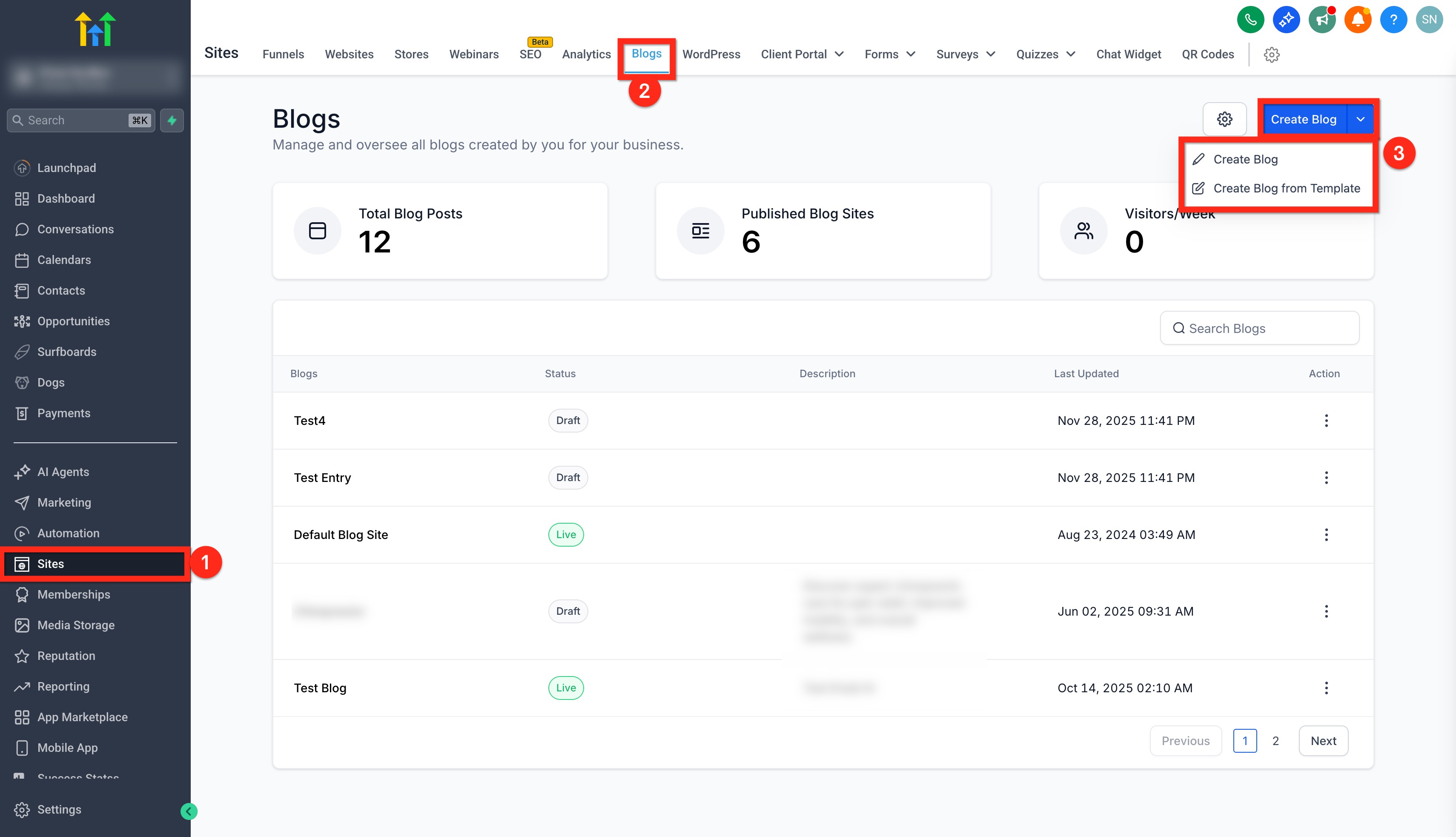
- Navigate to Sites.
- Select Blogs.
- Click Create Blog.
- Choose to build from scratch or apply a template.
Add blog site details
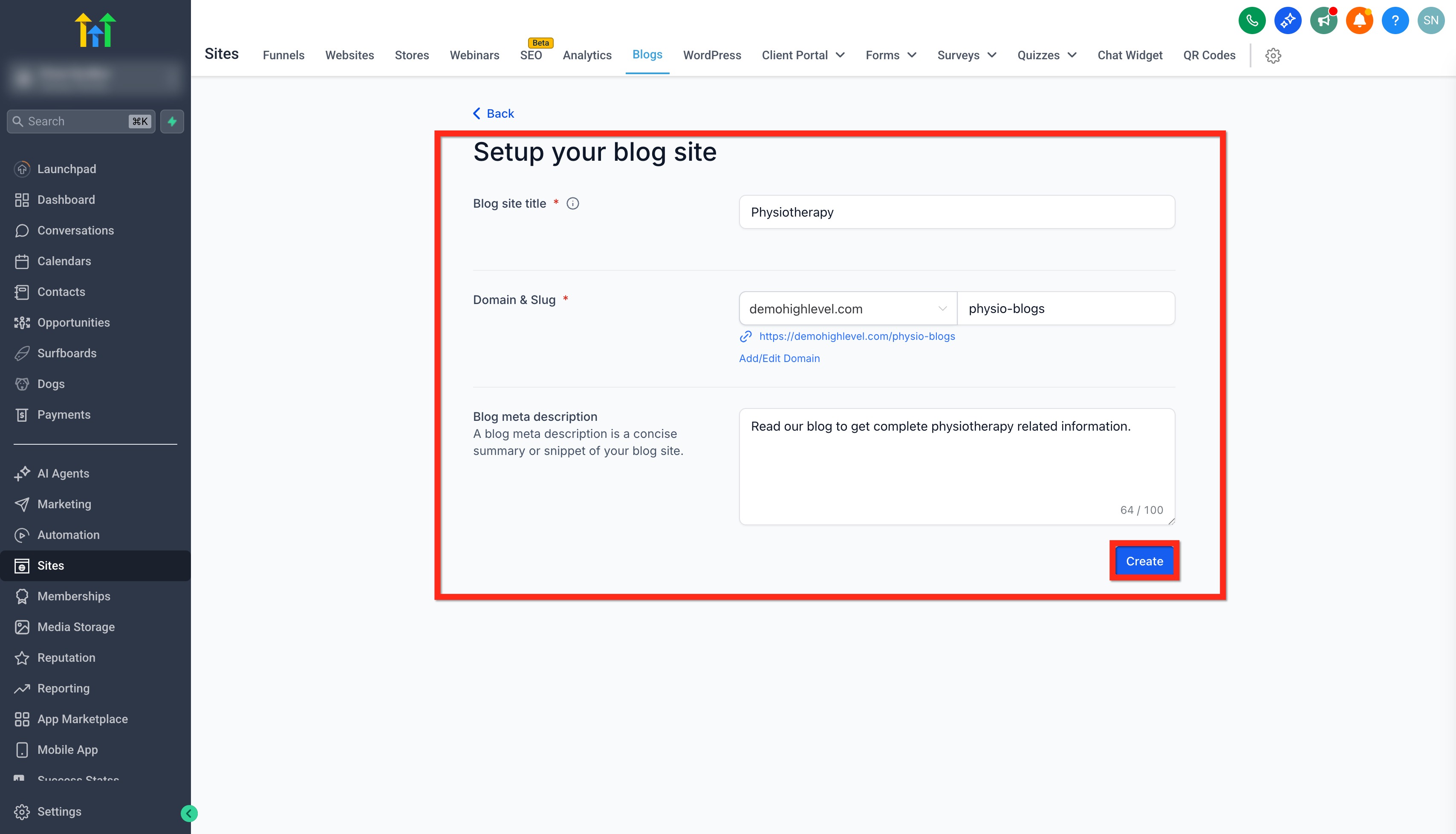
- Enter the Blog Site Title that appears in the browser tab.
- Select or add a domain, or skip to connect later.
- If you need to switch domains, use Remove Domain in Blog Settings then connect the new domain.
- Enter a Slug for the blog URL.
- Provide a Blog Meta Description (optional but recommended).
Create blog post
- Go to Sites > Blogs.
- Open the blog you created.
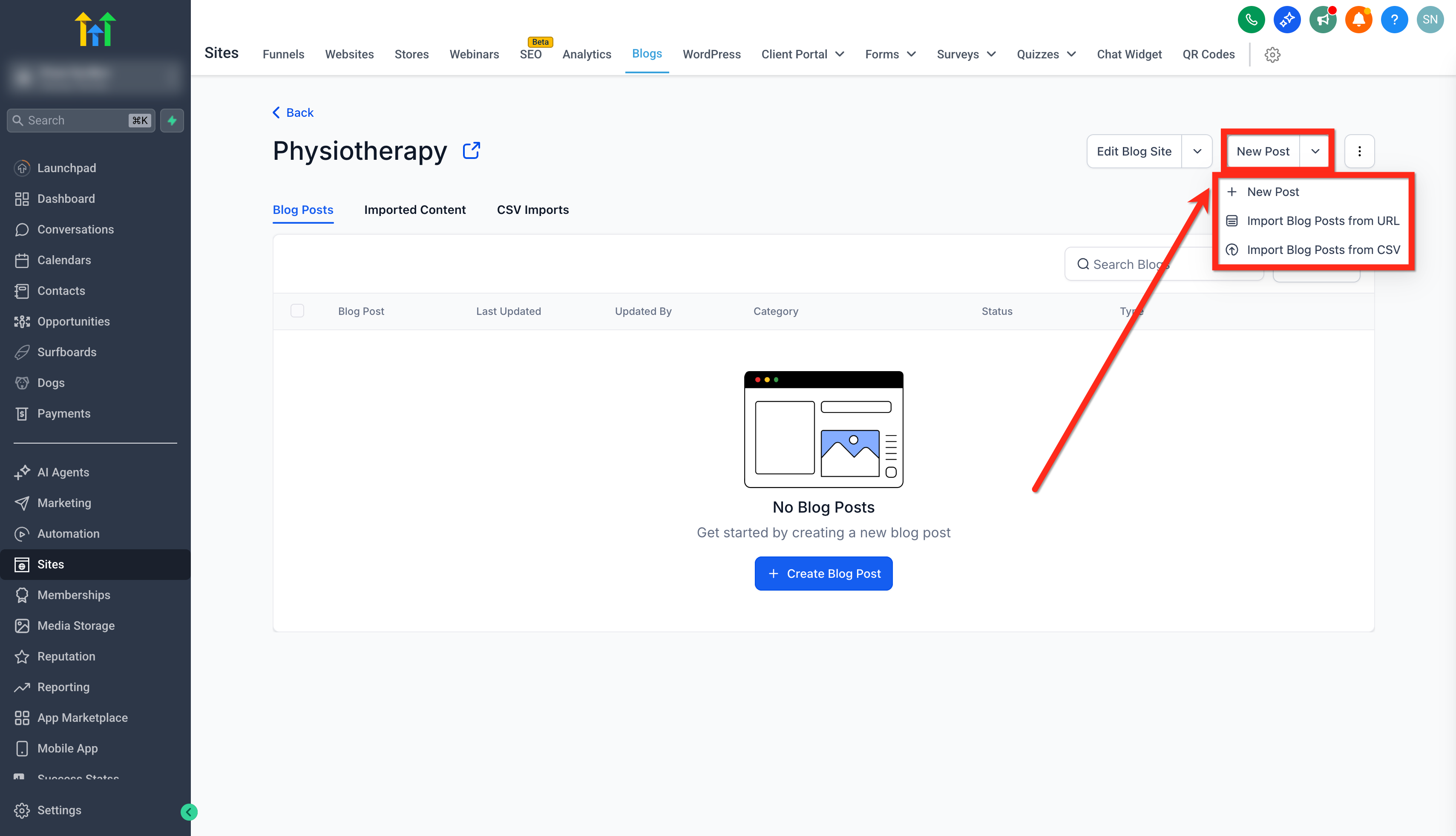
- Click New Post.
- Press + New Post to start a blank post or choose an import option.
Add blog post details
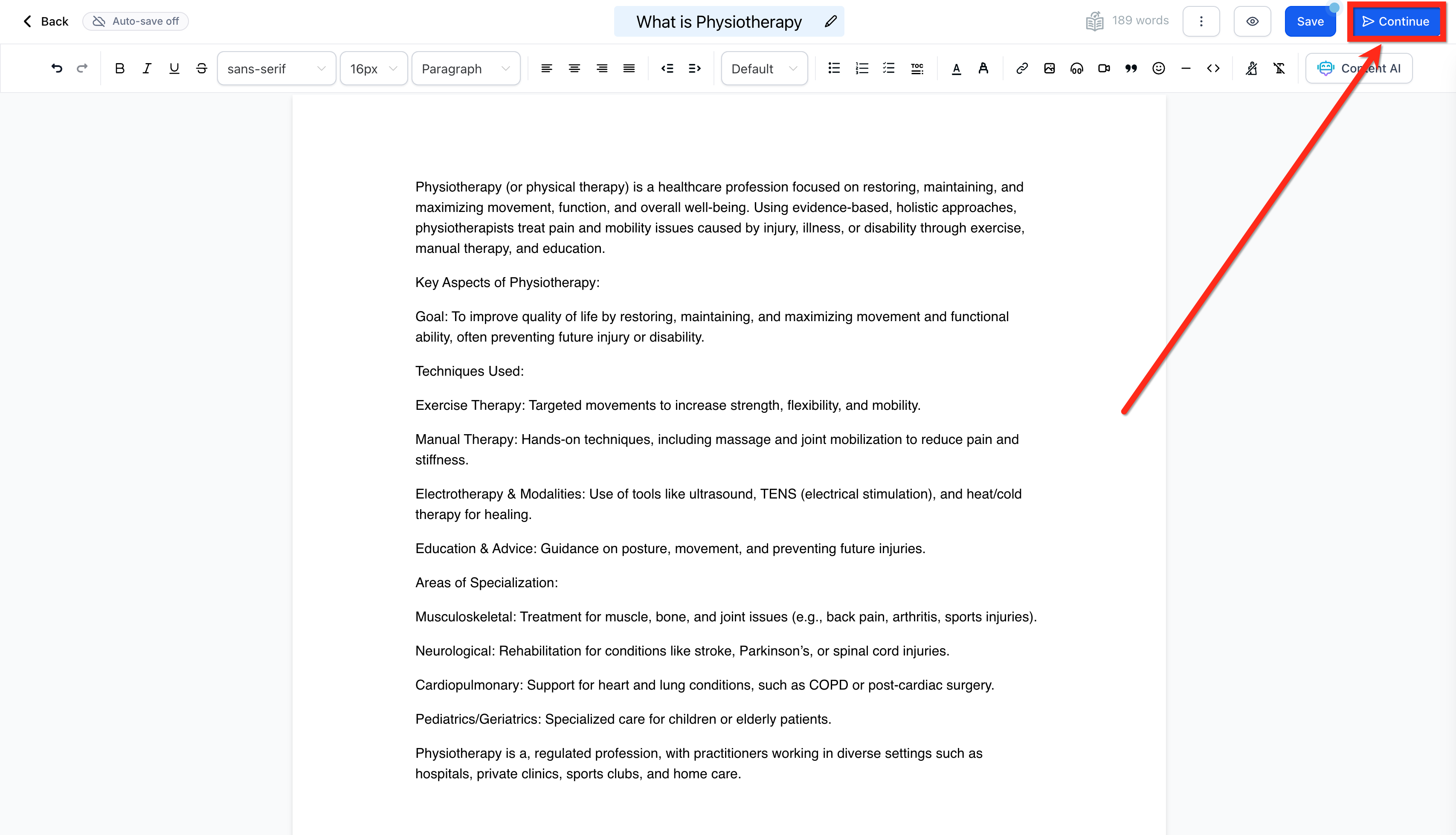
- After writing content, click Continue.
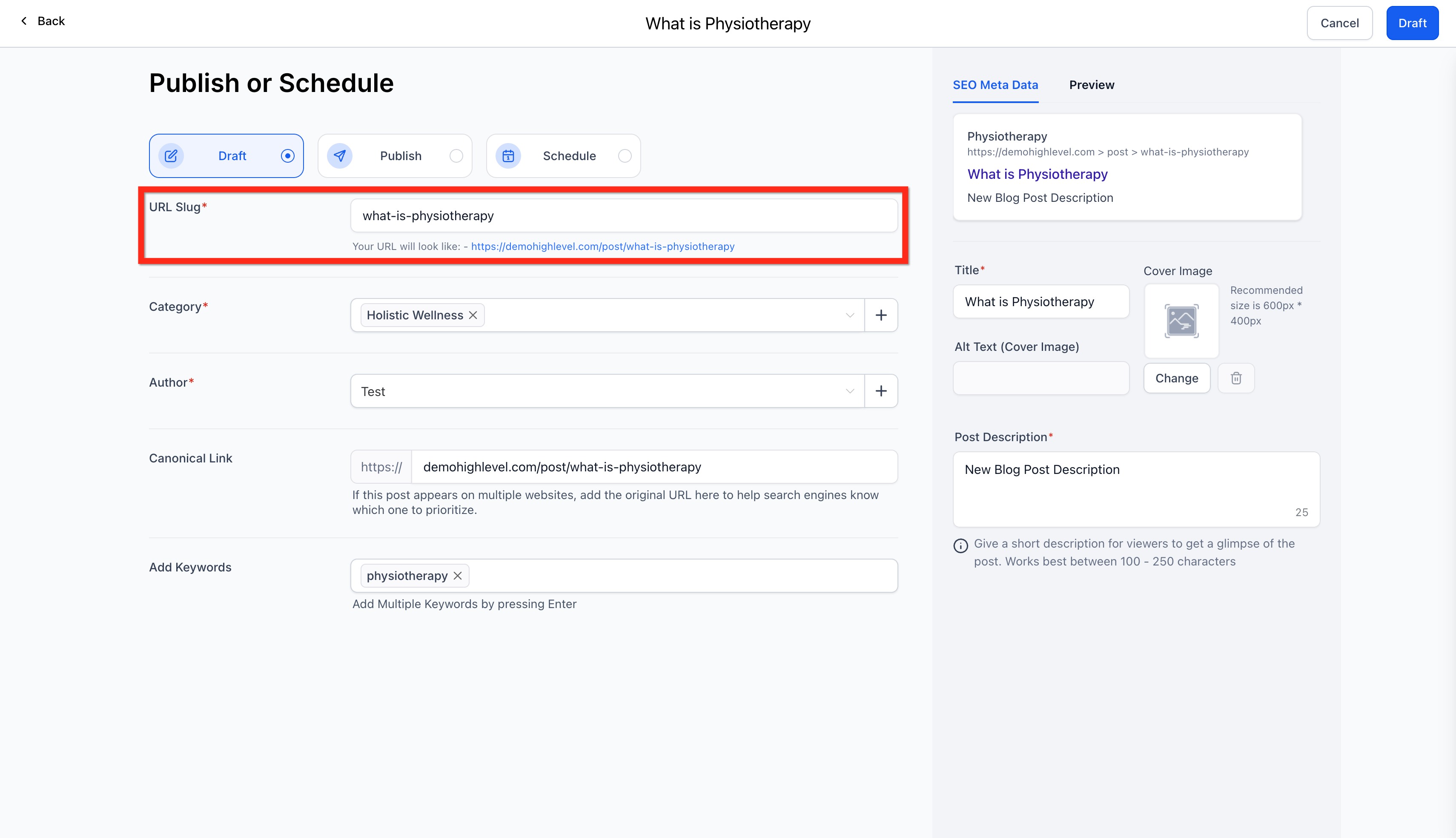
- Enter the Blog Post URL Slug.
- Select or create a Category and assign an Author.
- Edit the Canonical Link if needed.
- Add Keywords for the post.
Add SEO details
- Enter the SEO Title.
- Provide the Post Description.
- Upload a Cover Image and set its Alt Text.
Publish blog post
- Leave the post in Draft status to edit later if desired.
- Choose Publish to make the post live immediately.
- Or set a schedule for future publishing.
Customize blog layout
- Open the blog you want to edit.
- Select a blog layout option.
- Adjust the appearance of blog cards.
- Modify styling for images, tags, headings, titles, descriptions, authors, and publish dates.
- Define the pages used for the blog home and individual post views.
Update a published or draft blog post
- Open the post and click the three dot menu, then select Update Post.
- Edit the post content in the editor.
- Click Update Settings to change author, category, slug, or SEO fields.
- Make the necessary changes.
- Click Publish to save the updates.
06What it looks like in HighLevel
07Settings that matter
- Blog Site Title. Controls the text shown in the browser tab and search results for the blog.
- Domain. Specifies the web address where the blog will be accessed.
- Slug. Creates the path segment of the blog’s URL.
- Blog Meta Description. Provides optional summary text for search engine listings.
- Blog Post URL Slug. Defines the unique URL path for each individual post.
- Category. Groups posts for navigation and filtering.
- Author. Identifies the writer displayed on the post.
- Canonical Link. Sets the preferred URL for SEO when duplicate content exists.
- Keywords. Adds searchable terms associated with the post.
- SEO Title. Specifies the title tag shown in search results.
- Post Description. Defines the meta description used by search engines.
- Cover Image. Provides a visual thumbnail for the post.
08Things to know before you rely on it
- URL Slug, Category, Author, Title, and Post Description are mandatory fields.
- Separate blog pages for individual categories are not supported yet; upcoming updates will add this capability.
- Custom values such as {{contact.name}} cannot be used in blog posts.
- Forms, Surveys, and custom code cannot be added to blog posts at this time.
09How it connects to the rest of HighLevel
- Manually create and publish a blog post Create blog posts
- Add and edit SEO information for blog posts Edit SEO
- Add blog search and category navigation Search & categories
Michael's take

Blogs in HighLevel feel like a modest convenience that can turn a static website into a content hub without adding another platform. The built in SEO fields and the ability to drop a Blog Post List element anywhere give you a quick way to start adding content.
A local service provider that publishes how to guides for home repair can use this feature to keep all articles, authors and keywords in one spot. The first thing I would do is set up the blog site, add the core SEO fields, and then embed the list on the home page.