
01Who this is for
- Marketing managers benefit from built in SEO fields and scheduling to keep the content calendar on track.
- Small business owners gain a single place to publish articles, add multimedia, and improve online visibility.
- Agency teams can manage multiple authors and categories within one dashboard, streamlining client blogs.
02Blog posts, explained
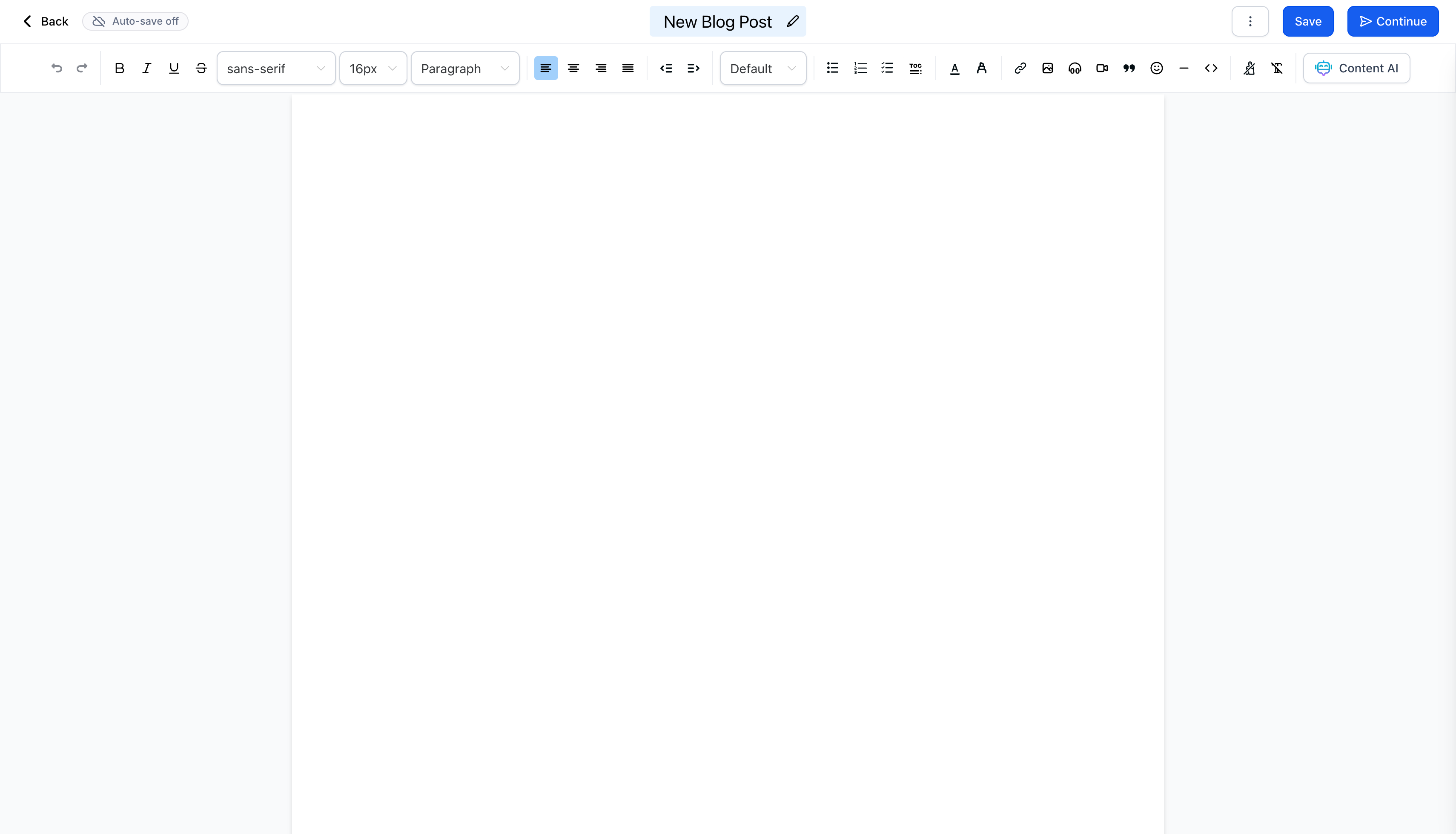
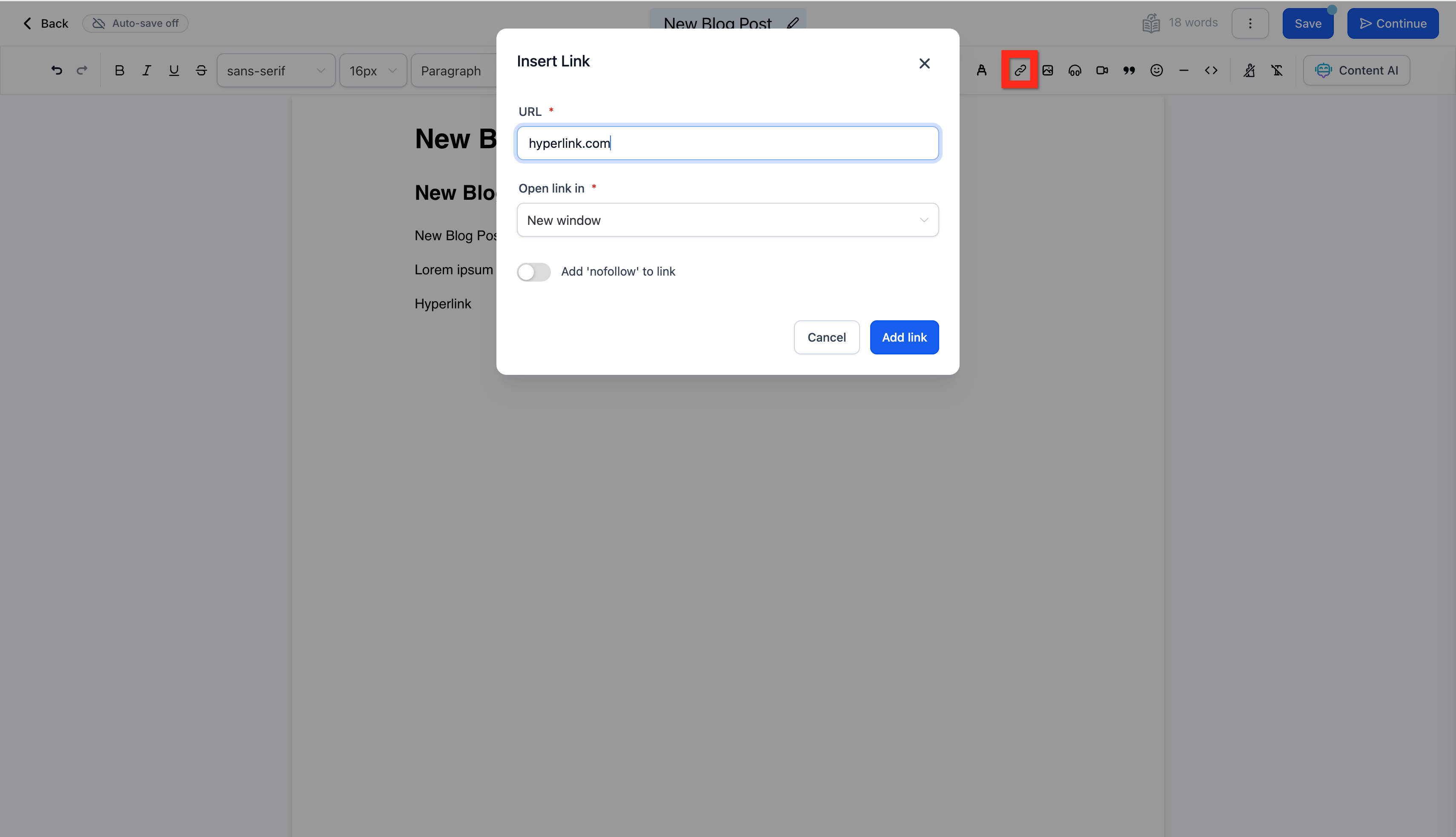
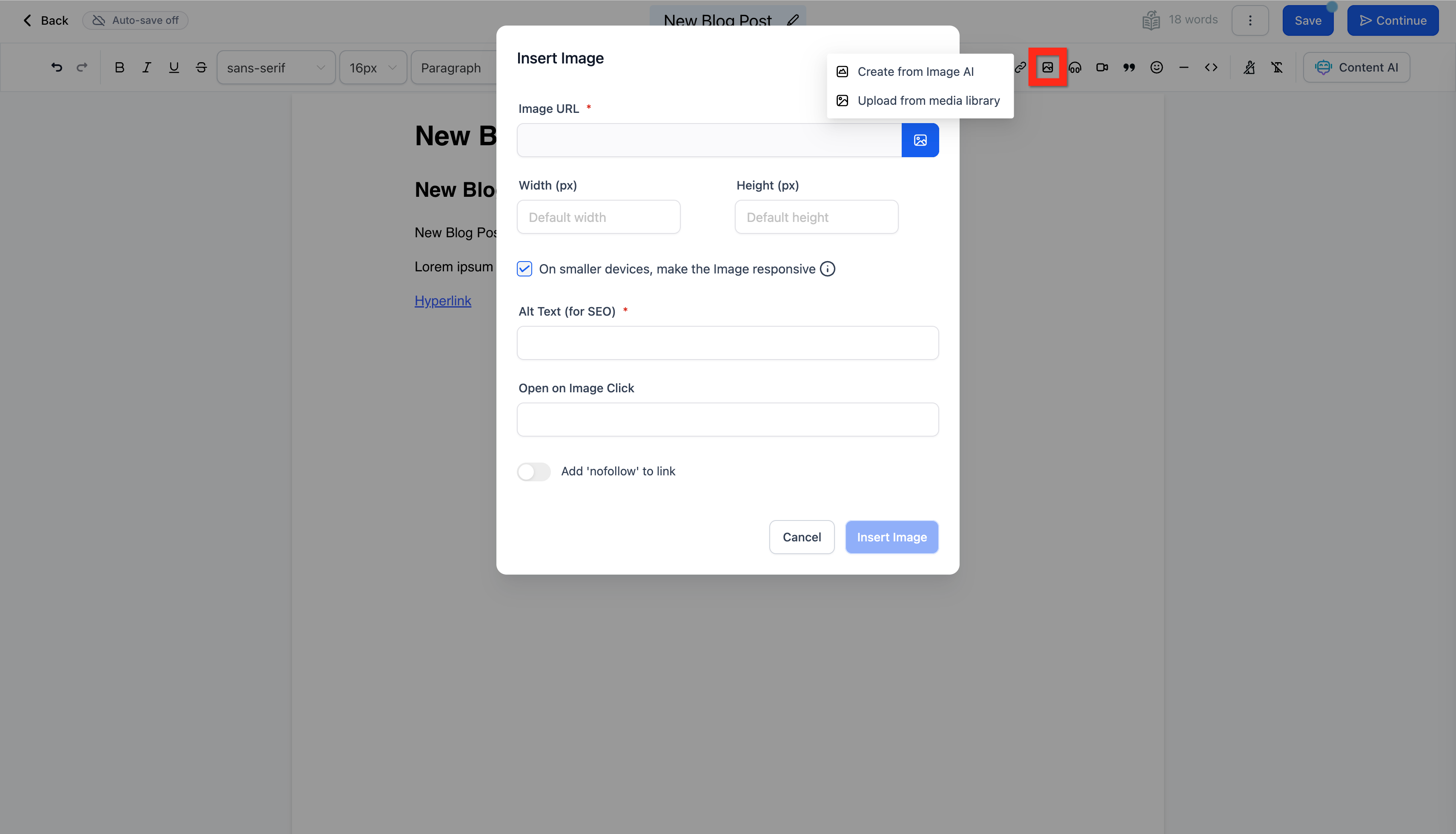
The Blog Post feature in HighLevel provides a rich text editor where you write or generate content, attach images, audio, video, and hyperlinks, and set SEO details such as title, description, and alt text. You can toggle Auto Save, adjust line height when the control is present, and use Content AI to start a draft.
After writing, the post moves to a status page where you choose Draft, Publish, or Schedule modes, assign a URL slug, category, author, and keywords, and preview SEO metadata. Publishing happens with a single click, either immediately or at a future date.
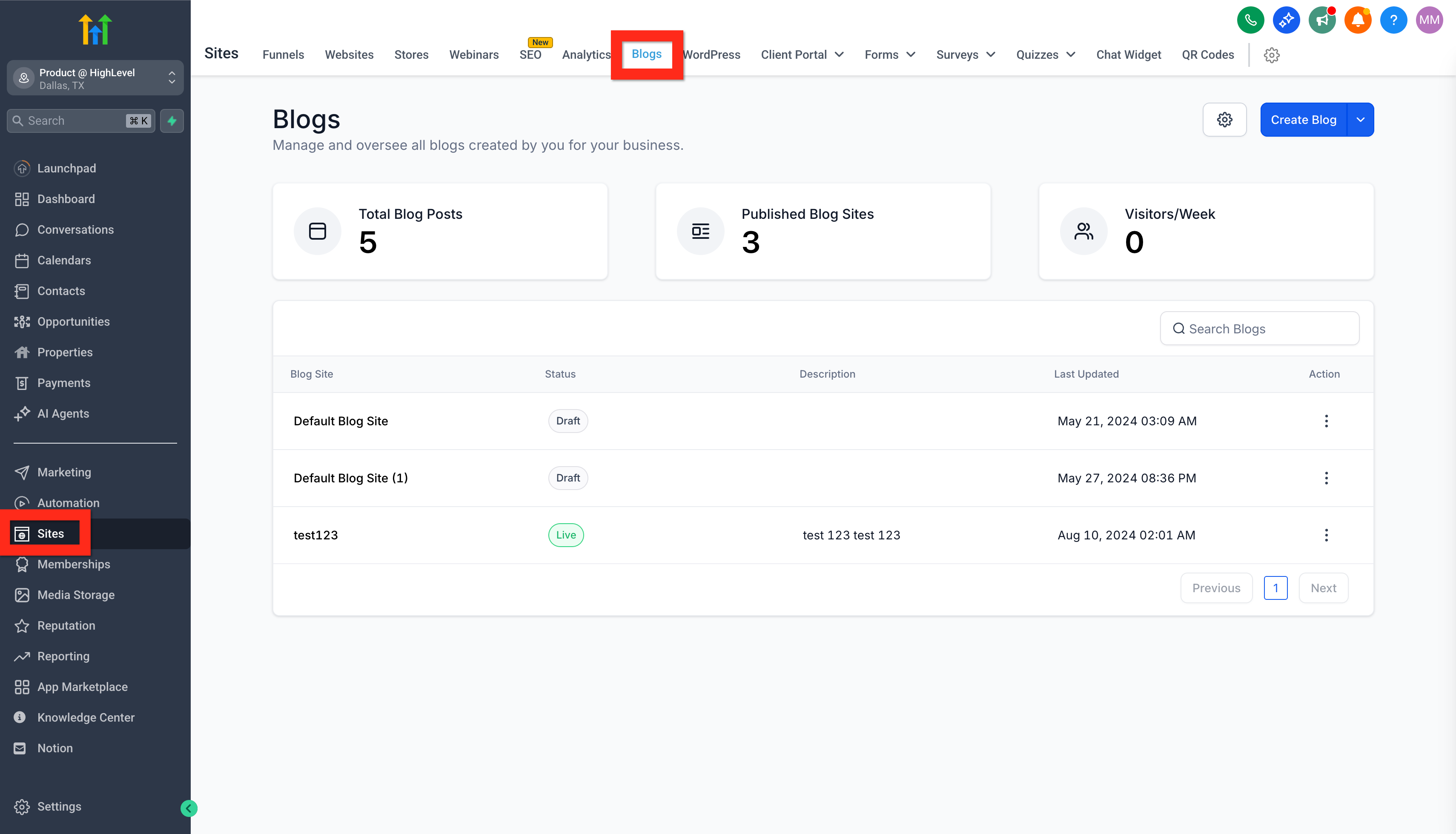
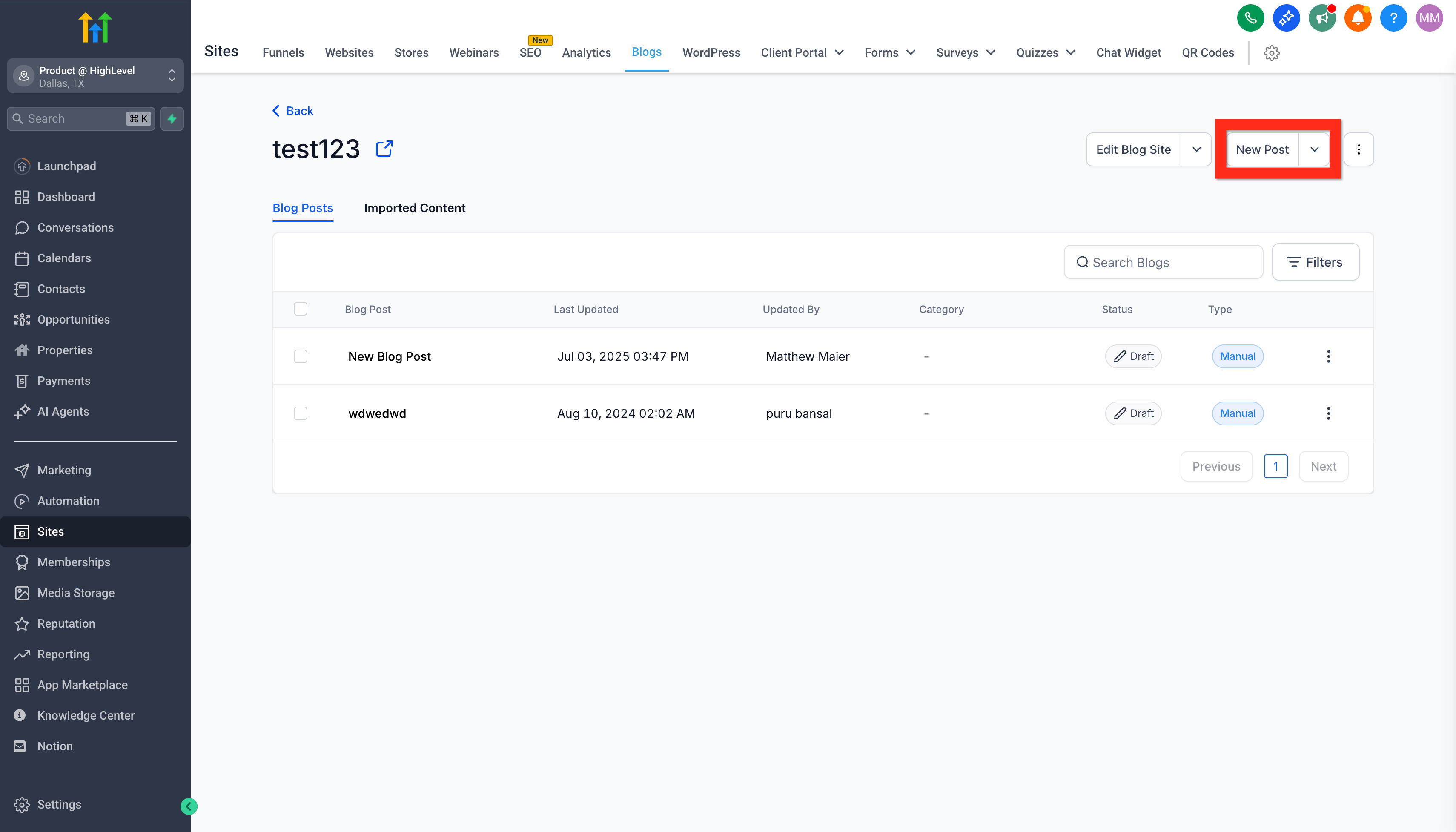
The editor lives within the Sites > Blogs area of the HighLevel dashboard. Each blog you create has its own list of posts, and you access the blank editor by selecting New Post from that list.
03How businesses use blog posts
- Real estate agency. The agency opens Sites > Blogs, selects its market insights blog, clicks New Post, writes an article about recent listings, adds photos of properties, sets the SEO title and description, then schedules the post for the following morning.
- Fitness studio. The studio creates a blog about workout tips, uses the Content AI button to generate a draft outline, inserts instructional videos from the Media Library, fills in keywords, and publishes the post immediately to attract new members.
- Consulting firm. The firm adds a new post to its thought leadership blog, highlights client case study text, adds a downloadable audio interview, configures the slug and author fields, and saves the post as Draft to review with partners before scheduling publication.
04Before you start
- A Blog must already exist in Sites > Blogs, or you must create one before adding a new post.
05How to set up and use blog posts in HighLevel
Create a blog post
- Open Sites > Blogs, choose an existing blog or create a new one.
- In the selected blog’s page list, click the New Post button.
- The blank Blog Post Editor loads, ready for you to start drafting.
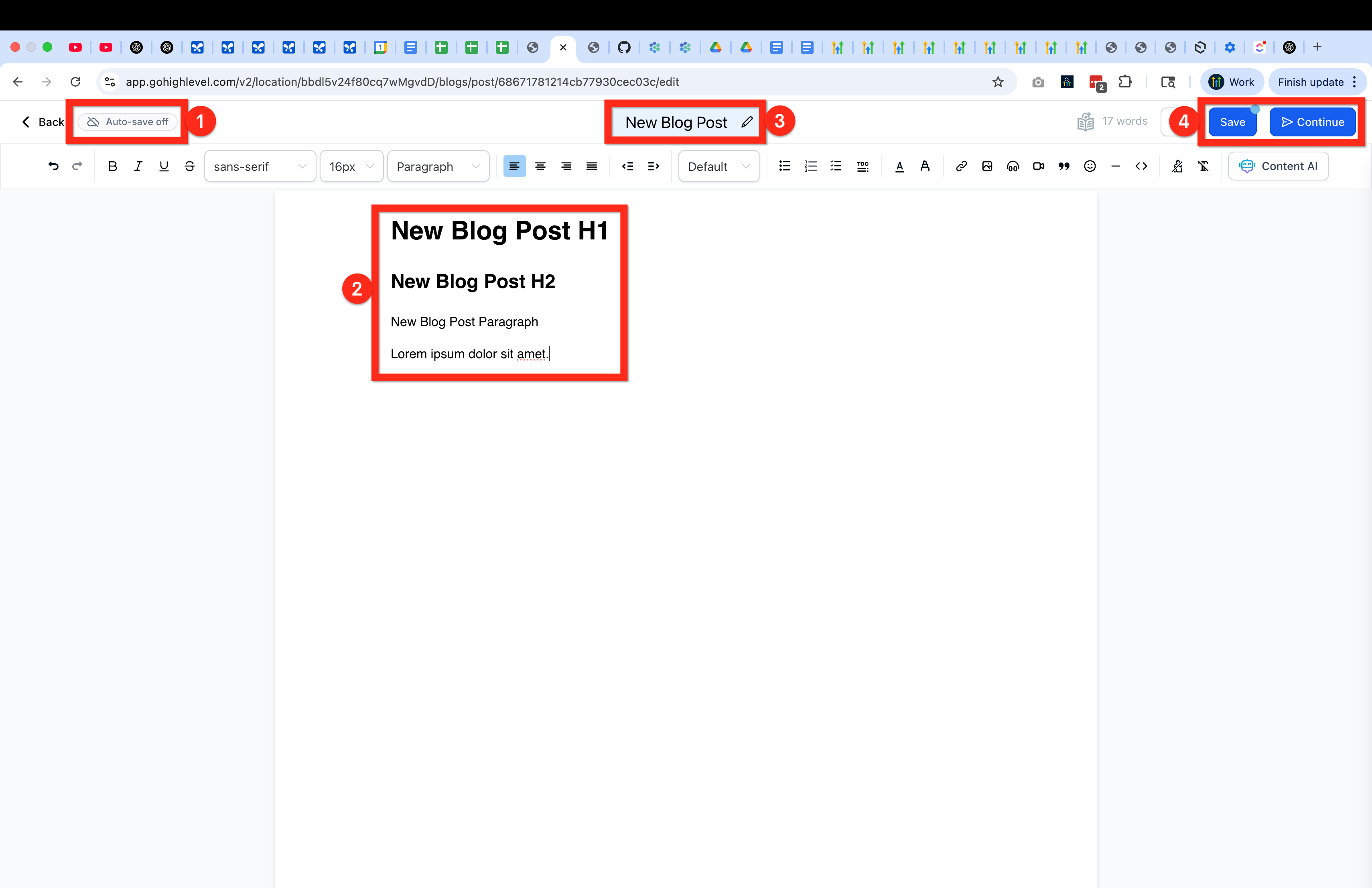
- Make sure to toggle Auto Save on in the upper right next to the Back button before you begin writing.
06What it looks like in HighLevel
07Settings that matter
- Auto, Save. Controls whether the editor automatically saves changes as you type.
- Line Height. Adjusts the spacing between lines of text for new or existing posts when the control appears.
- Title. Sets the visible title of the blog article.
- Text. Provides the main rich text area where you write and format the article.
- Status. Determines if the post stays as a Draft, publishes now or in the past, or schedules for a future date.
- Record Keeping fields. Collect the URL slug, Category, Author, and Keywords used to organize the blog.
- SEO fields. Allow you to set the Post Title, Alt text, Cover Image, and Description for search engine optimization.
08Things to know before you rely on it
- The Line Height control appears only in editors that include it; you must reopen the post to adjust and then republish.
- Content AI is optional and accessed via the Content AI button in the editor.
09How it connects to the rest of HighLevel
- Learn how to set up and manage blogs in HighLevel. Getting started with blogs
- Find out how to move blog posts from the old to the new HighLevel blog. Move blog posts
- Create an RSS feed for your HighLevel blog to syndicate content. RSS feed guide
- Add search and category navigation to improve blog discoverability. Blog navigation
- Edit SEO information for each blog post to boost search rankings. SEO editing
Michael's take

Many small businesses struggle to keep a consistent content stream while juggling ads, emails and client work. HighLevel’s blog posts give you a single place to create, enrich and schedule SEO ready articles without hopping between tools.
The first setting I would lock in is the AutoSave toggle. Making sure the editor saves automatically protects your work and lets you focus on writing instead of worrying about losing a draft.