
01Who this is for
- Content marketers who need precise control over how each blog entry shows up in search engines.
- Accessibility advocates who want to add descriptive alt text to cover images for screen reader users.
- Small business owners who manage their own site and want a simple way to update post metadata without rebuilding the article.
02SEO information for blog posts, explained
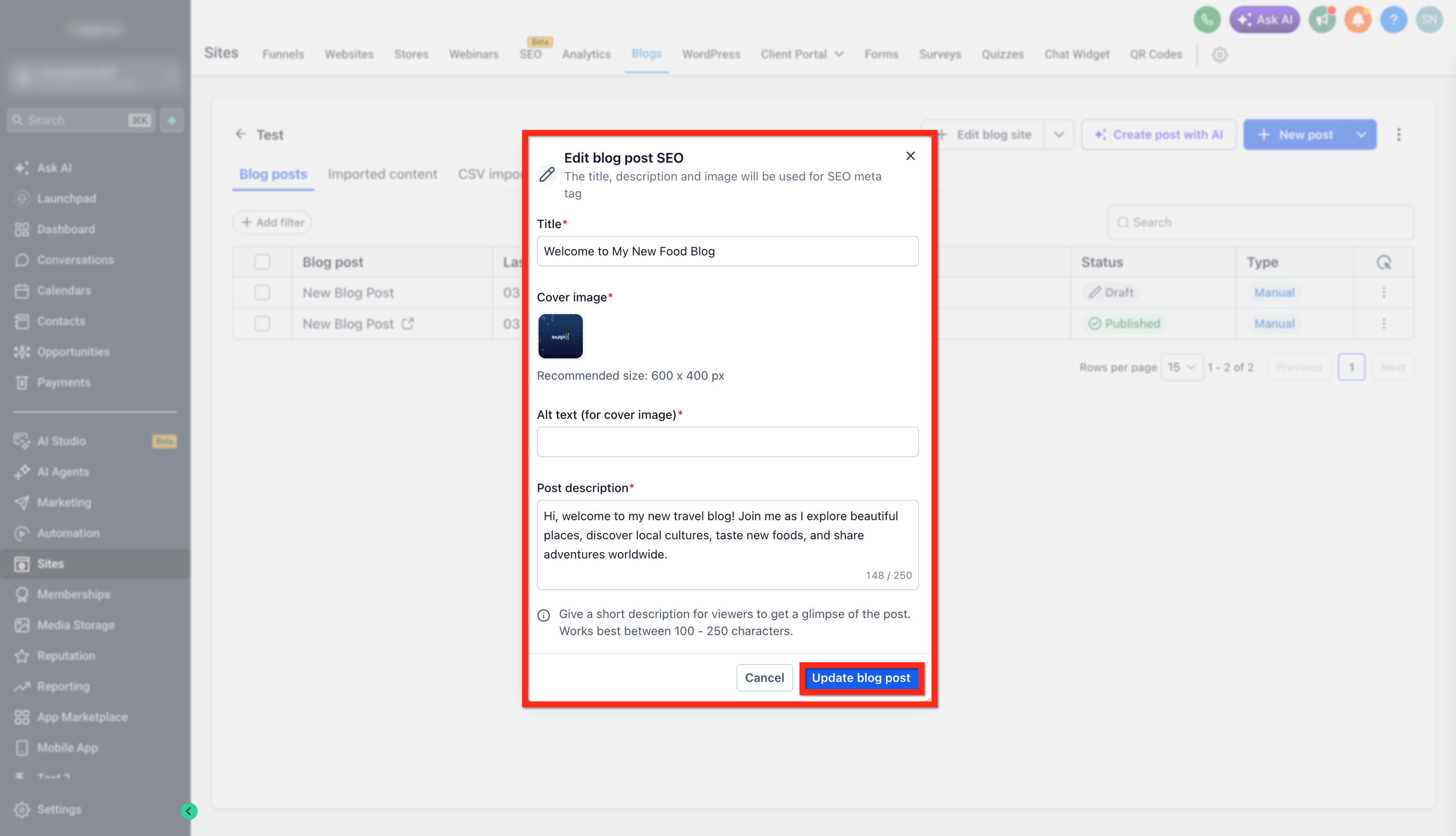
The SEO feature stores four pieces of information for each blog post: a searchable title, a cover image, alt text for that image, and a brief description. The description should be between 100 and 250 characters for optimal display in search listings.
When you create a new post, the platform shows an SEO Metadata section after you click Continue. Existing posts expose the same fields through a three dot menu on the post list. Updating these fields does not affect the post content or its publishing status.
The settings live inside the Sites > Blogs area of HighLevel, either during the initial publishing workflow or later from the post management list.
03How businesses use SEO information for blog posts
- Local coffee shop. The owner creates a new blog post about a seasonal drink, then opens the SEO Metadata section to add a catchy SEO title, upload a product photo as the cover image, write alt text describing the drink, and enter a 150 character preview. The post is saved as a draft until the launch date.
- Online fitness trainer. After publishing a workout guide, the trainer opens the three dot menu on the post list, selects Change Blog Post SEO Details, and updates the description to reflect a new keyword focus while keeping the original article unchanged.
- B2B SaaS startup. The marketing team edits the SEO title and cover image of an existing case study blog post through the Change Blog Post SEO Details option, ensuring the metadata aligns with a recent product release without rewriting the case study.
04The numbers and rules that matter
- A description between 100 and 250 characters works best.
05Before you start
- A HighLevel subaccount must be active.
- A blog site must already exist within the account.
06How to set up and use SEO information for blog posts in HighLevel
Add SEO information to a blog post
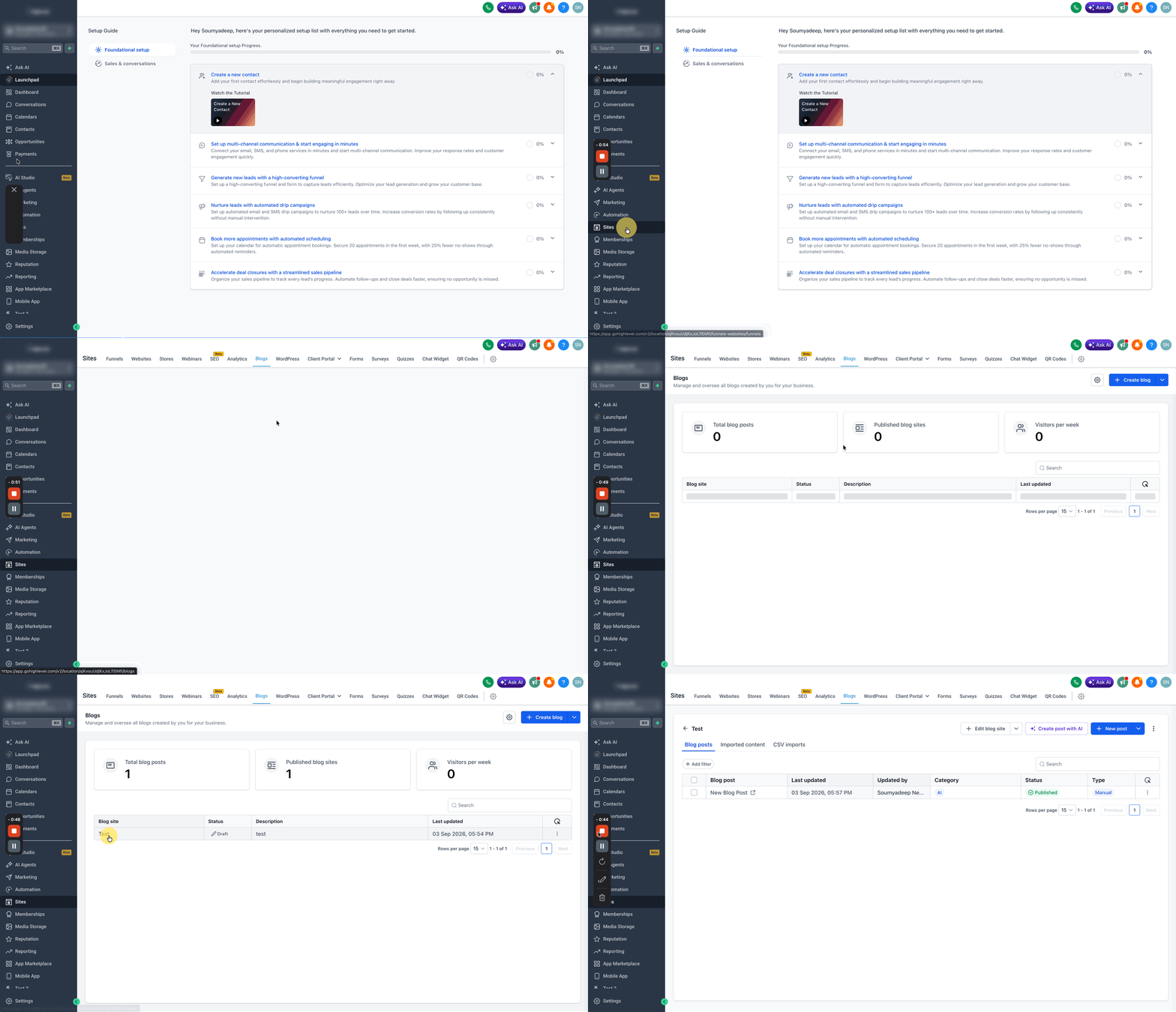
- Open Sites > Blogs in the subaccount.
- Select the blog site that will host the new post.
- Click the + New Post button.
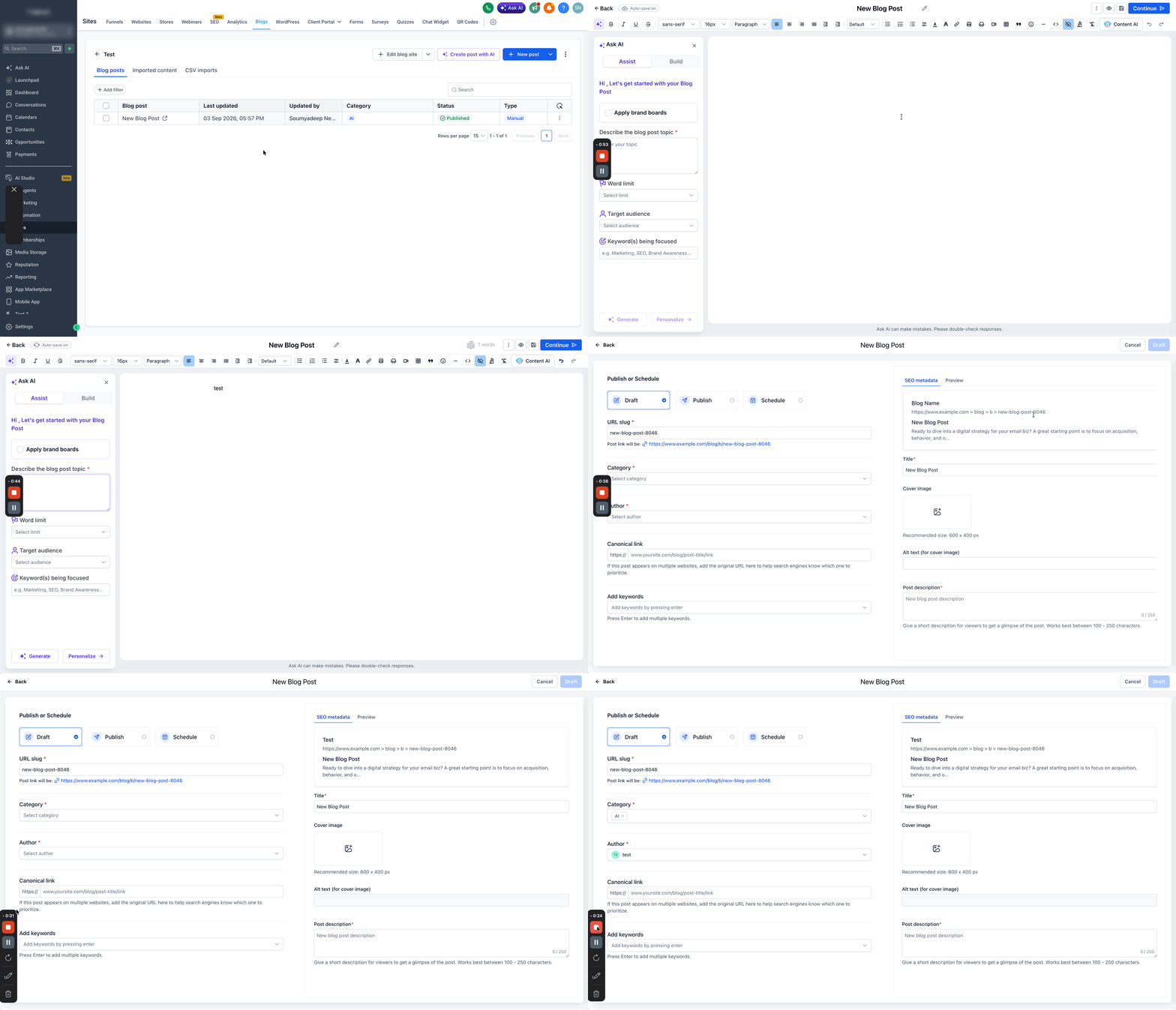
- Write and format the content of the blog entry.
- Tap Continue in the upper right corner when the content is finished.
- Enter standard post settings such as category, author, and keywords.
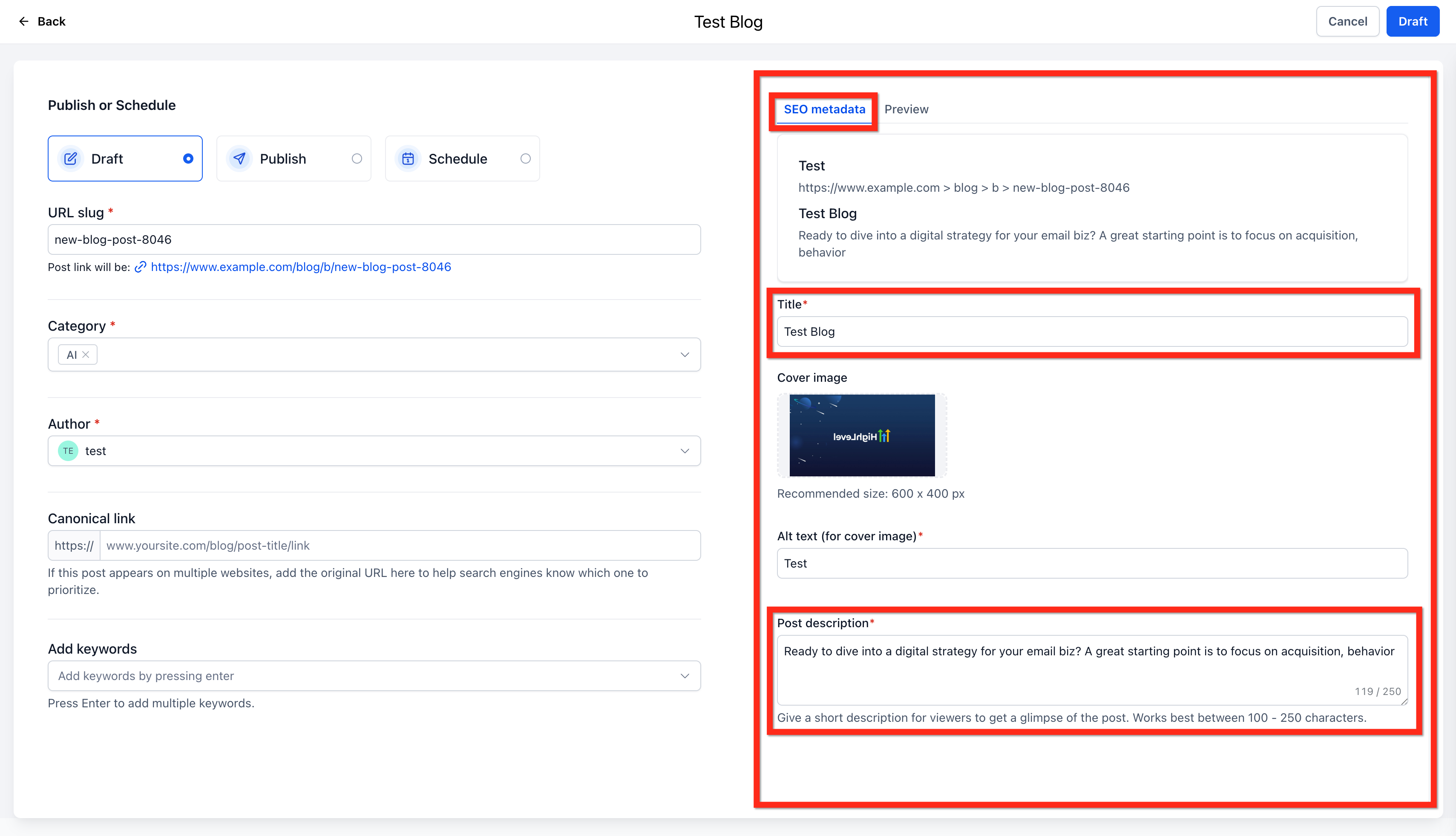
- Find the SEO Metadata section.
- Enter an SEO title, choose a cover image, provide alt text, and add a short description of 100 to 250 characters.
- Pick a publishing option: publish now, save as draft, or schedule.
- Click Publish (or the appropriate draft/schedule button) to finalize the post.
Edit SEO information for an existing blog post
- Go to Sites > Blogs.
- Open the blog site that contains the target post.
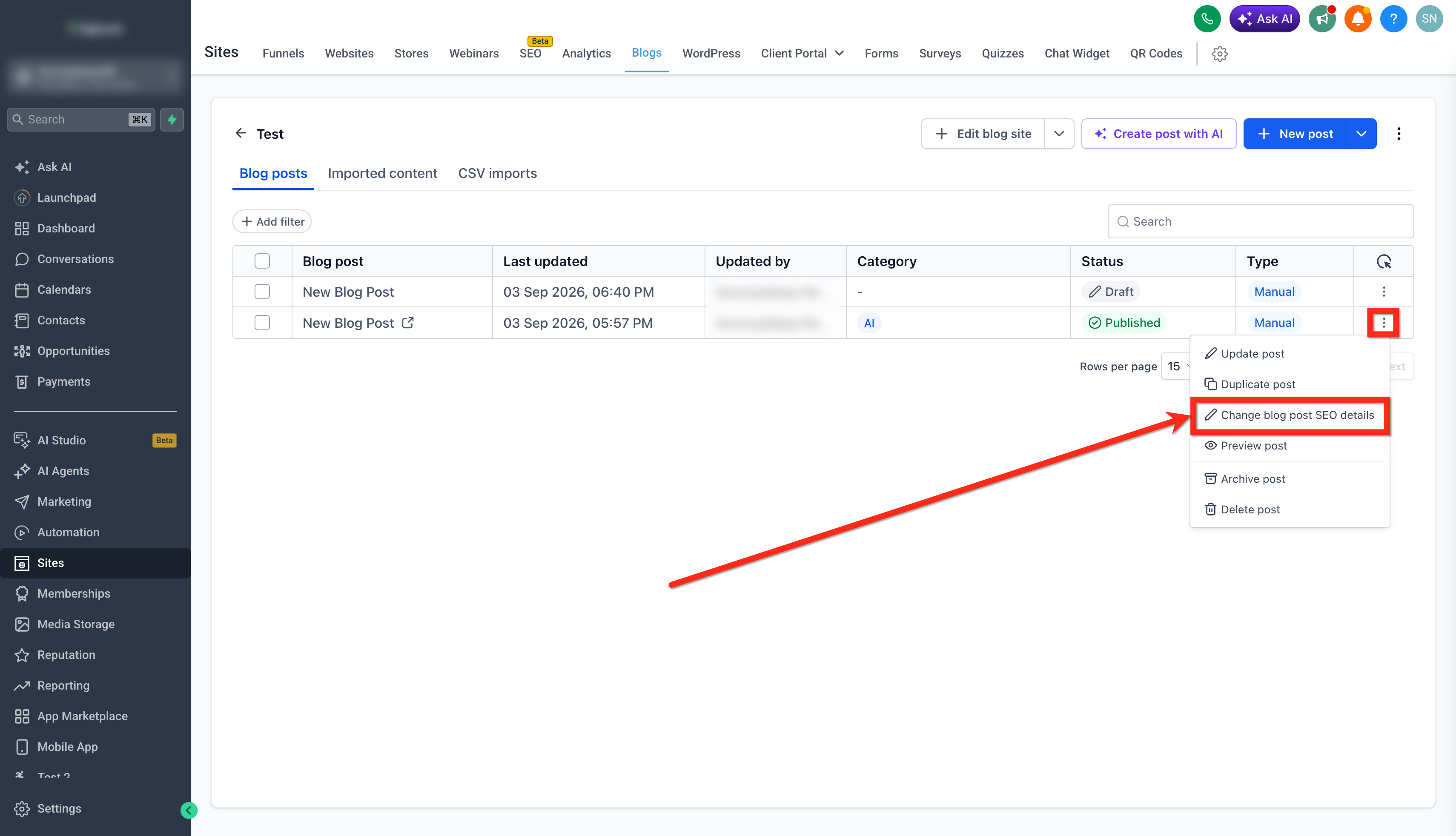
- Locate the post in the list and click its three dot menu.
- Choose Change Blog Post SEO Details.
- Modify any of the Title, Cover Image, Alt Text, or Post Description fields.
- Click Update Blog Post to save the changes.
- The post retains its current publishing state (published, draft, or scheduled).
07What it looks like in HighLevel
08Settings that matter
- SEO Metadata settings. Groups the fields for SEO title, cover image, alt text, and post description.
- Title. The SEO title that appears in search engine results.
- Cover Image. The image shown when the post is shared or displayed in search listings.
- Alt Text. Text that describes the cover image for users of assistive technologies.
- Post Description. A brief snippet shown under the title in search results; 100 to 250 characters is recommended.
09Things to know before you rely on it
- A post description between 100 and 250 characters is recommended for best display in search results.
10How it connects to the rest of HighLevel
- Set up and manage blogs in HighLevel Getting started with blogs
- Create and publish blog posts Create blog posts
- Canonical URLs explained for blog SEO Canonical URLs
- Add search and category navigation to your blog Blog navigation
- HighLevel pricing and plans Pricing
Get More InformationOpens on HighLevelPublished November 2, 2026 · Updated November 16, 2026