
01Who this is for
- Content marketers who need a hands free way to share new posts across email newsletters.
- Social media managers looking to schedule blog updates on multiple platforms without repetitive work.
- Small business owners who want to keep customers informed of fresh site content while focusing on other tasks.
02RSS Feed for Blogs, explained
The RSS feed feature creates a syndication link that represents the latest published articles on a selected blog. The link follows the standard RSS XML structure, allowing external tools to read and pull content.
Within HighLevel the feed is generated in the Blog Settings area. You choose which blog to expose, decide how many items to include, and whether the full article or a summary is returned. The platform then provides a permanent URL.
The feed can be copied and pasted into any Email Campaign or Social Planner that supports RSS input. Changing the options later does not alter previously copied URLs; each feed remains valid as created.
03How businesses use RSS Feed for Blogs
- Digital marketing agency. The agency creates an RSS feed for each client blog, copies the URL, and connects it to the client’s email newsletter automation. New posts appear in the campaign without additional effort.
- Ecommerce store. The store sets up an RSS feed for its product announcement blog, then links the URL to the Social Planner. Each time a promotion post is published, the feed triggers an automatic social media post.
- Local service provider. A plumber adds an RSS feed for the service tips blog, copies the link, and uses it in a monthly email blast. The feed ensures the email always contains the most recent advice articles.
04The numbers and rules that matter
- Maximum post limit is enforced by the interface.
05Before you start
- Your custom domain must be linked to your HighLevel account before creating an RSS feed.
06How to set up and use RSS Feed for Blogs in HighLevel
Set up RSS Feed for Blogs
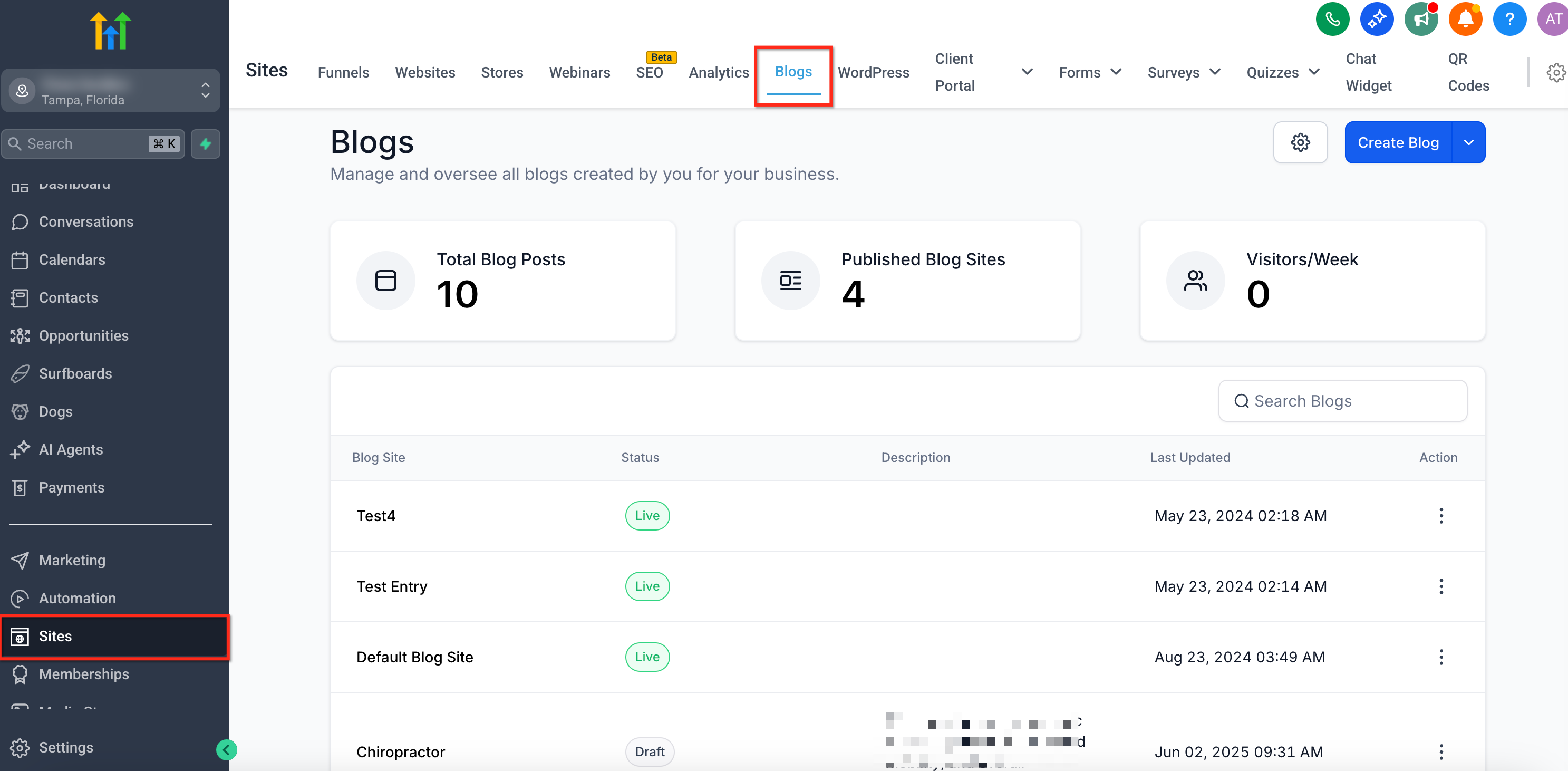
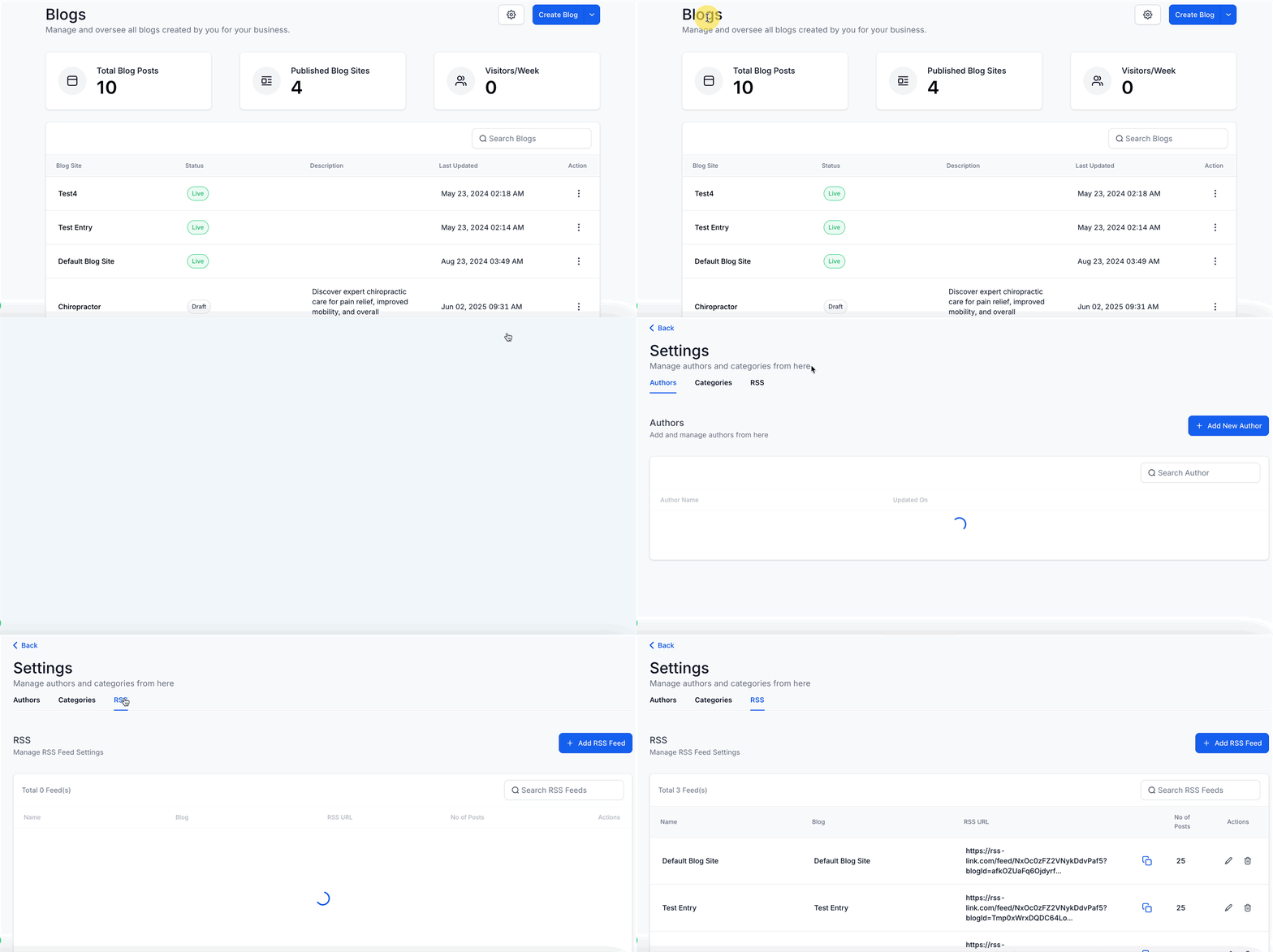
- Open the Sites menu and select Blogs.
- Click the gear shaped Settings icon for the desired blog.
- Navigate to the RSS Section within the Settings panel.
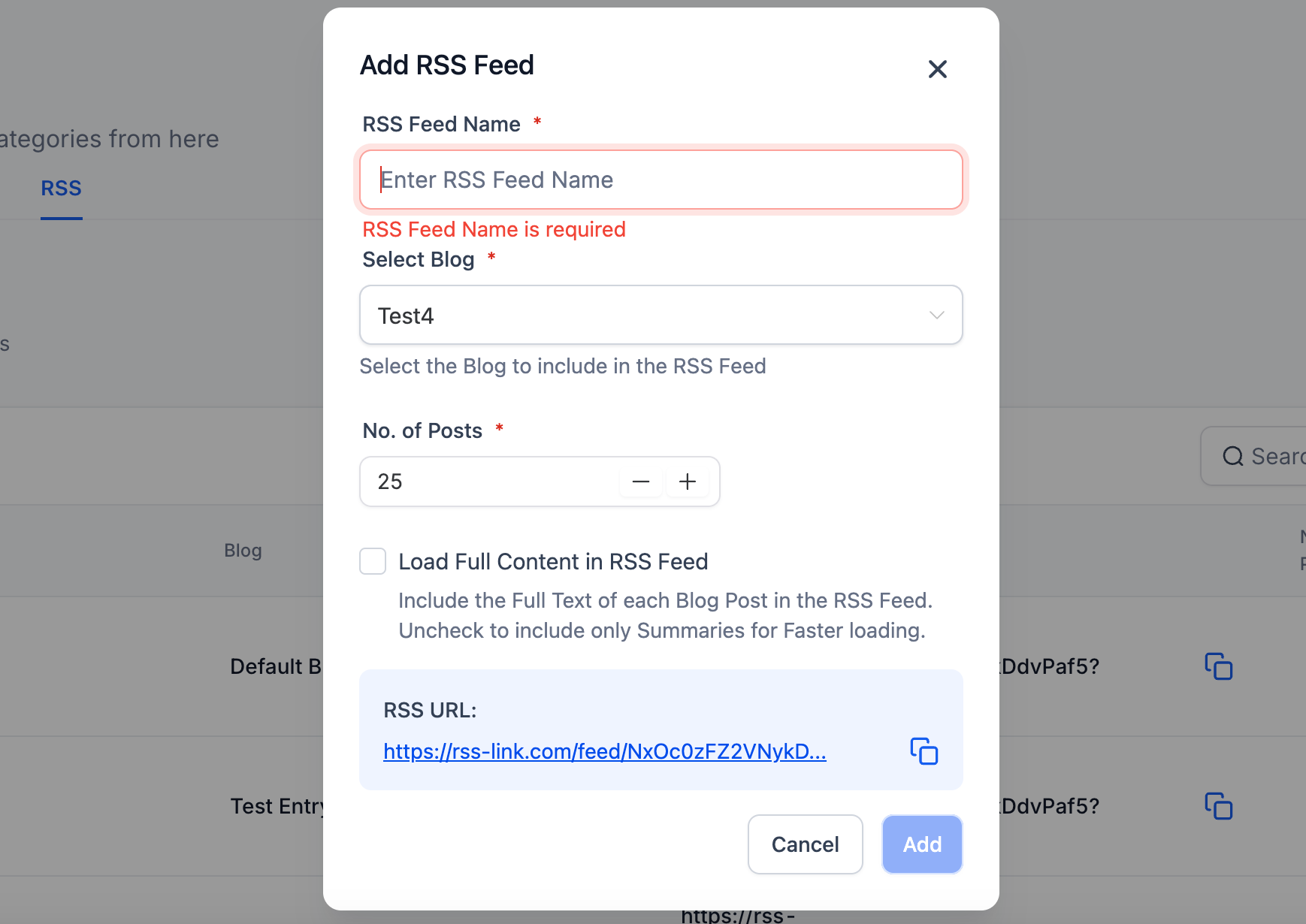
- Select Add RSS Feed to open the creation window.
- Enter a name for the new feed.
- Choose the blog whose posts will appear in the feed.
- Specify the number of recent posts to include and whether to output full content.
- Copy the generated RSS URL and store it for use in email or social automation.
07What it looks like in HighLevel
08Settings that matter
- RSS Section. Opens the area where you can create and manage RSS feeds for a blog.
- Add RSS Feed. Launches the dialog that lets you name the feed, select a blog, set post count, and decide on content length.
09Things to know before you rely on it
- The interface enforces a maximum number of posts that can be included in a feed; the exact limit is not specified in the article.
- Only posts that have been published are added to the RSS output; draft items are excluded.
10If something goes wrong
- Changing the blog selection after the feed URL is copied. No action needed; the original URL continues to generate the feed based on the settings at creation.
- Attempting to include draft posts in the RSS feed. Drafts are not supported; publish the post first to have it appear in the feed.
- Exceeding the maximum post count limit. Reduce the number of posts requested in the feed settings to stay within the allowed range.
11How it connects to the rest of HighLevel
- Learn how to set up and manage blogs in HighLevel Blog setup guide
- Create and publish individual blog posts manually Create blog posts
- Add and edit SEO information for blog posts SEO for blog posts
Michael's take

I find the RSS Feed for Blogs useful when I have a steady stream of blog content because it lets me push fresh posts into email blasts and social schedules automatically.
If my publishing schedule is irregular, I sometimes have to spend extra time copying URLs and setting up feeds that don’t fire often.