
01Who this is for
- Founders who rely on contact forms to capture leads and want to keep their contact database clean of fake entries.
- Marketing teams that run automated email or SMS campaigns and need to avoid costs from spam submissions.
02Form submissions, explained
HighLevel’s form builder ships with automatic checks that evaluate IP address, geographic data and other signals to filter out obvious bots. Cloudflare shields the form endpoint from large scale attacks. These protections work behind the scenes for every form you publish.
Beyond the default filters, you can manually tighten security. Adding a CAPTCHA forces a human challenge before a record is saved. Enabling validation checks assures that email addresses and phone numbers follow proper formats, blocking temporary or invalid data. Finally, SMS geo permissions let you restrict text messages to countries where you serve customers, reducing the risk of fraudulent messaging.
03How businesses use form submissions
- Real estate agency. The agency adds CAPTCHA to its property inquiry form to stop bots from generating fake buyer contacts. It also turns on email validation so only properly formatted addresses are stored, keeping its follow up list accurate.
- Health clinic. The clinic enables phone number validation on its appointment request form to ensure patient phone fields contain real numbers. It then restricts SMS messaging to the clinic’s operating regions, preventing accidental texts to high risk countries.
- Ecommerce store. The store configures CAPTCHA on its checkout related lead form to block automated order attempts. Email validation is enabled to capture only legitimate customer addresses, and SMS geo permissions are set so promotional texts are sent only to regions where the store ships.
04The numbers and rules that matter
- High risk countries disabled by default for SMS: Somalia (+252), North Korea (+850), Cuba (+53), Syria (+963), Iran (+98), Sudan (+249), Liberia (+231), Zimbabwe (+263), Afghanistan (+93), Yemen (+967).
05How to set up and use form submissions in HighLevel
Add CAPTCHA to a form
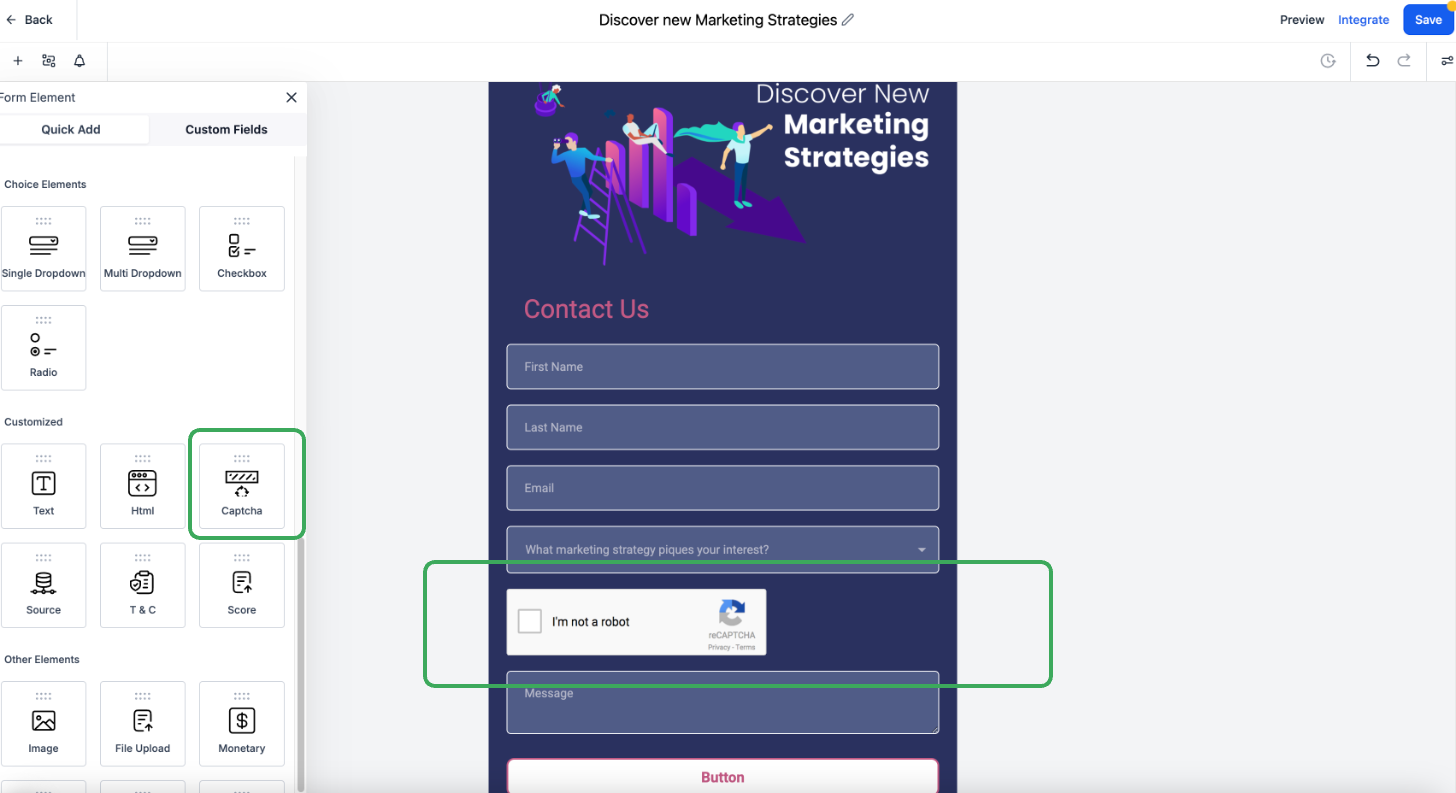
- Open Forms, go to Custom Fields, select CAPTCHA, and enable the setting.
Enable email and phone validation
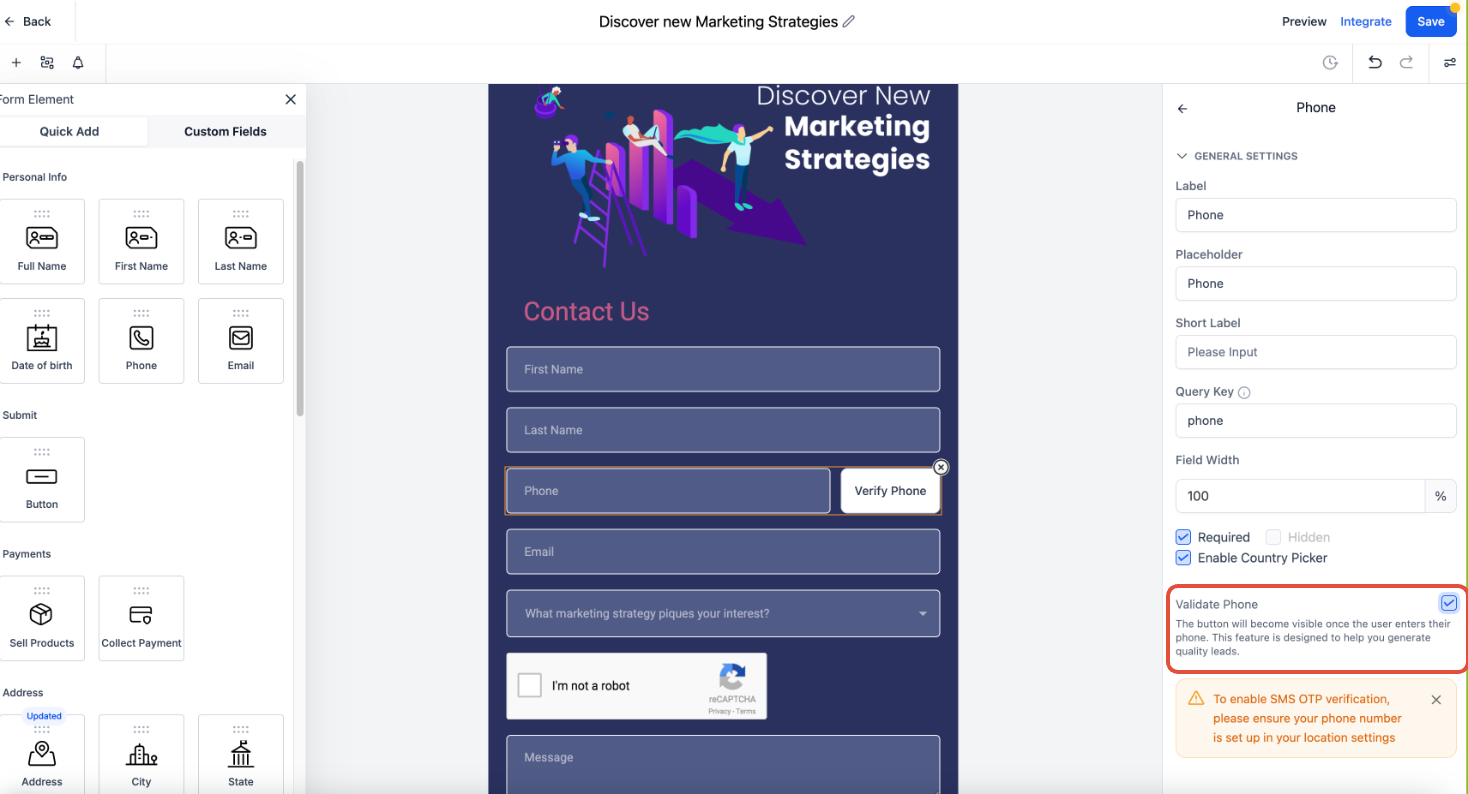
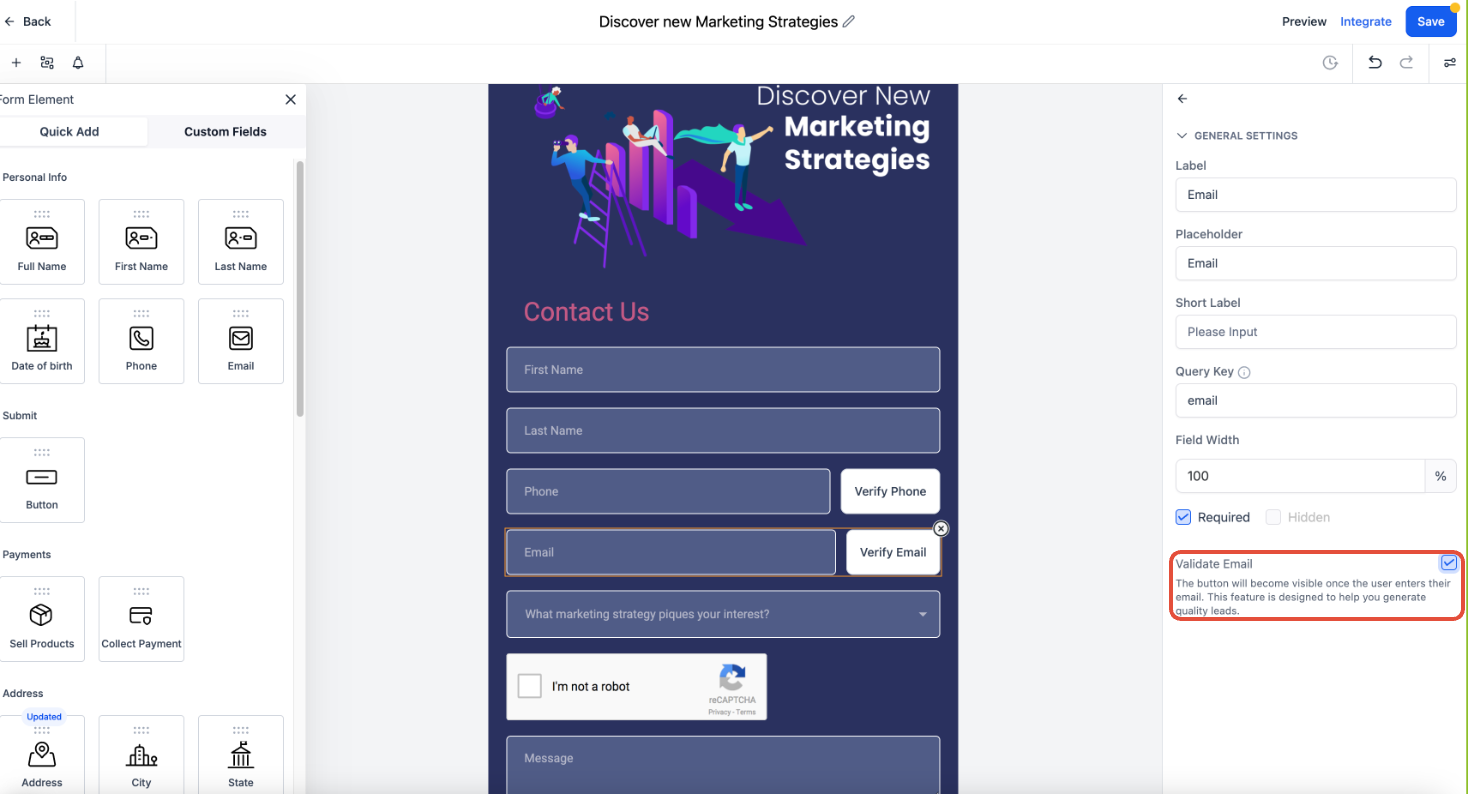
- In the form editor, turn on the options for email validation and phone number validation.
Configure SMS geo permissions
- Contact HighLevel Support, provide your Location ID and a list of countries to enable or disable SMS messaging.
06What it looks like in HighLevel
07Settings that matter
- CAPTCHA. Activates a challenge that users must complete before the form can be submitted, blocking automated spam entries.
- Email validation. Checks that entered email addresses conform to proper format, rejecting temporary or malformed emails.
- Phone number validation. Ensures phone numbers follow accepted patterns, preventing invalid or disposable numbers from being saved.
- SMS geo, permissions. Controls which countries are allowed to receive SMS messages triggered by the form, with high risk regions disabled by default.
08Things to know before you rely on it
- By default, all countries are enabled for SMS except high risk regions such as Somalia, North Korea, Cuba, Syria, Iran, Sudan, Liberia, Zimbabwe, Afghanistan, and Yemen.
- Geo permission changes require a request to HighLevel Support with the appropriate Location ID.
09How it connects to the rest of HighLevel
- Enable sticky contact for forms Sticky contact
- Configure email alerts and auto responders Email notifications
- Embed HighLevel forms on external websites Form embedding
Michael's take

Spam and fake contacts can drain a small business’s budget fast. The quickest win is to turn on CAPTCHA right after you build a new form. It stops most bots before they even hit your HighLevel account.
After the CAPTCHA is in place, I’d double check email and phone validation so only real leads make it through, and I’d confirm the SMS geo permissions match the regions where my customers actually live.