
01Who this is for
- Content marketers can give readers quick navigation through lengthy articles, keeping engagement high.
- SEO specialists can improve page structure, making search engines understand the hierarchy of the post.
- Small business owners can present professional looking blogs without extra coding.
02Table of contents, explained
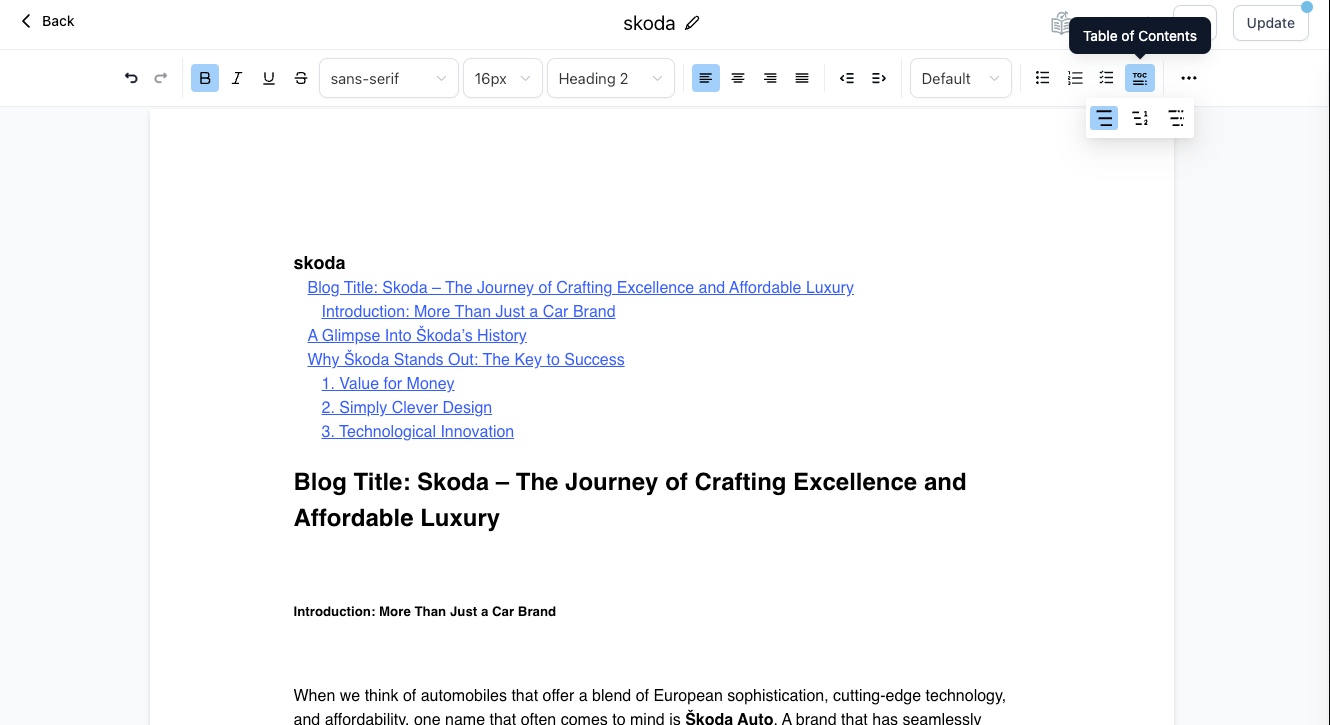
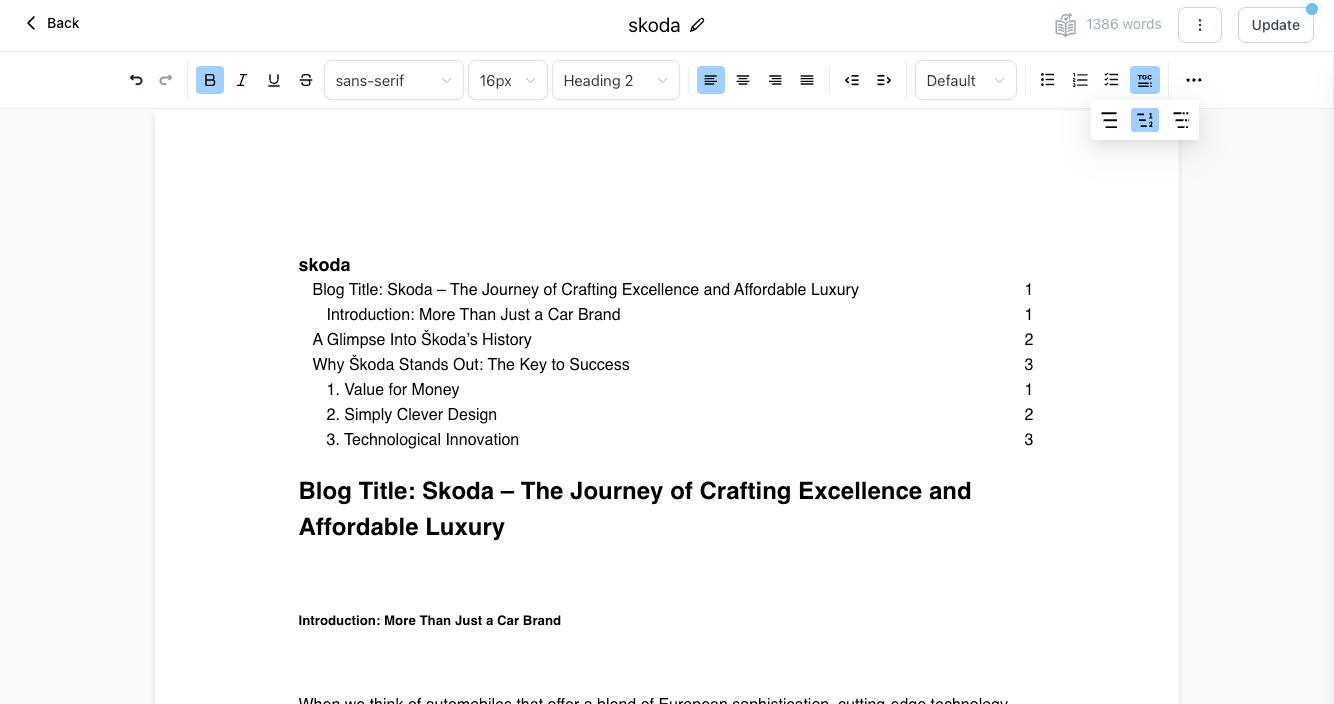
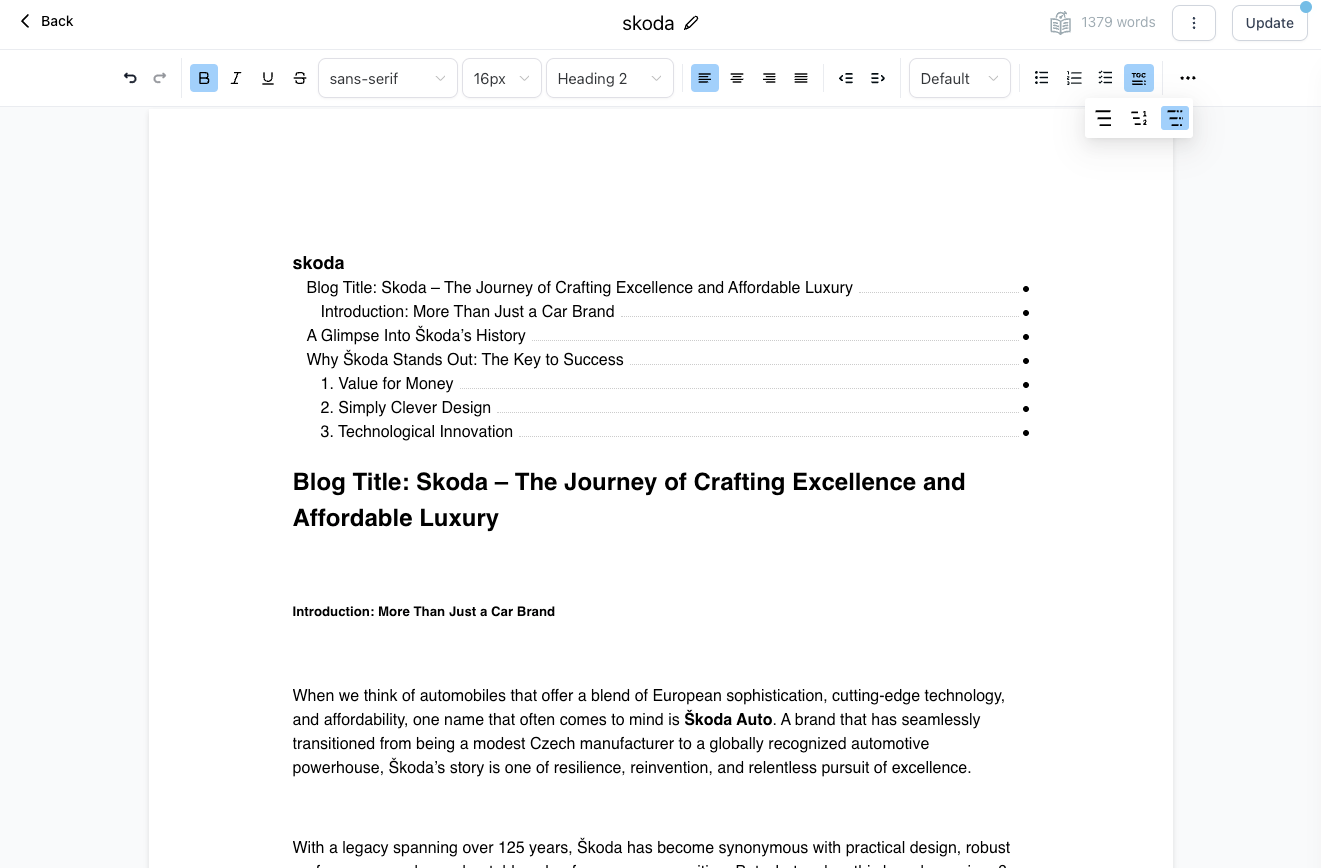
The Table of Contents tool looks at each heading in a blog post and creates a linked list that appears where it is placed. The list reflects the heading order and provides clickable anchors for each section.
The feature lives inside the blog post editor. A new Table of Contents icon shows three layout options, and the style toolbar lets you apply bold, italic, underline, strikethrough and change the font size. The generated list updates automatically as you edit headings.
03How businesses use table of contents
- Improve reader navigation. Insert the Table of Contents so visitors can click links to jump directly to each section of a long article.
- Match blog styling. Use the toolbar to apply bold, italic, underline, strikethrough and adjust font size, ensuring the Table of Contents blends with the blog’s theme.
- Support SEO. Provide internal links that structure the content, helping search engines understand the hierarchy of the post.
04How to set up and use table of contents in HighLevel
Add table of contents to a blog post
- Open the blog section and choose Edit blog site.
- In the post editor, locate the new Table of Contents icon and view its three layout choices.
- Select the desired indentation style; the system creates links for each header in the post.
- Use the toolbar to apply bold, italic, underline, strikethrough or change the font size of the list.
- Save the post; the clickable Table of Contents is now part of the article.
05What it looks like in HighLevel
06Settings that matter
- Table of Contents icon. Provides three layout options that determine how the generated list is indented and displayed.
07Things to know before you rely on it
- The feature offers exactly three layout options for the Table of Contents.
- The list is created only from headings that exist in the blog post.
08How it connects to the rest of HighLevel
- Set up and manage your blog before adding a Table of Contents. Blog setup guide
- Create and publish blog posts where you can insert the Table of Contents. Create blog post
- Add search and category navigation to complement the Table of Contents for better reader experience. Blog navigation
Michael's take

Wondering if a table of contents is worth the extra step for your blog? It’s a quick way to give readers a roadmap through long form posts, and the automatic linking means you don’t have to hand craft each anchor.
If I were setting up a new article, I’d drop the icon in, pick a layout that matches my design, and style it to blend with the page. It improves SEO and gives a cleaner reading flow.