
01Who this is for
- Marketers building lead capture funnels who need to toggle offers based on user actions.
- Web designers creating product showcase pages who want to hide details until a visitor clicks.
- Coaches constructing course pages who wish to reveal supplemental resources on demand.
02Hide and show elements on button click, explained
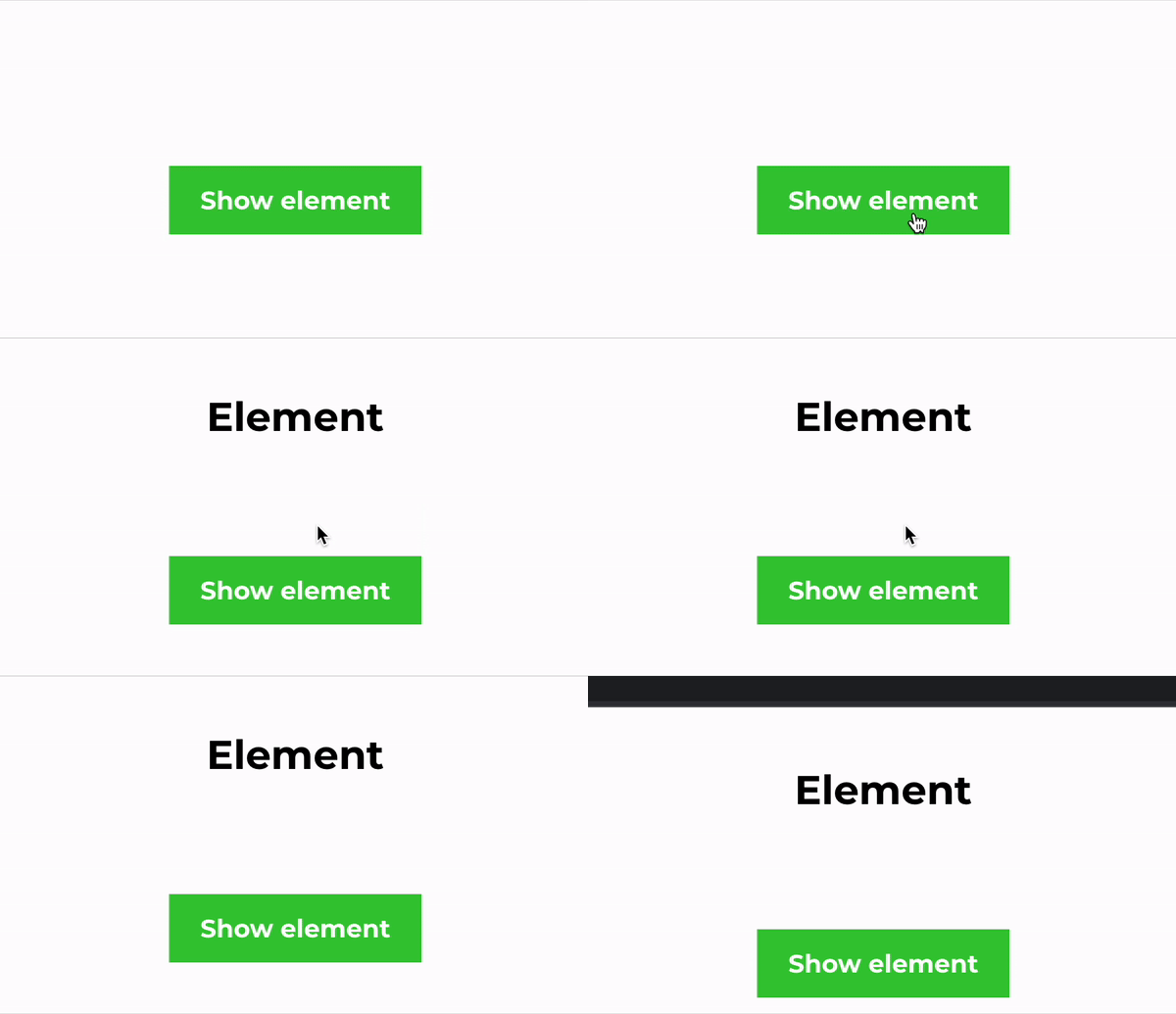
The Hide/Show Elements on Click action adds interactivity to a funnel or website page. When a button is set to this action, clicking it will either hide chosen elements or display elements that were previously hidden. The feature works for any element type, sections, columns, rows or single items, and affects both desktop and mobile views.
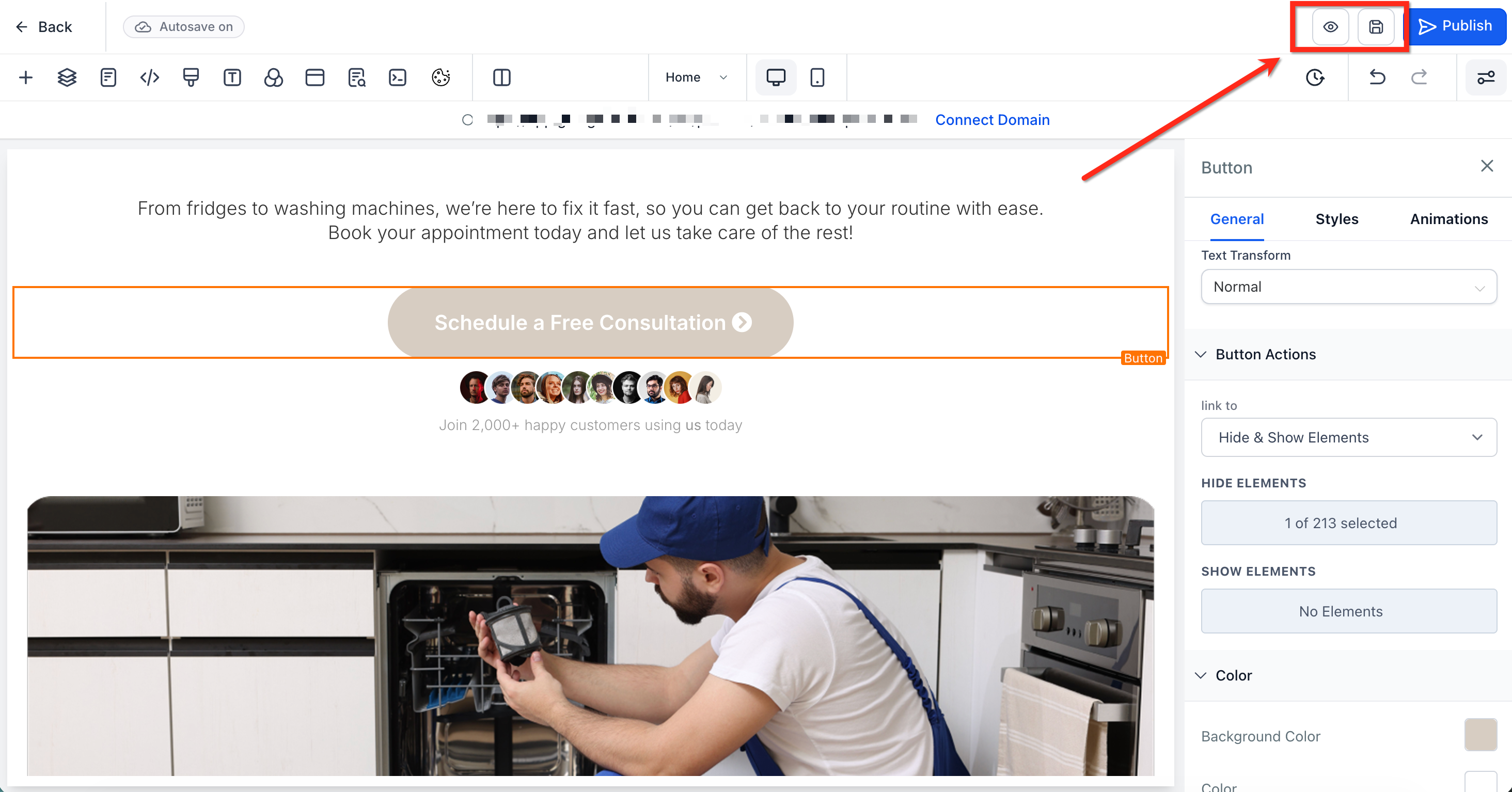
To use it, open the builder, select a button, and locate the Button Actions area in the right hand settings panel. Choose the Hide & Show Elements option, then pick which elements to hide or show from the corresponding dropdowns. Save the changes and preview the page to verify the behaviour.
If an element becomes hidden, it disappears from the canvas but remains listed in the Layers panel, where you can select it and restore its visibility using the eye icon in the top bar.
03How businesses use hide and show elements on button click
- Ecommerce store. Hide a product’s size chart until a shopper clicks a ‘View Size Chart’ button, then reveal the chart with the same button. The button’s action is set to hide or show the chart element within the page builder.
- Online coaching business. Place a hidden FAQ section beneath a ‘Read FAQs’ button. First set the FAQ element to hidden, then configure the button to show that element when clicked, letting visitors expand the information on demand.
- Event registration page. Use a button to hide extra ticket options until a user selects a ticket type, then reveal the additional options with another button click. Both hide and show actions are defined in the button’s settings.
04Before you start
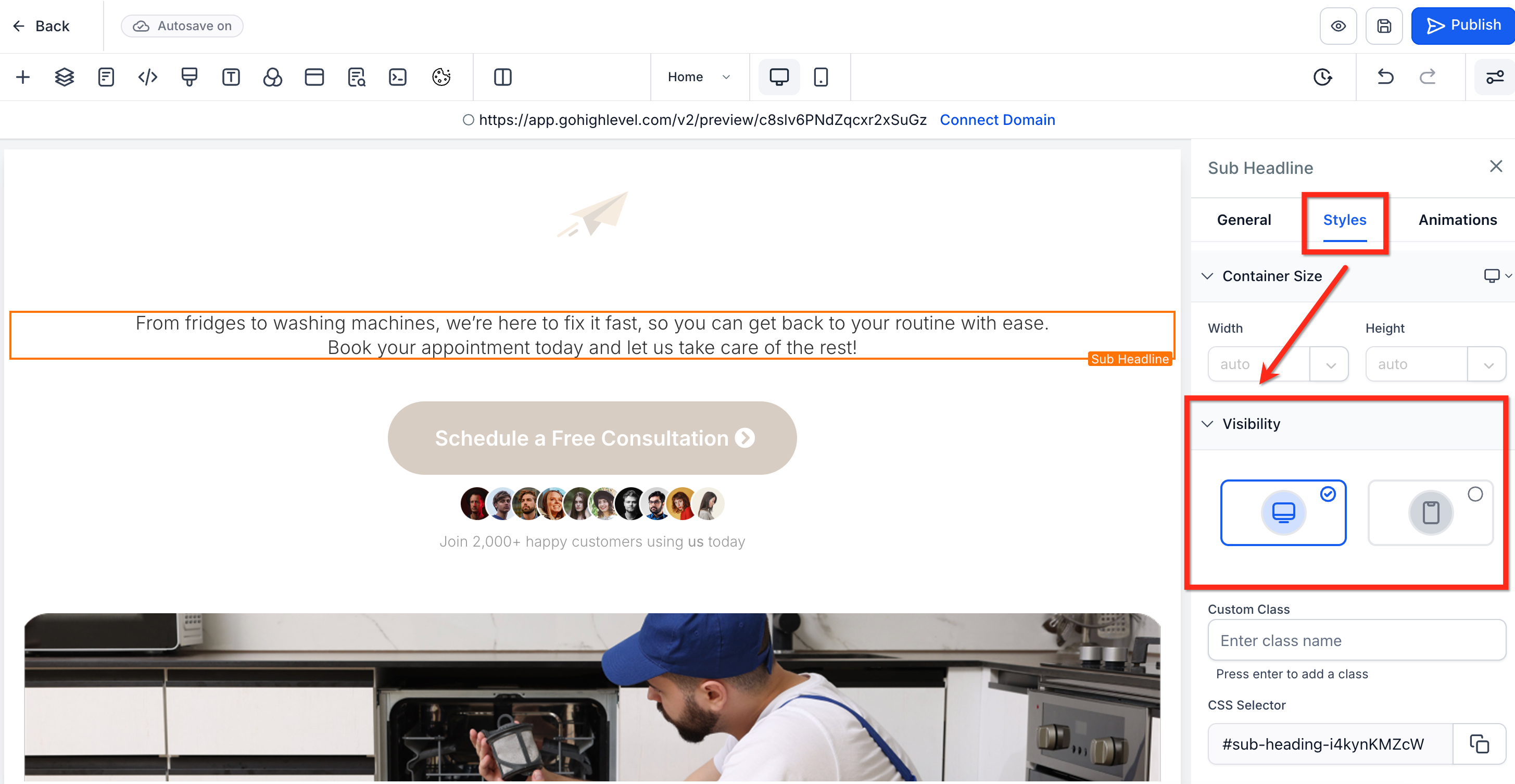
- The element you plan to reveal must first be set to hidden in the Styles > Visibility settings.
- A button element must exist on the page to attach the hide/show action.
05How to set up and use hide and show elements on button click in HighLevel
Hide elements on button click
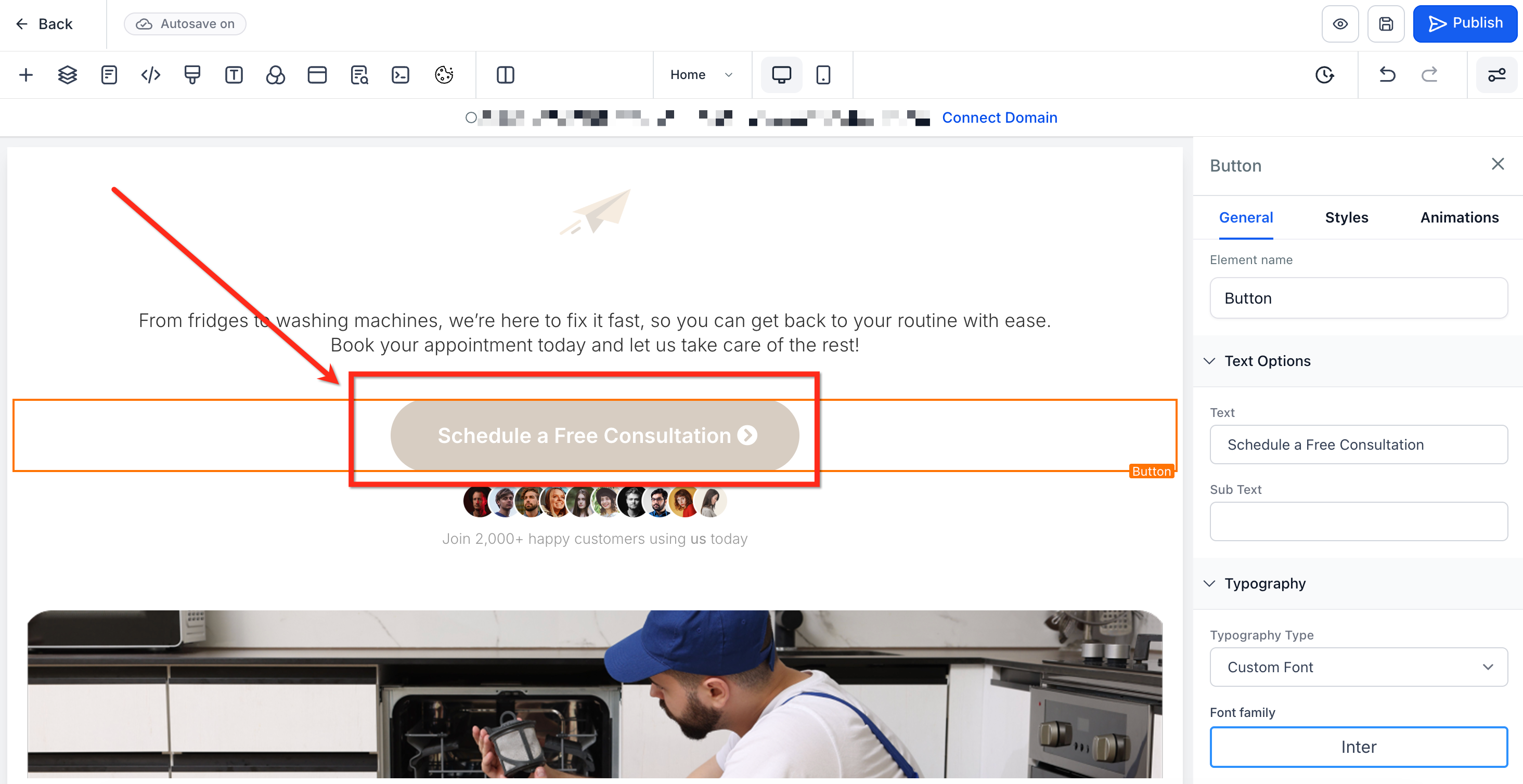
- Select the button you want to use in the funnel or website builder.
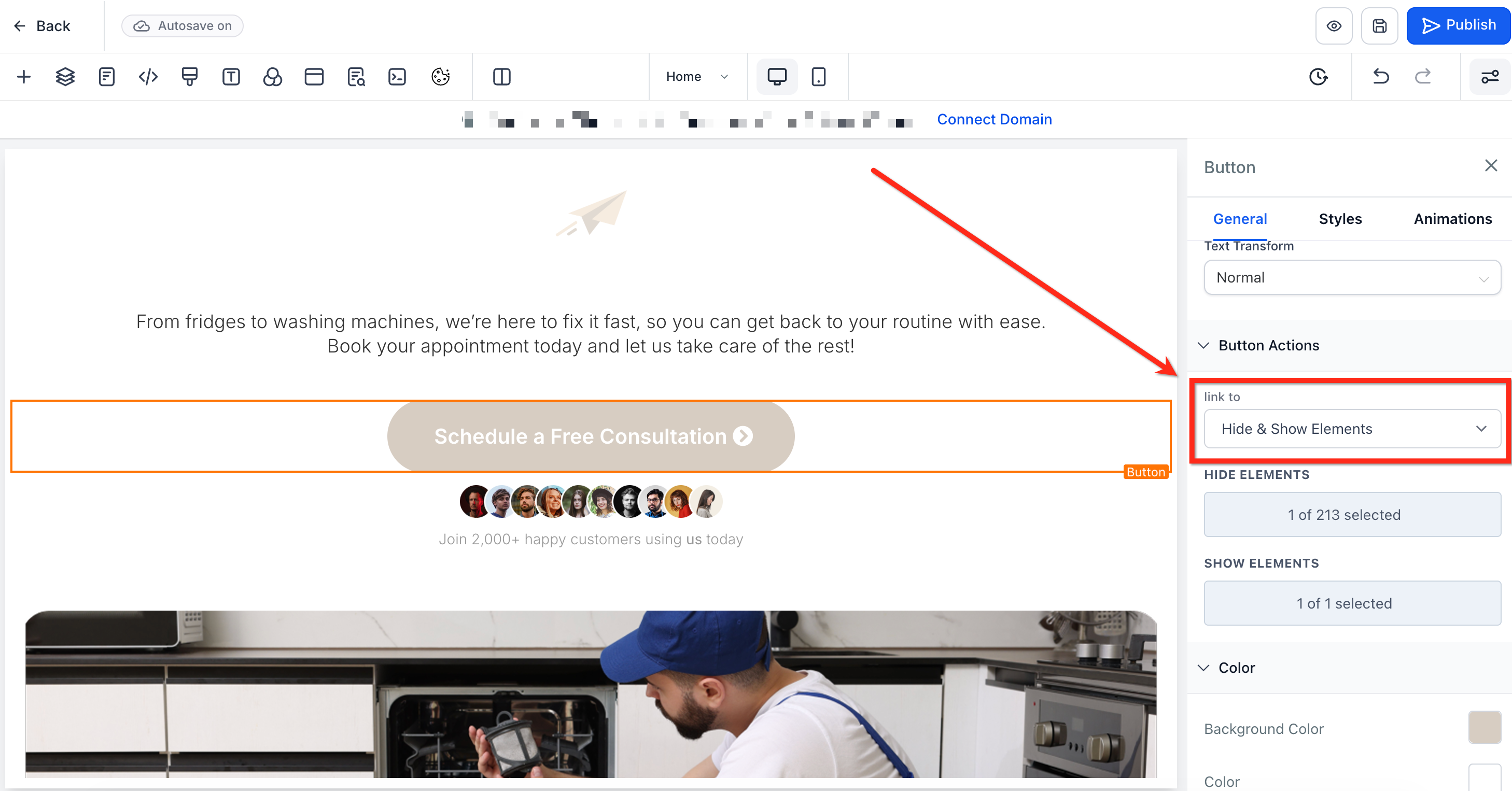
- In the element settings panel, scroll down to the Button Actions section.
- From the Link To dropdown, choose Hide & Show Elements.
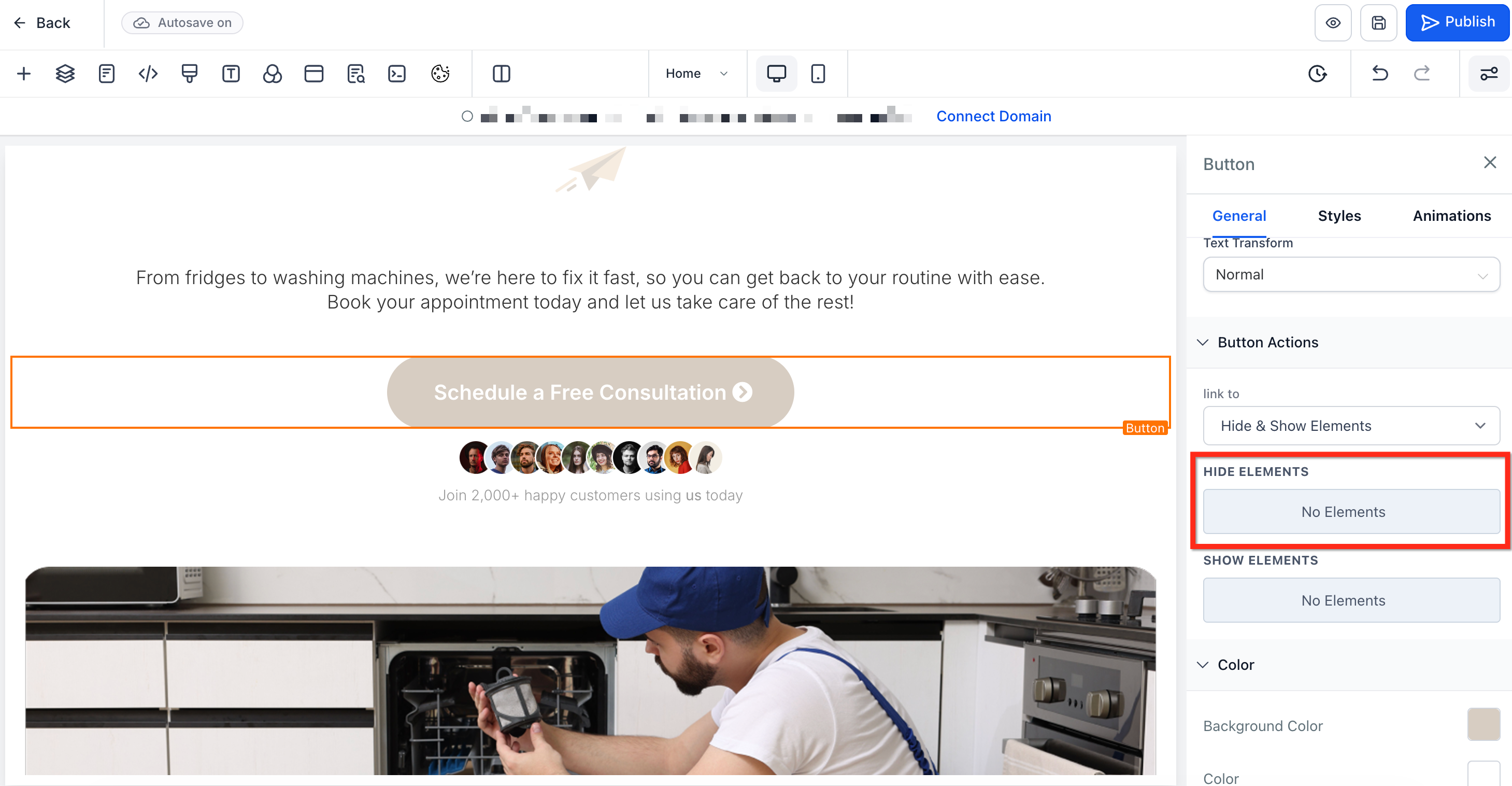
- Click Hide Elements and select the element(s) you want to hide from the dropdown list.
- Click Save or Preview to confirm the button now hides the chosen elements.
- Important: The element must be hidden before it can appear in the Show Elements dropdown.
Show elements on button click
- Select the element you want to reveal and set its visibility to hidden for both desktop and mobile in the Styles > Visibility area.
- Verify the element appears as hidden (the visibility icons turn gray).
- Select the button that will trigger the reveal.
- In the element settings, scroll to the Button Actions section.
- Choose Hide & Show Elements from the Link To dropdown.
- Open the Show Elements dropdown, select the previously hidden element(s), then click Save or Preview.
Edit a hidden element
- Open the Layers panel by clicking the Layers icon in the top left of the builder.
- Find the hidden element in the list; it will appear dimmed or with an eye icon.
- Select the element’s name to highlight it and open its settings panel.
- Click the visibility toggle (eye icon) in the top bar to turn visibility back on for desktop and/or mobile.
06What it looks like in HighLevel
07Settings that matter
- Link To. Specifies the action the button will perform; selecting Hide & Show Elements enables hide or reveal functionality.
- Hide Elements. Dropdown that lists all visible page elements; choosing items tells the button which elements to hide when clicked.
- Show Elements. Dropdown that lists elements currently hidden; selecting items tells the button which elements to reveal on click.
- Visibility toggle. Eye icon control in the Styles > Visibility settings that sets an element’s visibility for desktop, mobile, or both.
08Things to know before you rely on it
- An element must be hidden before it appears in the Show Elements dropdown.
- Hidden elements cannot be selected on the canvas; they must be accessed via the Layers panel.
- The feature works for sections, columns, rows, and individual elements on both desktop and mobile views.
09How it connects to the rest of HighLevel
- Set up your funnel or website pages before adding hide/show actions. Website setup guide
- Add click to call buttons that can also use hide/show actions. Click to call links
- Use scroll to element links together with hide/show for guided navigation. Scroll to elements
Michael's take

Adding hide and show actions to buttons allows interactivity without extra code.
Don’t forget to hide the element first; trying to show something that was never hidden won’t work.