
01Who this is for
- Founders building multi step surveys who need consistent design across each page.
- Small business owners creating long forms who want to reuse validated input blocks.
- Marketers designing quizzes who require fast replication of question layouts.
02Element & slide cloning, explained
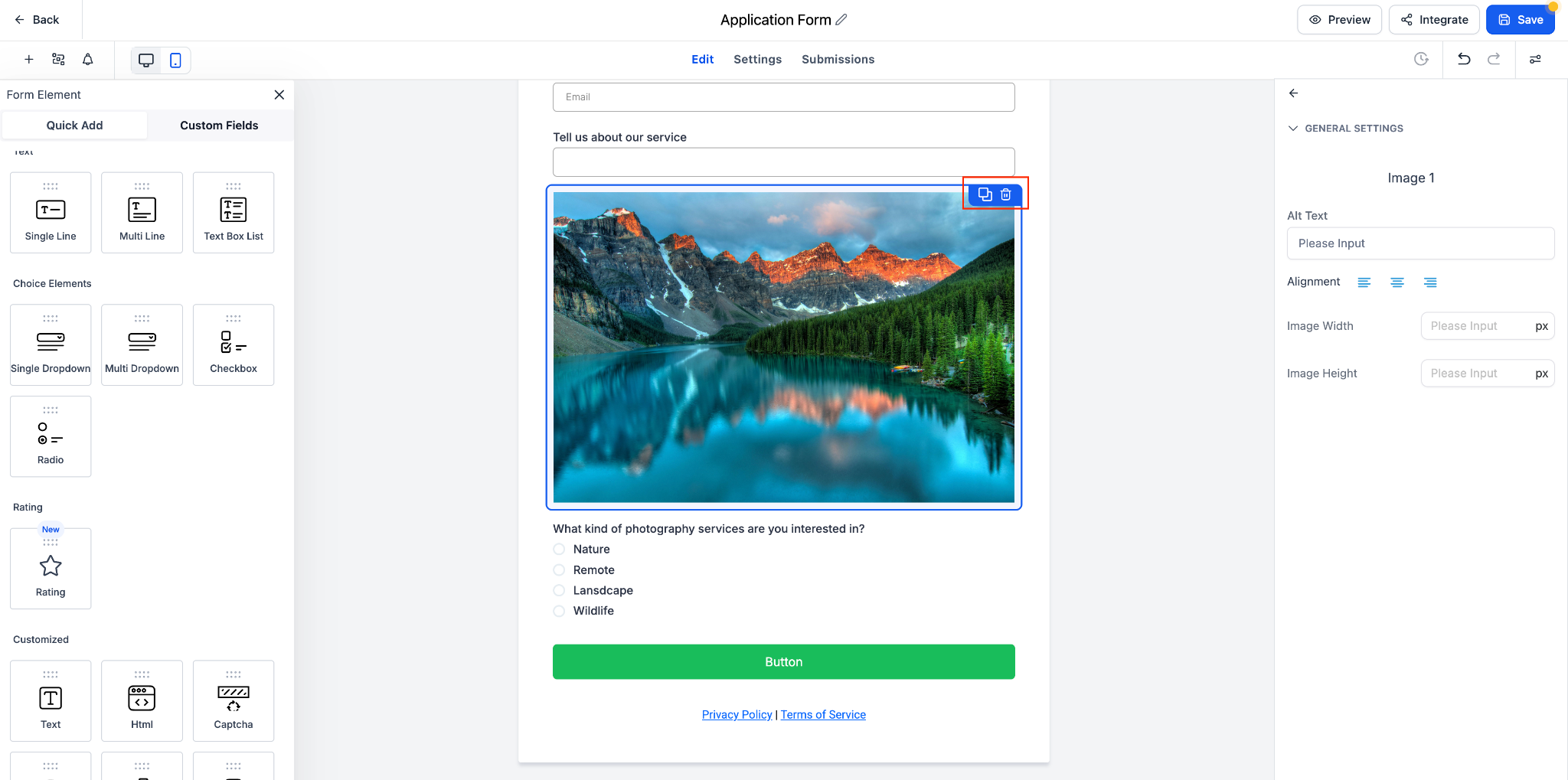
The feature adds a one click option to copy any element that has already been set up in a form, survey, or quiz. When you click the Clone icon, an identical copy is inserted directly beneath the source element. All styles, spacing, validation rules and content are duplicated, letting you edit the new version without affecting the original.
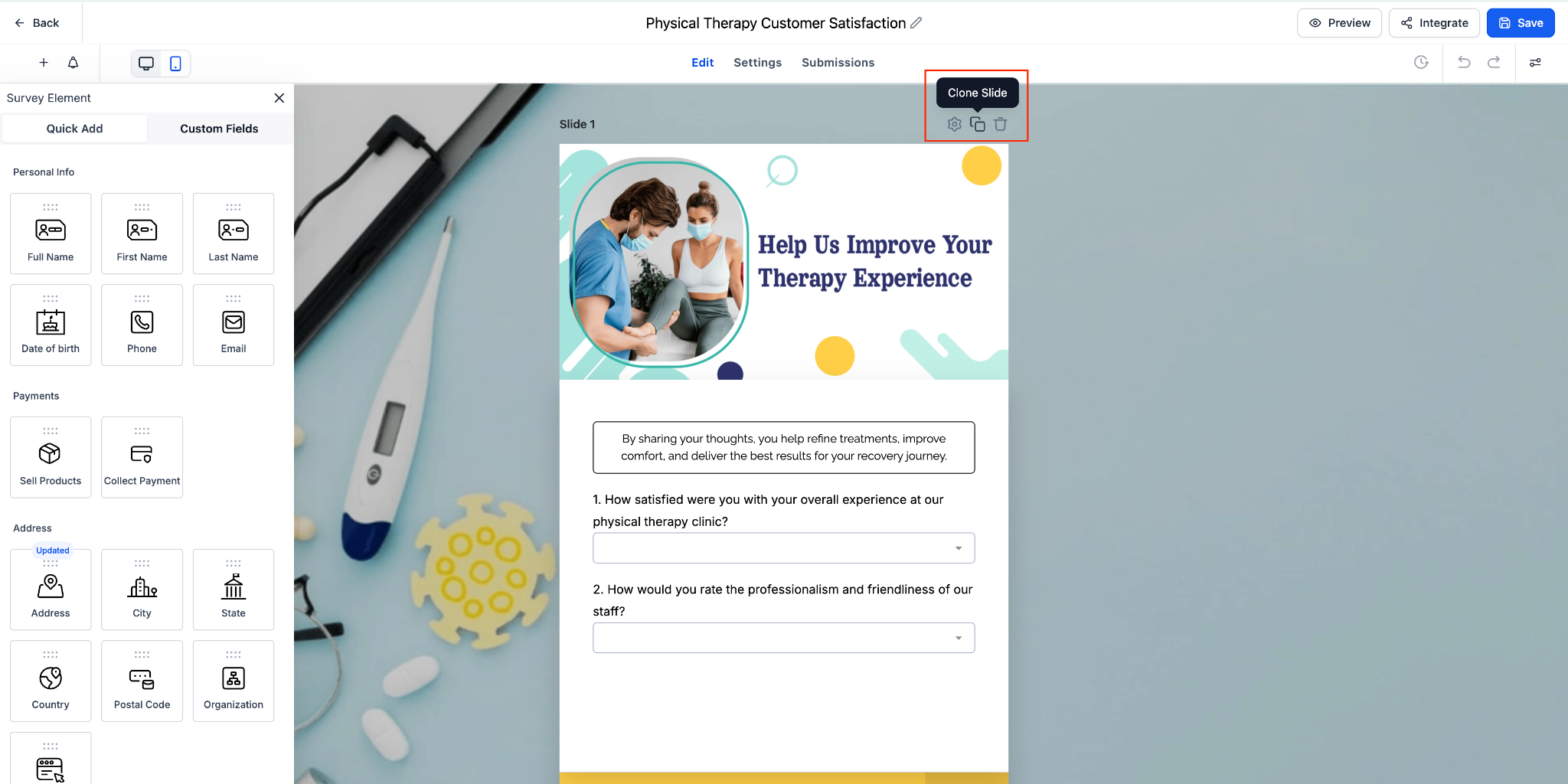
In survey or quiz mode, a separate Clone Slide command copies the entire slide canvas. The cloned slide retains its visual design, layout and any question elements it contains. This option is unavailable when you are editing a plain form. The cloned slide appears immediately after the original, ready for further adjustments.
03How businesses use element & slide cloning
- Real estate agency. The agency can clone a property inquiry field block across multiple listing forms, keeping the same validation and styling. After cloning, they edit the label to match each property without rebuilding the field.
- Online course provider. When building a quiz to assess student knowledge, the provider duplicates a question slide that shares the same layout and answer options. The cloned slide is then customized with new content while keeping the original design.
- Health clinic. The clinic creates a patient intake survey and clones a section that gathers insurance details for each step of a multi step flow, ensuring each slide looks identical and retains required field settings.
04The numbers and rules that matter
- There’s no hard limit on times you can clone an element.
05How to set up and use element & slide cloning in HighLevel
Clone element
- Open the desired Form, Survey, or Quiz in the builder.
- Hover over the element you want to copy.
- Click the Clone icon (two rectangle symbol).
- Notice the duplicate appear directly below the original element.
- Select the new element and adjust its settings as required.
Clone slide
- Open the Survey or Quiz in the builder.
- Move the cursor to the top right corner of the slide.
- Click the Clone Slide button.
- A full copy of the slide is added after the original.
- Edit the cloned slide to reflect the new content.
06What it looks like in HighLevel
07Settings that matter
- Clone. Creates a copy of the selected element while preserving its styles, validations, and content.
- Clone Slide. Duplicates the entire slide canvas, including layout, design blocks and question elements.
08Things to know before you rely on it
- Slide cloning is only available for Surveys and Quizzes; it cannot be used in Forms.
- There is no hard limit on how many times an element can be cloned.
09If something goes wrong
- Accidental clone created. Hover over the unwanted element or slide and click the Delete (trash) icon.
10How it connects to the rest of HighLevel
- Use the contact form builder to set up the original elements before cloning them. Contact form builder
- Add and edit custom fields in forms and surveys to create reusable blocks for cloning. Custom fields
- Configure email alerts and auto responders to work with cloned forms and surveys. Email notifications
Michael's take

I find cloning elements and slides useful when building longer surveys because it lets me keep the design consistent without rebuilding each part from scratch.
When I need the same field in multiple places, I clone it and then adjust the label text, which saves me a few clicks.