
01Who this is for
- Marketing agencies, maintain consistent lead forms across client funnels.
- Ecommerce owners, embed order forms with payment options directly on product pages.
- Coaches and course creators, collect registrations and payments without extra tools.
02Forms & surveys, explained
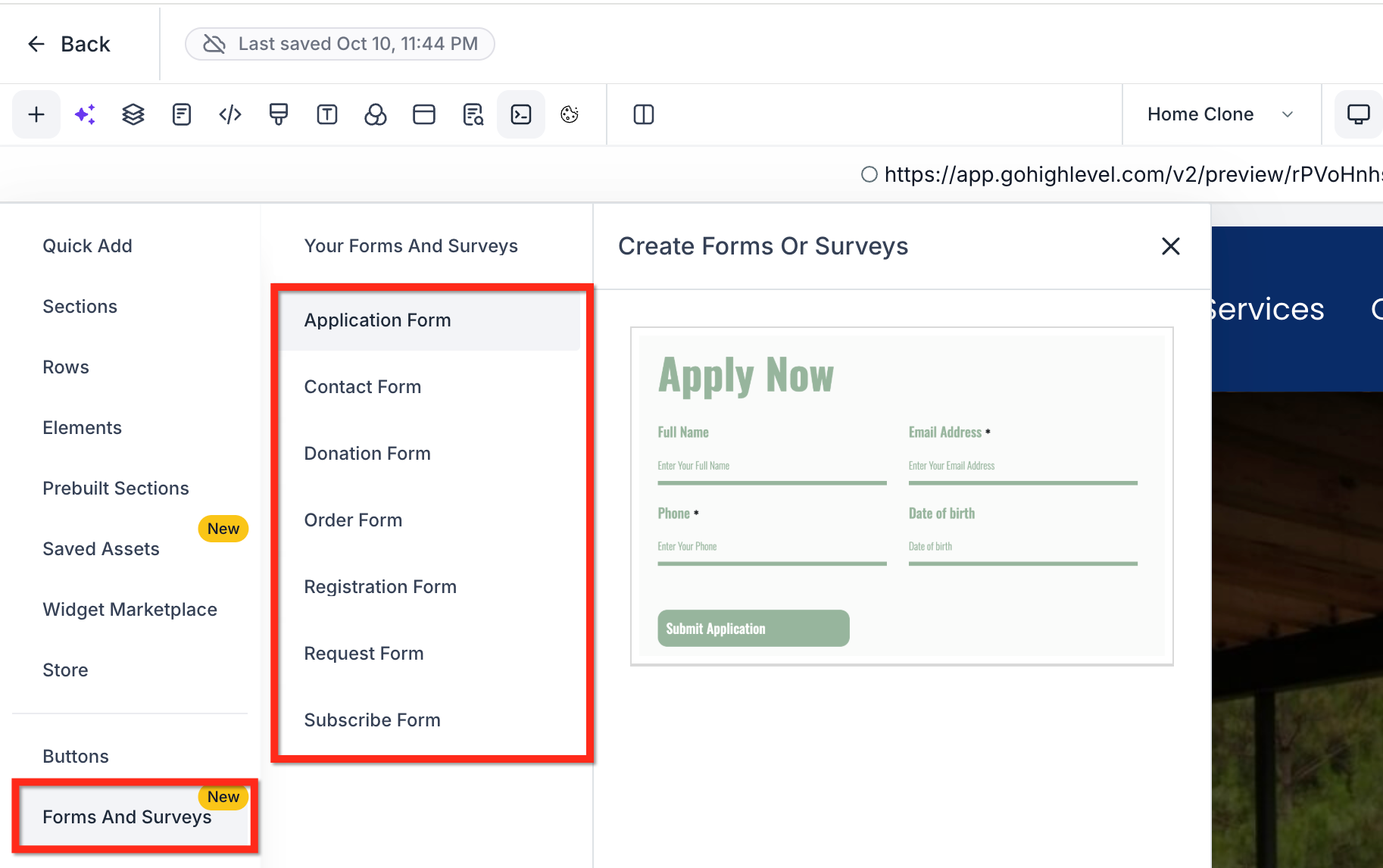
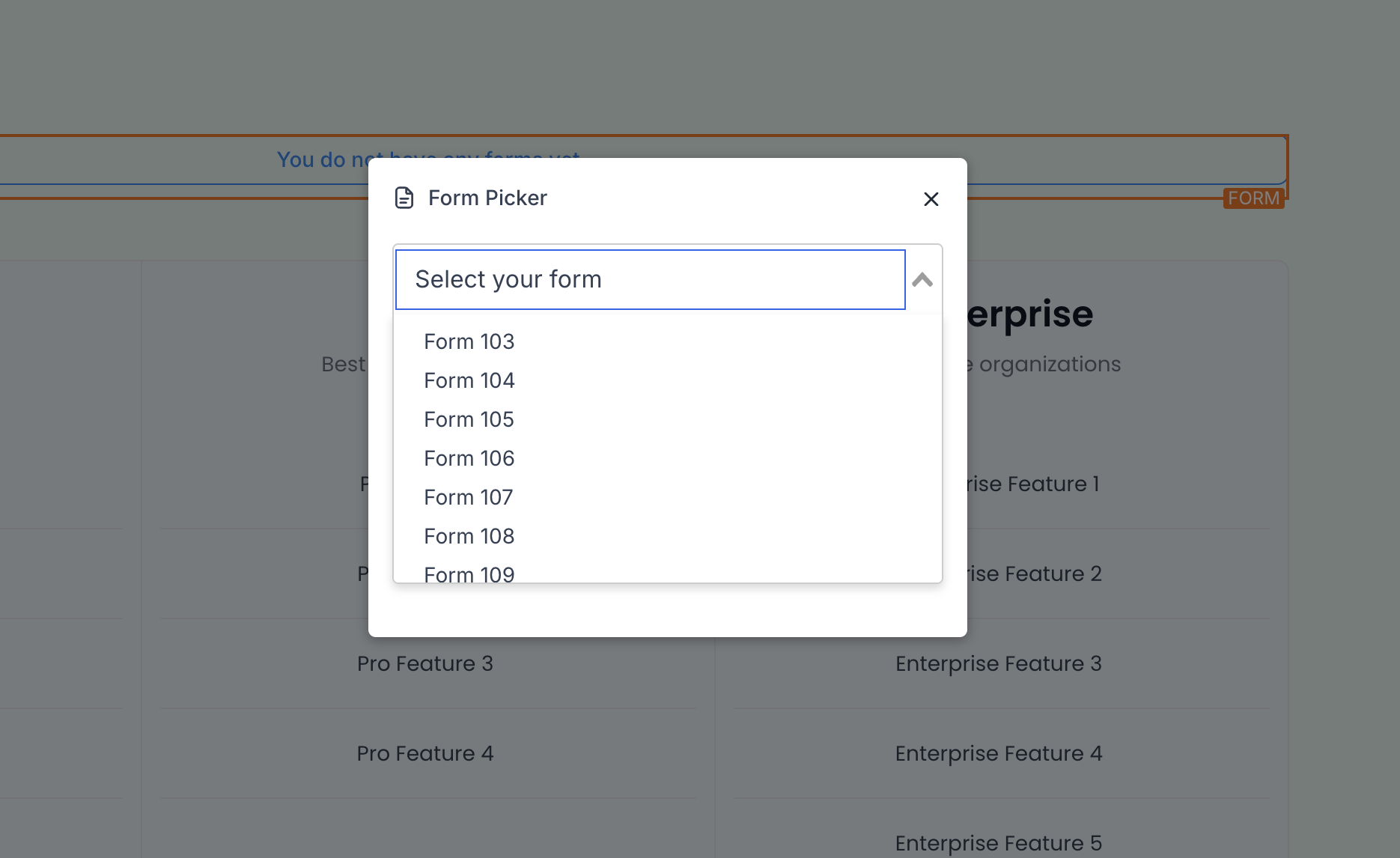
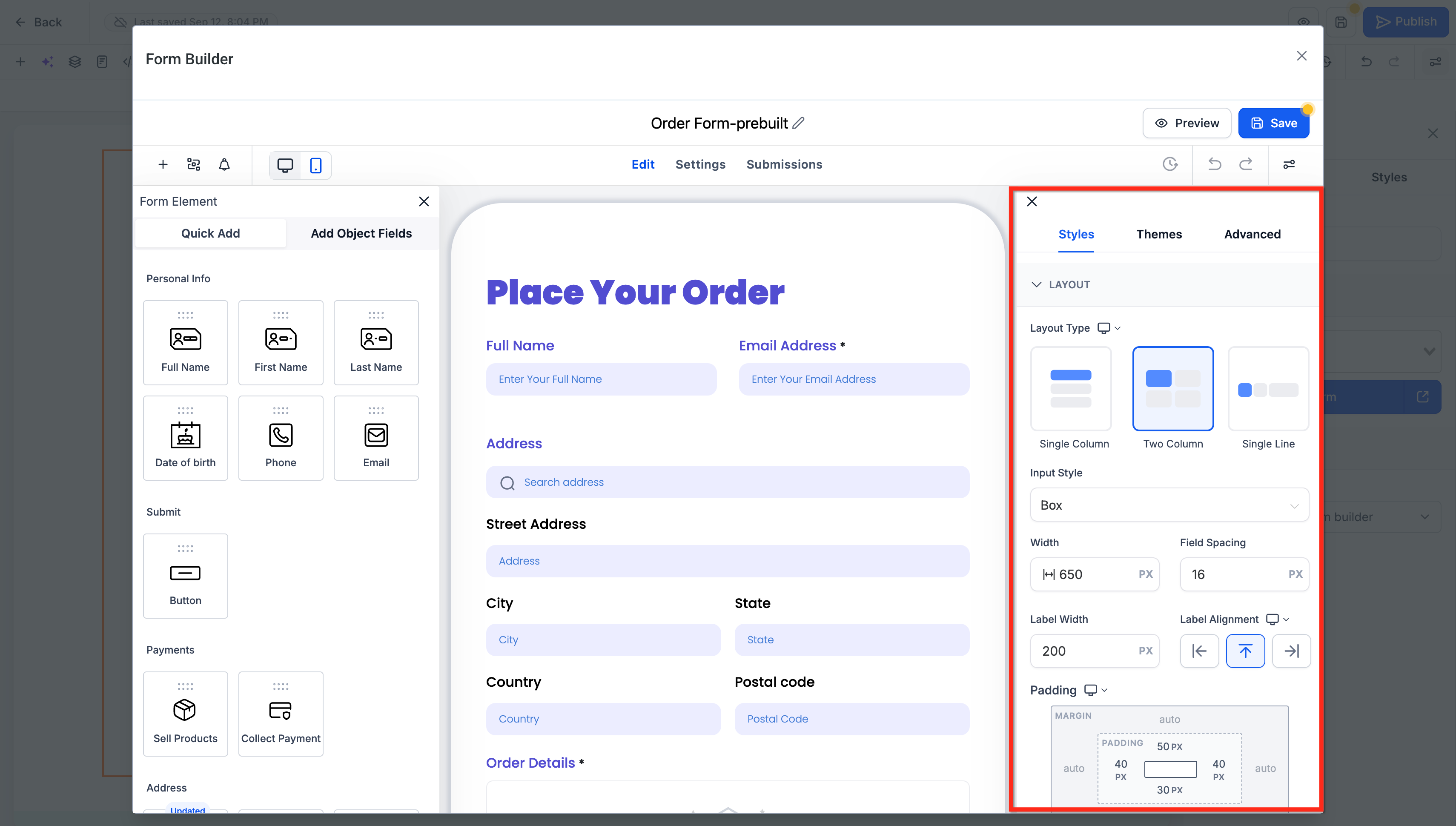
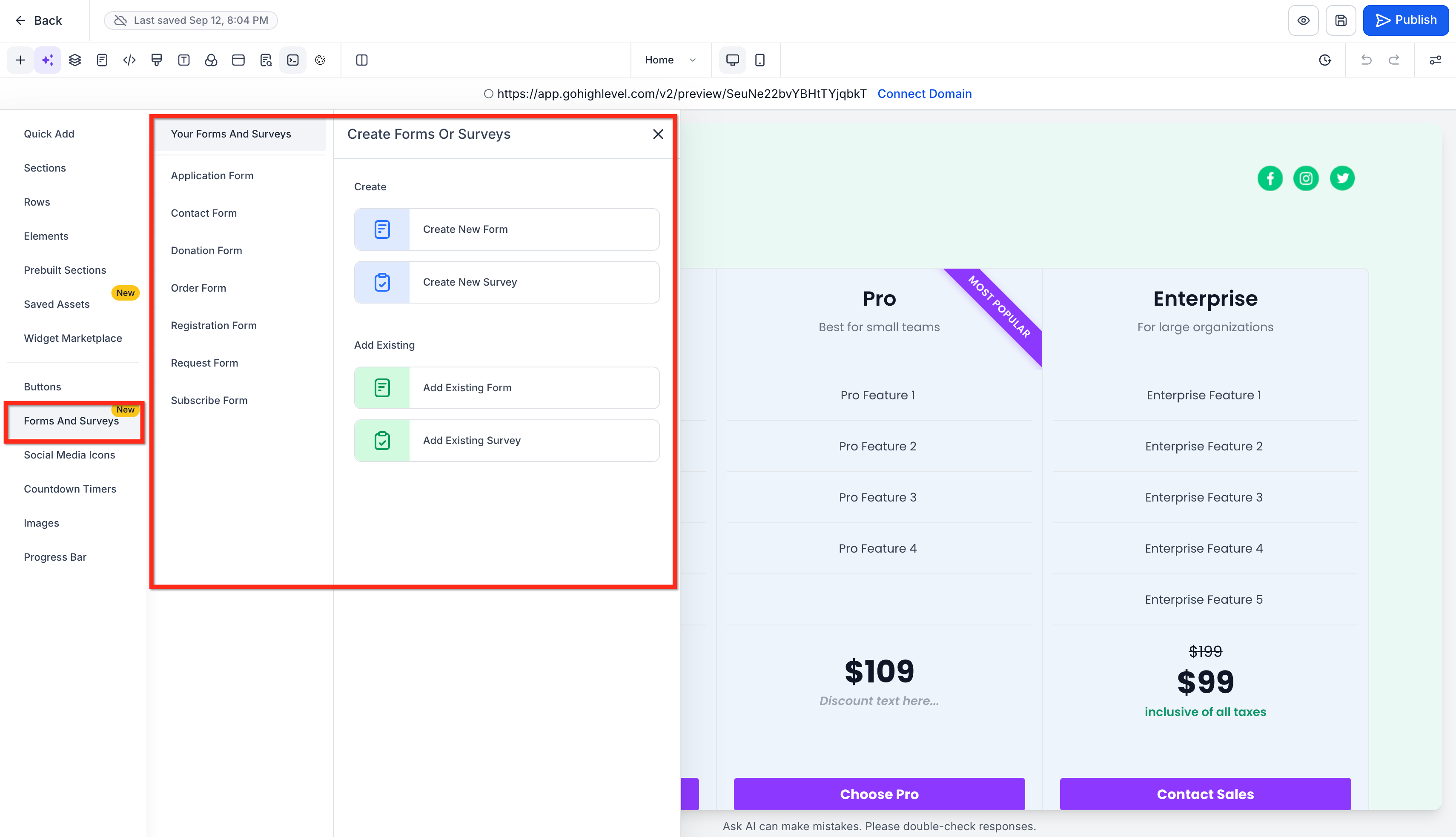
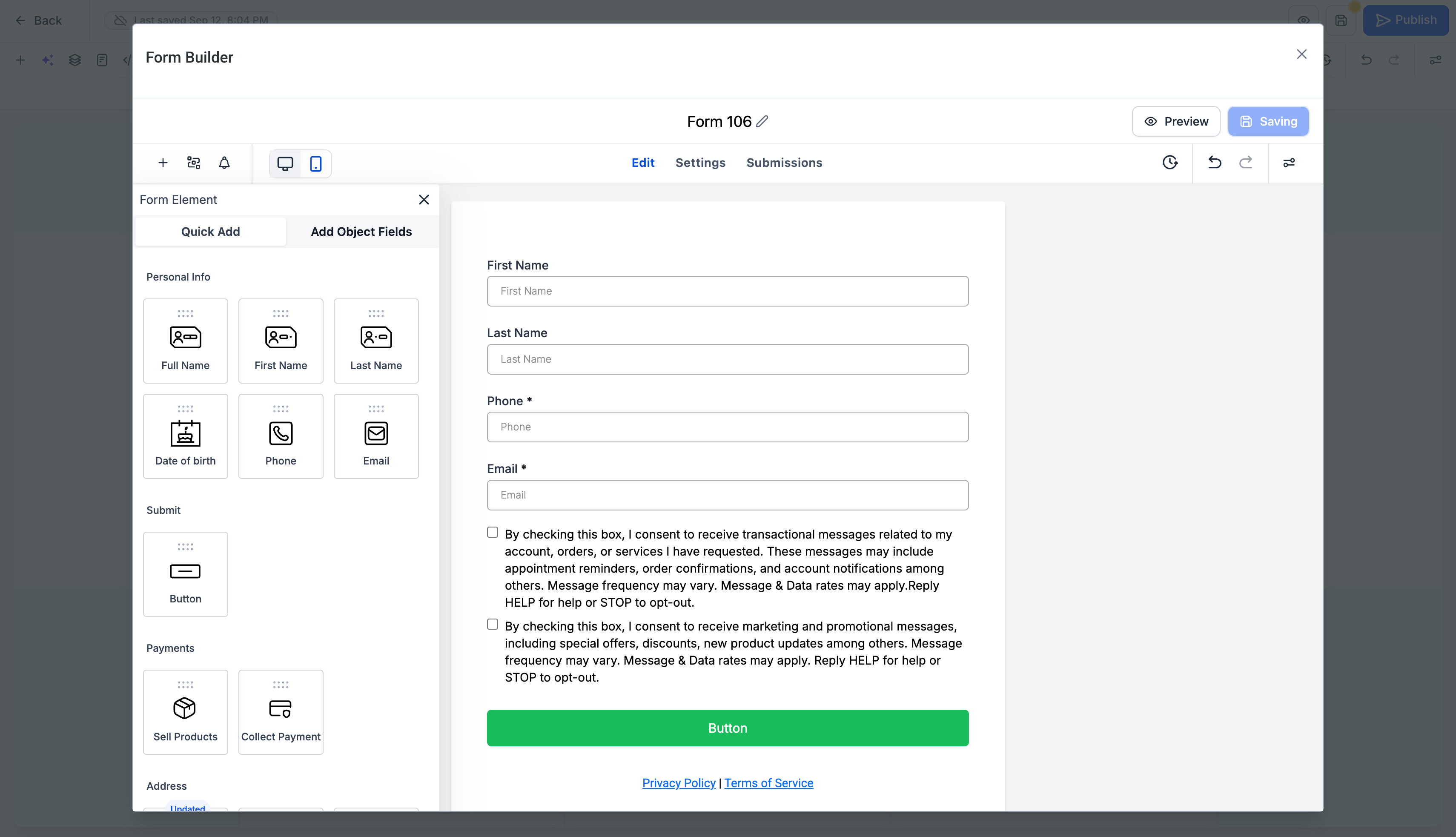
The feature adds a Forms & Surveys workspace inside the Funnel and Website builders. From the left sidebar you can create a new form, pick a prebuilt template, or add an existing asset via the Form Picker. The editor appears as a large modal covering most of the screen, letting you add fields, set styles, and configure advanced options.
All forms and surveys you build or add appear in a unified list under Sites > Forms > Builder and Sites > Surveys > Builder. This central list lets you search, duplicate, and reuse assets across any funnel, website, webinar, or ecommerce store. Payment elements can be added to order style templates, linking to a supported gateway for product sales or donations.
03How businesses use forms & surveys
- Marketing agency. The agency opens a client funnel, drags a prebuilt Contact form onto the canvas, customizes field labels, and saves. The same form can be reused on other client pages via the Form Picker, keeping branding consistent.
- Ecommerce store. The store owner selects an Order template, adds the Payment element, configures products in the Products area, places the form on a checkout page, and tests a submission to verify the payment flow.
- Online course provider. The provider creates a Registration form from a template, modifies the fields to capture course preferences, applies a visual Theme, and embeds the form on the registration landing page.
04How to set up and use forms & surveys in HighLevel
Set up forms & surveys
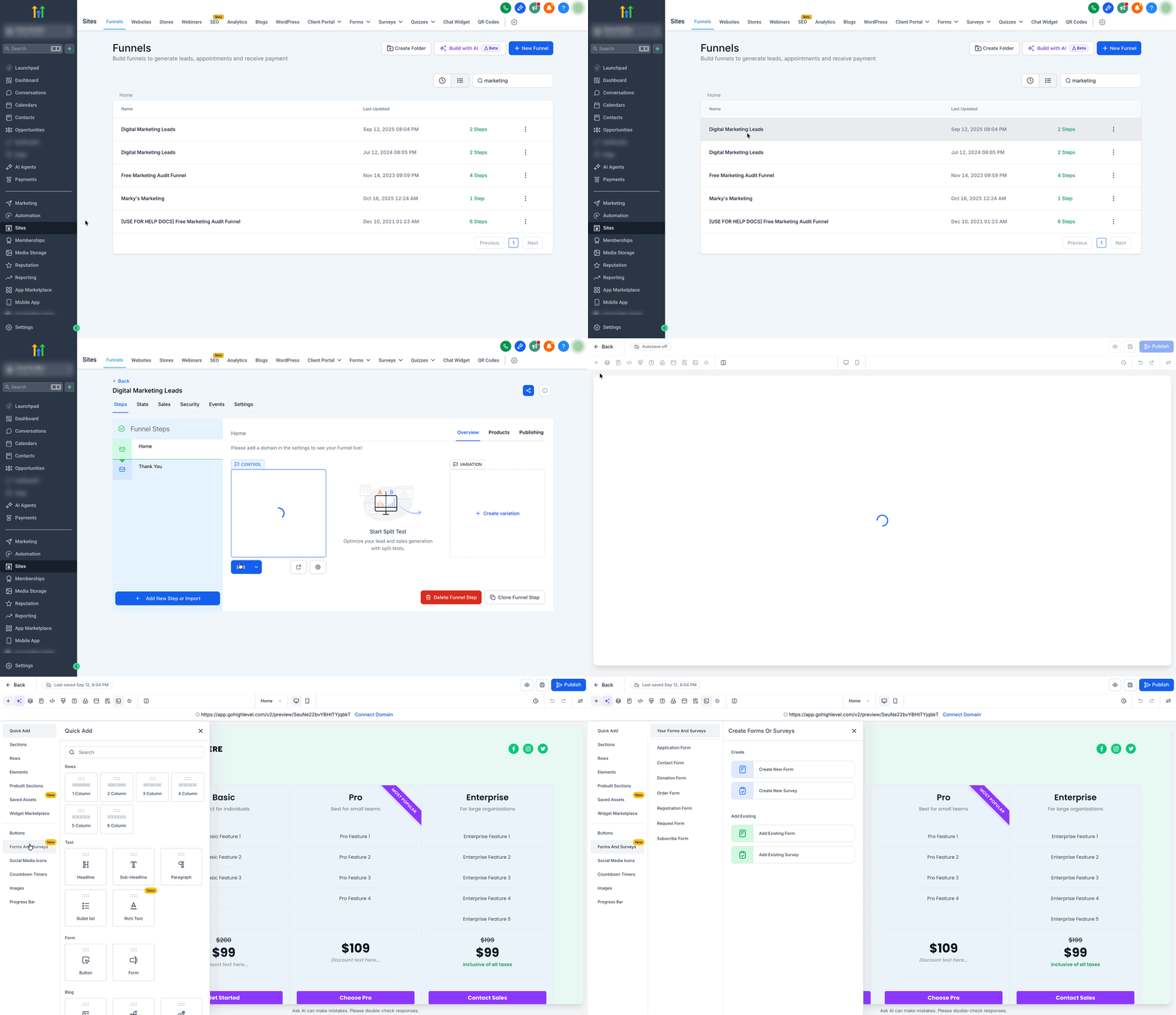
- Open the Funnel Builder or the Website Builder.
- In Funnel Builder, open your funnel, select a step, then enter the editor.
- In Website Builder, open your website, choose a page, then enter the editor.
- Open the Forms & Surveys panel in the left sidebar.
- Choose Create New, select a prebuilt category, or click Add Existing to launch the Form Picker.
- Drag the selected form onto the canvas.
- If creating new, the large modal builder opens; add or edit fields, adjust design, and save.
- If adding an existing form, use the Form Picker to select the asset and edit it as needed.
- Save the page.
- Preview the page and submit a test entry.
- Confirm the test submission appears under Sites > Forms/Surveys > Submissions.
05What it looks like in HighLevel
06Settings that matter
- Fields. Controls which input fields appear, their order, and mapping to custom fields.
- Styles. Sets fonts, spacing, borders, backgrounds, and button appearance for the form or survey.
- Advanced. Manages confirmation behavior, redirects, logic, tracking, and other specialized options.
07Things to know before you rely on it
- Switching Themes replaces any style changes you have made.
- Converting a form to a survey or the reverse is not supported; duplicate and rebuild instead.
- Localization applies only to the builder interface, not to custom text entered in forms or surveys.
- Manual payment methods appear only if they are enabled in your payment settings.
08How it connects to the rest of HighLevel
- Overview of website setup and page design Website overview
- HighLevel pricing and plan details Pricing
- Start a 30 day trial of HighLevel 30 day trial
- Connect a root domain or subdomain for funnels and websites Domain setup
Michael's take

Jumping into the builder to add forms can feel frantic if you’re still learning the canvas, and themes can overwrite custom styling if you’re not watching.
The upside is that you stay inside the same design space, pull in existing assets fast, and launch with templates, keeping payments, surveys, and lead capture in one place.