
01Who this is for
- Founders who market a mobile app and need a single QR code for both iOS and Android promotions, reducing material complexity.
- Small business owners with a printed flyer campaign who want customers to download their app without choosing between multiple codes.
02App QR codes, explained
App QR Codes let a QR scan determine the visitor’s device and send them to the correct destination. You supply an Apple App Store URL for iOS devices and a Google Play Store URL for Android devices. An optional fallback URL catches any other or unidentified devices.
The feature lives inside the standard QR Code Builder. After selecting the App QR Code type, you enter the three URLs, customize the design, test on both platforms, and then save. The QR code retains the usual design options and can be reused across print, digital, or campaign assets.
When a user scans the code, HighLevel automatically reads the device type and redirects immediately, eliminating the need for a separate landing page that lists store choices.
03How businesses use app QR codes
- Restaurant chain. The chain creates an App QR Code that points iOS diners to its iPhone ordering app in the Apple Store and Android diners to the Google Play version. The QR code is placed on menus so guests can right away launch the correct ordering app.
- Fitness studio. The studio generates an App QR Code linking to its class booking app. iOS members are sent to the Apple Store, Android members to Google Play, and users with other devices see a fallback web page offering a desktop signup option.
- SaaS startup. The startup adds the App QR Code to conference badges. Scanners on iPhones open the iOS version of the product app, Android phones open the Play Store version, and any other device receives a link to a product overview page.
04Before you start
- Have the Apple App Store URL ready for iOS users.
- Have the Google Play Store URL ready for Android users.
- Optionally prepare an Other Devices URL for unsupported or unidentified devices.
05How to set up and use app QR codes in HighLevel
Create and configure an App QR Code
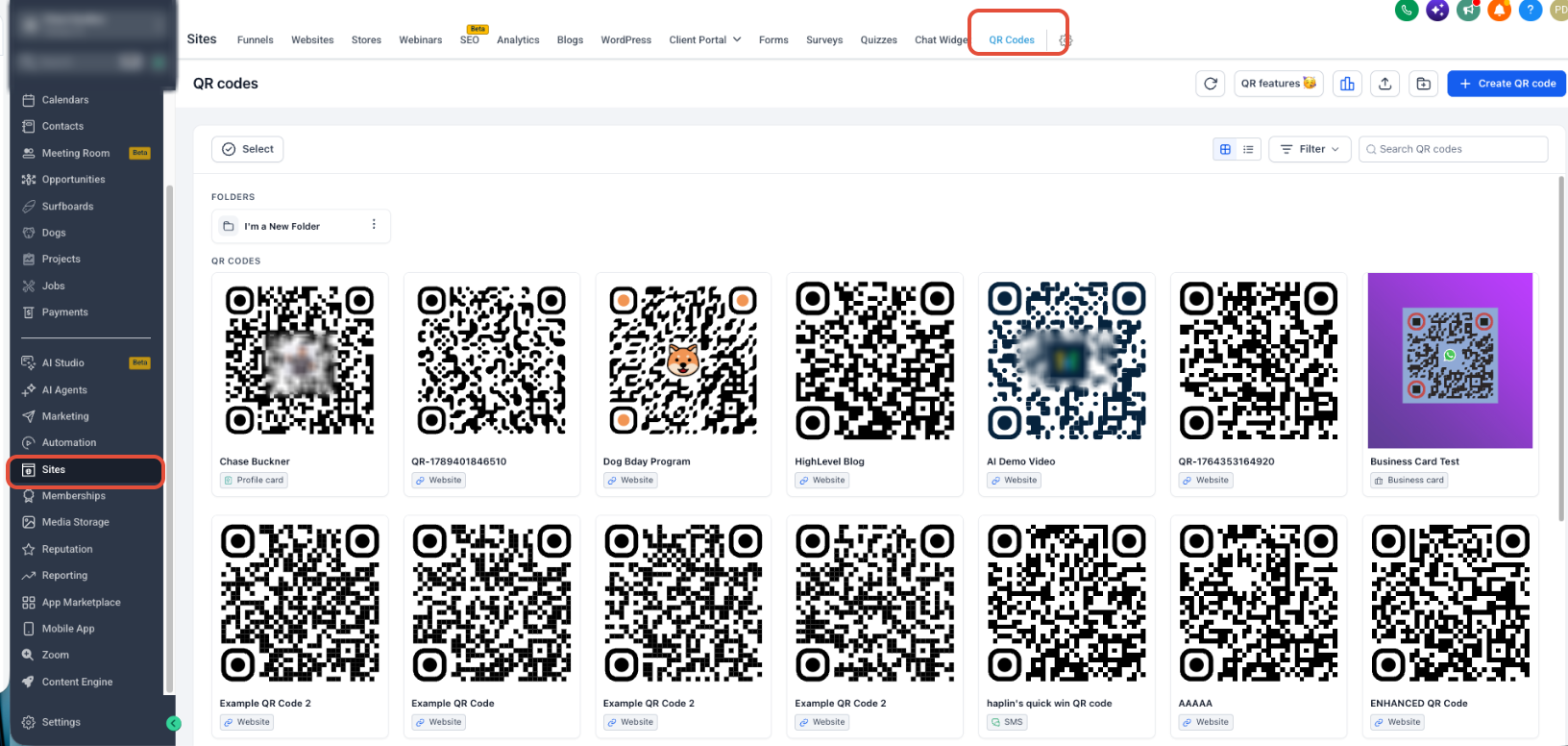
- Open the Subaccount view and choose Sites.
- Select QR Codes from the top navigation bar.
- Click the Create QR Code button.
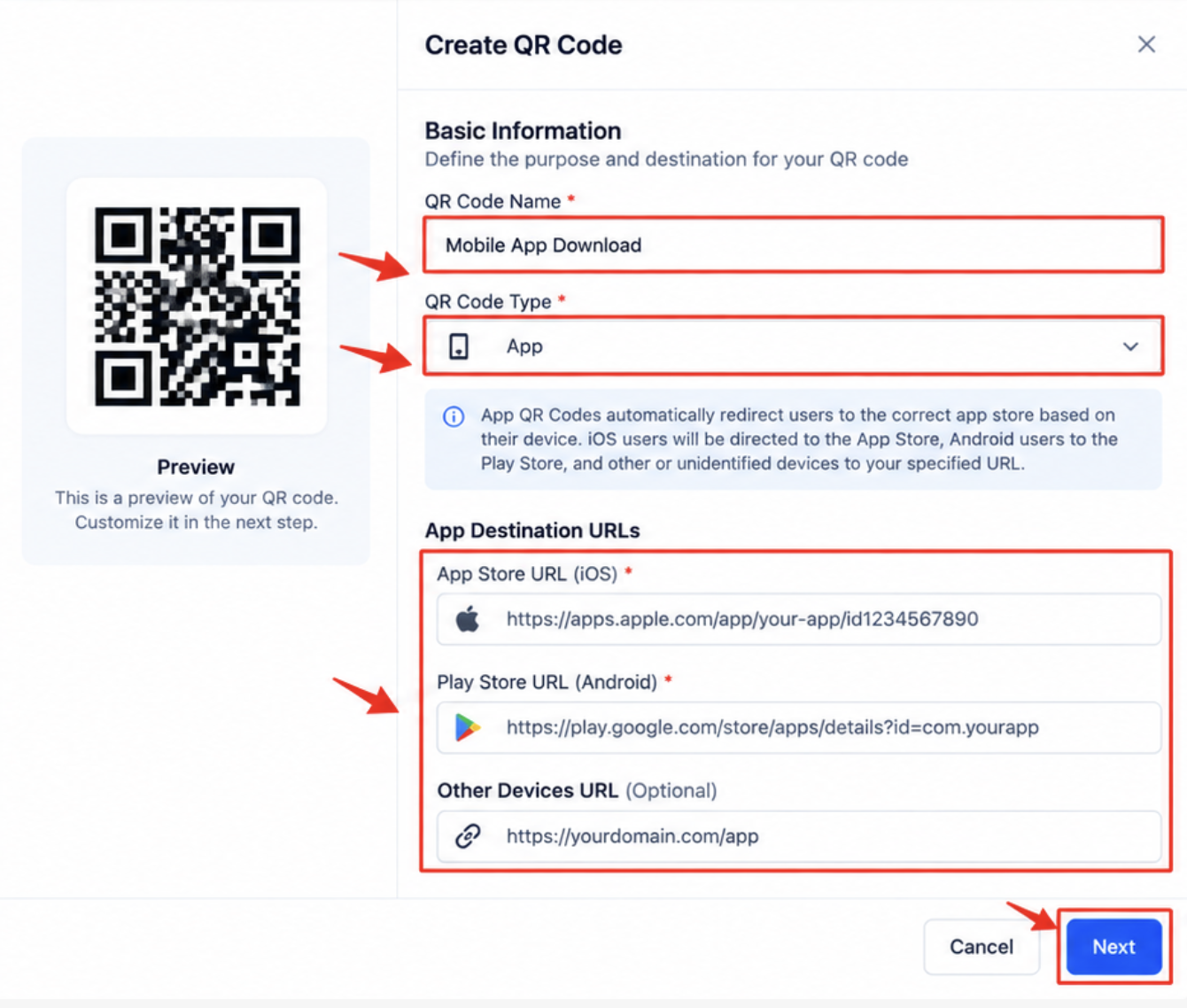
- Type a recognizable name for the new QR code.
- Choose App as the QR Code type.
- Enter the App Store URL that iOS users should reach.
- Enter the Play Store URL that Android users should reach.
- If desired, add an Other Devices URL for unsupported or unidentified devices.
- Press Next to move to the QR Code design screen.
- Apply the desired design options to the QR code.
- Scan the QR code with both iOS and Android devices to verify the destinations open correctly.
- If you added an Other Devices URL, scan the code with a non iOS/Android device to confirm the fallback works.
- Save the QR code once design and routing are confirmed.
06What it looks like in HighLevel
07Settings that matter
- App Store URL. Specifies the destination that iOS devices are redirected to after scanning.
- Play Store URL. Specifies the destination that Android devices are redirected to after scanning.
- Other Devices URL. Provides a fallback destination for devices that are not identified as iOS or Android.
08Things to know before you rely on it
- The Other Devices URL is optional; if not set, unsupported devices receive no fallback.
- App QR Codes keep the standard QR Code design and customization options.
- HighLevel automatically determines the device type after a scan.
09How it connects to the rest of HighLevel
- Guide to generating and customizing QR codes QR code generation guide
- How to make website QR codes that stay linked Website QR codes
- Overview of QR code features in HighLevel QR code features
Michael's take

When you hand out flyers or place a poster, you want people to reach the right app store without having to think about which platform they use. A single QR code that knows whether the scanner is on iPhone or Android solves that friction and keeps the user journey smooth.
The first setting I would lock in is the correct App Store URL for iOS. If that link points to the wrong page, every scan on an iPhone will fail, and the whole purpose of the QR code is lost.