
01QR code features, explained
The QR Code Features landing page in HighLevel gathers everything needed to work with QR codes. It appears when you open Sites > QR Codes and have no codes yet, showing a single view of creation, types, bulk upload and analytics options.
When at least one QR code exists, the page becomes a library of your QR codes. Clicking the QR Features button opens the same landing page in a modal, letting you jump back to creation or analytics at any time.
02How businesses use QR code features
- Create individual QR codes. Open Sites > QR Codes and click Create. Follow the built in workflow to set up a code for a website, form, SMS, call, email, payment or other action. The process can be quick or detailed, depending on your needs.
- Bulk generate QR codes. Select the Bulk option and upload a CSV file. HighLevel creates hundreds of QR codes in seconds, which is useful for large campaigns, team projects or any scenario that requires many codes at once.
- Analyze scan performance. Go to the Analytics section to see total and unique scans, device and browser breakdowns, and geographic insights by country, state and city. Scan data is available from August 28, 2024 onward.
03The numbers and rules that matter
- Supported historical scan data from August 28, 2024 onward.
04How to set up and use QR code features in HighLevel
Create a QR code
- Navigate to Sites > QR Codes.
- Click Create.
- Follow the built in workflow to select the type and configure the destination.
Bulk upload QR codes
- Navigate to Sites > QR Codes.
- Select Bulk.
- Upload a CSV file containing the QR code details.
05What it looks like in HighLevel
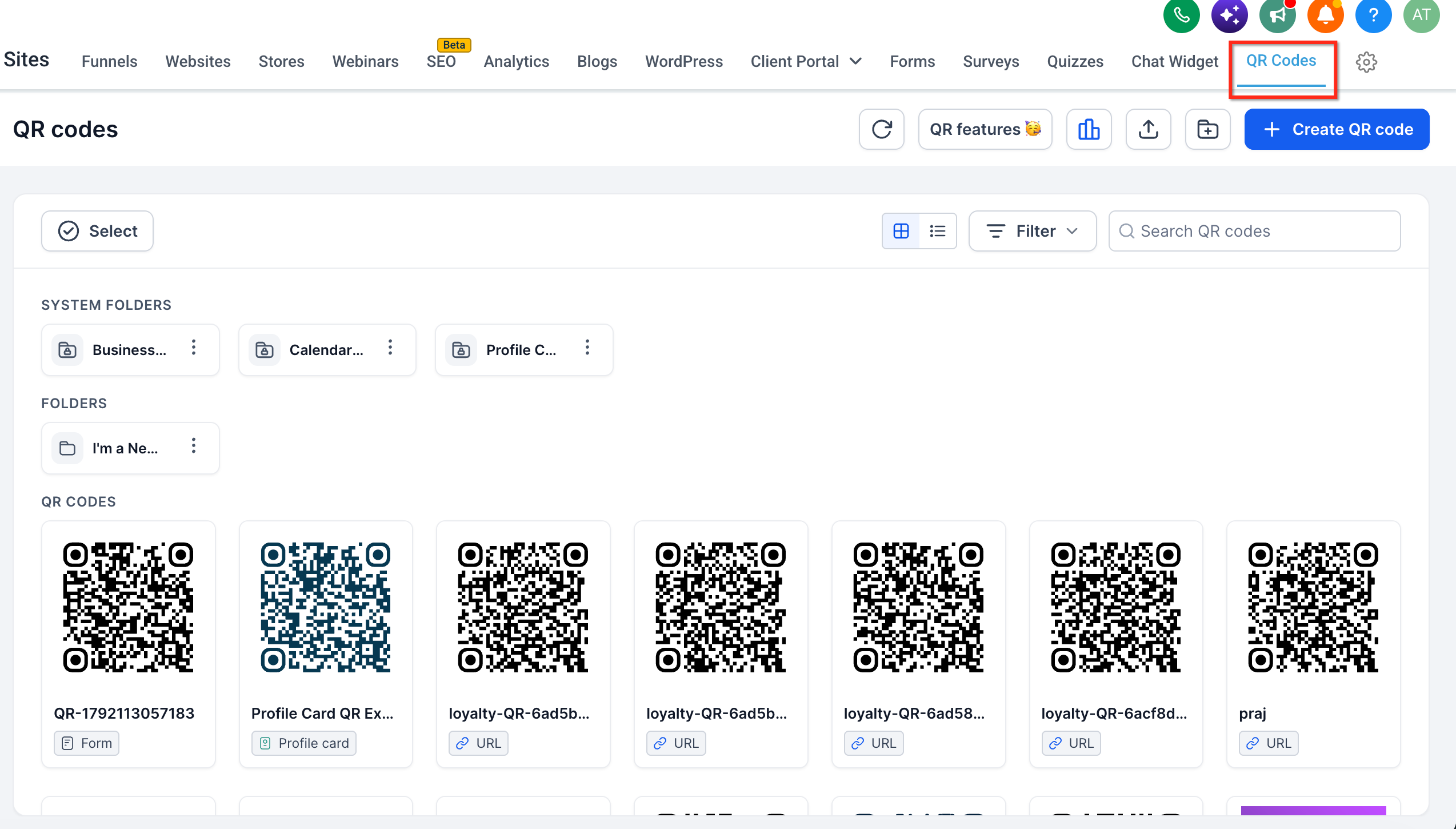
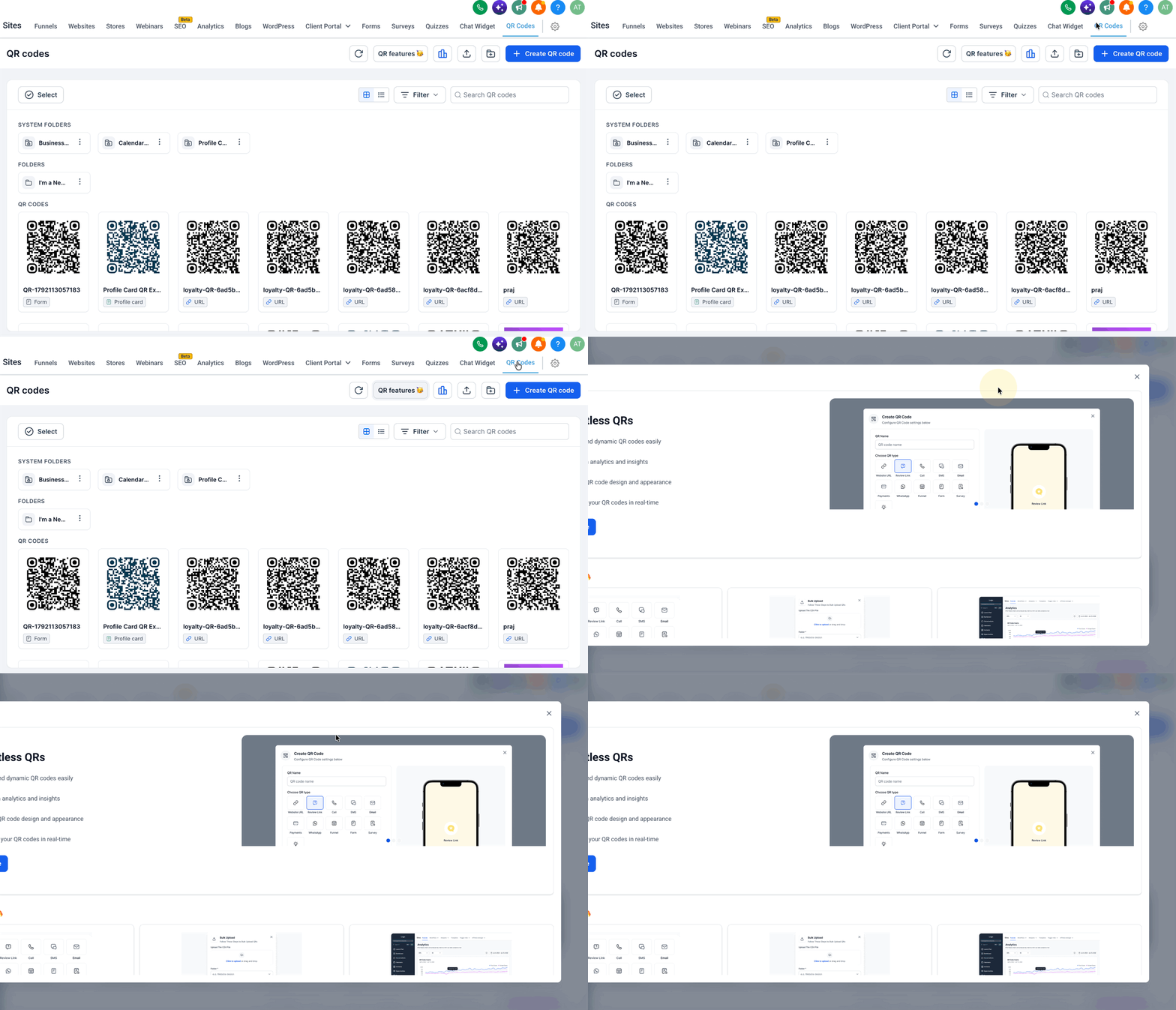
06Settings that matter
- Types. Choose the purpose of the QR code: Website, form, SMS, call, email, payment or other supported action.
- Analytics. View total and unique scans, device type, browser, and geographic data for each QR code.
Michael's take

Michael ReimerFounder of CRM Pros, HighLevel Commander and Certified Admin
The platform lets you point a scan to a form, SMS, phone call, email or a payment link.
I’d start by mapping each call to action to the appropriate QR type, then use the bulk uploader to generate the codes, and review the analytics to see which devices and locations are scanning.
Get More InformationOpens on HighLevelPublished November 2, 2026 · Updated November 3, 2026