
01Who this is for
- Team members who access shared subaccounts benefit from unique credentials that reduce the chance of account takeover.
- IT administrators overseeing multiple user roles rely on enforced password criteria to keep the whole organization secure.
02Password best practices, explained
The password feature defines the minimum composition a native HighLevel password must meet. Every new or changed password must contain at least twelve characters, mix of upper and lower case letters, at least one number and one special character such as ., @, # or $. The system rejects any entry that does not satisfy these rules.
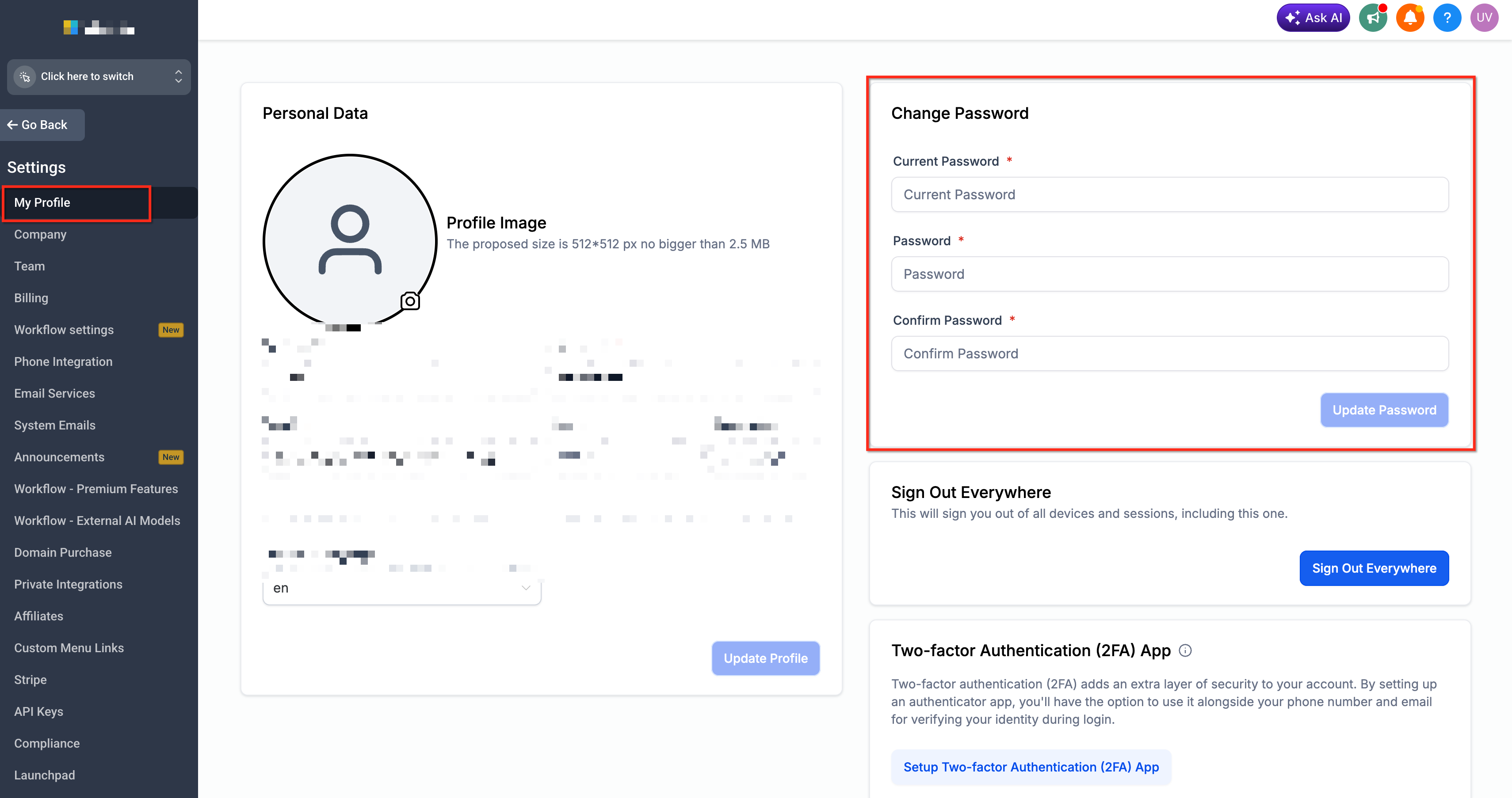
Password management lives in the user’s profile area under Settings > My Profile. From there, users can create a password during the initial activation flow, request a reset link from the login screen, or modify the existing password while logged in. The platform also offers optional two factor authentication to add another verification layer.
These controls apply only to accounts that sign in with a native email and password. Organizations that use single sign on or external identity providers manage passwords outside of HighLevel, and the native workflow is not available for those users.
03How businesses use the password best practices
- Digital marketing agency. When a new agency employee receives the welcome email, they follow the activation link, create a password that meets the 12 character rule, and then log in to access client subaccounts. The agency can later enforce password changes from each user's profile.
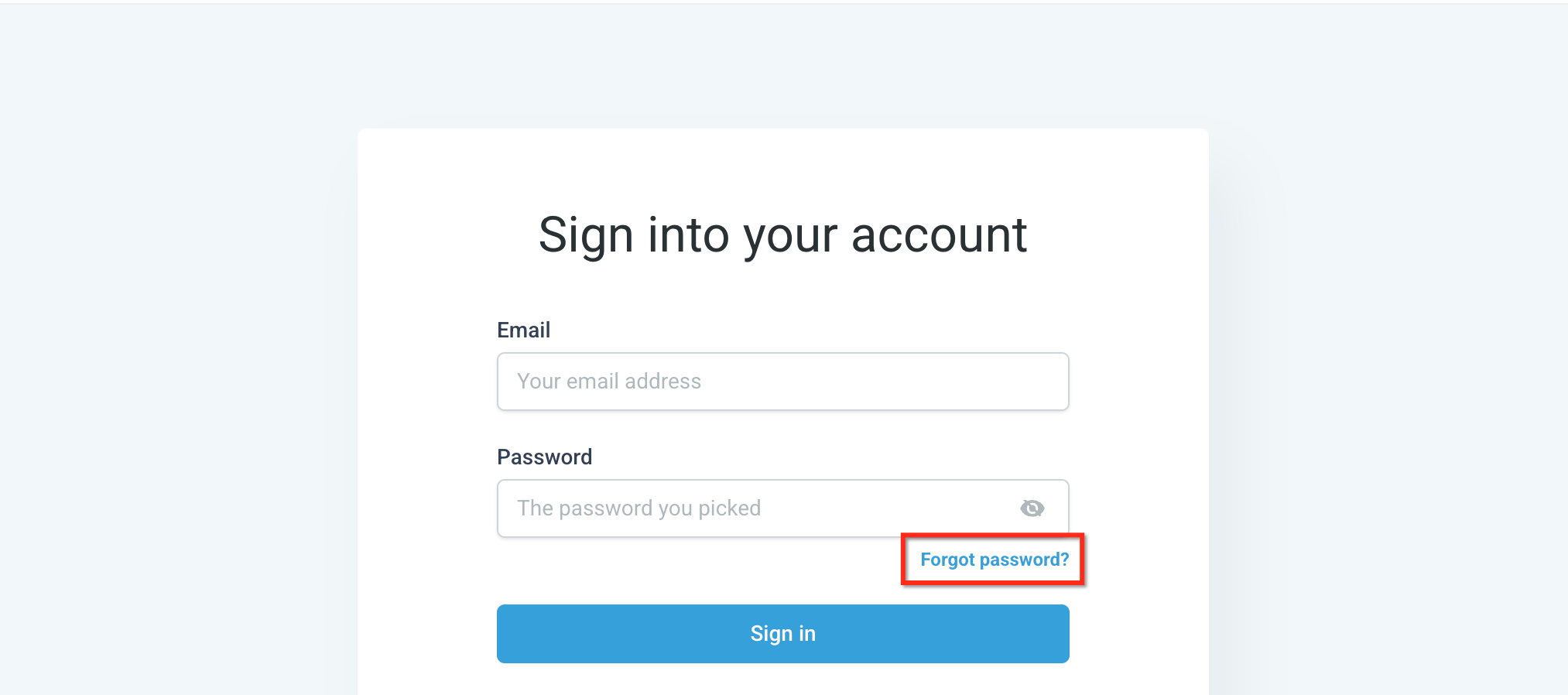
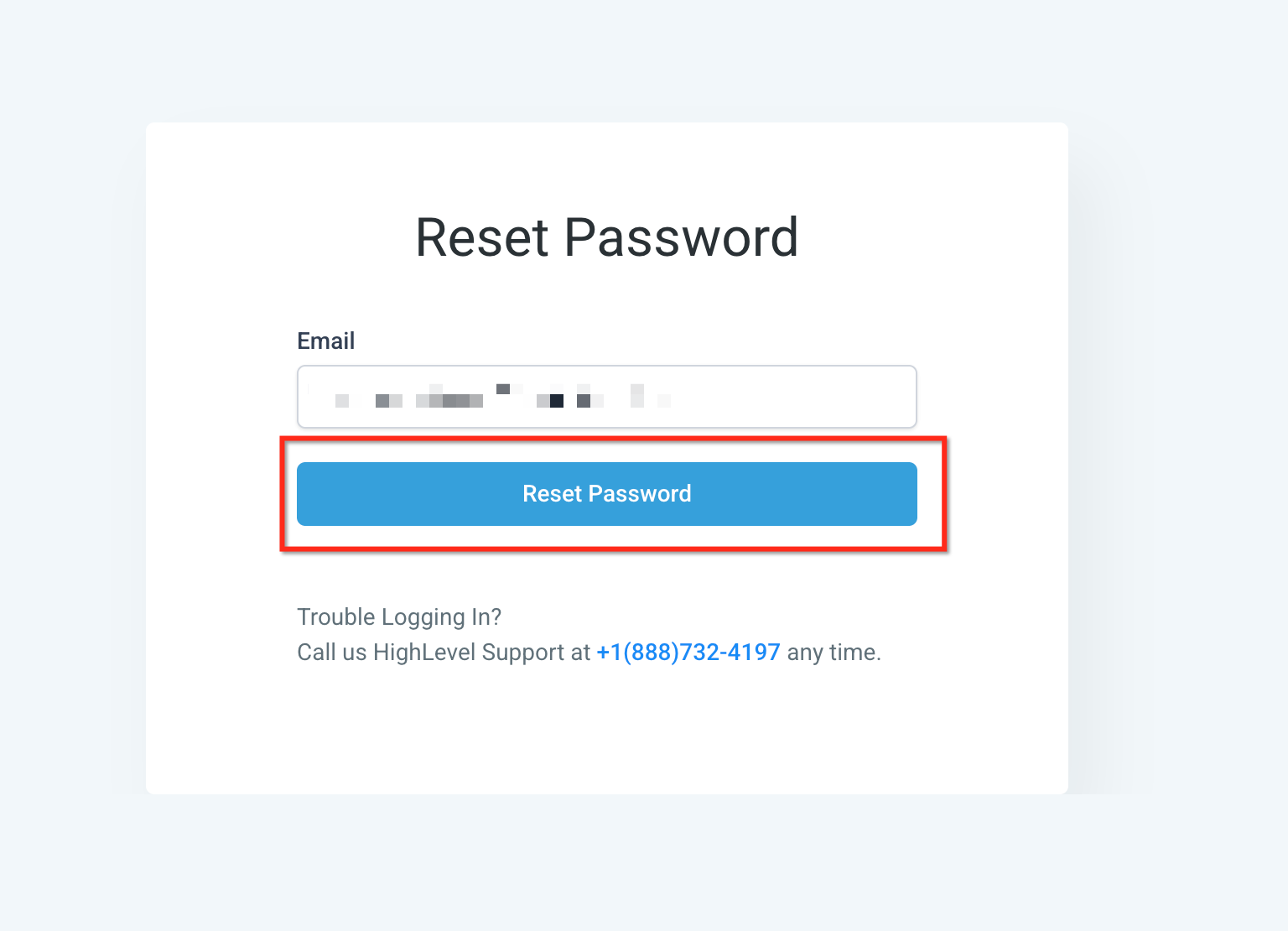
- Ecommerce store owner. If the store owner forgets the password, they open the login page, click "Forgot Password?", receive a reset email, and set a new password that follows the required composition before signing back in to manage product listings and customer orders.
- Consulting firm. A consultant who suspects their credentials may be compromised opens Settings > My Profile, enters the current password, creates a fresh password that satisfies all requirements, and saves the change, thereby refreshing access for all client projects.
04The numbers and rules that matter
- Password must contain at least 12 characters.
- Password must include special characters such as., @, #, or $.
- Compliance notification banner required password update before September 9, 2026.
05Before you start
- Access to the account activation email that contains the setup link.
- A valid email address associated with the HighLevel user profile to receive reset instructions.
- Being signed in to the platform when updating the password from My Profile.
06How to set up and use the password best practices in HighLevel
Set up a password for the first time
- Open the activation email that was sent to the user’s inbox.
- Click the account setup link or button inside the email.
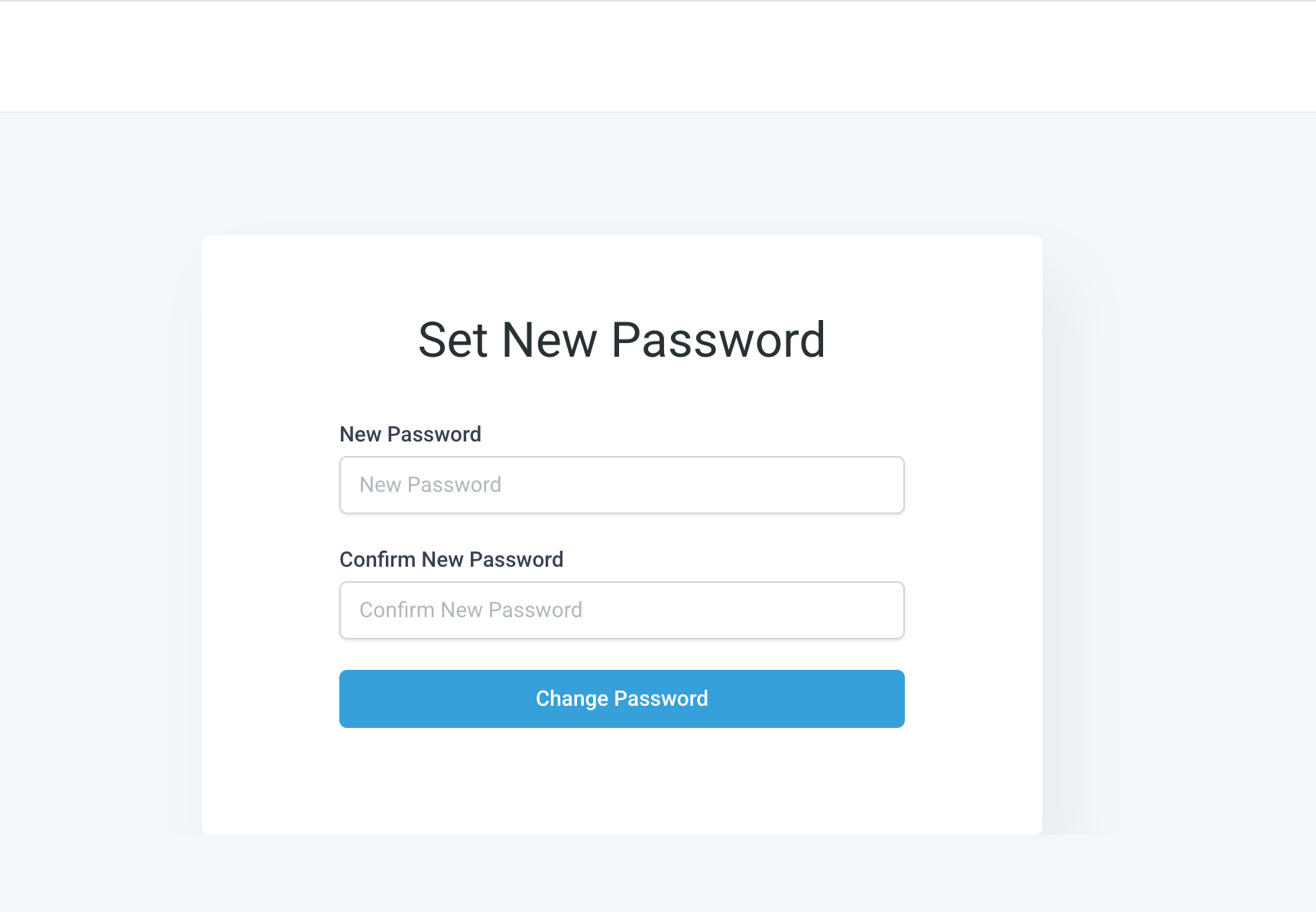
- Enter a new password that includes at least twelve characters, uppercase and lowercase letters, a number and a special character.
- Re enter the same password in the confirmation field.
- Select the Change Password button to finish the setup and then sign in with the new credentials.
Reset a forgotten password
- Navigate to the HighLevel login page and choose the Forgot Password? option.
- Provide the email address linked to the HighLevel account and submit the request.
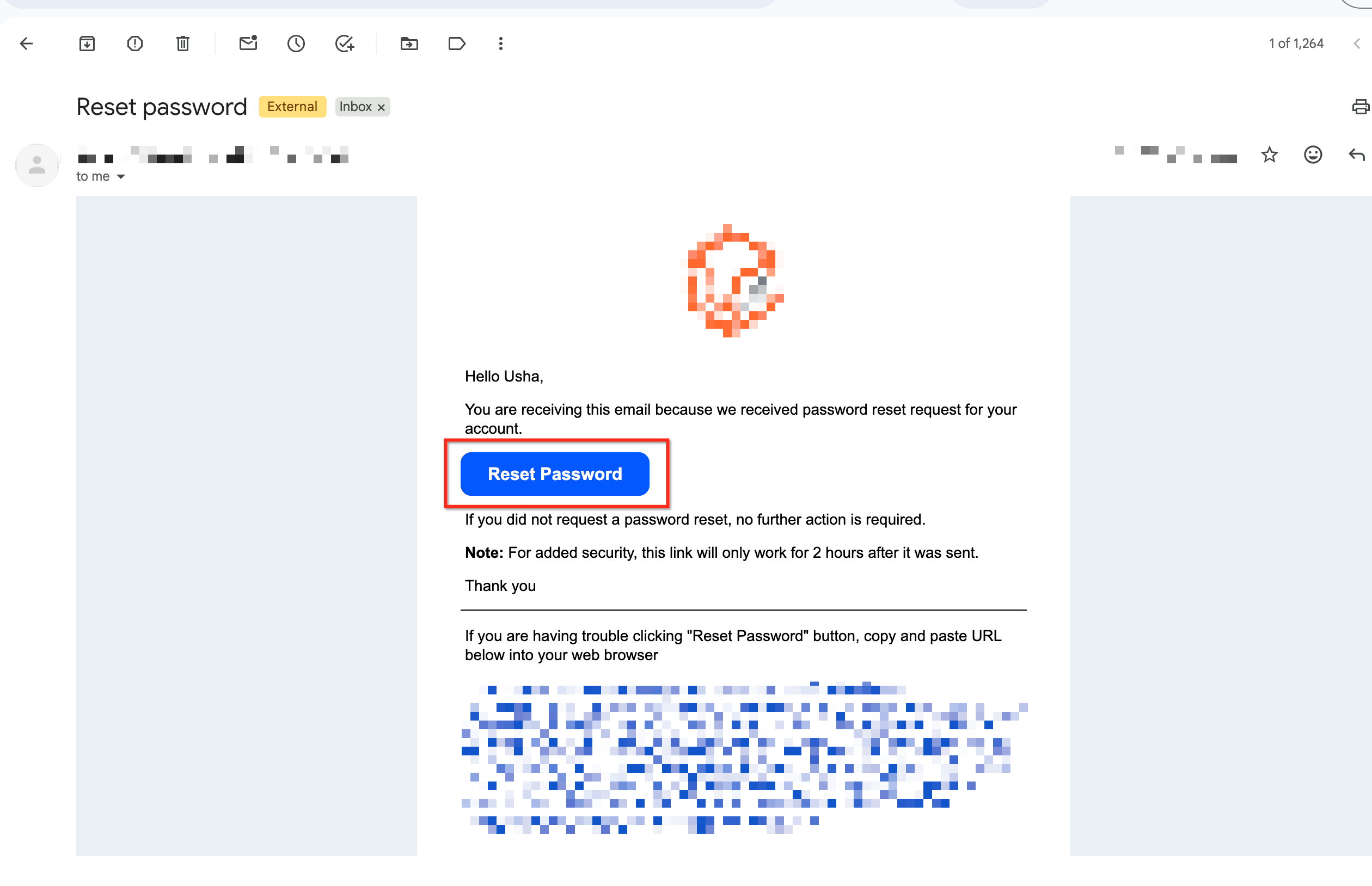
- Open the inbox for that address, locate the reset email, and click the reset link within it.
- Enter a new password that meets all HighLevel requirements and confirm it in the second field.
- Select Save, then return to the login screen and sign in using the newly created password.
Update the password while signed in
- Log in to HighLevel, go to Settings, and open My Profile.
- Find the Change Password section on the profile page.
- Type the current password in the designated field.
- Enter a new password that follows the required rules and repeat it in the confirmation field.
- Click Update Password and reauthenticate with the new password when prompted.
07What it looks like in HighLevel
08Settings that matter
- Change Password. Controls the submission of a new password that replaces the current native HighLevel password.
- Two, factor authentication. Adds a time based one time password requirement to the login process for additional account protection.
09Things to know before you rely on it
- Passwords must contain at least twelve characters, mix of upper and lower case letters, at least one number and one special symbol.
- The native password rules apply only to accounts that sign in directly with an email and password; SSO or external providers manage passwords elsewhere.
- Updating the password may end active sessions, requiring the user to sign in again.
10If something goes wrong
- Reset email does not arrive. Check spam, junk, promotions or filtered folders; verify the email address entered matches the user profile; search for any HighLevel messages; wait a few minutes; submit a new reset request and use the latest email; ask the agency administrator to confirm the login email on the profile.
11How it connects to the rest of HighLevel
- Manage user roles and email security for better access control User access settings
- Set up two factor authentication to strengthen login security Two factor authentication guide
- Review agency role permissions that affect password management Role management
Michael's take

Password best practices are a cheap but essential safeguard for any small business using HighLevel. A strong, unique password combined with two factor authentication makes automated guessing more difficult and helps protect client data.
Avoid the mistake of reusing passwords across different services.