
01Who this is for
- Agency administrators who need to monitor multiple subaccount subscriptions can quickly spot billing statuses and purchase origins.
02AI Employee & Email IP billing, explained
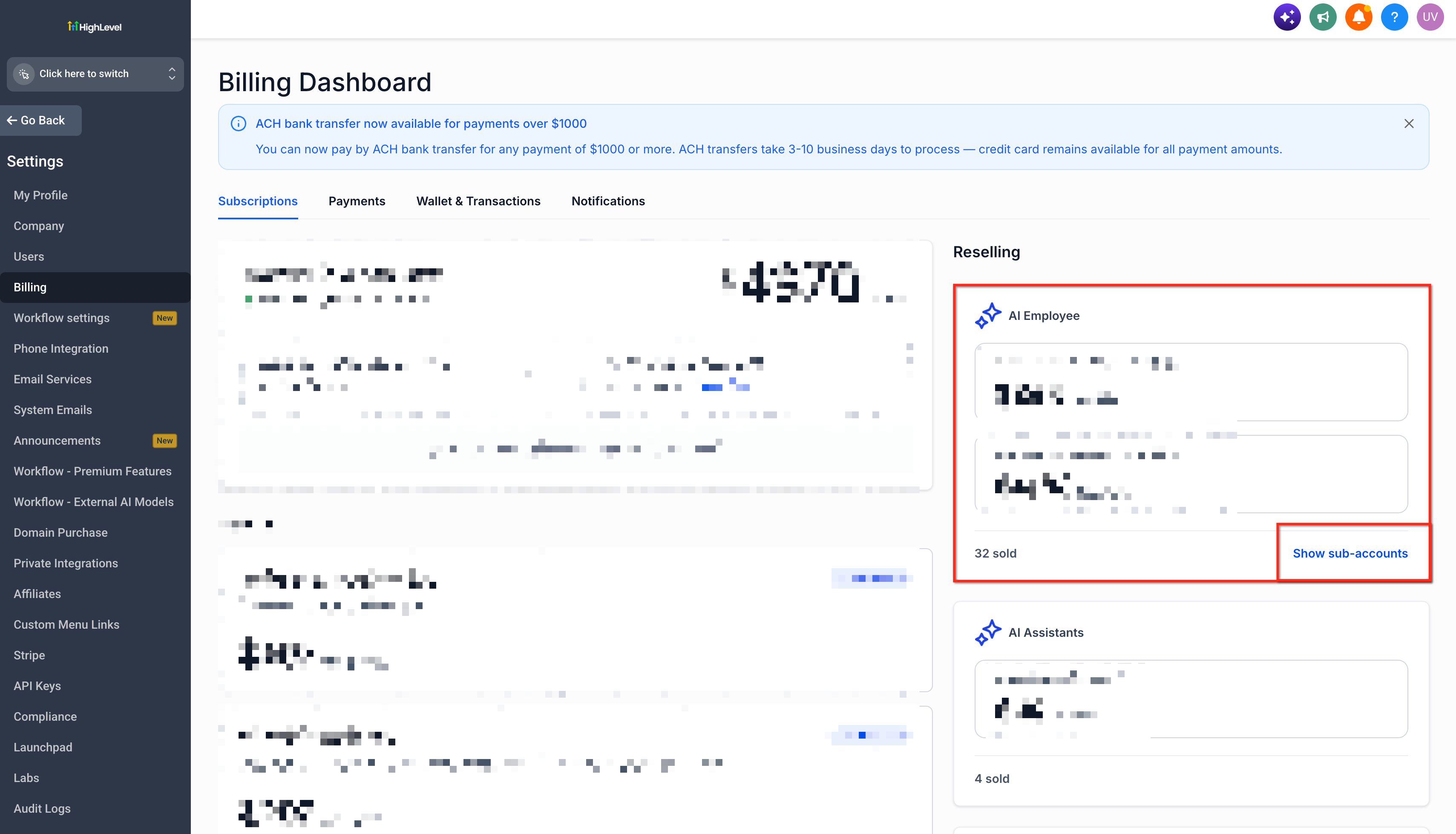
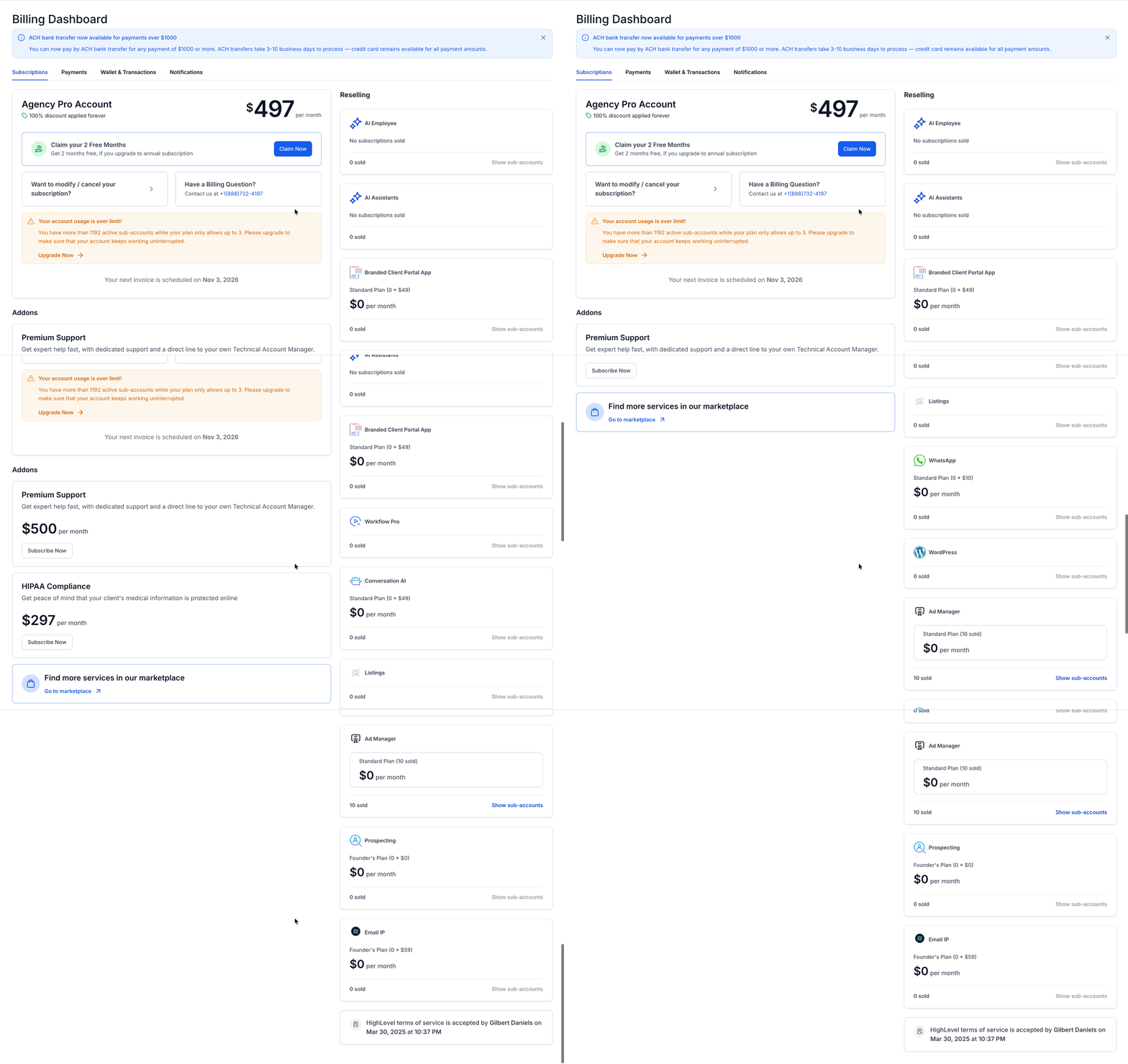
The billing card appears on the Agency Billing page and aggregates subscription records for AI Employee or Email IP. Each row represents a subaccount’s subscription and includes the plan name, how the purchase was made, the current status, the billing frequency and the purchase date. The card does not need any extra configuration; it is shown automatically when the product is active.
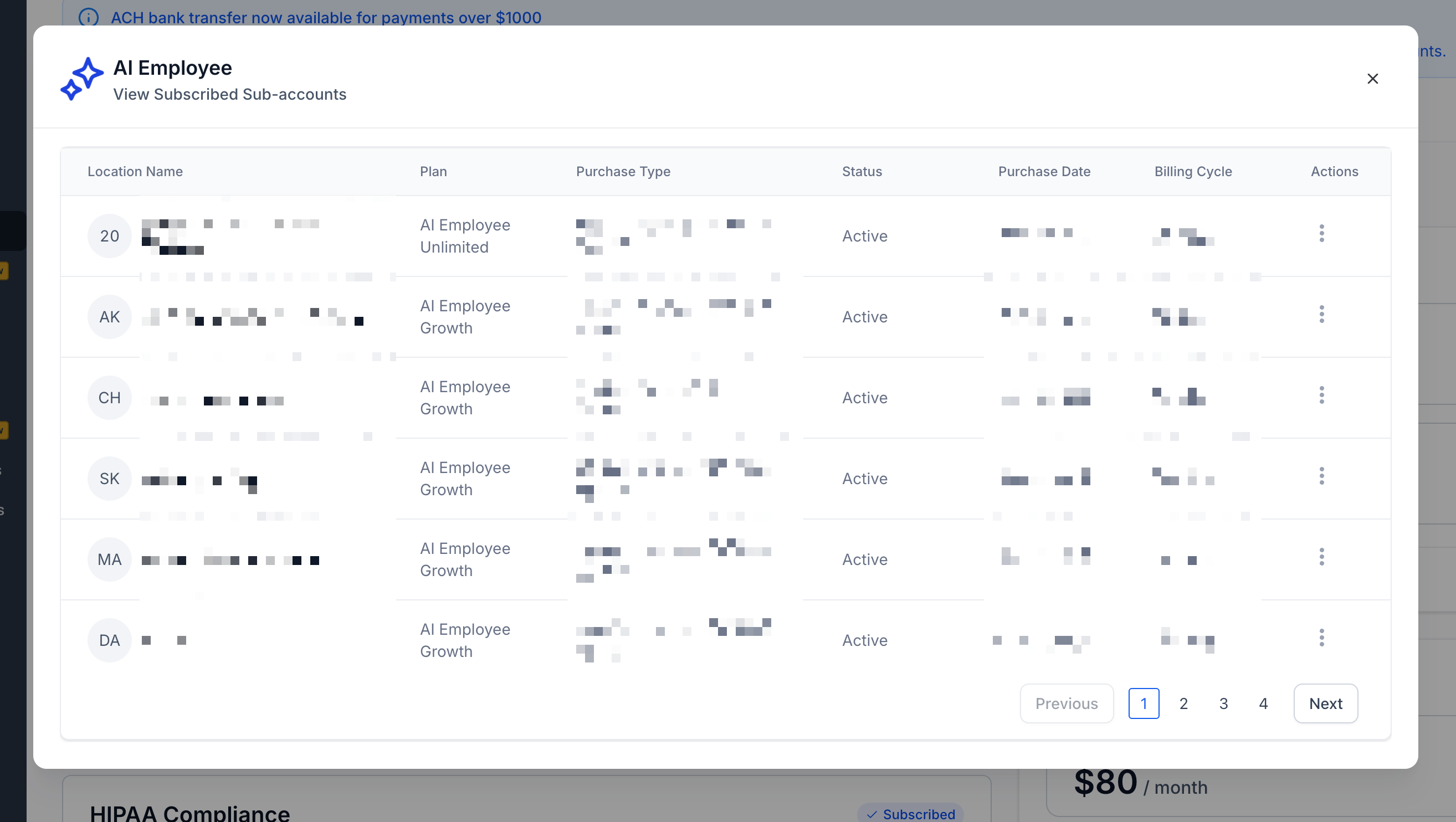
The card offers a "Show Subaccounts" button that expands the view into a table. If many subaccounts are subscribed, pagination controls appear at the bottom of the table so you can move through the list in manageable groups. The information displayed reflects the exact data stored in HighLevel for each subscription.
03How businesses use AI Employee & Email IP billing
- Digital marketing agency. The agency opens Settings > Billing, finds the AI Employee card, and clicks Show Subaccounts. In the table, the team checks the Purchase Type column to see whether each client bought the add on directly or through the agency’s SaaS bundle.
- SaaS reseller. The reseller accesses the card, scrolls to the bottom, and uses pagination to audit all location level purchases, ensuring the agency level purchase records match the reseller’s inventory.
- Billing admin. The admin navigates to the Email IP card, expands the subaccount list, and reviews the Billing Cycle column to confirm monthly versus yearly billing for each dedicated IP subscription.
04The numbers and rules that matter
- Subscription details include Plan, Purchase Type, Status, Billing Cycle, Purchase Date.
05Before you start
- You must have agency admin access to open Agency View and reach Settings > Billing.
- The AI Employee or Email IP product must be active on the agency account.
06How to set up and use AI Employee & Email IP billing in HighLevel
View billing card for AI Employee & Email IP
- Open Agency View and click Settings.
- Select Billing from the Settings menu.
- Locate the AI Employee or Email IP subscription card in the Billing area.
- Click the Show Subaccounts button on the card.
- Read the table columns for plan, purchase type, status, billing cycle and purchase date.
- Scroll to the bottom of the list if more records are present.
- Use the pagination controls to view additional subscription records.
07What it looks like in HighLevel
08Settings that matter
- Show Subaccounts. When selected on a supported agency billing card, it expands the view to list location level subscription details for that product.
09Things to know before you rely on it
- The card appears only for AI Employee and Email IP products that are enabled on the agency account.
- Purchase Type values may differ between products and depend on account configuration.
- Pagination is available only when the number of subscription records exceeds the page limit.
10How it connects to the rest of HighLevel
- General billing questions for agencies Billing FAQ
- HighLevel pricing and plans overview Pricing
- Founder Plan upgrade and subaccount controls Founder Plan
- Agency company settings for branding and AI tools Agency Settings
Michael's take

The AI Employee & Email IP billing card pulls every subscription into one place, so you can see who is paying for AI tools or dedicated sending IPs and how those costs flow through your agency.
Don’t overlook the purchase type column. It tells you who actually owes the money.